Summary :
Can you create a fillable PDF in Google Docs? Basically, no. Google Docs doesn’t provide built-in functions for active forms, but you can create a layout and use some third-party tools to add fields for free. Alternatively, you can install the Google Docs add-on, Fillable Document, to turn Google Docs into fillable forms. For details about how to make a fillable PDF in Google Docs, read this article and fill out your fillable PDF with JOPDF.
Can You Make a Fillable PDF Directly in Google Docs?
No, Google Docs does not provide native PDF form-field creation tools. Although you can insert checklists, dropdown chips, tables, and blank spaces into a document, these elements do not automatically become interactive PDF fields when you export the file.
To understand the difference, consider two types of PDF forms:
- Static PDF form: Looks like a traditional paper form, with blank lines, boxes, and spaces where users can write their answers. Users may need to print it or use a PDF editor to enter information.
- Interactive fillable PDF: Contains actual form fields that users can click to enter text, select options, check boxes, and sometimes add signatures without changing the original layout.
There are two methods to create a fillable PDF in Google Docs.
- If you only need a Google Doc form that people can print and complete by hand, Google Docs is sufficient.
- If you need a PDF that users can complete digitally, use a PDF editor with dedicated form-field creation tools.
Also Read: Discover How to Make a Fillable PDF in Word [Detailed Guide]
Method 1: Create a Form Layout with Google Docs
How to make a fillable PDF in Google Docs? First, you should prepare a form layout in Google Docs. A well-organized form makes it easier to add interactive fields later and helps recipients understand what information they need to provide.
Step 1: Create a New Google Docs Document
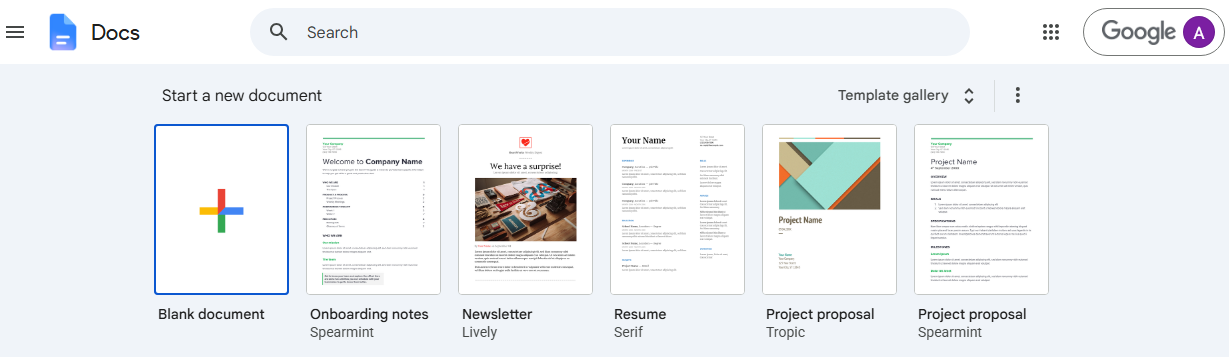
Go to Google Docs and sign in to your Google account. You can click Blank document to create a new one. Alternatively, you can choose an existing Google Docs form template if you are making a common layout, such as an application, registration form, or questionnaire.
Step 2: Add the Form Titles and Instructions
To create a PDF form, you can add a clear title at the top of the document and then include a short explanation of the Google Docs form’s purpose and any instructions below the title.
You can also add basic information such as:
- Form completion deadline
- Required documents
- Contact information
- Instructions for submitting the completed form
Step 3: Organize the Form with Tables
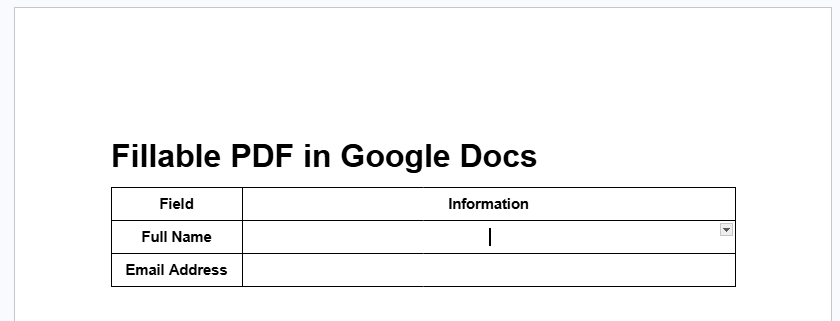
Tables are one of the easiest ways to organize a form in Google Docs.
- Click Insert from the top menu bar and select Table.
- Choose the number of rows and columns you need.
- Then type the table content and leave blank cells where recipients will provide their answers.
Step 4: Add Checkboxes and Selection Options
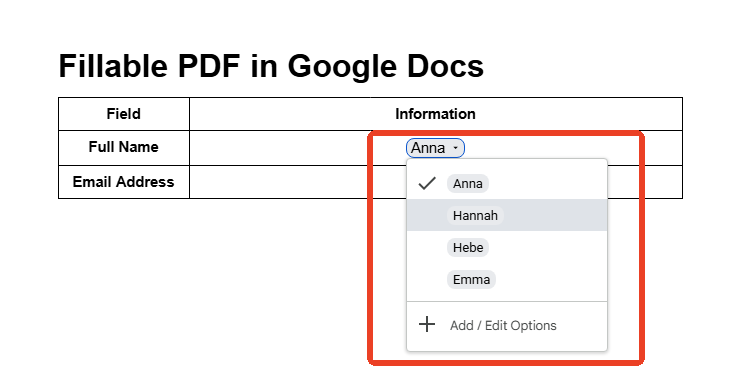
If your form includes multiple-choice questions, you can add visual checkboxes or dropdown options in your Google Docs form. For checkboxes, use the checklist feature or insert an empty checkbox symbol.
Locate the place where you want to insert a dropdown menu and click Insert > Smart chips > Dropdown. Then choose to create a new dropdown and set the template name and all options.
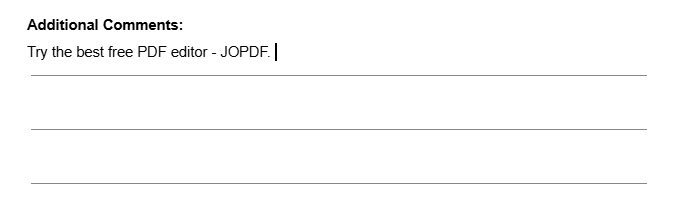
Step 5: Add Blank Spaces for Written Answers
Some fillable PDFs require longer responses, such as comments, explanations, or additional information. You can create blank spaces using tables or underscore lines.
You can choose the Horizontal line function in the Insert menu. You can get an input section.
Step 6: Convert Google Docs to PDF
Before exporting the document, review its overall layout. Once everything looks correct, your Google Docs form is ready to be exported. To convert Google Docs to PDF, follow these instructions:
Click File > Download > PDF Document (.pdf) and then it’ll automatically download the Google Docs form as a PDF. Note that it is a static document. The blank lines and visual checkboxes are not actual interactive PDF form fields.
If you want recipients to enter information directly into the PDF, continue with one of the following methods.
Also See: Fillable PDF Not Working? Common Causes and 7 Proven Fixes (2026 Guide)
Method 2: Use “Fillable Document” Google Docs Add-ons
Google Workspace Marketplace has an add-on called “Fillable Document” that can turn Google Docs directly into live fillable forms and output them as PDFs. The basic feature is free, and advanced features require a paid subscription.
If you don’t mind using an add-on, install “Fillable Document” from the Google Workspace Marketplace. And go to Extensions > Fillable Document > Start. You need to authorize the process. Then you can follow the guide to add active elements to your fillable Google Docs.
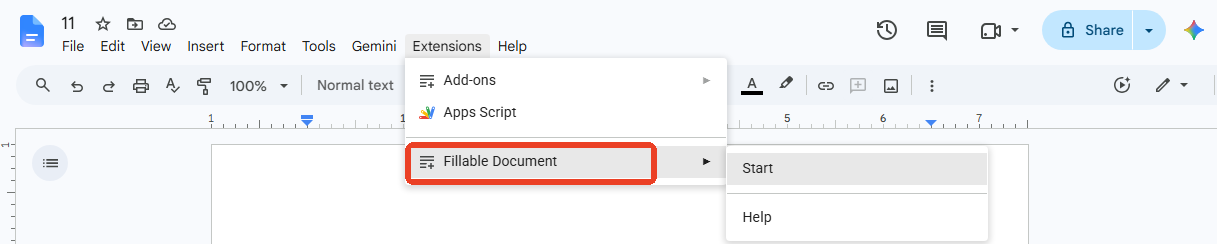
After you make this fillable PDF in Google Docs, you can export it the same way.
How to Type on a Fillable PDF?
If you have already exported your Google Docs form, you may also need to add text, mark checkboxes, sign the document, or make other adjustments before sharing it.
JOPDF is a desktop PDF form filler that can smartly detect all the interactive form fields and highlight them for you. No matter whether the form PDF is static or interactive, JOPDF can handle both. You can change or add new content to your Google Docs fillable PDF or fill out the PDF form.
Step 1: Download and install JOPDF and launch it.
Step 2: Open the PDF form downloaded from Google Docs, and JOPDF will automatically highlight the interactive fields.
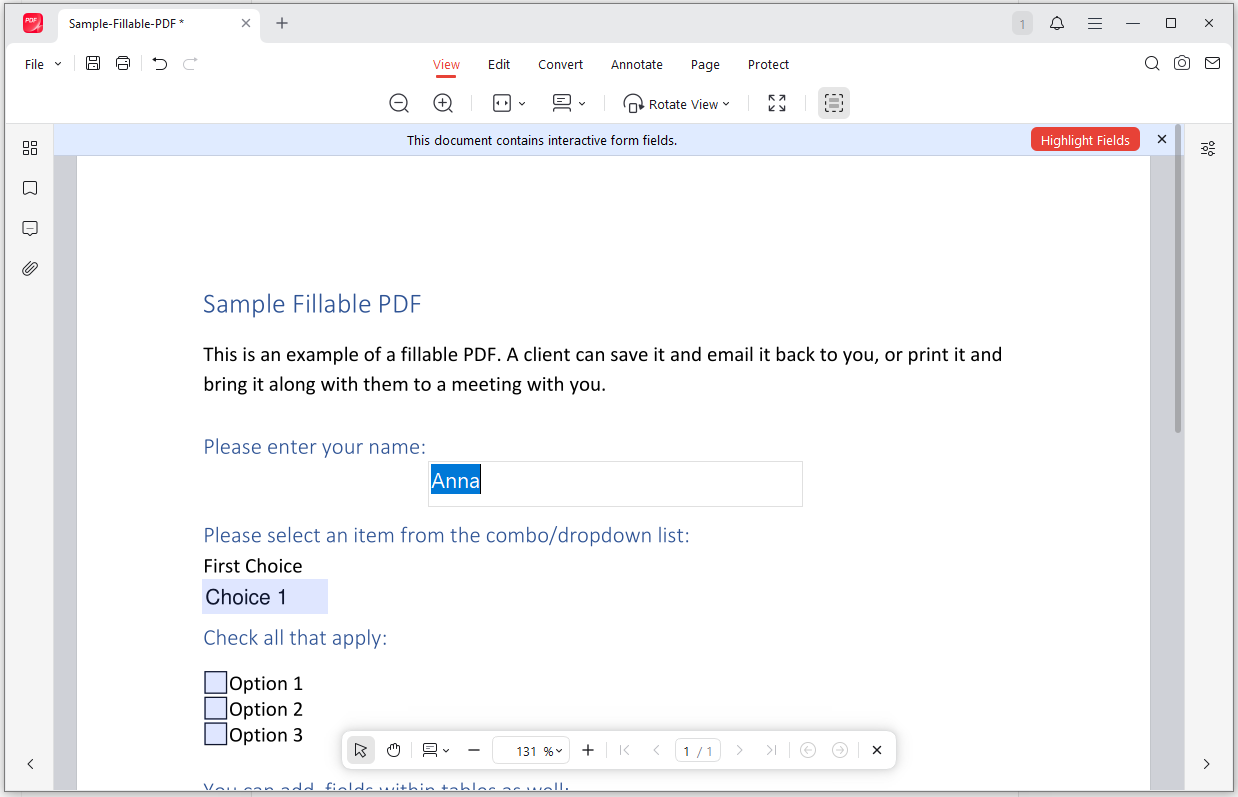
Step 3: Click on the highlighted parts and type in them.
If the PDF form is static, switch to the Edit tab, locate the place you want to fill in, and you can directly add text or change the PDF form.
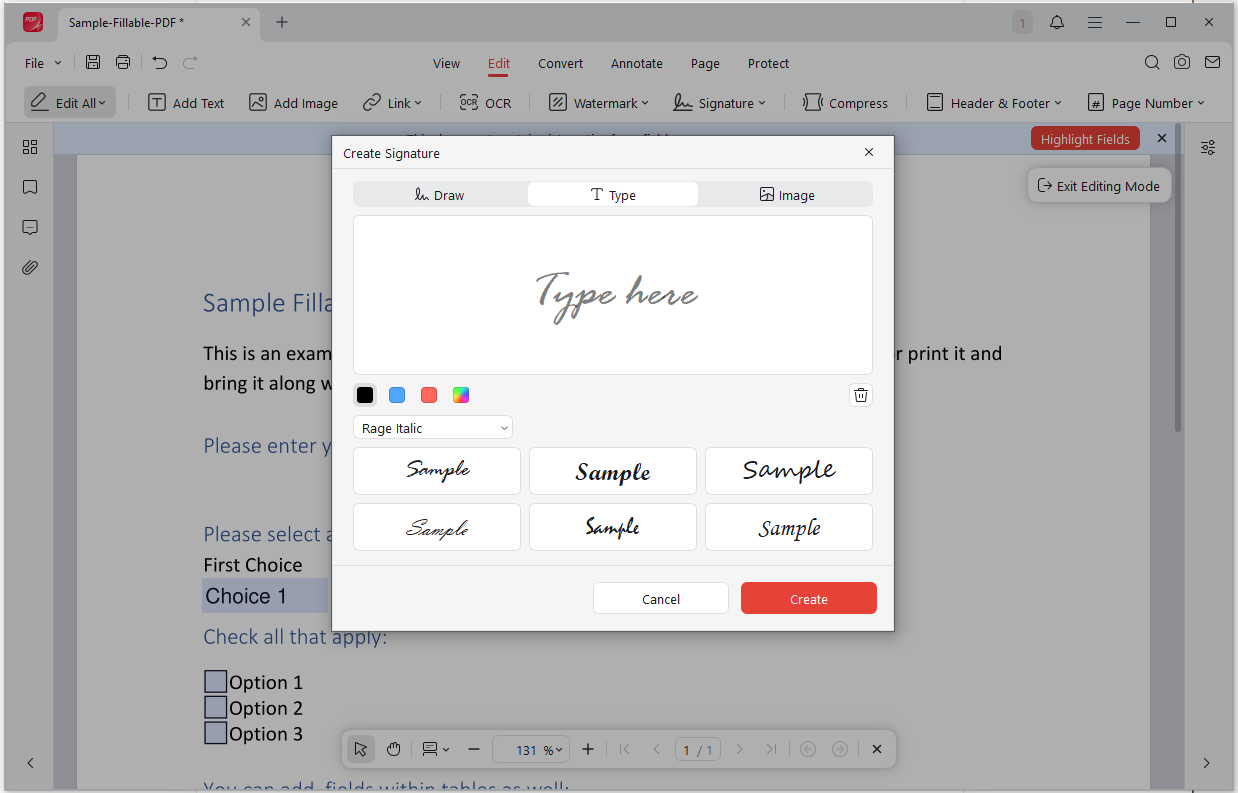
To add a signature, if necessary, you can use the available signature tools in JOPDF. Just click the Signature option in the Edit tab and choose Create New.
Here, you can draw, type, or upload an image to create a new signature for your fillable PDF.
Can You Create a Fillable Form with Google Forms Instead?
Yes, if your main goal is collecting information online rather than distributing an interactive PDF, Google Forms may be a more convenient option.
Google Forms is designed specifically for creating digital questionnaires, surveys, registration forms, and feedback forms.
Unlike Google Docs, it provides dedicated question types and a response-collection system.
How to Create a Form in Google Forms?
Step 1: Visit Google Forms and click Blank Form to create a new form.
Step 2: Enter a title and description, and then you can set the questions and available options. For more settings, click the Multiple choice dropdown menu and choose which way you want the respondents answer.
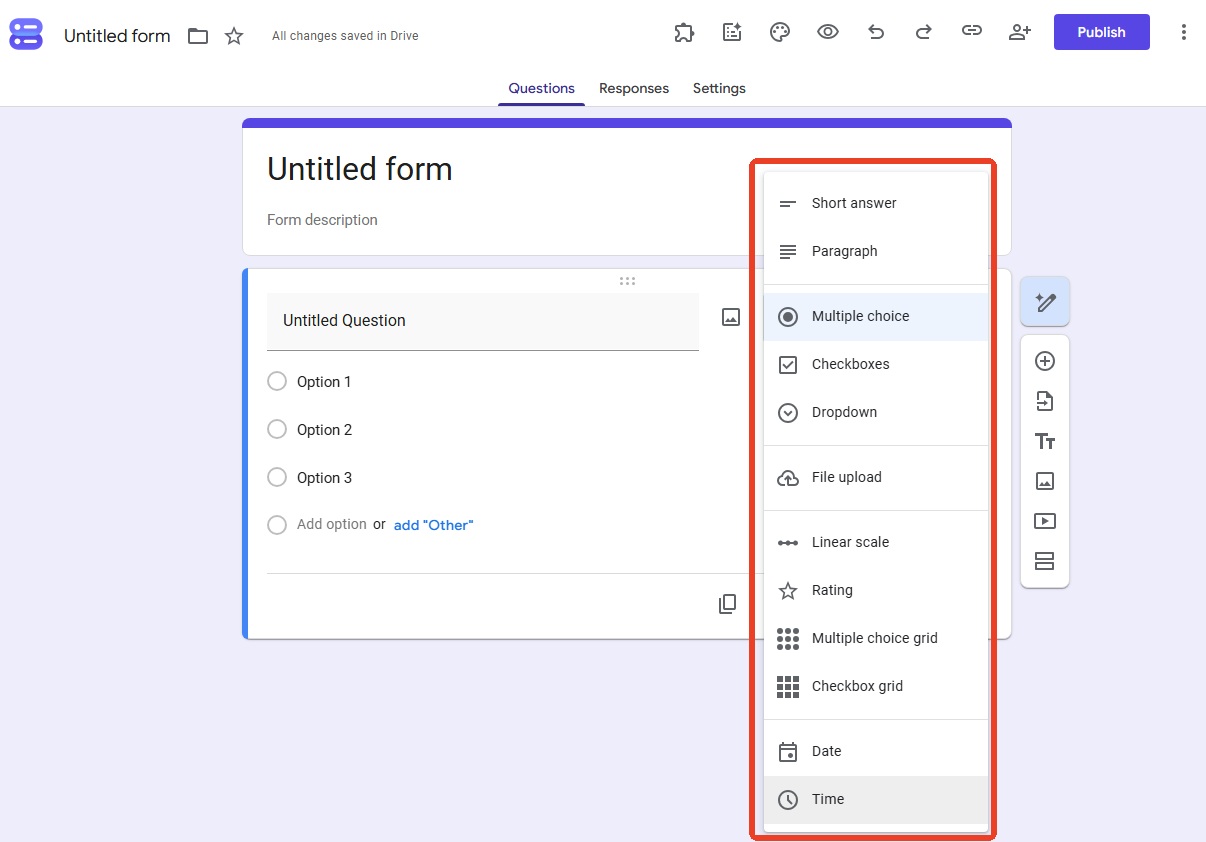
Step 3: Click the plus icon to add questions and select the appropriate question type. Still, you need to set the answer choices or response instructions.
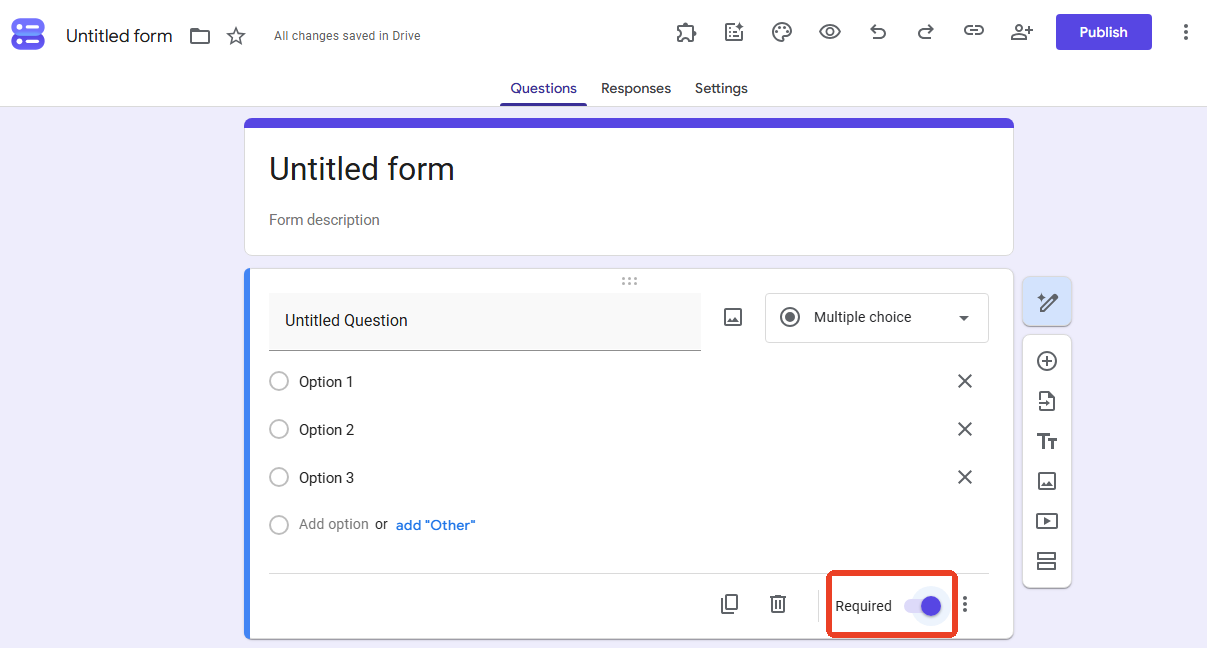
Step 4: Enable Required for questions that must be answered.
Step 5: Click Publish and choose the responders to send.
Conclusion
Creating a form in Google Docs is a straightforward way to organize questions, input areas, and instructions. However, exporting the document as a PDF does not automatically make it interactive.
If you only need a printable form, Google Docs provides everything necessary to design and export it. For online surveys and response collection, Google Forms is another practical alternative. For PDF form filling, editing, and annotating, tools such as JOPDF can also help simplify your document workflow.
FAQs
Table of Contents

Your Best Free PDF Expert in PDF editing, compressing, converting, annotating, protect, organizing, and more.
Free DownloadWindows · macOS · Linux

Anna
Editor
“Anna, Editor-in-Chief and PDF expert, delivers deep insights into PDF document technology trends. She is dedicated to helping readers optimize their digital lives. When not writing, Anna loves exploring local cafes and reading, blending her technical expertise with a love for storytelling.”