How to edit a PDF form? There are many tools to help you edit a fillable PDF. You can use PDF form editor to fill out or edit existing fields, add new form fields, or edit static text content. Now, let’s see which tool and method is best for you, from using JOPDF‘s dedicated form editor to converting your PDF into Word. We’ll help you choose the right approach for every scenario.
Summary :
What Is a PDF Form?
A PDF form is a PDF document that contains interactive fields designed to collect information from users. Unlike a static PDF, which is essentially a digital printout, a PDF form lets recipients type into text boxes, check checkboxes, select options from dropdown menus, and sometimes even add digital signatures.
Types of PDF Forms
Before showing you how to edit a PDF form, let’s quickly categorize the types of PDF forms you might encounter:
| Type | Description | Editable? |
| Fillable PDF Form | Contains interactive fields created with a PDF editor | Yes, fields can be filled, modified, added, or removed |
| Static PDF Form | A form that was designed but not made interactive | Only editable with a full PDF editor or OCR |
| Scanned PDF Form | A paper form that was scanned into a digital image | Requires OCR to become editable |
| Hybrid Form | Mix of static elements and interactive fields | Editable with limitations |
Understanding which type you’re dealing with will help you choose the right PDF form editing method.
Method 1: Edit a Fillable PDF Form with JOPDF
The simplest way to edit a PDF form is to use JOPDF, a 100% free, offline PDF editor for Windows, Mac, and Linux. It offers a clean interface that makes filling out forms easy, and it can also edit text directly like a Word document.
Whether you need to modify existing fields, add new ones, change text content, or insert a signature field, JOPDF PDF form filler covers all bases without the high cost of Adobe Acrobat.
JOPDF includes several features that make it ideal for editing a PDF form:
- Fill PDF forms: Type text into any fillable field, check boxes, and select options from dropdown menus.
- Edit text directly: If you need to change text in the form itself, you can click on it and edit it like a Word document.
- Add text boxes: If a form is not fillable, you can use the Add Text tool to insert text anywhere.
- Add signatures: Create and place digital signatures on PDF forms.
- Works offline: Your files stay on your device – no uploads, no privacy risks.
How to Edit a PDF Form with JOPDF? Follow these steps to edit a PDF form using JOPDF:
Step 1: Download and launch JOPDF on your computer.
Step 2: Open your PDF form by clicking Open PDF to choose it.
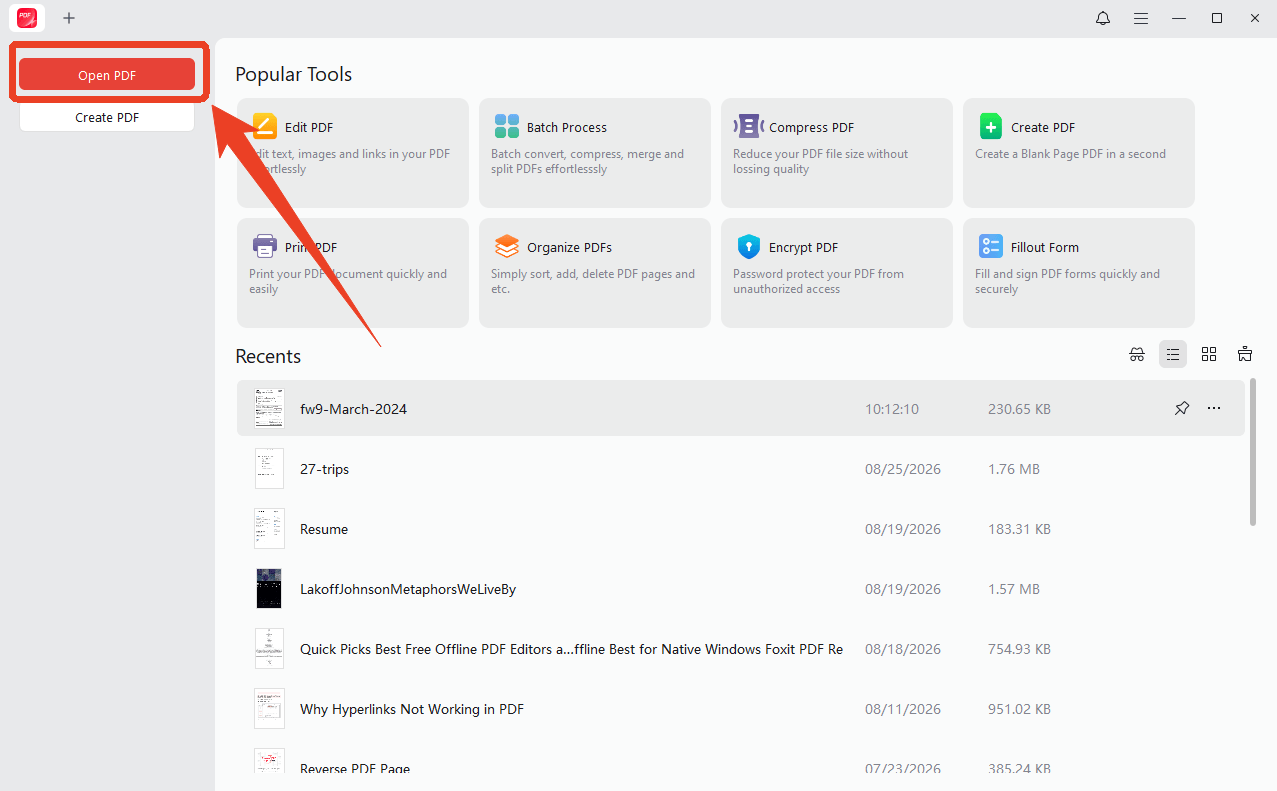
Step 3: If the form is fillable, JOPDF’s Fill Out Form feature will automatically detect the interactive fields and highlight them. Click on any field and enter your information.
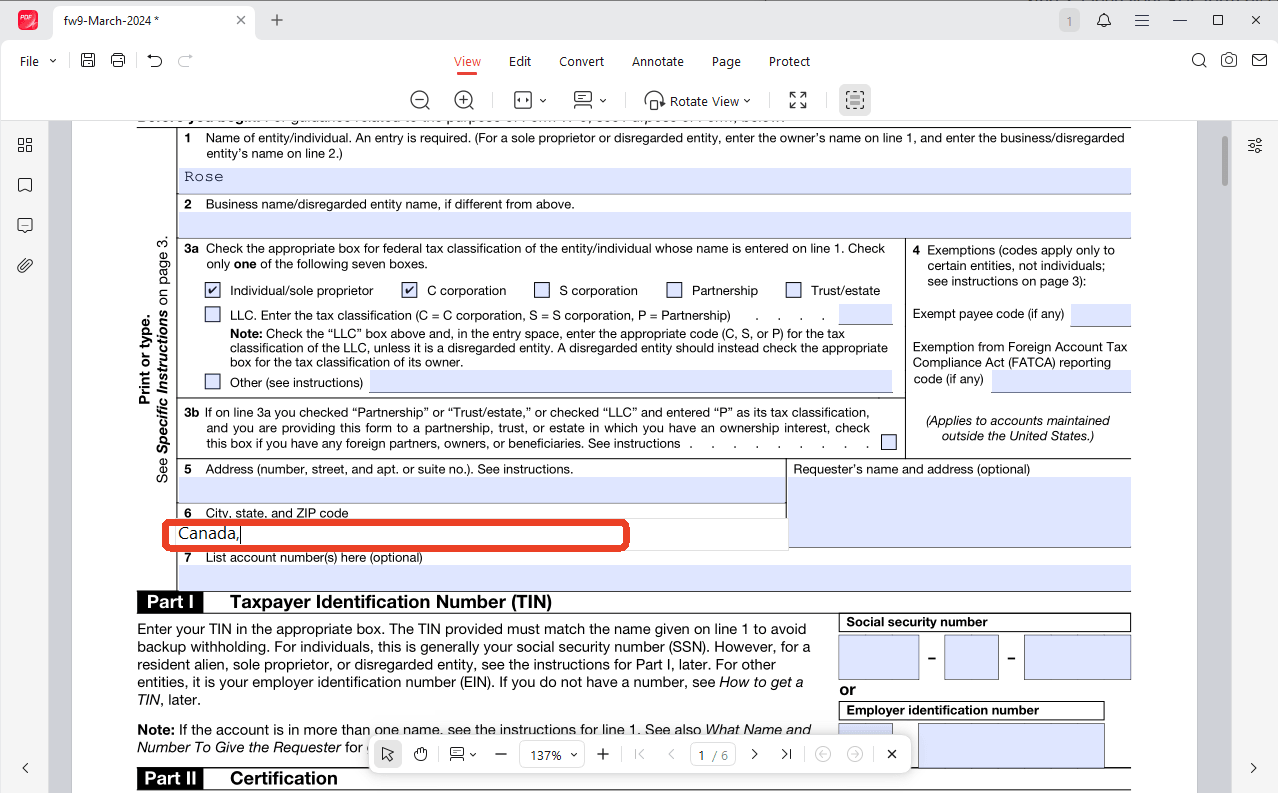
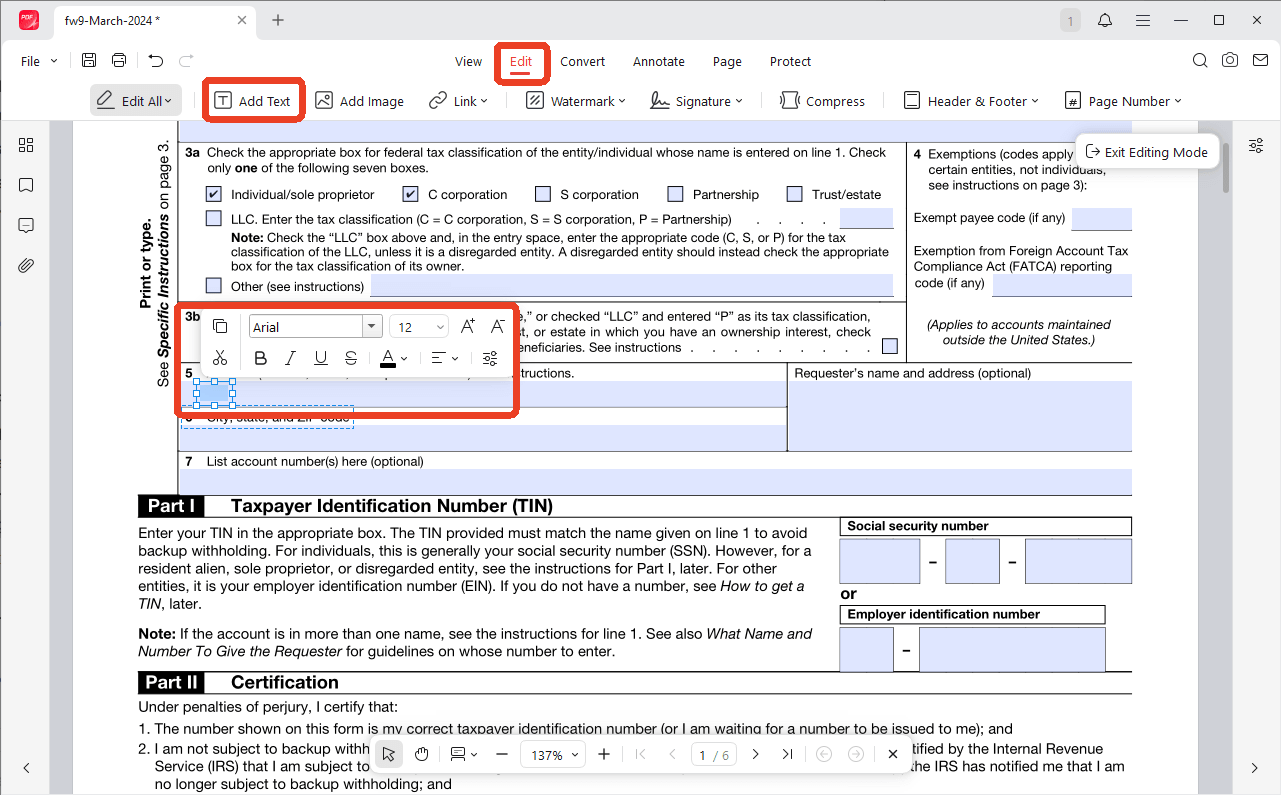
Step 4: If the form is not fillable, go to the Edit tab, click Add Text, and click on the page to start typing.
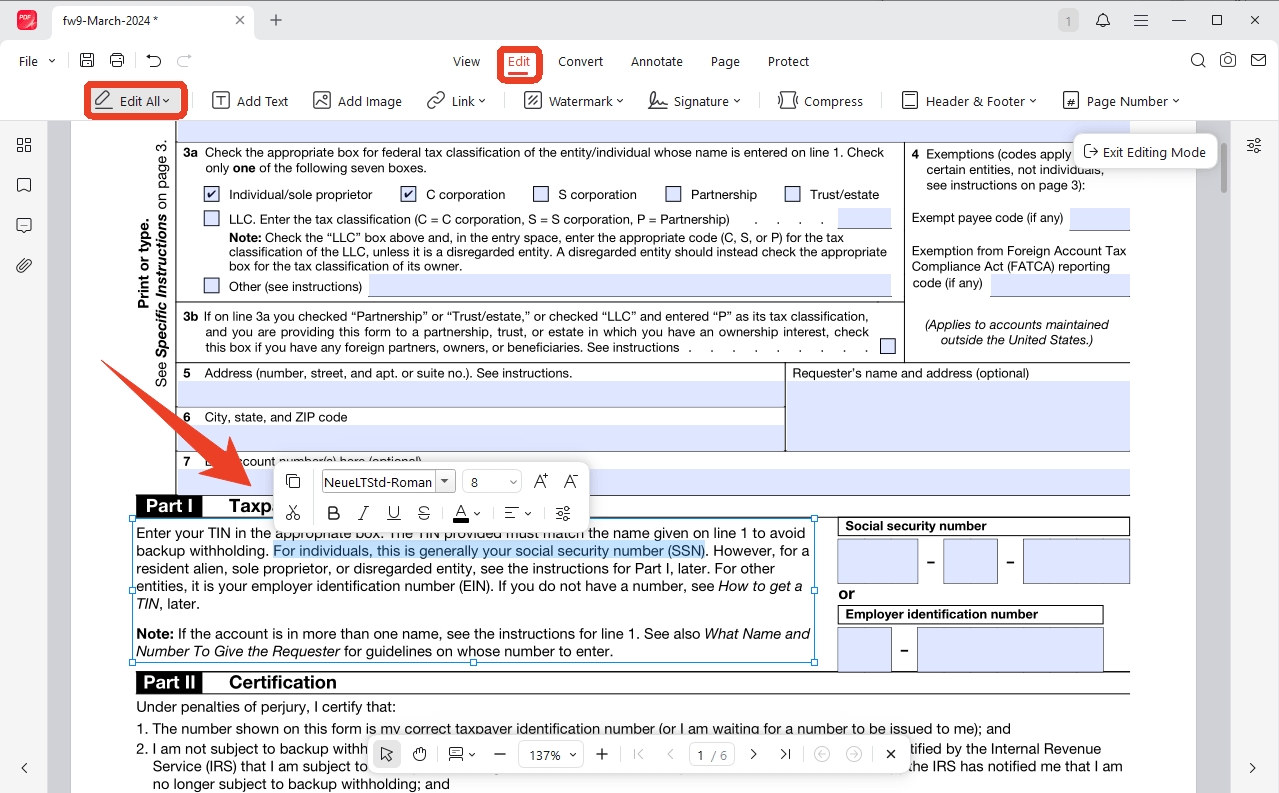
Step 5: If you want to edit existing text in that PDF form, go to the Edit tab, select the text you want to modify, and make your changes. You can adjust font, size, color, and alignment.
Once you’ve made all your changes, download the edited PDF form. JOPDF preserves all interactive functionality, so your form remains fillable for future users.
More JOPDF articles to help you with dealing wih fillable PDFs:
- How to Make a PDF Invoice: A Step-by-Step Guide for Beginners & Pros
- How to Lock a Fillable PDF: 3 Simple Methods for 2026
Method 2: Edit a PDF Form with Adobe Acrobat
How to edit a PDF form in Adobe Acrobat? Adobe Acrobat is the industry standard for PDF editing. It offers comprehensive tools for editing text and filling forms.
Pros
-
Industry-standard compatibility
-
Most advanced feature set
-
Robust form field validation options
Cons
-
Expensive subscription (around $20+/month)
-
Steep learning curve for beginners
-
Requires software installation
-
Heavy on system resources
How to Edit a Non-Fillable Form?
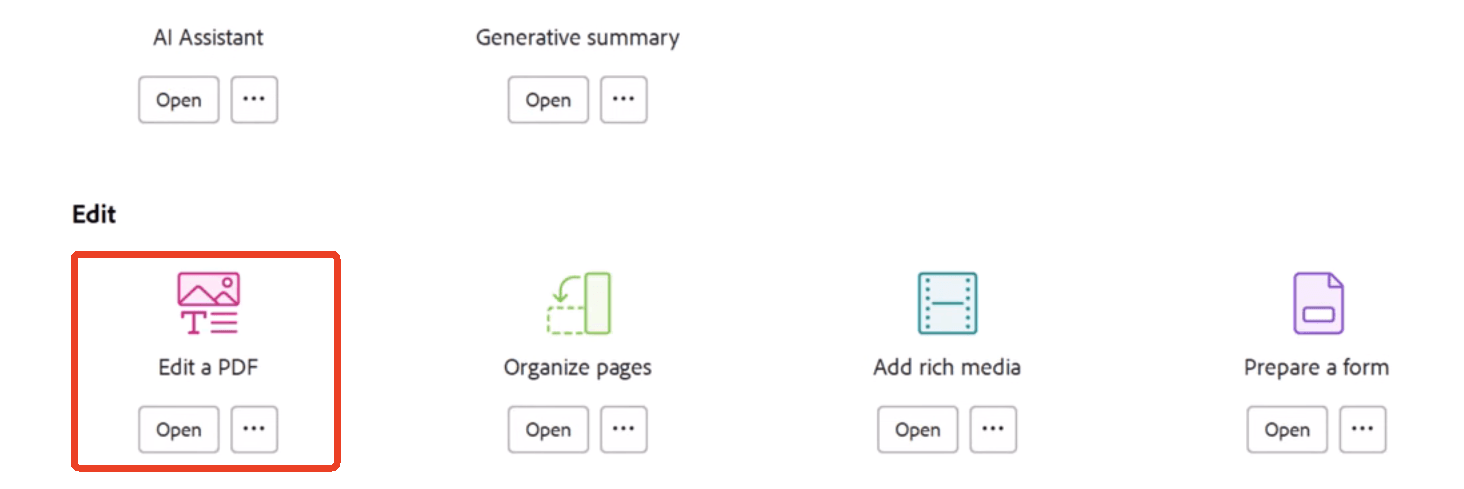
Step 1: Open your PDF in Adobe Acrobat and click Edit PDF from the Tools menu.
Step 2: Select text and make your changes.
Step 3: Save the file.
How to Edit a Fillable Form?
Step 1: Open your PDF form in Adobe Acrobat and click Tools > Fill & Sign.
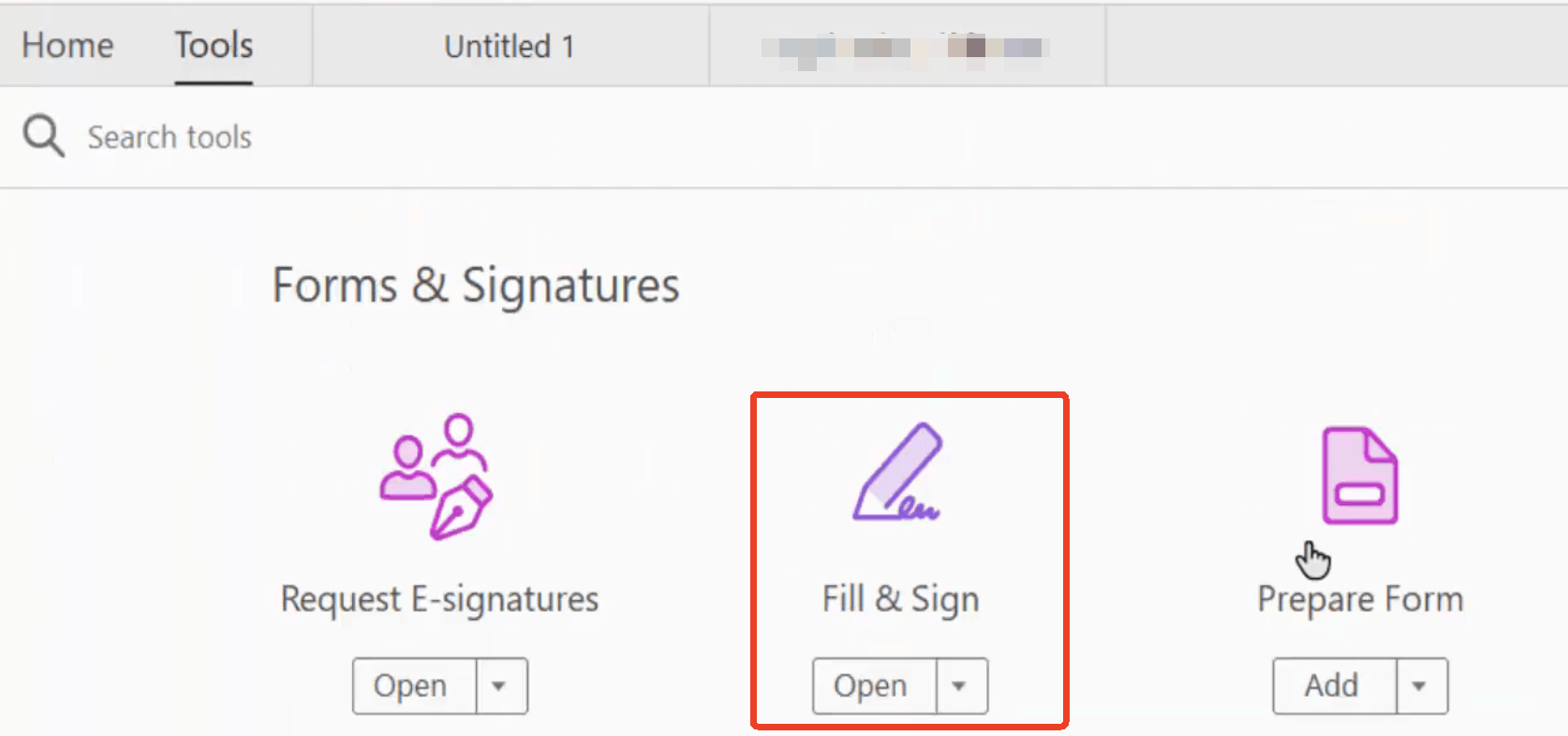
Step 2: Click on any form field and enter your information to edit PDF form.
Step 3: Use the Sign tool to add a signature and then save the file.
Step 4: Navigate to Tools > Prepare Form. Acrobat will automatically detect existing form fields and highlight them in blue.
Step 5: Adobe Acrobat allows you to edit exisiting fields, for example,
- Double-click any field to edit its properties.
- Change the field name, tooltip, and default value.
- Adjust appearance settings like font, size, and color.
- Drag to reposition or resize fields.
Step 6: Use the toolbar at the top to add new form elements:
- Text fields
- Checkboxes
- Radio buttons
- Dropdown menus
- List boxes
- Buttons
- Digital signature fields
Tips
Adobe Acrobat requires a subscription for full features. The free version of Acrobat Reader only allows filling out forms, not editing text.
Method 3: Use Online PDF Form Editors
If you don’t have a desktop editor, free online PDF form editors offer a quick solution. Several online tools claim to help you edit a PDF form for free. For example, PDFFiller offers a free online PDF form editor that is easy to use and no registration is required to edit PDF form files.
Pros
-
No installation required
-
Often free for basic use
-
Cross-platform compatibility
-
Accessible from any device
Cons
-
File size limits on free tiers
-
Privacy concerns (files uploaded to third-party servers)
-
Limited feature set compared to desktop software
-
Internet connection required
Step 1: Go to a free online PDF editor like pdfFiller.
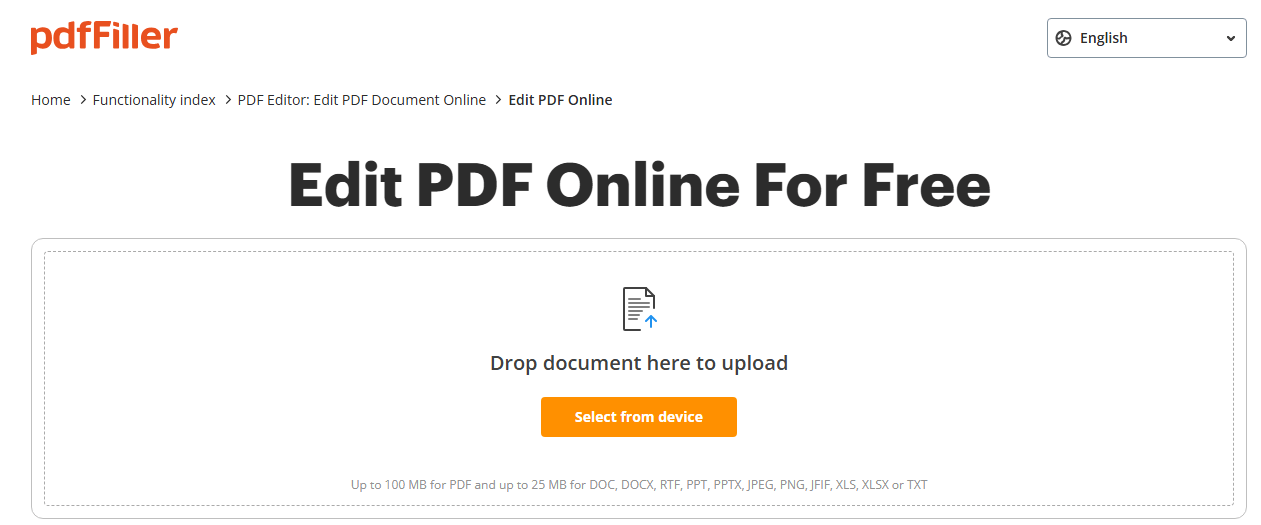
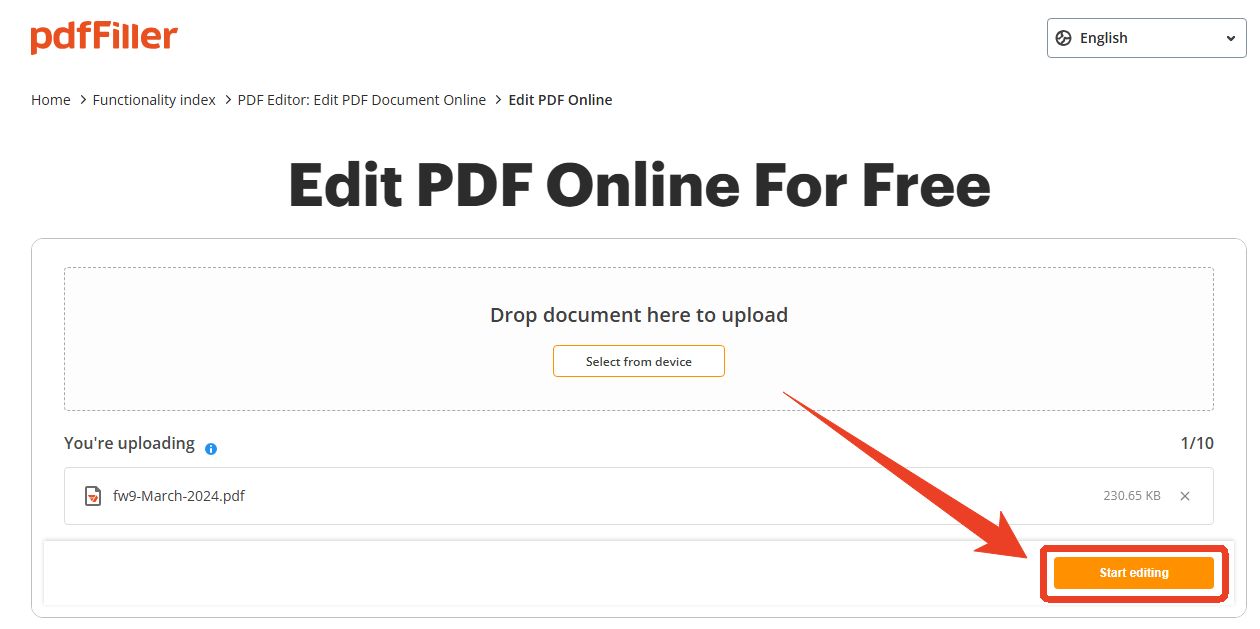
Step 2: Click Select from device to choose your PDF form file and click Start editing. Then PDFFiller will automatically analyze your upload and allow the PDF form editing.
Step 3: Make your changes in PDF form. You can add text, checkmarks, signatures, new form fields, or modify existing field properties.
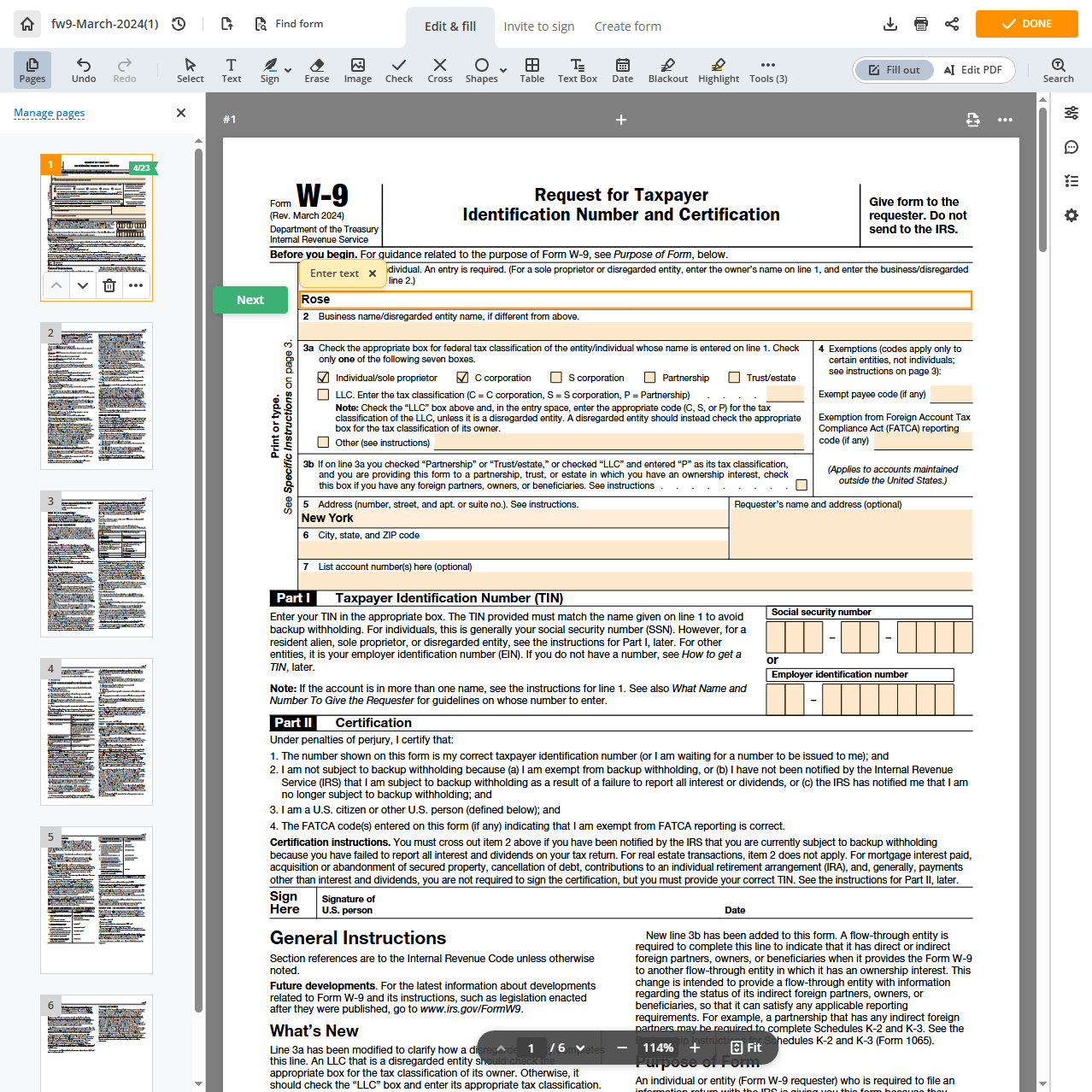
Step 4: Once done, download the edited PDF form to your device.
Conclusion
How to edit a PDF form? Thia article has answered this question and provided three useful methods. Whether you’re fixing a typo, adding a signature field, restructuring an entire form, or simply filling it out before sending, the right tool makes all the difference.
If you need to edit a fillable PDF form quickly and securely without paying for subscriptions, JOPDF is the best choice. It is free, easy to use, and works offline on all major platforms. Download it today and take full control of your PDF forms.
FAQs
If the form is not fillable (i.e., it's a static PDF), you have two options. First, you can use JOPDF's Add Text feature to type directly onto the form. Second, you can use the PDFFiller to add interactive fields, effectively converting it into a fillable form. For scanned forms, you'll need OCR first.
With JOPDF, go to the Edit tab, click Signature, and choose Create New. You can draw, type, or upload an image of your signature.
Yes. Using JOPDF or Adobe Acrobat, you can edit text directly in a PDF form. If the form is scanned, you will need OCR first.
The form may be a scanned image, or it was not created with fillable fields. You can use JOPDF's Add Text tool to insert text anywhere.
Table of Contents

Your Best Free PDF Expert in PDF editing, compressing, converting, annotating, protect, organizing, and more.
Free DownloadWindows · macOS · Linux

Anna
Editor
“Anna, Editor-in-Chief and PDF expert, delivers deep insights into PDF document technology trends. She is dedicated to helping readers optimize their digital lives. When not writing, Anna loves exploring local cafes and reading, blending her technical expertise with a love for storytelling.”
![Full Guide on How to OCR a PDF in Adobe Acrobat [Newest]](https://b.jopdf.com/wp-content/uploads/2026/10/how-to-ocr-a-pdf-in-adobe.png)