
![Full Guide on How to OCR a PDF in Adobe Acrobat [Newest]](https://b.jopdf.com/wp-content/uploads/2026/10/how-to-ocr-a-pdf-in-adobe.png)
Introduction :
Unlike text-based PDFs, you cannot search, select, copy, or edit scanned PDFs if you don’t have OCR. Adobe Acrobat is an industry-leading PDF editor that offers OCR to make PDFs searchable and editable. In this JOPDF guide, you’ll learn how to OCR a PDF in Adobe Acrobat, make scanned PDFs editable, and process multiple PDFs. Also, I’ll introduce you to a free Adobe Acrobat alternative for OCR PDFs.
Adobe Acrobat provides Scan & OCR to turn scanned or image-based PDFs into searchable and editable PDF files. It can analyze the image pages, detect characters, and create underlying text layers, making the content usable like a normal digital document.
Is Adobe Acrobat OCR free? No. Meanwhile, not every Adobe Acrobat edition includes the same OCR capabilities. Before following this tutorial, check whether your version supports recognizing text in scanned PDFs.
| Adobe Acrobat version | OCR availability |
| Adobe Acrobat Reader (free desktop version) | Does not provide the full desktop Scan & OCR workflow described in this guide. |
| Adobe Acrobat Standard | Feature availability depends on the specific version and license. Check Adobe’s current feature comparison. |
| Adobe Acrobat Pro | Supports OCR for converting scanned documents into searchable and editable PDFs. |
| Adobe Acrobat Studio | Includes Acrobat Pro features, including OCR capabilities. |
| Adobe Acrobat Online | Offers a browser-based OCR workflow, subject to current service requirements and limitations. |
If you cannot find the Scan & OCR tool, check your product edition and available features first. You can confirm current plan details on Adobe’s official Acrobat comparison page.
How to OCR a PDF in Adobe Acrobat
In this section, let’s learn how to OCR a PDF in Adobe Acrobat. Below are the exact steps for your reference:
Step 1. Launch Adobe Acrobat on your PC and open your scanned or image-based PDF file.
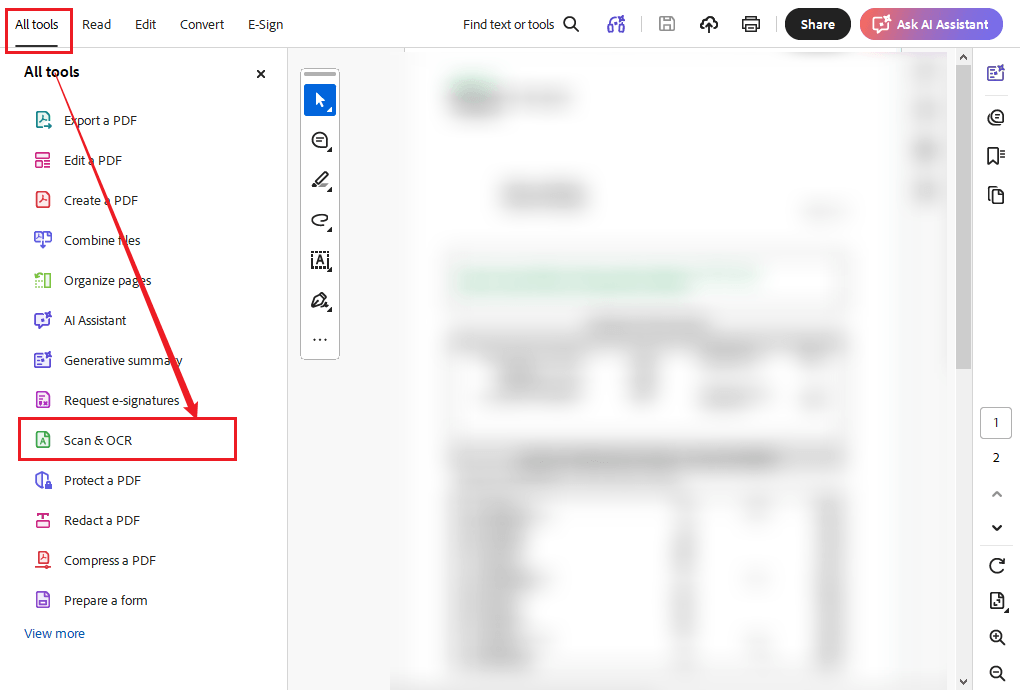
Step 2. With the PDF open, select “All tools” from the Acrobat interface, and choose “Scan & OCR”.
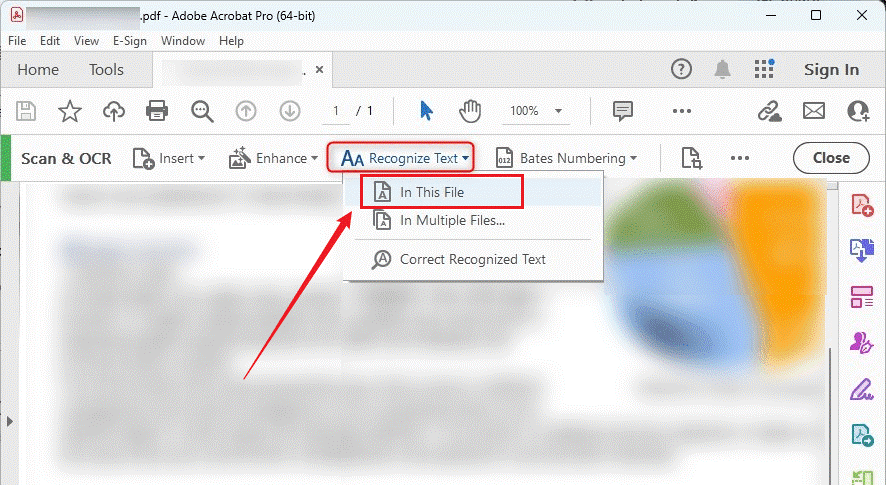
Step 3. Click the inverted triangle next to Recognize Text and select In This File.
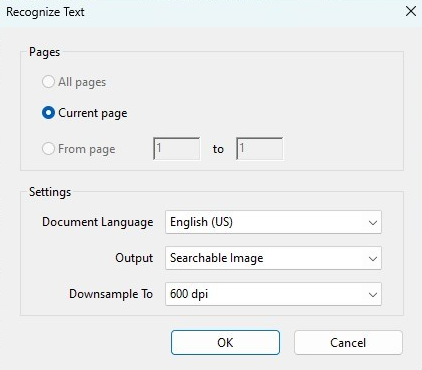
Then Acrobat will open a dialog where you can configure the recognition process. Here, you can choose the page range and select the PDF’s primary language. Customize other settings as needed and click OK.
Step 4. Next, click Recognize Text. Acrobat will start analyzing the scanned pages and attempting to identify the characters and words in the PDF file.
Step 5. After recognizing the text in the PDF, review the file. Finally, go to File > Save or Save As to save the OCR-enabled PDF document.
Tips
If you need to make Adobe Acrobat automatically enable the OCR feature on scanned PDFs, go to Edit > Settings and tick the “Recognize scanned text” option.
If Adobe is not recognizing text, try JOPDF, a free alternative to Adobe Acrobat, to OCR PDFs.
How to OCR Multiple PDFs in Adobe Acrobat
Additionally, Adobe Acrobat supports batch text recognition that enables you to process multiple scanned PDFs. This feature can help you save time without opening and processing each PDF individually. Below are the steps to OCR multiple PDFs in Adobe Acrobat:
Step 1. Launch Adobe Acrobat and go to All tools > Scan & OCR.
Step 2. Open the Recognize Text list, select In Multiple Files, and click Add files to select the PDFs you want to process.
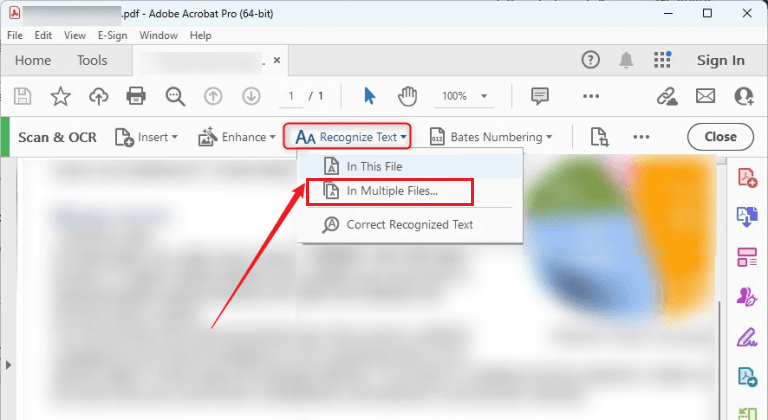
Step 3. Next, specify the output folder and filename preferences as needed. Then configure the available OCR settings, such as language.
Step 4. Then click OK. Finally, Adobe Acrobat will process the PDFs and save the searchable versions to the folder you chose.
How to OCR a PDF with Adobe Acrobat Online OCR
Adobe Acrobat Online OCR is a free, browser-based tool from Adobe. It uses OCR technology to turn scanned or image-based PDFs into searchable documents. If your scanned PDFs contain sensitive or confidential information, an offline tool like JOPDF is better.
Step 1. Visit Adobe Acrobat Online OCR via your browser.
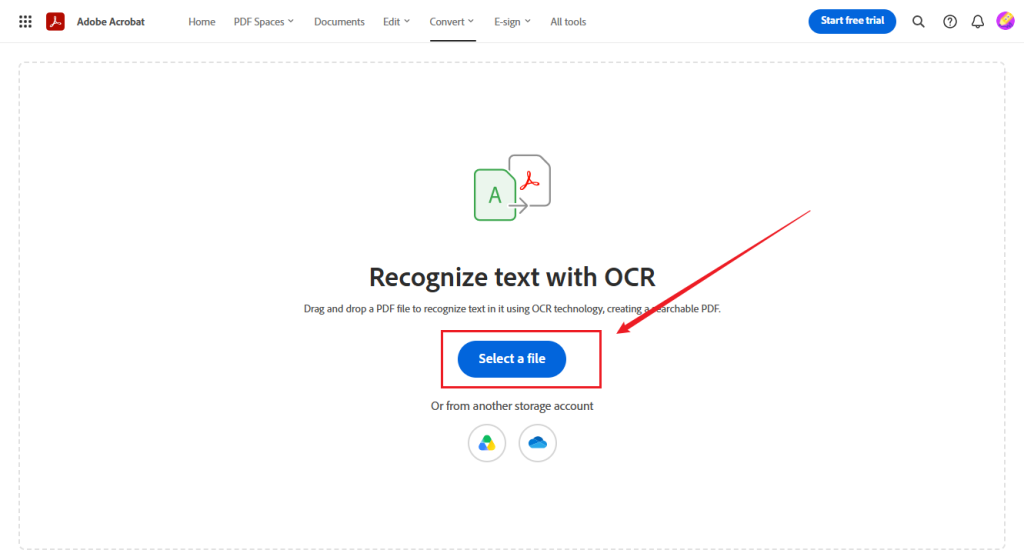
Step 2. Click “Select a file” and upload the scanned PDF from your device.
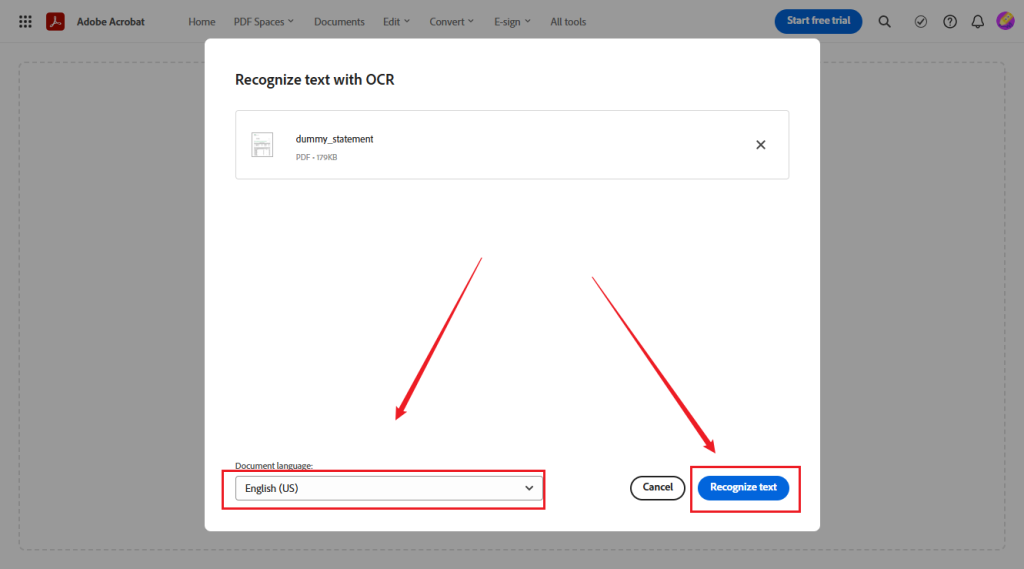
Step 3. After the PDF is uploaded, specify the document language and click “Recognize text”.
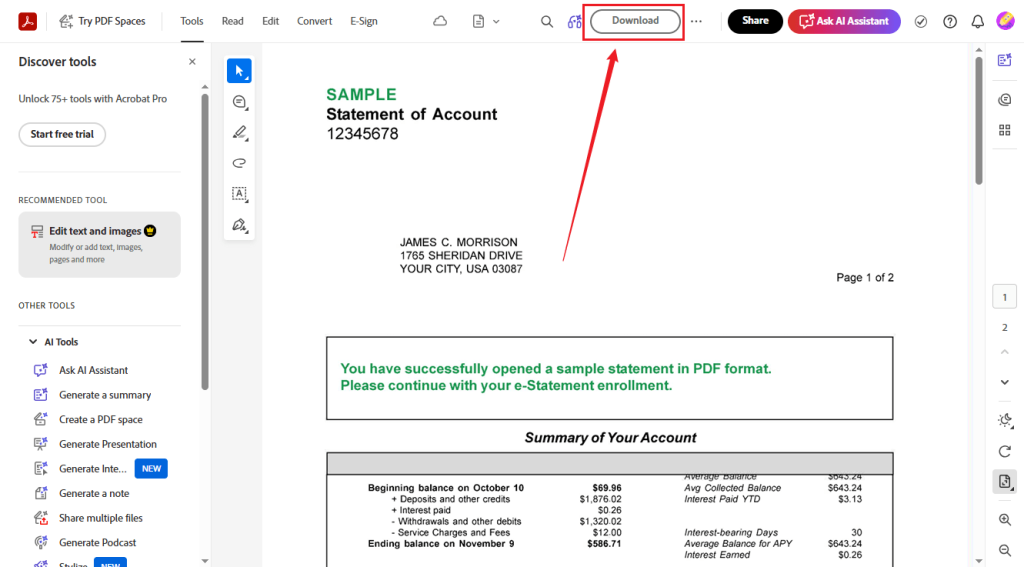
Step 4. Then Adobe Acrobat Online will turn the scanned PDF into an editable PDF. Finally, click the Download button to save the OCR-enabled PDF.
Note
If you don’t sign in to your Adobe account, you can’t download the PDF file or get a link to share it. You can sign in with an existing Adobe, Google, Apple, or Facebook account, or create a free Adobe account.
Best Free Adobe Acrobat Alternative for OCR PDFs
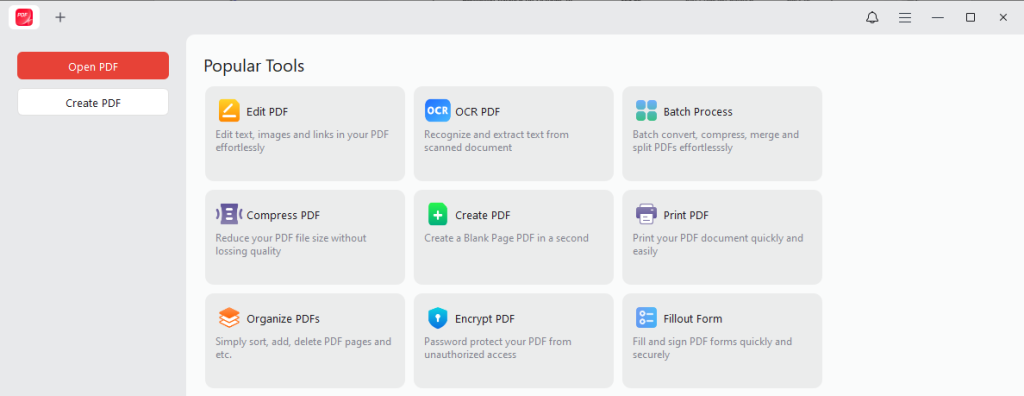
If you already work with the Adobe ecosystem, Adobe Acrobat is a useful choice. However, if you don’t install Adobe Acrobat or need a free PDF editor, using a free Adobe Acrobat OCR alternative is a good option. JOPDF is worth a try! It lets you recognize text in PDF and make the document searchable or editable. After OCRing PDFs, you can use JOPDF’s various tools to edit, annotate, organize, protect, and print them.
JOPDF’s Key Features:
- Cross-platform compatibility: Its OCR feature is available on both Windows and macOS.
- Recognize text in multiple languages: Its OCR supports more than 20 languages.
- Convert scanned PDFs into searchable PDFs: It can add a searchable text layer while preserving the original page appearance. Hence, you can search for, select, and copy recognized text.
- Make scanned PDFs editable: It can transform recognized text into editable content, allowing you to edit scanned PDFs.
- Edit and annotate PDFs: You can edit text and images and add annotations to PDF files.
- Fill out and sign PDFs: It can help you fill out PDF forms as well as add signatures effectively.
- PDF management tools: It provides tools for organizing, splitting, merging, and managing PDF pages.
- Protect PDF files: It enables you to password-protect PDFs as well as watermark PDFs.
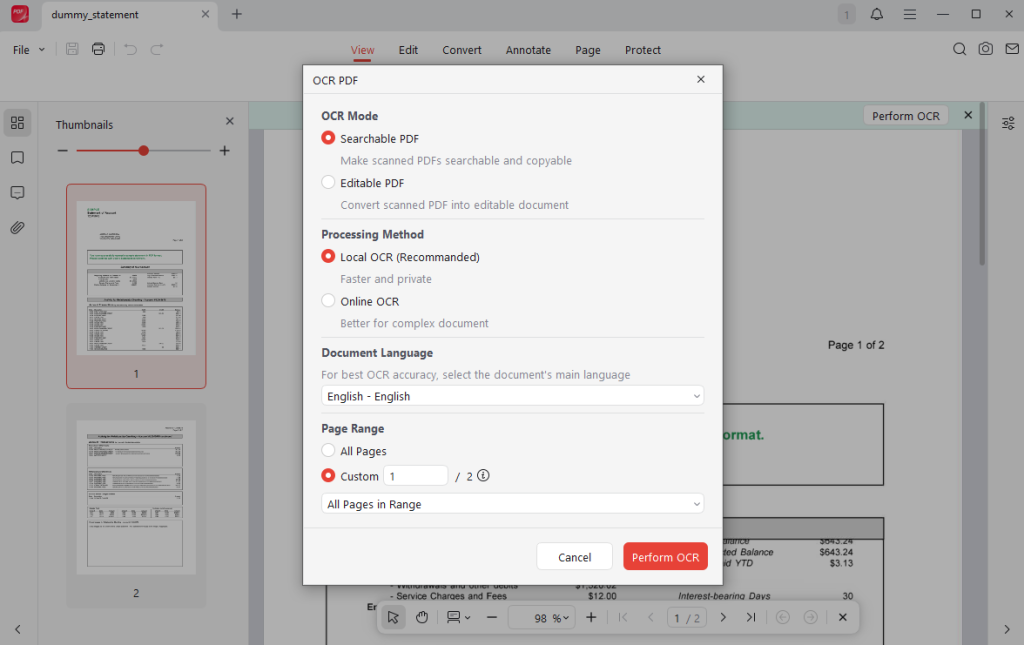
All in all, JOPDF is worth trying if you regularly work with scanned PDFs and want to make documents searchable, extract text, or edit recognized content.
Final Words
Adobe Acrobat is a professional choice to OCR a scanned PDF and turn image-based text into searchable content. How to OCR a PDF in Adobe Acrobat? After opening the target PDF, go to All tools > Scan & OCR > In This File and specify the OCR settings. Then click Recognize Text. What’s more, instructions for how to OCR a PDF using Adobe Acrobat Online OCR are also introduced. If you need a free way to OCR PDFs, JOPDF is the best choice. Now, have a try!
FAQs
Table of Contents

Your Best Free PDF Expert in PDF editing, compressing, converting, annotating, protect, organizing, and more.
Free DownloadWindows · macOS · Linux

Olivia
“Olivia is an editor at JOPDF, where she writes practical guides and insightful articles on managing PDFs—covering topics like editing, annotating, converting, and organizing files efficiently. Passionate about clear communication and digital productivity, Olivia enjoys spending her free time cooking, watching movies, and hiking to unwind and find inspiration for her writing.”


![Discover How to Make a Fillable PDF in Word [Detailed Guide]](https://b.jopdf.com/wp-content/uploads/2026/10/how-to-make-a-fillable-pdf-in-word.png)
