
Summary :
A free online PDF editor is definitely a good choice when you need to edit PDFs, but don’t want to install software or pay for a subscription. This guide on JOPDF compares five browser-based PDF editors that handle real editing tasks: iLovePDF, Adobe Acrobat Online, Sejda, Smallpdf, and Canva. Each has different strengths, and you can choose one based on your demands.
Quick Picks: The Best Free Online PDF Editors at a Glance
- Best for editing existing text: Sejda — rare free tool that lets you modify original text
- Best for quick utility tasks: iLovePDF — wide range of tools, no registration required
- Best for visual redesigns: Canva — converts PDF elements into editable design components
- Best for privacy and free use: JOPDF — tool that processes locally, no uploads
Online PDF Editor Free Tools Compared
Here is a head-to-head comparison table for every aspect and feature of online PDF editors. You can check if the feature is available and free to use.
| Feature | iLovePDF | Adobe Acrobat Online | Sejda | Smallpdf | Canva | JOPDF |
| Price (Free Tier) | Free with daily caps | Free (2 uses/month) | Free (3 tasks/3 hours) | Free (2 tasks/day) | Free (300MB / 500 pages) | 100% Free |
| Paid Plan | Premium (unlimited) | $23.99/month | $5.99/week or $63/year | $9/month | $12.99/month (Pro) | None |
| Edit Existing Text | Yes | Limited | Yes | No | Design elements only | Yes |
| Add Text Overlay | Yes | Yes | Yes | Yes | Yes | Yes |
| Annotations (Highlight/Comment) | Yes | Yes | Yes | Yes | Yes | Yes |
| Merge PDF | Yes | Premium only | Yes | Yes | No | Yes |
| Split PDF | Yes | Premium only | Yes | Yes | No | Yes |
| Compress PDF | Yes | Premium only | Yes | Yes | No | Yes |
| Convert PDF (Word/Excel/Image) | Yes | Premium only | Yes | Yes | Export only | Yes |
| OCR (Scanned PDF) | No | No | No | No | No | Yes |
| E-Signature | Yes | Yes | Yes | Yes | Yes | Yes |
| Form Filling | Yes | Yes | Yes | Yes | No | Yes |
| Password Protection | Yes | Premium only | Premium only | Premium only | No | Yes |
| Batch Processing | Premium only | Premium only | Premium only | Premium only | No | Yes |
| Page Management | Yes | Premium only | Yes | Yes | Limited | Yes |
| Watermark Removal | Premium only | No | No | No | No | No |
| File Size Limit (Free) | Not stated | Not stated | 50MB / 200 pages | Not stated | 15MB / 15 pages | None |
| Privacy | Upload to server | Upload to server | Upload to server | Upload to server | Upload to server | Local (device) |
| Registration Required | No | Yes (Adobe account) | No | No | No | No |
| Best For | Quick utility tasks | Occasional simple edits | Editing existing text | Polished UX, light use | Visual redesigns | Privacy + full editing |
#1. Adobe Acrobat Online: Industry Standard with Limited Free Access
Adobe Acrobat Online Performance & Plans:
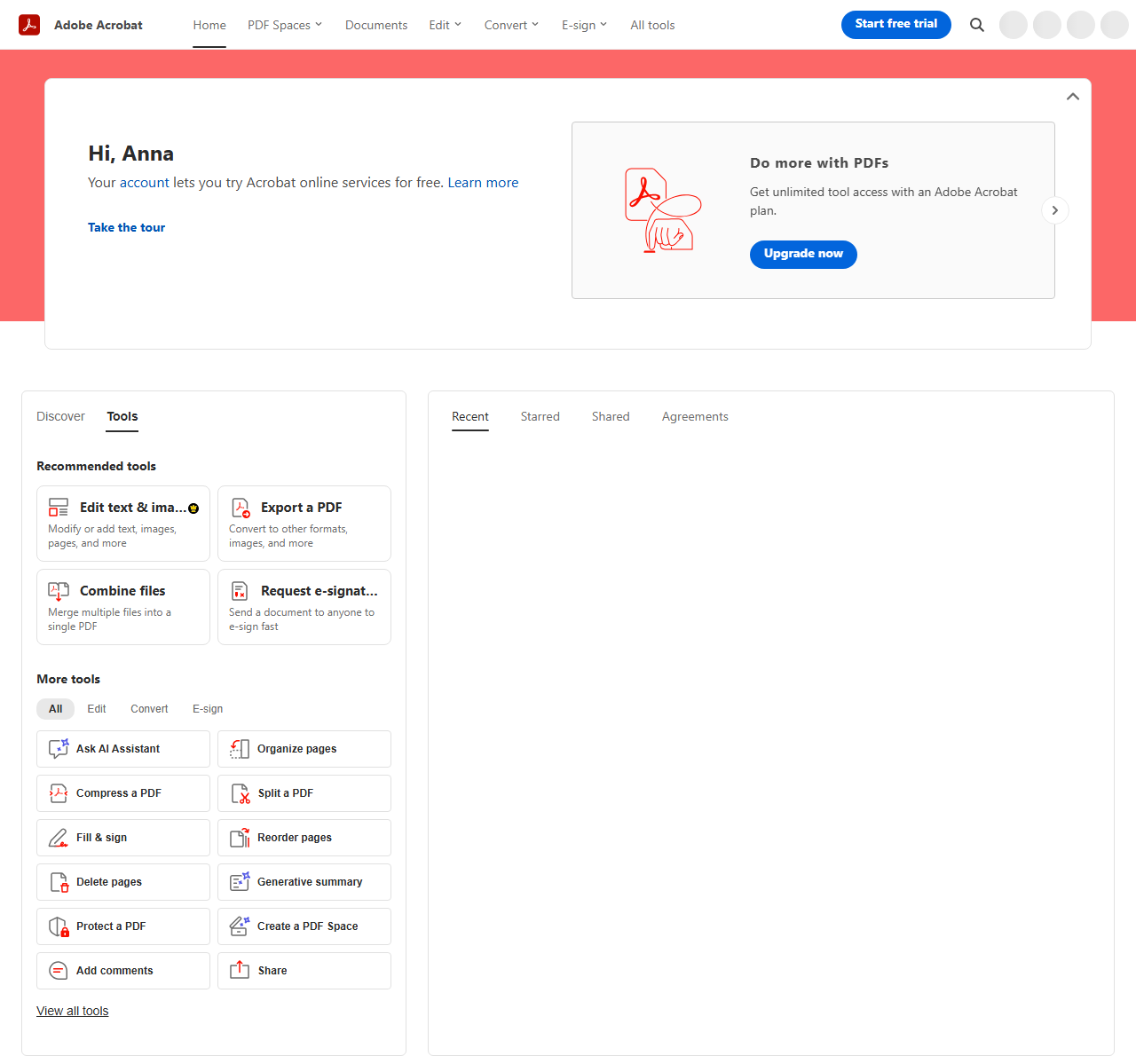
There are 2 uses per month for the online editor. Premium plans start at $23.99/month and unlock full editing, conversion, and export capabilities. A 7-day Acrobat Pro trial is available but requires payment details upfront. The PDF text editor online supports text editing, conversion, e-signatures, and form filling, but the free tier barely scratches the surface.
Adobe Acrobat Online brings the industry’s most recognized PDF editor to your browser. For users who already trust the Adobe ecosystem, it’s a familiar environment.
Pros
- Industry-standard reliability
- Clean, beginner-friendly interface
- Supports comments, highlights, and e-signatures for free
- Works entirely in the browser
Cons
- Only 2 free uses per month
- Requires Adobe account for continued use
- Many features locked behind Pro subscription
- Prompts to upgrade even during simple tasks
Our Assessment of Adobe Acrobat Online:
Adobe’s online editor is polished and trustworthy, but the free tier functions more as a trial than a genuine free tool.
In our test, we added a text comment and a signature to a two-page PDF. Both operations worked smoothly. Then we tried to export the file to Word, and a paywall prompt appeared immediately.
For occasional, simple edits like signing a document, it works. For anything beyond that, the paywall arrives quickly. If you need an online PDF editor free of Adobe’s constraints, Adobe Acrobat alternatives exist.
#2. iLovePDF: All-in-One Online PDF Editor
iLovePDF Performance & Plans:
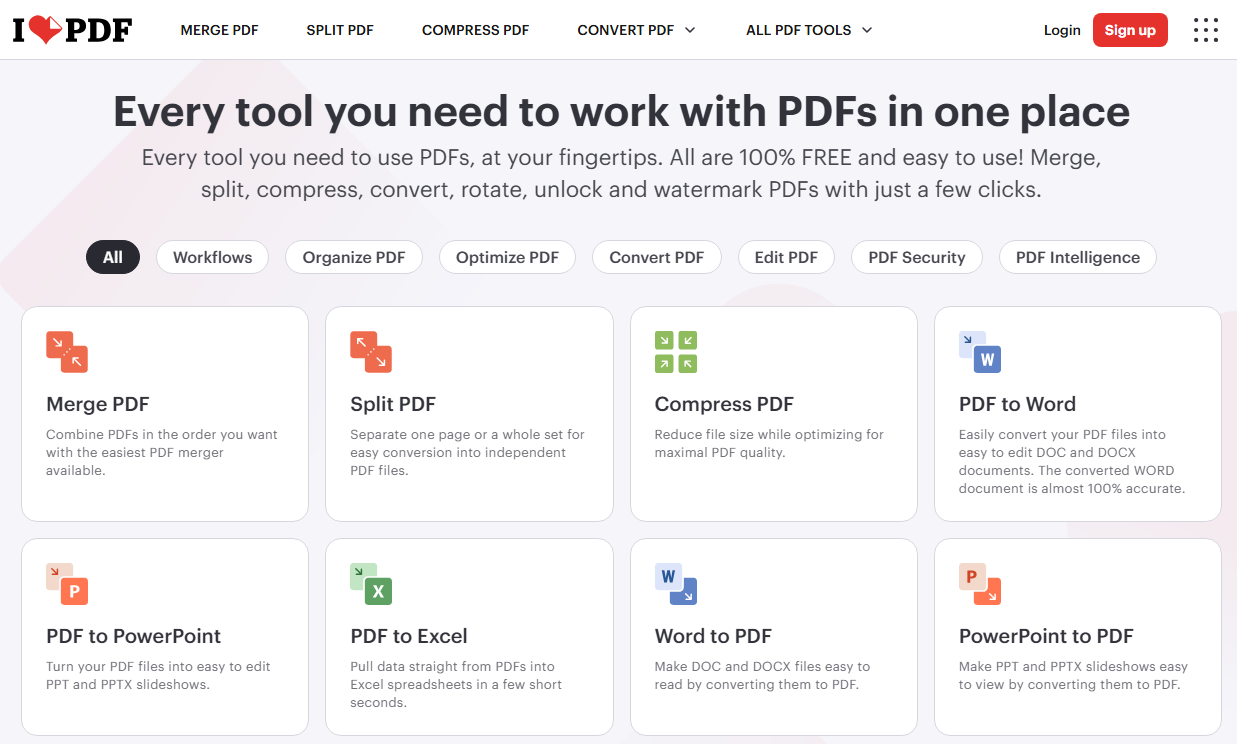
iLovePDF’s free tier offers access to all tools with daily usage limits. The exact cap isn’t publicly stated but becomes apparent with heavy use. Premium plans unlock unlimited processing, batch operations, and larger file sizes. The online PDF editor covers over 25 tools, including merge, split, compress, convert, watermark, and rotate.
The free tier is genuinely usable for occasional tasks. You upload a file, select the operation, and download the result. There’s no learning curve, which makes it ideal for one-off jobs. For users who want a PDF editor with no signup requirement, iLovePDF is a strong starting point.
Pros
- Wide range of tools beyond just editing
- No registration required for basic tasks
- Clean, beginner-friendly interface
- Handles merge, split, compress, and convert in one place
Cons
- Daily usage limits on the free tier
- Cannot edit existing text directly — only add overlays
- Files uploaded to servers
- Some tools require Premium
Our Assessment of iLovePDF:
iLovePDF is an excellent utility belt, but it’s not a true text editor. If you need to change words that already exist in the PDF, you’ll need a different online PDF text editor.
We tested the merge and compress functions with a 15MB scanned document. The whole process took about 20 seconds, and the output was clean. The limitation appeared when we tried to modify a sentence in the middle of a paragraph: no option existed for direct text editing.
For users who just need to combine files or add a signature, iLovePDF performs reliably. For anything requiring text changes, look elsewhere.
#3. Sejda: Best for Editing Existing Text
Sejda Performance & Plans:
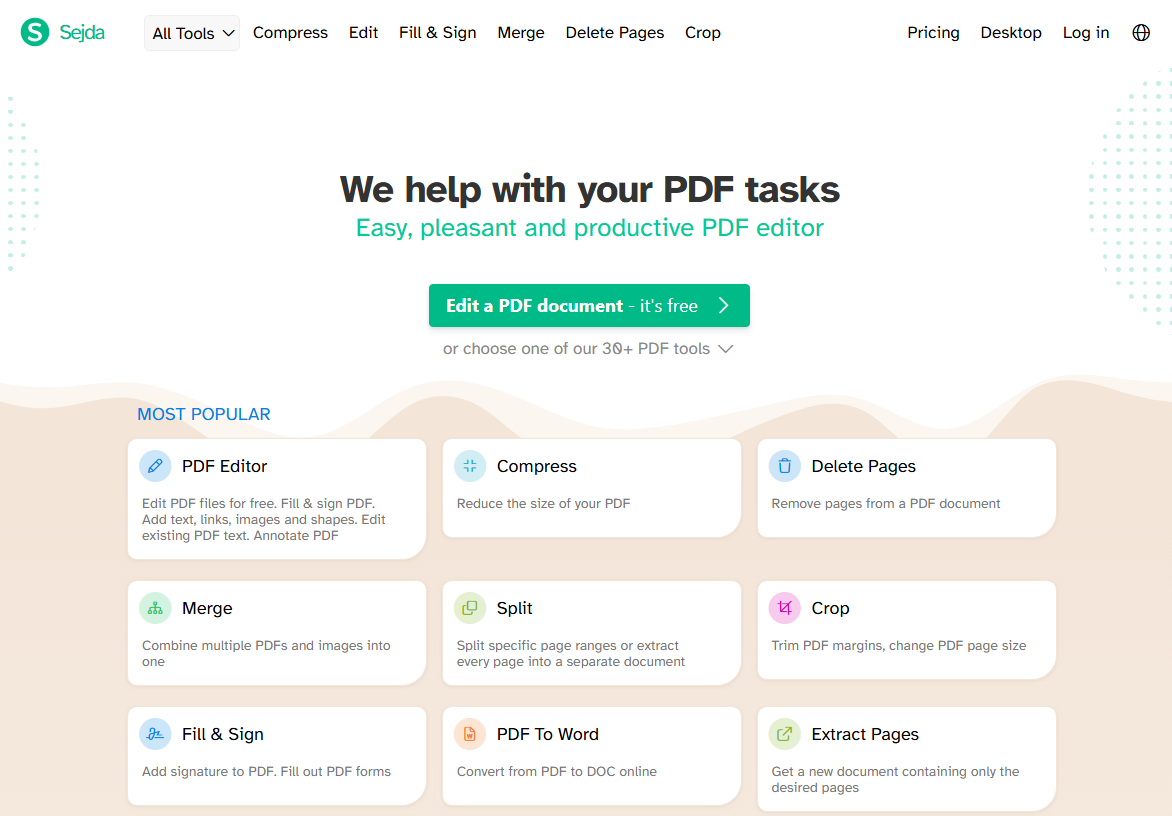
Sejda’s free tier allows 3 tasks every 3 hours, files up to 50MB or 200 pages. Premium plans ($5/week or $63/year) unlock unlimited tasks, larger files, and additional tools. As a Sejda PDF editor, it’s one of the few free tools that lets you modify existing PDF text directly.
Sejda online PDF text editor stands out for one reason: it’s one of the few free online tools that lets you edit PDF text online directly. Most competitors only let you add text boxes on top of a PDF. Sejda lets you click into existing text, modify it, and adjust fonts.
Pros
- Can edit existing PDF text directly
- Supports signatures, forms, and annotations
- No watermarks on output
Cons
- Limited to 3 tasks every 3 hours
- Files uploaded to servers
- Advanced features require Pro
- Interface less polished than Adobe’s
Our Assessment of Sedja:
Sejda solves the biggest limitation of most free online editors — the inability to change existing text. We tested this with a contract PDF: clicking into a paragraph revealed an editing cursor, and we successfully changed a date and a dollar amount.
The font matched automatically. After three tasks, the limit kicked in, and we had to wait. If you need to edit a PDF online free without adding overlay boxes, Sejda PDF editor online tool is worth trying first, but expect the 3-task cap to slow you down on larger projects.
#4. Canva Free Online PDF Editor: Design-First PDF Editing
Canva Performance & Plans:
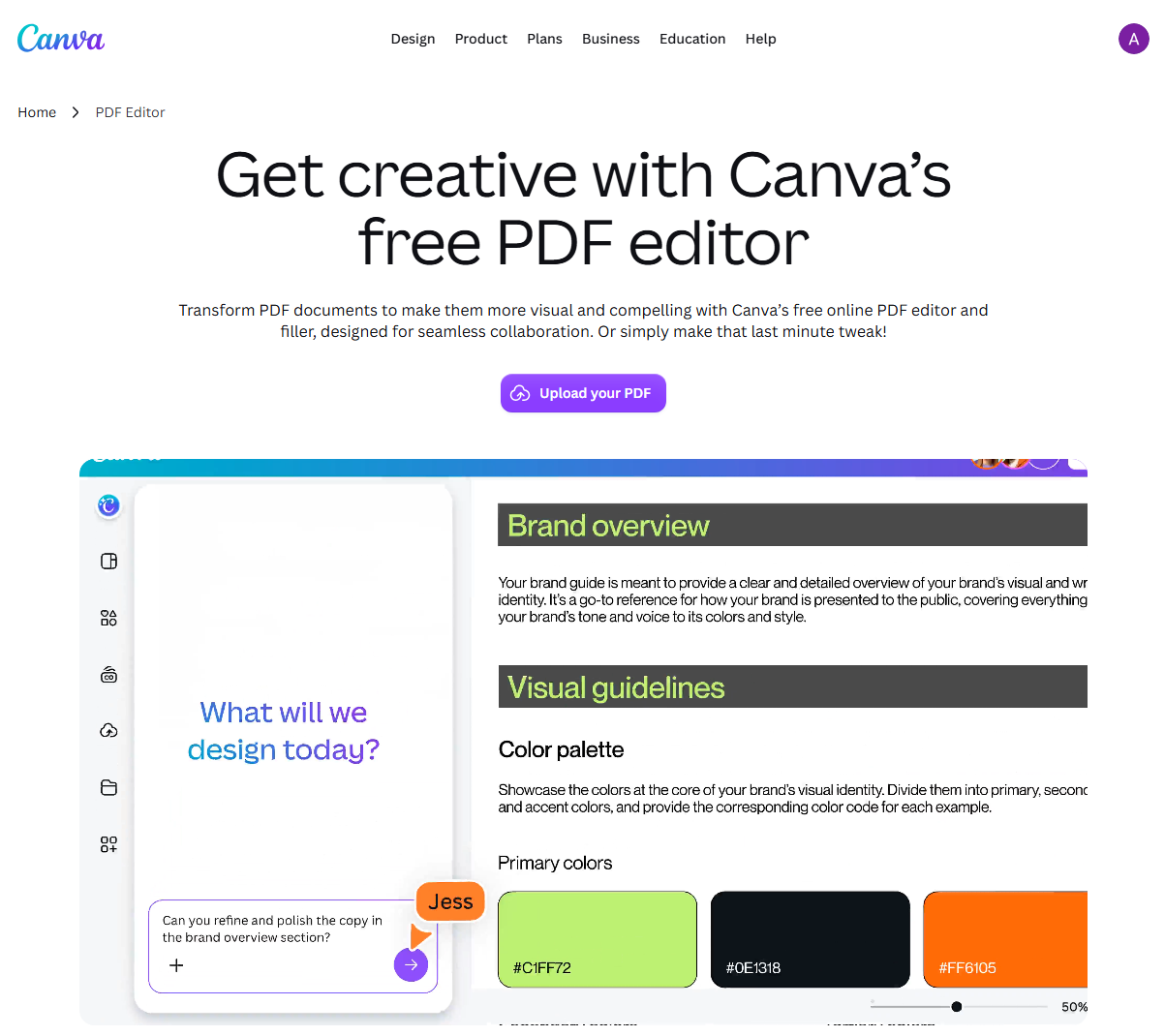
Canva’s free tier has a 15MB file size limit and a 15-page maximum for imported PDFs. Premium raises these limits and unlocks additional design assets. The editor is web-only for importing. As an online PDF editor free option, it’s unique in its design-first approach.
Canva approaches PDF editing from a design perspective rather than a document perspective. When you import a PDF, Canva breaks it down into editable design elements — text boxes, images, and layouts become components you can rearrange, restyle, and customize. This makes it ideal for transforming a PDF into a polished visual document rather than making simple text corrections.
Pros
- Design-first editing approach, great for visual documents
- Converts PDF elements into editable design components
- Free to use with no sign-up required for basic features
- Supports collaboration via share links
- Export to multiple formats
Cons
- 15MB file size limit
- 15-page maximum
- Flattened/scanned content cannot be edited
- Web version only for importing
Our Assessment of Canva:
Canva is the best online editor if your goal is to redesign a PDF rather than simply edit it. We imported a 5-page marketing flyer and successfully changed fonts, swapped an image, and rearranged text blocks.
The design freedom is unmatched. Then we tried a 20-page report, and the page limit stopped us cold. For presentations and visual documents under 15 pages, Canva is excellent. For anything larger or text-heavy, it’s not the right tool.
#5. Smallpdf: Clean Interface, Limited Free Tier
Smallpdf Performance & Plans:
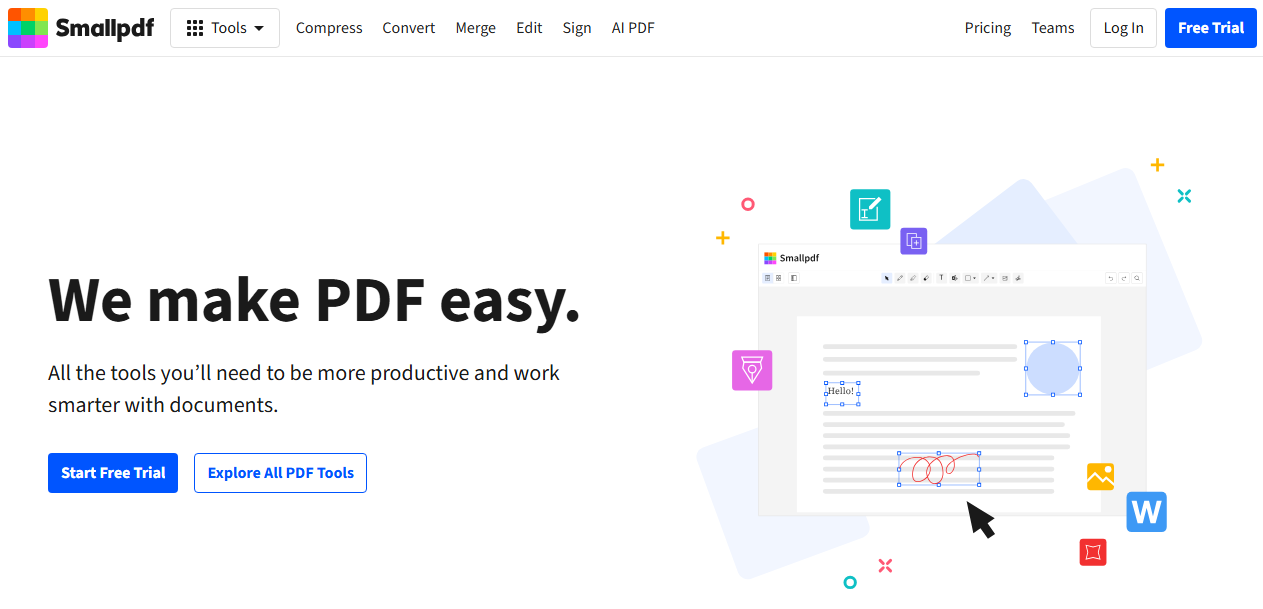
Smallpdf’s free PDF editor online allows 2 tasks per day. Premium plans start at $9/month and unlock unlimited processing, batch operations, and priority support. The platform covers conversion, compression, merging, splitting, and basic editing. As a free PDF editor online, it handles annotations and form filling well, but text editing is limited.
Smallpdf is known for its polished, modern interface. Every tool feels thoughtfully designed, and the user experience is among the best in the category. For users who value aesthetics alongside function, it’s an appealing option.
Pros
- Beautiful, intuitive interface
- Fast processing
- Covers most common PDF tasks
- Works on mobile browsers
Cons
- Only 2 free tasks per day
- Cannot edit existing text
- Files uploaded to servers
- Aggressive upselling prompts
Our Assessment of Smallpdf:
Smallpdf is a pleasure to use, but the free tier is more of a sample than a working tool. We compressed a 10MB PDF in about 15 seconds — fast and clean. Then we tried a second task and hit the daily limit.
For one-off tasks, it’s fine. For anything recurring, look elsewhere. The interface is arguably the best in this comparison, which makes the tight limits more frustrating.
What Makes a Good Online PDF Editor?
Not every online PDF editor is built for the same purpose. Some are designed for quick annotations, others for full document editing, and a few for complete redesigns. If you’re still struggling to choose the right PDF editor online, it helps to understand what you actually need.
Core features to look for:
- Text editing (changing existing words, not just adding overlays)
- Annotations (highlights, comments, drawings)
- Page management (merging, splitting, reordering)
- Format conversion (PDF to Word, Excel, or image)
Most free tools cover annotations well but restrict text editing behind a paywall.
The free vs. paid boundary:
Almost every online editor offers a free tier, but the limits vary wildly. Some cap daily usage, others restrict file size, and many lock text editing entirely.
Privacy matters more than most users realize:
A PDF editor without installation requires uploading your document to a third-party server. For contracts, medical records, or anything confidential, this is a real risk. A safe online PDF editor will clearly state how it handles files and when it deletes them. If privacy is your priority, a local desktop PDF editor, like JOPDF, is the better choice
JOPDF: Free Desktop Alternative for Serious Editing
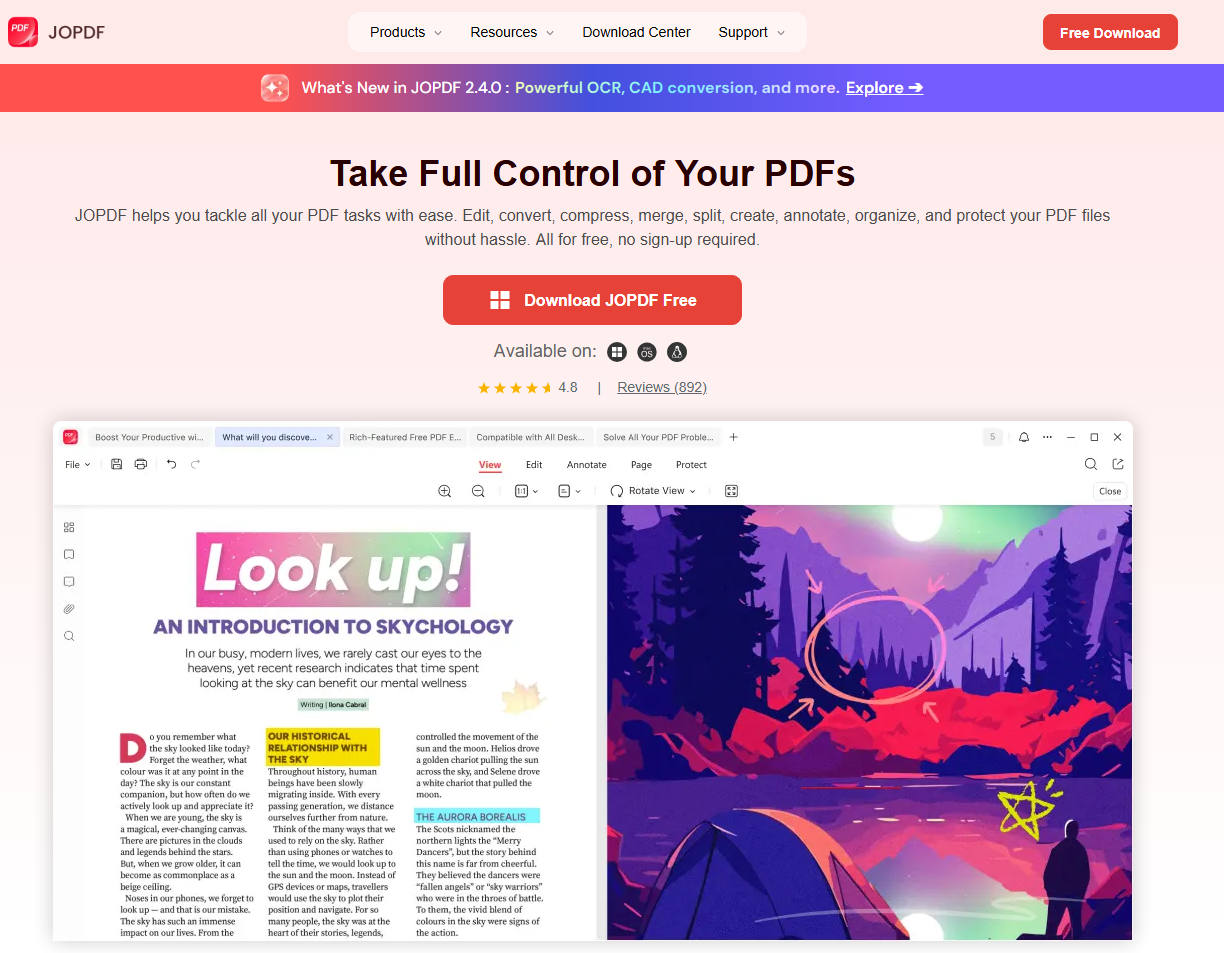
If you prioritize privacy and free of charge, choose a desktop editor instead of an online one. JOPDF is completely free with no usage limits, no registration, and no watermarks. The operation is faster, and the installation is quick and convenient.
It runs on Windows, Mac, and Linux. The feature set includes text and image editing, over 15 annotation tools, page management (insert, split, rotate, delete), password protection, OCR, and format conversion.
Because everything is processed locally, there’s no upload, no waiting, and no risk of documents being stored on someone else’s server.

JOPDF – The Best Free PDF Editor
 User Rating: 4.8
JOPDF Is a 100% free POF editor for Windows, macOS, and Linux. Edit text, add images, annotate, sign, and more. No limits, no ads, no subscriptions, Fast, simple, and powerful, take full control of your PDFs in seconds!
Pros
- Completely free with no usage limits
- Local processing — files never leave your device
- Full text and image editing
- Batch processing for multiple files
- No registration, no watermarks, no ads
Cons
- Requires installation
- No browser access
- Not suitable for Chromebook or locked-down environments
Our Assessment of JOPDF:
If you edit PDFs more than once a month, JOPDF is the smarter long-term choice. We edited a 30-page PDF — changed text, added annotations, and compressed the file — all without hitting a single limit.
The local processing means no upload wait, and the OCR feature handled a scanned document that browser tools couldn’t touch. It eliminates the PDF editor privacy concerns of uploading files while providing the full feature set that free online tools restrict. The only trade-off is installation, but for regular users, that’s a minor inconvenience.
Conclusion
In the first part, we reviewed recommended free online PDF editor tools for different needs. All the details are included. There are some needs an online PDF editor may fail to meet, like high privacy or OCR for scanned files. As a free online PDF editor alternative that runs entirely on your device, JOPDF eliminates the two biggest drawbacks of online tools.
Just download JOPDF Free and start editing PDFs without limits — no uploads, no subscriptions, no compromises.
FAQs
Table of Contents

Your Best Free PDF Expert in PDF editing, compressing, converting, annotating, protect, organizing, and more.
Free DownloadWindows · macOS · Linux

Anna
Editor
“Anna, Editor-in-Chief and PDF expert, delivers deep insights into PDF document technology trends. She is dedicated to helping readers optimize their digital lives. When not writing, Anna loves exploring local cafes and reading, blending her technical expertise with a love for storytelling.”
![Full Guide on How to OCR a PDF in Adobe Acrobat [Newest]](https://b.jopdf.com/wp-content/uploads/2026/10/how-to-ocr-a-pdf-in-adobe.png)
![Discover How to Make a Fillable PDF in Word [Detailed Guide]](https://b.jopdf.com/wp-content/uploads/2026/10/how-to-make-a-fillable-pdf-in-word.png)
