Introduction:
Adobe is the most famous name for opening PDF files. However, figuring out which version does what can be very confusing. If you need to fix a typo or add a signature, learning how to edit a PDF in Adobe Acrobat is very important. This guide will show you how to do it.
Can You Edit a PDF in Adobe Reader for Free?
Many people ask if they can change their files using the free Adobe software. The simple answer is yes and no.
The free version, Adobe Acrobat Reader, is primarily a viewer for your files. This software only offers very limited features. For example, you can add a simple comment, draw shapes, highlight a PDF, and add a basic signature.
However, there is a hard truth. In the free Reader, you cannot change the existing text, fix spelling mistakes, or replace pictures. If you want to actually change the original words without paying for an expensive Adobe subscription, do not worry. You can try JOPDF, which offers complete free PDF editing.
How to Edit a PDF in Adobe Acrobat Reader
Even though you cannot change the original words, you can still add notes and fill out blank forms. Here is how to use the free tools.
- Open your PDF document in the free Adobe Acrobat Reader program.
- To Add New Text: Click the Add a comment icon and select an option. Put the box in the right place and enter the text.
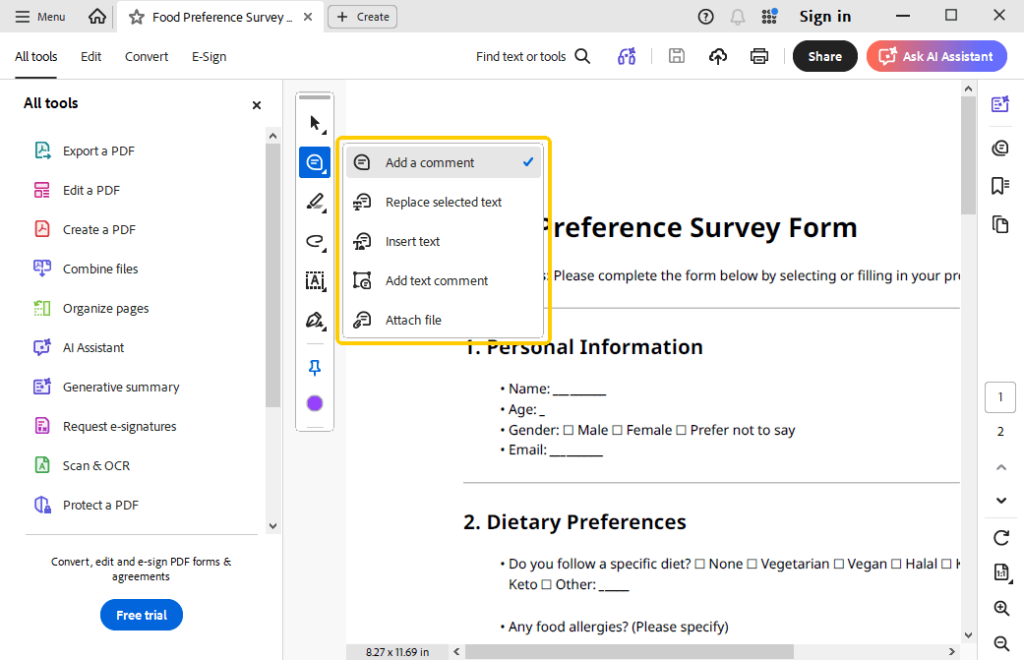
- To Highlight or Draw Anything: If you need to highlight some content, please click on the Highlight selected text tool. Click Draw freehand to draw a line, arrow, or other shapes.
- To Fill Out a Form: Click the Fill in forms tool. Choose to type text or add a cross mark, check mark, or others.
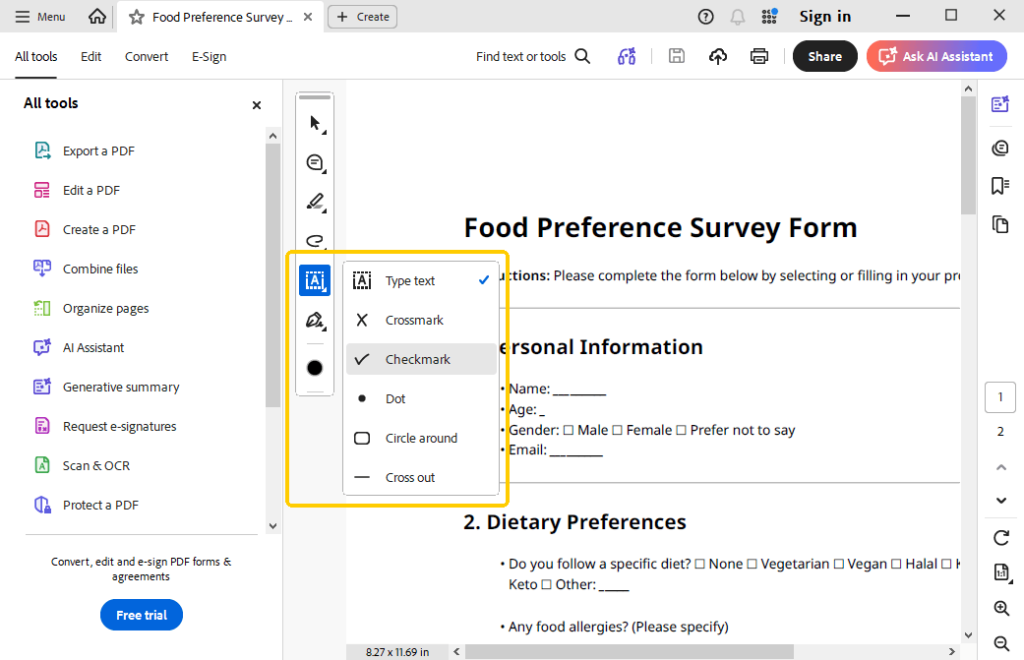
- When done, click the Save button at the top to keep your changes.
How to Edit a PDF in Adobe Acrobat Pro
If you want to completely change the original document, you need the paid version called Adobe Acrobat Pro. This version gives you full control. Here is exactly how to edit a PDF document in Adobe using the paid Pro software.
Open your file in the Adobe Acrobat Pro program.
- Look at the menu pane on the side of your screen. Click the Edit a PDF tool.
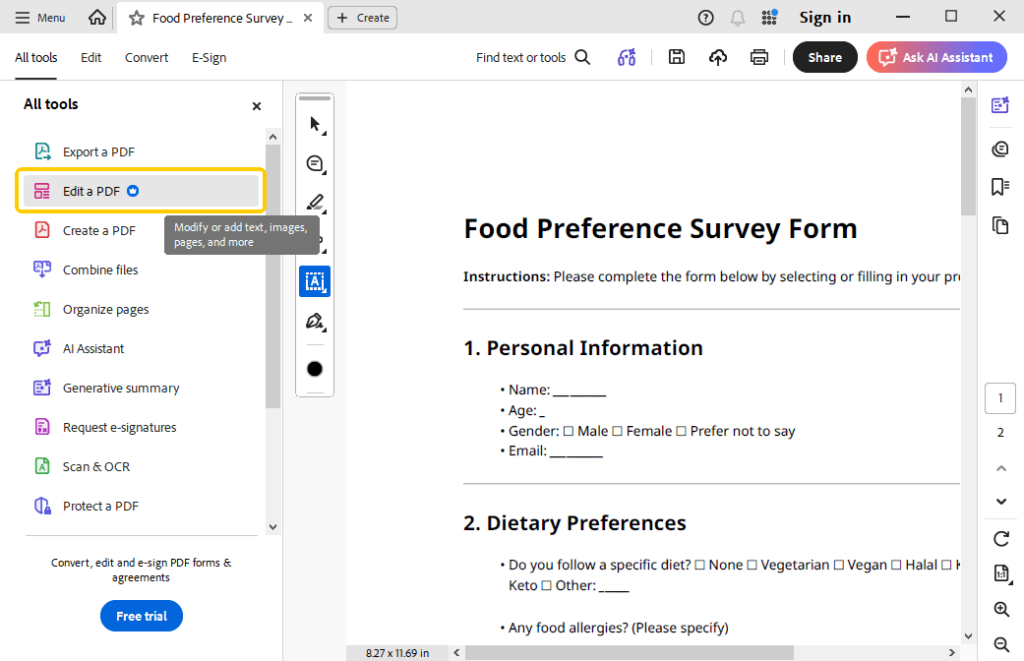
- The computer will automatically put little boxes around all the text and pictures on your page.
- Click inside any of those text boxes. You can now edit text in a PDF directly. You can drag it around the page, resize it, or delete it completely.
- Click File and then Save to lock in your professional edits.
Use a Free Adobe Alternative to Edit PDFs
If you do not want to pay a high monthly fee just to fix a few typos, we have the perfect solution: JOPDF. It is widely considered the best free PDF editor available today.
It is a fantastic alternative to Adobe Acrobat because it is a highly comprehensive editor and 100% free to use.
Key Features of JOPDF
✅ Text and Image Editing: You can easily edit existing text, fix typos, and replace images.
✅ Various Annotation Tools: You can freely highlight words, draw lines, underline text, and add notes.
✅ Page Management: You can effortlessly crop pages, split a massive document into smaller pieces, or merge multiple files together into one book.
✅ Protection: You can add custom watermarks, electronically sign your documents, and add strong password protection so strangers cannot open your files.
Let’s see how to use JOPDF:
- Download and open the free JOPDF on your computer.
- Open the document you want to edit.
- Click the Edit tab at the very top menu. Now you can freely change the text and images on the page.
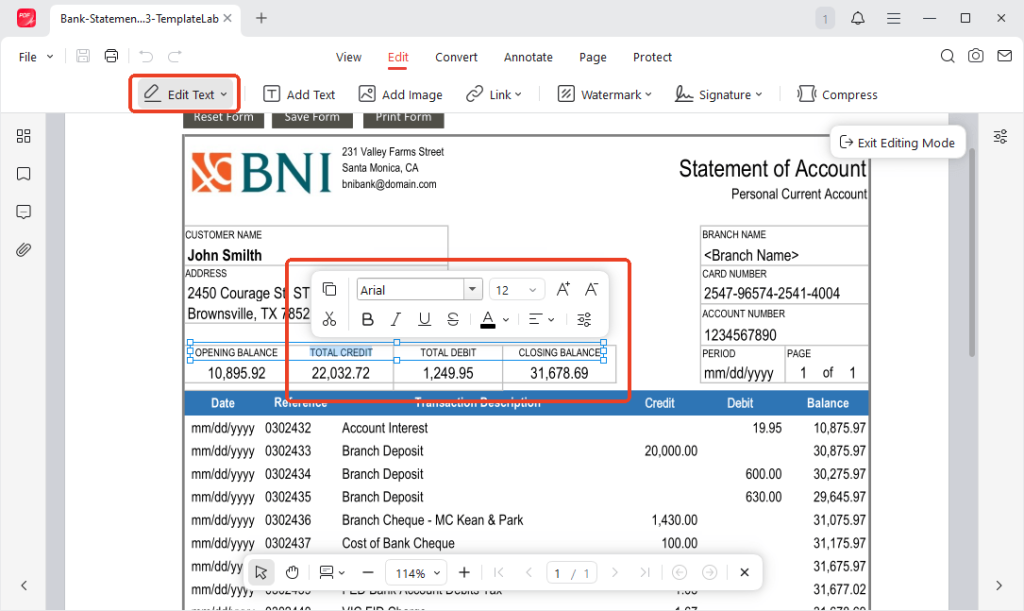
- If needed, you can go to Annotate, Page, or Protect to improve your document.
- Finally, click the Save button.
As you can see, JOPDF is feature-rich and easy to use. Say goodbye to Acrobat! Just download JOPDF to manage your files easily and for free!
Conclusion
That’s all about how to edit a PDF in Adobe Acrobat. The free Adobe Reader is good for simple highlighting and signing, but it cannot change the original text. Adobe Acrobat Pro can do everything, but it costs a lot of money. If you want the amazing power of Acrobat Pro without paying a monthly fee, JOPDF is clearly the smartest choice!
FAQs
Table of Contents

Your Best Free PDF Expert in PDF editing, compressing, converting, annotating, protect, organizing, and more.
Free DownloadWindows · macOS · Linux

Queena
Editor
“As a staff editor for JOPDF, Queena excels at guiding users to the optimal tools and solutions. When she's not analyzing the latest PDF solutions, she enjoys spending her free time playing with her four cats.”