Introduction :
Adobe Fill and Sign is a convenient solution for filling out PDF forms and adding electronic signatures without printing documents. Whether you need to complete an application, sign a contract, or add your initials to a PDF, Adobe Acrobat provides tools to handle these tasks digitally. In this JOPDF article, we’ll explain what Adobe Fill and Sign is and walk you through the process of filling out and signing a PDF, as well as introduce several alternatives.
What Is Adobe Fill and Sign
Adobe Fill and Sign is a PDF form-filling and electronic-signature solution that allows users to complete forms and sign documents electronically. Instead of printing a PDF, filling it out by hand, and scanning it back into a computer, you can use Adobe Acrobat to enter information and add signatures directly to the document.
Previously, Adobe offered a standalone mobile application called Adobe Fill & Sign. However, Adobe has retired this app and integrated its form-filling and signing features into Acrobat Reader. Meanwhile, you can access these features through Adobe Acrobat on desktop, the web, and mobile devices.
What Can You Do with Adobe Fill and Sign
With Adobe Fill & Sign, you can do the following PDF tasks:
- Fill out PDF forms: Enter information directly into interactive PDF form fields. Also, you can use Acrobat’s text tools to add information manually.
- Add electronic signatures to PDF: Create and insert an electronic signature into a PDF file.
- Add initials, checkmarks, and other marks: Add initials, mark checkboxes, insert crossmarks, and place other supported form elements where needed.
- Save and share completed PDF documents: You can save the completed PDF to your computer or share it with other people.
Is Adobe Fill and Sign Free
Yes, Adobe provides basic PDF form-filling and self-signing capabilities for free. You can even fill out and sign a PDF in Adobe Acrobat Reader, Adobe’s free version. Generally, you don’t need a paid subscription to enter information into PDF formats or add your electronic signature. However, if you need to fill out a non-fillable PDF form or require advanced PDF editing, conversion, document management, and signature request features, you need to pay for Adobe Acrobat Pro.
Therefore, if you only need to fill out a form and add your own signature, free Acrobat Reader may be sufficient. If you regularly edit PDF content, create forms, or collect signatures from other people, consider Adobe Acrobat Pro.
How to Use Adobe Fill and Sign to Fill Out and Sign a PDF
Both Adobe Acrobat Reader and Adobe Acrobat Pro offer Fill & Sign for you to fill out and sign a PDF without printing or scanning. Now, let’s learn how to fill out and sign a PDF in Adobe Acrobat.
Step 1. Open a PDF in Adobe Acrobat
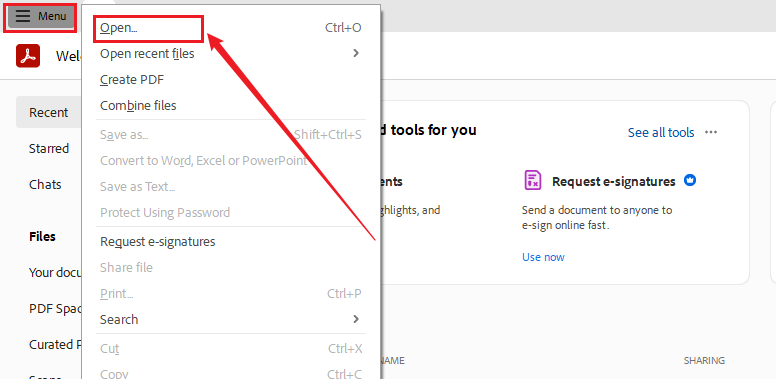
- Launch Adobe Acrobat on your PC first.
- Click the Menu tab and select Open to browse your computer and locate the PDF file you want to complete.
- Select the target PDF and click Open. Then the PDF will appear in the Acrobat workspace.
Tips
Depending on your Acrobat version, some interface labels may differ.
Step 2. Access the Fill and Sign Tool
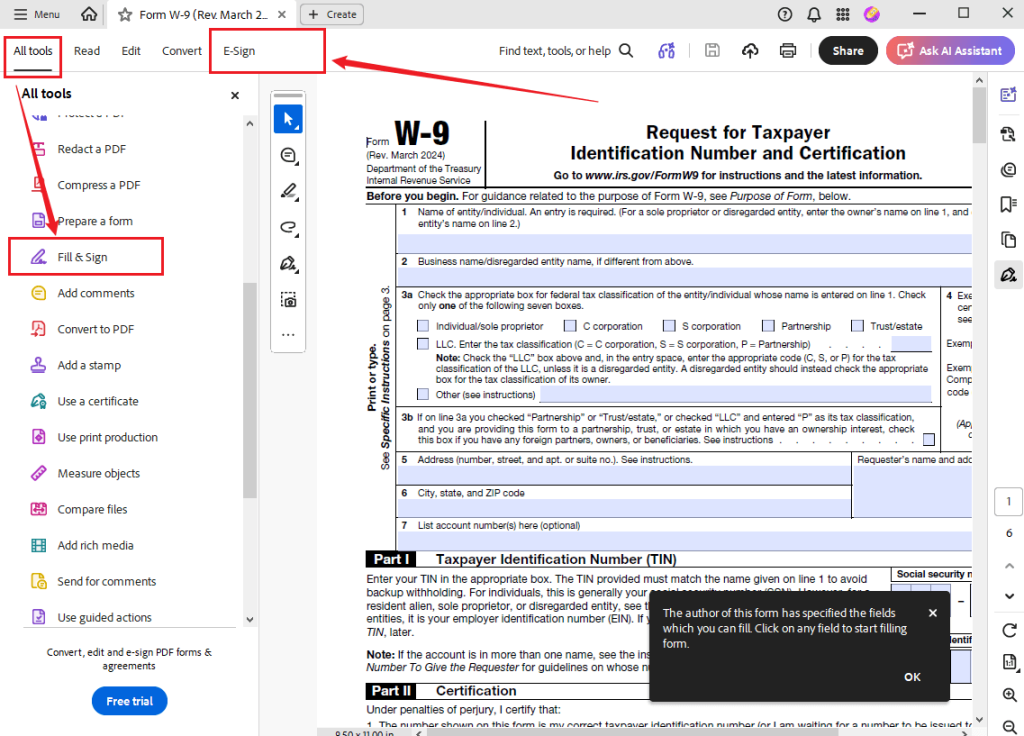
- Under the All tools tab, click View more, and select Fill & Sign.
- Alternatively, select E-Sign from the top menu bar.
- Then wait for Adobe Acrobat to display the available form-filling tools.
Step 3. Fill Out the PDF Form
Now, you can enter the information required by the PDF document.
#If your PDF contains interactive form fields:
- Click a highlighted text field and enter the required information.
- Or click to complete the remaining text fields, checkboxes, dropdowns, and other form elements.
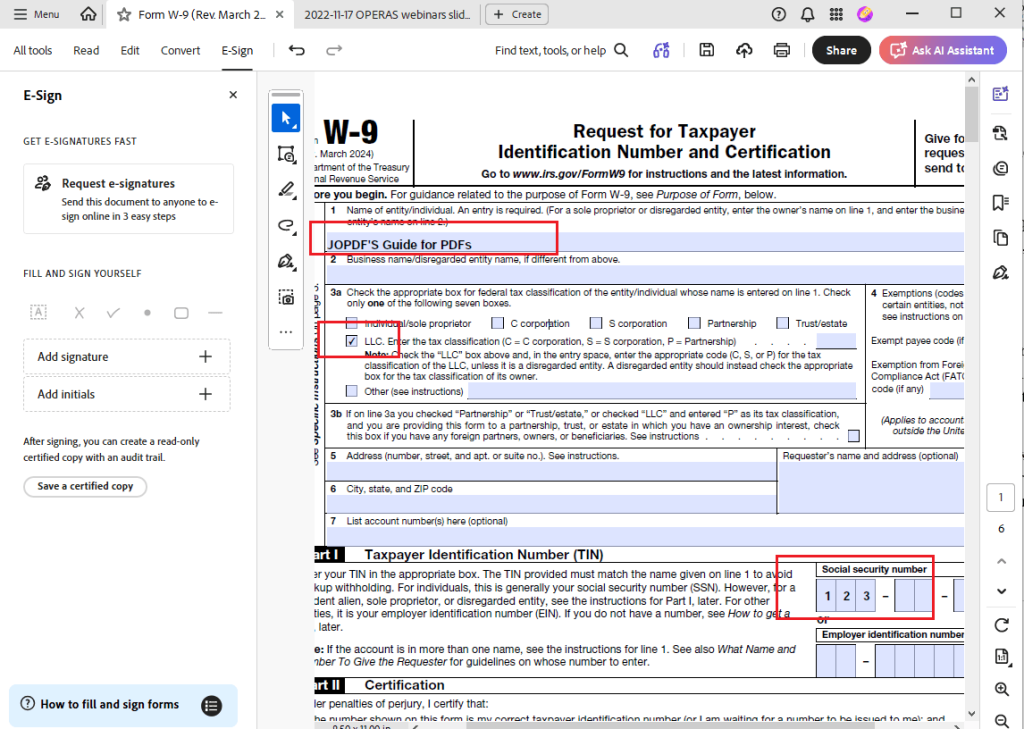
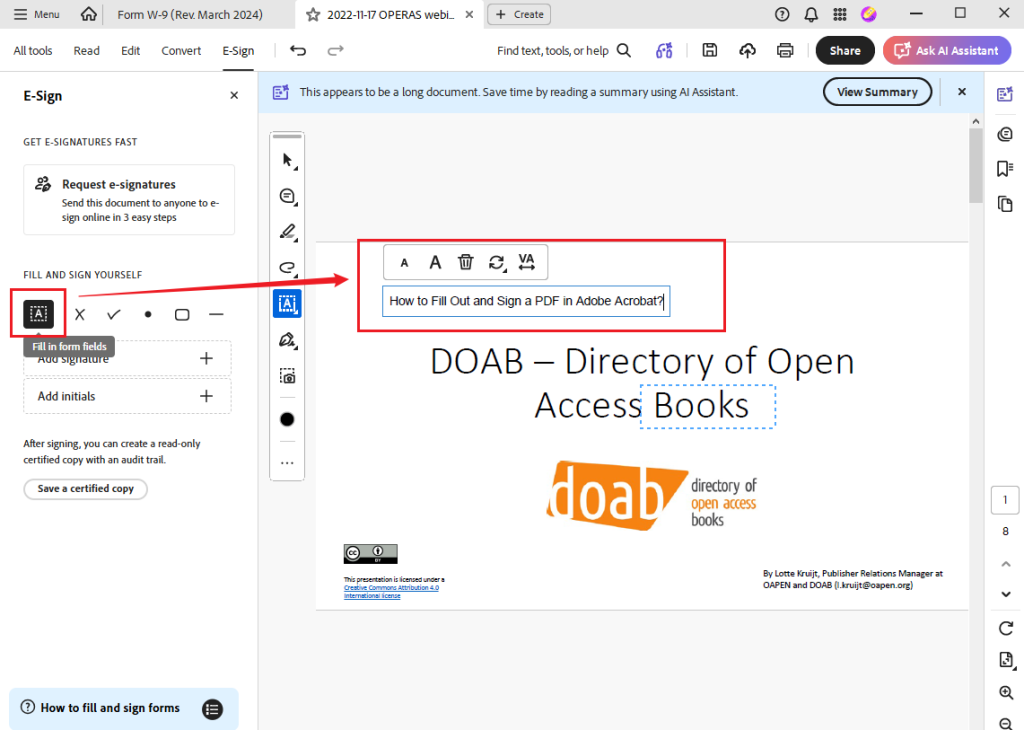
#If your PDF is non-fillable:
- Click the first A icon inside the dotted square in the left panel.
- Click the location where you want to insert information.
- Type the required text. Optionally, drag the text box to adjust its position and adjust its formatting as needed.
Note
If the PDF is fillable and you need to add text information outside the fillable fields, you cannot use the A icon to add text. In that case, you need to pay for Adobe Acrobat Pro to unlock the “Add text” and other text editing features. Also, you can use a free Adobe Acrobat alternative like JOPDF to fill a PDF that is not fillable.
Step 4. Create and Add Your Signature
After completing the PDF form, you can insert your signature.
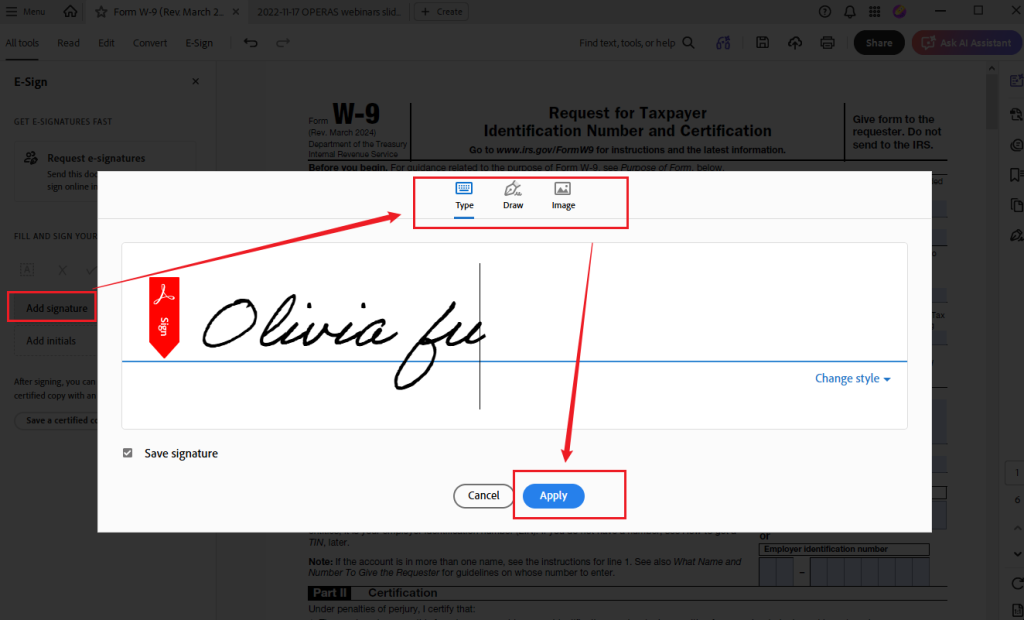
- Click Add signature.
- Here are 3 methods to create a signature in Adobe Acrobat:
- Type: Choose a signature style and enter your name.
- Draw: Use your mouse, trackpad, or touchscreen to draw your signature.
- Image: Browse your computer and select an image of your handwritten signature.
- Click Apply and move your signature to the appropriate location in the PDF.
- Then click on the target position to sign the PDF. Meanwhile, you can resize it if necessary.
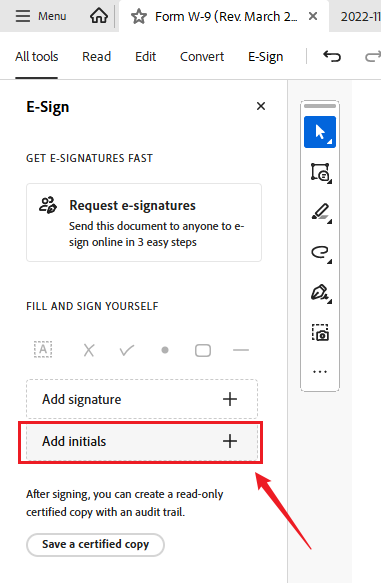
If your PDF also requires initials, select Add initials and create and apply them.
Step 5. Save the Completed PDF
- Review your PDF to make sure all required fields are completed.
- Check that your signature and initials are correctly positioned.
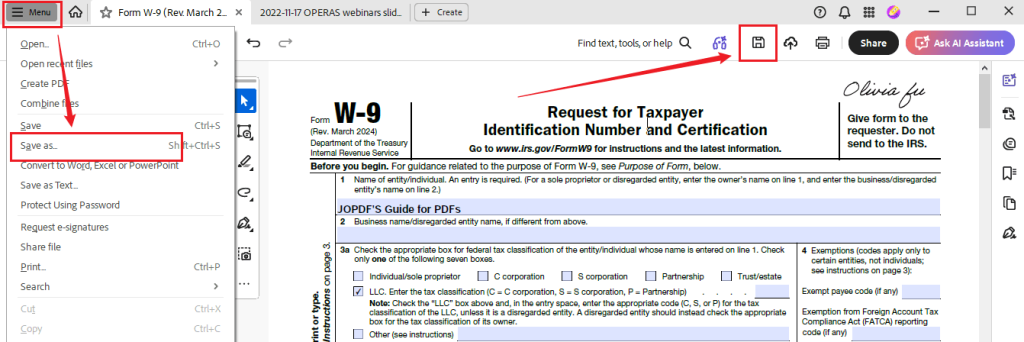
- Click the Save icon to save the completed PDF.
- Or click Menu > Save as to create a separate copy.
Tips
Some signing workflows flatten the PDF when saved, making the signature and form content permanent. Hence, you’d better review the PDF carefully before saving, and retain an unsigned copy if you may need to make changes later.
Adobe Fill and Sign Not Working? How to Fix
Although Adobe Acrobat provides convenient PDF form-filling and signing tools, you may occasionally encounter problems when opening PDFs, entering information, or adding a signature. Below are some common Adobe Fill and Sign issues and practical ways to resolve them.
Adobe Fill and Sign Is Missing
If you cannot find Adobe Fill and Sign, you may be using an outdated version of Acrobat or looking for the retired standalone mobile application. You can try the following solutions:
- Update Adobe Acrobat or Acrobat Reader to the latest version.
- On desktop, look under All tools or E-Sign.
- On mobile, open your PDF in Acrobat Reader Mobile.
Meanwhile, Adobe has retired its standalone Fill & Sign mobile app. If you previously used it, switch to Acrobat Reader Mobile to access the current form-filling and signing tools.
Cannot Type in a PDF Form
Sometimes, you may be unable to enter information into a PDF even after opening it in Acrobat. This can happen because the PDF doesn’t contain interactive form fields or has editing restrictions. You can try the following:
- Open the PDF in Adobe Acrobat and check whether it contains interactive fields.
- If interactive fields are available, select the appropriate field and enter your information.
- If the PDF is non-fillable, access the text tool through the Fill & Sign or E-Sign workspace.
- Click the desired location and insert text manually.
If the PDF is password-protected or restricted, you may need permission or the appropriate password from its owner before making changes.
For more practical solutions for “Adobe Fill and Sign not working”, refer to this post: Adobe Fill and Sign Not Working: Causes and Solutions
Best Adobe Fill and Sign Alternatives
Although Adobe Acrobat is a popular PDF solution, it may not be the best choice for everyone. Some of you want a free offline PDF editor, while others prefer an online tool that works directly in a browser. If you need more than basic form filling and signing, alternative PDF editors are worth considering. Here, we have rounded up several good Adobe Acrobat alternatives:
- JOPDF – Best free Adobe Acrobat alternative
- Foxit PDF Editor – Professional alternative to Acrobat
- Smallpdf – Reliable online PDF editor
- Wondershare PDFelement – Cross-platform PDF editor
JOPDF is a 100% free PDF editor with the capability to fill out and sign PDFs. You can use it to fill out W-2 forms and other tax forms. In addition, it enables you to create and add signatures to PDFs effectively. As an offline PDF editor, JOPDF can work on Windows, macOS, and Linux. What’s more, it enables you to fill out a PDF form that is not fillable since it supports editing the existing PDF text as well as adding text boxes.
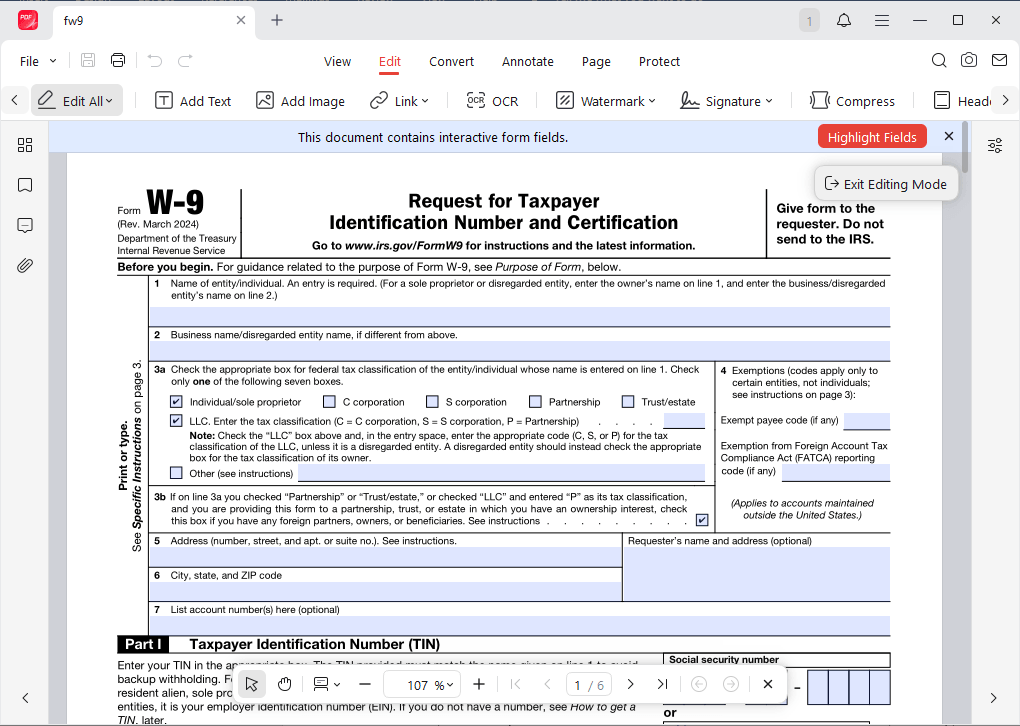
Furthermore, JOPDF provides OCR to recognize text in scanned PDFs, making them searchable or editable. Beyond being a PDF editor, JOPDF can also serve as a PDF converter, converting PDFs to other file formats, such as XML, CSV, DOCX, PNG, BMP, and more. You can also use it to compress PDFs to reduce their file size.
Conclusion
To fill out PDF forms and add electronic signatures, Adobe Fill and Sign is a convenient solution. Although Adobe has retired its standalone Fill & Sign mobile application, you can still access its core functionality through Adobe Acrobat and Acrobat Reader. If you only need to complete a form and add your own signature, the free Acrobat Reader application may be sufficient. For advanced PDF editing, you can pay for Adobe Acrobat Pro or explore a free alternative such as JOPDF.
FAQs
Table of Contents

Your Best Free PDF Expert in PDF editing, compressing, converting, annotating, protect, organizing, and more.
Free DownloadWindows · macOS · Linux

Olivia
“Olivia is an editor at JOPDF, where she writes practical guides and insightful articles on managing PDFs—covering topics like editing, annotating, converting, and organizing files efficiently. Passionate about clear communication and digital productivity, Olivia enjoys spending her free time cooking, watching movies, and hiking to unwind and find inspiration for her writing.”