Introduction :
You may feel confused when you are filling out a W-2 for the first time. How to fill out a W-2 form correctly? You need to understand what information belongs in each section, and then completing the form can become much more straightforward. In this JOPDF guide, I’ll introduce you to what a W-2 form is and provide a step-by-step guide to complete a W-2 form correctly.
Preparing tax documents is an important responsibility for every employer, and IRS Form W-2 is one of the most essential forms you’ll complete each year. This document reports an employee’s annual wages, tips, and taxes withheld, allowing employees to file accurate tax returns and helping the IRS and the Social Security Administration (SSA) verify payroll information. Hence, mastering how to fill out a W-2 form correctly is quite important. In the following content, you’ll learn the comprehensive instructions.
What Is a W-2 Form?
A W-2 form is officially known as the Wage and Tax Statement, which is an IRS tax document that employers must provide to employees at the end of each tax year.
What’s the role of the W-2 form? It can summarize an employee’s earnings and the taxes withheld from their paycheck throughout the year. Meanwhile, employees can use the information on Form W-2 to prepare their federal and state income tax returns, while employers submit copies to the Social Security Administration, which shares the information with the IRS.
Here, you can view the table below, which summarizes who uses the form and why.
| User | Purpose |
| Employer | Reports employee wages, tips, and taxes withheld |
| Employee | Uses the information to file federal and state tax returns |
| Social Security Administration | Records annual earnings and shares information with the IRS |
| IRS | Verifies income and tax withholding reported on tax returns |
What’s more, what information does a W-2 include? Generally, a complete W-2 report:
- Employee wages and other compensation
- Federal income tax withheld
- Social Security wages and tax withheld
- Medicare wages and tax withheld
- State and local wages
- State and local income tax withheld
- Certain employee benefits and retirement plan information
What Information Do You Need Before Filling Out a W-2
Before filling out a W-2, it is essential to gather all necessary payroll records and employee information. Here, let’s see what information you need before completing a W-2 form.
#Employee Information
You need to prepare the following employee information:
- Employee’s full legal name
- Current mailing address
- Social Security Number (SSN)
#Employer Information
For employer information, prepare the business details, including:
- Legal business name
- Business address
- Employer Identification Number (EIN)
- State employer identification number (if applicable)
#Payroll Information
You’ll also need accurate payroll data for the tax year, including:
- Total wages, salaries, and tips
- Federal income tax withheld
- Social Security wages
- Social Security tax withheld
- Medicare wages
- Medicare tax withheld
- State wages and taxes withheld
- Local wages and taxes withheld
- Retirement plan contributions
- Dependent care benefits and other applicable compensation
#Double-Check Your Records
What’s more, before completing the W-2, verify that:
- Employee names match Social Security records.
- Social Security Numbers are accurate.
- Wage totals agree with payroll reports.
- Tax withholding amounts are correct.
- State and local tax information has been entered properly.
How to Fill Out a W-2 Form Step by Step
Once you’ve gathered your employee and payroll information, you’re ready to complete Form W-2. Now, let’s learn how to fill out a W-2 form step-by-step.
Tips
Always use the official W-2 form for the correct tax year and verify that the information matches your payroll records before submitting it.
Step 1. Enter Employer and Employee Information
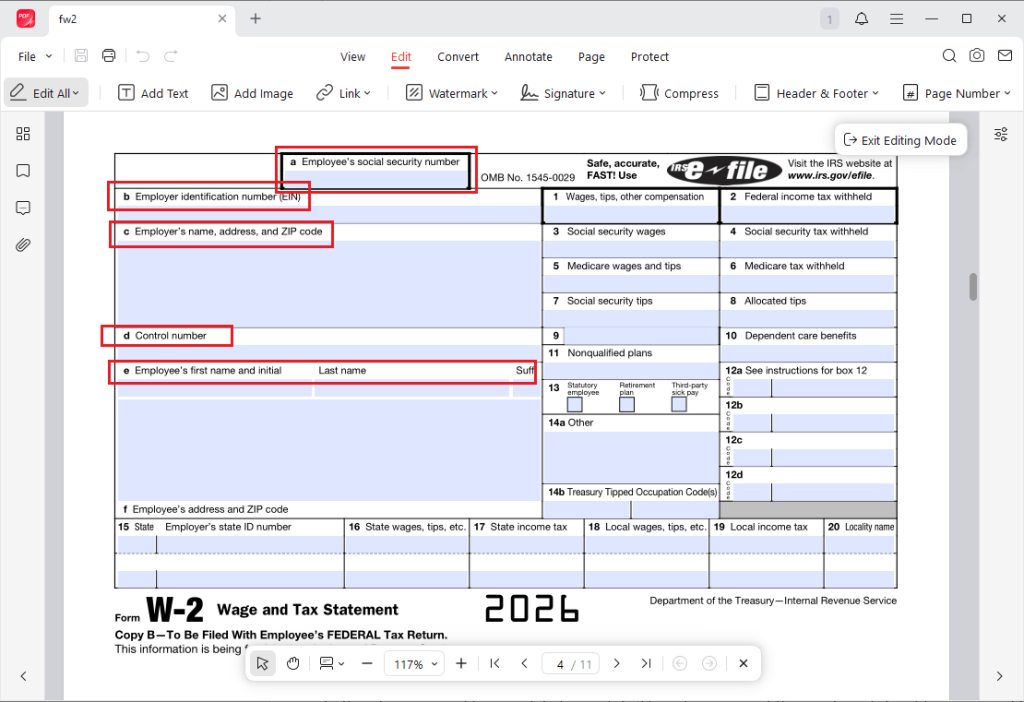
First, let’s start by filling in the identification information at the top of the form. Here, you need to fill out the information for the employer and employee.
Employer Information
You need to provide your business information, including:
- Employer’s legal name
- Business address
- Employer Identification Number (EIN)
- Employer’s state identification number (if required)
Tips
Double-check your EIN since an incorrect number may delay processing or require filing a corrected W-2.
Employee Information
Then, enter the employee’s information, including:
- Full legal name
- Home address
- Social Security Number (SSN)
Tips
You should exactly match the employee’s name and SSN with their Social Security records. Because even a minor typo can lead to IRS or SSA processing issues.
Step 2. Complete Boxes 1-6 (Federal Wages and Taxes)
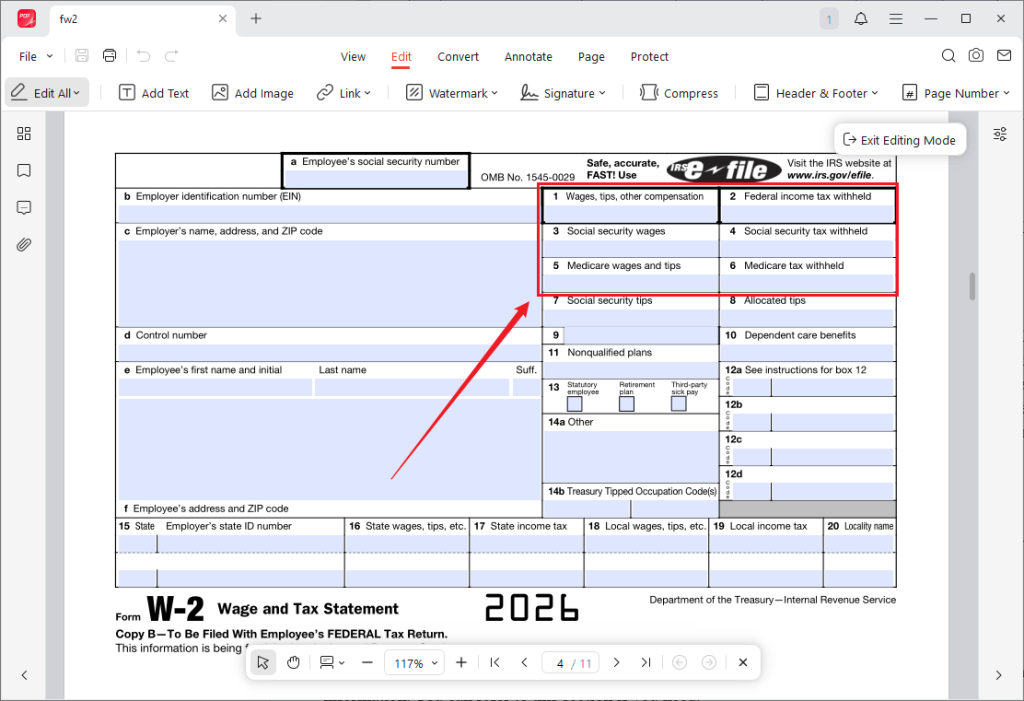
In this step, we need to complete boxes 1-6. These boxes report the employee’s taxable wages and the federal payroll taxes withheld during the year. Now, let’s see how to fill out boxes 1-6.
- Box 1 – Wages, Tips, Other Compensation: Enter the employee’s total taxable wages, salaries, bonuses, commissions, tips, and other compensation subject to federal income tax.
- Box 2 – Federal Income Tax Withheld: Report the total amount of federal income tax withheld from the employee’s paychecks during the year. Meanwhile, this amount should match your payroll records.
- Box 3 – Social Security Wages: Enter wages subject to Social Security tax. Because Social Security tax has an annual wage base limit, this amount may differ from Box 1 for higher-income employees.
- Box 4 – Social Security Tax Withheld: Enter the total Social Security tax withheld from the employee’s wages. What’s more, verify that the withholding does not exceed the annual IRS maximum.
- Box 5 – Medicare Wages and Tips: Report wages subject to Medicare tax.
- Box 6 – Medicare Tax Withheld: Enter the total Medicare tax withheld during the tax year.
Note
Keep in mind that Box 1 may differ from total gross pay because certain pre-tax deductions—such as traditional 401(k) contributions or health insurance premiums—can reduce taxable wages.
Step 3. Complete Boxes 7-14
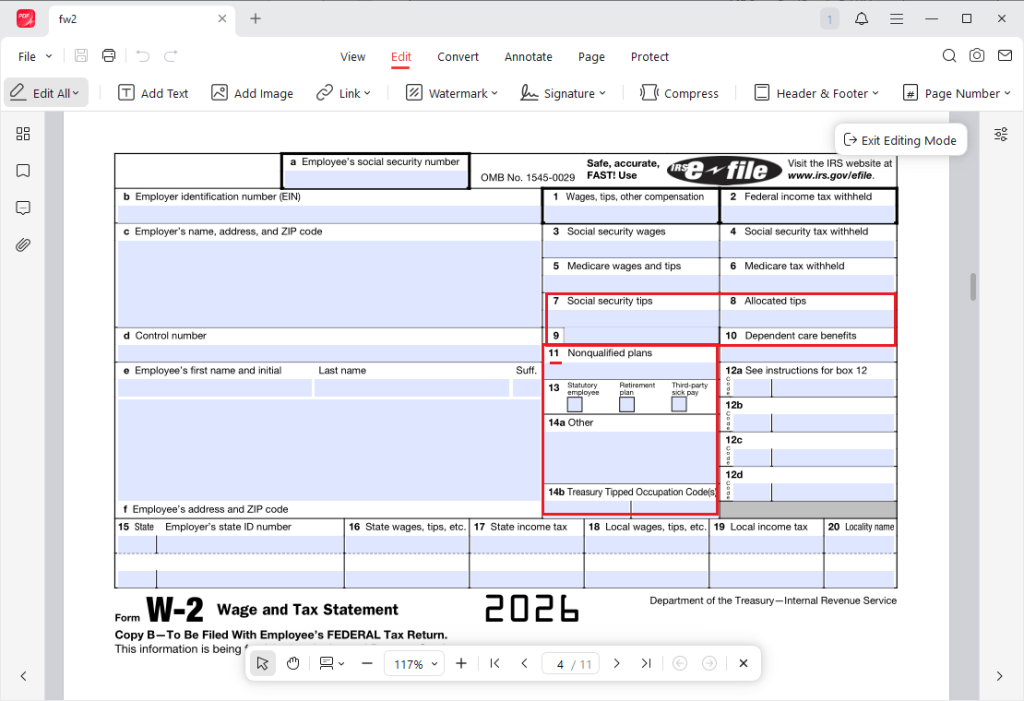
Boxes 7-14 may not apply to every employee since they report additional compensation and payroll information. You can refer to this section if you need.
- Box 7 – Social Security Tips: Enter tips reported by the employee that are subject to Social Security tax.
- Box 8 – Allocated Tips: If your business allocates tips, report the allocated amount here.
- Box 9: This box is no longer used and should be left blank.
- Box 10 – Dependent Care Benefits: Report employer-provided dependent care assistance that must be disclosed on the employee’s W-2.
- Box 11 – Nonqualified Plans: Enter distributions from nonqualified deferred compensation plans when applicable.
- Box 12 – Codes: Box 12 uses IRS letter codes to report various types of compensation and benefits. For detailed codes, refer to the IRS Form W-2 instructions.
- Box 13 – Checkboxes: Tick the appropriate boxes if the employee matches the situation.
- Box 14 – Other Information: Employers may use Box 14 to report additional payroll information not covered elsewhere, such as union dues, educational assistance, or state disability insurance.
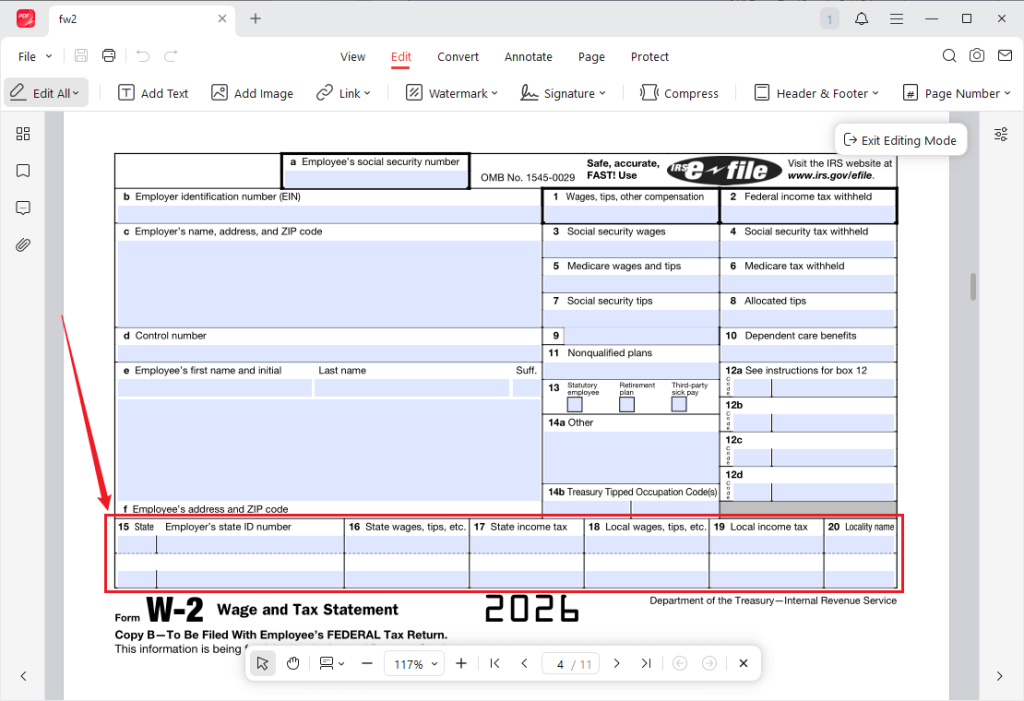
Step 4. Complete Boxes 15-20 (State and Local Taxes)
If your state or local government requires wage reporting, complete the remaining boxes. Below are instructions for filling out boxes 15-20.
- Box 15 – State and Employer’s State ID Number: Enter state abbreviation and state employer identification number. If the employee worked in multiple states, additional entries may be required.
- Box 16 – State Wages, Tips, etc.: Report wages subject to state income tax. This amount may differ from federal wages because state tax rules vary.
- Box 17 – State Income Tax: Enter the local state income tax withheld.
- Box 18 – Local Wages, Tips, etc.: Report wages subject to local income tax, if applicable.
- Box 19 – Local Income Tax: Enter the amount of local income tax withheld.
- Box 20 – Locality Name: Identify the city, county, municipality, or other taxing jurisdiction associated with the local tax reported.
Step 5. Review the Entire W-2 Form
Before issuing the W-2, you’d better review every section carefully. For example, you need to check that:
- Employee information is accurate.
- Wage totals match payroll records.
- Federal, Social Security, Medicare, state, and local taxes are correct.
- All required boxes are completed.
- The correct tax year is shown.
How to Fill Out a W-2 PDF Electronically
Some of you may receive a blank W-2 PDF, and you need to complete it digitally before printing or distributing copies. If you are working with a PDF version of Form W-2, JOPDF provides a practical way to complete the form on your Windows, Mac, or Linux PC without relying on online tools. Instead of printing the form and filling it out by hand, you can use JOPDF to enter information directly into fillable fields or place text onto non-fillable forms with a clean, professional result.
Why Use JOPDF for a W-2 Form
Why is JOPDF recommended for filling out a W-2 form? Below are some advantages of using JOPDF.
- Fill PDF forms digitally: Enter information directly into interactive fields when the W-2 is fillable.
- Work with non-fillable PDFs: Add text to static forms that do not contain editable fields.
- Improve readability: Create neat, professional-looking forms that are easier to review and file.
- Reduce errors: Edit and correct information before printing or saving the final version.
- Keep files private: Work offline so sensitive payroll and employee data stays on your computer.
- Save completed copies: Store digital records for future reference, audits, or internal documentation.
- Print when needed: Produce clean, print-ready copies for employees or recordkeeping.
Key Features of JOPDF
Additionally, JOPDF includes several useful features that can help you complete W-2 forms and PDF files easily.
- Add text boxes to a PDF
- Add watermarks to a PDF
- Sign PDF forms
- Add annotations to a PDF
- Password-protect PDFs
- Add page numbers to a PDF
- Extract pages from a PDF or insert blank PDF pages
- …
How JOPDF Helps with W-2 PDFs
If you need to handle year-end payroll documents, JOPDF can simplify the process of completing a W-2 PDF by making it easier to enter information accurately and keep records organized. You can directly type into fillable fields, add text to static forms, and add annotations to the PDF form. Additionally, JOPDF allows you to fill out and sign a PDF efficiently.
What’s more, because JOPDF works offline, payroll and employee data stay on your computer. When you’re done, you can save the file for records or print a clean copy for distribution. All in all, JOPDF is worth trying!
Final Words
How to fill out a W-2 form correctly? Before filling out, you need to gather employee and payroll information in advance. Then, follow the step-by-step guidance above to complete the W-2 form. What’s more, if you are completing a W-2 PDF, you can use JOPDF to complete it fast. This offline PDF editor allows you to type directly into fillable forms, add text to non-fillable PDFs, and make other edits. Now, it’s you turn to fill out a W-2 form.
FAQs
Table of Contents

Your Best Free PDF Expert in PDF editing, compressing, converting, annotating, protect, organizing, and more.
Free DownloadWindows · macOS · Linux

Olivia
“Olivia is an editor at JOPDF, where she writes practical guides and insightful articles on managing PDFs—covering topics like editing, annotating, converting, and organizing files efficiently. Passionate about clear communication and digital productivity, Olivia enjoys spending her free time cooking, watching movies, and hiking to unwind and find inspiration for her writing.”
![Full Guide on How to OCR a PDF in Adobe Acrobat [Newest]](https://b.jopdf.com/wp-content/uploads/2026/10/how-to-ocr-a-pdf-in-adobe.png)