Introduction :
Sometimes, we need to fill out PDF forms and add e-signatures without printing documents. In that case, Adobe’s Fill & Sign tool makes the task easy. However, you may encounter problems such as Adobe Fill and Sign not working or the Fill & Sign tool being greyed out. Those problems can occur in Adobe Acrobat Pro and Adobe Acrobat Reader. Fortunately, most Fill & Sign problems are easy to resolve. In this JOPDF article, let’s learn the causes and solutions.
Why Is Adobe Fill and Sign Not Working
Before learning the exact solutions, it is helpful to understand what might be causing the problem. Here, let’s explore the most common reasons why Adobe Fill and Sign may stop working.
- You are using an outdated version of Adobe Acrobat.
- The PDF is protected from editing or has other restrictions.
- The PDF is simply a scanned image rather than interactive forms.
- The PDF file is corrupted.
- Adobe Acrobat is experiencing a temporary software glitch.
- The Fill & Sign tool has been disabled.
- Adobe preferences have become corrupted.
- The Adobe installation is damaged.
- Protected Mode or Security settings are blocking the feature.
- Adobe account or sync issues.
10 Fixes for “Adobe Fill and Sign Not Working”
Now that you know the possible causes, let’s go through the solutions one by one.
Fix 1. Restart Adobe Acrobat
Sometimes, Adobe Acrobat encounters a temporary glitch that prevents the Fill & Sign tool from working properly. In that case, restarting the application can clear temporary processes and refresh the program.
👉Restart Adobe Acrobat on Windows
- Save the edited PDF files and close Adobe Acrobat.
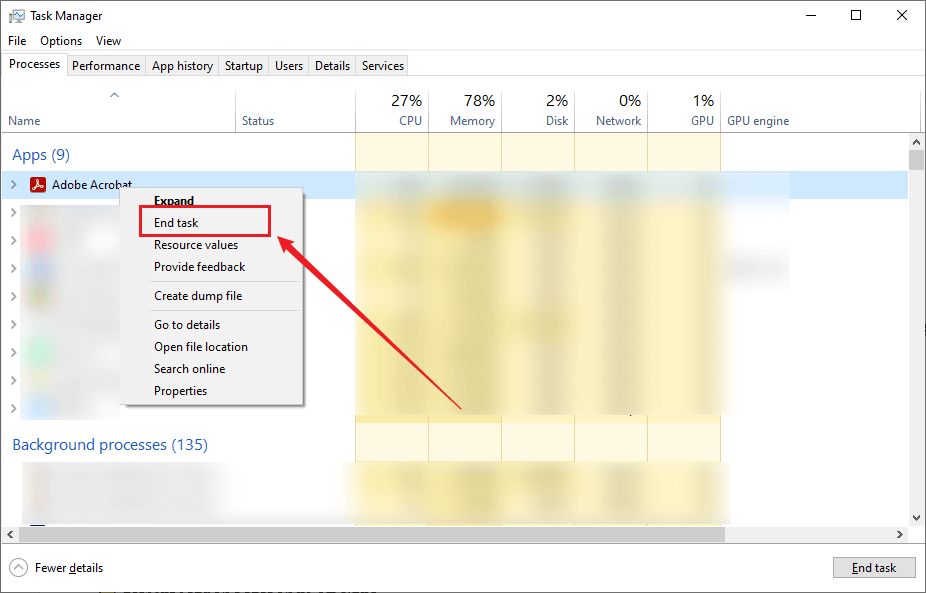
- Then, press Ctrl + Shift + Esc to open Task Manager.
- Under the Processes tab, find Adobe Acrobat. Right-click it and select End task.
- Next, reopen Adobe Acrobat and test the Fill & Sign tool again.
👉Restart Adobe Acrobat on Mac
- Save the original PDF file and close Adobe Acrobat.
- Press Command + Option + Esc to open the Force Quit Applications window.
- Select Adobe Acrobat if it is still running and then click Force Quit.
- Next, launch Adobe Acrobat again and try using Fill & Sign.
Fix 2. Update Adobe Acrobat to the Latest Version
To fix bugs, improve compatibility, and enhance security, Adobe frequently releases updates. If you are using an outdated version of Adobe Acrobat, updating it may resolve the issue.
- Open Adobe Acrobat.
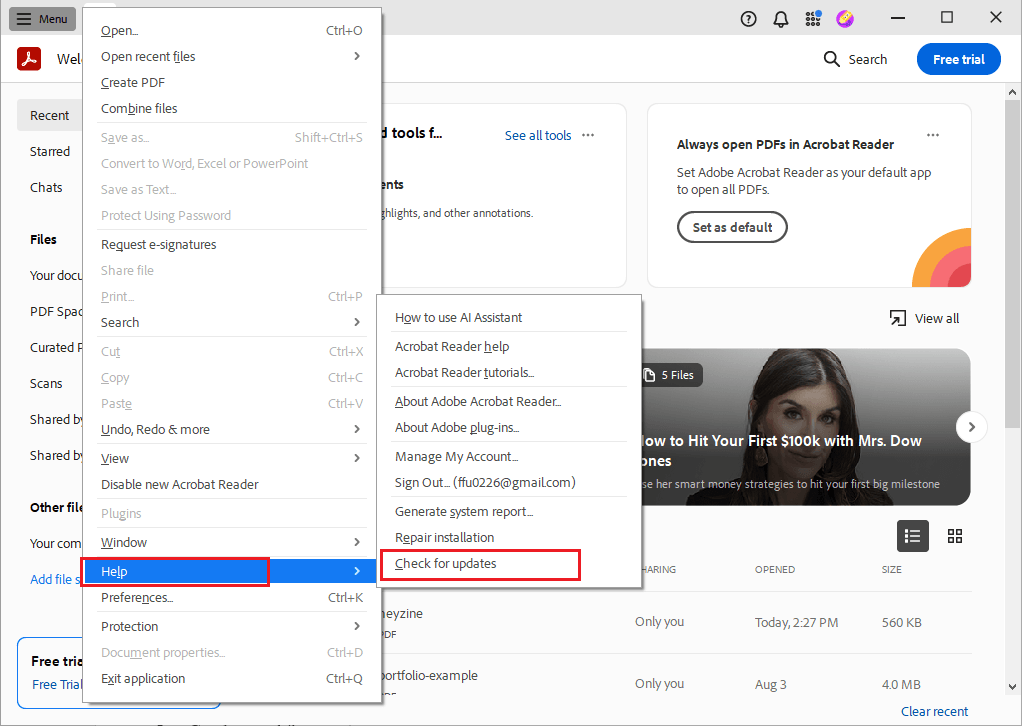
- Click Help in the top menu.
- Click the Check for Updates option. If the update is available, follow the on-screen prompts to download and install the newest version.
- Finally, restart Adobe Acrobat after the installation is complete.
Why can this solution work? Generally, updating software can fix the following issues:
- Fill & Sign bugs
- Crashes and freezes
- Compatibility issues with newer operating systems
- Performance improvements
- Security vulnerabilities
Fix 3. Make Sure the PDF Isn’t Protected
If Adobe Fill & Sign is greyed out or you can’t add text to the document, the PDF file itself may be protected. In that case, you need to check the PDF’s security settings. How to check security settings in Adobe? Open the PDF in Adobe Acrobat, go to File > Properties to select the Security tab, and review the following settings:
- Security Method
- Document Restrictions Summary
- Content Copying
- Commenting
- Filling of Form Fields
- Signing
If the editing or signing is restricted, you will need permission from the document owner or an unlocked version of the PDF. If you don’t know or forget the passwords, JOPDF can help you remove passwords from PDFs.
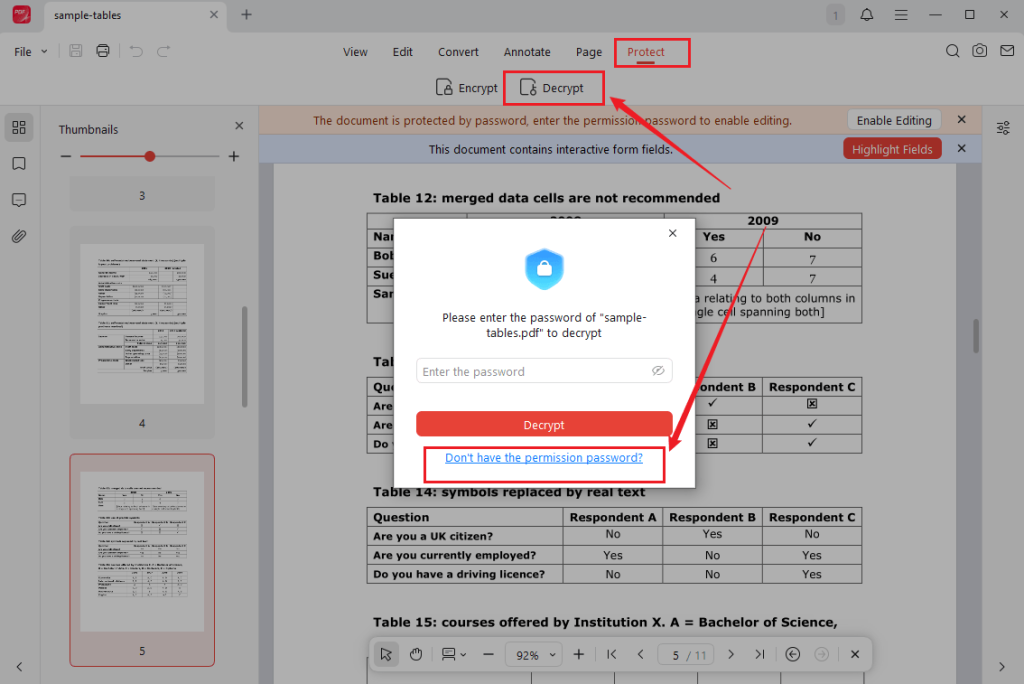
- Run JOPDF on your PC and click Open PDF to upload the protected PDF file.
- Click the Protect tab in the top menu and select Decrypt.
- Click “Don’t have the permission password”.
- Finally, click the Remove button.
Fix 4. Save a Local Copy of the PDF
If you’re opening a PDF directly from a browser, email attachment, SharePoint, OneDrive, Google Drive, or another cloud storage service, Adobe may not interact with the file correctly. In that case, saving the PDF locally can often resolve unexpected editing issues.
Fix 5. Temporarily Disable Protected Mode
Protected Mode in Adobe is a security feature that is designed to safeguard your computer from potentially malicious PDF files. However, in some cases, it can interfere with editing features, including Fill & Sign. To resolve these issues, temporarily disabling Protected Mode can help.
Note
You can only disable Protected Mode for testing. If this can resolve the problem, re-enable it after you’ve finished working with the trusted PDF.
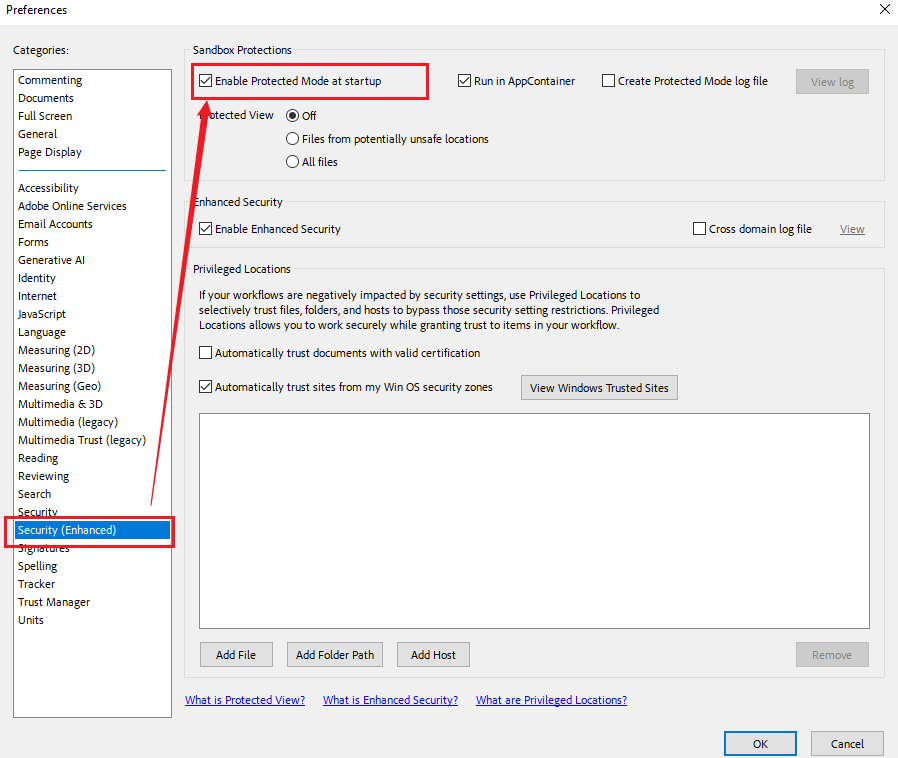
- Launch Adobe Acrobat.
- Click Menu and select Preferences.
- Click Security (Enhanced) and uncheck the “Enable Protected Mode at startup” option.
- Then, click OK to save the changes. Finally, restart Adobe Acrobat and test the Fill & Sign tool again.
If the above 5 solutions can resolve the problem, don’t worry. There are still several effective solutions to try. Please read on.
Fix 6. Repair the Adobe Acrobat Installation
If Adobe Acrobat program files become damaged or incomplete, features like Fill & Sign may stop working correctly. Fortunately, Acrobat includes a built-in repair tool that can restore missing or corrupted files without affecting your PDF documents.
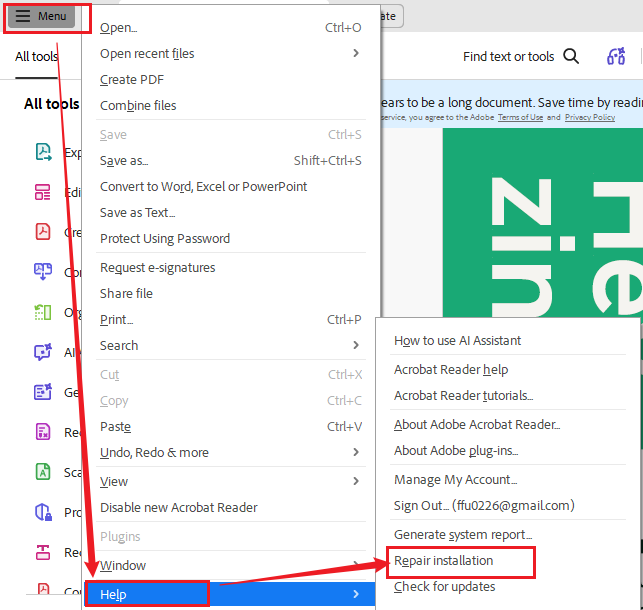
- Launch Adobe Acrobat.
- Go to Menu > Help and click the Repair installation option.
- Then, click Yes to confirm the repair.
- Next, wait for Adobe to repair the installation files.
- Finally, restart your computer after the repair finishes.
Fix 7. Reset Adobe Preferences
As a professional PDF tool, Adobe Acrobat stores user preferences, workplace layouts, and tool settings. If these configuration files become corrupted, they can cause unexpected issues, including missing tools or non-responsive features. To solve the issues, reset your Adobe preferences.
👉Reset Adobe Preferences on Windows
- End Adobe Acrobat.
- Press Windows + R to open the Run dialog and enter the following path: %APPDATA%\Adobe\Acrobat
- Locate the folder that matches your Adobe Acrobat version.
- Then rename the folder, like adding _old to the folder name.
- Finally, launch Adobe Acrobat again.
👉Reset Adobe Preferences on macOS
- Close Adobe Acrobat.
- In Finder, navigate to: ~/Library/Preferences/
- Locate the Acrobat preferences files and move them to another folder as a backup.
- At last, restart Adobe Acrobat.
Generally, resetting preferences can often resolve issues that persist after updating Adobe Acrobat.
Fix 8. Test the Fill & Sign Tool with Another PDF
Sometimes, the issue does not lie in Adobe Acrobat, but in the PDF file itself. In that case, you’d better test the Fill & Sign tool using a different document.
If the Fill & Sign feature works, the original PDF is likely corrupted, damaged, or created by incompatible software. If the feature still doesn’t work, the issue is probably related to Adobe Acrobat.
Fix 9. Try Adobe Acrobat Online
If the desktop version of Adobe Acrobat isn’t working properly, you can try Adobe’s online PDF tools.
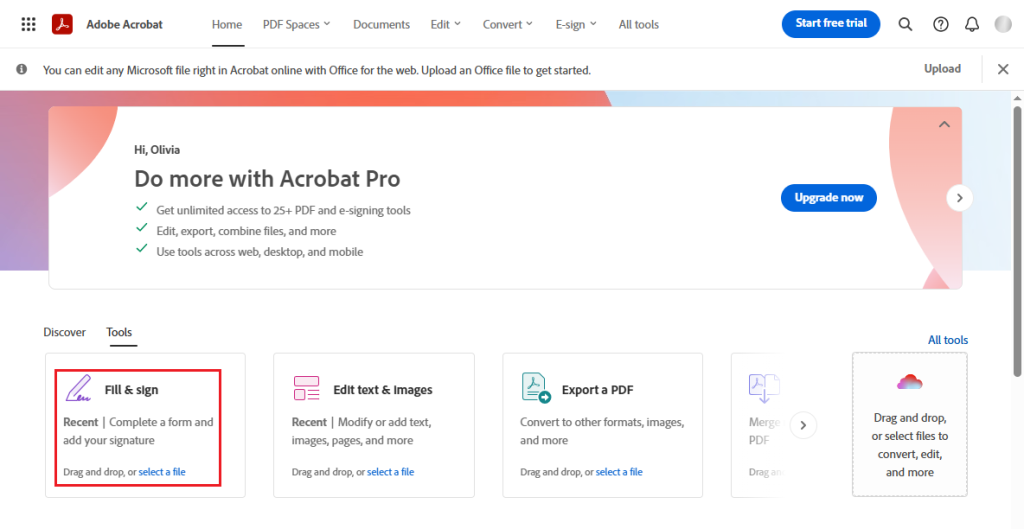
- Open Adobe Acrobat Online in your web browser and sign in with your Adobe account.
- Then upload your target PDF file and select the Fill & Sign tool.
- Now, fill out your PDF form and add electronic signatures.
- Finally, download the completed PDF file.
Fix 10. Use an Alternative PDF Editor
If you’ve tried every troubleshooting method and Adobe Fill & Sign is still not working, it may be more efficient to use another PDF editor instead of continuing to troubleshoot. Here are some available alternatives to Adobe Acrobat:
- JOPDF
- SwifDoo PDF
- Foxit PDF Editor
- Wondershare PDFelement
- iLovePDF
Alternative Solution: Fill and Sign PDFs with JOPDF
JOPDF is the best free alternative to Adobe Acrobat, which offers a straightforward way to complete PDF forms and sign PDFs without Adobe. Moreover, as an offline PDF editor, JOPDF allows you to handle PDFs without internet connections. What’s more, you can use it to work with confidential contracts and financial documents since it runs locally on your computer.
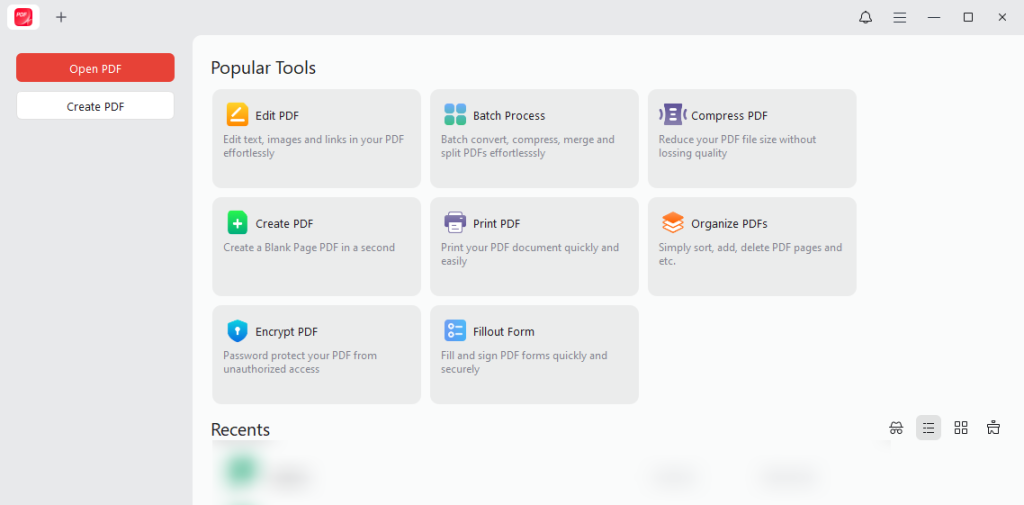
How to Fill and Sign a PDF for Free in JOPDF
Step 1. Launch JOPDF on your Windows PC and click Fillout Form to import the target PDF file.
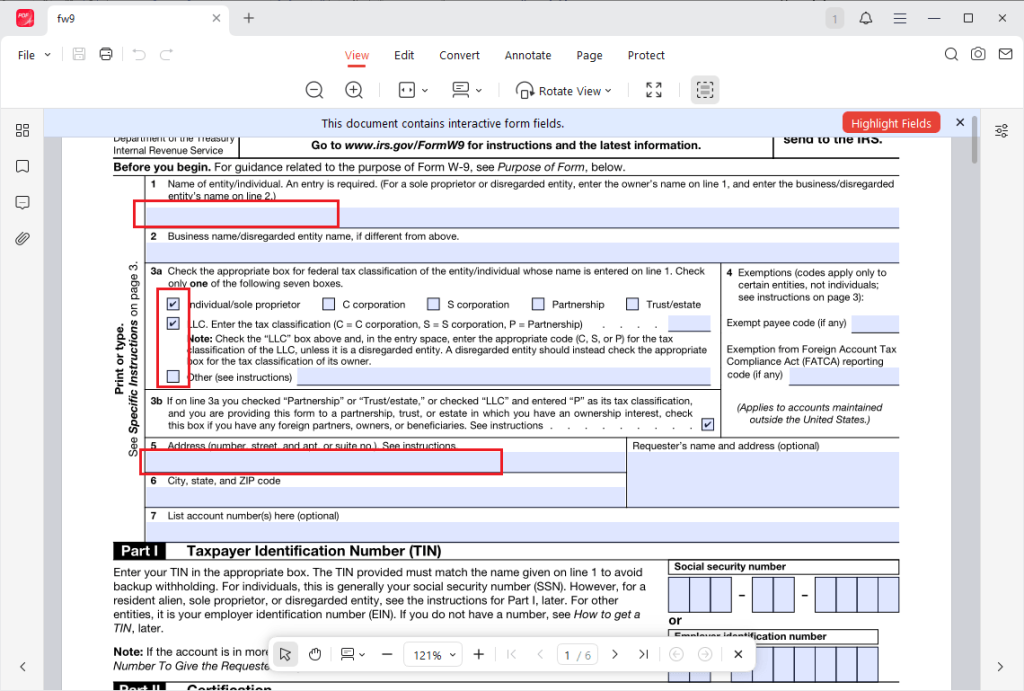
Step 2. Once the interactive PDF form is displayed in JOPDF, the fillable field will be highlighted. Click the box to enter the corresponding information, or click the box to tick it.
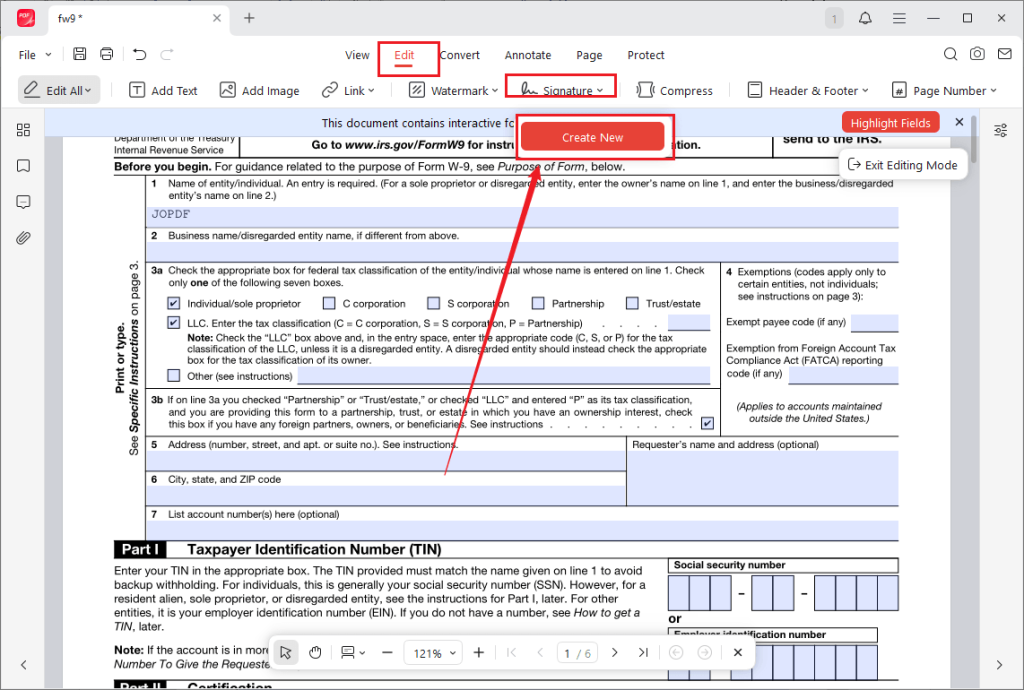
Step 3. After filling out the PDF form, switch from the View tab to the Edit tab. Click Signature and click the Create New button.
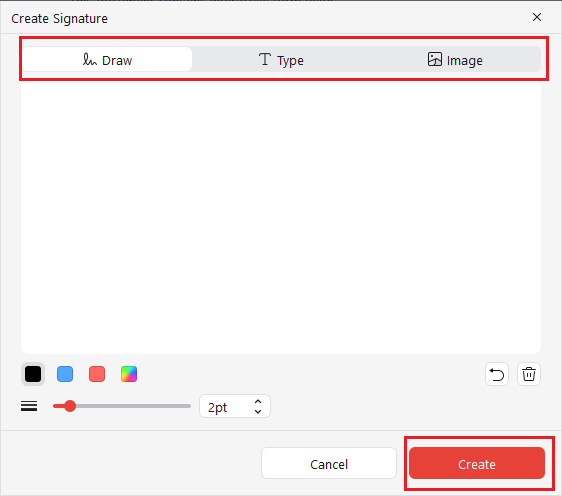
Then, create your signature via Draw, Type, or Image. Select one method, create your electronic signature, and click Create.
Step 4. Next, click and place the signature in the desired position. Finally, click the Save icon to save the completed PDF file.
Why Choose JOPDF
In addition to filling and signing PDFs, JOPDF includes a variety of document management tools, making it useful for both occasional and everyday PDF tasks. Below are some key features of JOPDF:
- Fill PDF forms
- Add electronic signatures
- Edit PDF text and images
- Highlight, underline, and annotate documents
- Merge multiple PDFs
- Split large PDF files
- Rearrange, rotate, or delete pages
- Convert PDFs to and from common file formats
- Password-protect PDF documents
- Compress large PDFs to reduce their file sizes
Adobe Acrobat vs. JOPDF
You can also view the comparison table below to understand the main differences between Adobe Acrobat and JOPDF.
| Feature | Adobe Acrobat | JOPDF |
| Fill PDF Forms | ✔ | ✔ |
| Add Electronic Signatures | ✔ | ✔ |
| Edit PDF Text | ✔ | ✔ |
| Annotate PDFs | ✔ | ✔ |
| Merge & Split PDFs | ✔ | ✔ |
| Convert PDFs | ✔ | ✔ |
| Password Protection | ✔ | ✔ |
| Offline Editing | ✔ | ✔ |
| Adobe Account Required | Sometimes | ✘ |
| Free Version Available | Limited | ✔ |
Tips to Prevent Adobe Fill & Sign Issues
While most Adobe Fill & Sign problems can be resolved with the troubleshooting methods above, taking a few preventive measures can help minimize the chances of encountering the same issue again. Below are some useful tips for your reference:
- Keep Adobe Acrobat updated
- Verify PDF permission
- Keep your operating system up to date
- Back up important PDFs
- Use trusted PDF files
Final Words
There are many factors that cause Adobe Fill & Sign not to work, such as outdated software and protected PDFs. How to fix Adobe Fill and Sign not working? You can try restarting Adobe Acrobat, checking document permissions, repairing the installation, or other solutions mentioned above. If the problem can’t be resolved by the 10 solutions mentioned in this article, try using an alternative solution, like JOPDF, to fill out and sign PDF files.
FAQs
The PDF is protected or certified.
The document has editing restrictions.
You're using an outdated version of Adobe Acrobat.
The PDF was opened in an unsupported viewer or browser.
Acrobat is experiencing a temporary software issue.
Table of Contents

Your Best Free PDF Expert in PDF editing, compressing, converting, annotating, protect, organizing, and more.
Free DownloadWindows · macOS · Linux

Olivia
“Olivia is an editor at JOPDF, where she writes practical guides and insightful articles on managing PDFs—covering topics like editing, annotating, converting, and organizing files efficiently. Passionate about clear communication and digital productivity, Olivia enjoys spending her free time cooking, watching movies, and hiking to unwind and find inspiration for her writing.”