Introduction :
Do you need to fill out a tax form or sign a contract? Instead of printing the document, signing it by hand, and scanning it back, you can fill and sign a PDF in just a few minutes with a reliable PDF editor. In this JOPDF article, you’ll learn effective ways to fill out PDF forms, add electronic signatures, and save completed files on Windows, Mac, iPhone, and Android devices.
In the following content, you’ll learn how to fill out and sign a PDF for free using various tools, including offline solutions, online and built-in options across platforms. Now, let’s check effective methods one by one!
Fill and Sign PDFs Offline with JOPDF
If you frequently handle contracts, invoices, tax forms, and other confidential documents, an offline PDF editor is a better choice than online options. Among various paid and free PDF editors, I strongly recommend JOPDF, a 100% free PDF editor for Windows, Mac, and Linux.
As a free desktop PDF editor, JOPDF lets you fill forms, add electronic signatures, annotate PDFs, and make other PDF edits without an internet connection. It is a reliable way to fill and sign PDFs on Windows, Mac, and Linux while keeping personal or business information private.
How to Fill and Sign a PDF Using JOPDF
With JOPDF, you can complete interactive PDF forms with ease. Additionally, you can manually add text to non-fillable PDFs. Meanwhile, you can sign the PDF form after filling it out. Here, let’s learn how to fill and sign a PDF for free using JOPDF:
Step 1. Click the download button to download and install JOPDF on your Windows or Mac PC. Also, you can visit its download center to download the Linux version.
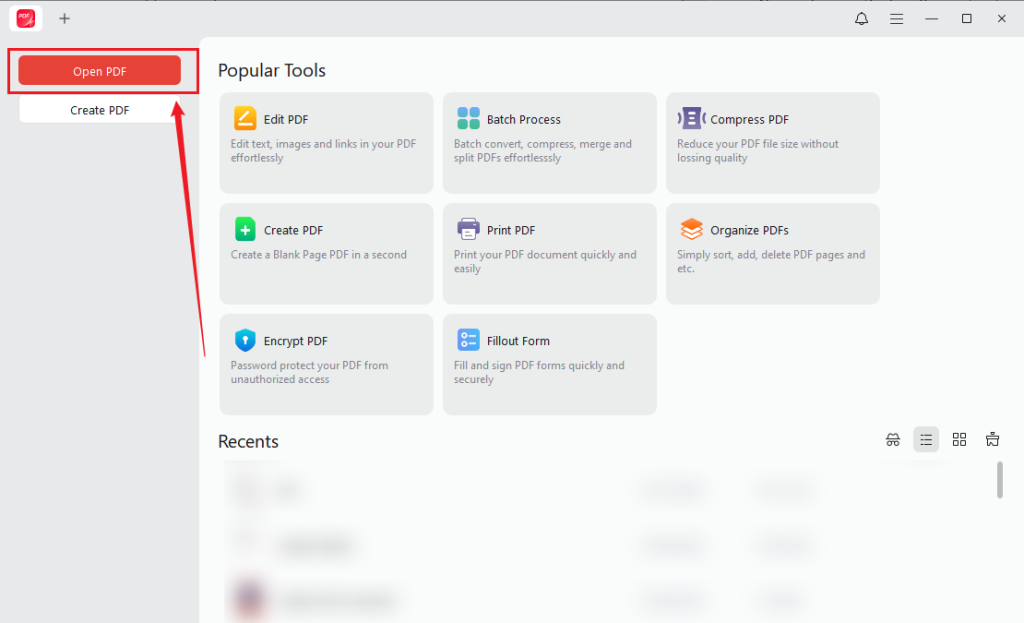
Step 2. Launch this free PDF fill & sign tool and click Open PDF to open the PDF you want to complete.
Step 3. If the document already contains interactive form fields, JOPDF can automatically detect them. Meanwhile, each interactive field will be highlighted in purple. Then, you can click inside each field to enter information or click to tick the option.
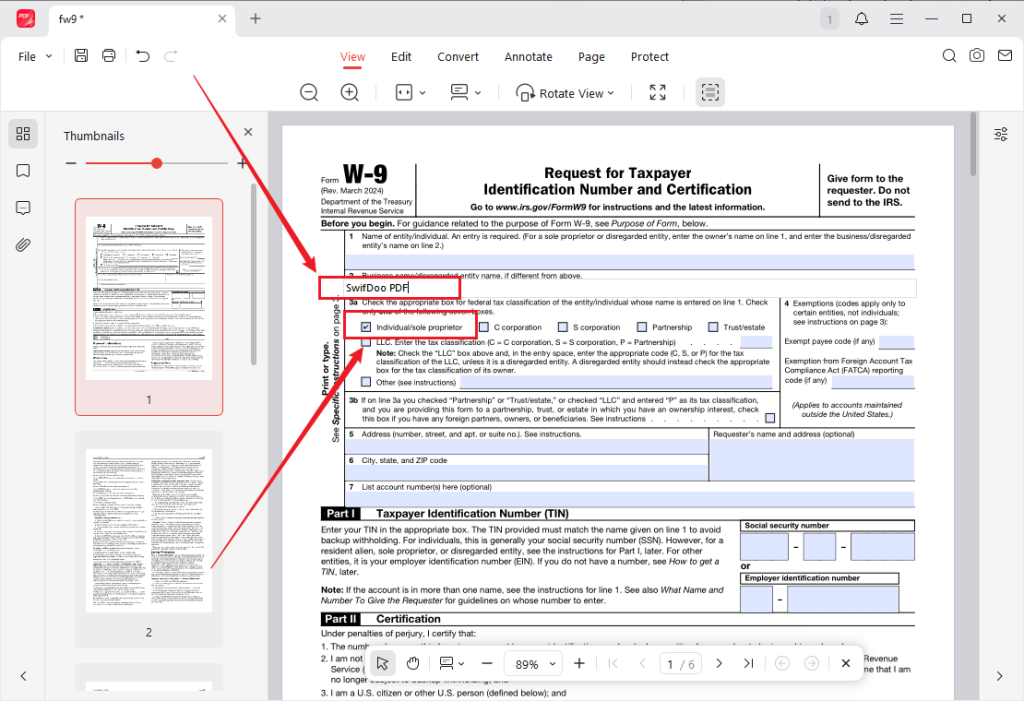
Tips
If the PDF is non-fillable, you can manually insert text wherever needed. Switch to the Edit tab, click Add Text, and type in the target content.
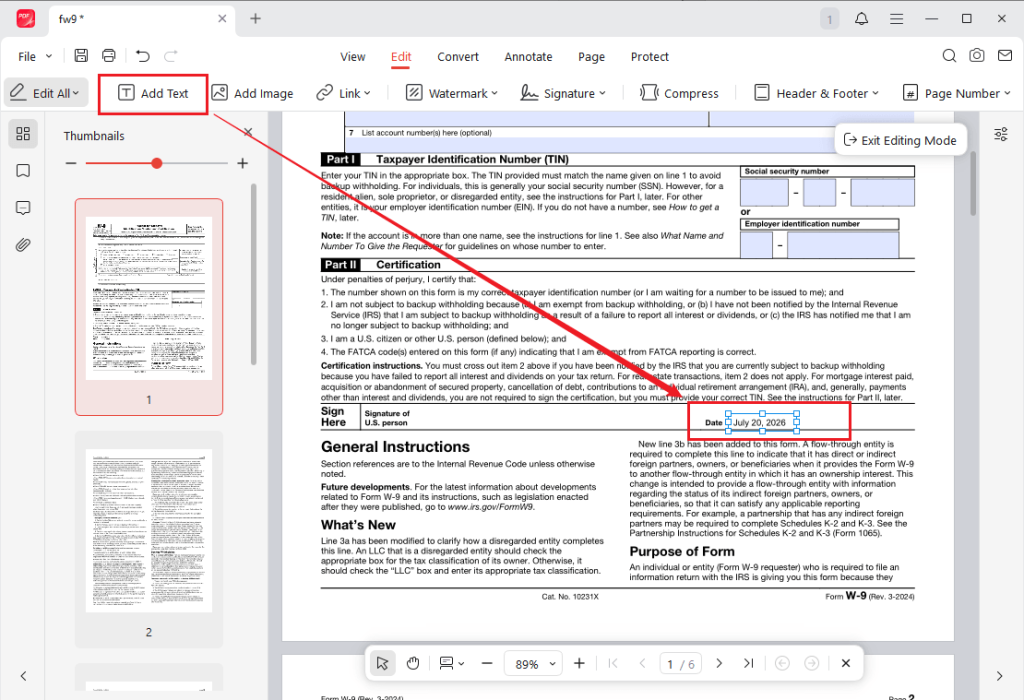
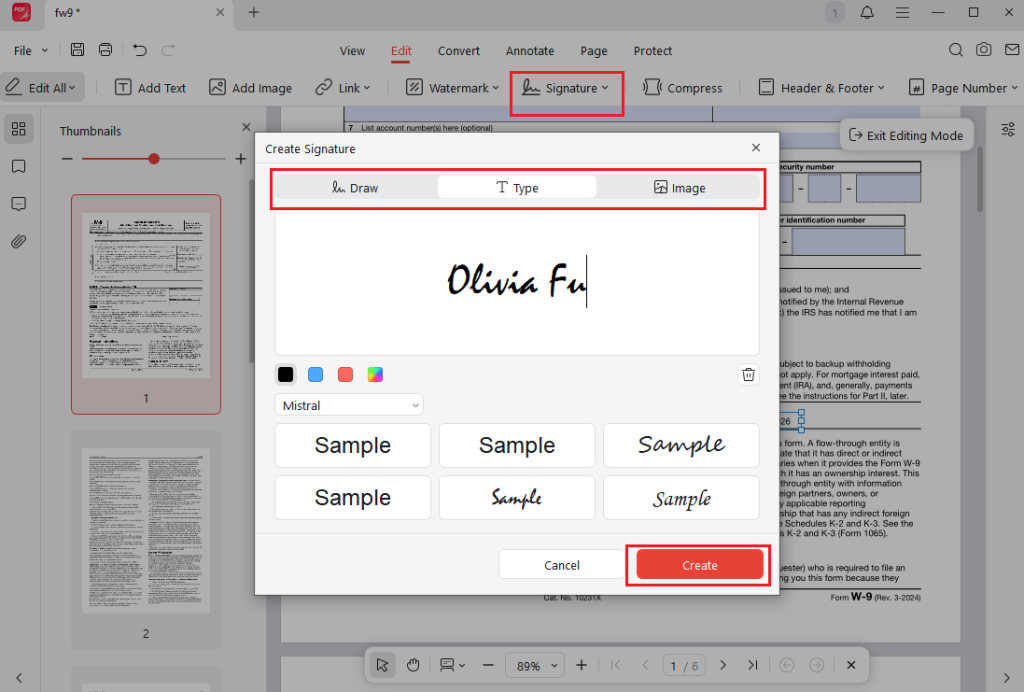
Step 4. Now, under the Edit tab, click to open the Signature option and hit Create New to open the Create Signature window. Here, you can draw your signature, type your name, or import an existing handwritten signature image. Then, click Create to save the new electronic signature
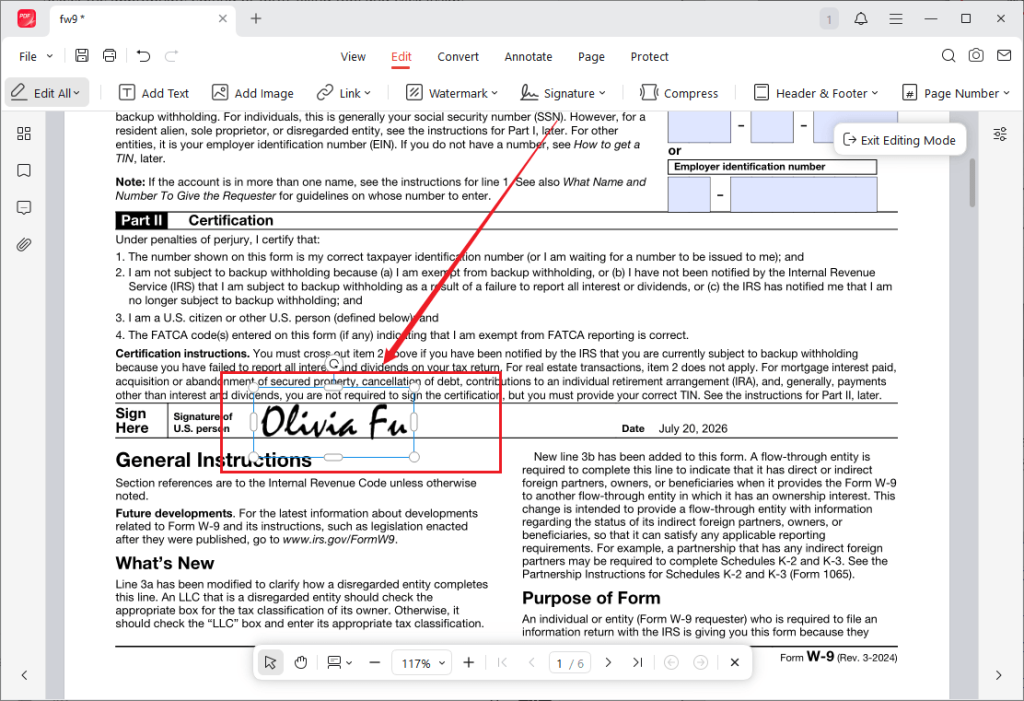
Step 5. Then, click and drop the signature where you need to sign the PDF form. Meanwhile, you can resize and reposition the signature as needed. After reviewing the PDF form, click the Save icon to save it to your computer.
Why JOPDF Is Recommended for Filling and Signing PDFs
Beyond basic form recognition and filling, JOPDF includes a wide range of PDF editing features to simplify document management. In addition, it provides features for converting and compressing PDFs. Below are the key features of JOPDF:
- Recognize and fill interactive PDF forms.
- Add text boxes to non-fillable PDFs.
- Create handwritten, typed, or image-based signatures.
- Reuse saved signatures for future PDFs.
- Annotate PDFs with highlights, comments, and shapes.
- Edit existing PDF text and images.
- Merge, split, and rotate PDFs.
- Password-protect PDFs.
- Add page numbers to PDFs.
- Convert PDFs to and from popular formats.
- Reduce PDF file size without losing quality.
Those capabilities make JOPDF more than a simple signature tool. It is an all-in-one PDF editor for students, professionals, and small businesses that regularly need to fill and sign PDF documents. You can download JOPDF and try it out!
Fill Out and Sign a PDF with Adobe Acrobat Online
If you only need to complete a PDF occasionally and don’t want to install desktop software, Adobe Acrobat Online is a convenient option. It lets you fill and sign a PDF online from any modern web browser, making it ideal for remote work and one-time document signing. Below is how to fill and sign a PDF online with Adobe Acrobat.
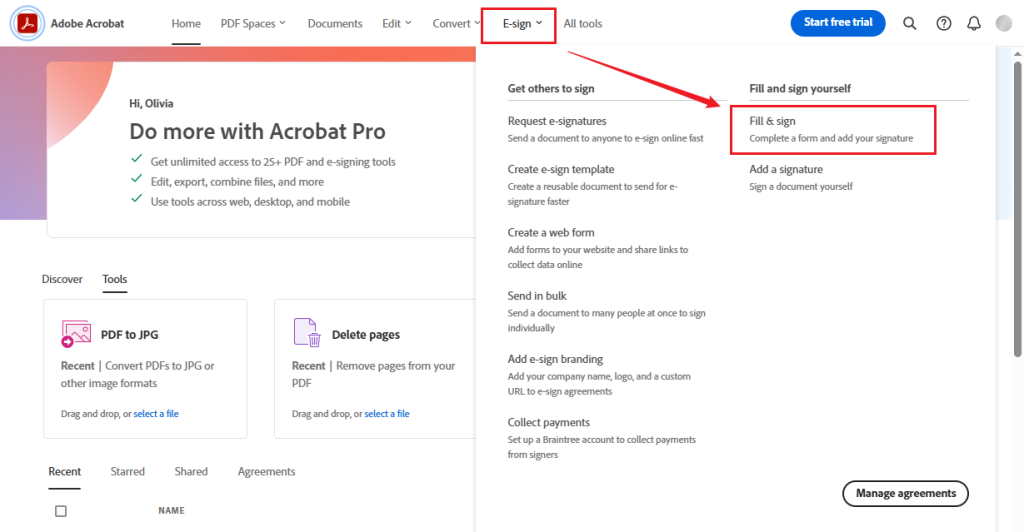
Step 1. Open your browser, visit the Adobe Acrobat Online tool, and sign in with your Adobe account. Then, expand the E-sign dropdown and click the “Fill & sign” option.
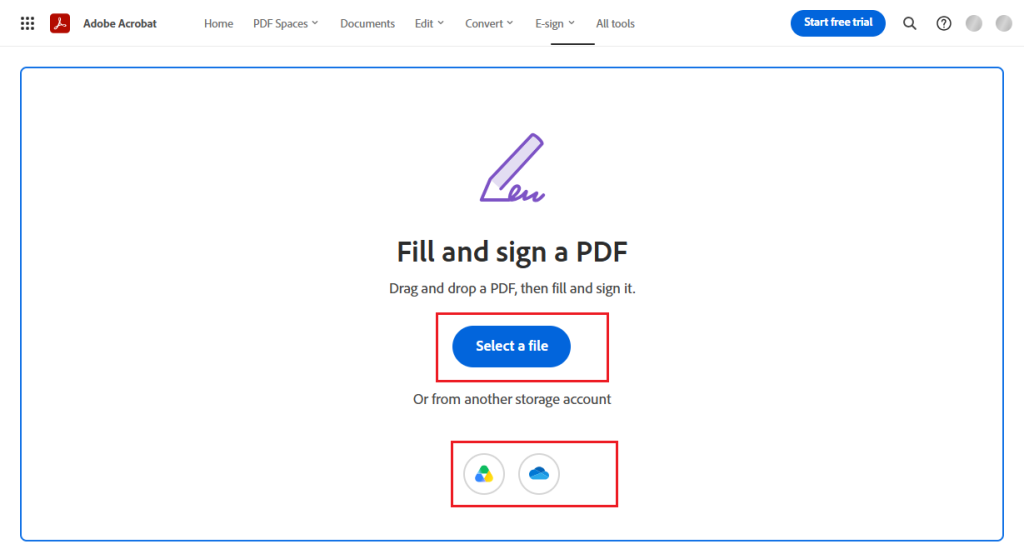
Step 2. Click “Select a file” to upload the PDF you want to fill and sign. Alternatively, you can upload the target PDF from Google Drive or OneDrive.
Step 3. If you upload an interactive or fillable form, you can directly click on highlighted text fields, checkboxes, radio buttons, or dropdowns to fill it out. If the PDF is non-fillable, go to Edit and select Text to add the text boxes to the PDF.
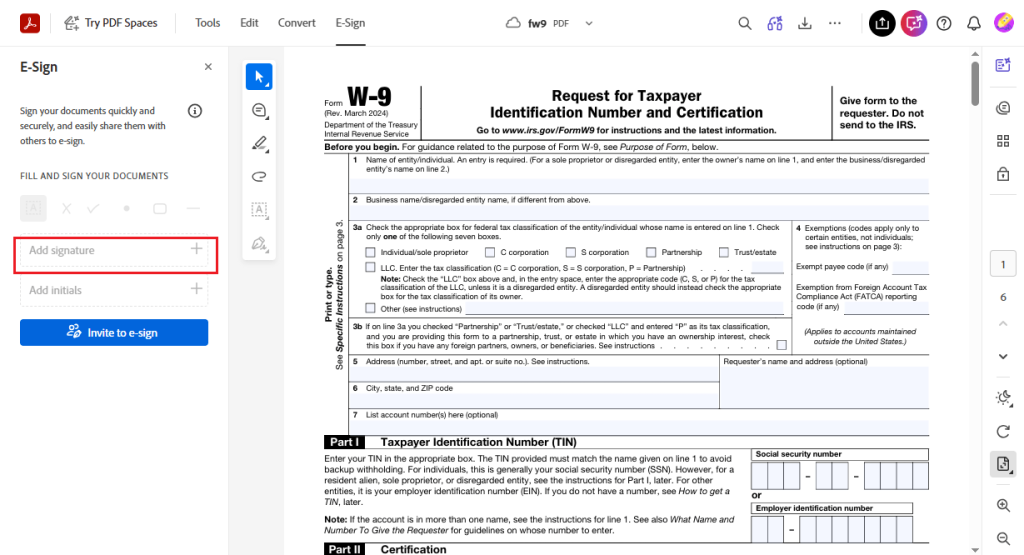
Step 4. Next, under the E-sign tab, click Add Signature to access the signature dialog. Here are 3 options for creating a new signature: Type, Draw, and Image. Then, click Save to store the signature. Now, you can click on the PDF where you want to place the signature.
Step 5. Finally, review the entire PDF for accuracy and click the Download icon to save the filled and signed PDF.
In just a few minutes, you can fill out and sign a PDF online without installing any software.
Pros of Using Adobe Acrobat Online:
- Accessible from any computer with a web browser
- Without software installation required
- Easy-to-use Fill & Sign interface
- Supports electronic signatures and form filling
- Integrates with Adobe Document Cloud
Cons of Using Adobe Acrobat Online:
- Requires uploading files to the cloud
- Some features require a subscription
- Internet connection is required
- Large PDFs may take longer to upload and download
If you are working with confidential files and regularly edit PDFs, an offline PDF editor like JOPDF may be more convenient and reliable.
Fill Out and Sign PDF on Mac Using Preview
If you are a Mac user, you don’t need additional third-party software to sign PDFs. Preview, macOS’s built-in PDF viewer, includes basic tools for adding text, signatures, and annotations. Moreover, in recent macOS versions such as Sonoma and later, Preview offers the AutoFill Form option to fill out PDF forms easily. Here, let’s learn how to fill out and sign PDFs on Mac using Preview.
Step 1. Locate the PDF file in Finder and double-click it to open it in Preview.
Step 2. Once the PDF opens in Preview, it will automatically detect interactive form fields. For fillable fields, click directly into a text field and type your information. If the fields are not interactive, click the Show Markup Toolbar icon, click the Text tool, and click on the PDF where you want to add text. Then, type in the target information.
In addition, Preview also lets you autofill from Contacts. Click the AutoFill Form button in the toolbar, select your name or another contact from the pop-up menu, and then Preview will pull match details from the Contacts app.
Tips
The AutoFill Form feature is available in recent macOS versions, such as Sonoma and later. Meanwhile, to get the best results, set up “My Card” in Contacts in advance.
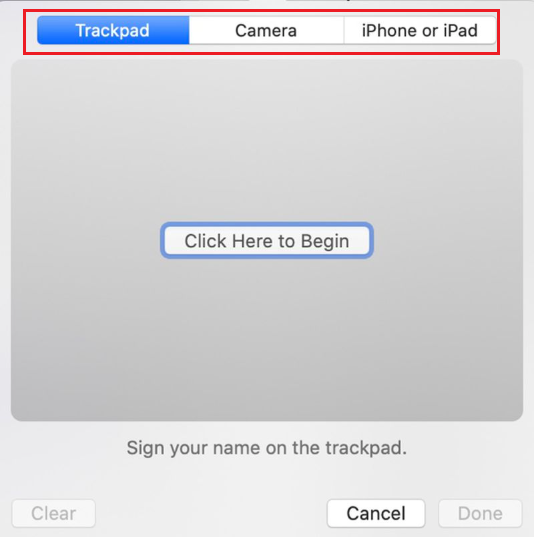
Step 3. To sign a PDF in Preview, click Show Markup Toolbar, select the Sign button, and hit Create Signature. Then, here are 3 options to create a signature: Trackpad, camera, and iPhone or iPad. Next, click Done to save the newly created signature. Now, click the Sign button again, select the newly created signature, and click on the PDF page where you want to place it.
Step 4. Finally, click File and select Save to save the PDF file.
Pros of Preview:
- Free tool built into macOS
- No installation or account required
- Easy to use for quick form filling and signing
- Supports inserting text, adding annotations, and signatures
- Works well for basic everyday PDF tasks
Cons of Preview:
- Limited editing tools
- Cannot modify existing PDF text
- Few advanced form editing features
- No OCR for scanned PDFs
Fill and Sign PDFs on iPhone and Android
In this section, I’d like to show you how to fill and sign PDFs on iPhone and Android with a built-in tool or a third-party app. Now, let’s have a look.
Fill and Sign a PDF on iPhone
To fill and sign PDFs on iPhone, Apple’s built-in Markup tool is the easiest and most reliable option. Below are the exact steps for your reference:
Step 1. Open the Files app, locate the target PDF, and tap it to open it.
Step 2. Tap the Markup icon, select the plus icon, tap Signature, and choose Add or Remove Signature. Then use your finger to draw your signature, tap Done to save it, and drag it to the right place.
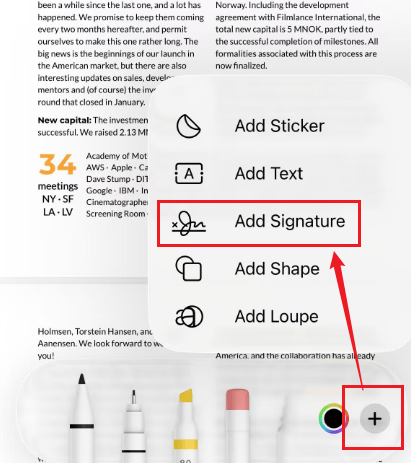
To fill the form fields, tap the blank fields and type using the keyboard.
Step 3. Finally, tap Done in the top right corner to save the changes.
Fill and Sign a PDF on Android
Unlike iPhone, Android doesn’t have a strong built-in tool to fill and sign PDFs. To fill and sign a PDF on Android, use the free Adobe Acrobat Reader app or Google Drive. Here, I’ll take the Adobe Acrobat Reader as an example to show you the detailed instructions.
Step 1. Download Adobe Acrobat Reader from the Google Play Store and install it on your Android device.
Step 2. Launch the Adobe Acrobat Reader app on your Android device and sign in with your account. Then tap File to open the target PDF.
Step 3. Tap Edit at the bottom and select Fill & Sign. Here, tap the Text tool and tap the PDF to add text, or use checkmarks, crosses, or other tools as needed to fill out the PDF form.
Step 4. To sign the PDF, tap the Signature icon, tap Create Signature to create a new signature, tap Done, then tap the PDF to place it.
Step 5. At last, tap the Save icon to save the file.
Best PDF Fill and Sign Tools Compared
Which one is the best PDF fill and sign tool? The right choice depends on your practical needs. Here, I’ll show you a comparison table of the best PDF fill-and-sign options above.
| Tool | Offline | Online | Free Version | Fill Forms | Sign PDFs | Best For |
| JOPDF | ✔ | ✘ | ✔ | ✔ | ✔ | Secure offline editing and everyday PDF tasks |
| Adobe Acrobat | ✔ | ✔ | Limited | ✔ | ✔ | Professional document management |
| Smallpdf | ✘ | ✔ | Limited | ✔ | ✔ | Quick browser-based edits |
| Preview | ✔ | ✘ | ✔ | ✔ | ✔ | Basic PDF filling and signing on Mac |
| SwifDoo PDF | ✔ | ✔ | Limited | ✔ | ✔ | Lightweight PDF editing and signing |
Conclusion
How to fill and sign PDF files? Today’s PDF tools make the process fast and straightforward. Among the various options, I prefer JOPDF, which allows you to fill out and sign PDFs for free with a set of editing features. If you need a quick browser-based solution, Adobe Acrobat Online can be a good choice. You can also use Preview for basic form filling and signatures if you are a Mac user. Now, it’s your time to select a tool and try it out.
FAQs
Table of Contents

Your Best Free PDF Expert in PDF editing, compressing, converting, annotating, protect, organizing, and more.
Free DownloadWindows · macOS · Linux

Olivia
“Olivia is an editor at JOPDF, where she writes practical guides and insightful articles on managing PDFs—covering topics like editing, annotating, converting, and organizing files efficiently. Passionate about clear communication and digital productivity, Olivia enjoys spending her free time cooking, watching movies, and hiking to unwind and find inspiration for her writing.”
![Discover How to Make a Fillable PDF in Word [Detailed Guide]](https://b.jopdf.com/wp-content/uploads/2026/10/how-to-make-a-fillable-pdf-in-word.png)