Summary :
Are you struggling with the fillable PDF not working issue? Don’t worry, almost every case of a PDF form not working has a fix. This guide walks you through nine common causes at a glance, then delivers seven proven solutions — each with step-by-step instructions. For the toughest scenarios, we’ll show you exactly how to fix fillable PDF problems by rebuilding fields from scratch using JOPDF‘s free form tools.
Why Your Fillable PDF Stopped Working?
Before jumping into solutions, let’s identify the problem. Here are the eight most common reasons a fillable PDF won’t let you type or save properly. Read through the list and note which scenario matches yours. Then jump to the corresponding fix in the next section.
1. Your PDF reader doesn’t support form filling. Browser built-in viewers, such as Chrome’s PDF viewer and Firefox’s PDF.js, often display forms but don’t allow you to fill them. If you’re experiencing a fillable PDF not working in Chrome, this is the most likely culprit.
2. The PDF isn’t fillable. Many documents look like forms but are just static images or scanned pages. If clicking anywhere produces no blue highlight and no cursor, you’re dealing with PDF not fillable content.
3. Form fields were flattened or removed. Flattening merges form fields into the document’s static content layer. Once flattened, fields can’t be edited.
4. Editing permissions are restricted. Some PDFs have security settings that prevent form filling, saving, or printing. You may also see PDF form fields grayed out, which typically indicates permission restrictions.
5. The form uses XFA instead of AcroForm. XFA is an older Adobe format that many PDF readers, including browsers and third-party tools, can’t handle. If a government or corporate form refuses to cooperate, XFA is a likely reason.
6. A digital signature has locked the document. Signing a PDF often sets all form fields to read-only to preserve the signature’s integrity. This is why you might experience a PDF form not working after signing.
7. The file is corrupted or was downloaded incompletely. A partially downloaded PDF can display incorrectly and behave unpredictably. Fields may appear but won’t accept input.
8. Browser extensions or plugins are interfering. Ad blockers, PDF extensions, and outdated Adobe plugins can conflict with form rendering. If you’re seeing a fillable PDF not working in Adobe Reader, an outdated plugin is often the cause.
Quick Self-Check: If you see blue highlighted fields but can’t type, the issue is your reader. If there are no highlights at all, the PDF isn’t fillable. If you could fill it in before but can’t now, permission or a signature is the likely cause. If nothing displays correctly, the file may be corrupted.
Fix 1: Switch to a PDF Reader That Supports Form Filling
The fastest solution for most fillable PDF not working complaints is simply changing your PDF reader. Browser viewers are convenient, but they’re designed for reading, not form interaction.
You need a dedicated PDF application with full form support. As an all-in-one form filler, JOPDF automatically detects interactive fields, highlights them for easy identification, and lets you type, check boxes, and select dropdown options without any configuration. If your document simply can’t fill out PDF form fields in any browser, JOPDF is the fastest way to confirm whether the problem is your reader or the file itself.
How to Fill a Form with JOPDF: Step-by-Step Guide
Step 1: Download and install JOPDF from the official website. No registration is required.
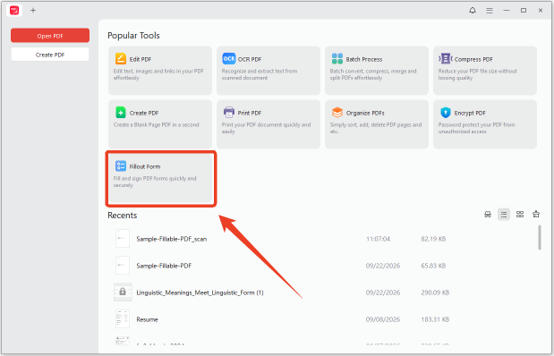
Step 2: Click Fillout Form in the main interface and choose your fillable PDF.
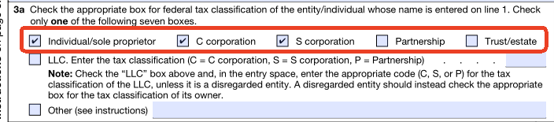
Step 3: JOPDF automatically detects all interactive fields and highlights them. Click on any text field and start typing.
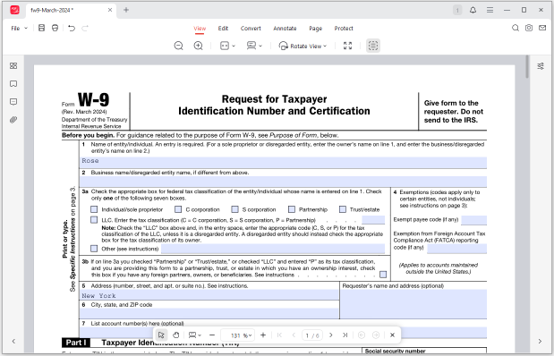
Step 4: For checkboxes, simply click to toggle them on or off. For dropdown menus, click to reveal options and select your choice.
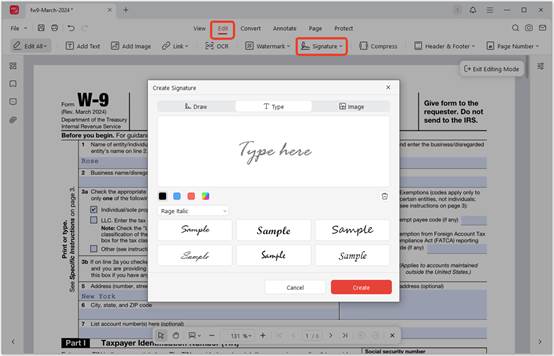
Step 5: If the form requires a signature, use the Signature feature in the Edit tab. You can type, draw, or upload your signature.
Step 6: Once complete, save the document. JOPDF preserves all filled content without altering the form structure.
Fix 2: Convert a Static PDF into a Fillable Form
If your PDF has no interactive fields at all, the solution is to create the fields yourself. Note that if your PDF is a scanned image, you’ll need OCR first to extract text from the image.
Once the text is recognized and editable, you can overlay form fields on top of the relevant areas. JOPDF’s OCR feature handles this recognition step. After running OCR, you can save the file and open it in a PDF form creator to add the actual form fields.
Recommended Tools for Form Creation
Several established applications specialize in building fillable forms from scratch:
Adobe Acrobat Pro: The industry standard for PDF form creation. Its “Prepare Form” tool automatically detects potential fields in static documents and lets you add, edit, and configure text fields, checkboxes, dropdowns, and signature fields manually. Requires a paid subscription, but offers a free 7-day trial.
PDF-XChange Editor: Provides form creation tools in its free version. You can add text fields, checkboxes, dropdown menus, and radio buttons to any PDF. The interface is less polished than Adobe’s, but it’s the most accessible free option for basic form building.
LibreOffice Draw: A completely free, open-source option. You can import a PDF, overlay form controls, and export a new fillable document. It’s clunky compared to dedicated PDF tools, but it costs nothing and works on Windows, Mac, and Linux.
Fix 3: Adjust or Remove Editing Restrictions
Permission restrictions can prevent form filling even when fields exist. Understanding and resolving these restrictions requires the right approach.
Unlock Unresponsive PDF Form Fields
The first step is to check PDF permissions: Open the PDF’s document properties and look for a Security tab. It will indicate whether the document is encrypted and what actions are restricted.
Here are some common restrictions that block form filling:
- Form field filling is disallowed
- Document assembly is disallowed
- Content copying is disallowed
- Printing is disallowed
If you have the password, just enter the password when prompted. Most PDF readers will unlock the document and allow form filling immediately.
If you don’t have the password, you can choose to create an unrestricted version with JOPDF:
Step 1: Open the restricted PDF in JOPDF. You’ll be able to view it but not edit form fields.
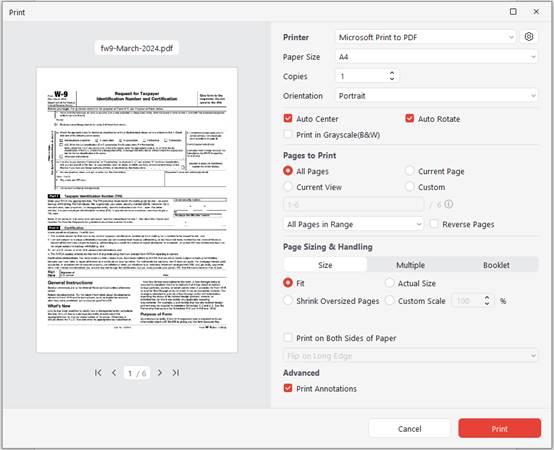
Step 2: Use the Print to PDF feature to create a new copy. This new file won’t carry over the original’s permission restrictions.
Step 3: Open the new copy and edit PDF form fields — add, remove, or modify as needed.
Step 4: Save your work. The new document is fully editable and fillable.
Tips
This approach works only for documents where you have legitimate access. If you’re trying to unlock a fillable pdf that belongs to someone else without authorization, you should seek permission instead.
Fix 4: Remove Digital Signatures That Lock the Document
Digital signatures are designed to detect tampering. When you sign a PDF, most applications automatically lock all form fields to preserve the signature’s validity. This is why a PDF form not working after signing is such a common issue.
To remove a signature, you can try the following tips.
Option 1: Remove the Signature
If you need to modify the form and the signature isn’t legally required, remove it. In most PDF editors, you can right-click the signature and select Delete or Clear Signature. JOPDF allows you to manage signatures directly, and the same fill and sign PDF tools that apply signatures can also remove them.
Option 2: Use a Copy
If you need to preserve the original signed version, create a copy first. Open the signed PDF, use Save As to create a duplicate, then remove the signature from the copy and edit freely.
Option 3: Re-Sign After Editing
If the signature must remain valid, complete all form fields before signing. Once signed, don’t make further changes. If changes are needed, remove the signature, make edits, and sign again.
Option 4: Use a Form That Allows Post-Signature Filling
Some forms are designed with signature fields that don’t lock the rest of the document. This requires the form creator to configure signature fields with specific settings. JOPDF’s form tools allow you to control these properties when creating forms.
Fix 5: Repair Corrupted Files and Resolve Conflicts
When a PDF is corrupted or a browser extension is interfering, the problem isn’t the form itself; it’s the environment. Here’s how to address both issues.
#1. Repairing Corrupted PDFs
Symptoms of corruption include fields appearing in the wrong locations, text rendering incorrectly, or the application crashing when you try to save. JOPDF can often repair corrupted files:
Step 1: Open the corrupted PDF in JOPDF.
Step 2: Use Save As to create a new file. This process often rebuilds the document’s internal structure and resolves minor corruption.
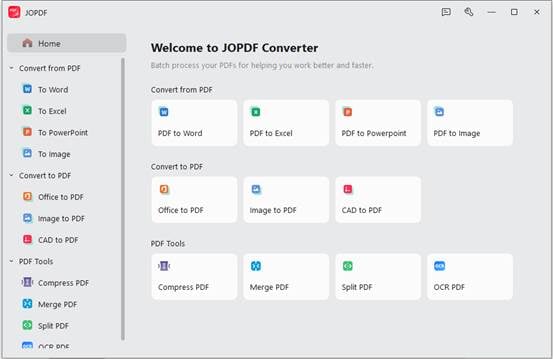
Step 3: If the file opens but behaves strangely, try converting it to another format (like Word or image) and then back to PDF. JOPDF’s batch converter handles this.
Step 4: For severely corrupted files, you may need to obtain a fresh copy from the source.
#2. Resolving Browser and Plugin Conflicts
If a fillable PDF not working in Adobe Reader is your issue, an outdated plugin is the likely cause. Similarly, browser extensions can interfere with form rendering. Common offenders include ad blockers, PDF viewer extensions, and download managers.
For Browser Issues:
Step 1: Disable all browser extensions temporarily.
Step 2: Try opening the PDF again. If it works, re-enable extensions one by one to identify the culprit.
For Adobe Reader Issues:
Step 1: Update Adobe Acrobat Reader to the latest version.
Step 2: If the problem persists, repair the installation through Windows Settings or the Adobe Creative Cloud app.
As an alternative, use JOPDF — it doesn’t rely on browser plugins and handles forms natively. This resolves the majority of fillable PDF not working cases caused by reader-specific issues.
#3. Handling JavaScript Validation Errors
Some forms use JavaScript to validate input before allowing submission. If required fields are empty or incorrectly formatted, the form silently refuses to submit, and you may encounter the PDF form won’t save issue.
Step 1: Check for required fields marked with asterisks or red outlines.
Step 2: Ensure all dates are in the expected format (MM/DD/YYYY vs DD/MM/YYYY).
Step 3: Look for error messages near fields or at the top of the form.
If validation continues to fail, open the form in JOPDF and use the form editing tools to inspect field properties. You can see which fields are marked required and adjust your input accordingly.
Conclusion
How to resolve the fillable PDF not working issue? This article explains all the possible causes and shows you several methods. You can start with the quick self-check in the causes section. Then apply the corresponding fix. For most users, switching to a dedicated PDF application like JOPDF resolves the issue immediately.
As a form filler, JOPDF handles all these scenarios without cost or registration. You can make PDF fillable documents from scratch, rebuild broken forms, and fill and save with confidence. Whether you need to edit PDF form fields or create entirely new ones, the tools are right there.
FAQs
Table of Contents

Your Best Free PDF Expert in PDF editing, compressing, converting, annotating, protect, organizing, and more.
Free DownloadWindows · macOS · Linux

Anna
Editor
“Anna, Editor-in-Chief and PDF expert, delivers deep insights into PDF document technology trends. She is dedicated to helping readers optimize their digital lives. When not writing, Anna loves exploring local cafes and reading, blending her technical expertise with a love for storytelling.”