![7 Must-Know PDF Form Fillers in 2026 [Never Miss]](https://b.jopdf.com/wp-content/uploads/2026/08/pdf-form-filler.png)
Introduction :
How can you fill out a PDF form on Windows, Mac, or online? A reliable PDF form filler is essential! A good PDF filler enables you to enter information directly into a document and check boxes digitally. In this JOPDF article, I will introduce you to 7 excellent PDF form fillers and help you select the right tool to fill out PDFs. Now, let’s explore this article.
Quick Comparison of the Best PDF Form Fillers
Before getting a deep understanding of each PDF form-filling software, you can refer to the quick comparison table and make a quick choice.
| PDF Form Filler | Best For | Platform | Fill Forms | Edit PDFs | Sign PDFs | Offline | Free Option |
| JOPDF | Free offline PDF editing and form filling | Windows, Mac, Linux | ✓ | ✓ | ✓ | ✓ | ✓ |
| Adobe Acrobat | Advanced PDF workflows | Windows, Mac, Web | ✓ | ✓ | ✓ | ✓ | Limited |
| SwifDoo PDF | All-in-one PDF form filling and editing | Windows, Mac, iOS, Android | ✓ | ✓ | ✓ | ✓ | Trial |
| Foxit PDF Editor | Business PDF workflows | Windows, Mac, Web | ✓ | ✓ | ✓ | ✓ | Trial |
| PDF Expert | Mac/iPhone/iPad users | Mac, iOS | ✓ | ✓ | ✓ | ✓ | Limited |
| pdfFiller | Online form workflows | Web | ✓ | ✓ | ✓ | ✗ | Trial |
| Preview | Basic Mac PDF tasks | Mac | ✓* | Limited | ✓ | ✓ | ✓ |
1. JOPDF – Best Free Offline PDF Form Filler
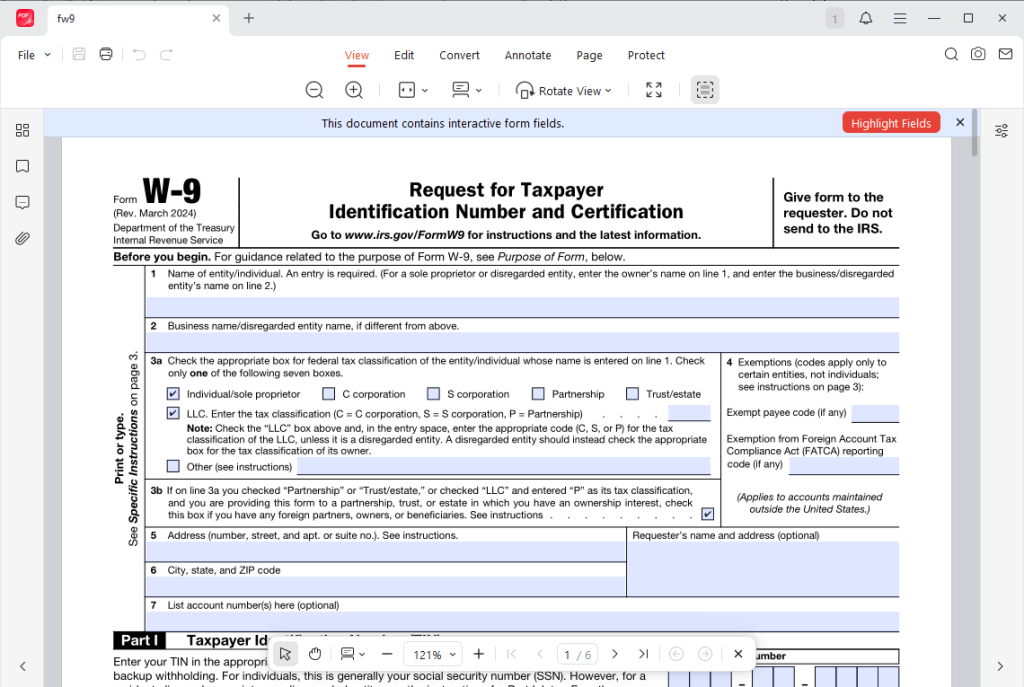
JOPDF is the best free PDF editor for local PDF workflows on Windows, Mac, and Linux. As a full-featured tool, it also includes automatic PDF form recognition and filling. This feature can recognize standard elements such as text boxes, checkboxes, and selection fields, making it easier to work with interactive PDF forms.
Additionally, JOPDF lets you fill out a PDF form that is not fillable. What’s more, it enables you to add signatures to PDFs. So you can fill out and sign PDFs simultaneously.
Other Key Features of JOPDF
- It enables editing PDF text and images for document customization.
- It includes annotation tools for adding notes, shapes, comments, and highlights to PDFs.
- It supports merging and splitting PDF files for document organization.
- It allows you to add headers, footers, and page numbers to a PDF.
- It allows you to organize PDF pages by rearranging, rotating, or deleting pages.
- It supports converting PDFs into other file formats for flexible usage.
- It provides PDF protection features.
- It can compress large PDF files to reduce their file size without losing quality.
Pros
- Supports Windows, Mac, and Linux
- Completely free to use
- Fully works on your local computer
- Offers more than basic form filling
- Intuitive interface for beginners
Cons
- Can’t handle scanned PDFs
⭐Best For: Users who want a free PDF form filler that works offline and also provides general PDF editing tools.
2. Adobe Acrobat – Best for Advanced PDF Forms
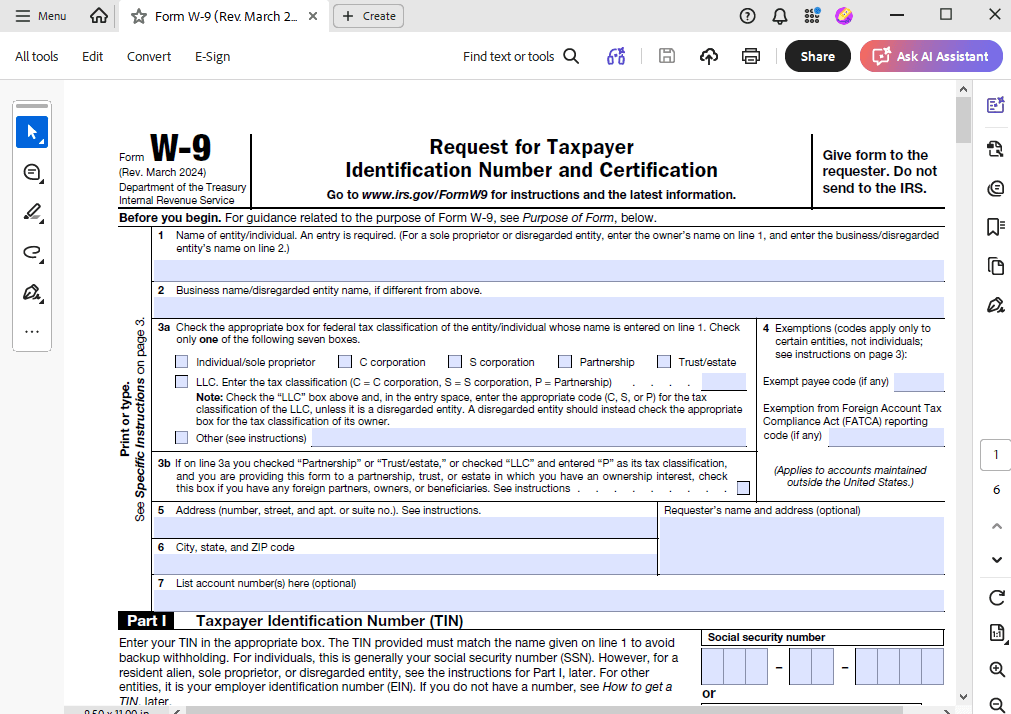
Adobe Acrobat is one of the most comprehensive solutions for working with PDF forms. With its OCR feature, you can also handle and edit scanned PDFs. Also, it enables you to fill out non-fillable PDFs. Beyond simply form filling, it provides a complete ecosystem for creating, editing, signing, and managing PDFs effectively.
Other Key Features of Adobe Acrobat
- It enables you to create interactive PDF forms with customizable fields.
- It offers full PDF editing capabilities for modifying text, images, and layout.
- It includes OCR for converting scanned documents into editable PDFs.
- It supports PDF conversion into multiple file formats.
- It allows you to create and add electronic signatures to PDFs.
- It provides strong PDF protection features.
Pros
- Extensive PDF functionality
- Advanced PDF form creation
- Precise control for PDF workflows
- Available on both desktop and online
Cons
- Requires expensive subscription fees
- Has a steep learning curve
⭐Best For: Professionals and businesses that need advanced PDF form editing and document workflows.
✨Also Read: Adobe Fill and Sign Not Working? 10 Fixes That Actually Work
3. SwifDoo PDF – Best Overall PDF Form Filler
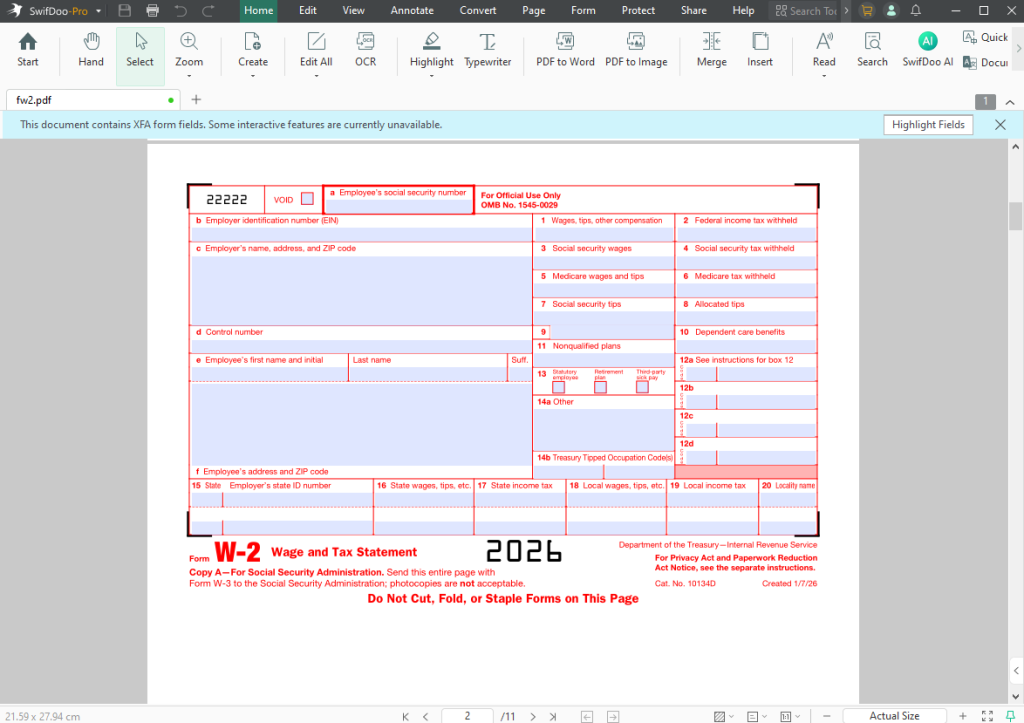
SwifDoo PDF is an excellent PDF editor that combines form filling with a set of PDF editing features. Its form-filling feature supports interactive fields such as text boxes, checkboxes, and dropdown menus. In addition, you can use its editing features to fill out a non-fillable PDF. Meanwhile, it provides you with features for editing, signing, annotating, converting, compressing, and protecting PDFs.
Other Highlighted Features of SwifDoo PDF
- It enables you to add text boxes to a PDF or edit the existing PDF text.
- It provides OCR for scanned and image-based PDFs.
- It supports protecting PDFs via passwords or the flatten feature.
- It offers AI-powered features for explaining, summarizing, or translating PDFs.
- It includes annotation tools for highlighting, commenting, and marking up PDFs.
Pros
- Both desktop and mobile versions are supported
- Filling forms and editing PDFs are in one application
- Intuitive and user-friendly interface
- A full set of editing features
Cons
- Advanced features are only available in the paid plan
- Only the Windows version provides a full set of features
⭐Best For: Users who want a PDF form filler that can also handle other PDF tasks.
4. Foxit PDF Editor – Best for Business Users
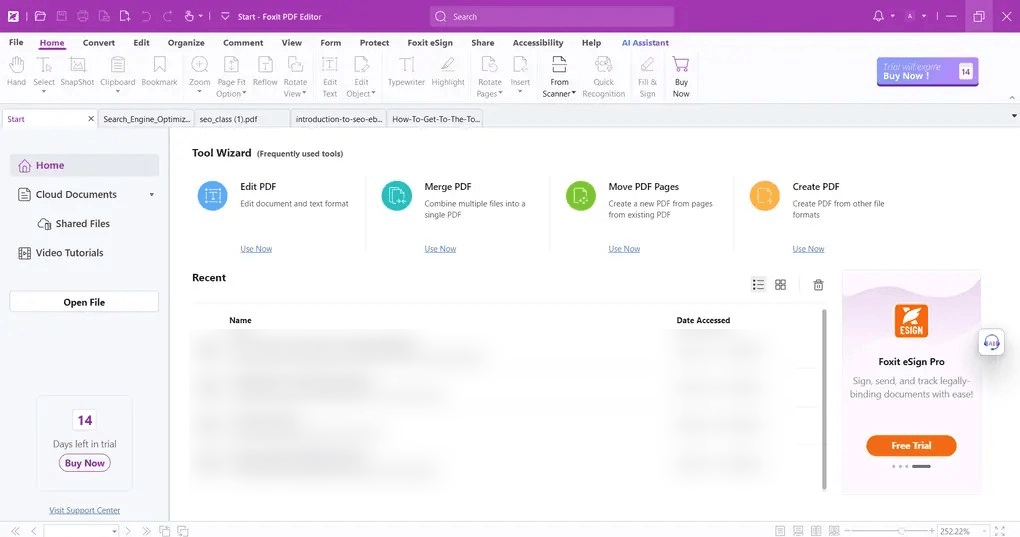
Foxit PDF Editor is regarded as a good alternative to Adobe Acrobat, which combines form filling with PDF editing. Meanwhile, it supports both AcroForms and XFA forms. What’s more, it supports filling forms and then adding signatures. Like Adobe Acrobat, Foxit PDF Editor also allows you to create PDF forms with fields, such as text boxes, signature fields, checkboxes, and combo boxes.
Other Features of Foxit PDF Editor
- It allows you to add electronic signatures to PDF files.
- It enables importing and exporting form data for efficient document handling.
- It provides full PDF editing capabilities for text, images, and layout.
- It includes tools for organizing PDF pages such as merging and rearranging.
- It can password-protect PDFs.
Pros
- Supports both interactive and non-interactive forms
- Supports both AcroForms and XFA form types for broader compatibility
- Good PDF editing capabilities
- Advanced form creation
Cons
- Advanced features require a paid version
- Not friendly for beginners
⭐Best For: Business and professionals who need form filling, PDF editing, and other features.
5. PDF Expert – Best PDF Form Filler for Mac
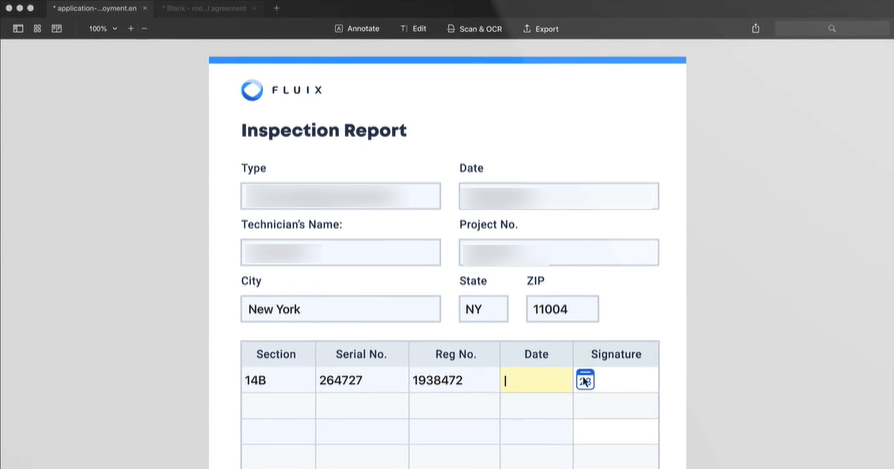
PDF Expert is a PDF application designed particularly around the Apple ecosystem. It is a good choice to fill out a PDF form on Mac. Additionally, it offers other editing, annotation, and organizing features to refine PDFs.
Other Key Features of PDF Expert
- It enables you to add text directly into PDF documents.
- It provides annotation tools for highlighting and commenting on PDFs.
- It supports adding electronic signatures to documents.
- It allows editing of existing PDF content such as text and images.
Pros
- Useful for Mac, iPhone, and iPad workflows
- Clean and intuitive user interface
- Designed for Apple users
Cons
- Advanced functionality requires a paid plan
⭐Best For: Mac, iPhone, and iPad users who need a dedicated PDF application.
6. pdfFiller – Best Online PDF Form Filler
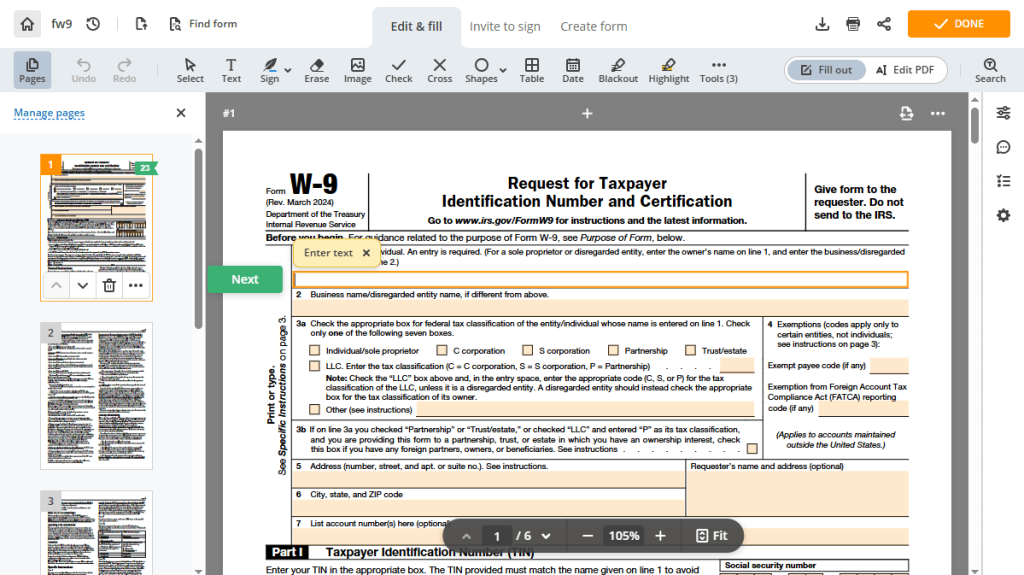
pdfFiller is one of the best online PDF form fillers that enables you to fill out a PDF form without installing additional software. As a qualified PDF filling tool, pdfFiller also allows you to create fillable documents by adding fields, checkboxes, and dropdowns. Also, you can use it to delete unnecessary fillable fields as needed.
Key Features of pdfFiller
- It allows you to fill PDF forms directly in a web browser.
- It enables you to add text into form fields and document areas.
- It supports adding electronic signatures to PDF documents.
- It offers AI tools to summarize and translate PDFs.
- It supports exporting completed documents in multiple formats.
Pros
- No desktop installation required
- Useful for recurring online form workflows
- Can work from different devices
Cons
- Requires uploading documents
- Limited features in free trial
⭐Best For: Users who prefer an online PDF form filler.
7. Preview – Best Free PDF Form Filler for Mac
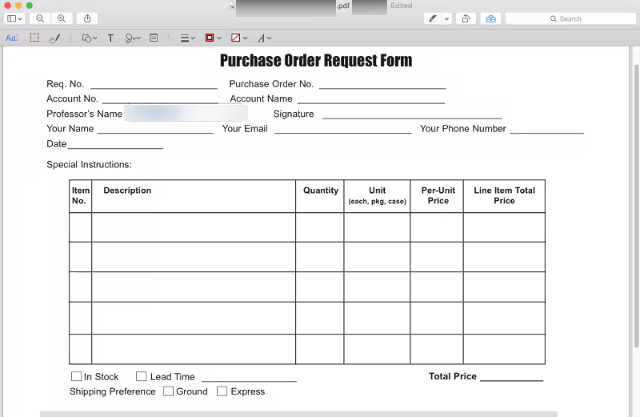
Preview is known as Apple’s built-in application for viewing images and PDFs on Mac. Additionally, it offers some basic features to edit, annotate, and fill out PDFs. As the best free PDF form filler for Mac, Preview enables you to fill out interactive PDF forms efficiently. Additionally, its AutoFill Form feature enables you to pull name, address, and other details from the Contacts app.
Key Features of Preview
- Its Markup toolbar lets you add text, shapes, sticky notes, and more to PDFs and images.
- It can create e-signatures and sign a PDF on Mac.
- It supports combining multiple PDFs and rearranging PDF pages.
- It supports converting images and documents between formats such as JPG, PNG, and PDF.
Pros
- Built into macOS
- Completely free
- Convenient for basic PDF tasks
Cons
- Limited advanced PDF editing
- Less suitable for complex PDF workflows
⭐Best For: Mac users who occasionally need to fill out, sign, or annotate PDFs.
✨Also Read: Step-by-Step Guide on How to Sign a PDF on Preview
Wrapping Up
With a good PDF filling tool, you can fill out interactive or non-fillable PDFs efficiently. If you need a free offline PDF form filler, JOPDF is the best choice, offering form recognition and filling alongside other PDF tools. Alternatively, you can use other PDF filling software, such as Adobe Acrobat, SwifDoo PDF, Preview, and pdfFiller. What is the best PDF form filling tool? The right choice should depend on your needs.
FAQs
Table of Contents

Your Best Free PDF Expert in PDF editing, compressing, converting, annotating, protect, organizing, and more.
Free DownloadWindows · macOS · Linux

Olivia
“Olivia is an editor at JOPDF, where she writes practical guides and insightful articles on managing PDFs—covering topics like editing, annotating, converting, and organizing files efficiently. Passionate about clear communication and digital productivity, Olivia enjoys spending her free time cooking, watching movies, and hiking to unwind and find inspiration for her writing.”