Introduction :
PDF forms are widely used for tax documents, invoices, contracts, job applications, and government forms. How to fill out a PDF form on Mac? Fortunately, macOS offers built-in tools for basic form filling, and several third-party PDF form fillers provide more advanced features. In this guide, you’ll learn step-by-step guidance to fill out PDF forms on Mac using Preview, JOPDF, Adobe Acrobat, and online tools. Now, let’s get started!
Can You Fill Out a PDF Form on a Mac?
Yes, you can fill PDF forms on a Mac without printing them. However, the method depends on the type of PDF you are working with. Some PDFs are designed with interactive and fillable fields that allow you to click and type immediately. While some PDFs are non-fillable or scanned documents, which require a dedicated PDF editor with text insertion or OCR features.
Here, I’d like to show you which tools work best for different types of PDF forms:
| PDF Type | Can You Fill It Out? | Recommended Tool |
| Fillable PDFs | ✔ Yes | JOPDF, Preview, Adobe Acrobat |
| Non-fillable PDFs | ✔ Yes | JOPDF, Adobe Acrobat |
| Scanned PDFs | ✔ Yes (after OCR) | Adobe Acrobat |
Fill Out a PDF Form on Mac with Preview (Built-in & Free)
For many of you, Preview is the quickest way to complete a PDF form because it is pre-installed on Mac. In other words, you don’t need to install additional software or create an account. With Preview, you can fill interactive PDF forms, add text boxes to a PDF, add electronic signatures, and highlight PDFs.
If you only need basic edits, use Preview to fill out a PDF form on Mac for free. Below are the exact steps for your reference:
Step 1. Locate your target PDF form in Finder and double-click it to open it in Preview. If you don’t set Preview as the default PDF viewer, right-click the PDF form, choose Open With, and select Preview.
Step 2. If the PDF form is fillable, click directly into a form field and type your text. If the PDF form is non-interactive, click the Show Markup Toolbar icon and select the Text tool. Then click the PDF form where you want to add text and type the content. Meanwhile, you can adjust the position of the text and customize its font, size, and color as needed.
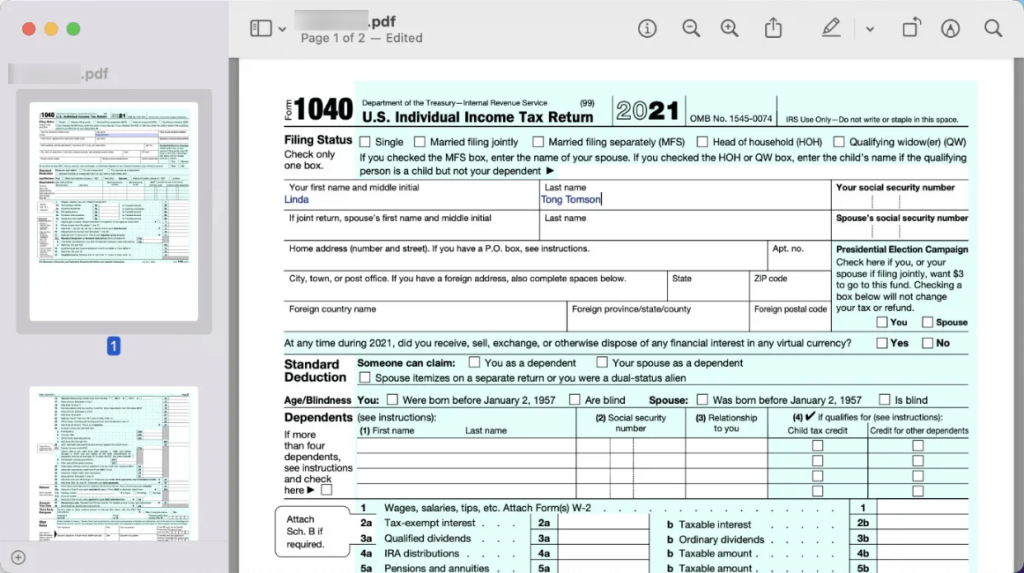
Step 3. Review the whole PDF form for accuracy. Once all the information is correct, click File and Save to overwrite the original form.
Pros of Preview:
- Free and built into macOS
- Without subscriptions or accounts required
- Easy to fill out interactive PDF forms
- Supports filling out and signing PDFs
- Offers various annotation tools
Cons of Preview:
- Cannot edit existing PDF text on Mac
- Doesn’t offer OCR for scanned documents
- Lacks advanced PDF editing features
Fill Out a PDF Form on Mac with JOPDF (Best for Advanced Editing)
While Preview is convenient for simple fillable forms, it has limitations when dealing with non-fillable forms and PDFs that require additional editing. In these situations, a dedicated PDF editor for Mac, such as JOPDF, can provide a smoother experience.
JOPDF is an offline PDF editor that lets you fill forms, add text, edit existing PDF text, create and insert signatures, annotate PDFs, and perform other PDF tasks. If you need to, you can use it to fill out and sign PDFs efficiently.
Why Choose JOPDF?
JOPDF is particularly useful when Preview cannot handle your PDF properly. Below are some key features of JOPDF:
- Fill both fillable and non-fillable PDF forms
- Add text anywhere in a PDF file
- Create and add handwritten, typed, or image-based signatures
- Edit existing PDF text
- Add headers, footers, and page numbers to a PDF
- Password-protect PDF files
- Merge or split PDFs
- Compress PDFs to make them smaller
- Convert PDFs to and from images, Word, Excel, and PPT
- …
How to Fill Out a PDF Form for Free in JOPDF
Step 1. Click the button below to download and install this free PDF form filler and launch it on your Mac. Also, JOPDF is available on Windows and Linux.
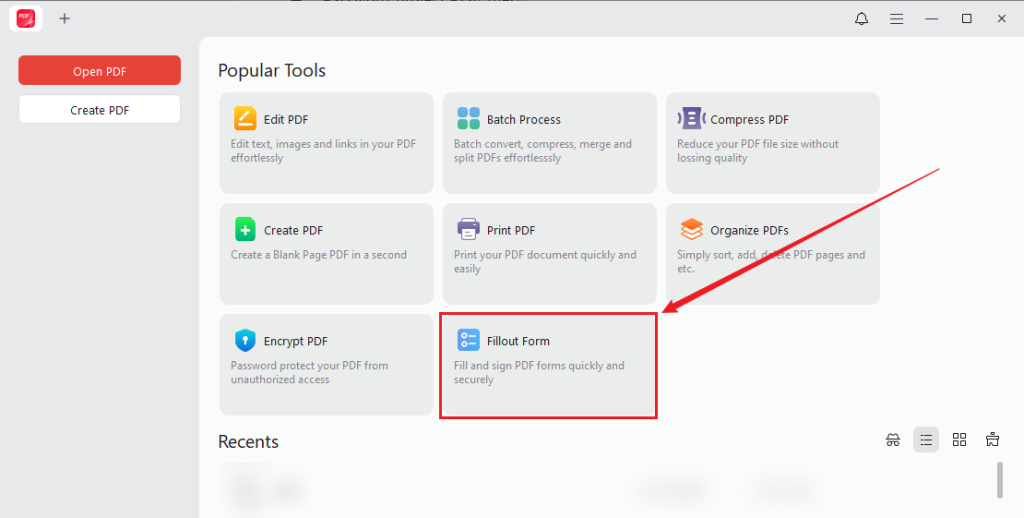
Step 2. After running JOPDF, click Fillout Form under Popular Tools, locate the target PDF form, and click Open to open it in JOPDF.
Step 3. Once the PDF form opens in JOPDF, it will automatically highlight fillable fields in purple. Click the fillable field and enter the corresponding information, or click a checkbox to select it.
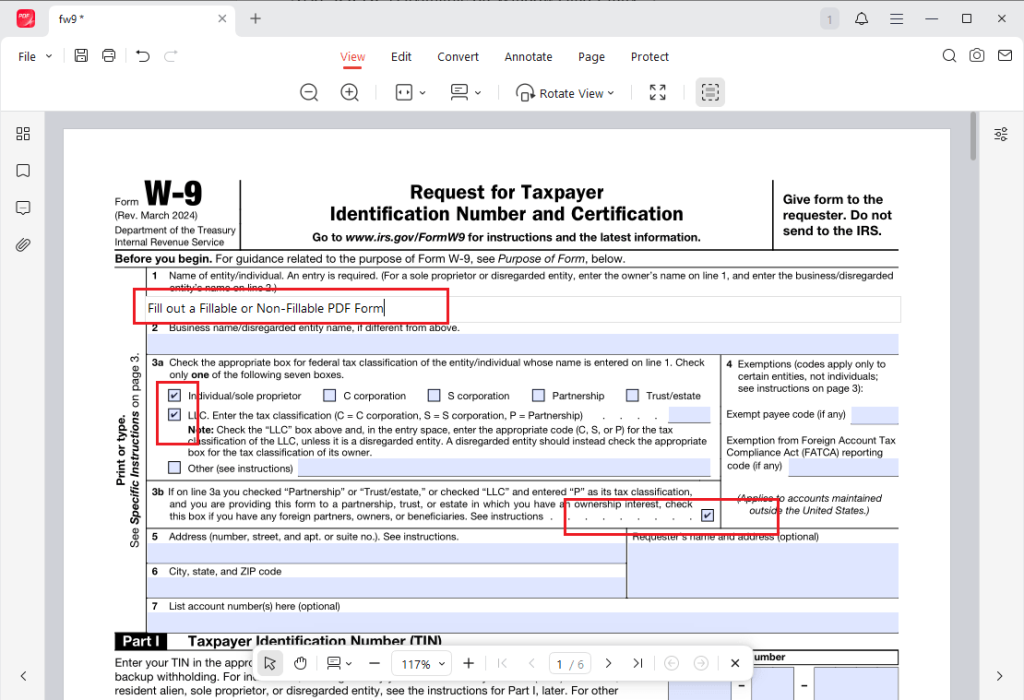
Step 4. Optionally, go to the Edit, Annotate, and Page tab to refine the PDF form. Then, review the PDF form and press Command + S to save it to your Mac.
Pros of JOPDF:
- Supports both fillable and non-fillable PDFs
- Works offline, which can protect privacy
- Useful for editing existing PDF content
- Easy to complete the advanced form than Preview
- Edit PDFs on Mac with a full set of editing features
Cons of JOPDF:
- Not as deeply integrated into macOS as Preview
Fill Out a PDF Form Using Adobe Acrobat
Adobe Acrobat is a professional PDF editor for Mac that combines form filling, signing, editing, and cloud-based workflows in a single platform. You can use it to edit and fill out PDF forms efficiently. What’s more, Adobe offers the following versions with the form-filling feature:
- Adobe Acrobat Reader
- Adobe Acrobat Pro
- Adobe Acrobat Online
Whether which version you select, you can fill out PDF forms in Adobe. Here, let’s learn how to fill out a PDF form with Adobe Acrobat.
Step 1. After installing Adobe Acrobat on your Mac, click File, then click Open to select your PDF form.
Step 2. When the PDF form opens in Adobe Acrobat, the fillable fields are highlighted or outlined in blue. Then, you can click directly in a form field and type your information. For checkboxes or radio buttons, click to select or deselect.
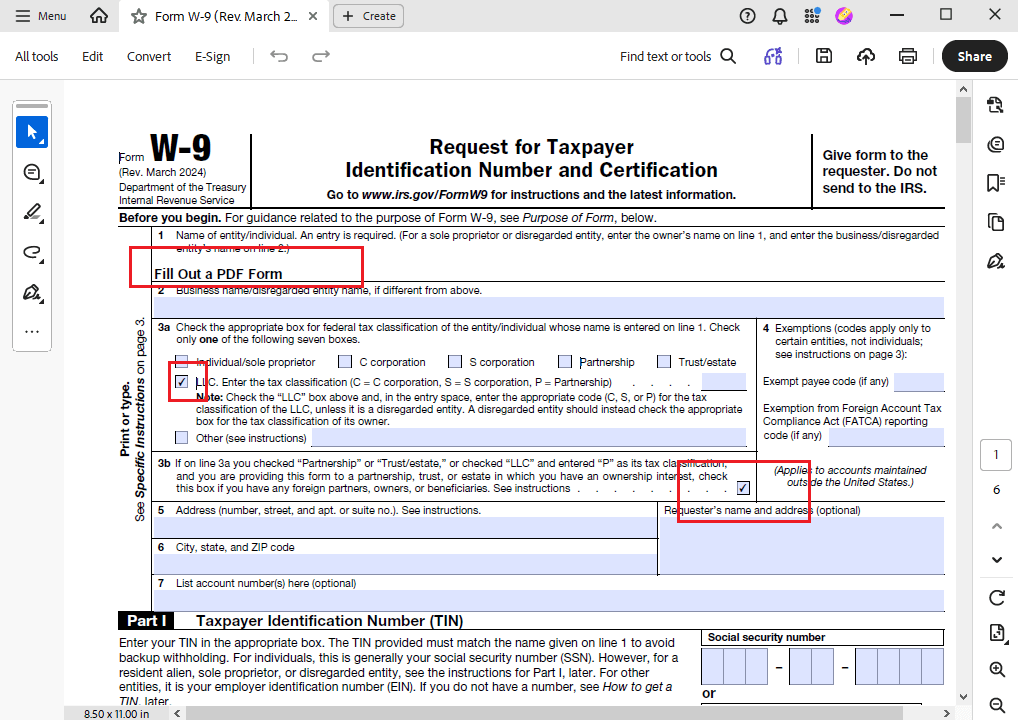
If the PDF form is non-interactive, fields are not clickable. Select the Fill & Sign tool, click Add Text, and click where you want to type. Then enter your info and adjust the text as needed.
Step 3. Once the PDF form is OK, click File and select Save to save the completed PDF.
Pros of Adobe Acrobat:
- Advanced PDF form-filling features
- Supports editing scanned PDFs
- OCR support
- Provides professional editing features
- Excellent PDF compatibility
Cons of Adobe Acrobat:
- Most advanced features require a paid subscription
- Requires a steep learning curve for beginners
Fill Out a PDF Form Online on Mac
If you don’t want to install software and want more advanced features, an online PDF editor is a good choice that lets you complete forms directly in your browser. This online method is quite useful when you’re using a shared computer or only need to fill out one document. Among various online PDF form fillers, I’d like to show you how to fill out a PDF form online with Smallpdf.
Step 1. Open a browser on your Mac and visit Smallpdf’s PDF Form Filler.
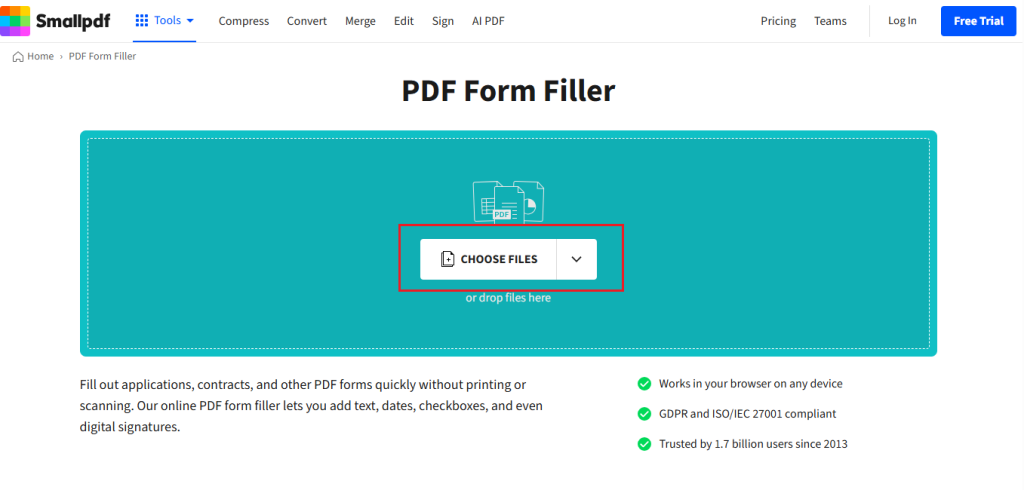
Step 2. Click CHOOSE FILES to upload your target PDF form.
Step 3. If the PDF already contains fillable fields, click inside them and type your information. Meanwhile, click the checkboxes to select or deselect them. If the form is not fillable, use the text tool to place text in the correct areas manually.
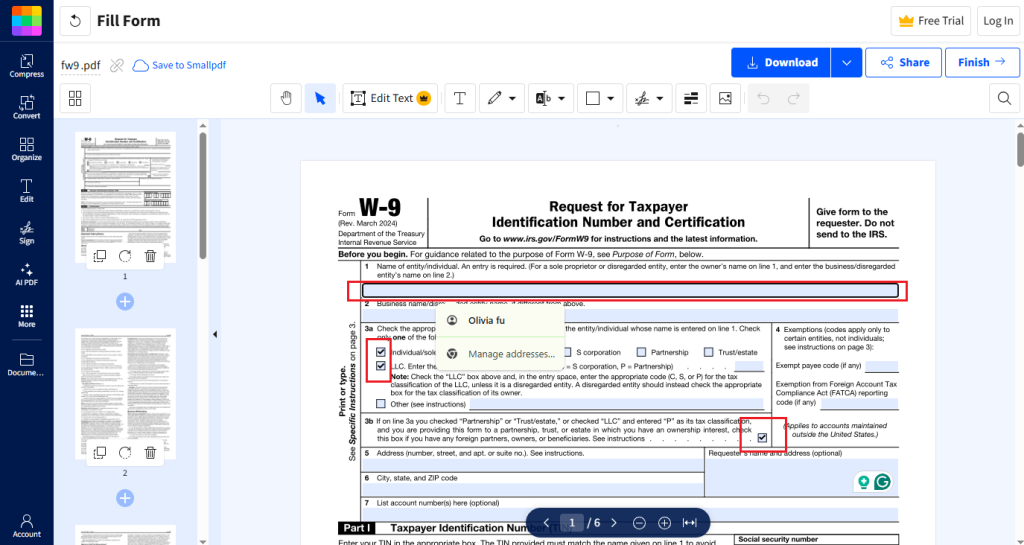
Step 3. Once the form is complete, click Download to save the completed file to your Mac.
Pros of Smallpdf:
- Easy to use, even for beginners
- Works directly in your browser without installation
- Fast for simple PDF form filling
- Ideal for signing and filling out PDF forms
- Convenient for occasional use
Cons of Smallpdf:
- Requires an internet connection
- The free plan has limitations on some features
Best Online PDF Form Fillers for Mac
| Tool | Free Plan | Signature Support | OCR Support | Best For |
| Smallpdf | Limited | Yes | Limited | Quick browser-based form filling |
| Adobe Acrobat Online | Limited | Yes | Yes | Users who want Adobe compatibility |
| PDFgear Online | Yes | Yes | Limited | Free PDF form filling without sign-up |
| iLovePDF | Limited | Yes | Limited | Simple document tasks and basic edits |
Quick Overview of the Best PDF Form Fillers
Is Preview the best tool for filling out PDF forms on Mac? Which PDF form filler should you choose? Here, I prepare a comparison table for your reference:
| Feature | Preview | JOPDF | Adobe Acrobat | Smallpdf |
| Fill fillable PDFs | ✔ | ✔ | ✔ | ✔ |
| Fill non-fillable PDFs | Limited | ✔ | ✔ | Limited |
| OCR for scanned PDFs | ✘ | ✘ | ✔ | ✔ |
| Edit existing PDF text | ✘ | ✔ | ✔ | Limited |
| Add e-signatures | ✔ | ✔ | ✔ | ✔ |
| Offline editing | ✔ | ✔ | ✔ | ✘ |
| Free to use | ✔ | ✔ | Limited | Limited |
| Best for | Basic everyday forms | Advanced editing and privacy | Professional PDF workflows | Quick online form filling |
Wrapping Up
How to fill out a PDF form on Mac? If you are completing a simple fillable form, Preview offers a fast, built-in solution. If you need advanced features and to fill out non-fillable PDFs, a dedicated PDF editor like JOPDF is a good choice. In addition, you can use Smallpdf without installing additional software or select Adobe Acrobat for professional workflows. Which PDF form filler should you choose? The best method depends on your needs. At last, I hope this article is helpful to you.
FAQs
#Preview is ideal for filling out basic interactive PDF forms.
#JOPDF is better for advanced editing and supports non-fillable PDFs.
#Smallpdf is useful for quick online form filling and simple edits, though free use may be limited.
Table of Contents

Your Best Free PDF Expert in PDF editing, compressing, converting, annotating, protect, organizing, and more.
Free DownloadWindows · macOS · Linux

Olivia
“Olivia is an editor at JOPDF, where she writes practical guides and insightful articles on managing PDFs—covering topics like editing, annotating, converting, and organizing files efficiently. Passionate about clear communication and digital productivity, Olivia enjoys spending her free time cooking, watching movies, and hiking to unwind and find inspiration for her writing.”
![Discover How to Make a Fillable PDF in Word [Detailed Guide]](https://b.jopdf.com/wp-content/uploads/2026/10/how-to-make-a-fillable-pdf-in-word.png)