
![Expert Guide on How to Edit PDF Text on Mac [Step-by-Step Guide]](https://b.jopdf.com/wp-content/uploads/2026/06/how-to-edit-pdf-text-on-mac.png)
Introduction :
PDF files are popular in our daily study and work. Owing to its advantages of preserving formatting and good compatibility, PDF is ideal for contracts, reports, forms, resumes, and academic documents. Sometimes, you may need to correct a typo or edit the PDF. How to edit PDF text on Mac? In this full article from JOPDF, I will introduce you to the best PDF editors for Mac and walk you through the steps to edit text in a PDF on Mac.
Can You Edit PDF Text on Mac
A PDF file can’t be edited if you don’t have the right PDF editor. In other words, you can edit PDF text on Mac as long as you select the right tool. Meanwhile, you need to know that there are two main types of PDFs. They are editable PDFs and scanned PDFs.
Editable PDF documents are created from digital files and can be modified directly using a PDF editor. However, scanned PDFs are essentially images of documents. The text in scanned PDFs is not digitally recognized. To edit scanned PDFs, you need to use a PDF editor with OCR to make them editable and searchable. How to edit text in a PDF on Mac? Please read on.
4 Proven Methods to Edit PDF Text on Mac
Before studying the step-by-step tutorials on editing PDF text on Mac, I’d like to walk you through the table to help you quickly understand the PDF editors for Mac that will be introduced later. You can pick your preferred editor here, then jump to the corresponding section to learn the guidance.
| Method | Edit Existing Text | Software Installation | Best For | Difficulty |
| JOPDF | ✓ Yes | Yes | Editing PDF text, annotations, and conversions | Easy |
| Adobe Acrobat Pro | ✓ Yes | Yes | Professional and business document editing | Easy |
| Preview | Limited | Pre-installed on Mac | Adding text, signatures, and comments | Easy |
| Online PDF Editors | Usually | No | Quick one-time edits | Easy |
Method 1. Edit PDF Text on Mac with JOPDF
If you frequently work with PDFs and need more than basic annotation tools, JOPDF, one of the best PDF editors for Mac, offers a straightforward way to edit PDF text on Mac. Unlike Preview, which primarily focuses on viewing and markup, JOPDF is designed specifically for PDF editing. What’s more, it is a completely free PDF editor with no hidden costs.
You can modify existing text, add new content, adjust formatting, annotate PDFs, and convert PDFs to editable formats, making it a practical option for everyday PDF editing tasks on Mac. This makes it useful for students, office workers, legal professionals, and anyone who regularly handles PDF documents.
How to edit PDF text with JOPDF? Below is the step-by-step guidance for your reference:
Step 1. Click the button below to install JOPDF on your Mac.
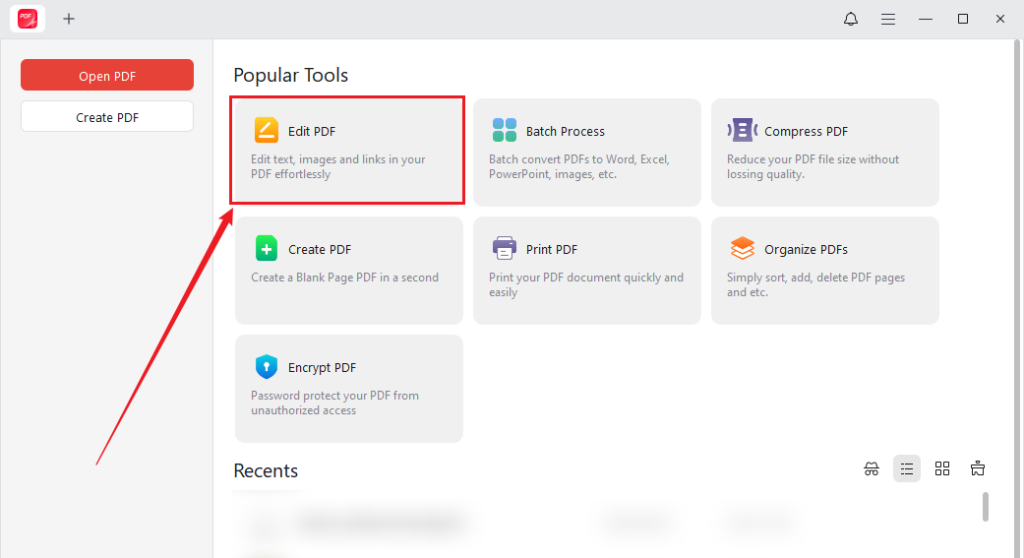
Step 2. Launch this free PDF editor for Mac and click the Edit PDF option under Popular Tools to import the PDF file you need to edit its text.
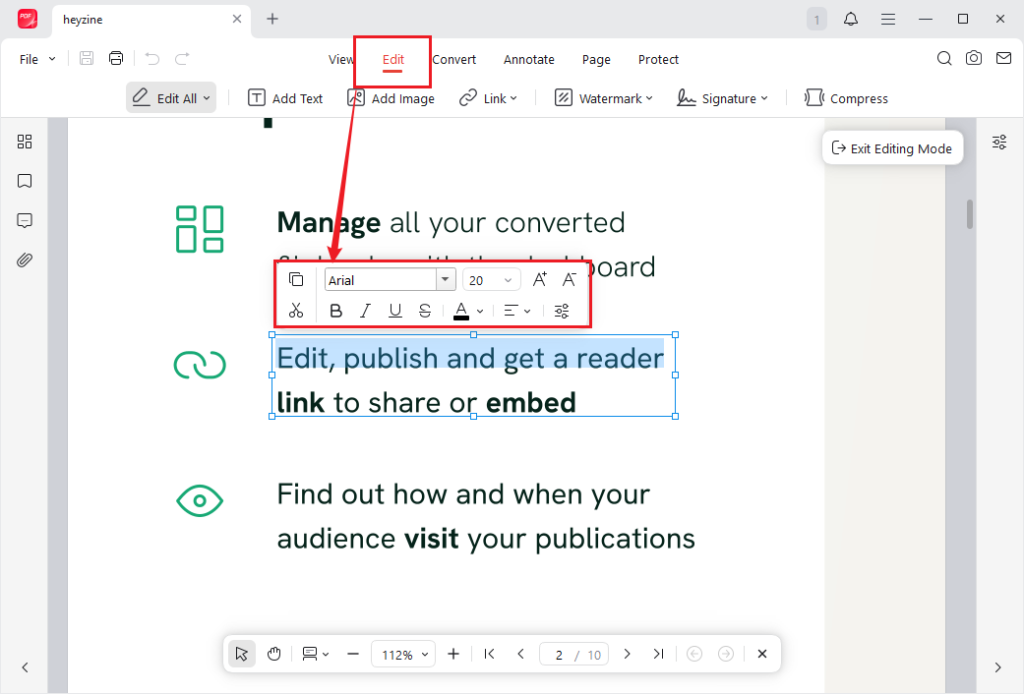
Step 3. Once the PDF is imported, the Editing Mode will be enabled. Now, the text in the PDF is editable. You can click the text to edit it. For the text customization, you can adjust formatting, fonts, colors, or alignments as needed.
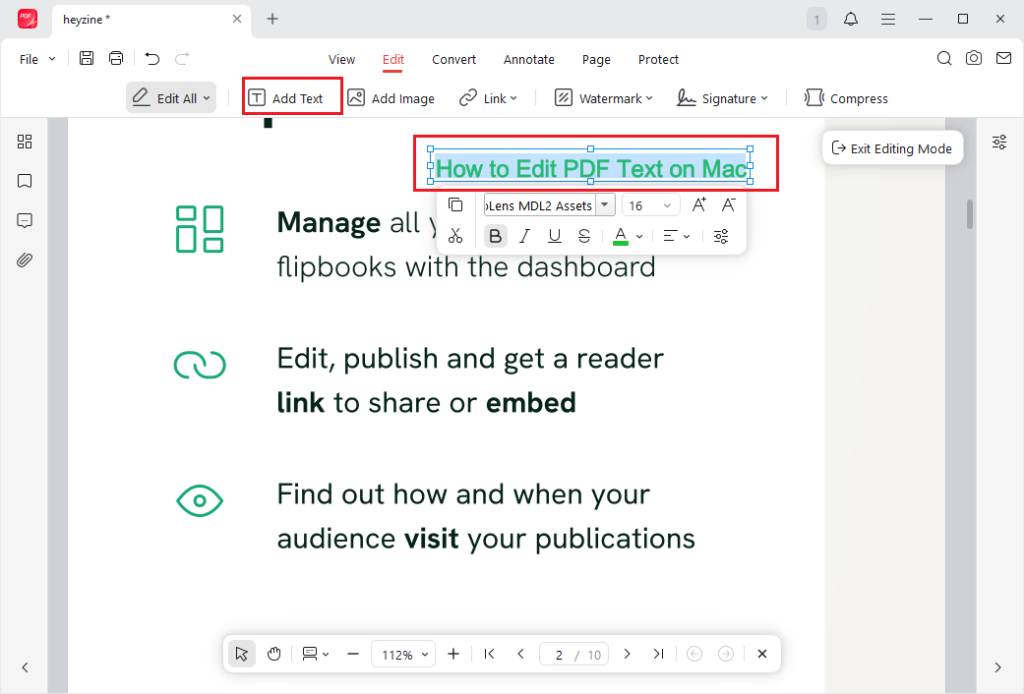
If you need to add text to the PDF, click the Add Text option, click to add a text box, and type in the content.
Step 4. Finally, click Save to export the edited PDF file. Or click File and select Save As to create a new PDF without changing the original.
Why Use JOPDF?
- It is a completely free PDF editor with a full set of editing features, including PDF text editing.
- It is available on Windows, Mac, and Linux.
- It offers annotation and markup features.
- It allows you to convert PDFs and reduce PDF file size.
- It can protect PDFs from editing and printing with passwords.
- …
Method 2. Edit Text in a PDF on Mac Using Adobe Acrobat Pro
Adobe Acrobat Pro remains one of the most powerful PDF editing solutions available. As the creator of the PDF format, Adobe offers advanced editing tools that allow users to modify text, images, layouts, and scanned documents with high accuracy.
Compared to JOPDF, Adobe Acrobat Pro is more suitable and popular among professionals who need to work with contracts, legal documents, and other materials. What’s more, Acrobat Pro is a paid tool that requires an expensive subscription. If you have a sufficient budget, this is a good choice.
Here, let’s learn how to edit PDF text in Adobe Acrobat Pro.
Step 1. Open the target PDF file in Adobe Acrobat Pro.
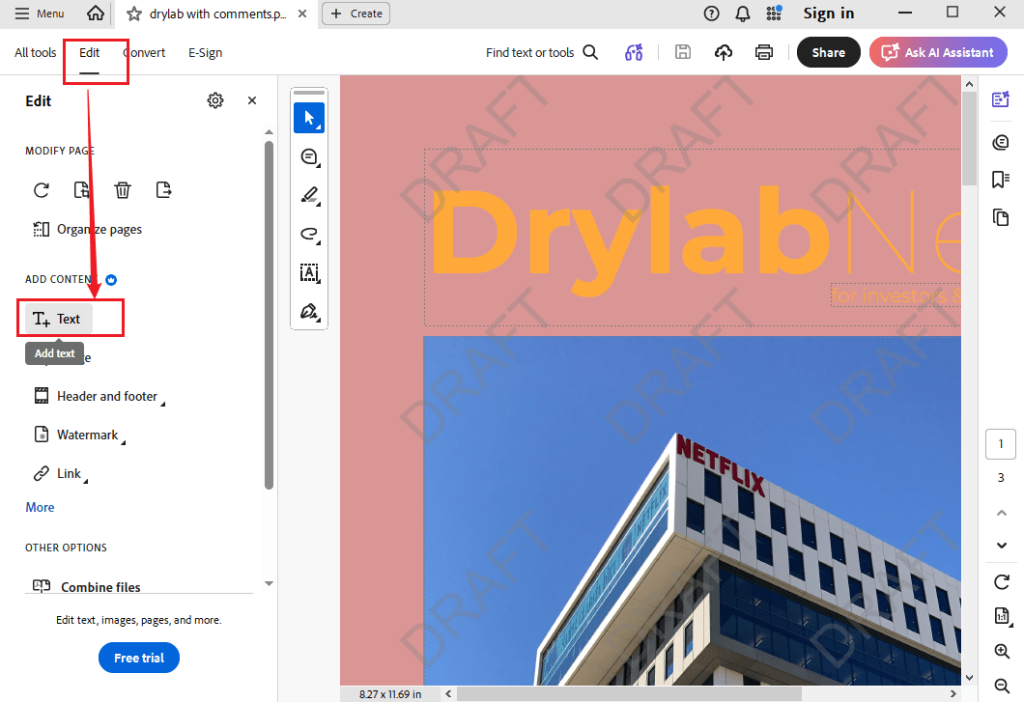
Step 2. Click the Edit tab from the top bar. Then, the Edit panel will appear on the left side. Meanwhile, you can see that the editable text and images will be rounded and have dotted outlines. What’s more, if your PDF file is scanned or image-based, Adobe Acrobat Pro will automatically run OCR to make the text editable.
Step 3. Click on the text you want to change. You can change the font, font size, bold, italic, color, and other settings as needed. To add new text, click Add Text from the left Edit panel.
Step 4. Finally, save the edited PDF file.
Advantages of Adobe Acrobat Pro:
- It allows accurate PDF text editing.
- It offers advanced formatting controls.
- It offers OCR to make scanned or image-based PDFs editable.
- It provides other professional-grade features.
Drawbacks of Adobe Acrobat Pro:
- The subscription fee is quite expensive.
- It is more complex than some users need.
Method 3. Edit PDF Text on Mac Using Preview
Preview is Apple’s built-in PDF viewer and image editor. Since it’s included with macOS, most of us choose to try Preview first when we need to make changes to a PDF. While Preview is excellent for reviewing and annotating documents, it has limitations when editing existing PDF text.
You can use Preview to add text boxes to a PDF, highlight text, add comments, or draw shapes and annotations. However, you can’t edit the existing PDF text. If you don’t need to edit the existing PDF text, Preview is worth a try. Below are the steps to add text to a PDF on Mac using Preview.
Step 1. Locate your PDF file and double-click it to open it in Preview. Or right-click the PDF file and select Open With > Preview.
Step 2. Click the Markup Toolbar (a pen icon) in the upper-right toolbar. Then, you can see all the annotation tools.

Step 3. Then, click the Text tool to add a new text box. Next, double-click inside the box and type your text. Meanwhile, you can customize the text.
Step 4. Once finished, save the edited PDF file.
Pros of Preview:
- It is completely free and pre-installed on Mac.
- Its interface is simple and easy for beginners.
- It is a powerful tool for basic annotation and markup.
Cons of Preview:
- It is not a true PDF text editor.
- It doesn’t have advanced features.
Method 4. Edit PDF Text on Mac Online
If you only need to make occasional edits, online PDF editors can provide a quick solution without installing software. Moreover, most web-based tools allow you to upload a PDF, modify text, add annotations, and download the edited document directly from your browser. One important factor to consider when choosing online tools is security. Here, I have picked several reliable online PDF text editors for you:
- Sejda PDF Editor
- Smallpdf
- iLovePDF
- PDFescape
- Adobe Acrobat Online
- Canva
Most online PDF text editors offer a user-friendly interface, making them easy to use. Here, I use the Sejda PDF Editor as an example to show you how to edit existing text in a PDF.
Step 1. Open your built-in Safari browser or another browser, then visit the Sejda PDF Editor website.
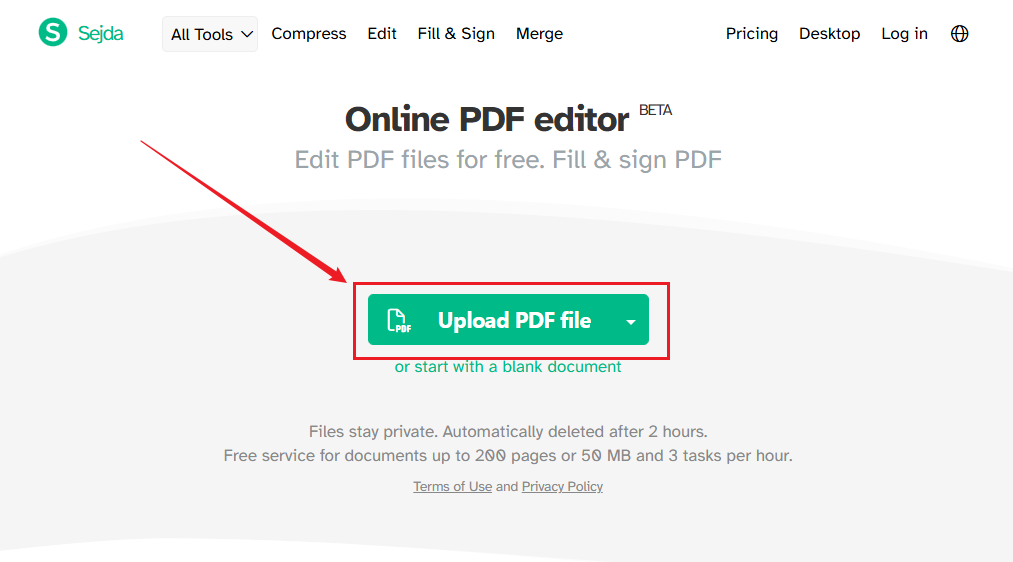
Step 2. Click “Upload PDF file” to select and upload your target PDF file.
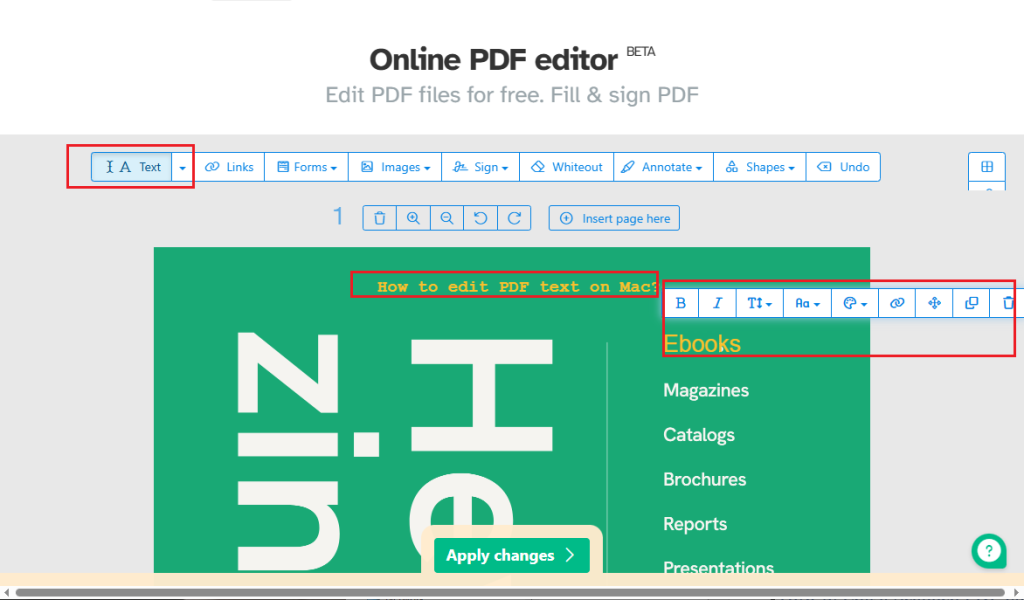
Step 3. Click the Text tab and click on any existing text you want to change and replace. Meanwhile, you can use the text formatting options to change the font size, color, bold, and others. What’s more, you can click anywhere on the page to add a new text box and type your content.
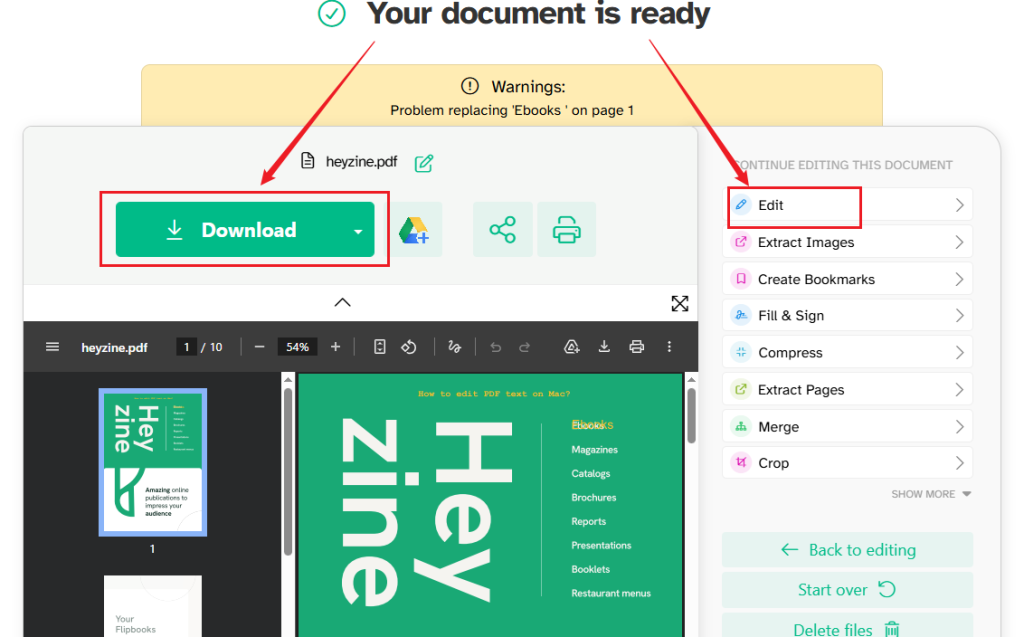
Step 4. Next, you can click Apply changes to confirm the operation. Then, preview the edited PDF file. Once you are satisfied, click the Download button. If you are not satisfied, click the Edit option to continue editing the PDF.
Advantages of online PDF text editors:
- Have no installation required.
- Convenient and fast for quick tasks.
- Can work across devices and operating systems.
- Most of them are free or low-cost for basic use.
Limitations of online PDF text editors:
- Some of them may have privacy and security risks.
- Most of them have usage and file limits on free plans.
How to Edit a Scanned PDF on Mac
Some of you are troubled by editing scanned PDF text on Mac. Unlike regular editable PDFs, scanned PDFs are image-based, so the text cannot be selected or edited until OCR converts it into machine-readable text. If you regularly work with scanned contracts, invoices, forms, books, or archived documents, choosing a PDF editor with built-in OCR can save significant time.
How to edit a scanned PDF on Mac? Here are the best Mac PDF editors with OCR for you to choose from:
| PDF Editor | OCR Support | Best For | OCR Accuracy | Starting Price |
| SwifDoo PDF | Yes | Affordable OCR and PDF editing | High | Budget-friendly |
| Adobe Acrobat Pro | Yes | Professional document workflows | Excellent | Subscription-based |
| PDF Expert | Yes | Business and personal use | High | Paid license |
| Nitro PDF Pro | Yes | Advanced PDF editing | High | Paid license |
To Wrap Things Up
How to edit PDF text on Mac? For simple annotations, Preview may be enough. For direct text editing, formatting changes, and PDF conversion, dedicated PDF editing software provides a much smoother experience. Among the available options, tools like JOPDF offer a balance between ease of use and functionality, allowing users to edit PDF text, convert file formats, annotate documents, and manage PDFs without complicated workflows.
FAQs
Table of Contents

Your Best Free PDF Expert in PDF editing, compressing, converting, annotating, protect, organizing, and more.
Free DownloadWindows · macOS · Linux

Olivia
“Olivia is an editor at JOPDF, where she writes practical guides and insightful articles on managing PDFs—covering topics like editing, annotating, converting, and organizing files efficiently. Passionate about clear communication and digital productivity, Olivia enjoys spending her free time cooking, watching movies, and hiking to unwind and find inspiration for her writing.”
![3 Proven Ways to Remove Page Numbers from PDF [Free & Paid]](https://b.jopdf.com/wp-content/uploads/2026/09/remove-page-numbers-from-pdf.png)
