Summary :
To download ArtCraft Launcher, first find the correct version for your operating system. ArtCraft Launcher is a desktop application that helps you install, manage, and update apps in the Craft App Suite from one place. With it, you can use the launcher to find compatible versions and keep track of updates. In this JOPDF guide, you’ll learn where to download ArtCraft Launcher, how to install it on Windows, macOS, and Linux, and what to check before opening the downloaded file.
What Is ArtCraft Launcher?
ArtCraft Launcher is a desktop application that helps users download, install, open, and update apps in the Craft App Suite from one place. Instead of visiting separate release pages for PhotoCraft, LightCraft, PdfCraft, and other tools, users can browse the available ArtCraft Launcher apps, install compatible versions for their operating systems, and check for updates through a single interface.
One of its main advantages is convenience. Without a launcher, you may need to visit several individual project pages to find the correct installer and check for updates. ArtCraft Launcher brings these tasks together and helps select builds that match your operating system and processor.
Tips:Need More PDF Editing Options?
ArtCraft Launcher gives you a convenient way to manage the apps in the Craft App Suite, including PdfCraft for PDF-related tasks. If your workflow also involves editing existing PDFs, adding text or annotations, or organizing documents, you may want to explore a dedicated PDF editor such as JOPDF. It offers another option for handling everyday PDF tasks without changing the purpose of your ArtCraft setup.
Is ArtCraft Launcher Safe?
Is ArtCraft Launcher safe to download? Yes. The safest approach is to obtain it from the project’s ArtCraft Launcher official website and GitHub repository, then follow the repository’s link to the latest release.
You should also check that the file matches your operating system and processor, review any security warnings carefully, and avoid disabling antivirus protection simply to run an installer.
Also See: Best Course Hero Downloader Free in 2026 – Download PDFs from Course Hero
Where to Download ArtCraft Launcher
The safest starting point is the official ArtCraft Launcher website or its official GitHub repository. Avoid downloading installers from unfamiliar file-sharing websites or third-party pages that do not clearly identify their sources.
You can start with these links for an ArtCraft Launcher’s official download:
- Official Craft App Suite project: ArtCraft Launcher download for Windows link from the browser.
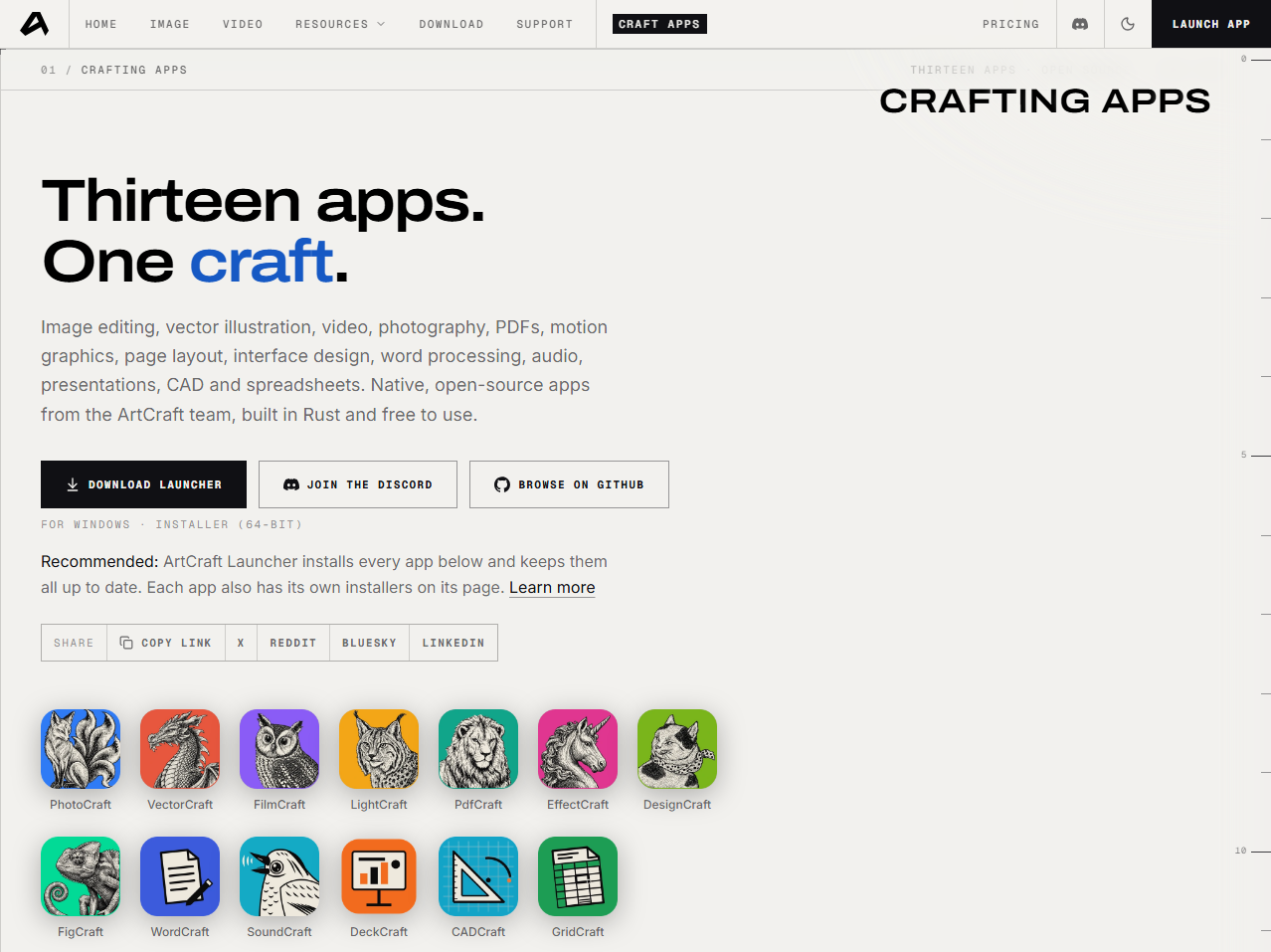
- Official release files: Open the ArtCraft Launcher GitHub repository‘s Releases section to find the available versions and installation packages.
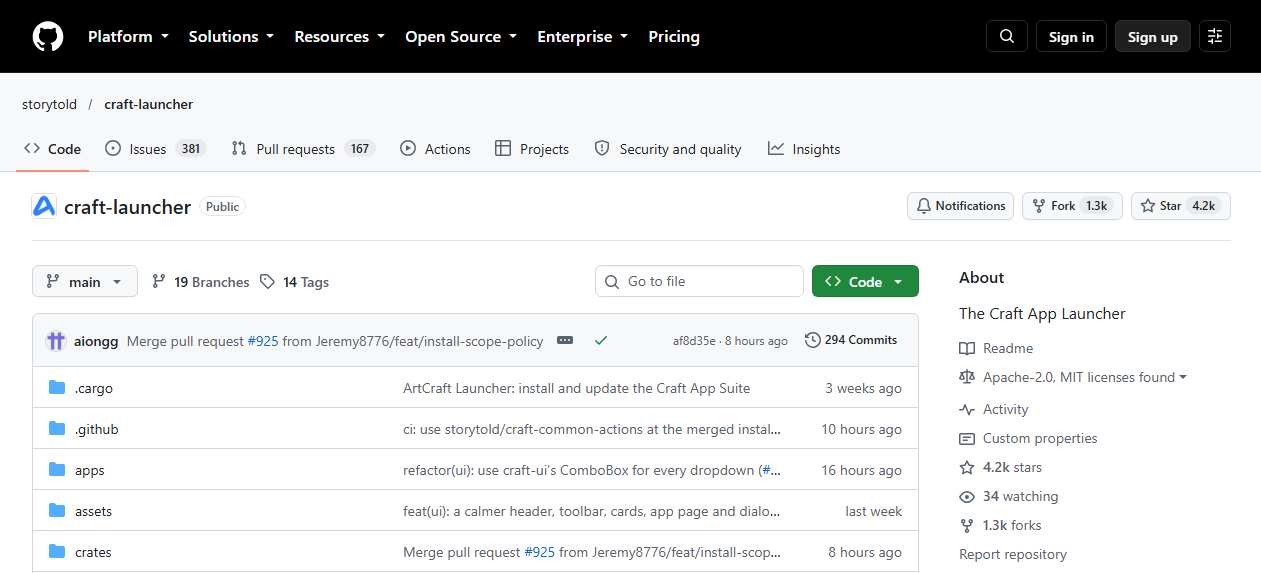
When you open the release page, look for the newest stable or recommended release available for your system. If the project labels a version as an alpha or preview build, keep in mind that it may still contain bugs or unfinished features.
Tips
If you’re looking for an ArtCraft Launcher latest version download, always verify the current release page. Release information can change quickly, especially for projects under active development.
ArtCraft Launcher System Requirements
Before you download and install ArtCraft Launcher, confirm that your computer meets the ArtCraft Launcher system requirements listed for the current release. The correct package depends on more than whether you use Windows, Mac, or Linux. Processor architecture and operating system version can also affect compatibility.
| Platform | What to check | Common package format |
| Windows | Windows version and x64 or ARM64 architecture | MSI or another Windows installer |
| macOS | macOS version and Apple Silicon or Intel compatibility | DMG or another supported package |
| Linux | Distribution, CPU architecture, and required libraries | AppImage, DEB, RPM, or another supported format |
Tips
These are common package types, not a guarantee that every format is available in the latest ArtCraft Launcher release. Use the official release notes to confirm which builds are provided.
It’s also worth keeping some free disk space available. The launcher itself is only part of the setup; installing additional Craft applications can require considerably more storage. If you plan to install several apps, check their individual requirements before downloading them.
How to Download and Install ArtCraft Launcher on Windows
ArtCraft Launcher download for Windows, ArtCraft Launcher free download, ArtCraft Launcher GitHub download, how to install ArtCraft Launcher on Windows 11, ArtCraft Launcher Windows ARM64, ArtCraft Launcher portable version
If you’re using a Windows PC, follow these steps to download and install ArtCraft Launcher for Windows.
Step 1: Download the ArtCraft Launcher for Windows installer
- Open the official ArtCraft Launcher GitHub repository and navigate to its Releases section. Its Releases section is in the right column.
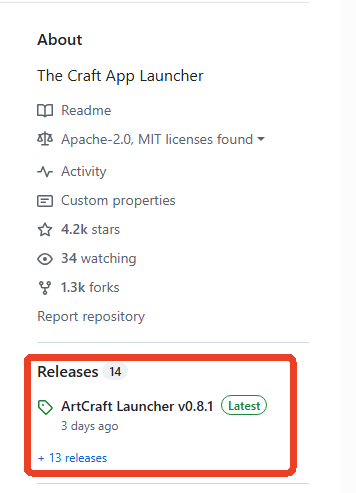
2. Choose the latest suitable release and scroll down to locate the Windows package.
3. Choose the right ArtCraft Launcher Windows package based on your PC architecture. If you’re not sure, open Settings > System > About and check the processor and system type information.
Tips
If the release provides separate x64 and ARM64 installers, select the one that matches your computer. Most conventional Intel and AMD Windows PCs use x64, while Windows devices with ARM processors require a compatible ArtCraft Launcher Windows ARM64 build.
Tips
The ArtCraft Launcher portable version is designed for users who want to run the launcher without going through a traditional installation process. You can download the portable ZIP file, extract its contents to a folder, and launch the executable inside. Its settings and data can be stored alongside the portable files, making the folder easier to move or back up.
Step 2: Check the Downloaded File and Run the Installer
- Once the ArtCraft Launcher for Windows download finishes, confirm that the file is in your Downloads folder and that its name matches the release you selected.
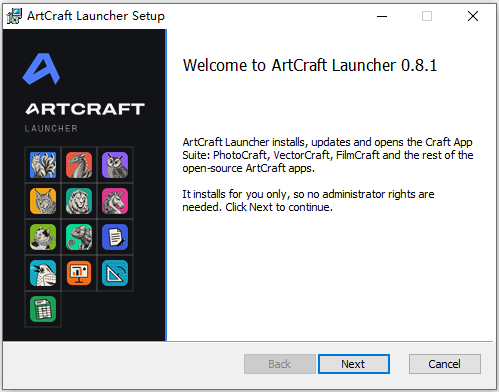
- Double-click the downloaded installer and follow the on-screen instructions.
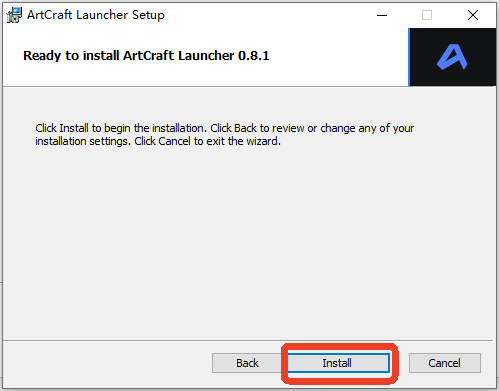
3. Review any installation location or permission prompts and click Install to start the ArtCraft Launcher setup for Windows.
4. Click Finish to exit the Setup wizard.
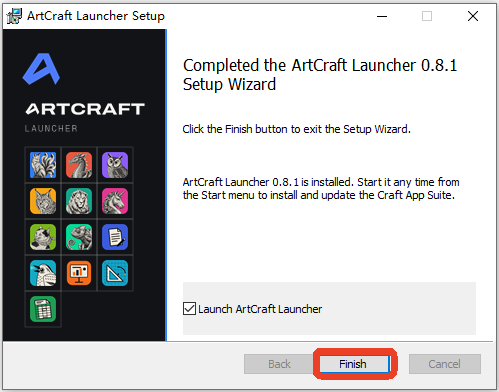
If Windows displays a security warning during the Windows ArtCraft Launcher download and installation, verify the file’s origin and any available signature or checksum information first. Do not disable Windows security protections simply to force an unfamiliar installer to run.
Step 3: Open ArtCraft Launcher
After the ArtCraft Launcher installation, launch it from the Start menu or the shortcut created during setup, if available.
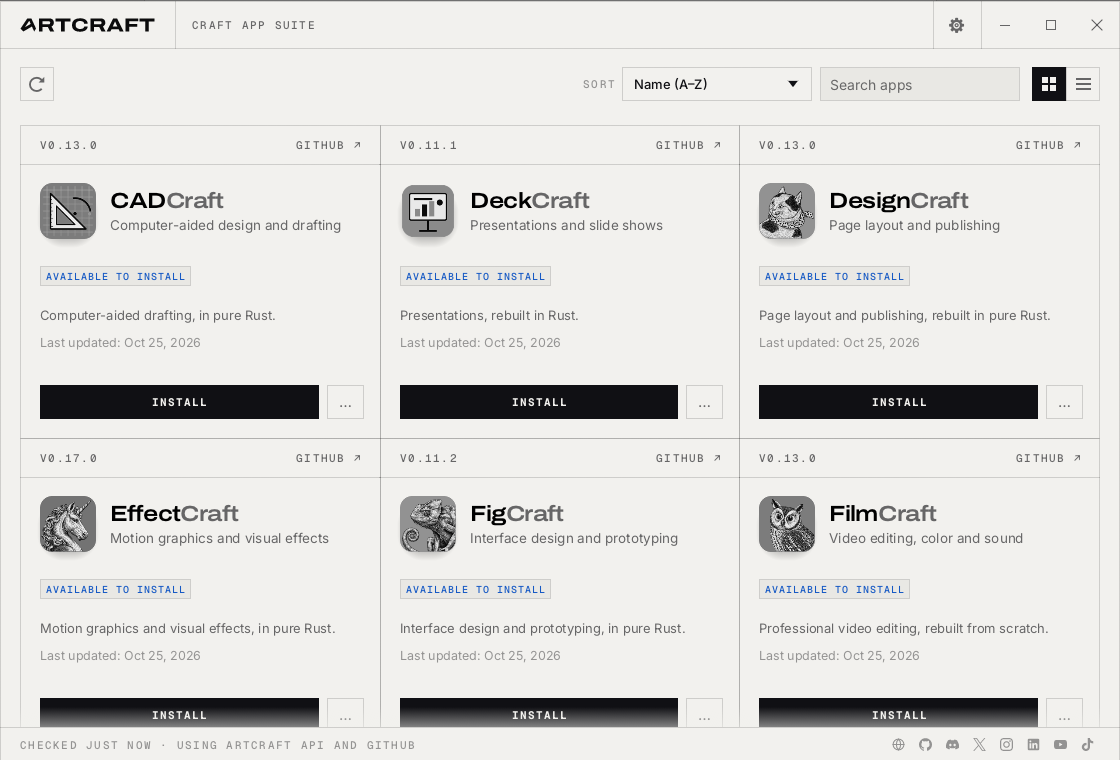
Check whether the application opens normally and displays the available Craft apps. If the launcher cannot start, consult the release notes and the project’s troubleshooting information before trying another installer.
Also, we have concluded some ArtCraft Launcher problems and provided effective methods below. If you encounter those issues, check the list we provided, and you may find the solution.
The above steps also work if you’re searching for how to install ArtCraft Launcher on Windows 11. The exact prompts may differ depending on your Windows version and the installer package.
Also See: MEGA Downloader Free: Download from MEGA Without Limits
How to Download and Install ArtCraft Launcher on macOS
ArtCraft Launcher download for Mac, ArtCraft Launcher free download, how to download and install ArtCraft Launcher on macOS
To perform an ArtCraft Launcher download for Mac, you should download a package specifically supported by the project for macOS.
Step 1: Download the macOS DMG
Open the ArtCraft Launcher GitHub releases page and download the macOS DMG file from the latest release.
Make sure you select the macOS package rather than a Windows MSI or portable ZIP. If your Mac is running an older version of macOS, check the project’s stated system requirements before proceeding.
Step 2: Move ArtCraft Launcher to Applications
Open the downloaded DMG file. If the release provides the usual drag-and-drop package, move ArtCraft Launcher into your Applications folder, then eject the mounted disk image when you’re finished.
Launch the app from Applications. If macOS blocks the first launch, verify that you downloaded the file from the official project release page and review the warning before taking further action. Do not bypass security protections for an unverified application.
Step 3: Troubleshoot macOS Compatibility
If ArtCraft Launcher does not open, first check the macOS version and confirm that the download completed correctly. If necessary, download the DMG again from the official release page.
If the app opens but does not show the expected Craft apps, check whether the launcher has access to the internet and whether the current release has a known issue. Updating the launcher may resolve a problem caused by an older version, but check the release notes before reinstalling.
How to Download and Install ArtCraft Launcher on Linux
ArtCraft Launcher download for Linux: how to download and install ArtCraft Launcher on Linux
Linux users may have several package formats to choose from, depending on the distribution and processor architecture. Available formats can include AppImage, DEB, RPM, and archive packages. The correct choice depends on your Linux distribution, system libraries, and preferred installation method.
Step 1: Choose the Right Linux Package
Visit the official ArtCraft Launcher GitHub releases page and review the Linux files in the latest release.
- DEB: Generally intended for Debian-based distributions, such as Ubuntu and Linux Mint.
- RPM: Generally intended for RPM-based distributions, such as Fedora and compatible systems.
- AppImage: A self-contained application format that can be convenient when you do not want to install a traditional system package.
- Archive packages: May require manual extraction and additional setup, depending on the release instructions.
Check the release notes for supported processor architectures and system requirements before downloading.
Step 2: Install or Launch the Package
- For a DEB or RPM package, use the package-management method recommended for your distribution.
- For an AppImage, follow the release instructions to make the downloaded file executable if required, then launch it.
- If you use an archive package, extract it and follow the instructions provided with that specific release.
Need a PDF Editor for Your Workflow?
PdfCraft is one of the applications listed in the Craft App Suite, so ArtCraft Launcher can be useful if you want to explore it alongside other Craft tools. However, if your main goal is editing PDF documents, it is worth comparing PdfCraft with a separate PDF editor such as JOPDF before deciding which tool best fits your workflow.
| Feature | PdfCraft | JOPDF |
| Pricing | Free and open source | Free, with no subscription required |
| Text editing | Existing text editing is still developing | Edit existing PDF text and add text |
| Image editing | Basic capabilities; check current release | Add, replace, resize, and adjust PDF images |
| PDF annotations | Comments and markup tools | Multiple annotation tools for notes, highlights, drawings, and more |
| Page management | Insert, delete, rotate, reorder, and organize pages | Insert, delete, rotate, split, and organize pages |
| Merge and split PDFs | Supported | Supported |
| PDF conversion | Office-format conversion is limited | Convert PDFs to Word, Excel, PowerPoint, and images; create PDFs from supported formats |
| OCR | Check current release capabilities | OCR tools are available; results may vary with document quality |
| Batch processing | Depends on available workflows and current implementation | Batch tools are available for supported operations |
| PDF security | Password protection and related security features | Password protection and permission controls |
| Platforms | Windows, macOS, and Linux | Windows, macOS, and Linux |
| Best for | Open-source PDF reading, markup, and page organization | Everyday PDF editing, conversion, and document management |
From the above pdfCraft vs JOPDF comparison table, you can see that JOPDF is worth considering when you need an all-in-one PDF tool for everyday editing, conversion, and document management.
For individuals, students, and small teams who regularly work with different document formats, this broader toolset can mean less time spent searching for separate utilities. Since JOPDF is available without a subscription or mandatory account, it can also help reduce the cost of everyday PDF work.
Common ArtCraft Launcher Download and Installation Problems
Even if you follow the correct ArtCraft Launcher download steps, you may run into installation or startup problems. The following checks can help you identify the likely cause before attempting a reinstall.
#1. ArtCraft Launcher Won’t Install
If ArtCraft Launcher isn’t installed, try the following tips to fix the problem:
- Check compatibility: Make sure the installer matches your operating system and processor architecture.
- Download again: Get a fresh copy from the official GitHub releases page.
- Extract portable files: If you downloaded the portable ZIP, extract the entire archive before running the executable.
- Check system requirements: Confirm that your operating system meets the requirements listed for the release.
- Read the error message: Look for specific installation errors before trying again.
#2. ArtCraft Launcher Not Opening
When ArtCraft Launcher is not opening, the cause may be an incompatible system environment, a damaged application file, a graphics driver issue, or a problem introduced by a particular release. To fix that, try the following fixes:
- Restart your computer: This can resolve temporary system issues.
- Verify the download: Download the launcher again if the application file may be corrupted.
- Update your system: Install relevant operating system and graphics-driver updates if needed.
- Check security warnings: On macOS or Windows, review warnings and verify the file source before proceeding.
- Check for known issues: Review recent releases and reported problems in the ArtCraft Launcher GitHub repository.
#3. ArtCraft Launcher Not Working
Sometimes ArtCraft Launcher opens successfully but does not work as expected. For example, the app list may fail to load, an installation may not finish, or an update may not appear.
- Check your internet connection: Make sure the launcher can access the network.
- Update the launcher: Check the official release page for a newer version that may resolve the issue.
- Check app availability: Confirm that the Craft app you need is listed in the current release.
- Review permissions: Make sure the launcher has the permissions required by your installation method.
- Check error logs: On Linux, try launching the application from a terminal to identify missing dependencies or permission errors.
- Report persistent issues: Include your operating system, launcher version, and exact error message when reporting a problem on GitHub.
Final Thoughts
ArtCraft Launcher download is straightforward once you identify the correct package for your operating system. Start with the official project repository, verify the release information, and follow the installation instructions for Windows, macOS, or Linux. Once the launcher is running, you can explore the Craft App Suite and choose the applications that suit your workflow.
If you want a more powerful PDF editor, try JOPDF, and you won’t be disappointed.
FAQs
Table of Contents

Your Best Free PDF Expert in PDF editing, compressing, converting, annotating, protect, organizing, and more.
Free DownloadWindows · macOS · Linux

Anna
Editor
“Anna, Editor-in-Chief and PDF expert, delivers deep insights into PDF document technology trends. She is dedicated to helping readers optimize their digital lives. When not writing, Anna loves exploring local cafes and reading, blending her technical expertise with a love for storytelling.”