
Introduction :
Have you ever opened a scanned PDF only to find that you cannot select and copy the text or edit a sentence? That’s because scanned PDFs contain images of pages rather than actual text. A PDF editor with OCR can recognize text in these images, making documents searchable or editable. In this article, I will introduce you to 5 PDF OCR editors, including JOPDF, which offers free OCR. Now, let’s dive in.
A PDF editor with OCR is a tool that combines PDF editing features with optical character recognition. With OCR, you can make scanned PDFs searchable, recognize and copy text, edit scanned PDFs, and convert scanned PDFs. Which OCR software should you choose? In the following content, I will compare 5 PDF editors with OCR, explain their key features and limitations, and show you the free way to OCR and edit a scanned PDF.
Quick Comparison of the Best PDF Editors with OCR
At the beginning, you can have a look at the quick comparison of the 5 proven PDF OCR editors.
| PDF Editor | Best For | Platform | Pricing |
| JOPDF | Free desktop PDF editing with OCR | Windows, macOS, Linux | Free |
| Adobe Acrobat Pro | Professional PDF editing and OCR | Windows, macOS, web services | Paid subscription |
| ABBYY FineReader PDF | Advanced OCR and document conversion | Windows and supported platforms, depending on edition | Paid / trial options |
| Foxit PDF Editor | Business PDF editing and document workflows | Windows, macOS, and other supported platforms | Paid / trial options |
| Smallpdf | Convenient online PDF processing | Web browser; desktop and mobile availability varies | Free tools / paid plans |
1. JOPDF – Best Free PDF Editor with OCR
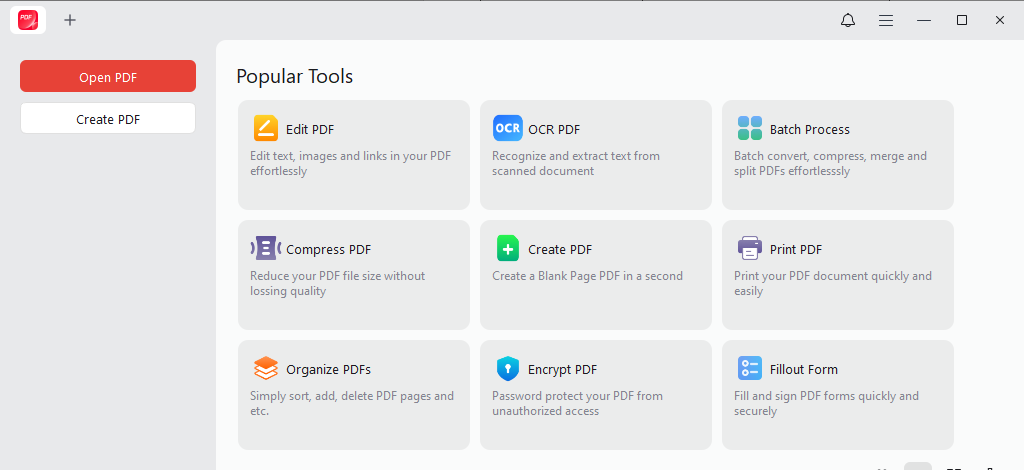
JOPDF is a free PDF editor for Windows, macOS, and Linux, which combines OCR with everyday PDF tools. Hence, it is worth a try if you need to recognize text in PDFs and continue working with your documents without paying for a subscription. With this free OCR tool for PDFs, you can make PDFs searchable or editable as needed.
What’s more, JOPDF provides a range of features to edit PDFs. For instance, it lets you edit text and images in a PDF, annotate a PDF, remove watermarks, fill out and sign a PDF, and password-protect a PDF. Additionally, JOPDF can also work as a PDF converter and compressor. You can download it and explore its wonderful features.
- OCR for scanned PDFs: Recognize text contained in scanned or image-based PDF files. Meanwhile, it supports more than 20 languages.
- PDF text editing: Add text boxes to a PDF or edit the existing text in a PDF.
- Annotation tools: Highlight important information, add hyperlinks, or make other markup to a PDF for study or review.
- PDF page management: Insert, delete, or crop PDF pages as well as extract PDF pages.
- PDF conversion: Convert PDFs to CSV, DOCX, ODS, and other supported formats for different workflows.
- PDF compression: Reduce PDF file size without losing quality.
- …
Pros
- Available on Windows, macOS, and Linux.
- Free desktop software with no ads and registration.
- Combine OCR, editing, annotation, and page management in one application.
- Intuitive interface with simple operation.
- Free OCR with more than 20 languages supported.
Cons
- Recognition accuracy can vary depending on scan quality, language, and document layout.
🎊Best For: Students, individual users, and small businesses looking for free desktop PDF editing with OCR.
If your priority is to recognize scanned text, make PDFs searchable, and handle everyday document tasks without a subscription, JOPDF is a practical option to evaluate.
2. Adobe Acrobat Pro – Best OCR for Professional PDF Workflows
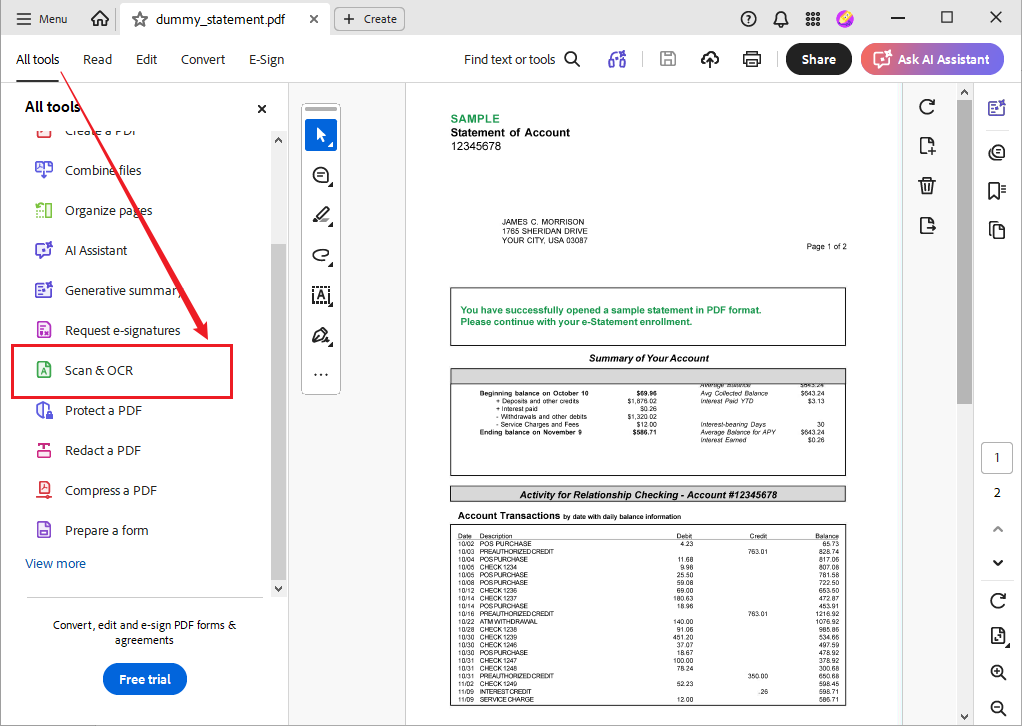
Adobe Acrobat Pro is a comprehensive PDF editor. It can be a good choice if you need OCR as part of a professional PDF workflow. Its Scan & OCR tools can recognize text in scanned PDFs and create searchable documents. In addition, Adobe Acrobat Pro supports batch OCR PDFs.
After recognition, you can search for text and work with the document with Acrobat’s PDF editing tools. This makes Acrobat useful for contracts, business reports, archived paperwork, and other documents that require both text recognition and further editing.
Key Features
- OCR and text recognition: Recognize text in scanned PDFs and image-based documents.
- Searchable PDFs: Add a text layer that allows you to search for recognized content.
- PDF editing: Offers various editing features to modify text and other content in a PDF file.
- Batch OCR PDFs: Process multiple PDFs in batch.
- PDF management: Combine OCR with annotation, organization, and security features.
Pros
- Integrate OCR with professional PDF editing and document management.
- Offer a dedicated workflow for recognizing scanned text.
- Suitable for someone who is already working in the Adobe ecosystem.
- Cross-platform consistency.
- Batch OCR multiple PDFs.
Cons
- Advanced OCR and editing workflows generally require a paid subscription.
- It requires a steep learning curve for beginners.
🎊Best For: Professionals who need OCR alongside advanced PDF editing, document organization, and business workflows.
3. ABBYY FineReader PDF – Best for Advanced OCR and Document Conversion
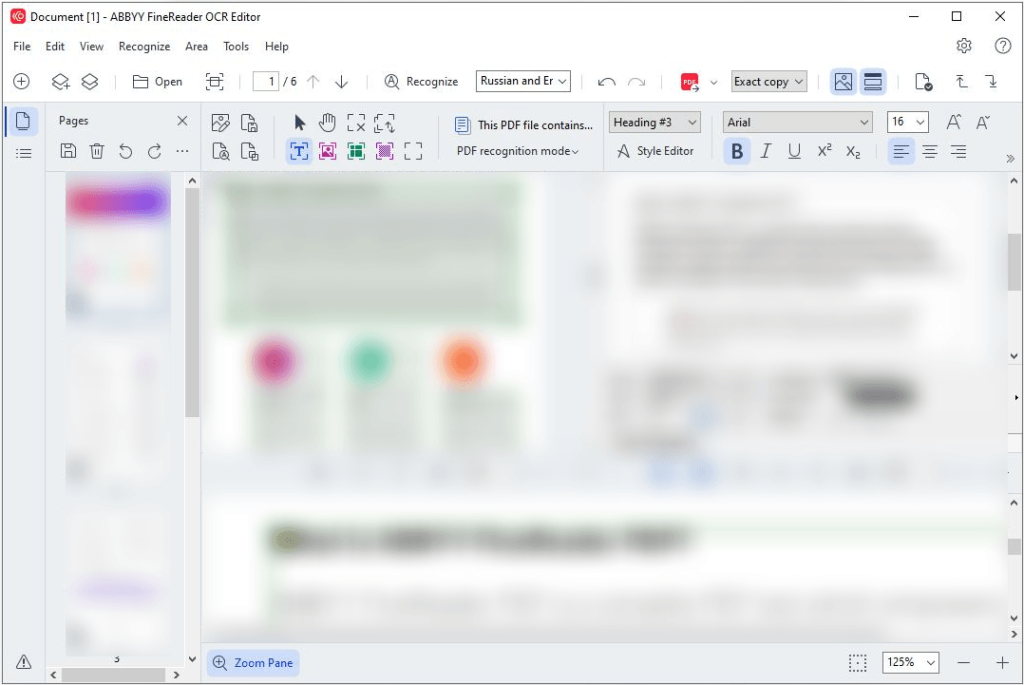
ABBYY FineReader PDF is a dedicated PDF editor for managing, editing, converting, and digitalizing PDF and paper documents. It combines advanced PDF tools with industry-leading AI-based OCR technology, making it suitable for someone who frequently processes scanned documents, tables, and complex layouts.
Moreover, it supports recognition in up to 198 languages. Meanwhile, ABBYY FineReader PDF also provides tools for reviewing recognition results and adjusting document areas when automatic recognition is insufficient.
Key Features
- Advanced OCR: Recognize text in scanned pages and PDF documents.
- Document conversion: Convert scanned PDFs to Word, Excel, or other supported formats.
- Multilingual recognition: Process PDFs in up to 198 languages.
- Layout preservation: OCR PDFs while keeping the original layout.
- Recognition review: Inspect and correct OCR results when necessary.
Pros
- Offers extensive OCR and document-conversion functionality.
- Broad language support.
- Suitable for PDFs with tables, columns, and more complicated layouts.
- Provides options for checking and improving recognition results.
- Strong conversion and editing capabilities.
Cons
- Full OCR and editing capabilities require a paid edition.
- Its Mac version has significantly fewer features than the Windows version.
🎊Best For: Researchers, office professionals, and organizations that regularly convert scanned documents into editable files.
4. Foxit PDF Editor – Best for Business PDF Editing
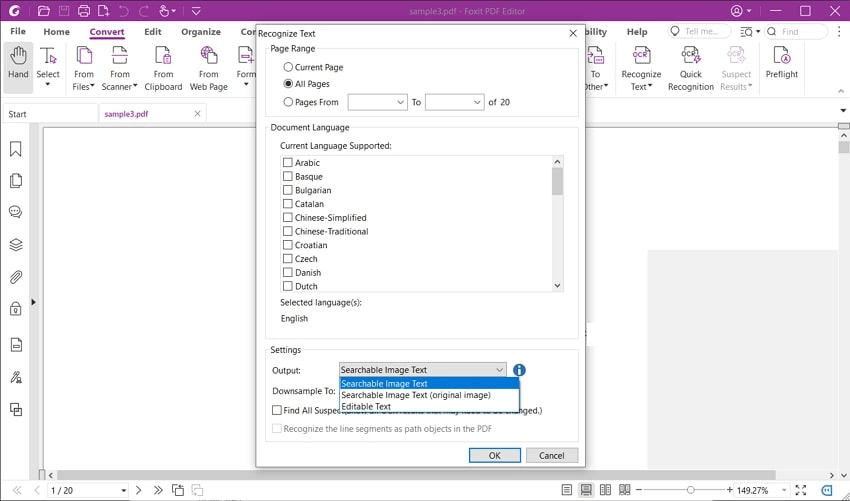
Foxit PDF Editor is a good Adobe Acrobat alternative for recognizing and editing scanned PDFs. It combines PDF editing with document review, annotation, and business-oriented document management. For teams working with scanned contracts, reports, or forms, these capabilities can reduce the need to switch between separate applications.
Key Features
- OCR capabilities: Turn scanned or image-based PDFs into searchable and editable text.
- Edit and annotate PDFs: Edit scanned PDFs after recognition and add comments and markup files for collaboration.
- Document conversion: Create PDFs from other formats and export to Microsoft Word, Excel, PowerPoint, images, and more.
- Security features: Redact and password-protect PDF files.
Pros
- Provides powerful PDF editing tools with accurate OCR.
- Works on Windows, macOS, and the web.
- Supports workflows involving annotation and document protection.
- Fast and lightweight performance.
Cons
- Advanced functions require a paid license.
- Feature availability can differ by platform and edition.
🎊Best For: Business users who want OCR together with PDF editing, review, and document-management features.
5. Smallpdf – Best Online PDF Editor with OCR
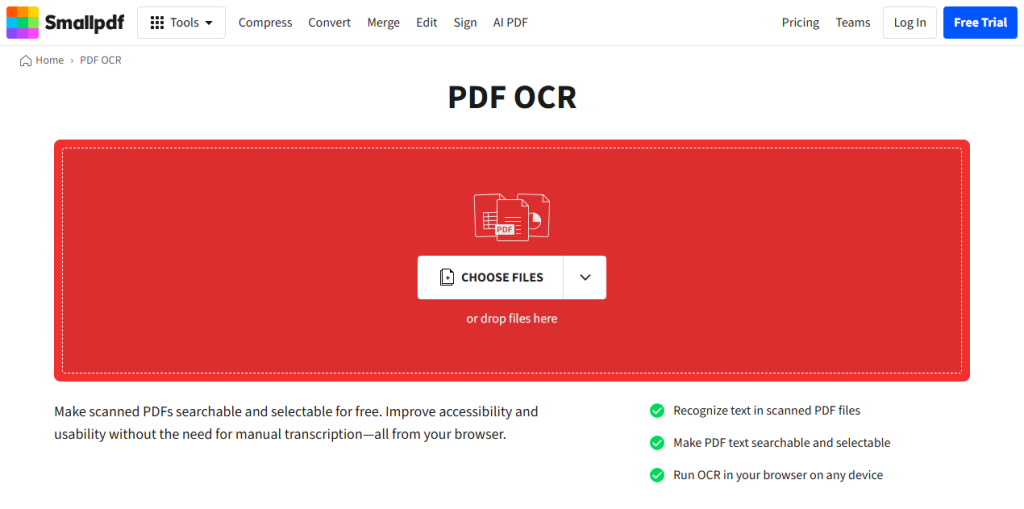
Smallpdf is an online PDF editor with OCR. As a browser-based PDF service, it offers tools to convert, compress, organize, and edit PDF documents. It is a good choice if you prefer to process scanned PDFs online and don’t want to install any software. For OCR-related tasks, Smallpdf’s scanned-document workflows can help you recognize text and convert scanned PDFs into more usable formats.
Key Features
- Online PDF processing: Access and handle PDF files via a web browser.
- OCR-related workflows: Recognize text in supported scanned-document conversion tasks.
- PDF conversion and compression: Convert PDFs to Word and other formats for editing or reuse. Meanwhile, compress to reduce PDF file size.
- Document organization: Manage PDFs by merging, splitting, or rearranging PDF pages.
Pros
- Works through a browser without installing a dedicated desktop editor.
- Offers an intuitive interface and is very easy to use.
- Solid free tier for occasional use.
- Suitable for occasional PDF workflows.
Cons
- Restrictive free plan.
- Limited advanced editing features.
🎊Best For: Users who want convenient online PDF processing and occasionally need OCR-related conversion workflows.
Best Free Way to OCR and Edit PDFs with JOPDF
If you need to recognize scanned text and manage PDFs without paying for a subscription, JOPDF is a free desktop option worth considering. It supports Windows, macOS, and Linux and offers PDF editing, annotation, conversion, page management, and document protection. Here, let’s learn how to edit a scanned PDF with OCR in JOPDF.
Step 1. Open Your Scanned PDF
- Click the download button to download and install JOPDF on your PC.
- Run this free PDF OCR tool.
- Click OCR PDF, locate the target scanned PDF, and click Open to import it.
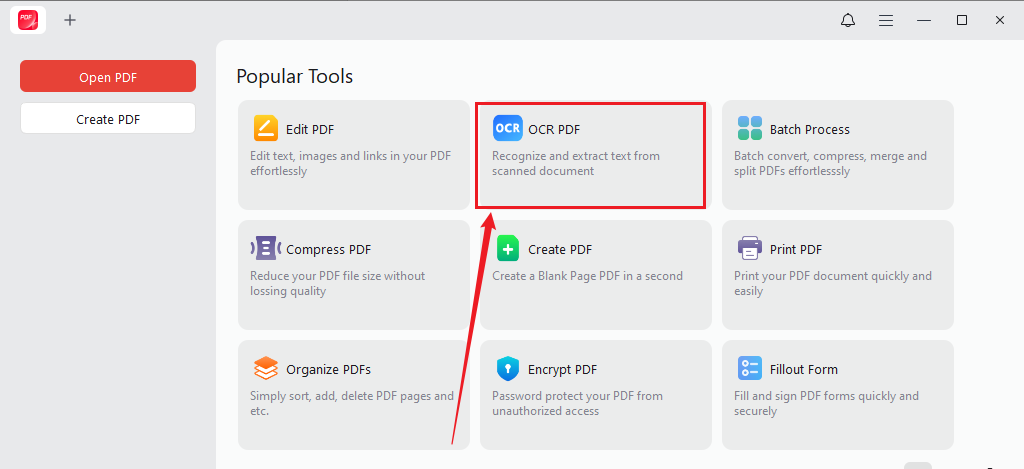
Step 2. Apply OCR to the PDF
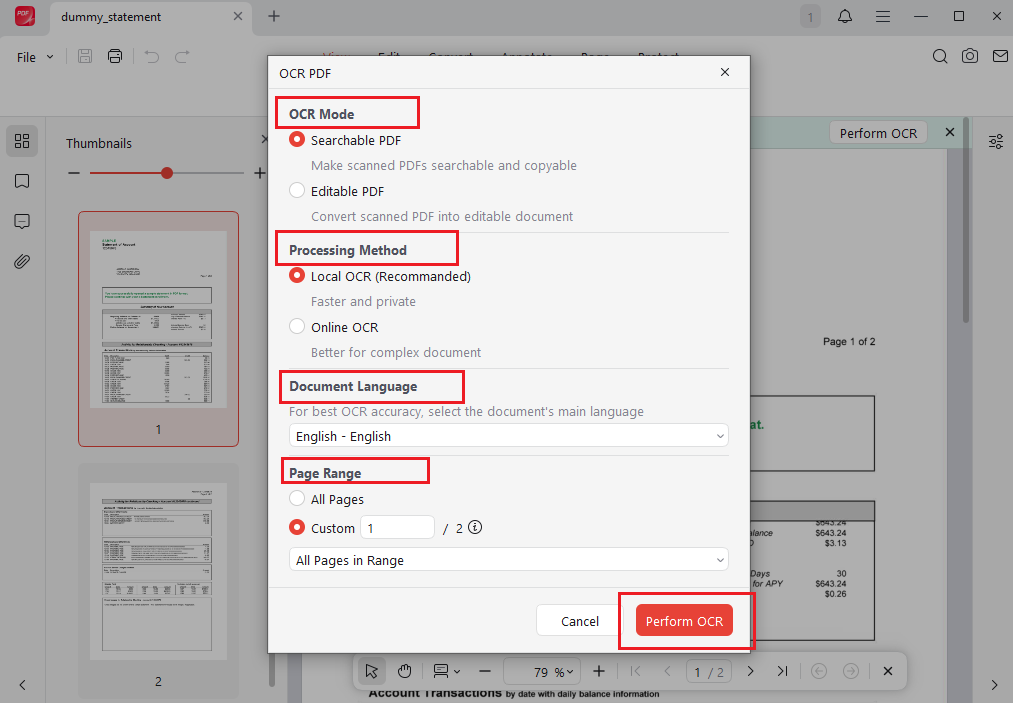
- Select to turn the scanned PDF into a Searchable PDF or Editable PDF.
- Choose Local OCR to recognize text fast and privately, or select Online OCR for complex documents.
- Then choose the primary language of the scanned PDF for better accuracy.
- Next, specify the page range and click Perform OCR. When the OCR process is over, the OCR-enabled PDF will open in a new tab in JOPDF.
Step 3. Edit the Recognized Text
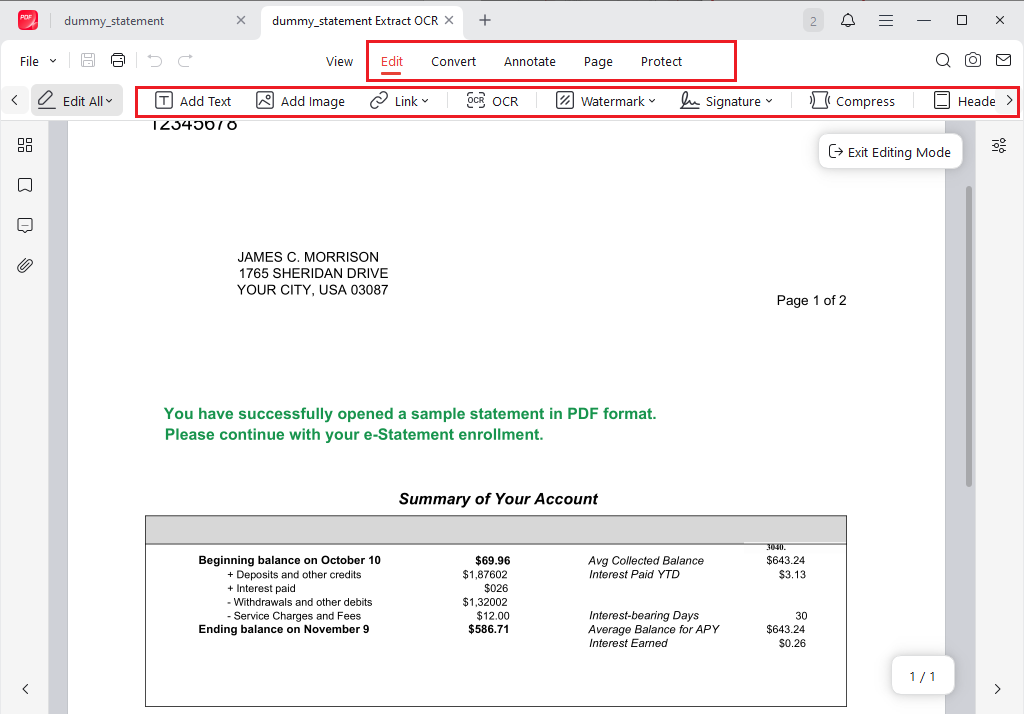
To edit the recognized PDF, click the Edit option from the top 6 menu options. Then the Editing mode is enabled. Here, you can edit the text and images in the PDF file, add hyperlinks, watermark the PDF, add page numbers, headers, and footers, and more. In addition, you can go to the Convert, Annotate, Page, and Protect menu options to complete the related PDF workflows.
Step 4. Review and Save the PDF
Next, check the edited PDF file. Finally, click the Save icon.
Wrapping Up
To edit a scanned PDF, you need OCR to recognize text and make the PDF editable. Which PDF editor with OCR should you choose? If you prefer free desktop software, JOPDF is the best choice, which combines OCR with everyday PDF editing and management tools. If you only handle scanned PDFs occasionally, you can also use Smallpdf, an online OCR tool. Also, you can try the other 3 PDF editors mentioned in this article.
FAQs
Table of Contents

Your Best Free PDF Expert in PDF editing, compressing, converting, annotating, protect, organizing, and more.
Free DownloadWindows · macOS · Linux

Olivia
“Olivia is an editor at JOPDF, where she writes practical guides and insightful articles on managing PDFs—covering topics like editing, annotating, converting, and organizing files efficiently. Passionate about clear communication and digital productivity, Olivia enjoys spending her free time cooking, watching movies, and hiking to unwind and find inspiration for her writing.”
![Full Guide on How to OCR a PDF in Adobe Acrobat [Newest]](https://b.jopdf.com/wp-content/uploads/2026/10/how-to-ocr-a-pdf-in-adobe.png)
