Introduction :
Are your bank statements, invoices, or reports stuck in PDFs? How can you turn information in these PDFs into CSV files? Fortunately, you can convert PDF to CSV with a desktop PDF converter, an online conversion tool, Excel, or a PDF editor with OCR. In this comprehensive article, I will introduce you to several ways to transform a PDF file into CSV for free and accurately.
Before choosing which PDF to CSV converter to use, determine what kind of PDF you’re working with.
- Text-based PDF: Use a direct PDF-to-CSV converter.
- PDF with structured tables: Use a table extraction tool.
- Scanned or image-based PDF: Run OCR before extracting the data.
- Confidential PDF: Consider an offline PDF converter instead of uploading the file to an online service.
In the following content, I will show you 4 practical ways to convert a PDF to CSV.
How to Convert PDF to CSV for Free with JOPDF
JOPDF is one of the best free PDF converters available on Windows, macOS, and Linux, allowing you to process documents locally instead of uploading them to a website. It enables you to convert PDF to CSV effortlessly. In addition, it supports other conversions, such as PDF to DOCX, PNG to PDF, CAD to PDF, PDF to BMP, and more. Furthermore, its batch conversion feature enables you to convert multiple PDFs to CSVs in bulk.
What’s more, JOPDF offers OCR to handle scanned or image-based PDFs. In other words, it can recognize text in PDFs and extract text or other elements from PDFs. Hence, you can also use JOPDF to OCR a scanned PDF and then convert the OCR-enabled PDF to CSV. Here, I will show you step-by-step guidance on how to convert a PDF to CSV for free.
Step 1. Click the button below to download and install JOPDF on your PC, and then launch this free PDF converter.
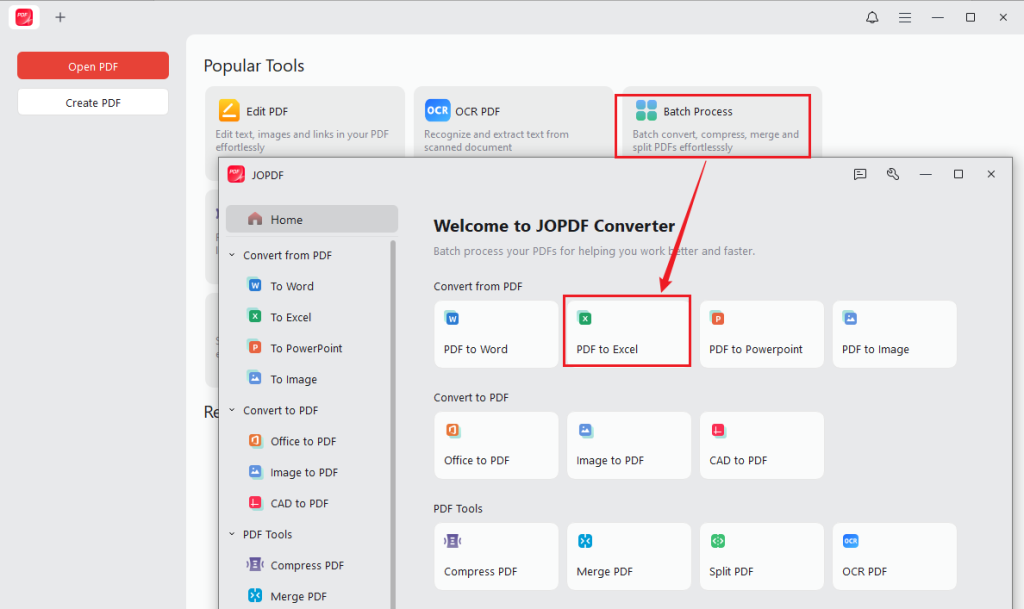
Step 2. Select Batch Process and click the PDF to Excel option.
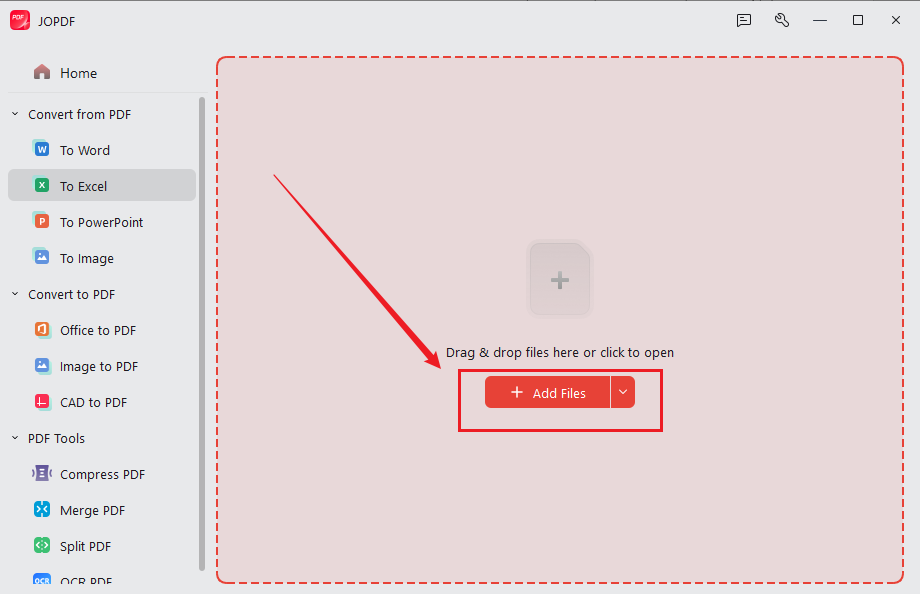
Then directly drag and drop your PDF file into the uploading area of JOPDF. Or click Add Files to import your PDF file.
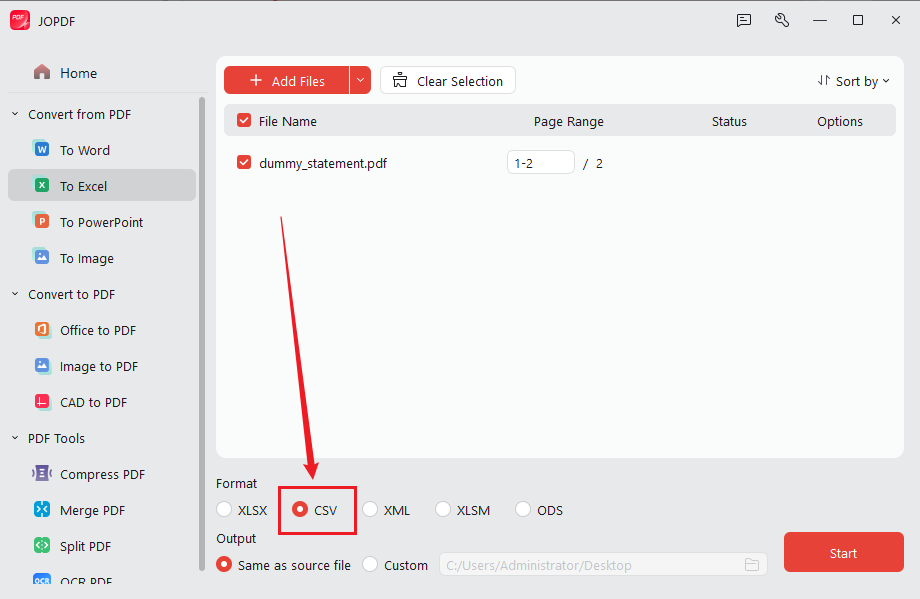
Step 3. Under the Format section, tick the CSV option. As you can see, JOPDF can also convert PDF to XLSM, XLSX, XML, or ODS format. Next, specify the saving path.
Step 4. Finally, click Start. Once the process is over, open the CSV file in Excel, Google Sheets, or another application.
Tips
If you need to batch convert PDF to CSV, click Add Files to import the PDFs you need to convert. Next, select CSV as the output format and click Start to enable the conversion.
How to Convert PDF to CSV Online for Free with Zamzar
If you prefer an online workflow, Zamzar can be used to work with PDF documents without installing desktop PDF software. This approach is convenient when you are working from different computers or need browser-based PDF processing. Zamzar enables you to convert PDF to CSV online for free. In addition, it can compress PDFs. Below are the exact steps to convert a PDF to CSV online for free with Zamzar.
Step 1. Open your browser and visit Zamzar.
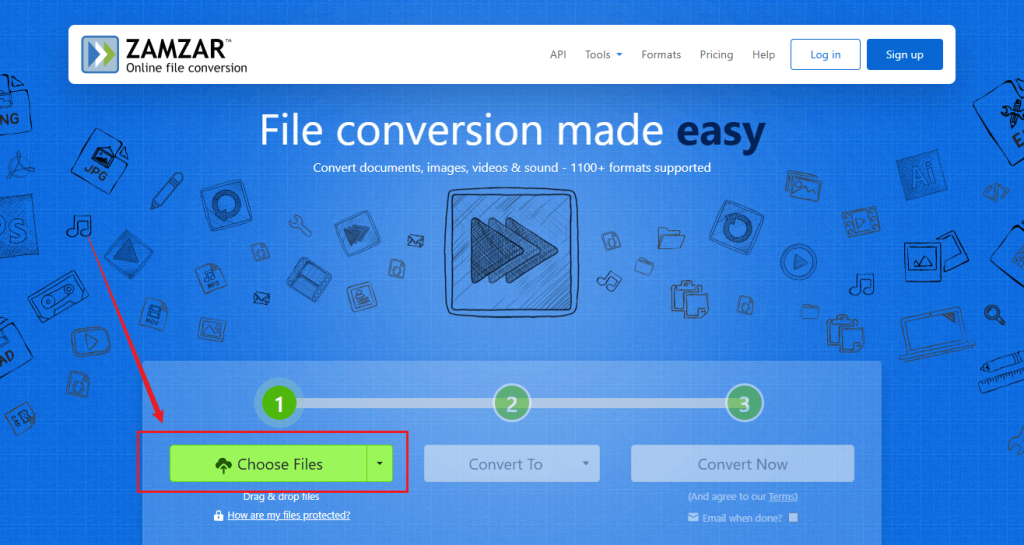
Step 2. Click “Choose Files” to select and upload your target PDF file. Or drop the PDF into the uploading area.
Step 3. Expand the “Convert To” dropdown and select “csv”.
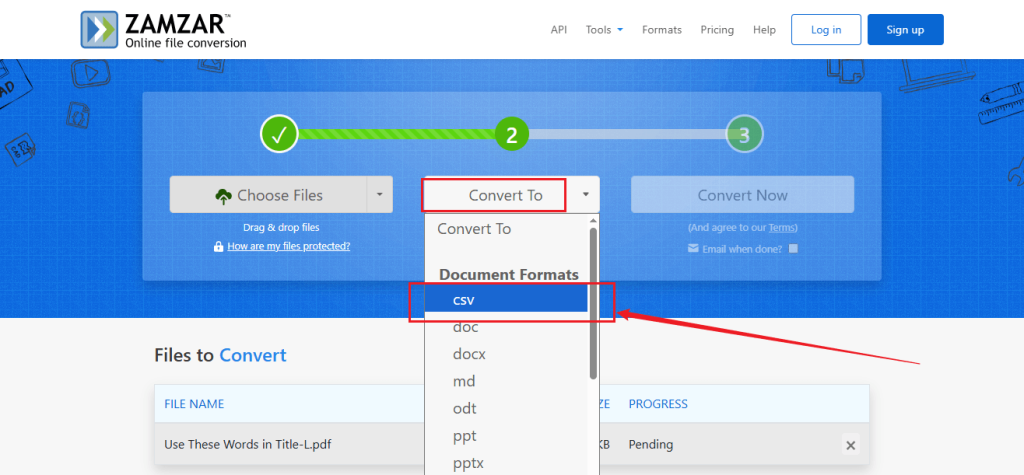
Step 4. Finally, click “Convert Now” to convert the PDF file to a CSV for free. Once the process is over, download the CSV file.
How to Convert PDF to CSV Using Excel
Microsoft Excel can also work as a PDF to CSV conversion tool. When the extracted PDF data requires substantial formatting adjustments, Excel can serve as the final conversion and cleanup stage. In addition, it can be particularly useful when the PDF contains tables that need to be recognized before you create the final CSV. Below are the exact steps to convert PDF to CSV in Excel.
Step 1. Launch Microsoft Excel, create a new blank workbook, and go to Data.
Step 2. Click Get Data, select From File, and choose From PDF. Then, browse to and select your PDF file and click Import. Next, Excel will analyze the PDF.
Step 3. In the Navigator window that appears, select the table you need and click Load to bring the data into Excel as a table. If you need to remove extra rows or columns, fix headers, or change data types, click Transform Data in the Power Query Editor and then choose Close & Load.
Step 4. Once the data is in your worksheet, go to File > Save As and select the saving path. In the “Save as type” dropdown, select CSV UTF-8 (Comma delimited) or CSV (Comma delimited). Finally, click the Save button.
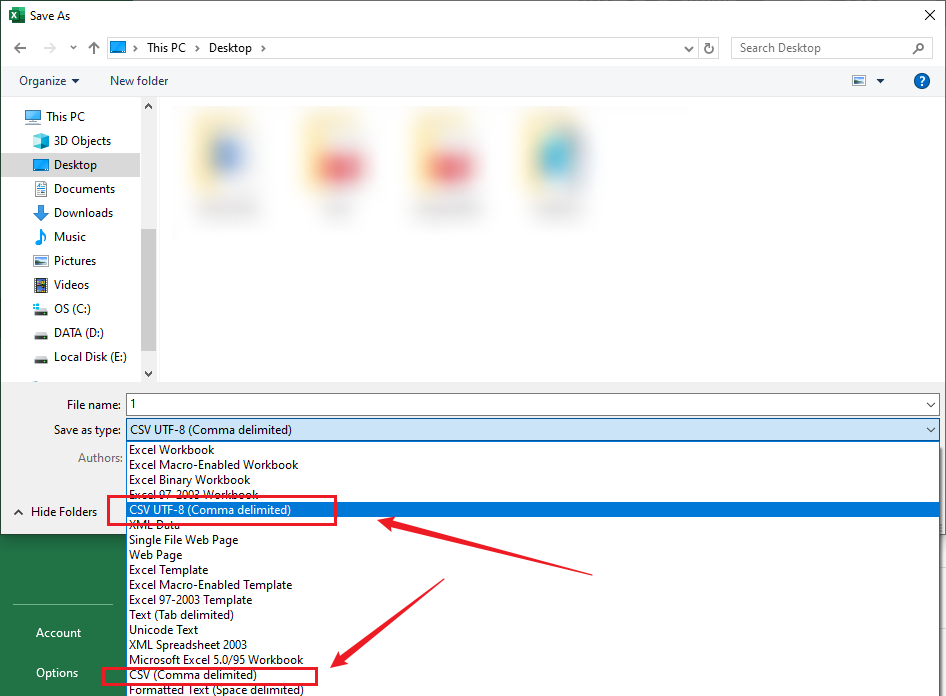
Microsoft Excel works well for text-based PDFs with clear, structured tables. If your PDF is scanned or image-based, you need to run OCR first to make the text selectable.
How to Convert Scanned PDFs to CSV with OCR
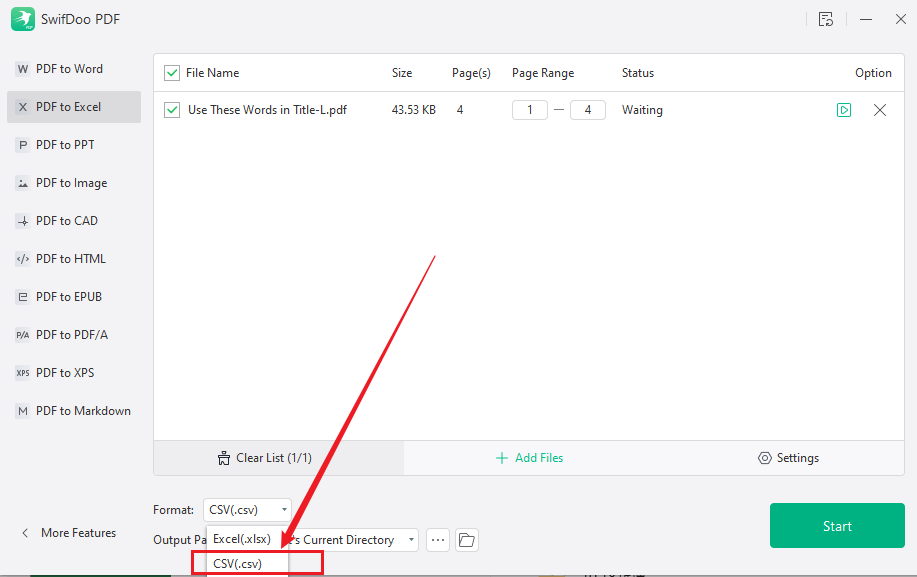
If your PDF is scanned, the apparent text may actually be an image. A standard PDF-to-CSV conversion may therefore fail to recognize the data. To convert scanned PDFs with OCR, SwifDoo PDF is worth a try. You don’t need to OCR the PDF first. SwifDoo PDF enables you to set the OCR settings in its conversion window. Here, let’s learn how to convert a scanned PDF to CSV with SwifDoo PDF.
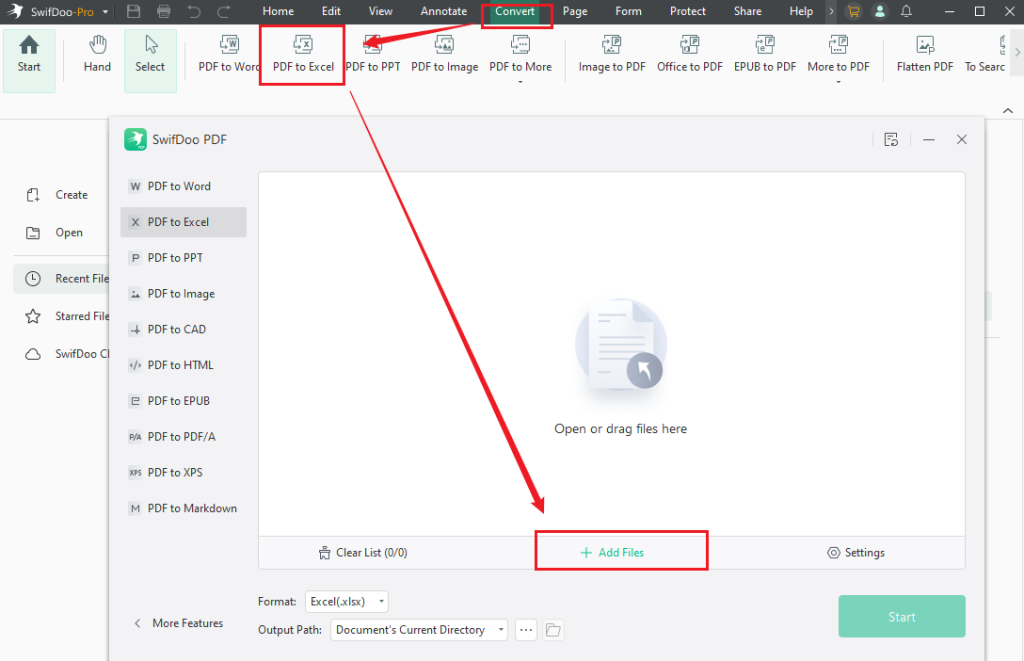
Step 1. After installing SwifDoo PDF on your PC, launch it and go to Convert.
Step 2. Select PDF to Excel and click Add Files to import your scanned PDF file.
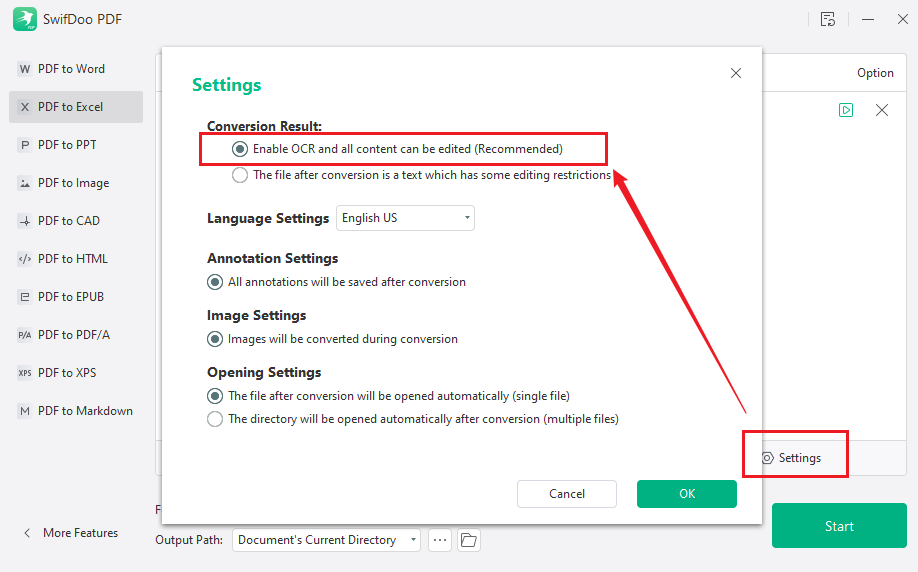
Then, click Settings and make sure the “Enable OCR and all content can be edited” option is ticked. Meanwhile, specify the language to improve the OCR accuracy.
Step 3. Expand Format and select “CSV(.csv)”. Meanwhile, choose a folder to save the CSV file. At last, click Start.
How to Choose the Right PDF-to-CSV Converter
All the above 4 tools can convert PDF to CSV. Which converter should be your choice? I prepared a table for your reference:
| PDF type or situation | Best method | Main advantage |
| Text-based PDF | JOPDF | Direct PDF-to-CSV conversion |
| Need an online converter | Zamzar | Quick browser-based conversion |
| Scanned or image-based PDF | SwifDoo PDF | Direct OCR-based PDF-to-CSV conversion |
| Data needs substantial cleanup | Excel | Flexible data transformation |
| Confidential PDF | JOPDF or SwifDoo PDF | Offline processing |
If you need a free way to convert PDFs to CSVs, JOPDF is the best choice. Meanwhile, it can handle scanned and image-based PDFs as well.
How to Convert a PDF Table to CSV Accurately
PDF tables do not always contain true spreadsheet rows and columns. How to convert a PDF to CSV accurately? Here are some tips for your reference:
- Identify the PDF type. If the text is selectable, a direct converter such as JOPDF or Zamzar may work well. If the PDF is scanned, use SwifDoo PDF’s OCR-based conversion.
- Check the column structure. Make sure values have not shifted into neighboring columns.
- Check headers. Make sure headers have not been duplicated as data rows.
- Remove unnecessary content. Page numbers, footnotes, repeated headers, and other elements may appear in the converted CSV.
- Check numerical data. Pay particular attention to prices, percentages, quantities, and financial figures.
- Open the CSV in a spreadsheet application. This makes it easier to identify missing cells, broken columns, and other conversion errors.
Conclusion
Sometimes, you need to convert PDF bank statements to CSV. A reliable converter can help you complete conversions effectively. In this article, I offer you 4 excellent PDF-to-CSV conversion methods. Among them, JOPDF is my first choice owing to its free nature and OCR capability. No matter which method you choose, review the CSV after conversion to make sure important rows, columns, and values are accurate.
FAQs
Table of Contents

Your Best Free PDF Expert in PDF editing, compressing, converting, annotating, protect, organizing, and more.
Free DownloadWindows · macOS · Linux

Olivia
“Olivia is an editor at JOPDF, where she writes practical guides and insightful articles on managing PDFs—covering topics like editing, annotating, converting, and organizing files efficiently. Passionate about clear communication and digital productivity, Olivia enjoys spending her free time cooking, watching movies, and hiking to unwind and find inspiration for her writing.”