Introduction :
If you have important tables, financial reports, or business data stored in PDF files, converting them to Excel can make the information easier to edit, analyze, and manage. But what if you specifically need an XLSM file instead of a regular XLSX workbook? You are in the right place. In this guide, you’ll learn how to convert a PDF to XLSM directly with JOPDF, GroupDocs Online, and Microsoft Excel, as well as a workaround using Adobe Acrobat.
What Is an XLSM File?
XLSM stands for Excel Macro-Enabled Workbook. It is a Microsoft Excel file format based on the Office Open XML standard. Like XLSX, it can store spreadsheet data, formulas, charts, formatting, and multiple worksheets. However, XLSM also supports embedded VBA macros and spreadsheet automation. Below are the main characteristics of an XLSM file:
- Macro support: It can store VBA macros to automate tasks in Excel.
- Spreadsheet functionality: It supports formulas, charts, tables, conditional formatting, and multiple worksheets.
- Excel compatibility: It is designed for Microsoft Excel and can also be opened by some alternative spreadsheet applications, although macro compatibility may vary.
Optionally, you can refer to the table below to understand how PDF, XLSM, and XLSX differ.
| Feature | XLSX | XLSM | |
| Primary purpose | Document sharing | Spreadsheet editing | Spreadsheet automation |
| Editable cells | No, not natively | Yes | Yes |
| Supports formulas | No, not as Excel formulas | Yes | Yes |
| Supports VBA macros | No | No | Yes |
| File extension | .xlsx | .xlsm | |
| Best for | Preserving document layouts | General spreadsheet work | Macro-enabled spreadsheet tasks |
4 Proven Ways to Convert PDF to XLSM
There are several ways to convert PDF files into XLSM workbooks. In this section, I will introduce you to 4 effective ways. Some tools support direct PDF-to-XLSM conversion, while others require you to export the PDF to XLSX first and then save it as XLSM.
Before exploring each method, you can refer to the quick comparison below to have a basic understanding of them.
| PDF to XLSM Converter | Platform | Direct XLSM Conversion | Best For |
| JOPDF | Windows, Mac, Linux | Yes | Free desktop conversion |
| GroupDocs | Online | Yes | Quick online conversion |
| Microsoft Excel | Windows desktop | Yes, after importing PDF data | Existing Excel users |
| Adobe Acrobat | Desktop/Online | No, requires XLSX-to-XLSM saving | Professional PDF extraction |
Way 1. Convert PDF to XLSM Directly with JOPDF
If you need a free offline tool for direct PDF-to-XLSM conversion, JOPDF is worth trying. It is a 100% free PDF converter and editor for Windows, macOS, and Linux. Its PDF-to-Excel converter enables you to convert PDF to XLSM, XLM, CSV, XLSX, or ODS format. In addition, JOPDF is a batch PDF converter that can process multiple PDF files at once.
As an offline tool, JOPDF is especially suitable for handling sensitive PDFs because it doesn’t upload files to third-party services and processes them only on your computer. Here, let’s learn how to convert PDF to XLSM for free using JOPDF.
Step 1. Download and install JOPDF.
Visit the official JOPDF download website, download the version compatible with your operating system, and install it. Alternatively, directly click the button below to download and install JOPDF on your PC.
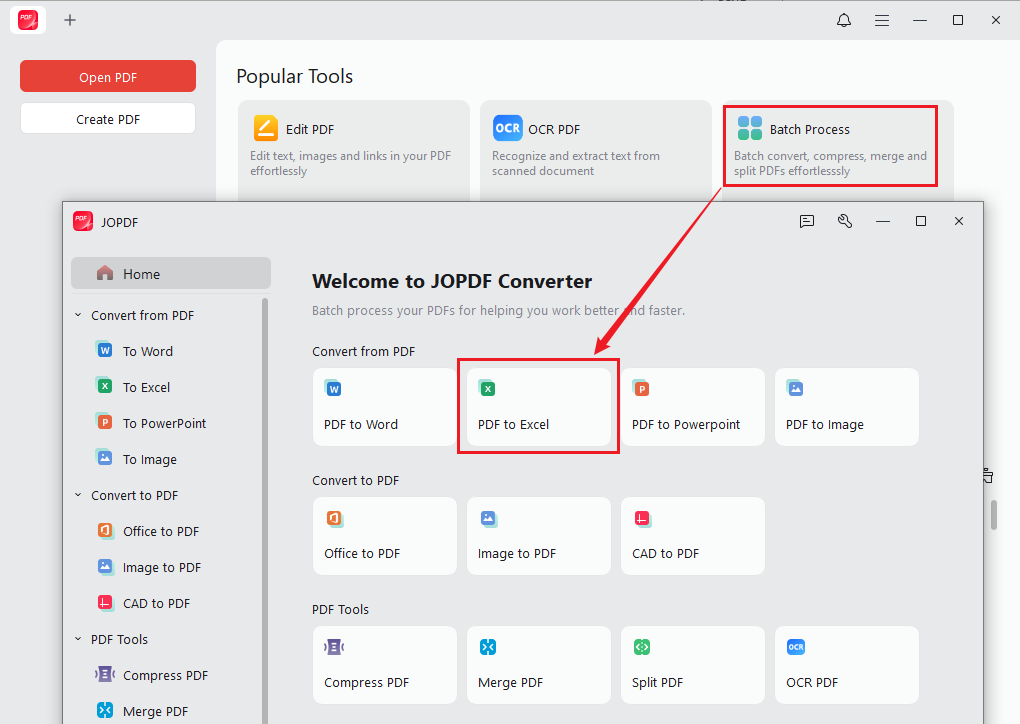
Step 2. Open the PDF-to-Excel converter.
Launch JOPDF, click Batch Process under Popular Tools, and select PDF to Excel.
Step 3. Import your PDF file.
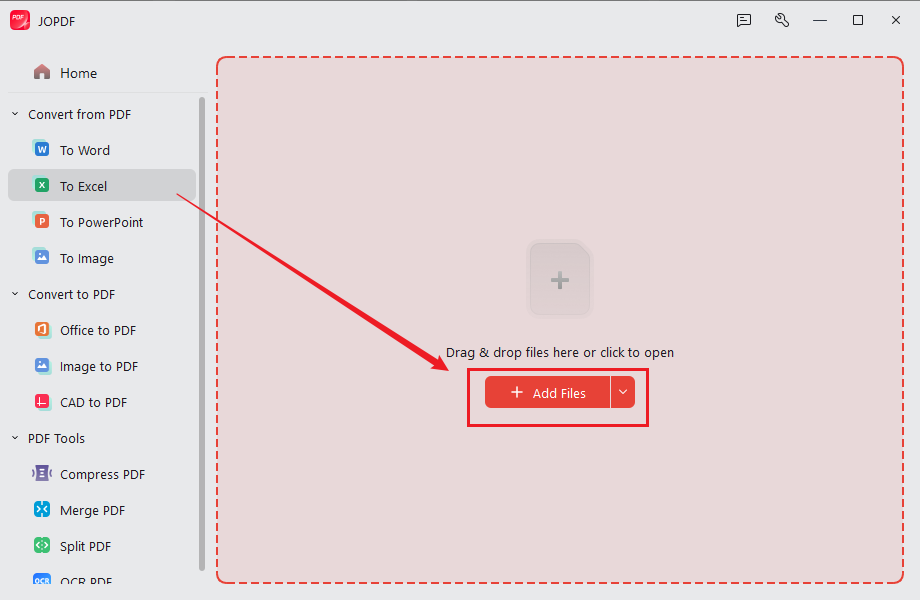
Click Add Files to browse and select the PDF document you want to convert. Alternatively, drag and drop your PDF into the conversion window. If you want to process multiple PDFs at once, upload them together.
Step 4. Select XLSM as the output format.
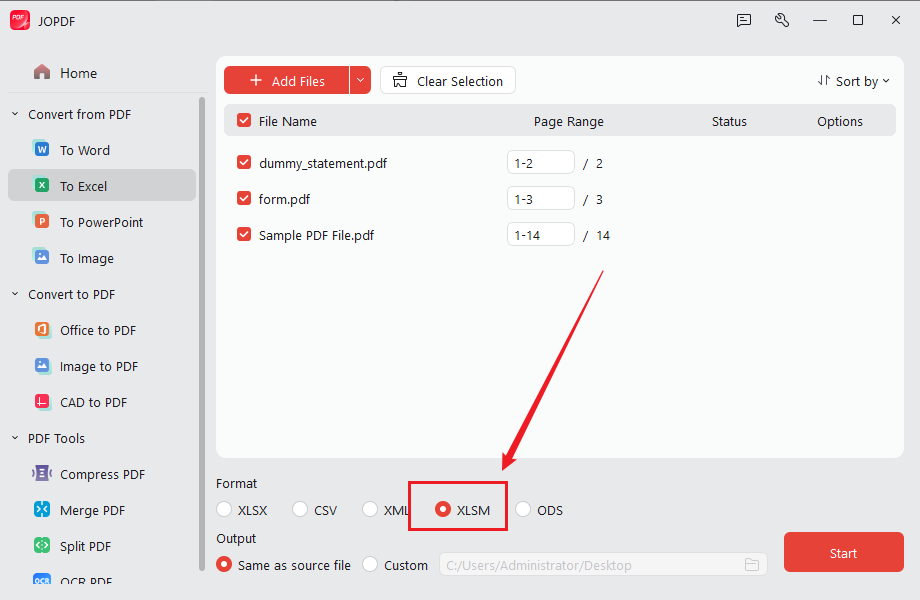
In the Format section, select the XLSM option as the output format. Next, specify the destination folder where you want to save the converted workbook.
Step 5. Start the PDF to XLSM conversion.
Click Start to begin converting PDF to XLSM. Once the process is complete, navigate to the output folder and open the generated XLSM file in Microsoft Excel.
Other key features of JOPDF:
- Convert PDF to Word, PowerPoint, and other image formats.
- Edit PDF text and images.
- Annotate PDFs with several tools like highlighting important sentences.
- Password-protect PDFs and add watermarks to a PDF.
- OCR PDFs, making them searchable or editable.
- Merge or split PDFs.
- …
Pros
- Supports direct PDF-to-XLSM conversion.
- Completely free PDF software without a subscription.
- Available for Windows, macOS, and Linux.
- Supports batch PDF conversion.
- Offers OCR for scanned and image-based PDFs.
Cons
- Requires desktop installation.
- The conversion plugin needs to be downloaded before the first conversion.
Way 2. Convert PDF to XLSM Online with GroupDocs
If you don’t want to install desktop software, you can use an online PDF-to-XLSM converter instead. It provides a dedicated PDF-to-XLSM conversion tool that can work directly in a web browser. What’s more, it can convert PDF to CSV, DOCX, ODS, SVG, and other more formats. Follow the guidance below to convert PDF to XLSM online for free with GroupDocs.
Step 1. Open the GroupDocs PDF-to-XLSM converter.
Open your browser and visit the GroupDocs PDF to XLSM Converter website.
Step 2. Upload your PDF file.
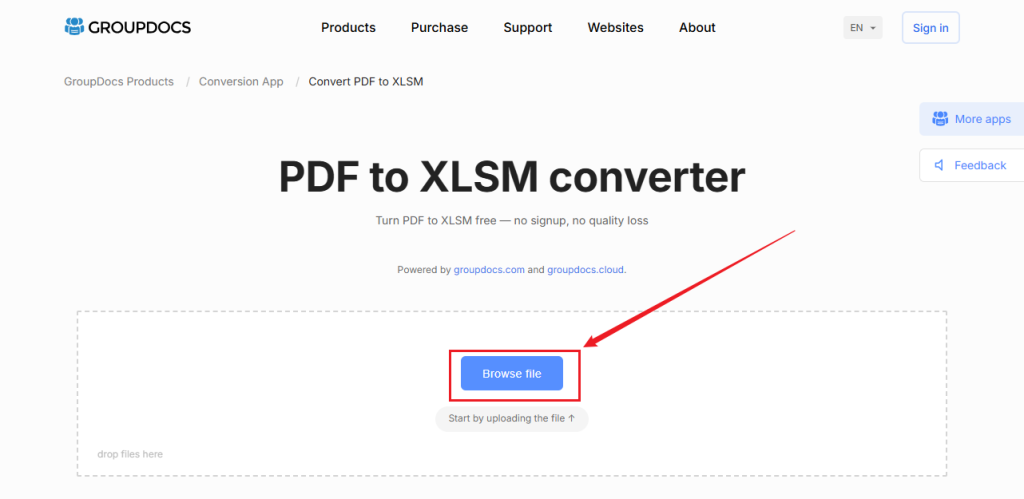
Click Browse file to select and upload your PDF document. You can also drag and drop the file into the designated area.
Step 3. Convert PDF to XLSM.
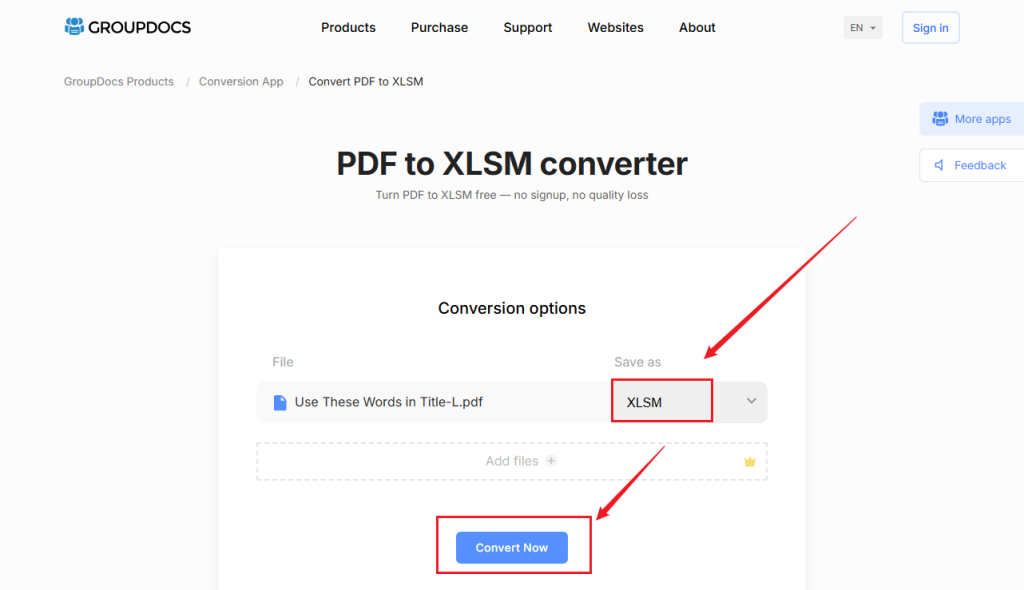
Make sure XLSM is selected as the output format. Then click Convert Now to start the conversion. GroupDocs will process the PDF and generate an XLSM file.
Step 4. Download the converted XLSM workbook.
When the conversion is complete, click the download link to save the XLSM file to your device.
Pros
- Works directly in a web browser.
- Supports direct PDF-to-XLSM conversion.
- No desktop installation required.
- No registration required for basic conversion.
- Compatible with Windows, macOS, Linux, and mobile devices.
Cons
- Requires an internet connection.
- Uploaded files are processed on the service’s servers.
- Batch conversion is a premium feature.
Though online converters are convenient, an offline PDF converter like JOPDF can be a better choice for confidential financial statements or business documents.
Way 3. Convert PDF to XLSM Using Microsoft Excel
Microsoft Excel is a spreadsheet program that allows you to organize, format, and calculate data. In addition, Microsoft Excel provides a way to import tables from PDF documents. With its Power Query PDF connector, you can extract data from a PDF and load it into an Excel worksheet. After importing the data, you can save the workbook directly in XLSM format.
This method is particularly useful if you already have Microsoft Excel installed and want to organize or modify the extracted data before saving it. Here, let’s learn how to convert PDF to XLSM in Excel.
Step 1. Create a blank workbook in Microsoft Excel.
Launch Microsoft Excel and click Blank workbook to create a new workbook.
Step 2. Import data from your PDF.
Click the Data tab on the top ribbon bar. Then go to Get Data > From File > From PDF.
Step 3. Select your PDF document.
Next, browse your computer, locate the PDF file, and click Import.
Step 4. Choose the tables to import.
Then Excel will display a Navigator window containing the tables and pages it detects in your PDF. Select the table you need and click Load to import the selected data directly. Or choose Transform Data to clean and organize it in Power Query before loading it into Excel.
Step 5. Save the workbook as XLSM.
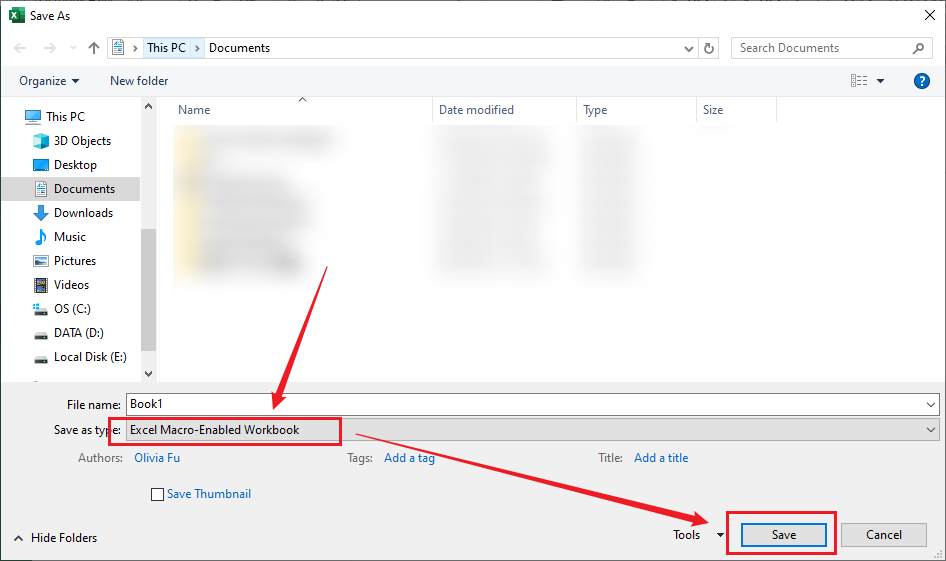
Optionally, you can edit the data as needed. Next, click File and select Save As. Choose your preferred destination folder, open the file type dropdown menu, and select Excel Macro-Enabled Workbook. Finally, click Save.
Pros
- Uses Excel’s built-in PDF import functionality.
- Allows you to organize and edit extracted data.
- Supports saving the resulting workbook as XLSM.
Cons
- Requires a compatible version of Microsoft Excel.
- PDF import availability varies by Excel version and platform.
- Complicated PDF tables require manual adjustments.
Way 4. Workaround Way to Convert PDF to XLSM with Adobe Acrobat
Adobe Acrobat is another popular option for extracting spreadsheet data from PDF documents. Its PDF-to-Excel conversion feature allows you to export PDF files into editable Excel workbooks. However, Adobe Acrobat’s standard PDF-to-Excel export produces XLSX files rather than XLSM files. Therefore, you’ll need to use Microsoft Excel afterward to save the exported workbook in the XLSM format.
Here’s how to convert PDF to XLSM with Adobe Acrobat and Microsoft Excel.
Step 1. Open your PDF in Adobe Acrobat.
Launch Adobe Acrobat and open the PDF file you want to convert.
Step 2. Select the PDF-to-Excel conversion feature.
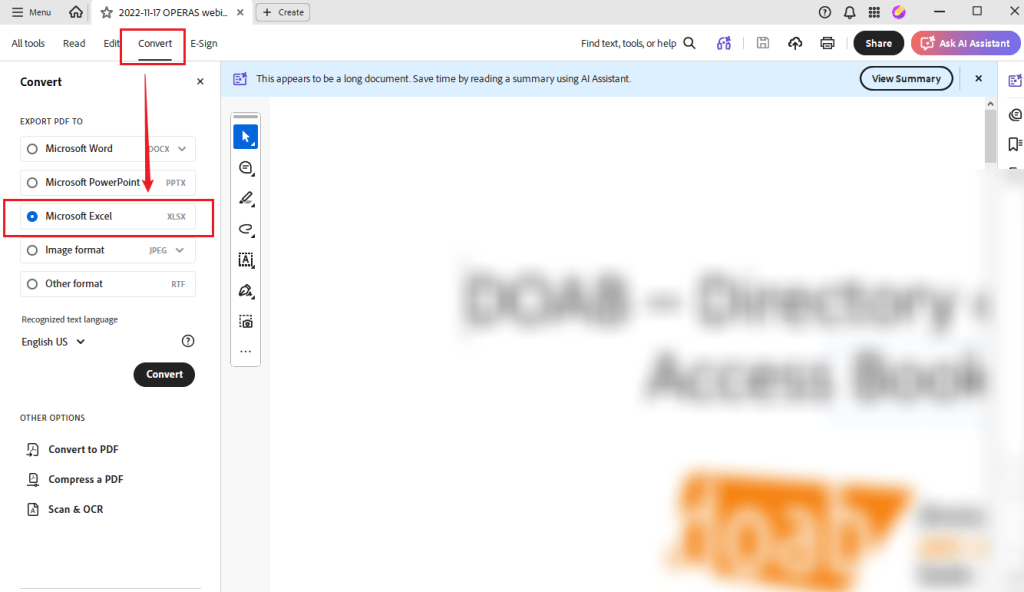
Click Convert in the global toolbar and select Microsoft Excel from the left pane. Then choose XLSX as the output format.
Step 3. Export your PDF to XLSX.
Click Convert to XLSX, choose a destination folder, enter a filename, and save the converted workbook.
Step 4. Open the XLSX file in Microsoft Excel.
Locate the exported XLSX file, right-click it, move to Open with, and select Excel. Then the XLSX file will open in Microsoft Excel. Meanwhile, you can check whether the extracted tables, numbers, and formatting are correct.
Step 5. Save the workbook as XLSM.
Next, go to File > Save As, choose a saving folder, and select Excel Macro-Enabled Workbook from the file type dropdown menu. Finally, click Save.
Pros
- Provides dedicated PDF-to-Excel export functionality.
- Can recognize text in scanned PDF documents through OCR.
- Offers options for organizing exported tables and worksheets.
- Useful for extracting data from complex PDF documents.
Cons
- Cannot convert PDF to XLSM directly.
- Requires an additional XLSX-to-XLSM saving step.
- Pay for Adobe Acrobat Pro to unlock the PDF conversion features.
Can You Convert PDF to XLSM Without Losing Formatting
Yes, you can convert PDF to XLSM while retaining much of the original table structure and formatting. However, the results depend on the PDF’s layout, the conversion tool, and the document’s complexity. PDF and Excel use different structures. PDF focuses on preserving a fixed page layout, whereas Excel organizes information into rows, columns, and cells. Consequently, some formatting differences are normal during conversion.
Conclusion
It is not difficult to convert PDF to XLSM as long as you select the right PDF converter. If you need a free and direct PDF-to-XLSM conversion solution, JOPDF is a strong choice. In addition, it supports multiple Excel output formats and batch conversion. If you prefer browser-based conversion, GroupDocs is another convenient option. Meanwhile, Microsoft Excel and Adobe Acrobat provide alternative workflows. Now, it’s time to choose a converter and try it out!
FAQs
Table of Contents
Your Best Free PDF Expert in PDF editing, compressing, converting, annotating, protect, organizing, and more.
Free DownloadWindows · macOS · Linux

Olivia
“Olivia is an editor at JOPDF, where she writes practical guides and insightful articles on managing PDFs—covering topics like editing, annotating, converting, and organizing files efficiently. Passionate about clear communication and digital productivity, Olivia enjoys spending her free time cooking, watching movies, and hiking to unwind and find inspiration for her writing.”