Summary :
PubHTML5 is an online digital publishing platform that converts PDFs and images into interactive flipbooks. However, reading a PubHTML5 publication online does not always mean you can download it as a PDF. So, how to download PubHTML5 to PDF? There are seven methods to save a PubHTML5 flipbook for offline reading. If you’re struggling with the PubHTML5 PDF download, follow this guide on JOPDF.
Can You Download PubHTML5 PDF for Free?
Yes, but it depends on your access and the publication’s download settings.
There are two main situations:
- You own the publication: You can sign in to your PubHTML5 account and download the original PDF or other publication files from your dashboard, provided the original file is available.
- You are a reader: You can download a PDF if the publisher has enabled a download option and made the original PDF or a direct PDF link available.
If the publisher disables downloading, you may not see a Download button in the flipbook toolbar. In that case, you should look for an authorized copy from the publisher. Also, we provide some other methods for PubHTML5 to PDF download in the next part.
Tips
PubHTML5’s official Help Center explains both the owner’s download process and how publishers can enable downloads for readers.
Can I Convert a PubHTML5 Link Directly into a PDF?
Not every PubHTML5 URL can be converted directly. Some users look for an online PubHTML5 downloader tool, which usually claims to download PubHTML5 PDFs for free via a copied link. In fact, the success rate is low.
A flipbook URL usually opens an interactive online reader rather than a standalone PDF file. You need an available original PDF, an authorized download option, or printable page content to create a PDF copy.
Can I Convert a PubHTML5 HTML Flipbook into PDF?
Potentially, if its pages can be displayed and printed through a browser, or if you use the PubHTML5 to PDF converter to save the flipbook as a PDF file. However, interactive elements, animations, and some page layouts may not be retained. If you own the publication, using the original PDF is generally a better option.
All in all, how to download from PubHTML5? For detailed steps to convert PubHTML5 to PDF online, try the following methods. The first three methods are for ordinary readers, and the next three methods are for publication owners.
If you regularly download files from various platforms, we’ve also put together download guides for other services beyond PubHTML5:
- TeraBox Downloader Online — download videos and files from TeraBox quickly
- Keep2Share Downloader — manage your Keep2Share downloads
- MEGA Downloader Free Without Limits — download MEGA files without restrictions
- Course Hero PDF Downloader Free — download Course Hero study documents
Method 1: Use the PubHTML5 PDF Download Button
This is the best PubHTML5 PDF download for ordinary readers. Some PubHTML5 publishers allow visitors to download their PubHTML5 flipbook publications directly. If the Download button is enabled, you may be able to save the original PDF without signing in to the publisher’s account.
Step 1: Open the PubHTML5 flipbook using its shared URL, or search for it to locate the publication.
Step 2: Wait for the flipbook to finish loading and click the Download button in the toolbar, usually near the bottom of the reader interface.
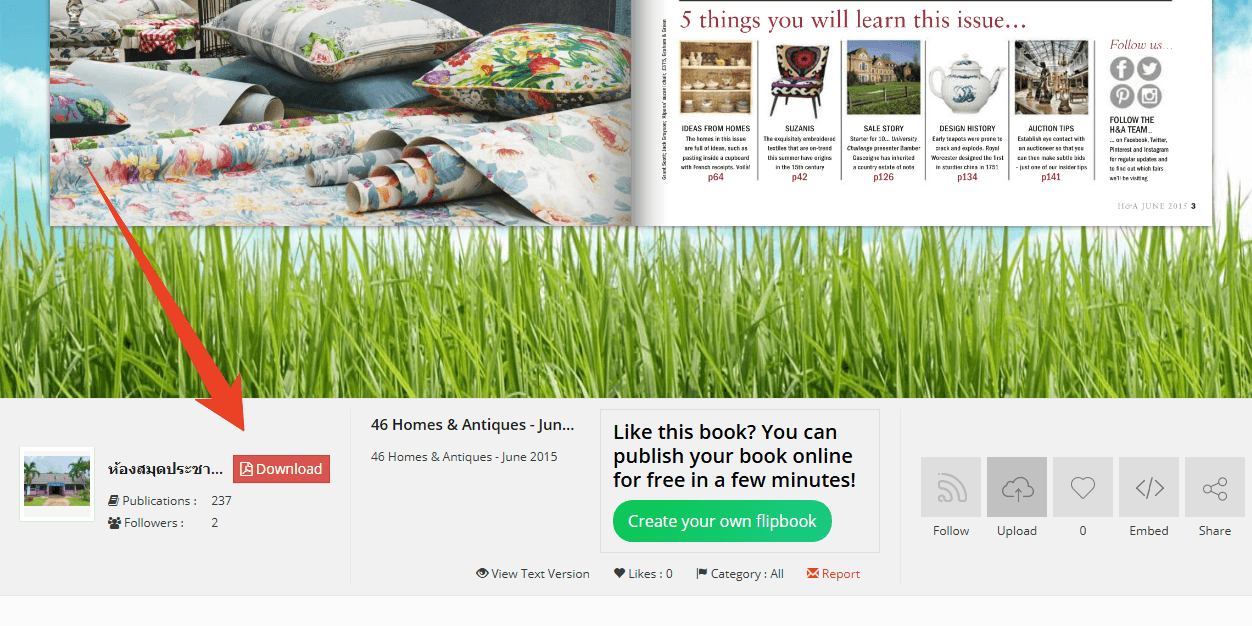
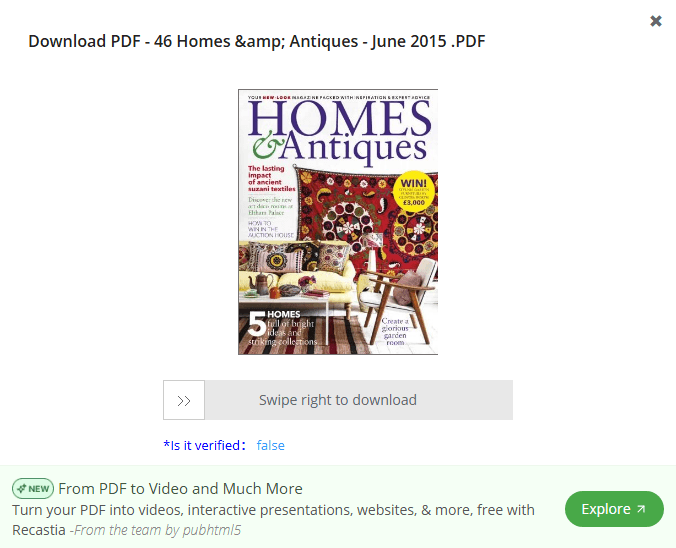
Step 3: It’ll show you the available file type. Just choose PDF and swipe right to download the publication PDF.
What If There Is No PubHTML5 PDF Download Button?
If you can’t find the Download button, that may be because the publisher has disabled the download feature or may not have provided a downloadable PubHTML5 PDF. You can try opening the publication’s information page or contacting its owner to request a copy.
If the PubHTML5 PDF Download button is still not available, try the next methods.
Tips
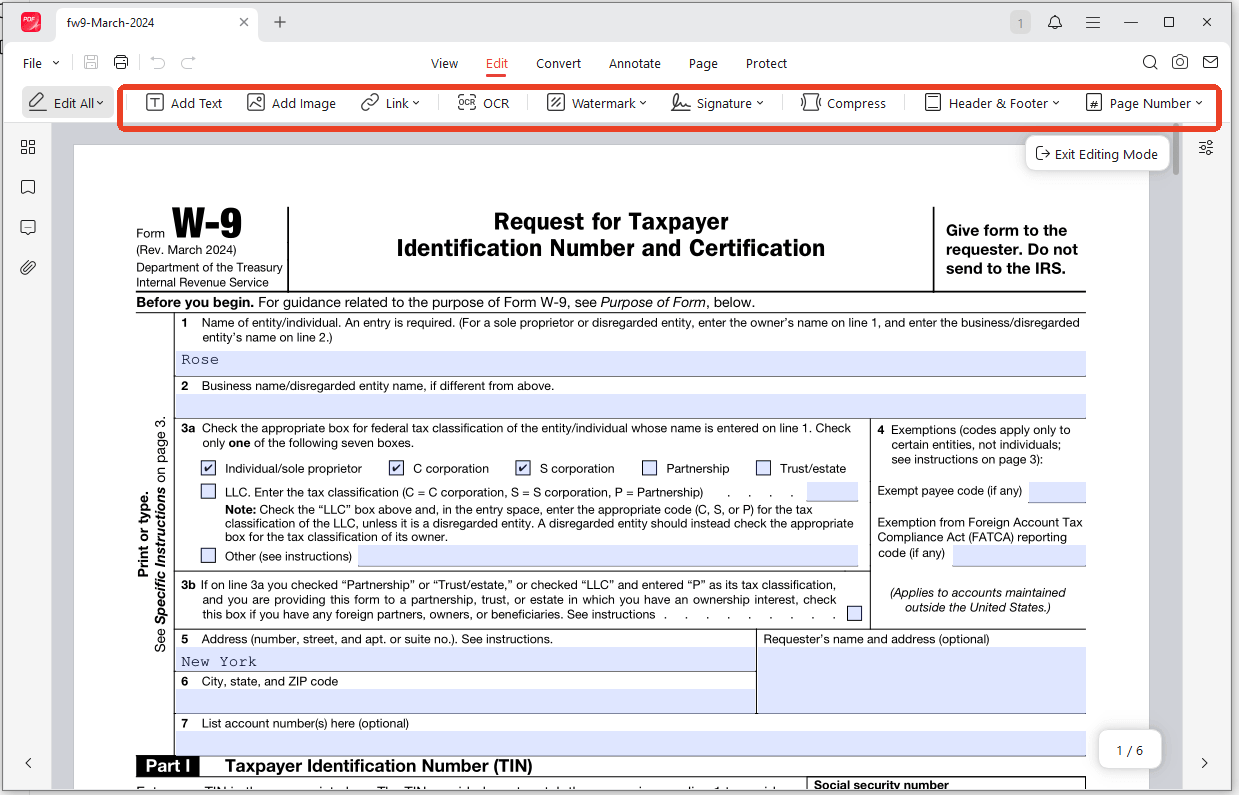
After the PubHTML5 to PDF download, the file size may be larger than expected. Just switch to JOPDF’s Compress PDF tool and upload your PubHTML5 PDFs to reduce the file size. Besides, JOPDF is also a wonderful PDF editor with editing and annotation tools; it can be a good study partner when you read the PubHTML5 flipbooks.
Method 2: Save the PubHTML5 Flipbook as PDF Using Print
If the publication can be printed through your browser, you may be able to use the built-in Print function to save the PubHTML5 flipbook as a PDF. This method is worth trying when the publisher permits printing but does not provide a direct PDF download.
Step 1: Open the PubHTML5 flipbook in Chrome, Edge, or another supported browser.
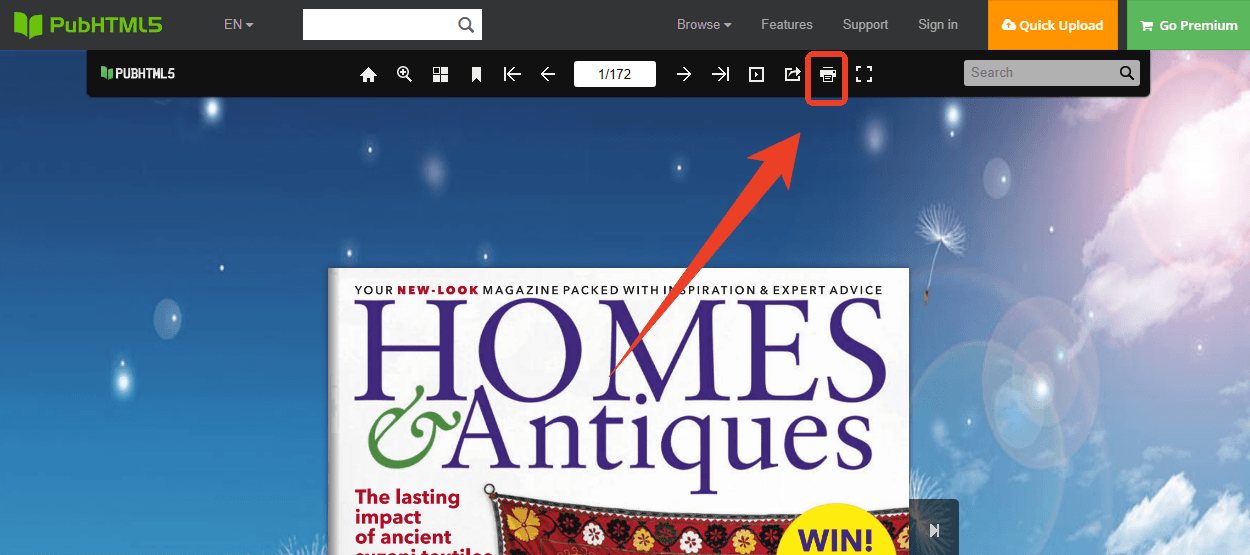
Step 2: Check whether the publication provides the Print icon on the menu bar and click it to open the browser’s print interface, if printing is available. Alternatively, you can directly press Ctrl + P on Windows or Command + P on Mac to open the print dialog.
Step 3: Choose the page range for printing and click Print.
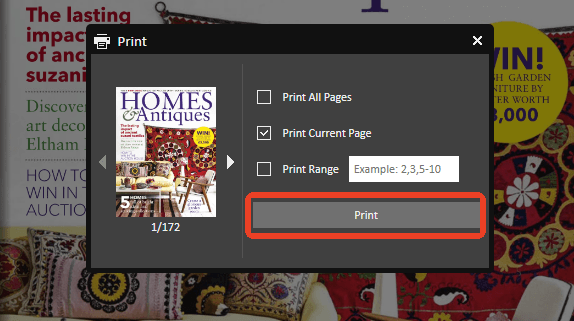
Step 4: To download the PubHTML5 PDF, select Save as PDF as the print destination and set up the page range, layout, and more settings.
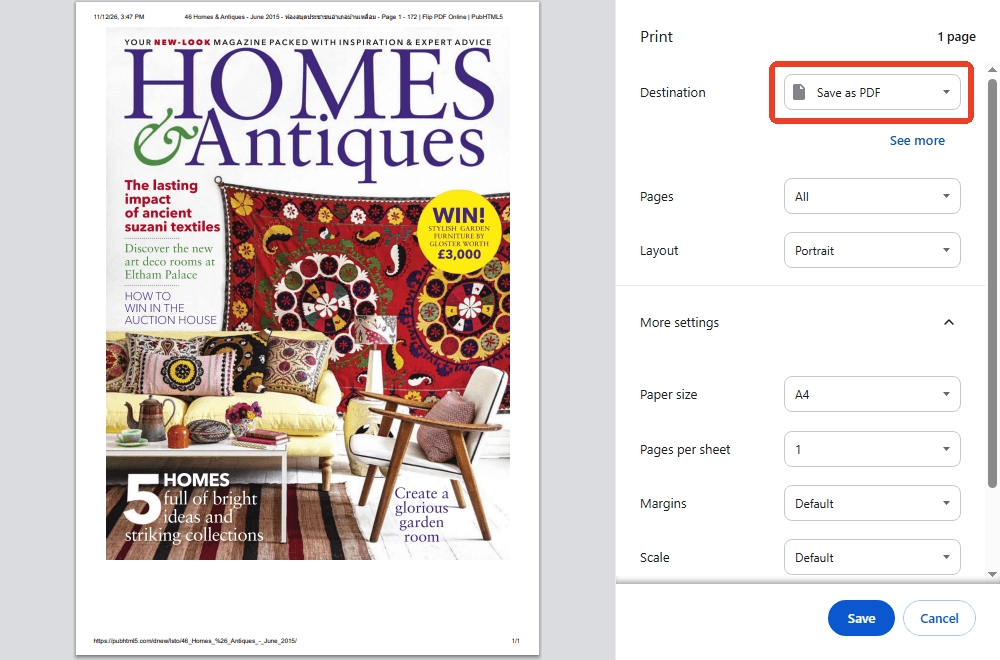
Step 5: Click Save and check the PubHTML5 PDF download.
This method has some limitations you should notice:
- Some flipbooks are rendered through interactive viewers that do not expose all pages to the browser’s print function.
- The output may contain only the currently visible page or an incomplete selection.
- Interactive elements, hyperlinks, animations, and page-turning effects may not be preserved.
- The resulting PDF may have lower image quality or different formatting from the original.
Tips
Always check the print preview before saving. If it only displays one page or omits part of the publication, this method is unlikely to produce a complete PDF; continue with the next method.
Method 3: Use the PDF Link Provided by the Publisher
Some publishers upload their original PDF files to an external server and connect the file to the PubHTML5 Download button. In this situation, the flipbook is only the online reading interface, while the actual PDF is hosted separately.
If the publisher provides a direct PDF link, you can download the PubHTML5 file through your browser.
Step 1: Open the PubHTML5 publication and check the publication description, information page, or Download option for an original PDF link.
Step 2: Open the direct PDF link in your browser if it is provided.
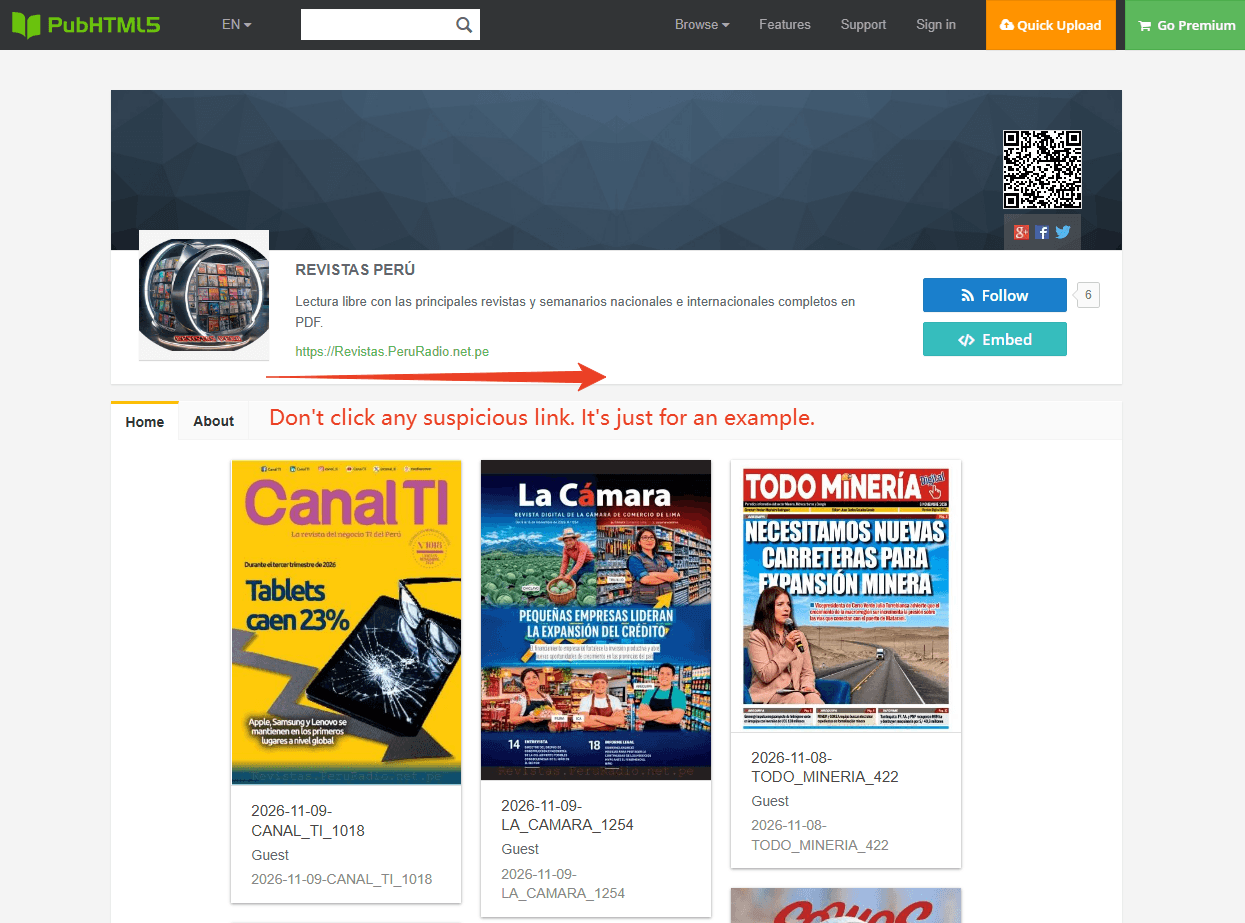
Step 3: Click the browser’s download icon or press Ctrl + S on Windows or Command + S on Mac, if the PDF is displayed in the browser.
Step 4: Choose a folder and save the PDF.
Method 4: Download the Original PDF from PubHTML5
This PubHTML5 PDF download method is the best one for publication owners. If you created the flipbook or have access to the PubHTML5 account that published it, this is the most direct way to get the original PDF.
Step 1: Visit PubHTML5 and sign in to your account.
Step 2: Go to the MY PUBS section and find the flipbook you want to download.
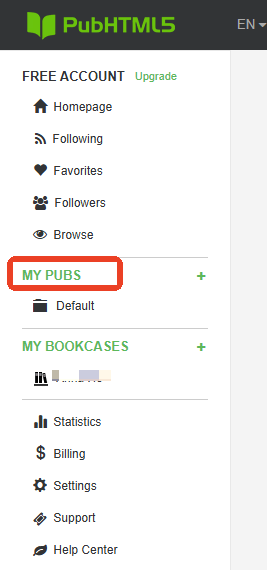
Step 3: Click the Download button and select the original PDF file from the download options.
For more details, see PubHTML5’s official download instructions.
Method 5: Publish the Flipbook Locally as a PDF
If you created the publication using the PubHTML5 desktop client, you can use its local publishing feature to export your PubHTML5 PDF.
However, there is an important distinction: PubHTML5’s local publishing feature is primarily designed to export interactive flipbooks, not to convert an existing flipbook back into its original PDF. According to its Help Center, the desktop client supports publishing formats such as HTML and EXE.
If you still have the original PDF on your computer, use that file directly. If you only have the locally published HTML or ZIP package, you may need a PubHTML5 to PDF converter.
Step 1: Open the PubHTML5 desktop client and import your original PDF file.
Step 2: Edit the publication if necessary and click Publish to Local.
Step 3: Select an available output format, such as HTML or EXE, and complete the publishing process.
Step 4: After you export the PubHTML5 file, you can convert the HTML or EXE to PDF with the right converter, such as SwifDoo PDF. This tool allows you to upload the HTML or EXE file and download it as a PDF file easily.
Method 6: Use Screenshots to Create a PubHTML5 PDF
If you have permission to save the PubHTML5 publication but cannot access a direct PDF download, screenshots may be a last-resort option for capturing individual pages. This approach is more suitable for short publications than lengthy magazines or books.
Step 1: Open the PubHTML5 flipbook in your browser and choose the page you want to save.
Step 2: Adjust the zoom level so the entire page is clearly visible and take a screenshot using your computer’s screenshot tool.
Step 3: Repeat the process for the other pages you need.
In this step, you may have a bunch of PubHTML5 publication images, which need to be compiled. JOPDF is a 100% free image-to-PDF converter – No registration or subscription. You can use this PubHTML5 to PDF converter to make all the images searchable and editable PDFs and then combine them into one PDF.
Most importantly, JOPDF is equipped with an advanced OCR function, which can help recognize and analyze the text in screenshots for better converted PDF results. JOPDF is an important part of the PubHTML5 to PDF process.
Here is the way.
Step 1: Download the JOPDF image-to-PDF converter for free and install it.
Step 2: Launch the program and click Batch Process > Image to PDF.
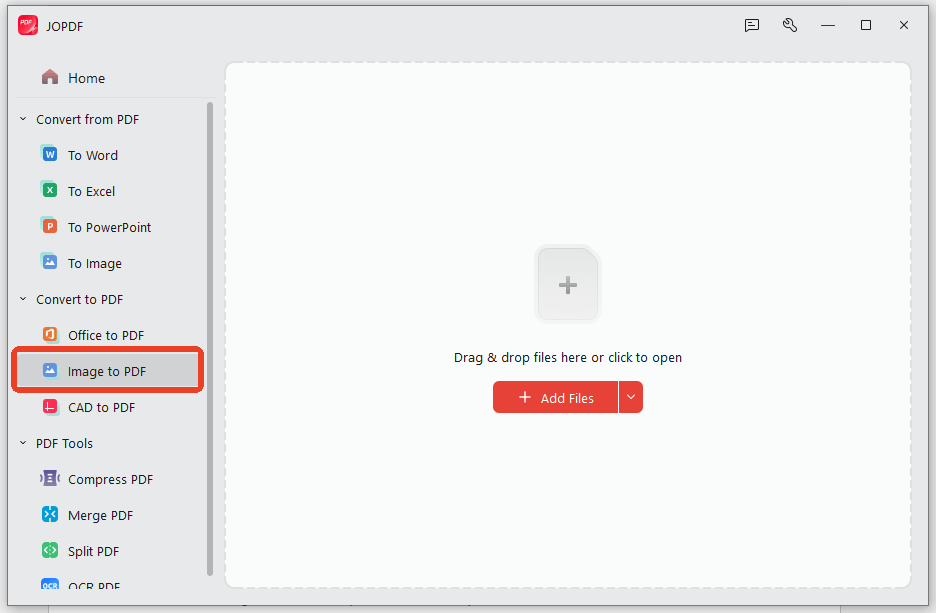
Step 3: Choose the conversion method as All Images as One PDF and set the page size.
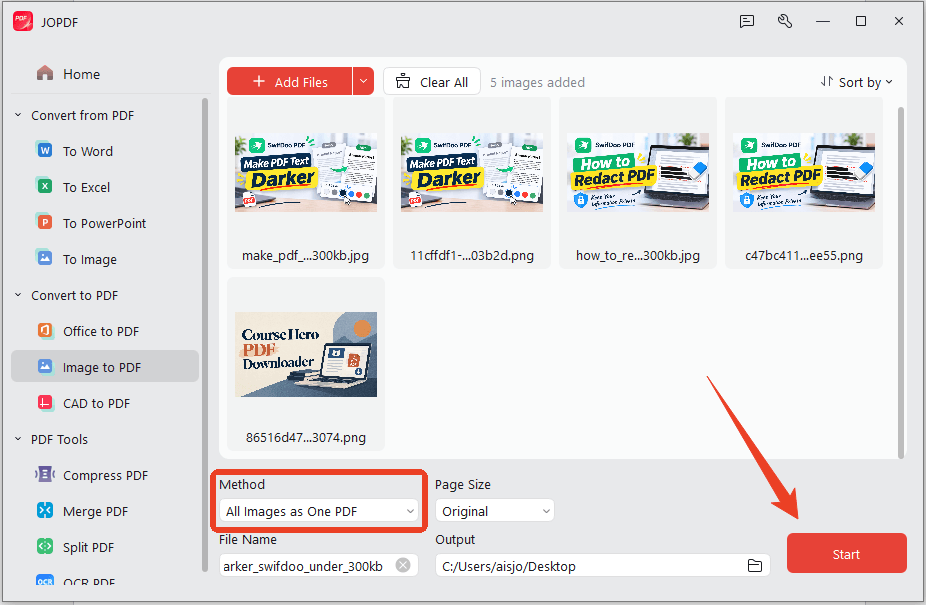
Step 4: Click Start to convert the PubHTML5 flipbook into PDF.
Are There Any Online PubHTML5 Downloader Tools?
You may come across websites claiming to offer a free PubHTML5 downloader. These services generally claim to extract flipbook pages or convert online publications into downloadable PDF files.
However, there is an important difference between a legitimate file-conversion service and a tool that attempts to retrieve content that the publisher has chosen not to make downloadable.
Before using any third-party service, consider the following:
- Check the download requirements: Does the tool require a public PDF URL, or does it claim to bypass the publisher’s download restrictions?
- Check file security: Avoid uploading confidential documents or entering your PubHTML5 account credentials into unknown websites.
- Check output quality: Some services may only capture page images rather than recover the original PDF.
- Check usage permissions: Make sure you have the right to download and process the publication.
I would not recommend relying on an unverified PubHTML5 downloader simply because it advertises one-click PDF downloads. I cannot confirm a particular third-party service as a reliable, authorized PubHTML5 downloader.
Why Can’t I Download a PDF from PubHTML5?
There are several reasons why you may be unable to download a PubHTML5 publication.
1. The Publisher Disabled the Download Button
PubHTML5 allows publishers to control whether readers can download their flipbooks. If the publisher hides the Download button, visitors may only be able to read the publication online.
2. The Original PDF Is Not Available
A flipbook is not necessarily the same as its original PDF. The publisher may have uploaded images or created the publication through another workflow. In such cases, an original PDF may not be available for download.
3. The Download Link Is Broken
Some publications use external download URLs. If the publisher changes the file location, deletes the original file, or enters an incorrect URL, the Download button may stop working.
4. Browser or Network Problems
Temporary network errors, browser extensions, blocked pop-ups, or interrupted downloads can also cause problems.
Try these basic troubleshooting steps:
- Refresh the publication page.
- Open the flipbook in another browser.
- Disable extensions that may interfere with downloads.
- Check your internet connection.
- Try downloading the file again.
- Contact the publisher if the download link continues to fail.
5. You Do Not Have the Required Account Permissions
If you are trying to download a publication from someone else’s account, you will not have access to the owner’s dashboard or original source files. You may need to request a copy directly from the publisher.
Conclusion
Downloading a PubHTML5 flipbook as a PDF is possible, but the available methods depend on your access permissions and the publisher’s settings. Downloading the original PDF from the owner’s dashboard is the most reliable approach, while using the reader’s PubHTML5 Download button is usually the easiest option for visitors. Browser printing and screenshots can serve as PubHTML5 to PDF alternatives when permitted, although they may not preserve the original quality or formatting.
Before trying third-party PubHTML5 downloaders, check whether the publication offers an official download link. If you cannot find one, requesting the original PDF from the publisher is often the simplest and safest solution.
FAQs
Table of Contents
Your Best Free PDF Expert in PDF editing, compressing, converting, annotating, protect, organizing, and more.
Free DownloadWindows · macOS · Linux

Anna
Editor
“Anna, Editor-in-Chief and PDF expert, delivers deep insights into PDF document technology trends. She is dedicated to helping readers optimize their digital lives. When not writing, Anna loves exploring local cafes and reading, blending her technical expertise with a love for storytelling.”