Introduction :
Platforms like FlipHTML5, AnyFlip, and Issuus allow you to make interactive and visually appealing flipbooks. Those flipbooks are widely used for digital magazines, brochures, catalogs, presentations, and ebooks. However, sometimes, you need static PDFs for offline reading, printing, editing, or archiving. How to save a flipbook as a PDF or convert a flipbook to PDF? Read this JOPDF article to find multiple proven methods.
Whether you want to save an online flipbook as a PDF, download flipbooks for offline use, or improve the converted PDF afterward, I will provide comprehensive guidance. Now, let’s explore the following content.
Why Convert a Flipbook to PDF?
Although flipbooks provide an engaging and interesting reading experience, PDFs remain the preferred format in many practical situations. Why convert a flipbook to PDF? Below are some main benefits.
- Reading content offline: Most flipbooks require an internet connection. However, PDFs allow you to access them anytime without relying on a browser or online platform.
- Easy to print and share: PDF is universally compatible across devices and operating systems, making it easy to print and share.
- Easy to edit and archive: Unlike interactive flipbooks, PDFs are more convenient for long-term organization and management.
How to convert a flipbook to PDF? Please read on!
Best Ways to Convert Flipbook to PDF
How to save or download flipbook PDF files? Is there an excellent flipbook PDF converter? Generally, there is no single method that can work for every flipbook platform. Some flipbook platforms allow direct downloads, while others restrict access. Hence, here, I will provide you with 5 different, effective methods to convert online flipbooks to PDF files.
Option 1. Use Screenshot-Based Conversion Methods
To convert a flipbook to a PDF, the most reliable method is to take screenshots of all flipbook pages and combine them into a PDF. This screenshot-based conversion method is especially effective for protected flipbooks, limited-access content, and presentation slides. If you consider this method, a reliable PDF converter is essential. JOPDF is worth a try.
JOPDF is one of the best free PDF converters, enabling you to convert images and other office files to PDF. As an image-to-PDF converter, it enables you to convert TIFF, BMP, JPG, and PNG to PDF. Additionally, JOPDF lets you combine screenshots into a single PDF. Moreover, it offers a set of editing features.
How to convert flipbook pages to a PDF using this screenshot-based conversion method? Follow the exact steps below:
Step 1. Open the flipbook you want to convert to PDF, then use the built-in screenshot tool to capture screenshots. Meanwhile, name each flipbook screenshot in order. This is very important for the PDF’s page order during the subsequent conversion process.
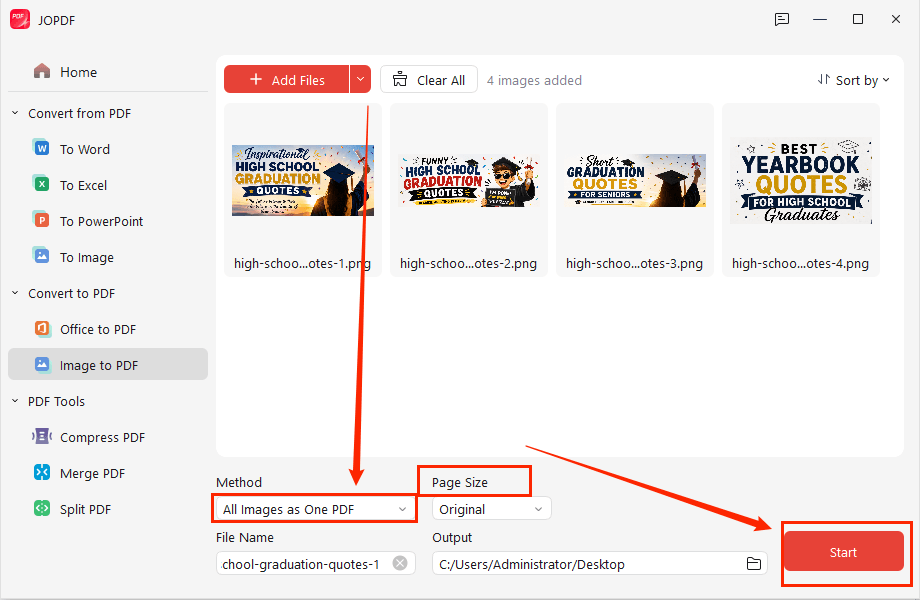
Step 2. Download, install, and launch JOPDF. Then, click Batch Process and select the Image to PDF option. Next, click Add Files to upload all flipbook screenshots.
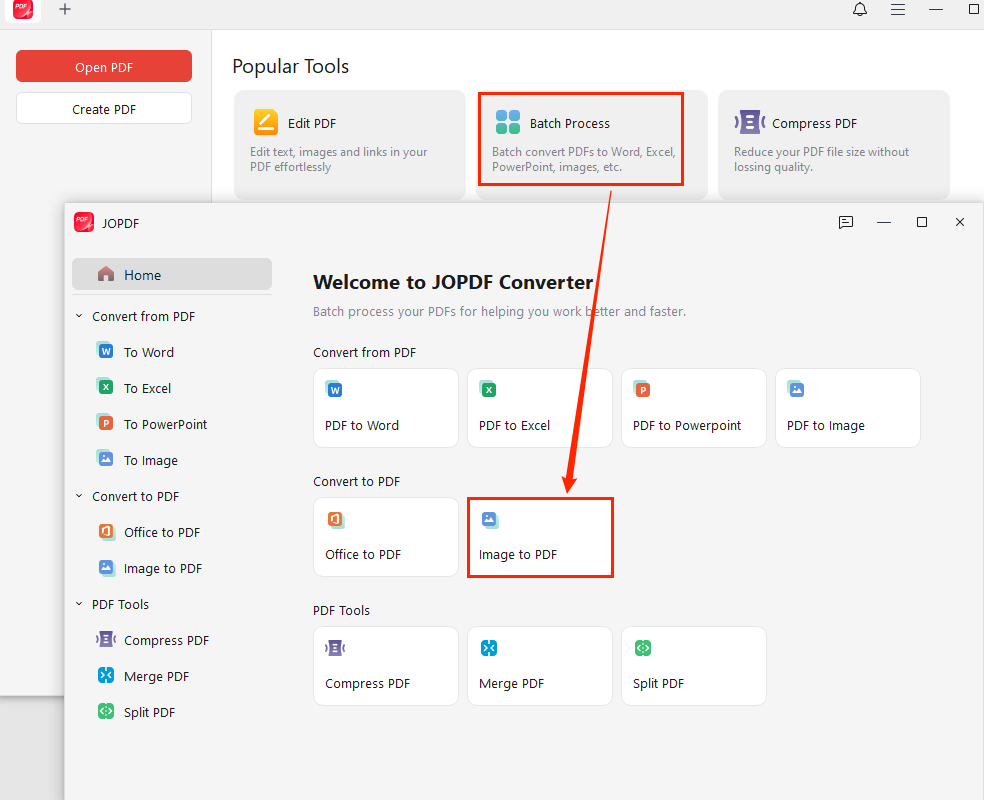
Step 3. Here, you can drag the screenshot to adjust its order as needed. Open the Method dropdown and click the “All Images as One PDF” option. Set Page Size as Original. Finally, click Start. Later, you can get a flipbook PDF file.
Option 2. Use Browser Extensions to Save Flipbooks as PDF
Compared to the first method, browser extensions are the fastest solution for simple online flipbooks. Generally, these browser extensions are mainly capable of taking long screenshots or consecutive screenshots. You can use this way to download public flipbooks, education materials, lightweight catalogs, and simple HTML5 flipbooks. Here are several popular extensions for you to choose from:
- GoFullPage
- FireShot
- Awesome Screenshot
How to save flipbooks as PDF?
Step 1. Open the online flipbook in your browser and then install a reliable PDF-saving extension, like Awesome Screenshot.
Step 2. Scroll through all pages to fully load them. Then, run the browser extension and scroll through all flipbook pages.
Step 3. Next, select the “Save as PDF” or “Print to PDF” option. Finally, download the generated PDF file.
However, this method also has limitations. For instance, some protected flipbooks can block extraction, and the interactive elements may not transfer correctly.
Option 3. Convert Flipbook to PDF with Web Tools
Additionally, there are online converters or downloaders that allow you to convert flipbook pages into downloadable PDF documents. You can use them to save flipbooks as PDFs without installing software. However, you need to be mindful of privacy concerns when saving sensitive documents. The general process for converting a flipbook to PDF with an online converter can be:
- Go to the flipbook platform and copy the flipbook URL.
- Open the online converter and paste the copied flipbook URL.
- Select the output settings
- Start conversion and download the PDF file.
Option 4. Print Flipbook Pages to PDF
Browsers such as Google Chrome and Microsoft Edge offer built-in PDF viewers with print functions. You can use the browser’s print feature to print flipbook pages to PDF. How to do that? Here’s a guide.
Step 1. Open your target flipbook in a browser.
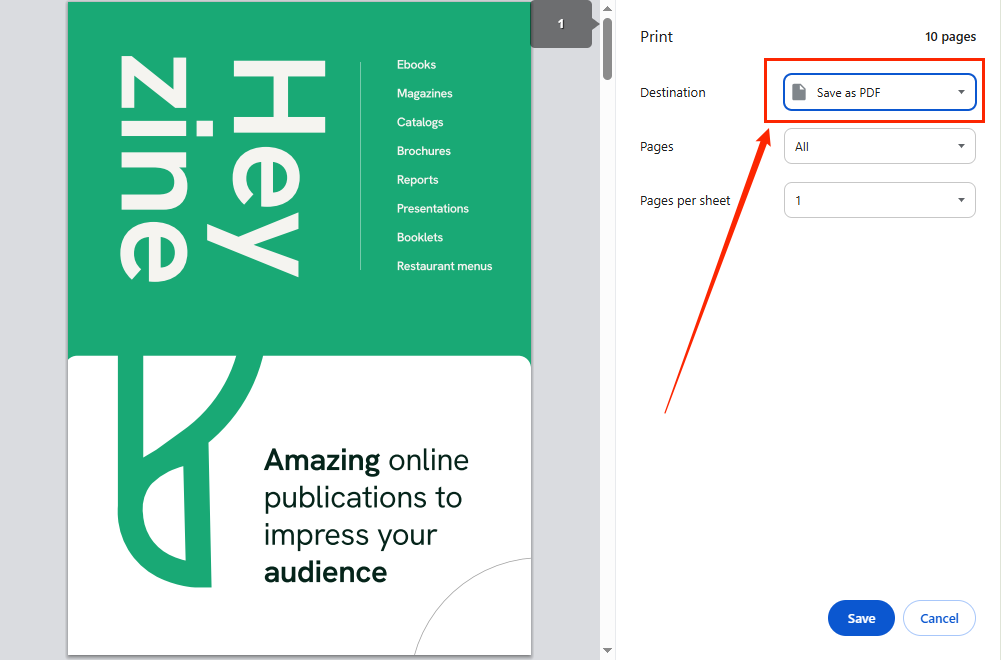
Step 2. Press Ctrl + P (for Windows) or Command + P (for Mac) to access the print window.
Step 3. Select the Save as PDF option from the Destination list. Adjust other settings as needed. Finally, save the flipbook PDF file.
Option 5. Download PDFs Directly from Flipbook Platforms
Some flipbook platforms already provide built-in PDF download features, making conversion unnecessary. For instance, you can download Heyzine flipbooks as PDFs via its built-in download icon. This is usually the best option because you can download the original PDF file instead of capturing pages manually or recreating the document through screenshots and print methods.
Which flipbook platforms include built-in download options? They are:
- FlipHTML5
- AnyFlip
- Heyzine
- Issuu
- Publuu
- Yumpu
- Paperturn
- FlowPaper
- FlippingBook
On those flipbook platforms, you can find the download feature that is represented by a “Download PDF” button, an export option, or a download icon. Compared with the methods above, this one offers several advantages, including higher image quality, smaller file size, better page formatting, and faster download speed.
How to Convert FlipHTML5, AnyFlip, and Issuu Flipbooks to PDF
From the last method, we know that some flipbook services offer direct PDF download options. Some of you may wonder how to download flipbooks as PDFs from those services. Here, I will show you download flipbooks from FlipHTML5, AnyFlip, and Issuu.
#FlipHTML5 to PDF
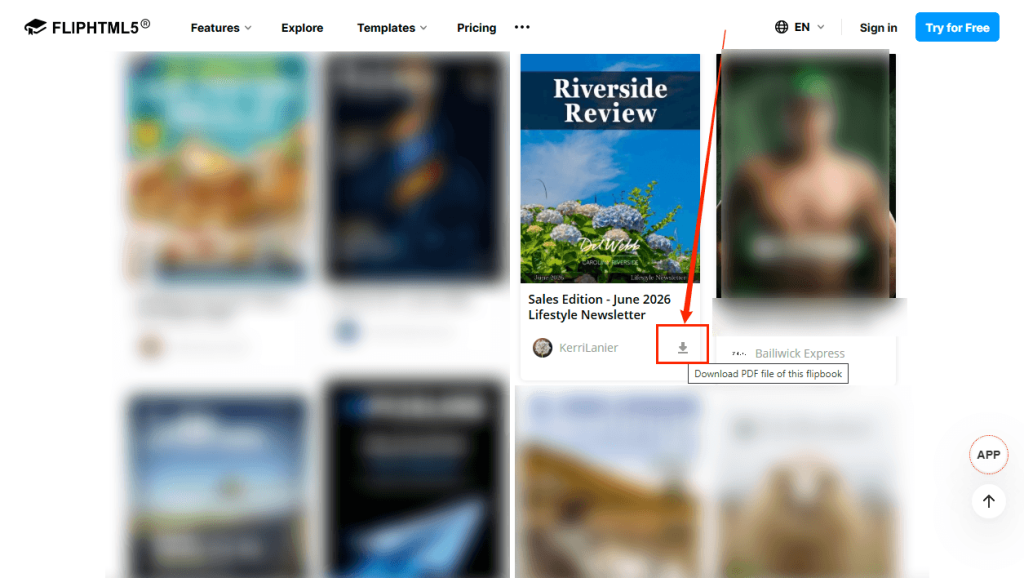
Some flipbooks on FlipHTML5 allow direct downloads. How to download FlipHTML5 to PDF? Follow the steps below:
- Go to FlipHTML5 and open the content you want to download.
- Find the download icon.
- Click the Download PDF button to save the file locally.
#AnyFlip to PDF
How to download AnyFlip books to PDFs? AnyFlip also offers a built-in option. But sometimes, the publishers may restrict downloads.
- Open the book you want to save from AnyFlip.
- Locate the download icon.
- Click the download icon to save the AnyFlip book as a PDF.
If there’s no download icon, you can also consider online AnyFlip downloaders.
#Issuu Flipbook Download Methods
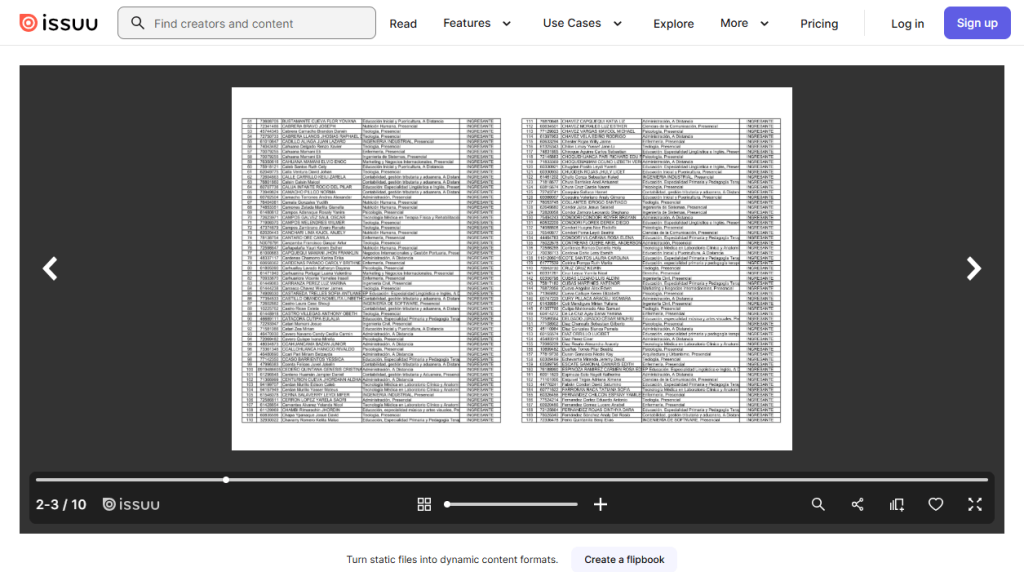
How to save Issuu flipbook as PDF? If the publisher allows download, you can find the corresponding download icon.
- Open the publication on Issuu.
- Look for the download arrow in the upper left corner.
- Click it to download the PDF directly.
Quick Comparison: Best Flipbook to PDF Converter Tools
How to save flipbooks as PDFs? Which one is the best flipbook to PDF converter? Here’s a quick comparison of the common conversion methods mentioned above.
| Method | Ease of Use | Output Quality | Best For |
| Screenshot Method | Easy | Medium-High | Protected flipbooks |
| Browser Extensions | Easy | Medium | Quick conversions |
| Online Converters | Easy | Medium | Casual users |
| Official PDF Download | Very Easy | High | Original-quality files |
Improve and Edit Your Converted PDF with JOPDF
After getting PDFs from flipbooks, a useful PDF viewer and editor can help you handle PDFs efficiently. Also, sometimes, you need to optimize and manage PDF files. JOPDF is an excellent cross-platform PDF reader and editor. You can use it to complete the following PDF tasks.
- View PDFs: Read flipbook PDFs in several modes, including full-page view.
- Edit text and images in a PDF: Add text boxes, edit images in a PDF, watermark PDFs, and more.
- Annotate PDFs: Underline important information, add sticky notes/links/shapes, etc.
- Compress large PDFs: Reduce PDF file size without losing quality.
- Merge multiple PDFs: Combine several PDF files into a single one for easy sharing and archiving.
- Organize PDF pages: Resize PDF pages, adjust page orders, delete blank pages, or rotate PDF pages.
Conclusion
Whether you need to read flipbooks offline or print them, converting a flipbook to PDF is often the best way to save digital publications. Depending on the platform and restrictions involved, you can use screenshot-based solutions, browser extensions, and other methods mentioned above. After saving flipbook PDFs, you can use JOPDF to view, optimize, edit, and organize the PDFs for a better reading experience. Finally, I hope this article can be helpful to you.
FAQs
Table of Contents

Your Best Free PDF Expert in PDF editing, compressing, converting, annotating, protect, organizing, and more.
Free DownloadWindows · macOS · Linux

Olivia
“Olivia is an editor at JOPDF, where she writes practical guides and insightful articles on managing PDFs—covering topics like editing, annotating, converting, and organizing files efficiently. Passionate about clear communication and digital productivity, Olivia enjoys spending her free time cooking, watching movies, and hiking to unwind and find inspiration for her writing.”
![4 Free and Proven Methods to Convert PDF to ODS [Detailed]](https://b.jopdf.com/wp-content/uploads/2026/10/convert-pdf-to-ods.png)