Summary :
If you’re searching for free OCR software for Windows that works, you’ve probably already waded through a dozen disappointing options. We tested eight tools that convert scanned PDFs and images into editable, searchable text — from open-source engines to full-featured PDF editors. Whether you need free OCR for Windows for occasional receipts or a complete document workflow, here’s what genuinely delivers in 2026.
What Is OCR and Why Do You Need It on Windows?
OCR stands for Optical Character Recognition. It’s a technology that analyzes an image of text — whether from a scanner, a photograph, or a screenshot — and converts it into machine-readable characters you can edit, search, and copy.
There are many uses in our daily lives. For example, you can:
- Convert scanned textbook pages into study notes.
- Extract data from invoices and receipts.
- Digitize archival documents.
However, Windows users face a particular challenge: while macOS and some Linux distributions include built-in OCR utilities, Windows has historically required third-party solutions.
Windows 11 now includes OCR through PowerToys and the Snipping Tool, but the ecosystem of free OCR software for Windows remains essential for anyone who needs more than basic screen capture.
If you’re wondering whether OCR software for Windows 10 still has good options available, the answer is yes. Most of the tools in this guide work across Windows 10 and Windows 11 without issue. Now, let’s compare the following eight free OCR software for Windows.
JOPDF: Free OCR Software Built for Windows PDF Workflows
JOPDF is a free PDF editor for Windows, Mac, and Linux that added OCR capabilities in version 2.4.0. Unlike standalone OCR utilities, JOPDF treats OCR as one part of a complete document workflow. You can recognize text, then immediately edit, annotate, compress, or convert the resulting file without switching applications.
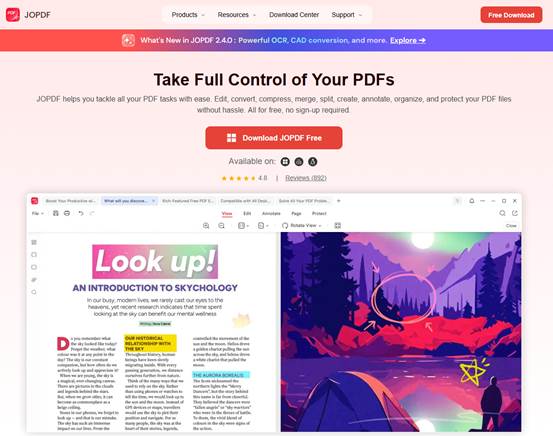
The JOPDF OCR feature offers two distinct modes. Local OCR processes documents entirely on your device, supporting 29 languages with fast processing speeds. This is the recommended option for sensitive documents since nothing is uploaded to external servers. Online OCR handles more complex documents with 26 languages and supports simultaneous multi-language recognition — useful when a single document contains text in several languages.
For output, JOPDF gives you two choices. A searchable PDF preserves the original appearance while adding an invisible text layer you can search and select. An editable PDF extracts the text so you can modify it directly.
We particularly appreciate that JOPDF is completely free OCR software no registration required — no watermarks, no trial restrictions. Every feature is unlocked for all users, making it accessible to students, freelancers, and small businesses alike. If you need free OCR PDF Windows functionality without paying for premium upgrades, JOPDF delivers.
Pros
- Completely free with no registration, watermarks, or trial restrictions
- JOPDF OCR integrated with full PDF editing suite
- Local OCR mode protects sensitive documents
- Searchable PDF and editable PDF output options
- Available on Windows, Mac, and Linux
Cons
- Language support (29 local / 26 online) is solid but not exhaustive
How to Use JOPDF OCR?
Step 1: Download and Install JOPDF
Step 2: Launch JOPDF and click OCR PDF to choose your scanned document.
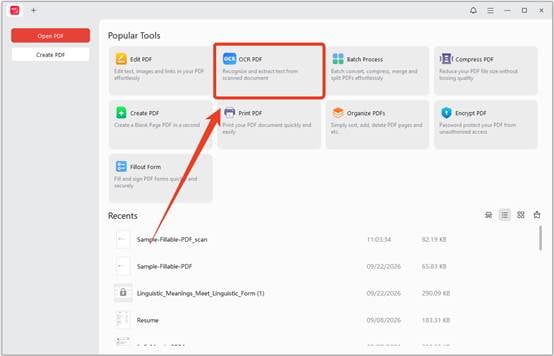
Step 3: Then you’ll see options for recognition mode (Local or Online), language selection, and output format.
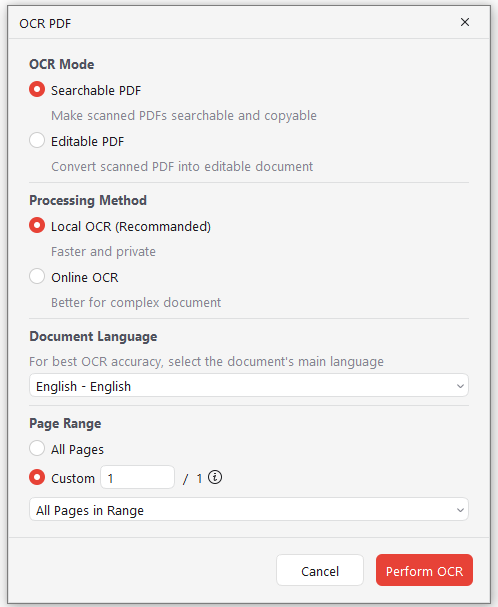
1. Choose Your Recognition Mode
Select Local OCR if your document contains sensitive information or if you need fast processing — this is also the offline OCR software Windows free option that keeps your files private. Choose Online OCR if your document is complex, contains multiple languages, or if you need the highest possible accuracy.
2. Select Languages and Output Format
Pick the language(s) present in your document. For output, choose Searchable PDF if you want to preserve the original layout, or Editable PDF if you need to modify the text directly.
Step 4: Click Perform OCR and wait for processing to complete. The time depends on document length and your chosen mode — local OCR is typically faster. Once finished, review the recognized text for accuracy.
If you chose Editable PDF, you can now modify the text using JOPDF’s editing tools. Make any corrections, then save your file.
PDF-XChange Editor
PDF-XChange Editor is primarily a powerful PDF viewing and editing suite for Windows, but it includes a surprisingly capable OCR engine in its free version. This makes it a fantastic option for users who need to make scanned documents searchable without leaving their primary PDF tool.
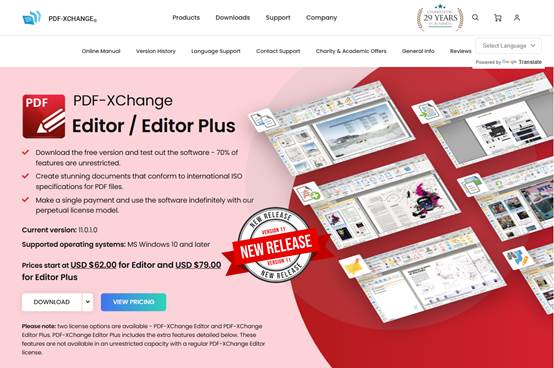
The key advantage here is convenience. If you’re already using PDF-XChange Editor to view, annotate, or edit PDFs, the built-in OCR is a seamless addition. The standard engine handles clear, modern documents well and even provides controls for optimizing table detection.
While its most accurate “Enhanced OCR” engine — powered by ABBYY — is reserved for the paid Editor Plus version, the free offering is more than sufficient for converting invoices, reports, and scanned contracts into searchable, indexable files directly on your desktop.
Pros
- Integrated directly into a full-featured and free PDF editor
- Performs all OCR processing offline for enhanced security
- Includes useful post-OCR editing and clean-up tools
- More than 400 features available in the free version
Cons
- The highest-accuracy Enhanced OCR engine is locked behind a paid licence
- Standard OCR can struggle with complex layouts or poor-quality scans
- Only available for the Windows operating system
PDF24 Tools
PDF24 Tools provides a remarkably accessible and versatile approach to OCR, offering both a web-based service and a free desktop application for Windows. This dual offering makes it a strong contender in the free OCR PDF Windows space, catering to users who need a quick, one-off conversion online as well as those who prefer the security and speed of local processing.
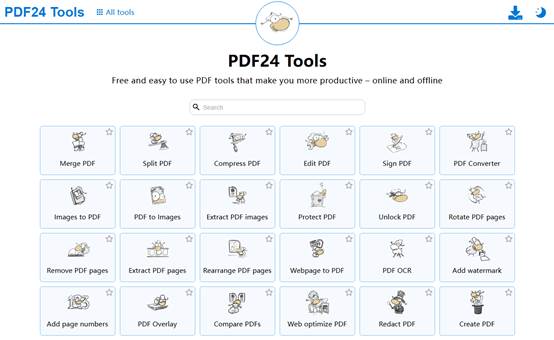
What we appreciate most about PDF24 is its simplicity and zero-cost barrier to entry. The online tool requires no registration — you upload a scanned PDF or image, apply OCR, and download a searchable PDF in minutes. For those concerned about privacy or handling larger volumes of documents, the free PDF24 Creator desktop app is an excellent alternative. It brings the same functionality to your local machine, ensuring sensitive data never leaves your control and processing is not dependent on internet speed.
Pros
- Completely free with both online and offline options
- Very simple drag-and-drop interface
- Includes useful pre-processing tools like deskew and denoise
- No installation necessary for the online version
Cons
- Online version is ad-supported and can be slow for large files
- Desktop application is only available for Windows
- Language support is good but not exhaustive
Tesseract OCR
Tesseract is arguably the most influential open-source OCR engine and serves as the backbone for countless commercial and free applications. Rather than a user-friendly application, its official repository provides direct access to the core command-line tool. This makes it an unparalleled piece of freeware OCR software for developers, data scientists, and technical users who need to build custom text extraction workflows.
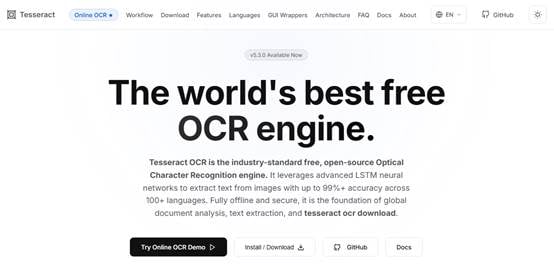
Its power lies in its accuracy, extensive language support — over 100 languages — and scriptability, allowing for batch processing of thousands of documents without manual intervention. Tesseract v5 uses LSTM neural networks to achieve up to 99% accuracy on clean, printed text. If you’re wondering whether OCR software for Windows 11 can handle professional-grade OCR, Tesseract proves it can.
The primary reason Tesseract stands out is its customisation. While it lacks a graphical user interface out of the box, it offers deep control over the OCR process. You can train the engine with your own datasets to recognise specific fonts or formats — a crucial feature for specialised document types like historical texts or unique invoices.
Pros
- Completely free and open-source (Apache 2.0 License)
- High accuracy with LSTM-based neural network engine
- Extensive customisation and training capabilities
- Supports 100+ languages and scripts
- Runs entirely offline for absolute privacy
Cons
- Requires command-line knowledge; not suitable for non-technical users
- Setup and configuration can be complex
- No built-in GUI — requires third-party frontends
NAPS2
NAPS2 — short for “Not Another PDF Scanner” — streamlines the often-clunky process of scanning physical documents and turning them into searchable PDFs. While many scanner utilities exist, NAPS2 stands out by integrating a powerful OCR engine directly into a clean, user-friendly interface.
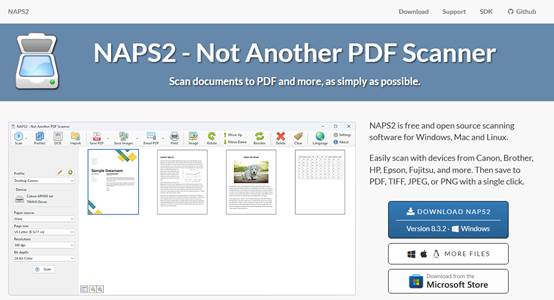
We find NAPS2 particularly well-suited for home offices, small businesses, and anyone needing to digitize paper archives without a steep learning curve. The application is built around a simple workflow: scan, arrange, and save with OCR in just a few clicks.
You can easily scan multiple pages, reorder or rotate them, and combine them into a single, fully searchable PDF file ready for archiving or sharing. If you need to scan to text Windows free without installing multiple applications, NAPS2 handles the entire process from scanner to searchable PDF.
Pros
- Completely free, open-source, and ad-free
- Extremely easy-to-use interface for scanning and OCR
- Batch scanning and document manipulation tools are built-in
- Supports over 100 languages via Tesseract language packs
- Available for Windows, Mac, and Linux
Cons
- OCR customization is limited; it relies on Tesseract’s default settings
- Primarily designed for scanners; less intuitive for existing image files
- No PDF editing capabilities beyond scanning workflow
gImageReader
For users who want the power and accuracy of the Tesseract engine without needing to touch a command line, gImageReader is the perfect solution. It acts as a user-friendly graphical front-end for Tesseract, transforming the developer-focused tool into an accessible desktop application.
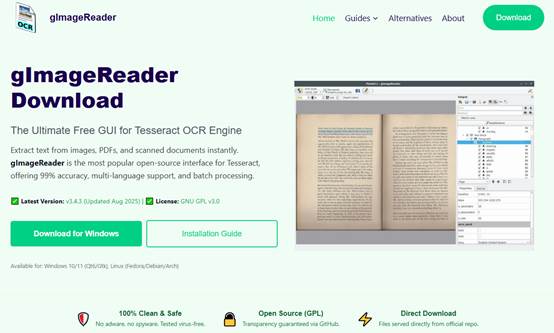
The key advantage of gImageReader is its simplicity and directness. It effectively bridges the gap between Tesseract’s raw power and the needs of a typical desktop user. You can queue up multiple files for batch processing, use the built-in spellchecker to correct OCR errors, and export recognized text as plain text, hOCR, or searchable PDF. Its intuitive interface makes it ideal for one-off tasks like grabbing text from a screenshot or digitizing a single printed page.
Pros
- Completely free and open-source (GPLv3 License)
- Makes the powerful Tesseract engine accessible to everyone
- Supports batch processing and region-specific OCR
- Built-in spellchecker and hOCR editor
- Exports to searchable PDF
Cons
- Accuracy is entirely dependent on the underlying Tesseract installation
- Lacks advanced features for automated workflows found in paid tools
- Interface is functional but not polished
- No macOS installer available
Capture2Text
Capture2Text is a niche yet incredibly powerful utility designed for one specific task: instantly grabbing text from any area of your screen. This portable Windows application operates via keyboard shortcuts, allowing you to select a region and have the recognized text immediately copied to your clipboard.
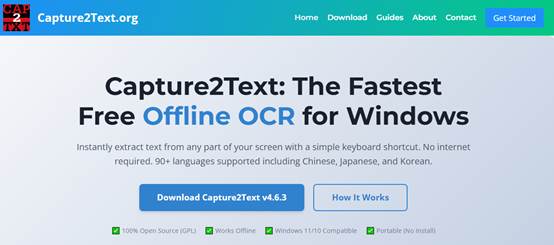
What makes Capture2Text stand out is its pure focus on workflow efficiency. There’s no need to take a screenshot, save a file, and then upload it to an OCR tool. You simply press a hotkey (Win + Q by default), draw a box, and the text is ready to paste. Its support for vertical text and CJK languages — Chinese, Japanese, Korean — is particularly strong, making it a favorite among manga readers and visual novel enthusiasts.
Pros
- Ultra-fast text extraction via keyboard shortcut
- Excellent support for vertical text and CJK languages
- 100% private and offline — no data sent to servers
- Portable version available (no installation required)
- Completely free and open-source
Cons
- Screen capture only — cannot process existing PDF or image files
- No batch processing
- Interface is dated, and development is largely inactive
- English recognition is weaker than modern alternatives
i2OCR
i2OCR is a completely free, web-based OCR service designed for simplicity and accessibility. It stands out by offering unlimited conversions without requiring any registration or sign-up, making it an excellent choice for users needing quick, one-off text extractions.
The platform supports a wide array of image formats and can even process multi-column layouts, preserving the original structure of documents like newspapers or magazine articles. It supports 128 languages and lets you download recognized text as plain text, Word documents, HTML, or searchable PDF. While it may lack the advanced customization of downloadable software, its performance on clear, standard documents is reliable.
Pros
- Completely free with unlimited use and no registration required
- Supports 128 languages
- Multi-column document analysis
- Multiple output formats (Text, Word, PDF)
- Works in all modern browsers without installation
Cons
- Web-based, so not suitable for sensitive or confidential documents
- Processing can be slower for large or complex files
- Basic user interface with ads
- Free OCR processes one image or PDF page at a time
Free OCR Software Comparison Table
According to all the tests on the best free OCR software, we have compiled a comparison table of basic OCR demands.
| Tool | Type | Offline | Language | Batch process | PDF Output | PDF Editing | Best For |
| JOPDF | PDF editor + OCR | Local mode | 29 local / 26 online | Yes | Searchable & editable | Full editor | All-in-one PDF workflow |
| PDF-XChange Editor | PDF editor + OCR | Yes | Multiple | Limited | Searchable | Full editor | All-in-one PDF workflow |
| PDF24 Tools | Online + desktop | Desktop | Major languages | No | Searchable | No | Quick conversions |
| Tesseract OCR | Engine (CLI) | Yes | 100+ | Yes | Searchable | No | Developers, automation |
| NAPS2 | Scanner + OCR | Yes | 100+ | Yes | Searchable | No | Digitizing paper archives |
| gImageReader | GUI for Tesseract | Yes | 100+ | Yes | Searchable | No | Non-technical Tesseract users |
| Capture2Text | Screen OCR | Yes | 90+ | No | No | No | Quick screen captures, CJK |
| i2OCR | Online OCR | No | 128 | No | Searchable | No | Quick online conversions |
How to Choose the Right Free OCR Tool for Your Needs
With eight options on the table, matching a tool to your situation comes down to a handful of practical factors. Here’s what to weigh before you download anything.
- Offline vs. online processing. If your documents contain contracts, medical records, or financial data, prioritize offline capability. JOPDF’s Local OCR mode, Tesseract, NAPS2, gImageReader, and Capture2Text all process files on your device. This is the single most important factor when evaluating offline OCR software Windows free options — online tools require uploading your files to a third-party server.
- Language coverage. Tesseract supports 100+ languages, and every Tesseract-based tool — gImageReader, NAPS2, Capture2Text — inherits that range.
- Batch processing needs. Processing one receipt is different from digitizing a 500-page archive. Tesseract and gImageReader both handle batch jobs efficiently, while NAPS2 supports batch scanning workflows. JOPDF also supports free OCR software for batch processing within its PDF editing environment.
- PDF output and editing. Some tools only output plain text. If you need a searchable PDF that preserves the original layout, JOPDF and PDF-XChange Editor are the only two tools here that combine recognition with full PDF editing.
- Input type. Screen-capture tools like Capture2Text excel at grabbing text from non-selectable interfaces, but they can’t process existing files. Scanner-based tools like NAPS2 handle scan to text windows free workflows from physical paper. File-based tools like JOPDF, gImageReader, and PDF24 process existing PDFs and images.
- Operating system version. Most tools in this guide run smoothly on both Windows 10 and Windows 11. If you’re specifically looking for free OCR software for Windows, JOPDF, PDF-XChange Editor, and Tesseract are all fully optimized for both.
- Budget and licensing. Every tool listed here is free, but the terms differ. JOPDF is completely free with no restrictions. Tesseract and gImageReader are open-source under permissive licenses. PDF-XChange Editor’s most accurate OCR engine requires a paid upgrade. When comparing best free OCR software for Windows options, check whether premium features are locked behind a paywall.
For most Windows users who want a complete solution — OCR, editing, conversion, and more — best free OCR software for Windows searches often lead to JOPDF or PDF-XChange Editor. Both handle the entire document lifecycle, but JOPDF stands out for being completely free OCR software for Windows with no registration required.
Conclusion
Eight free OCR software for Windows are introduced in this article. We compare these eight tools in every scenario — from quick screen captures to batch processing large document collections to full PDF editing workflows.
For users who want the most complete solution, JOPDF offers something none of the others can match: JOPDF OCR integrated directly into a completely free PDF editor. And because it’s completely free OCR software no registration required, it’s accessible to everyone.
FAQs
Table of Contents

Your Best Free PDF Expert in PDF editing, compressing, converting, annotating, protect, organizing, and more.
Free DownloadWindows · macOS · Linux

Anna
Editor
“Anna, Editor-in-Chief and PDF expert, delivers deep insights into PDF document technology trends. She is dedicated to helping readers optimize their digital lives. When not writing, Anna loves exploring local cafes and reading, blending her technical expertise with a love for storytelling.”