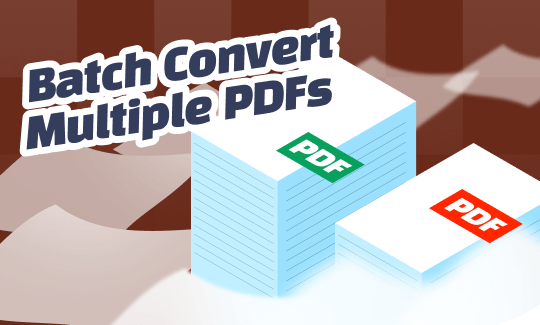
Handling PDFs one by one might seem manageable until you’re faced with dozens of files that all need to be converted. That’s why you need to learn how to batch convert multiple PDFs. In this guide on JOPDF, we’ll walk through how to convert multiple PDF files at once efficiently and some common mistakes to avoid so you can streamline your document handling process.
Summary :
When Do You Need to Batch Convert PDFs? (Real Use Cases)
Batch PDF conversion refers to the process of converting multiple PDF files simultaneously into another format, such as Word, Excel, images, or even combining multiple files to PDF, using a single operation.
For example, instead of opening 20 PDFs and converting them one by one, you can upload all files at once into a PDF converter, select your output format, and process everything in a single click.
This method is especially useful for users who frequently deal with bulk PDF conversion tasks, such as office workers, students, and administrative teams. Here are some common use cases where batch converting multiple PDFs at once becomes necessary:
- Processing invoices or reports
- Academic work
- Archiving documents
- Batch PDF printing
- Converting mixed file types
Best Tools to Batch Convert Multiple PDFs
Choosing the right tool can significantly impact both efficiency and output quality. While many tools offer batch conversion, not all deliver consistent results. We’ll introduce you some of the most popular PDF tools on the market and provide a simple comparison to help you make your choice.
Product Comparison Table (Core Differences)
| Feature | JOPDF | Adobe Acrobat Pro | LightPDF | Smallpdf |
| Pricing | Free (no limits) | Paid subscription | Freemium | Freemium |
| Batch Convert Multiple PDFs | Strong support | Advanced | Limited | Limited |
| Formatting Preservation | High | Very high | Limited | Good |
| Platform | Desktop (Win/Mac/Linux) | Desktop + Cloud | Web-based | Web-based |
| Ease of Use | Very simple | Moderate complexity | Easy | Very easy |
| File Size Limits | No limit | No limit | Yes (free plan) | Yes |
| All-in-One Features | Full suite | Full suite | Basic | Moderate |
JOPDF (Best Free All-in-One PDF Converter)
If you’re looking for a completely free yet powerful solution to batch convert multiple PDFs, JOPDF stands out as a highly practical choice for both beginners and advanced users. Unlike many tools that lock features behind subscriptions, JOPDF offers a full suite of PDF functions with no restrictions.
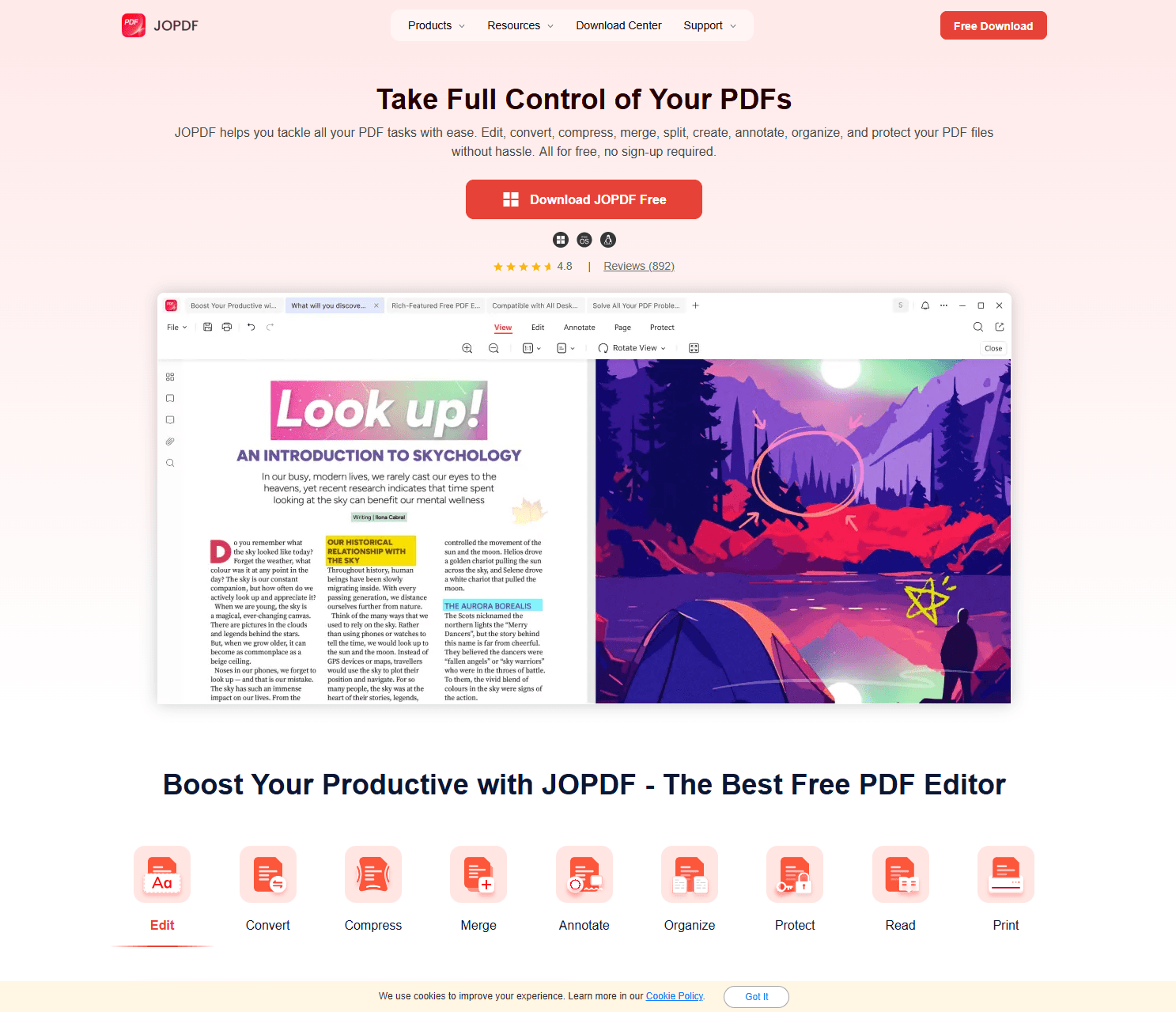
JOPDF’s Key Features:
-
Batch convert multiple PDFs at once into Word, Excel, PPT, and images
-
Maintains original layout and formatting during conversion
-
Offers 100% free access with no watermark or file size limit
-
Includes additional tools like merge, compress, annotate, and protect PDFs
-
Works across Windows, Mac, and Linux platforms
Pros
-
Completely free with all features unlocked
-
Strong batch conversion capability with simple workflow
-
No login or subscription required
-
All-in-one tool reduces the need for multiple apps
Cons
-
Less enterprise-level automation compared to premium tools
Best for:
Students, freelancers, and teams who want a free, reliable, and batch-friendly PDF converter without limitations.
Related Article: Guide on How to Convert PDF to JPG on PC/Phone/Online
Adobe Acrobat Pro
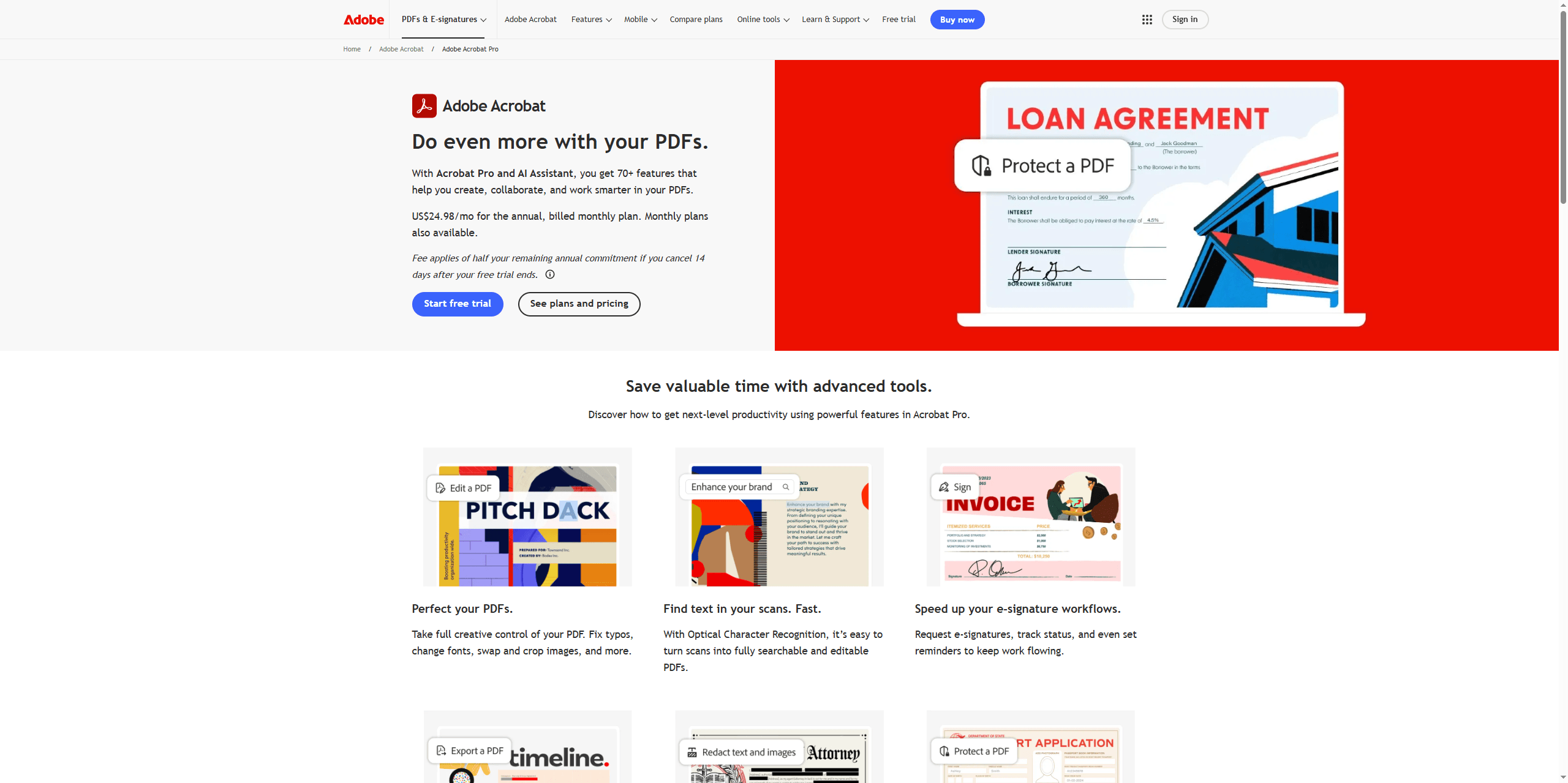
Adobe Acrobat Pro is often considered the industry standard for PDF management, offering powerful tools and advanced customization.
Key Features:
- Advanced PDF conversion with high accuracy
- Supports batch PDF processing and automation workflows
- OCR for scanned PDFs
- Integration with cloud services
Pros
-
Highly accurate formatting preservation
-
Professional-grade features and reliability
-
Strong integration with enterprise workflows
Cons
-
Expensive subscription model
-
Interface can be complex for beginners
-
Some features locked behind paid plans
Best for:
Enterprises and professionals who need advanced control and integration.
LightPDF
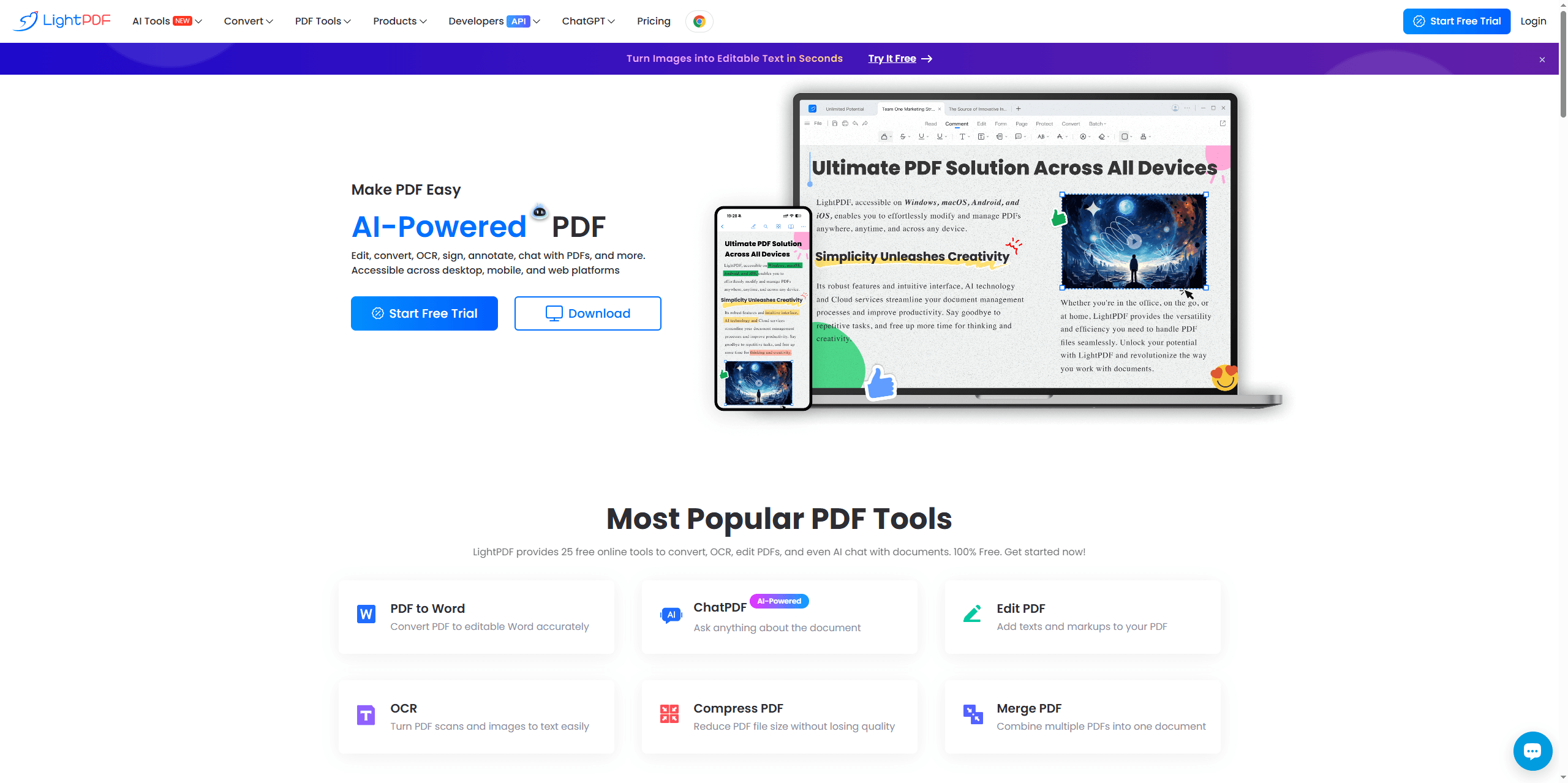
LightPDF is a lightweight online solution designed for quick batch PDF conversions and simple editing tasks.
Key Features:
- Online PDF conversion without installation
- Supports multiple formats (Word, Excel, images)
- Basic editing and compression tools
Pros
-
Easy to use with minimal setup
-
Accessible from any device
-
Clean and beginner-friendly interface
Cons
-
Limited batch processing capability
-
May struggle with large files
-
Requires internet connection
Best for:
Users who need quick, occasional conversions without installing software.
Related Article: How to Edit a Scanned PDF: 4 Easy Ways
Smallpdf
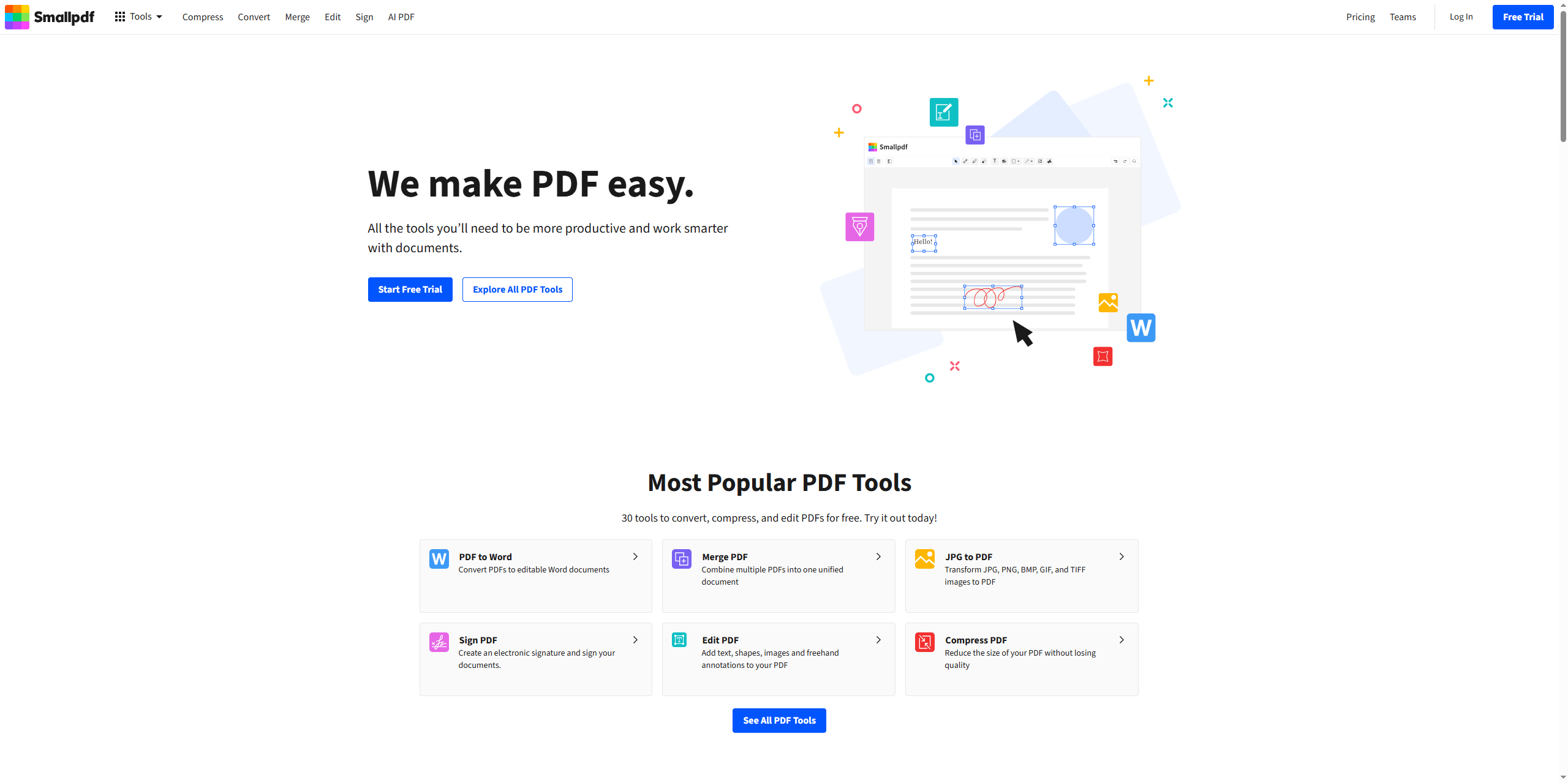
Smallpdf is one of the most popular online PDF platforms, known for its clean interface and wide range of tools. It could be a good option to batch convert multiple PDFs.
Key Features:
- Convert, compress, merge, and edit PDFs
- Supports batch operations in a limited form
- Cloud-based processing
Pros
-
Very intuitive and user-friendly
-
Wide range of PDF tools in one platform
-
Works well for small to medium tasks
Cons
-
Free version has usage limits
-
Batch conversion features are restricted
-
Large file processing may be slower
Best for:
Casual users who want a simple and polished online PDF tool.
Step-by-Step Workflow to Batch Convert Multiple PDFs
After you decide on your tool to batch convert multiple PDFs, you can follow this structured workflow to ensure better accuracy. You may prepare for the batch PDF conversion first.
- Organize your PDF files first. Group related documents into folders and ensure file names are clear and consistent. This makes it easier to locate outputs later and reduces confusion when working with large batches.
- Choose the right conversion mode. This ensures that the converted files remain usable and properly formatted.
Once your files are ready, the next step is to use a tool that can batch convert multiple PDFs at once. Here, we would like to use JOPDF free light PDF converter as an example to show you a batch conversion.
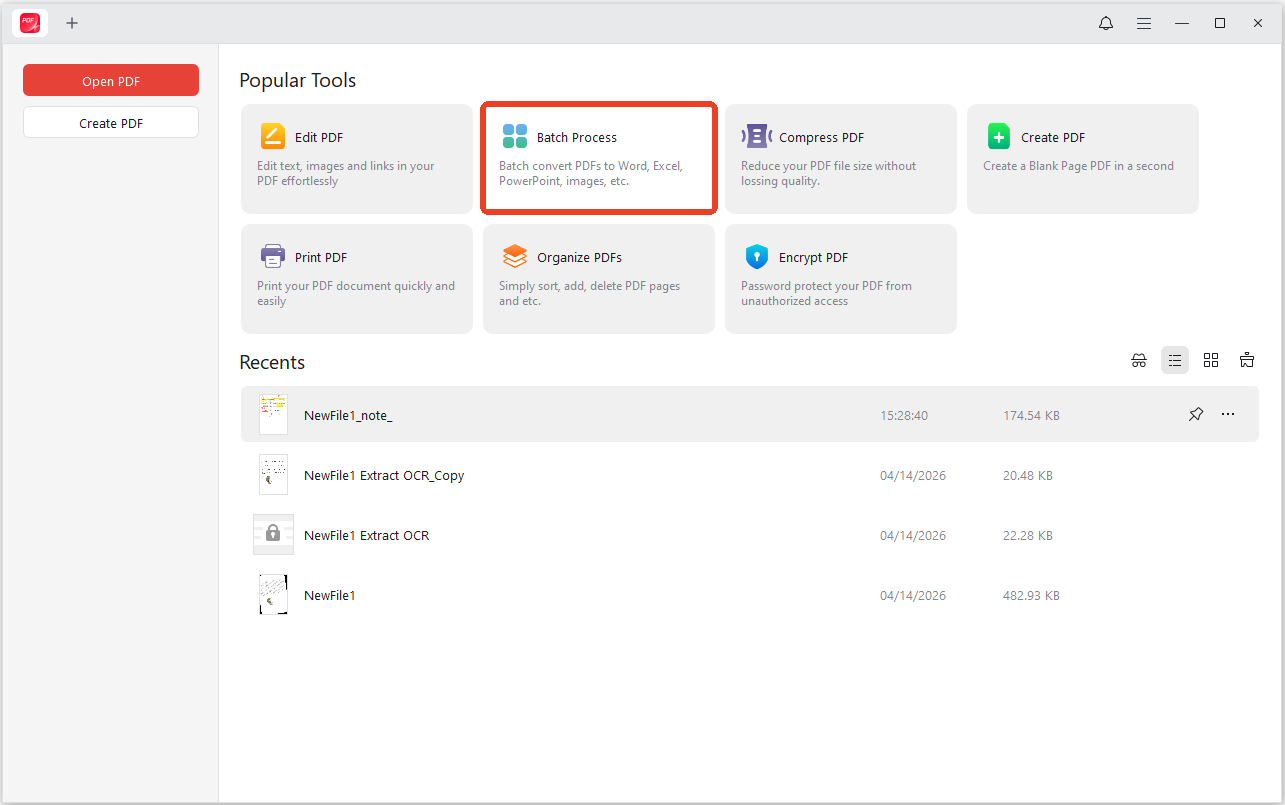
Step 1: Launch the PDF converter and click Batch Process.
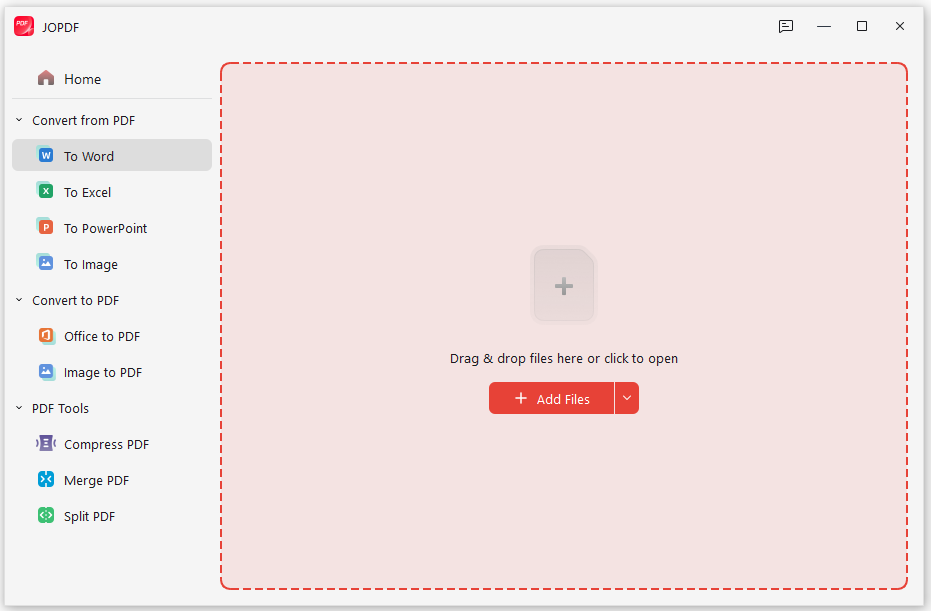
Step 2: Choose the needed PDF converter from the toolkit and upload your files.
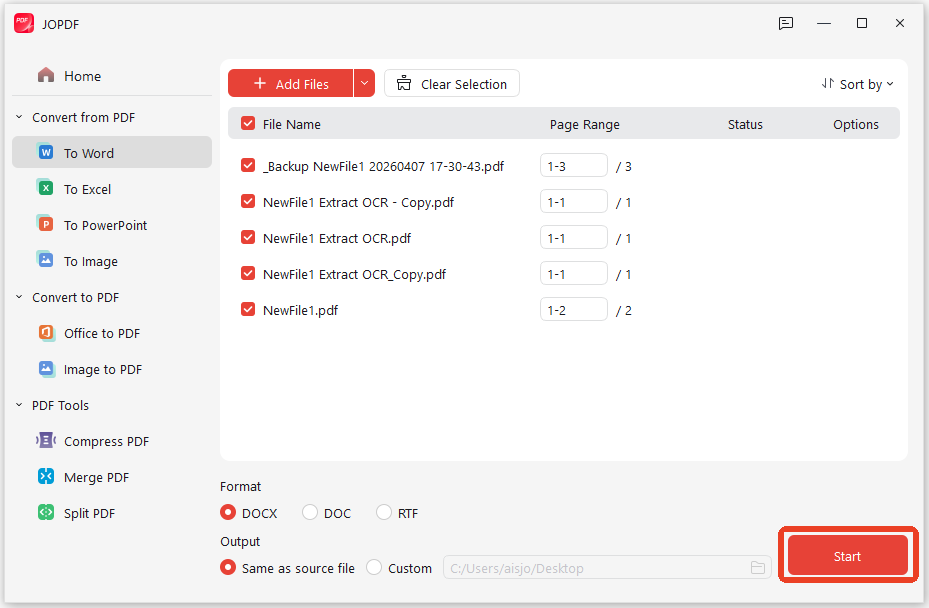
Step 3: Configure the format and output settings and click Start to initiate the PDF conversion.
Advanced Tips for Bulk PDF Conversion Efficiency
Once you’re familiar with the basic workflow, a few additional strategies can help you work even more efficiently. To improve your batch processing results, consider the following:
- Use OCR whenever needed: This ensures scanned PDFs become editable and searchable.
- Avoid repeated conversions: Converting files multiple times increases the risk of formatting loss.
- Apply consistent settings: Keeping the same output format and quality settings improves uniformity.
- Automate recurring tasks: If you regularly process similar files, using preset configurations can save time.
These practices help ensure that your bulk convert PDF tasks remain efficient and reliable.
Conclusion
Learning how to batch convert multiple PDFs is one of the most effective ways to improve productivity when handling large volumes of documents. Instead of wasting time on repetitive tasks, batch processing allows you to convert multiple PDF files at once with consistency and efficiency.
By following a structured workflow, you can streamline your document management process and achieve high-quality results every time.
FAQs
Use a PDF tool with a dedicated Batch Conversion feature. Instead of opening each file individually, you select all 50 PDFs at once, choose your output format (Word, Excel, JPG, etc.), and the software processes the entire queue automatically.
Most quality PDF converters allow you to customize resolution. Set this to 300 DPI or higher for crisp, print-ready images. Avoid leaving the setting on "Default" or "Screen Resolution".
Table of Contents

Your Best Free PDF Expert in PDF editing, compressing, converting, annotating, protect, organizing, and more.
Free DownloadWindows · macOS · Linux

Anna
Editor
“Anna, Editor-in-Chief and PDF expert, delivers deep insights into PDF document technology trends. She is dedicated to helping readers optimize their digital lives. When not writing, Anna loves exploring local cafes and reading, blending her technical expertise with a love for storytelling.”
![4 Free and Proven Methods to Convert PDF to ODS [Detailed]](https://b.jopdf.com/wp-content/uploads/2026/10/convert-pdf-to-ods.png)