![4 Free and Proven Methods to Convert PDF to ODS [Detailed]](https://b.jopdf.com/wp-content/uploads/2026/10/convert-pdf-to-ods.png)
Introduction :
Are you looking for ways to convert PDF to ODS for easier editing, organizing, or analyzing tabular data? If so, you are in the right place! Though PDFs are designed to preserve document layouts, they are not always convenient for calculations or data analysis. In this JOPDF guide, I will introduce you to 4 practical ways to convert a PDF to ODS with both desktop and online tools.
An ODS (OpenDocument Spreadsheet) file enables you to work with spreadsheet data in applications such as LibreOffice Calc and other compatible spreadsheet programs. To convert PDF to ODS directly, JOPDF, a 100% free PDF converter, is a good choice. In the following content, you’ll learn how to convert PDF to ODS using JOPDF and online conversion tools. Meanwhile, instructions for converting scanned PDFs are also included. Now, let’s get started!
4 Best Free PDF to ODS Converters
Before diving into each PDF-to-ODS converter, you can refer to the table below for a quick overview.
| PDF to ODS Converter | Platform | Key Features | Best For |
| JOPDF | Windows, macOS, Linux | Desktop PDF conversion, OCR, and PDF editing features | Users who prefer free desktop software |
| Online2PDF | Online | PDF-to-ODS conversion and additional PDF-processing options | Users who need conversion and file adjustments |
| PDF24 Tools | Online | Direct PDF-to-ODS conversion without installing software | Users who want to convert PDF to ODS online |
| AConvert | Online | PDF-to-ODS conversion and batch conversion | Users converting PDFs, including scanned documents |
All the above tools are tested and verified. You can use them with confidence for direct PDF to ODS conversion. Then, let’s check them one by one.
Method 1: Convert PDF to ODS for Free with JOPDF
JOPDF is one of the best free PDF converters for Windows, macOS, and Linux. Its PDF-to-Excel converter enables you to convert PDF to CSV, XLSX, ODS, XML, and XLSM. In addition, its batch conversion feature lets you handle several PDFs at once.
What’s more, even if your PDF is scanned or image-based, JOPDF’s OCR tool can help you recognize text in the PDF, making it editable or searchable. In other words, JOPDF can convert a scanned PDF to ODS. Here, let’s learn how to convert PDF data to ODS for free using JOPDF.
Step 1. Click the button below to download and install JOPDF on your PC, and then launch this free PDF converter.
Step 2. Under Popular Tools, click Batch Process and select PDF to Excel.
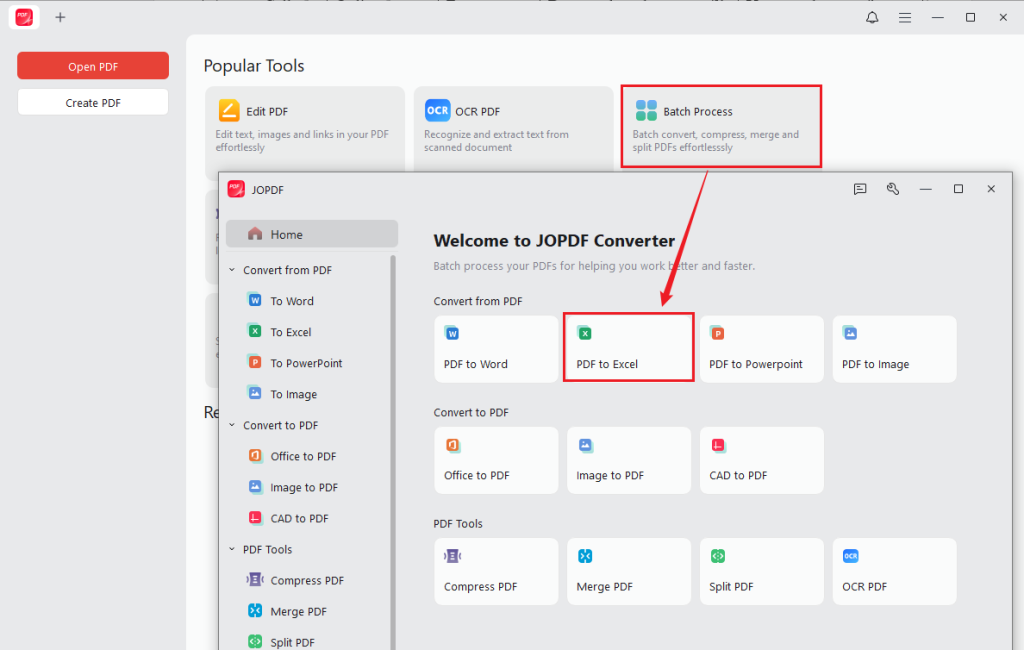
Step 3. Next, click Add Files to import the PDF files you want to convert and tick the ODS option in the Format section.
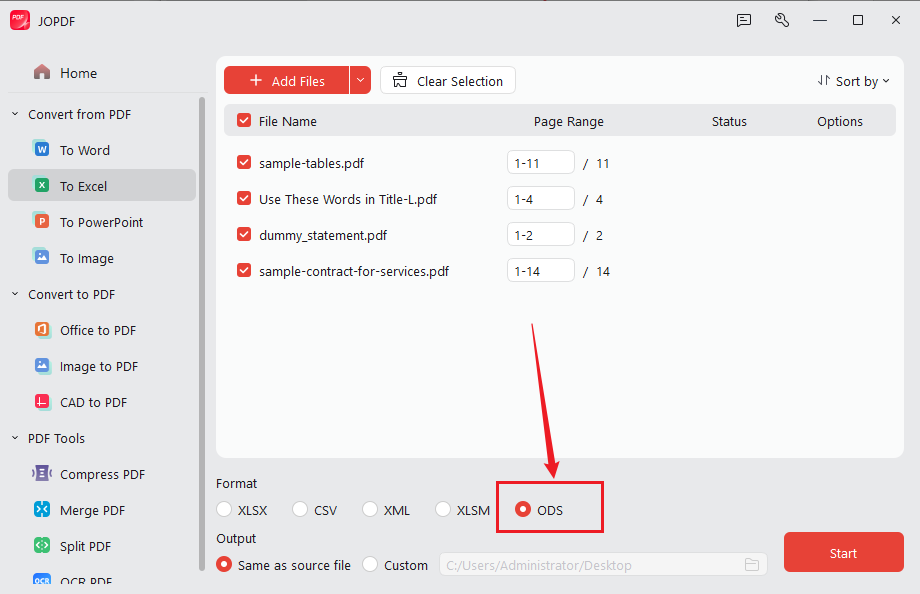
Step 4. Finally, click Start to batch convert PDF to ODS for free in JOPDF.
Additionally, JOPDF is a feature-rich PDF editor. If your PDF data needs to be revised, you can use its editing features. For instance, you can edit the PDF text, add text boxes to the PDF, or change the PDF to landscape. Furthermore, JOPDF offers features to fill out and sign PDF forms, annotate PDFs, print PDFs to booklets, and more. You can download it and explore its wonderful features for PDFs.
Method 2: Convert PDF to ODS Online with Online2PDF
Online2PDF provides a dedicated PDF-to-ODS conversion page, making it a practical option for converting PDF files into OpenDocument spreadsheets directly in a browser. Additionally, its interface is intuitive. Even if you are a newcomer, you can learn how to use it quickly. Here’s a guide for you to transform a PDF to an OpenDocument file with Online2PDF.
Step 1. Visit Online2PDF’s PDF to ODS converter website via your browser.
Step 2. Click “Select files” to import the PDF file you need to convert. Meanwhile, Online2PDF enables you to batch convert PDF to ODS.
Note
The total size of all files supported by Online2PDF must not exceed 250MB.
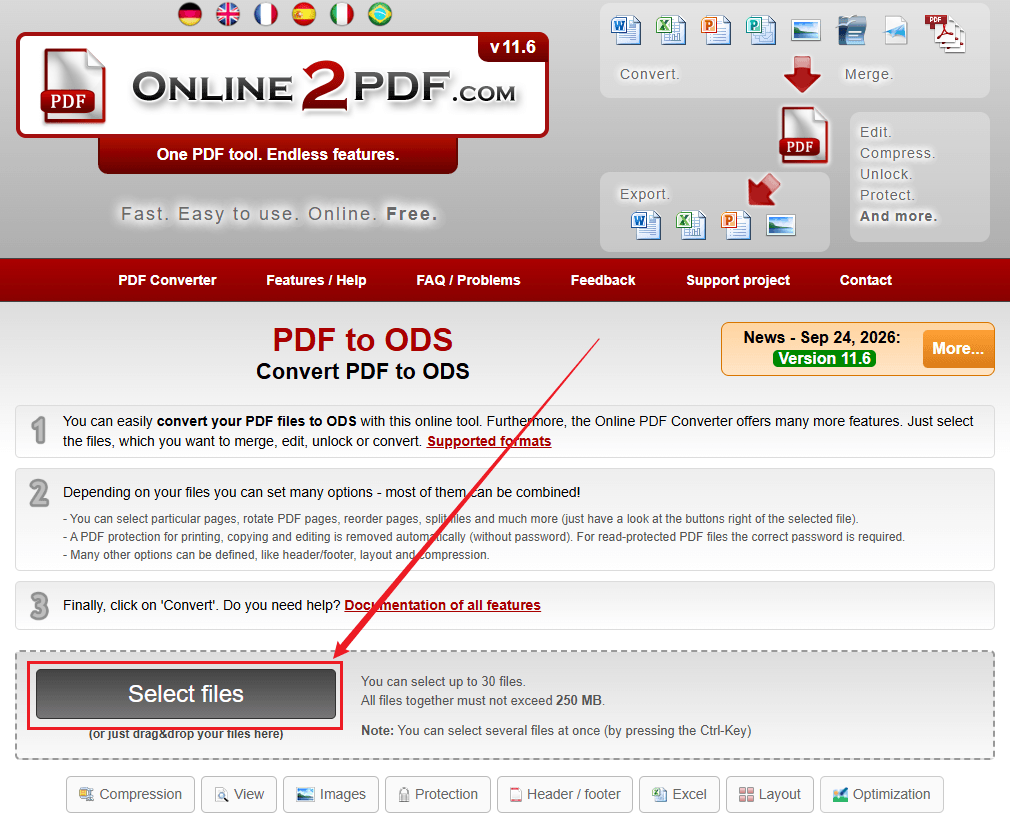
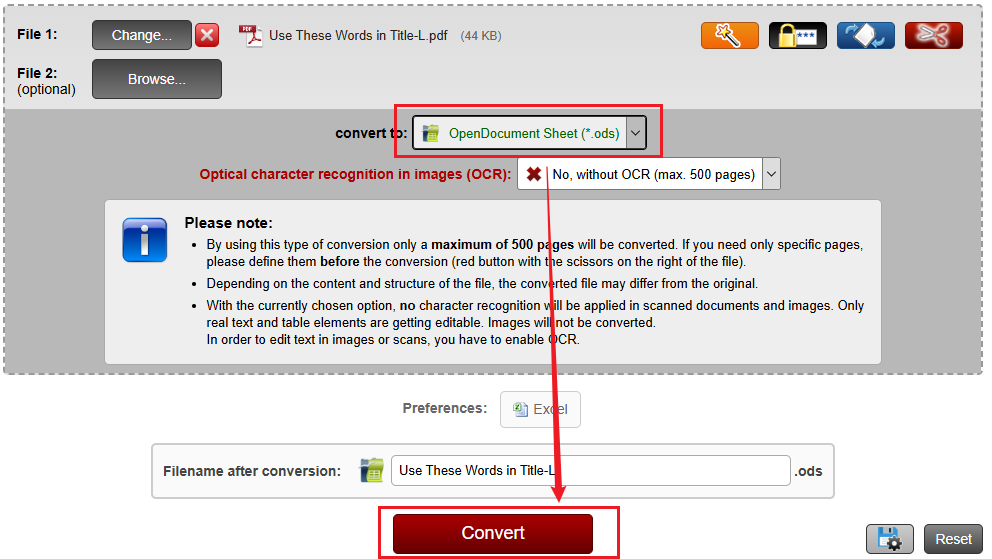
Step 3. Optionally, you can apply OCR for scanned images. Then, click Convert. When the conversion is finished, download the ODS file.
Method 3: Convert PDF to ODS Using PDF24 Tools
PDF24 Tools offers a collection of online PDF utilities for common document-processing tasks, such as merging PDFs, converting images to PDF, adding page numbers, removing PDF pages, editing and signing PDFs, and converting PDFs. Its PDF Converter enables you to convert PDF to ODS, DOCX, PNG, XLSX, JPG, SVG, and more. Below are the exact steps to convert a PDF file to ODS online for free using PDF24 Tools.
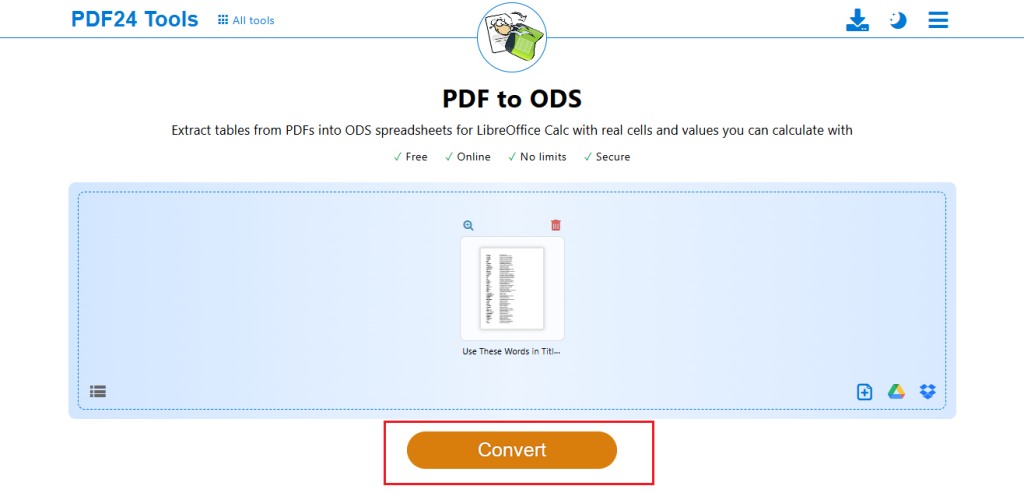
Step 1. Open your browser and go to the PDF24 Tools’ PDF to ODS website.
Step 2. Drag and drop your PDF file into the upload area of PDF24 Tools. Or, click “Choose files” to upload the target PDF.
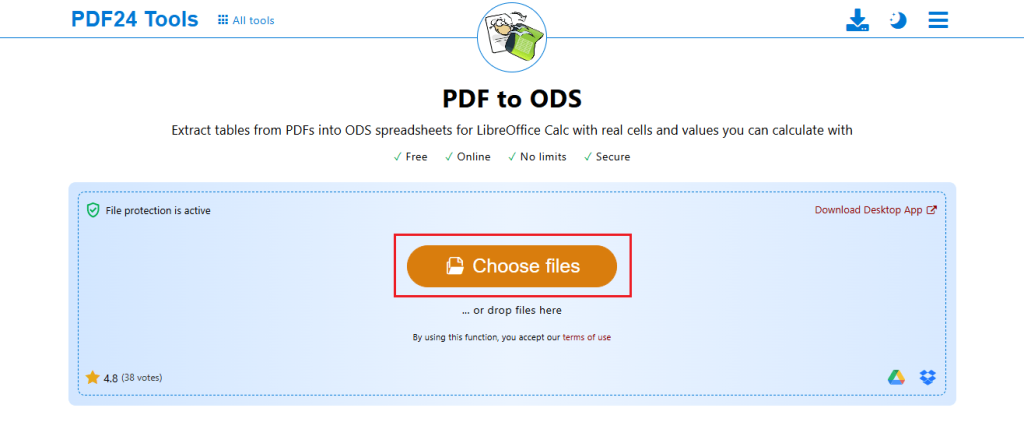
Step 3. Once the PDF file is uploaded, click Convert to convert it to ODS. When the conversion is done, click Download to save the ODS file.
Method 4: Turn PDF into ODS Online with AConvert
Zamzar is an online file-conversion service that supports a wide range of document and spreadsheet formats. It enables you to convert PDF files to ODS, XLSX, PPTX, CSV, HTML, RTF, and other more formats. Like most online tools, it has a user-friendly interface. Here, you can refer to the steps below to convert a PDF to ODS online with AConvert.
Step 1. Visit AConvert’s PDF to ODS converter via your browser.
Step 2. Click Choose Files to upload the target PDF file. Meanwhile, you can upload a PDF by pasting a link.
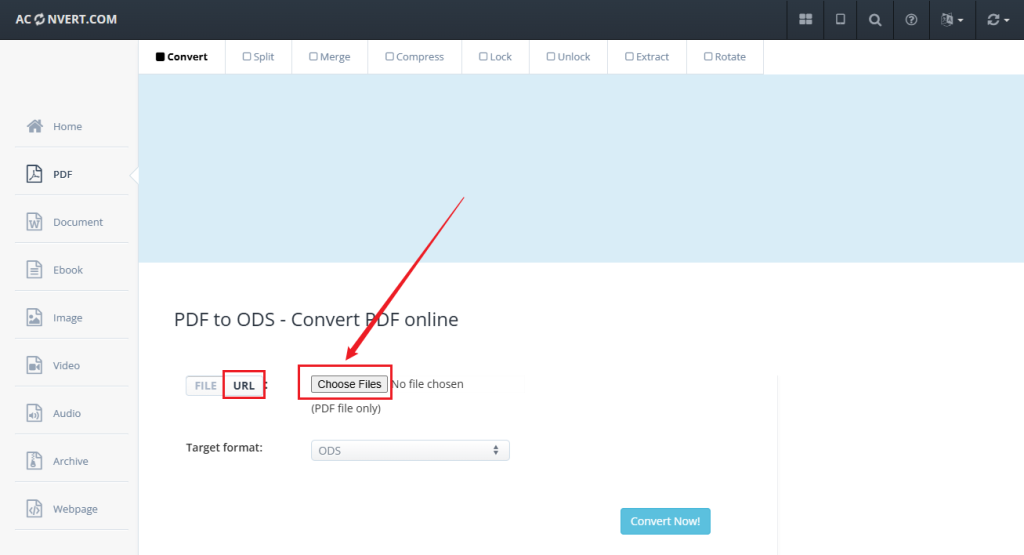
Step 3. Make sure that ODS is the target format. Next, click Convert Now. Finally, click the Save icon to save the ODS file.
How to Convert a Scanned PDF to ODS
Compared to text-based PDF files, scanned PDFs contain images of pages rather than selectable text. To convert scanned PDFs into editable spreadsheets, you need OCR to recognize text and extract table data. JOPDF is a good option to investigate for this workflow. Here, I’ll show you how to convert a scanned PDF to ODS for free using JOPDF.
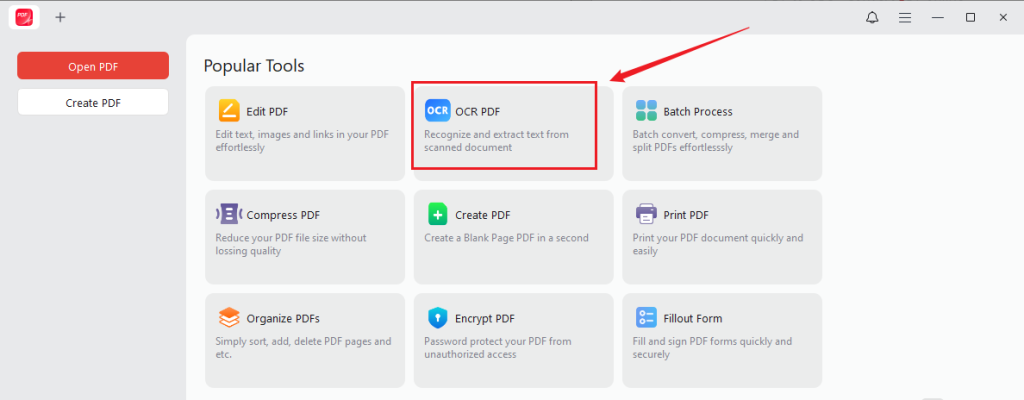
Step 1. Launch JOPDF and click OCR PDF to import your scanned PDF file.
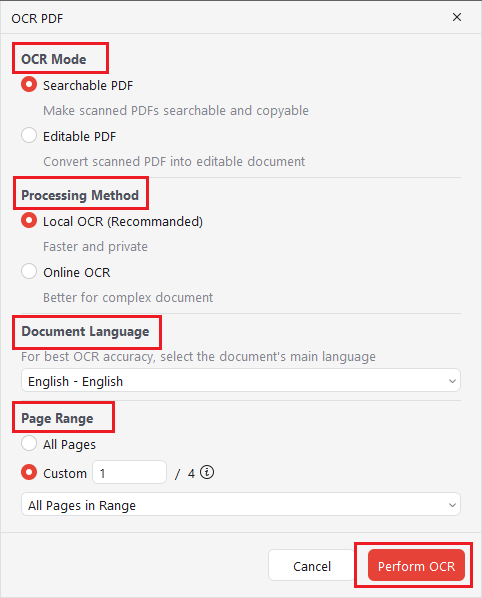
Step 2. The OCR PDF dialog will appear. Customize the OCR mode, processing method, document language, and other settings. Then click Perform OCR to make the PDF editable.
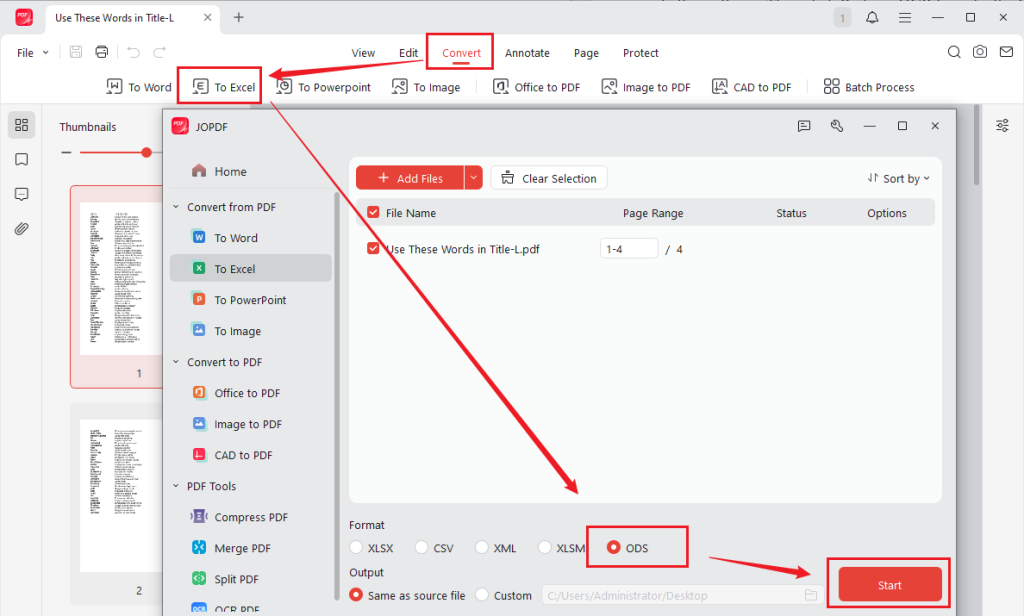
Step 3. Once the process is finished, the OCR-enabled PDF will open in JOPDF. Switch to Convert, select “To Excel”, select ODS as the output format, and click Start.
ODS vs. XLSX: What’s the Difference?
ODS and XLSX are spreadsheet formats that support structured data, calculations, and formatting. The main difference lies in their software ecosystems and compatibility.
| Feature | ODS | XLSX |
| Full name | OpenDocument Spreadsheet | Excel Open XML Spreadsheet |
| Common application | LibreOffice Calc | Microsoft Excel |
| Standard | OpenDocument Format | Office Open XML |
| Typical use | Open-standard spreadsheet workflows | Microsoft Office workflows |
| Compatibility | Supported by many spreadsheet applications | Supported by Excel and many other spreadsheet applications |
Choose ODS if you use LibreOffice Calc or prefer an OpenDocument format. Choose XLSX if you collaborate primarily with Microsoft Excel users or rely on Excel-specific features.
Conclusion
Converting PDF to ODS makes tabular data easier to edit, organize, and analyze. How to convert PDF to ODS? JOPDF is a good option if you need to handle sensitive PDFs offline for free. Also, you can try other online converting tools, such as PDF24 Tools, AConvert, and Online2PDF. If you need to handle scanned documents, use OCR and verify the resulting spreadsheet carefully. JOPDF can help you OCR scanned PDFs. Now it’s time for you to select a method and give it a try.
FAQs
Table of Contents

Your Best Free PDF Expert in PDF editing, compressing, converting, annotating, protect, organizing, and more.
Free DownloadWindows · macOS · Linux

Olivia
“Olivia is an editor at JOPDF, where she writes practical guides and insightful articles on managing PDFs—covering topics like editing, annotating, converting, and organizing files efficiently. Passionate about clear communication and digital productivity, Olivia enjoys spending her free time cooking, watching movies, and hiking to unwind and find inspiration for her writing.”