Introduction:
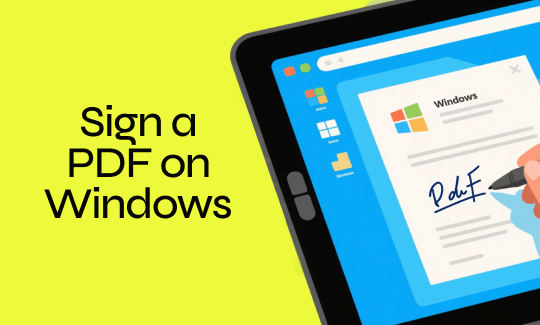
How to sign a PDF on Windows? This guide will show you three incredibly easy methods to get your documents signed. You will know how to use professional tools or online tools to complete the task.
Way 1. The Best Free Way to Sign a PDF on Windows: JOPDF
If you want to know how to sign a PDF on Windows for free while keeping your information totally secure, your best choice is JOPDF. It works completely offline, so you can process sensitive contracts on your own computer, ensuring your private data never leaks onto the internet.
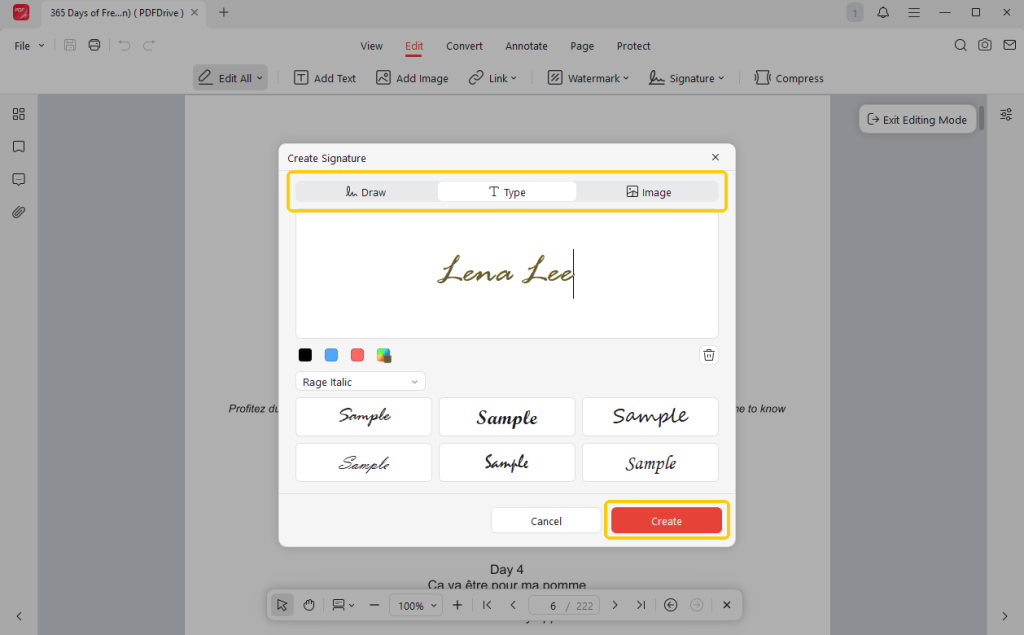
JOPDF makes it incredibly easy to add a signature to a PDF. It gives you ultimate flexibility by offering three ways to create your perfect signature:
✅ Draw: You can use your computer mouse or a touchscreen to draw your signature naturally.
✅ Type: Simply type your name on your keyboard, and the software can help you convert it into a beautiful, professional handwriting font.
✅ Image: You can upload a clear photograph of your real, handwritten paper signature to stamp directly onto the page.
How to electronically sign a PDF on Windows using JOPDF:
1. Download, install, and launch JOPDF on your computer.
2. Open your PDF in the software and go to Edit.
3. Click Signature and choose Create New.
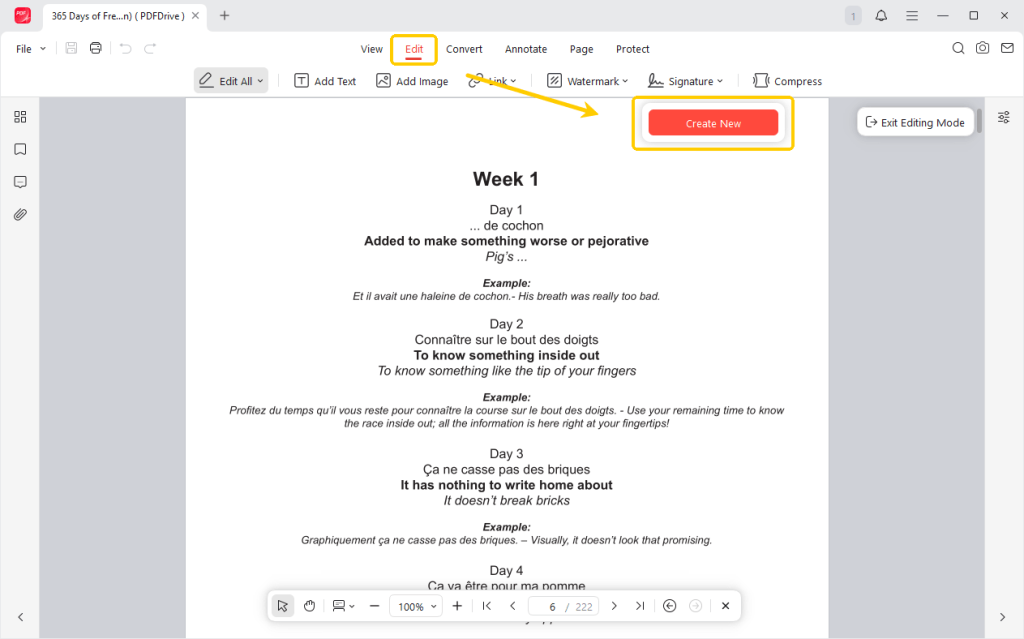
4. Choose whether you want to draw, type, or upload an image of your signature. Click Create to continue.
5. Drag and drop the signature to the right place. If necessary, you can adjust the size and orientation of the signature.
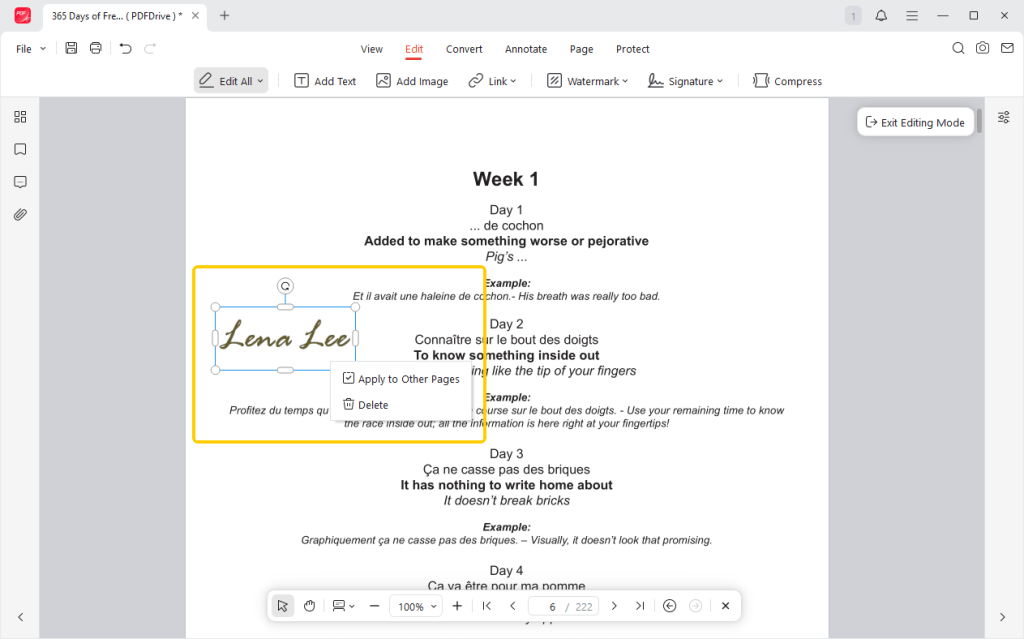
6. Finally, click the Save button and then save your finished document.
JOPDF is not just for signing! It is a complete PDF editor for Windows. You can use it to edit the text in your files, merge multiple documents together into one, and add passwords to protect your secrets.
Just try JOPDF today for the absolute best document experience.
Pros
- It is highly secure because it works offline.
- Offers multiple signature styles (draw, type, or image).
- Save your signature so you can reuse it later.
- Completely free and very fast.
Cons
- It requires a quick initial software download and installation.
⭐ Best For: Professionals and everyday users who handle sensitive, confidential documents and need a permanent, secure, and fully-featured offline desktop tool.
Way 2. Sign a PDF in Microsoft Edge
Every new Microsoft computer comes with a built-in web browser called Microsoft Edge. This browser has a built-in PDF reader with a simple drawing tool.
This is the fastest method if you want to know how to sign a PDF on Windows 10/11 without downloading any new software. Check to learn the details.
1. Find your PDF file on your computer. Right-click the file, select Open with, and choose Microsoft Edge from the list.
2. Look at the toolbar at the very top of the screen to find the Draw icon.
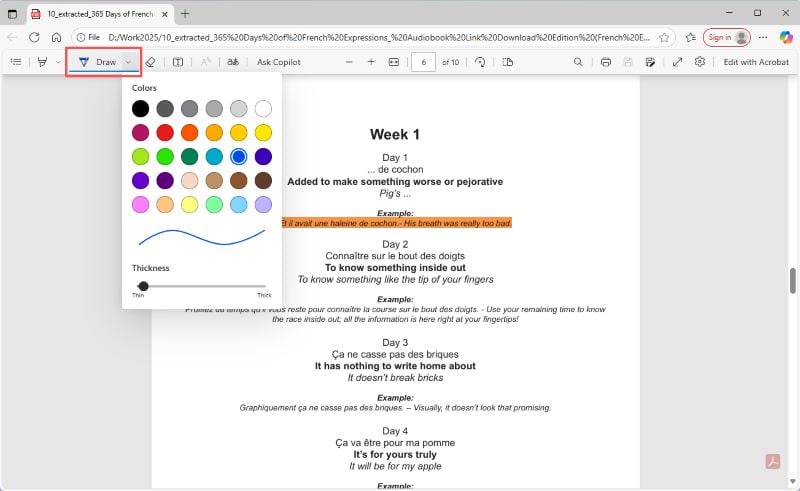
3. You can click the arrow next to the pen to select your favorite ink color and choose how thick the lines should be.
4. Then manually sign the document.
5. In the top-right corner of the screen, click Save or Save as to save your newly signed file.
Pros
- Already installed on your computer.
- Extremely fast for a one-time emergency use.
Cons
- Drawing letters with a computer mouse often looks very messy and unprofessional.
- Cannot save your signature to use later on other documents.
⭐ Best For: Casual users who are in a big hurry and just need to quickly scribble a signature on an informal document without downloading any extra software.
Way 3. Use Adobe Acrobat Reader
Adobe Acrobat Reader is one of the most widely recognized PDF viewers worldwide. Many people already have it installed on their computers.
Even the free version of this software includes a dedicated tool to help you sign a PDF document on Windows. However, if you want to edit the PDF and access other advanced features for free, JOPDF, a free alternative to Adobe Acrobat, would be a better choice.
1. Open your PDF document in Adobe Acrobat Reader.
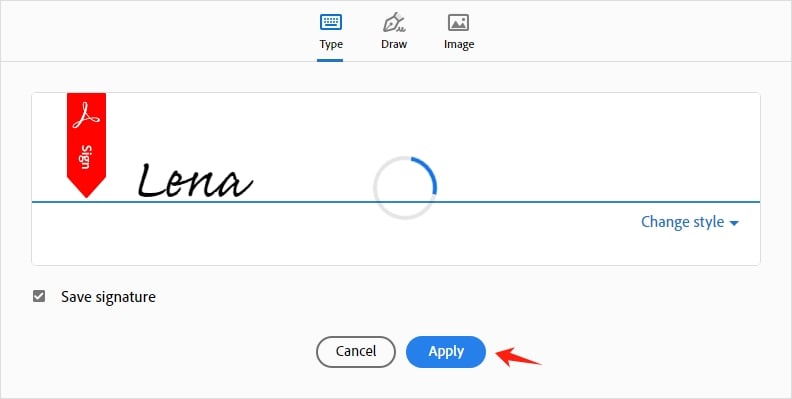
2. Click on the Fill & Sign tool and select the Add Signature option.
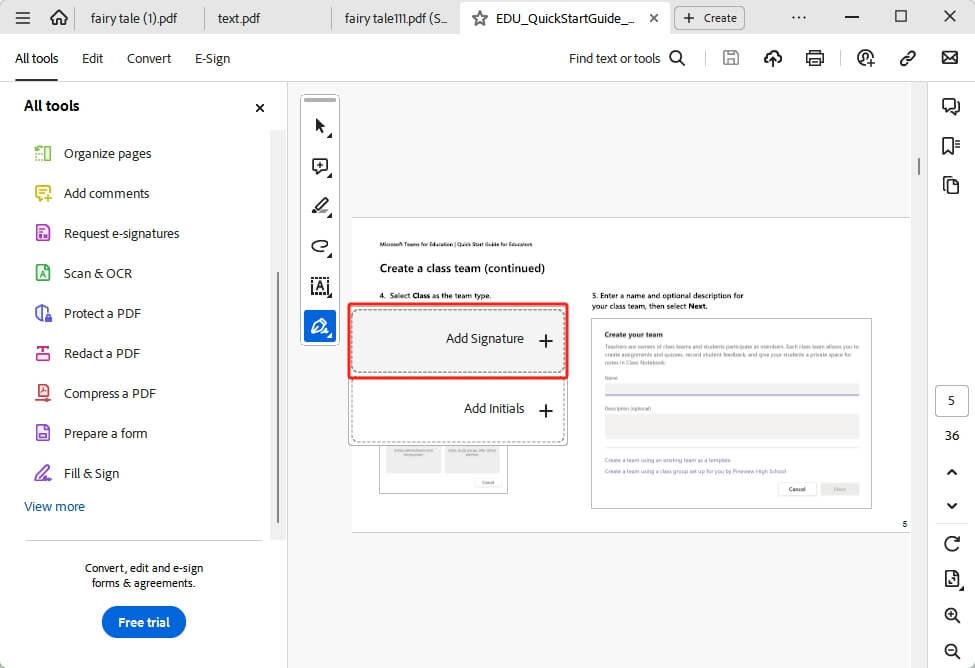
3. Just like JOPDF, Adobe allows you to choose whether to type your name, draw it with your mouse, or insert an image of your real signature.
4. Click the Apply button. Move your mouse to place the signature on your document, click to lock it in place, and save the file to your computer.
Pros
- It is a very trusted and famous brand.
- Save your signature for future use on other forms.
Cons
- The software is very “heavy,” meaning it takes up a lot of space and can be slow.
- It also shows frequent, annoying pop-up messages that aggressively ask you to pay for the expensive “Pro” version.
⭐ Best For: Users who already have Adobe Reader installed on their computers and do not mind ignoring the premium upgrade pop-up advertisements.
Conclusion
You now know exactly how to safely sign a PDF file on windows 10/11 using three different methods. Microsoft Edge is a great choice for a quick, messy scribble when you are in a rush. Adobe Acrobat is a classic, standard viewer.
However, for a fully secure, lightweight, and professional experience without the annoying upgrade pop-up ads, downloading JOPDF is clearly the best long-term solution for all Windows users!
FAQs
Table of Contents

Your Best Free PDF Expert in PDF editing, compressing, converting, annotating, protect, organizing, and more.
Free DownloadWindows · macOS · Linux

Queena
Editor
“As a staff editor for JOPDF, Queena excels at guiding users to the optimal tools and solutions. When she's not analyzing the latest PDF solutions, she enjoys spending her free time playing with her four cats.”