
Introduction :
You can directly enter information into a fillable PDF without printing it out and completing it by hand. How to create a fillable PDF? A reliable fillable PDF creator is essential. In this article from JOPDF, I will show you detailed instructions for creating a fillable PDF using Adobe Acrobat, a dedicated online PDF form creator, and LibreOffice. Meanwhile, you can learn how to create a fillable PDF from a Word document.
If you need to create a customer feedback survey, a registration form, or a business contract, creating a fillable PDF can make collecting information easier and more efficient. To create a fillable PDF, you can add fields like text fields, checkboxes, radio buttons, dropdown lists, date fields, and signature fields. In the following content, I will introduce you to 4 effective methods to create a fillable PDF. After creating a fillable PDF, you can use JOPDF to edit and fill out PDF forms for free. Now, let’s check them one by one.
How to Create a Fillable PDF with Adobe Acrobat
Adobe Acrobat is a professional PDF editor with a range of features, including the ability to create interactive forms. It can help you turn an existing PDF or supported document (such as Word or Excel documents) into a fillable form, add different types of fields, and adjust their properties. After creating an interactive PDF, you can also fill out and sign it in Adobe Acrobat. However, access to the form-authoring feature requires a Pro plan subscription. If you only need to fill out and sign a PDF, use a free Adobe Acrobat alternative like JOPDF.
Here, let’s learn how to create a fillable PDF with Adobe Acrobat. Below are the exact steps for your reference:
Step 1. Open the Prepare a Form Tool
- Launch Adobe Acrobat and open your existing PDF file. If your form is in Word or Excel, open it through Acrobat’s file-selection workflow.
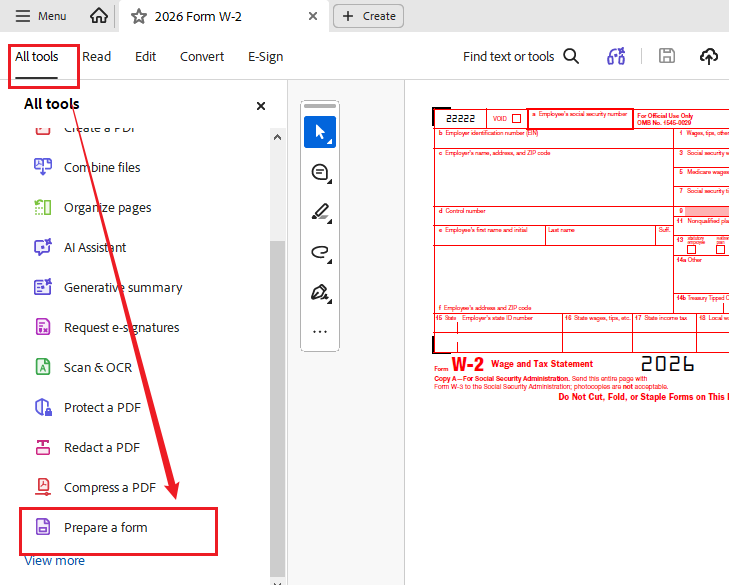
- Click “All tools” in the toolbar and select “Prepare a form”.
- Then select the file you want to turn into a fillable PDF.
Step 2. Create the Form and Detect Fields
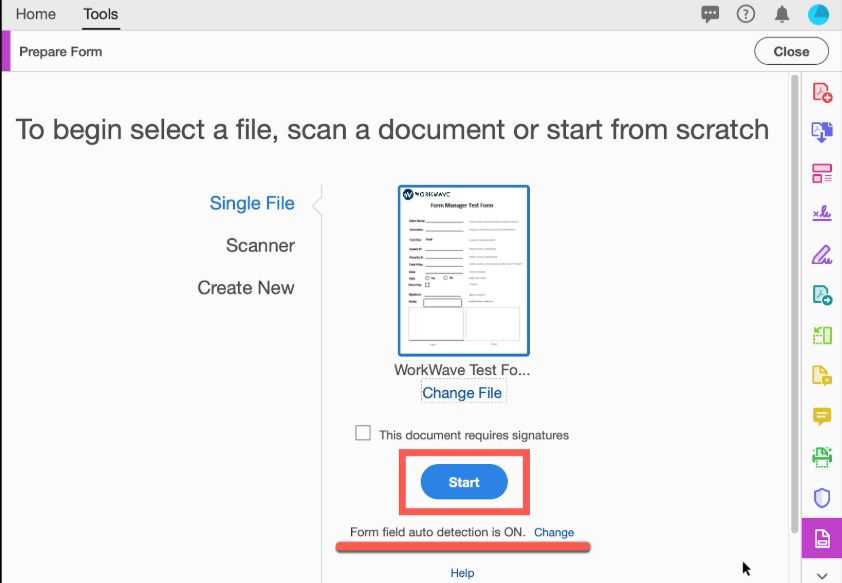
- In the Prepare a form window, make sure Auto-detect form field is enabled.
- Optionally, tick the “This document requires signatures” option if recipients need to sign the PDF.
- Then, click Start and wait for Acrobat to analyze the document and add any fields it detects automatically.
Step 3. Add Text Fields, Checkboxes, and Other Controls
Then you need to review every suggested field because automatic detection is not always accurate. If there are missing fields, use the form components in the left sidebar. Here, you can add the following form components:
- Text field
- Image field
- Checkbox
- Radio button
- Drop-down list
- List box
- Button
- Date field
- E-signature field
Meanwhile, you can configure field properties. Double-click the target field and choose Properties. Then you can customize the field properties as needed.
Step 4. Preview and Save the Fillable PDF
Click Preview to test the form as a recipient would see it. Once OK, click Exit Preview to return to editing mode if you need to make any changes. Finally, go to File > Save As to save the completed fillable PDF.
Tips
Adobe Acrobat also lets you create a fillable PDF from scratch. Go to All tools > Prepare a form, select “Start from blank page”, and click Create form. Then use the form component toolbar to add the interactive fields you need. Finally, save the interactive PDF file.
How to Make a Fillable PDF Online for Free
If you want to create a fillable PDF without installing software, Sejda PDF Forms is a dedicated online fillable PDF creator worth trying. It lets you upload an existing PDF or start with a blank document and add interactive form fields. With Sejda PDF Forms, you can add text fields, checkboxes, radio buttons, drop-down lists, and signature boxes. Now, follow the steps below to make your PDF fillable online.
Step 1. Upload Your PDF into Sejda PDF Forms
- Visit the Sejda PDF Forms tool via your browser.
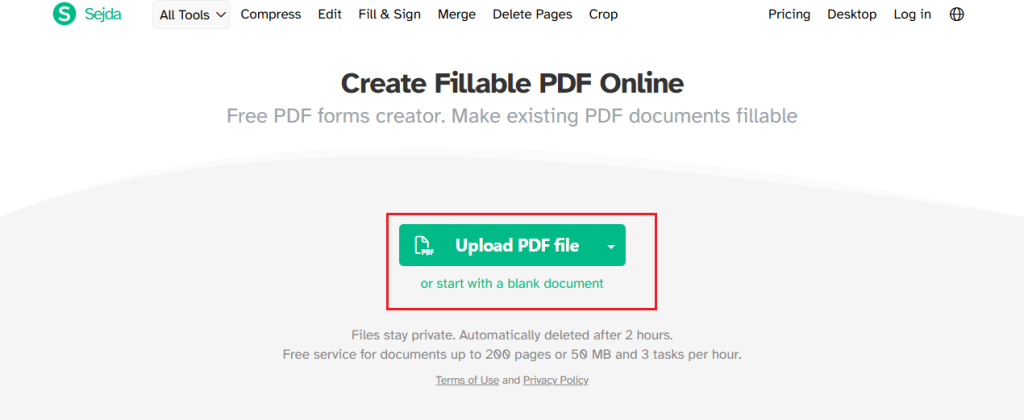
- Click “Upload PDF file” to select the PDF you want to make fillable from your computer. Also, you can upload from Dropbox, Google Drive, or OneDrive.
- Alternatively, you can start creating a fillable PDF from a blank document.
Step 2. Insert the Required Form Fields
- You can find the field components at the top. You can click to add a fillable field, such as a radio button, checkbox, dropdown, or signature.
- Next, click the field you added and adjust its text alignment, font size, border color, and other settings.
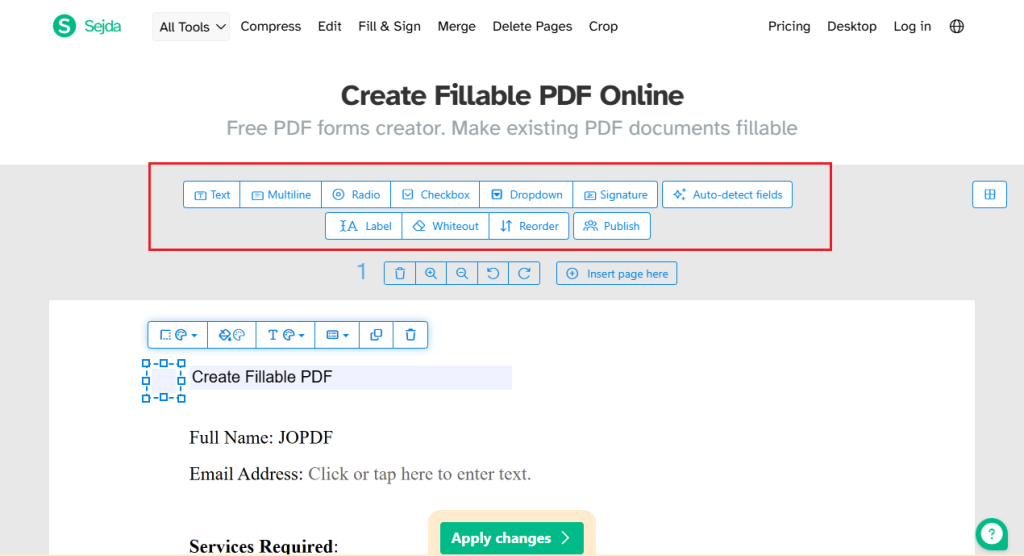
Step 3. Apply Changes and Download the PDF
- Review to confirm all required fields are present.
- Click “Apply changes” and wait for Sejda to process the document.
- Finally, click Download to save the interactive PDF file.
How to Create a Fillable PDF in LibreOffice
LibreOffice is a free and open-source office productivity suite, which includes Writer, Calc, and other applications. With LibreOffice Writer, you can create interactive PDF forms effectively. If you prefer working offline and want to avoid a paid PDF editor, it is a useful option. In other words, you can use it to make a fillable PDF without Adobe Acrobat. Here, you can refer to the instructions below to create a fillable PDF in LibreOffice Writer.
Step 1. Create the Form Layout in LibreOffice Writer
- Launch LibreOffice Writer.
- Go to File > New > Text Document to start with a blank document.
- Now, type the form titles, instructions, and field labels.
Step 2. Display the Form Control Toolbar
Click View, go to Toolbars, and select Form Controls. If you need to adjust the properties of individual controls, enable the Form Design toolbar.
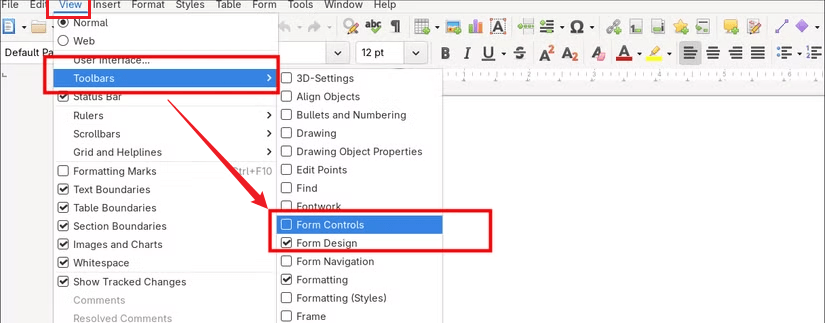
Step 3. Insert Interactive Controls
In the Form Controls toolbar, click and add a new field to the document. For instance, click Text Box to add a text field, select Check Box to add independent selection options, or select Option Button to add a single-choice option. Next, right-click a control and select Control Properties to configure each control.
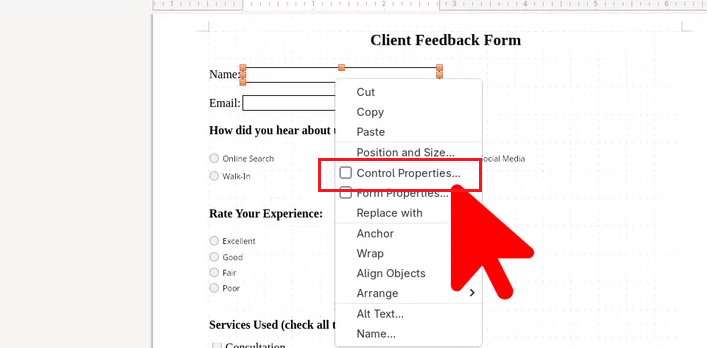
Step 4. Export the Document as a Fillable PDF
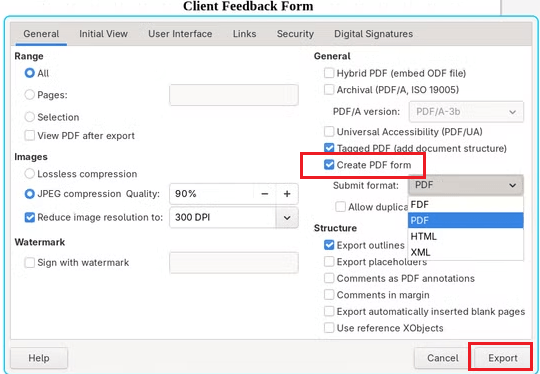
- Click File and go to Export As > Export as PDF.
- Under the General tab, find the Forms section and tick the “Create PDF form” option.
- Customize other export settings and click Export.
How to Create a Fillable PDF from a Word Document
At the beginning, you should know that Microsoft Word can’t create fillable PDF files. You can only use it to prepare the layout of a form. Though Microsoft Word supports PDF export, it doesn’t guarantee that Word’s content controls will become interactive PDF fields. To create a reliable fillable PDF, you need to add the field using a PDF form editor after exporting the document.
Step 1. Prepare the Form Layout in Word
- Launch Microsoft Word and load your existing document, or click File > New > Blank document.
- Then add the form title, instructions, and field labels.
- To align labels and answer areas, click Insert > Table and select the number of rows and columns you need. Next, enter labels.
Tips
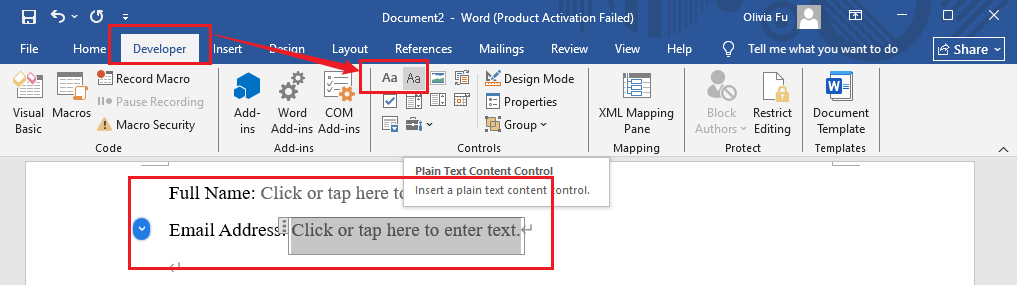
To add interactive fields, go to Customize Ribbon to enable the Developer tab. Then go to Developer and choose to add desired interactive elements in the Controls section.
Step 2. Save the Word Document as a PDF
- Go to File > Save As.
- Choose a folder for the file and select PDF as the output format.
- Click Save.
Step 3. Convert the PDF to a Fillable PDF in a Form Editor
For instance, you can use Adobe Acrobat’s Prepare a form tool:
- Run Adobe Acrobat, click All tools > Prepare a form.
- Select the PDF you exported from Word.
- Enable Auto-detect form field and click Start.
- Meanwhile, you can also use the form components in the left sidebar to add interactive fields such as dropdowns and checkboxes.
- Preview the interactive PDF form. Once you are satisfied, go to File > Save As.
Quick Comparison: 4 Ways to Create a Fillable PDF
| Method | Cost | Best For | Main Advantage |
| Adobe Acrobat | Paid features may require a subscription | Advanced PDF form creation | Comprehensive form-field tools and settings |
| Sejda PDF Forms | Free with usage limits | Creating fillable PDFs online | No desktop installation required |
| LibreOffice | Free | Creating forms on a desktop | Free form-design and PDF export workflow |
| Microsoft Word + PDF Form Editor | Depends on the editor | Converting Word templates into fillable PDFs | Preserves the original document layout |
Best Free Tool to Edit and Fill Out PDF Forms: JOPDF
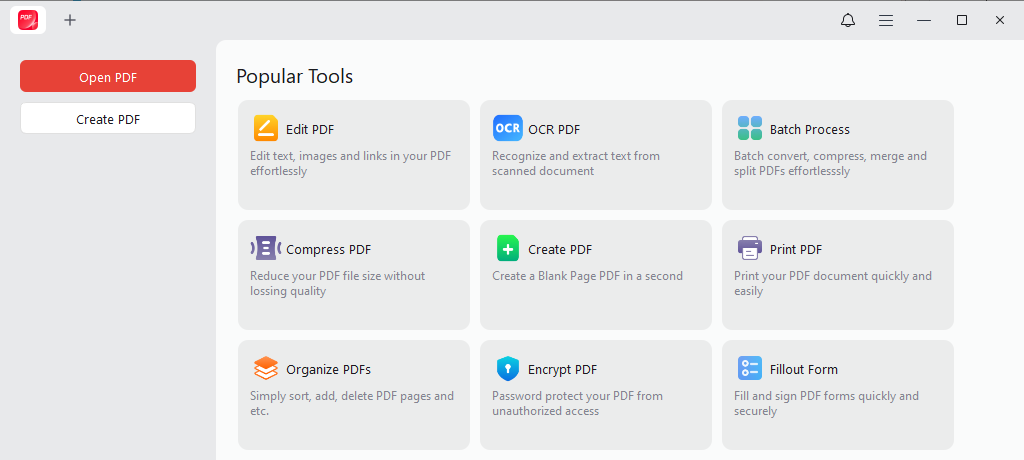
After creating a fillable PDF, you may need a convenient way to complete forms yourself. JOPDF is a good choice: a 100% free PDF editor for Windows, macOS, and Linux. You can use it offline with no registration and ads. It offers a dedicated Fillout Forms tool to fill out interactive PDF forms efficiently. Additionally, JOPDF can help you fill out non-fillable PDFs with its various editing and annotation features.
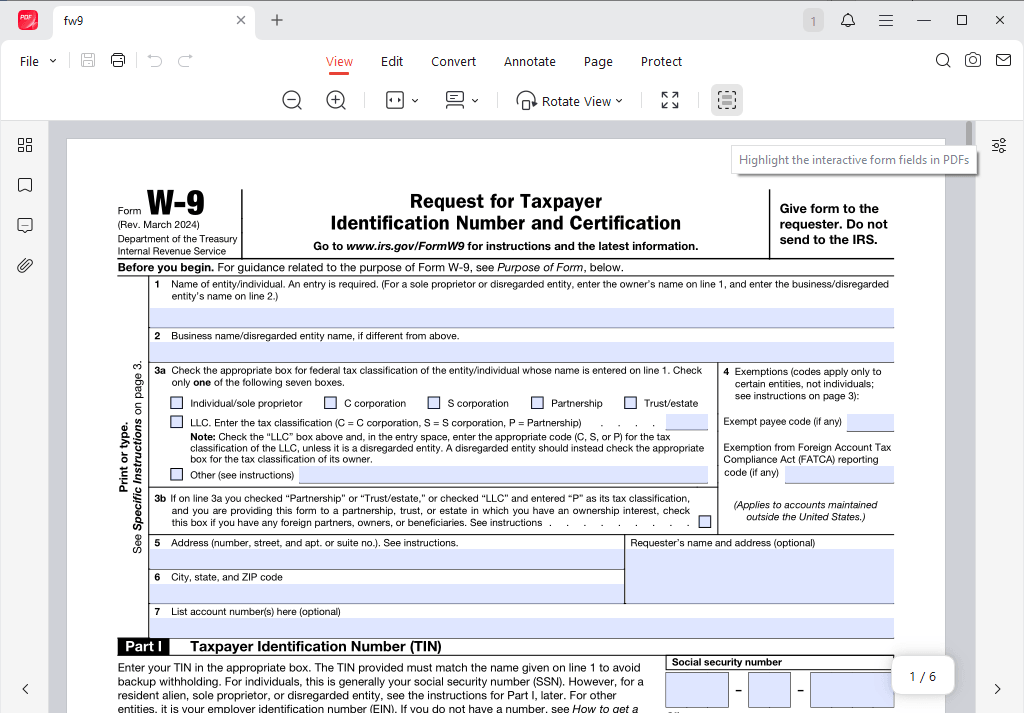
Below are some key features of JOPDF:
- Fill Out PDF Forms: Open a PDF form and enter information into supported interactive fields. For forms that do not contain interactive fields, use its editing or annotation features where appropriate. You can also use it to fill out and sign PDFs.
- Edit PDF Content: Edit text and images in PDFs and watermark PDFs. Meanwhile, it can recognize text in scanned PDFs, making them searchable or editable.
- Annotate PDFs: Add comments, highlights, and other annotations to provide additional information or clarify responses.
- Manage PDF Pages: Organize PDF pages to keep forms and related materials in order. You can use it to merge, split, crop, or extract PDF pages.
- Protect PDF Documents: Password-protect PDFs from viewing, copying, and editing.
- …
Wrapping Up
How to create a fillable PDF? Using a reliable PDF form creator can help you complete the task efficiently. If you have installed Adobe Acrobat or have sufficient budget, Adobe Acrobat is the best choice. If you need a free tool, Sejda PDF Forms and LibreOffice are good choices. Also, you can use Microsoft Word and a PDF form editor to make a Word document fillable. Whichever method you choose, make sure the final PDF contains genuine interactive form fields, preserves entered information, and works in a compatible PDF reader.
FAQs
Table of Contents

Your Best Free PDF Expert in PDF editing, compressing, converting, annotating, protect, organizing, and more.
Free DownloadWindows · macOS · Linux

Olivia
“Olivia is an editor at JOPDF, where she writes practical guides and insightful articles on managing PDFs—covering topics like editing, annotating, converting, and organizing files efficiently. Passionate about clear communication and digital productivity, Olivia enjoys spending her free time cooking, watching movies, and hiking to unwind and find inspiration for her writing.”

![Full Guide on How to OCR a PDF in Adobe Acrobat [Newest]](https://b.jopdf.com/wp-content/uploads/2026/10/how-to-ocr-a-pdf-in-adobe.png)
