Introduction :
Have you received a PDF form with blank lines or boxes but found that you can’t click or type into them? If so, you may get a non-fillable PDF, also called a flat PDF or static PDF. How to fill out a PDF form that is not fillable? In this JOPDF article, I will show you the step-by-step guide on how to fill out a non-fillable PDF in 4 proven methods.
How to Fill Out a PDF Form That Is Not Fillable
Unlike an interactive PDF form, a non-fillable PDF does not contain editable form fields. How to complete a non-fillable PDF without printing it and fill it out by hand? Fortunately, you can use a PDF editor or Fill & Sign tool to place text or other annotations over the appropriate areas. Here, let’s check the 4 methods one by one.
Method 1: Use JOPDF to Fill Out a Non-Fillable PDF for Free
If you want to fill out a PDF without uploading it to an online service, JOPDF is a convenient option. As one of the best free offline PDF editors, JOPDF lets you work with PDFs directly on your computer. Moreover, it can work on Windows, Mac, and Linux.
In addition to offering a set of PDF editing features, JOPDF enables you to fill out PDFs. What’s more, it provides a typewriter tool that lets you click anywhere on a PDF and type. Meanwhile, it provides an Add Text option for placing text boxes on PDF pages. Hence, you can use it to fill out a PDF form even if it is not fillable. Here, let’s learn how to type on a non-fillable PDF with JOPDF.
Step 1. Click the download button below to download and install this PDF form filler on your PC.
Step 2. Launch JOPDF and click Open PDF to upload the non-fillable PDF you want to complete. Then, switch to the Annotate tab, select the Typewriter icon, and click the blank area where you need to enter information. Next, type the required information.
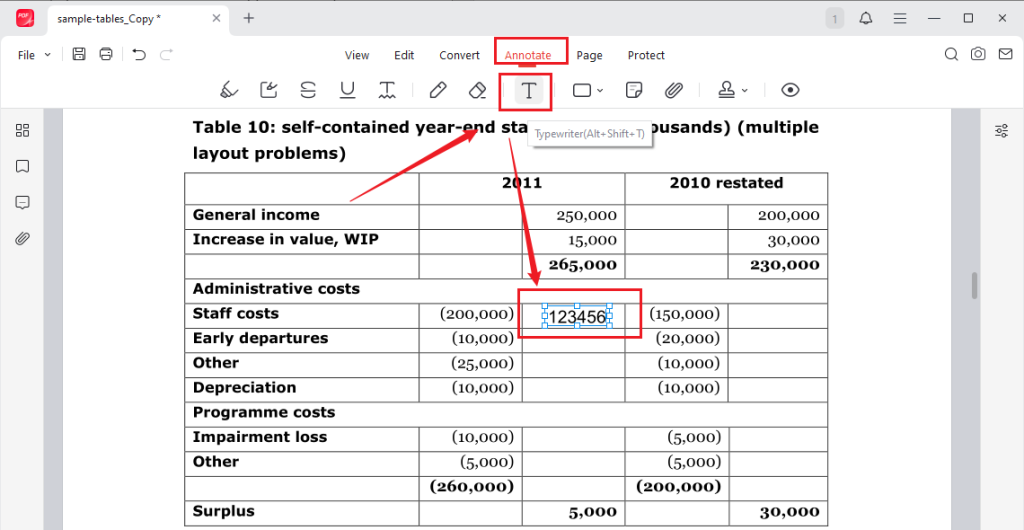
Or, switch to the Edit tab, select Add Text, and click on the desired place to add the text box. Then type in the required information in the added text box.
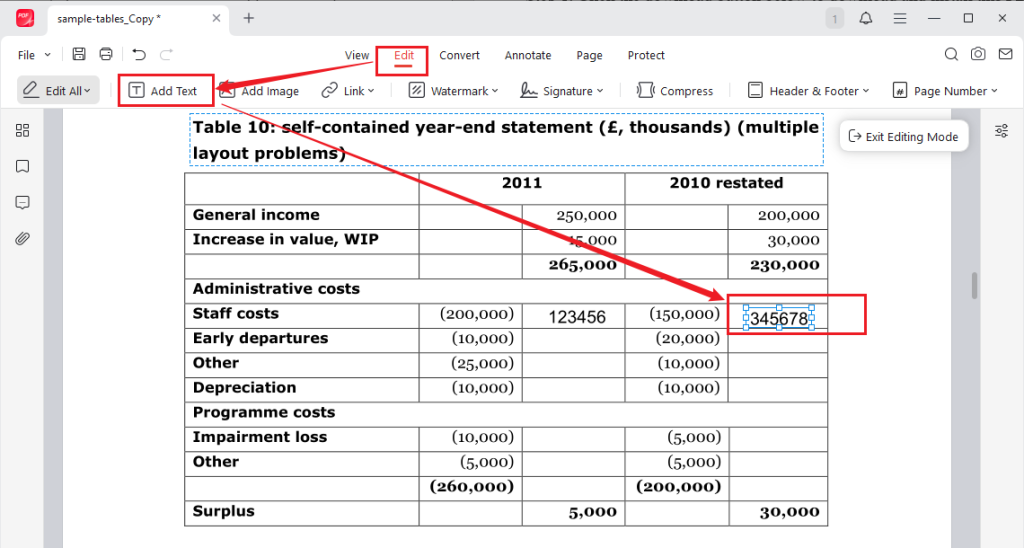
Step 3. Now, you can customize the appearance of the added text. Select the added text to adjust its font, size, color, or other properties.
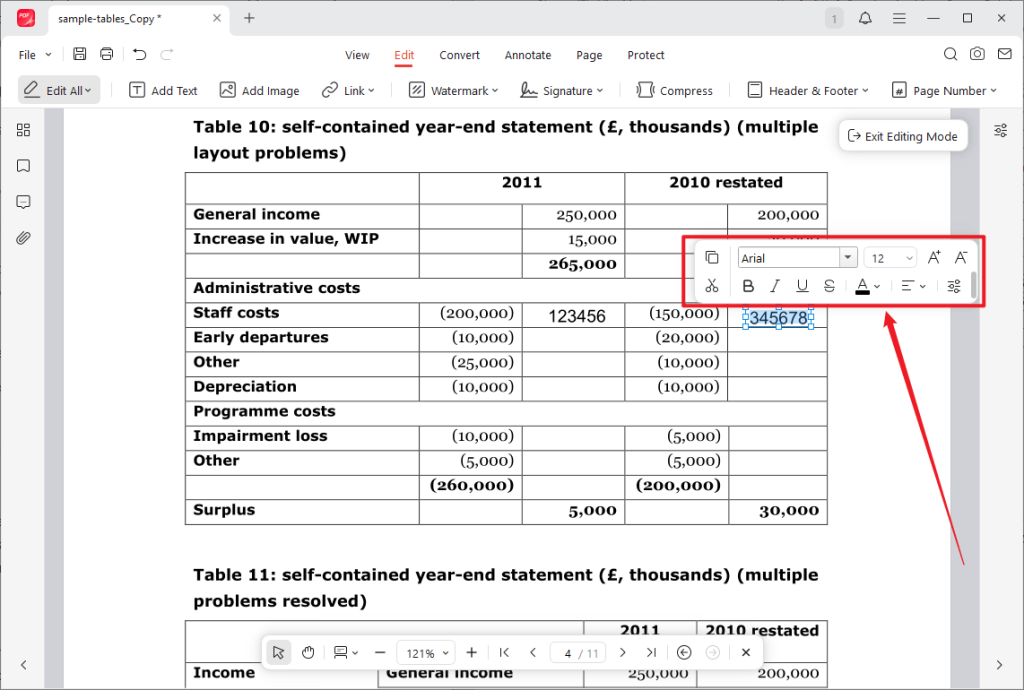
Step 4. Then, repeat the above steps for the remaining fields. Finally, click File and select Save As to save the completed PDF file.
Method 2: Fill Out a Non-Fillable PDF in Adobe Acrobat
Adobe Acrobat is a professional PDF editor that can also be used to complete non-interactive or flat PDF forms. Though a flat form doesn’t contain interactive fields, Acrobat’s Fill & Sign tools still enable you to add text and other symbols anywhere on the form. What’s more, you can create a fillable PDF in Adobe Acrobat. In this section, I will show you how to fill out a PDF form that is not fillable in Adobe Acrobat.
Step 1. Launch Adobe Acrobat on your PC and open your target non-interactive PDF form.
Step 2. Click All tools and select Fill & Sign. For text, select Add text, click where you want to type on the form, and enter your information.
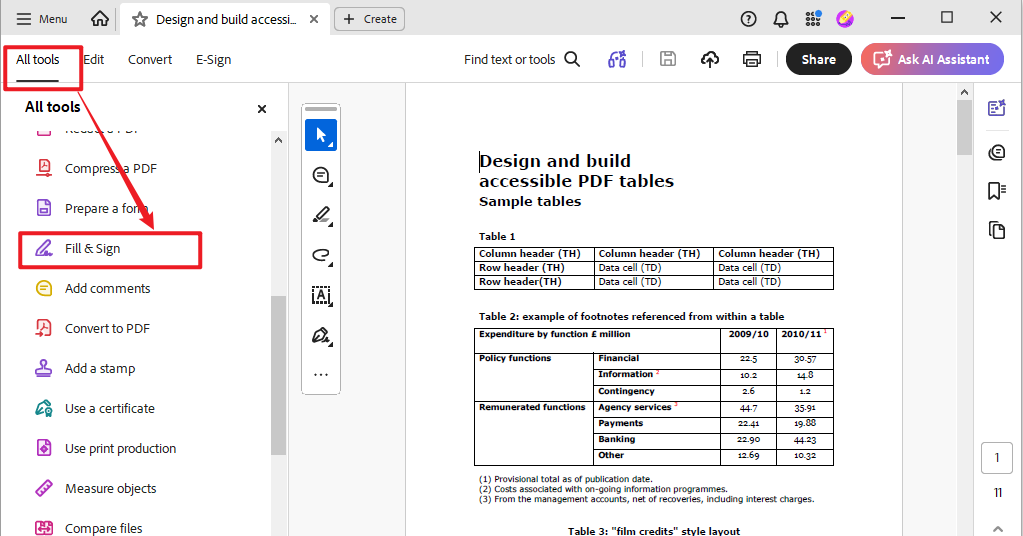
For checkboxes or radio buttons, use the checkmark, crossmark, or dot tools and click the appropriate spots.
Step 3. Finally, click File and select Save or Save As to save the completed PDF.
If Adobe Fill and Sign not working, use JOPDF to fill out a non-fillable PDF for free.
Method 3: Fill Out a Non-Fillable PDF Online
If you do not want to install desktop software, you can use a dedicated online tool such as PDFescape Online PDF Editor. This online PDF editor enables you to upload a non-fillable PDF and add text, form elements, and signatures directly in your web browser. How to fill out a non-fillable PDF online with PDFescape? Below are the exact steps for your reference:
Step 1. Open your browser and visit PDFescape Online PDF Editor.
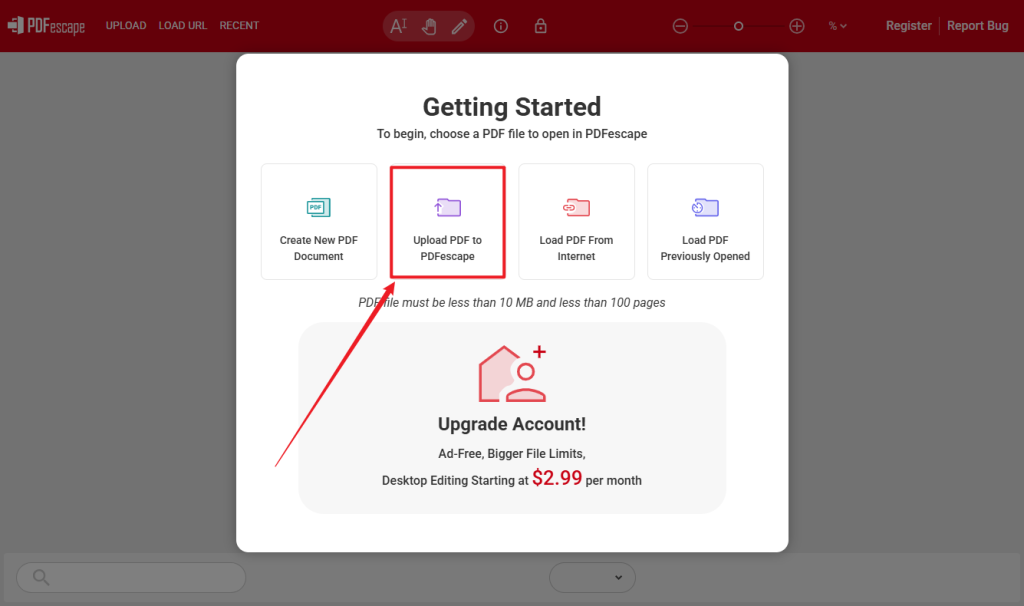
Step 2. Click Upload PDF to PDFescape and select your non-fillable PDF file.
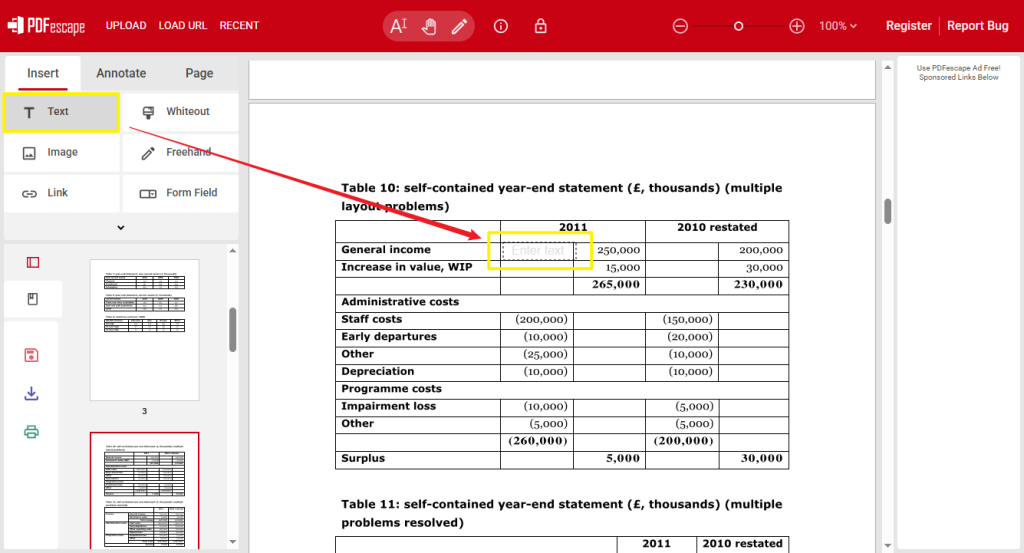
Step 3. In the left pane, click the Text option and click on the blank area of the form where you need to enter information. Then, type in the required information. Next, select the typed information and use the top toolbar to adjust font size, style, or alignment if needed.
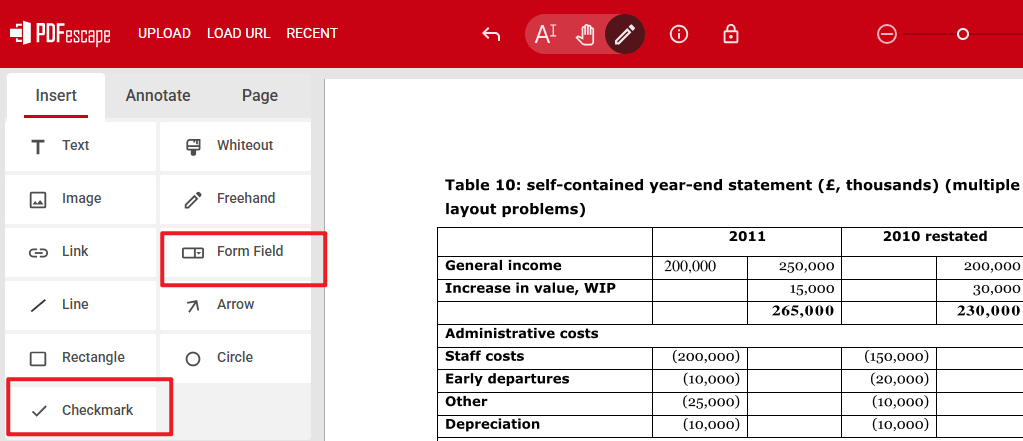
Additionally, you can use the Checkmark or Form Field tools to complete the PDF form.
Step 4. When finished, click the Download icon in the left sidebar to save the completed PDF.
Method 4: Fill Out a Non-Fillable PDF on Mac with Preview
If you are using a Mac, you can fill out many non-fillable PDFs directly using the built-in Preview app. It includes markup tools to add text, signatures, and shapes without installing additional software. Additionally, you can use Preview to fill out a PDF on Mac for free. Here, let’s learn how to fill out a non-fillable PDF using Preview.
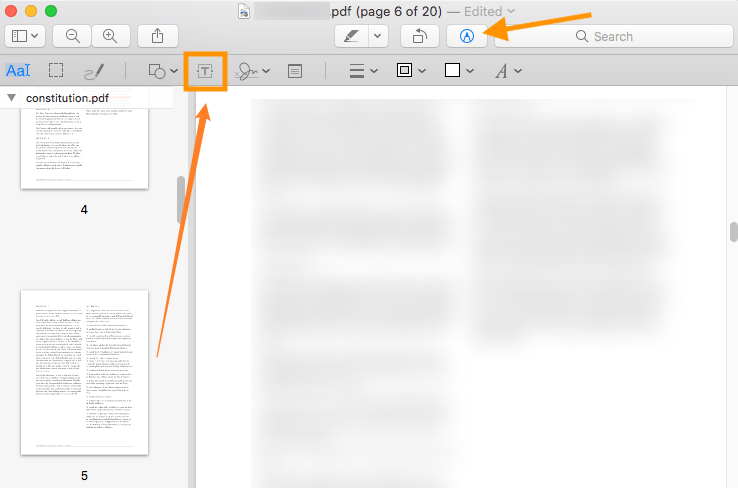
Step 1. Open your target non-fillable PDF in Preview and click the Markup Toolbar button to show various markup tools.
Step 2. Select the Text Tool, click the place you need to enter information, and type the required information. Then, you can drag the text box to align it with the form’s blank lines or fields. Meanwhile, use the formatting options to adjust the font size and style as needed.
Step 3. Finally, go to File > Save to save the completed PDF.
How to Fill Out a Scanned or Image-Based PDF
A scanned PDF can be even more difficult to fill out because the entire page may essentially be an image. The visible lines, boxes, and labels may not contain actual editable text or form fields. However, you can usually still complete the document by placing text over the scanned page. Here are two options for you to fill out a scanned PDF.
Option 1: Add Text Over the Scanned PDF
For a simple PDF form, you usually don’t need OCR just to type information onto it. Just open the scanned PDF in a PDF editor like JOPDF, select a text or typewriter tool, and click where you want the information to appear. Then type the required information and customize it as needed.
Option 2: Use OCR When You Need to Recognize the Document
OCR is quite useful for handling scanned PDFs, especially when you need to:
- Extract text from the scanned PDFs
- Search for words in the PDF
- Edit recognized text
- Convert the scanned PDF into an editable and searchable document
Conclusion
How to fill out a PDF form that is not fillable? JOPDF is a good choice that lets you fill out a non-fillable PDF using its Typewriter or Add Text tools. Also, you can use Adobe Acrobat’s Fill & Sign tools for form filling. In addition, you can use online tools like PDFescape to complete forms quickly. If you are a Mac user, use Preview to fill out non-fillable PDFs.
FAQs
Table of Contents

Your Best Free PDF Expert in PDF editing, compressing, converting, annotating, protect, organizing, and more.
Free DownloadWindows · macOS · Linux

Olivia
“Olivia is an editor at JOPDF, where she writes practical guides and insightful articles on managing PDFs—covering topics like editing, annotating, converting, and organizing files efficiently. Passionate about clear communication and digital productivity, Olivia enjoys spending her free time cooking, watching movies, and hiking to unwind and find inspiration for her writing.”