Introduction:
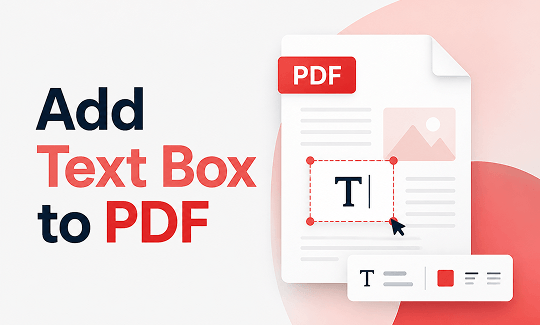
How to add a text box to a PDF? Typing words on a page should be easy. Here are four simple ways to get it done quickly, so you can finish your work and share your file.
1. The Best Free Way to Add a Text Box to a PDF: JOPDF
If you are looking for how to add a text box to a PDF for free, JOPDF is your absolute best choice. Many people consider it the best free PDF editor because it is very professional, yet easy to use. You do not need any special computer skills to use it.
With JOPDF, you can easily place a text box anywhere and type anything you want. You can also change the font style, the text size, and choose a new color to match the rest of the document perfectly.
Here are the simple steps on how to a add text box in a PDF using JOPDF:
- First, download and open the JOPDF on your computer. Find your file and open it.
- Look at the menu bar at the top of your screen. Click on the tab that says Edit.
- Click the Add Text button, and our mouse cursor will change its shape.
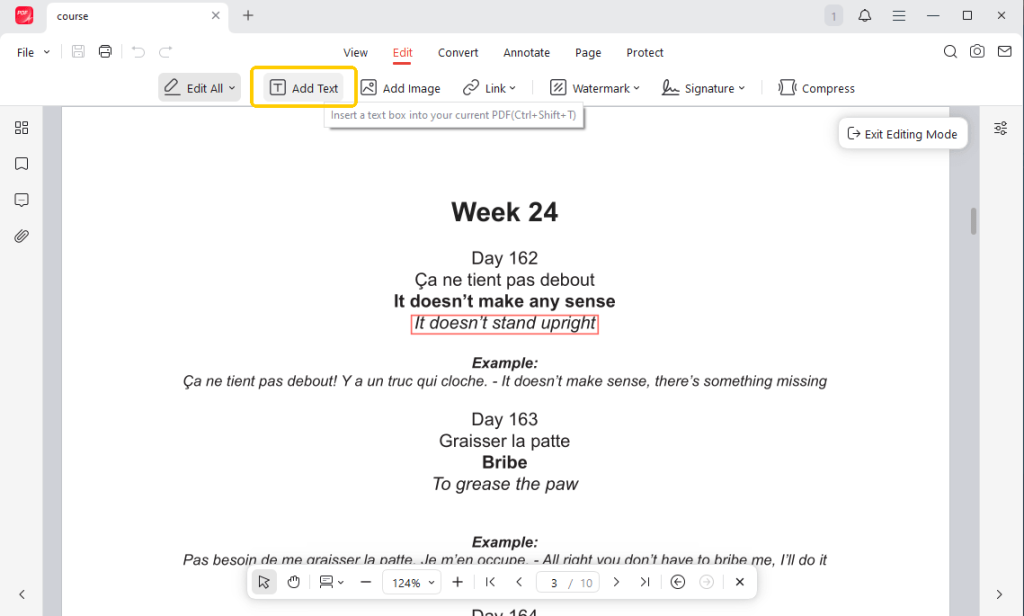
- Click exactly where you want the new words to go on your page. A box will appear. Now, simply start typing your message. You can also highlight the text and use the small menu that pops up to change the text color and size.
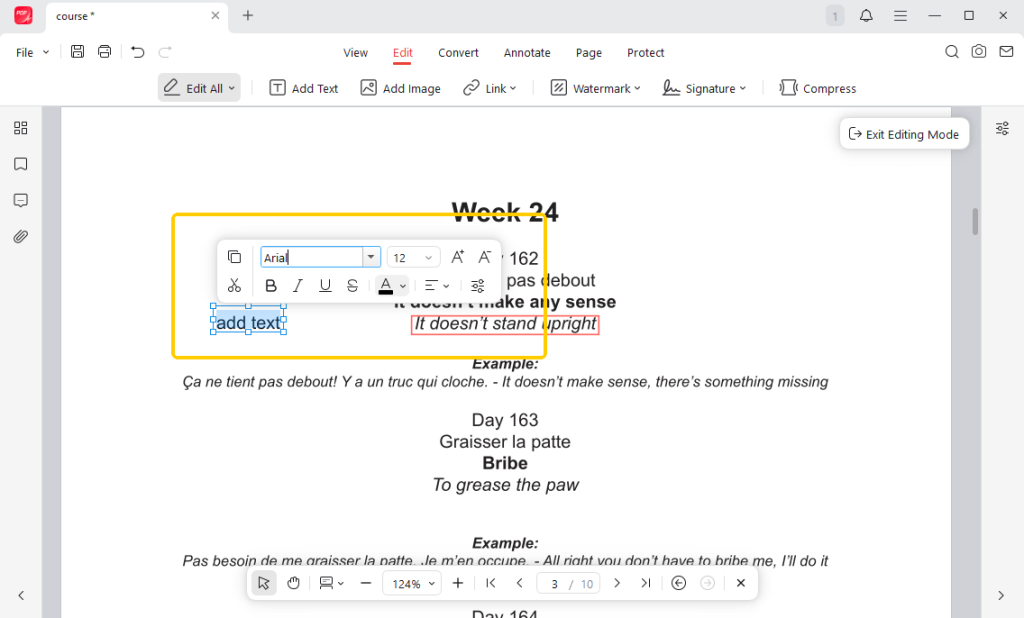
- When you are happy with how it looks, click the Save button to lock your new text in place.
As you can see, JOPDF handles your basic typing needs perfectly. Besides that, it lets you highlight important words, manage your pages (like splitting a big file or merging two files), and convert your files into Word documents. Try it now to explore more!
2. Add Text Box to PDF in Adobe Acrobat
Adobe Acrobat is a very famous program for handling documents. Many people already have the free version, called Acrobat Reader, installed on their office computers. However, you must buy an expensive monthly subscription to use the “Edit PDF” tool. If you try to click it, the program will ask you for money.
If you do not want to pay a monthly fee, you can try a good alternative to Adobe Acrobat. For a completely free solution that preserves quality, use JOPDF instead. It gives you the freedom to type on your pages without asking for a credit card.
Anyhow, here is how to use Adobe:
- Open Adobe Acrobat, go to File > Open, and select the PDF you want to modify.
- Click the Tools menu at the top left of the screen and select Edit PDF.
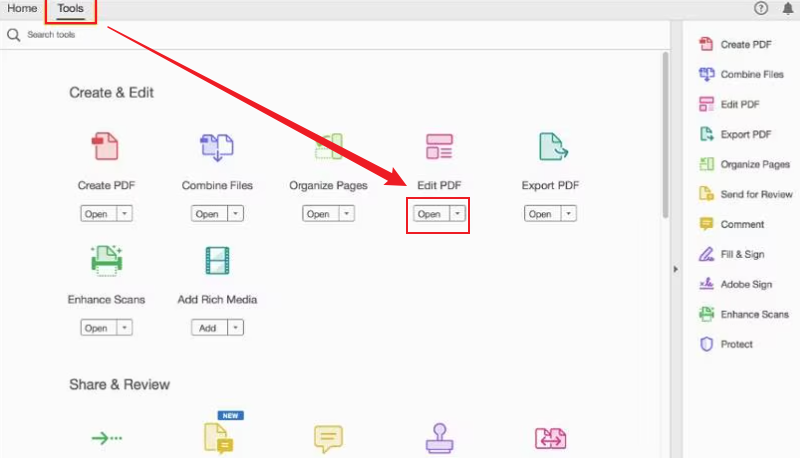
- Look at the toolbar above your document and click the Add Text button. Put the box.
- Click and drag your mouse anywhere on the page to create a text box.
- Start typing your new text. A formatting panel will appear on the right side of the screen, allowing you to change the font, size, and color as needed.
- Once you are finished, press Ctrl + S (Windows) or Cmd + S (Mac) to save your updated file.
3. Add Text Box to PDF with Preview on Mac
If you use an Apple computer, you already have a built-in tool that can help. Every Mac computer comes with a free app called Preview. This app is very convenient because you do not have to download anything new.
You can use the “Markup” toolbar inside Preview to draw a basic text box. However, there is a big limitation you must know about. Preview is only a basic viewer and annotator. It cannot actually edit PDF text on a Mac if the text is already part of the original file.
If you need to fix a spelling mistake in the original text, or want better control over your text boxes, you need a true editor, such as JOPDF.
Here are the steps to follow if you want to try Preview:
- Double-click the PDF to open it in the Preview app.
- Click the Show Markup Toolbar button at the top of the window. It looks like a small pen tip inside a circle.
- Select the Text icon (it looks like a “T” inside a box). A small text box with the word “Text” will instantly appear in the center of your document.
- Click inside the new box, delete the placeholder word, and type your own text. You can click the border of the box to drag it anywhere on the page.
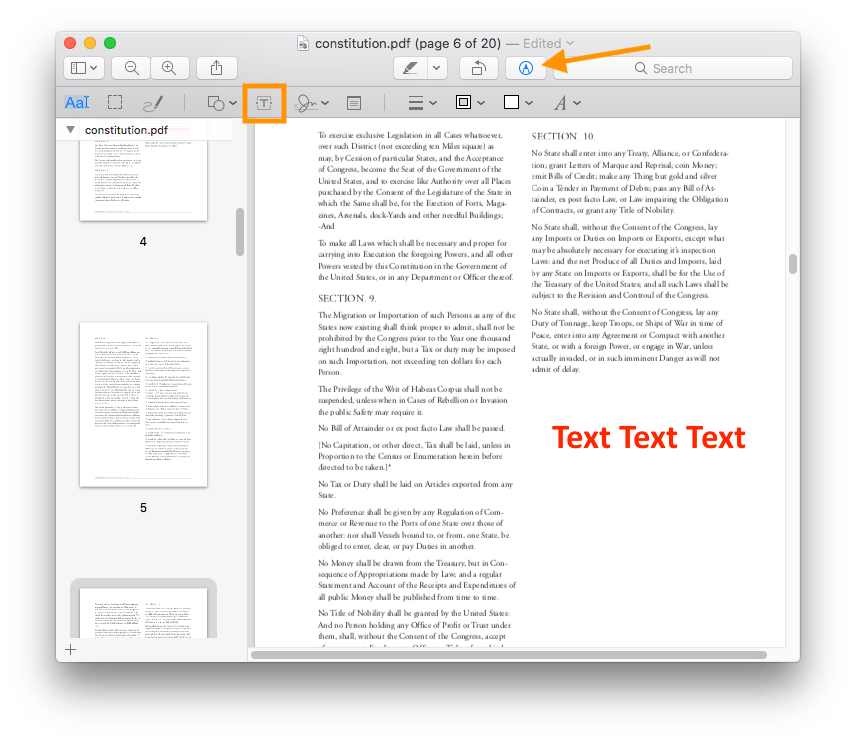
- If you want to change the font, size, or color, click the Text Style icon.
- Close the file or click File > Save to lock your new text in place.
4. Add Text Box to PDF in Chrome
Don’t want to install any software at all? You can use your web browser, such as Google Chrome, to get the job done.
There are many free websites that let you add text to PDF completely online. One popular website is called iLovePDF. It is very fast and works right inside your Google Chrome browser.
Here is how you use an online tool:
- Open Google Chrome and visit a site like iLovePDF. Upload your document.
- You can drag your file from your computer and drop it directly onto the website page.
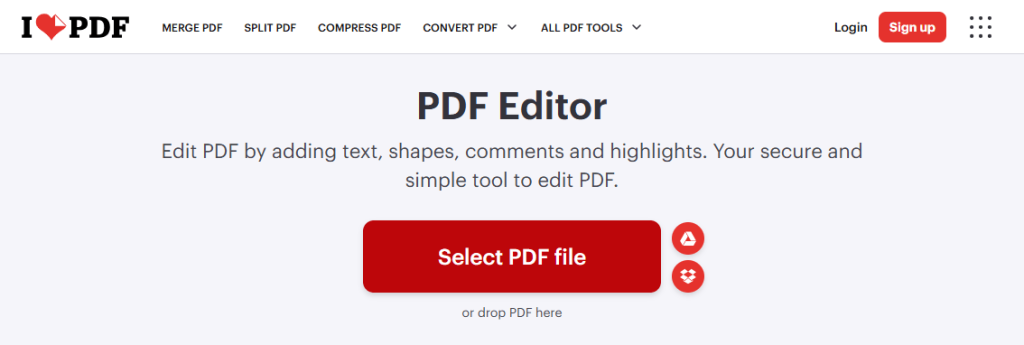
- Look for the tool that says Add Text. Click it, place the box on your page, and type your words.
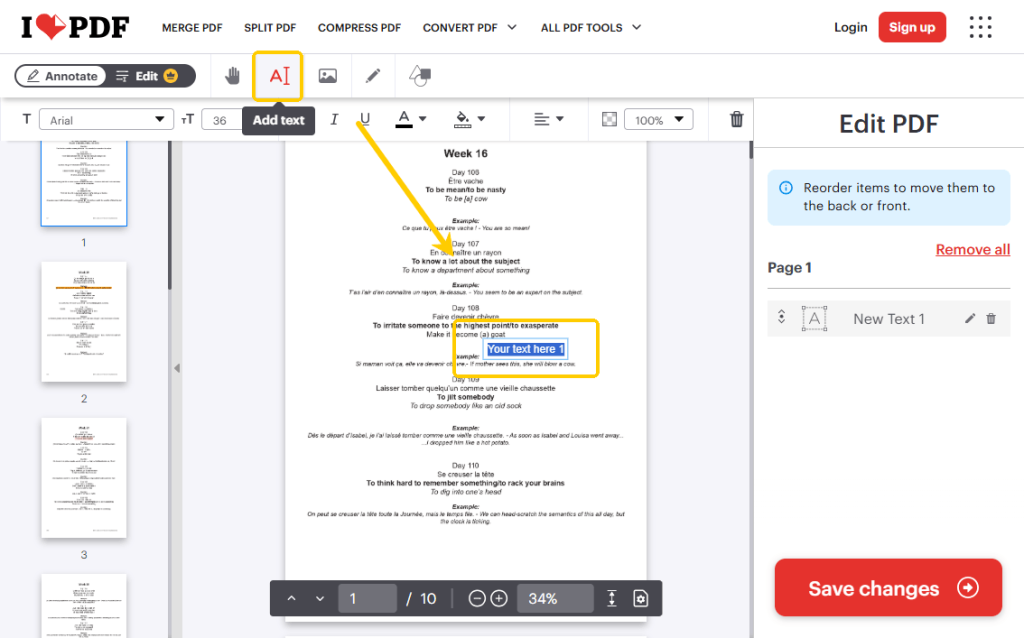
- Finally, click the Save changes button and download the document to your computer.
Conclusion
That’s all about how to add a text box to a PDF. You can try Adobe, Mac Preview, and a web browser, but using a professional program like JOPDF provides the most professional, free, and easy way to handle all your typing needs. Try JOPDF today to make managing your documents completely stress-free.
FAQs
Table of Contents

Your Best Free PDF Expert in PDF editing, compressing, converting, annotating, protect, organizing, and more.
Free DownloadWindows · macOS · Linux

Queena
Editor
“As a staff editor for JOPDF, Queena excels at guiding users to the optimal tools and solutions. When she's not analyzing the latest PDF solutions, she enjoys spending her free time playing with her four cats.”