Introduction :
Is your Adobe Acrobat not opening on your PC? In other cases, Adobe Acrobat opens and immediately closes, freezes on the loading screen, or stops responding. These problems may be related to corrupted installation files, outdated software, background processes, or other factors. In this article from JOPDF, we’ll explain why Adobe Acrobat won’t open and show you 10 practical ways to fix the problem.
Adobe Acrobat is an industry-leading PDF editor and reader, but it does not always work as expected. Sometimes, you double-click its desktop icon, but nothing happens. Why is Adobe Acrobat not responding? Many factors can cause this problem. How do you troubleshoot the problem? In the following, let’s discuss the potential causes and ways to fix the problem. Meanwhile, we also cover Mac-specific solutions and introduce an alternative PDF editor if you cannot get Acrobat working.
Why Is Adobe Acrobat Not Opening?
Adobe Acrobat may fail to launch for several reasons. Before learning the exact resolutions, identifying the possible causes can help us choose the most appropriate solution. Here are some common causes and their symptoms:
| Possible Cause | Common Symptoms |
| Outdated Acrobat software | Acrobat crashes or fails to launch after an update |
| Corrupted installation files | Acrobat freezes, crashes, or displays startup errors |
| Background processes | Acrobat appears to be running, but no application window opens |
| Insufficient permissions | Acrobat only launches when run as administrator |
| Antivirus conflicts | Acrobat fails to start or crashes unexpectedly |
| Incompatible plug-ins | Acrobat freezes or closes during startup |
| Compatibility problems | Acrobat stops working after a Windows update |
| Licensing or activation errors | Acrobat displays subscription or sign-in errors |
| Damaged user preferences | Acrobat fails to launch under a particular user account |
These causes can affect both Adobe Acrobat Pro and Adobe Acrobat Reader. Now, let’s getting to learn how to fix Adobe Acrobat not opening.
How to Fix Adobe Acrobat Not Opening
Before trying advanced solutions, restart your computer and ensure your operating system has no pending updates. If Acrobat still won’t launch, work through the following methods. Let’s check them one by one.
Fix 1. Restart Your Computer and Relaunch Adobe Acrobat
In general, a temporary system glitch or an unresponsive background process may prevent Adobe Acrobat and other programs from launching correctly. Restarting your computer can clear these temporary issues and allow Adobe Acrobat to start normally.
You need to restart your computer and launch Adobe Acrobat again. If Acrobat opens successfully, the issue may have been caused by a temporary system problem. Otherwise, proceed to the next method.
Fix 2. End All Adobe Acrobat Processes in Task Manager
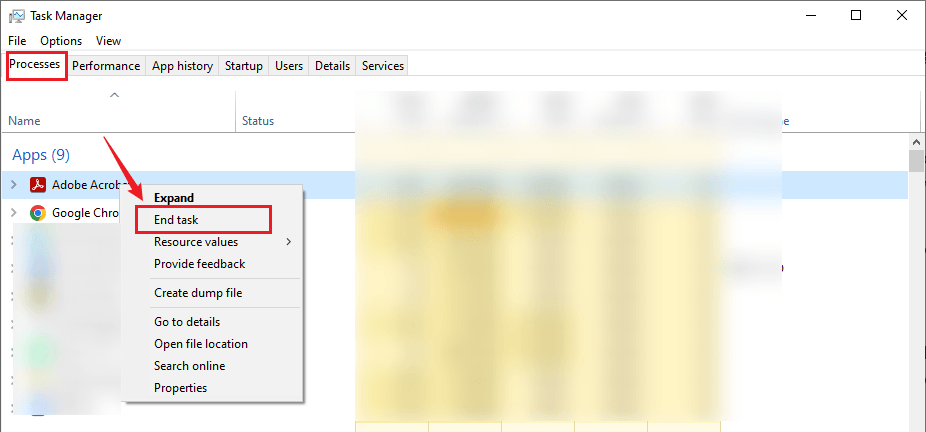
Sometimes, Adobe Acrobat continues running in the background even after its application window has closed. These unresponsive processes can prevent you from opening a new Acrobat window. In that case, you can use Windows Task Manager to terminate them manually.
- Press Ctrl + Shift + Esc to open Task Manager.
- Select the Processes tab and look for processes related to Adobe Acrobat, Acrobat Reader, Adobe, or Creative Cloud.
- Right-click it and select End task. Then repeat the process for other clearly related stuck Adobe processes.
- Finally, close Task Manager and launch Adobe Acrobat again.
Fix 3. Run Adobe Acrobat as an Administrator
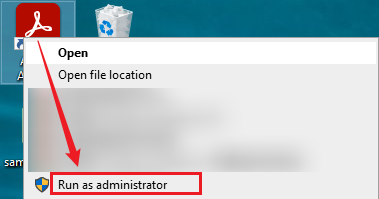
If Adobe Acrobat does not have sufficient permissions to access certain application files or system resources, Adobe Acrobat may fail to launch. Running it as an administrator can help determine whether the “Adobe Acrobat not opening” is related to Windows permissions.
- Locate the Adobe Acrobat shortcut on your PC.
- Right-click the shortcut.
- Select Run as administrator from the context menu. Later, check whether Adobe Acrobat launches successfully.
Fix 4. Update Adobe Acrobat to the Latest Version
In fact, an outdated version of Adobe Acrobat may contain bugs or compatibility problems that prevent the application from launching correctly. Meanwhile, Adobe has also been continuously updating the software installation packages to address the issues that occurred in previous versions. Hence, updating Adobe Acrobat can resolve known software issues and improve compatibility with Windows and macOS.
- Go to the official download page of Adobe to download the latest version.
- After downloading, run the Adobe Acrobat installer and follow the on-screen prompts.
- Then Adobe will detect the existing installation and update it.
- Later, restart your computer and try opening Acrobat again.
By updating Adobe Acrobat, you can also resolve the “Adobe Acrobat is so slow” error.
Fix 5. Check Windows Compatibility Settings
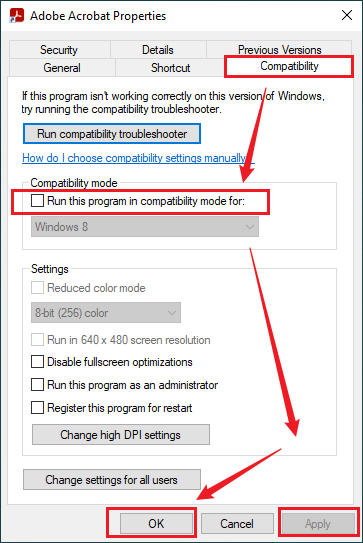
In addition, incorrect Windows compatibility settings may prevent Adobe Acrobat from launching, particularly if you previously enabled compatibility mode to troubleshoot another issue. Follow the steps below to check these settings:
- Right-click the Adobe Acrobat desktop shortcut and select Properties.
- Click the Compatibility tab and find the “Run this program in compatibility mode for:” option.
- If the option is selected, uncheck it.
- Then click Apply and OK to save your changes.
- Later, double-click the Acrobat shortcut to launch it again.
Fix 6. Check for Antivirus or Security Software Conflicts
What’s more, third-party antivirus applications and endpoint security tools may interfere with Adobe Acrobat’s startup process. This can happen when security software blocks certain operations required by Acrobat’s Protected Mode. If you suspect an antivirus conflict, try the following:
- Check its security logs or blocked-application list for Adobe Acrobat.
- If necessary, temporarily test whether Acrobat launches with the relevant third-party protection feature disabled, following the security vendor’s instructions.
- If Acrobat opens, restore your security protection immediately. Add Adobe Acrobat as an application exception if the security vendor recommends it.
- Relaunch Adobe Acrobat to check whether the issue has been resolved.
Note
Do not permanently disable your antivirus, firewall, or other security protection to make Acrobat work. After testing, restore protection and use an approved application exception where appropriate.
Fix 7. Troubleshoot Adobe Acrobat Plug-ins and Protected Mode
Third-party plug-ins and security sandbox conflicts can sometimes prevent Adobe Acrobat from starting correctly.
#Check Third-Party Plug-ins
Some third-party plug-ins may be outdated or incompatible with your current Acrobat version. Here’s how to troubleshoot them:
- Close Adobe Acrobat completely and open File Explorer.
- Navigate to the Acrobat plug-in directory. For a typical 64-bit installation, the path is: C:\Program Files\Adobe\Acrobat DC\Acrobat\plug_ins
- Identify recently installed or suspicious third-party plug-ins and move the suspected plug-in files to a separate backup folder outside the Acrobat installation directory.
- Then, relaunch Adobe Acrobat.

#Check Protected Mode
Protected Mode is an Adobe security feature that helps protect your computer from potentially malicious PDF content. However, certain antivirus configurations or third-party plug-ins may conflict with it. If you can open Acrobat, you can temporarily disable Protected Mode for diagnostic purposes: Go to Menu > Preferences > Security (Enhanced) and uncheck the “Enable Protected Mode at startup” option.
Note
Adobe recommends keeping Protected Mode enabled. You can only disable it temporarily to test a suspected conflict. After troubleshooting and restarting Acrobat, re-enable Protected Mode.
Fix 8. Repair the Adobe Acrobat Installation
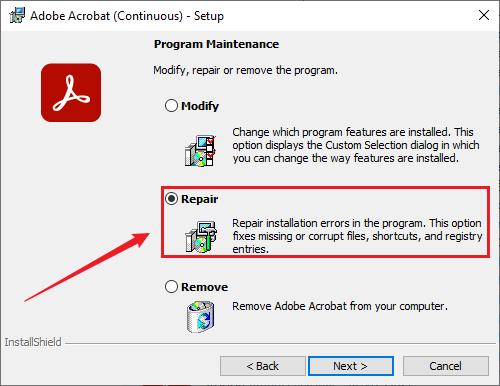
If Adobe Acrobat’s installation files are damaged or missing, the application may freeze, crash, or fail to launch. Fortunately, Windows provides a repair option that can fix certain installation problems without requiring a complete reinstallation.
- Press Windows + R to open the Run dialog.
- Type “control” and press Enter. Select Programs and click Programs and Features.
- Then find Adobe Acrobat, right-click it, and click Change.
- In the Adobe Acrobat Setup window, select Next and choose Repair. Then follow the instructions to complete the repair.
- Finally, restart your computer and try opening Acrobat again.
Fix 9. Check Adobe Acrobat Account and Licensing Status
Adobe Acrobat may fail to launch if it cannot verify your subscription or activation status. This is particularly relevant if you recently changed your Adobe account, renewed your subscription, or reinstalled the application. Below is how to check for licensing problems:
- Visit the official Adobe account website and sign in using the Adobe account associated with your Acrobat subscription.
- Open the Plan section and check whether your Acrobat subscription is active.
- If you have an active subscription, confirm that you are using the correct Adobe account.
- Then sign out and sign in to Adobe Acrobat again if it allows you to access the sign-in interface.
- Restart Acrobat and check whether the problem has been resolved.
Fix 10. Uninstall and Reinstall Adobe Acrobat
If none of the previous methods work, your Adobe Acrobat installation may be severely damaged. In this situation, uninstalling and reinstalling the application may be the most effective solution.
If a normal reinstall does not resolve the issue, consider using the official Adobe Creative Cloud Cleaner Tool to remove problematic installation components before reinstalling Acrobat. Follow Adobe’s instructions carefully rather than manually deleting unrelated Adobe folders.
How to Fix Adobe Acrobat Not Opening on Mac
If Adobe Acrobat won’t open on your Mac, the problem may be related to corrupted installation files, outdated software, permission conflicts, or application crashes. You can try the following Mac-specific solutions.
#1. Force Quit and Relaunch Adobe Acrobat
A frozen Acrobat process may prevent it from launching again.
- Press Option + Command + Esc to open the Force Quit Application window and select Adobe Acrobat from the list.
- Click Force Quit and confirm the action.
- Wait a few seconds and relaunch Adobe Acrobat from the Applications folder.
#2. Update Adobe Acrobat and macOS
Outdated application files or operating-system components may cause compatibility problems. You can try to update macOS to resolve the “Adobe Acrobat not opening” issue.
- Click the Apple menu.
- Select System Settings.
- Choose General and click Software Update. Then install any available compatible updates.
#3. Check macOS Permissions and Security Settings
In addition, macOS security settings may prevent certain applications from accessing required files or resources. When your Acrobat won’t open, try to check macOS permissions and security settings:
- Open System Settings.
- Click Privacy & Security and review relevant permissions if Acrobat displays an access-related warning.
- Then check whether macOS has blocked Acrobat from opening.
#4. Reinstall Adobe Acrobat on Mac
If Acrobat continues to crash, a clean reinstall may resolve damaged application files.
- Close Adobe Acrobat and other Adobe applications.
- Download the official Adobe Creative Cloud Cleaner tool and follow Adobe’s instructions to remove the problematic Acrobat installation.
- Then restart your Mac and download the latest compatible Acrobat installer from Adobe’s website.
- Open the downloaded installer and follow the installation instructions.
- Launch Adobe Acrobat and sign in to your Adobe account.
What to Do If Adobe Acrobat Still Won’t Open?
If you have tried all the troubleshooting methods above but Adobe Acrobat still won’t launch, you may need an Adobe Acrobat alternative to continue working with your documents. JOPDF is a free alternative to Adobe Acrobat for viewing, editing, annotating, converting, organizing, and protecting PDFs. It is a 100% free offline PDF editor for Windows, Mac, and Linux. It offers several PDF-related features that can help you continue working when Acrobat is unavailable.
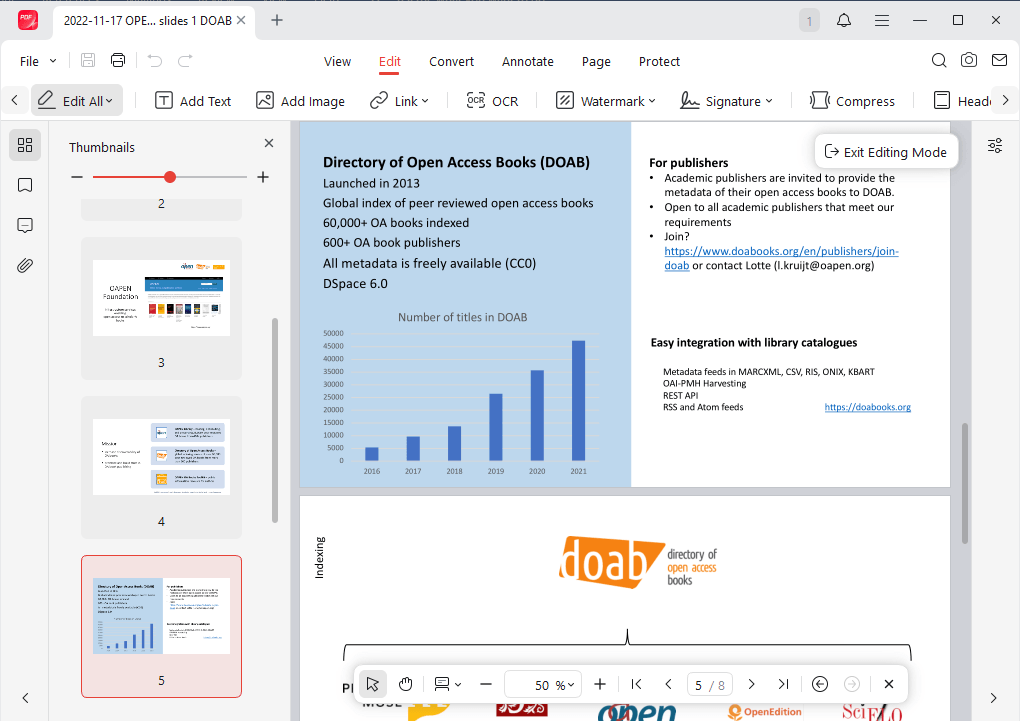
- View PDFs: Open and read PDFs on your PC with several reading modes, such as reading PDFs in full screen.
- Edit PDFs: Edit PDF text and images without Adobe Acrobat. Also, you can add text boxes to a PDF.
- Annotate PDFs: Add comments, highlight or underline PDFs, add links to a PDF, and more.
- Manage PDF pages: Rearrange PDF pages, merge or split PDFs, extract PDF pages, or delete pages from a PDF.
- Protect PDFs: Password-protect PDFs or add watermarks.
- OCR PDFs: Recognize text in scanned PDFs and make them searchable or editable.
- Convert and compress PDFs: Convert PDFs to Word, Excel, PowerPoint, and other image formats, as well as reduce PDF file size.
All in all, JOPDF is worth considering as a good solution when Adobe Acrobat still won’t open. Also, if you are looking for a free tool to edit PDFs, JOPDF can be your choice.
Final Words
When Adobe Acrobat is not opening, the problem may be caused by outdated software, background processes, corrupted installation files, antivirus conflicts, or licensing issues. Fortunately, there are several practical solutions to resolve the problem. After trying all the methods and can’t get Adobe Acrobat working, consider using JOPDF as a free desktop alternative. Hopefully, this article is helpful to you.
FAQs
Table of Contents

Your Best Free PDF Expert in PDF editing, compressing, converting, annotating, protect, organizing, and more.
Free DownloadWindows · macOS · Linux

Olivia
“Olivia is an editor at JOPDF, where she writes practical guides and insightful articles on managing PDFs—covering topics like editing, annotating, converting, and organizing files efficiently. Passionate about clear communication and digital productivity, Olivia enjoys spending her free time cooking, watching movies, and hiking to unwind and find inspiration for her writing.”