Introduction :
It’s frustrating to encounter the Adobe Acrobat slow problem. Whether it takes forever to open a PDF, lags while scrolling, or freezes during editing, the poor performance can significantly disrupt your workflow. Why is Adobe Acrobat so slow? How to speed up Adobe Acrobat? In this JOPDF article, let’s discuss the possible causes and explore practical ways to speed up Adobe Acrobat.
Why Is Adobe Acrobat So Slow
This Adobe Acrobat problem can be caused by multiple factors. Some are related to the PDF document itself, while others stem from your computer’s hardware, operating system, or Acrobat configuration. In this section, let’s find out the common causes.
Before diving into the detailed analysis of each cause, you can look at the table below to summarize the common causes.
| Cause | Common Symptoms | Difficulty to Fix |
| Large or complex PDF files | Long loading times, lag while scrolling | Easy |
| Outdated Adobe Acrobat | Slow startup, bugs, poor performance | Easy |
| Background Adobe services | Slow launch, higher memory usage | Easy |
| Too many plugins or add-ins | Delayed startup, sluggish interface | Easy |
| Insufficient RAM or CPU resources | Freezing, stuttering during editing | Medium |
| GPU rendering conflicts | Choppy scrolling or zooming | Easy |
| Corrupted Acrobat preferences | Random slowdowns or crashes | Medium |
| Damaged installation files | Frequent freezing or startup problems | Medium |
1. Large or Complex PDFs
One of the most common reasons Adobe Acrobat runs slowly is the PDF itself. A small PDF file opens almost instantly. However, a large or complex PDF tends to load slowly and requires more processing power.
Why is Adobe Acrobat slow when opening PDFs? Because Adobe Acrobat must render all elements in those PDFs before opening them, which can noticeably increase loading times.
2. Adobe Acrobat Is Outdated
If you are using an older version of Adobe Acrobat, you may also experience slower performance than with the latest version.
3. The computer Doesn’t Have Enough Resources
Adobe Acrobat is a feature-rich application, which means it consumes more system resources than lightweight PDF readers. Hence, if your computer has limited hardware resources, Adobe Acrobat may struggle to keep up.
4. Too Many Background Adobe Services
Adobe Acrobat doesn’t work entirely on its own. Several background services, such as Adobe Collaboration Sync, Adobe Creative Cloud synchronization, or Adobe Update Service, may start automatically when your computer boots.
5. Plugins and Integrations Increase Startup Time
Adobe Acrobat supports numerous plugins and integrations, including Microsoft Office, Outlook, and various e-signature platforms. Though those plugins and integrations are convenient, each increases the amount of work Acrobat performs at launch.
6. Hardware Acceleration Doesn’t Always Improve Performance
Adobe Acrobat uses your computer’s GPU to accelerate rendering. In most cases, this can improve performance. However, it can cause the opposite effect if your graphics drivers are outdated.
7. Corrupted Cache Files in Adobe Acrobat
Like most desktop applications, Adobe Acrobat stores user preferences, cached data, and temporary files. Over time, these files can become corrupted, which may cause Acrobat to launch slowly or freeze unexpectedly.
8. Network or Cloud-Stored PDFs Open More Slowly
If your PDF files are stored in OneDrive, Google Drive, or other cloud services, it may take Acrobat longer time to open those PDFs. Why? Because Adobe Acrobat needs to retrieve data over the internet before displaying the PDF file.
9. Other Applications Compete for System Resources
What’s more, even if Adobe Acrobat is working correctly, other software running in the background can also reduce its performance.
10. Adobe Acrobat Installation Files May Be Damaged
If your Adobe Acrobat suddenly became slow after an update, power outage, or interrupted installation, it means some program files in its installation files may have become corrupted.
12 Proven Ways to Speed Up Adobe Acrobat
Understanding the root causes helps us to troubleshoot this Adobe Acrobat error easily. In this section, I’ll show you how to speed up Adobe Acrobat with 12 proven ways. Now, follow the 12 ways below in order.
1. Restart Adobe Acrobat
Over time, Adobe Acrobat tends to accumulate memory usage, especially if you’ve had multiple PDFs open for hours. In that case, restarting Adobe Acrobat can clear temporary processes, making it run faster. Here’s how to restart Adobe Acrobat:
Step 1. Close all Adobe Acrobat windows to end all processes.
Step 2. Then, open Task Manager (Windows) or Activity Monitor (Mac).
Step 3. Next, verify that all Acrobat processes have closed.
Step 4. Now, you can launch your Adobe Acrobat again and reopen your PDF.
✨Best For: Temporary lag, freezing, or high memory usage
2. Upload Adobe Acrobat to the Latest Version
Updating Adobe Acrobat to its latest version can resolve slow performance issues. How to update Adobe Acrobat? Below is how:
Step 1. Launch your Adobe Acrobat.
Step 2. Click the Menu at the top, go to Help, and click Check for updates.
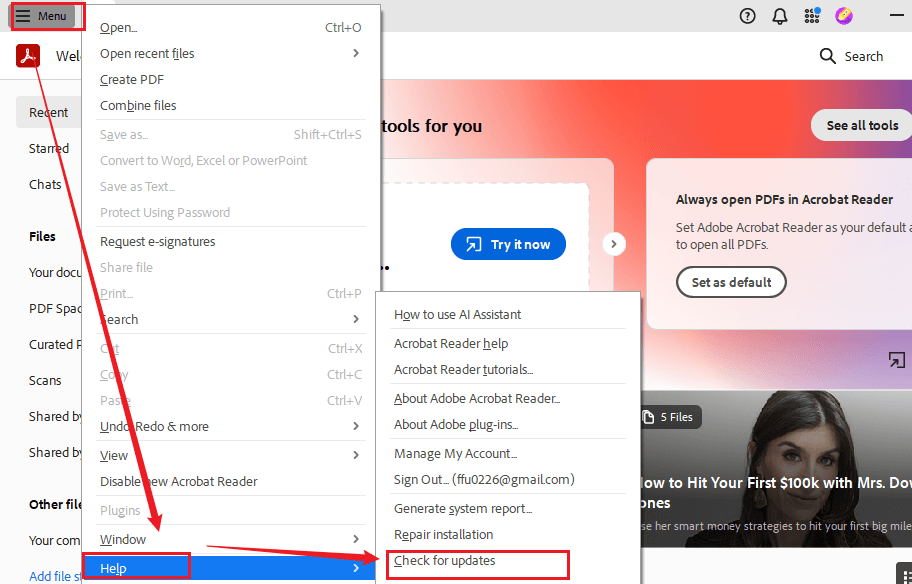
Step 3. Then, Adobe Acrobat will check for any available updates. If there is, install the available update. Next, restart Adobe Acrobat after the installation finishes.
✨Best For: Slow startup, bugs, and compatibility issues
3. Disable Unnecessary Plugins
Unnecessary plugins can slow down Adobe Acrobat. The more plugins Acrobat loads, the longer the startup may take. Hence, to speed up Adobe Acrobat, try to disable unused plugins.
Tips
Only disable plugins you recognize. If you’re unsure what a plugin does, leave it enabled or research its purpose first.
✨Best For: Slow startup
4. Turn Off Protected View
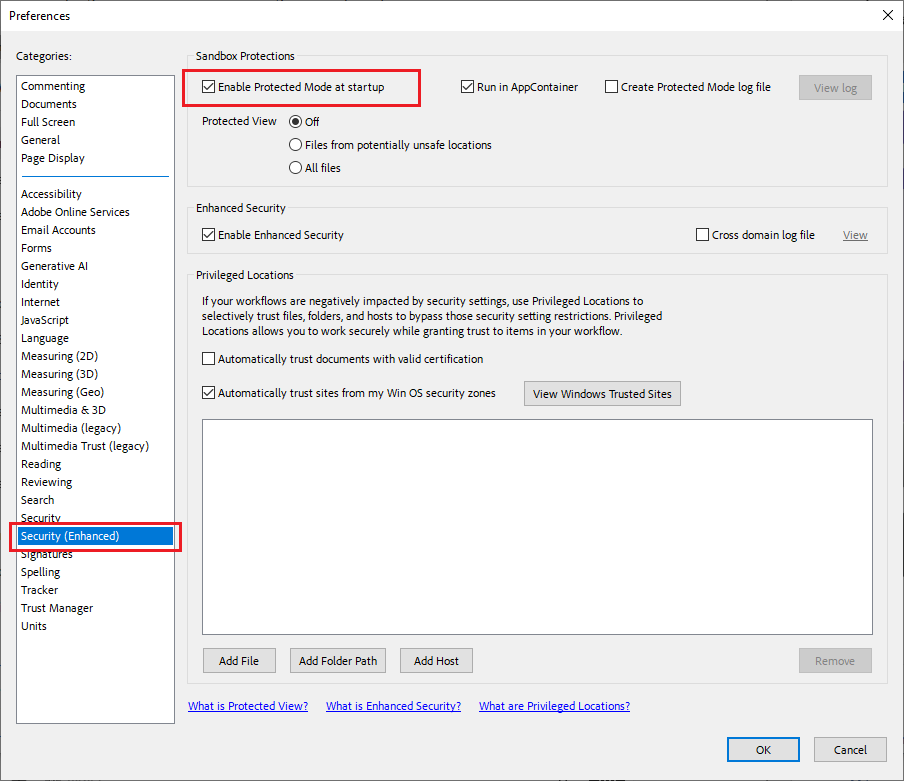
Protected View is a built-in security feature that can protect your computer from malicious PDFs. However, because Adobe Acrobat scans PDFs before opening them. Hence, it can slightly increase loading times, especially for large or network-based PDFs. Hence, you can try to turn off Protected View. Below is how:
Step 1. Launch Adobe Acrobat.
Step 2. Click Menu and select Preferences.
Step 3. Then, click Security (Enhanced) and uncheck the “Enable Protected Mode at startup” checkbox.
Tips
Disabling security setting features can expose your system to risk. Hence, you’d better only modify these settings if you understand the implications and regularly open PDFs from trusted sources.
✨Best For: PDFs that open unusually slowly
5. Disable Hardware Acceleration
From the above, we know that Adobe Acrobat uses GPU acceleration to render pages more efficiently. On older computers or systems with outdated graphics drivers, performance may be reduced. In that case, you can try disabling or adjusting hardware acceleration settings.
✨Best For: Slow scrolling, laggy zooming, or screen flickering
6. Optimize Large PDF Files
Adobe Acrobat can slow down when you work with large PDFs. That’s because large PDFs require more processing and Adobe Acrobat needs to render every image and other element in them. To speed up Adobe Acrobat, you can try optimizing large PDFs, like compressing high-resolution images, flattening PDFs, removing excessive annotations, or others. In addition, you can use JOPDF to make PDFs smaller.
✨Best For: Large documents that take a long time to open
7. Disable Adobe Cloud Synchronization
To facilitate collaboration, Adobe Acrobat integrates with Adobe Document Cloud to provide cloud storage, shared document access, cross-platform editing, and automatic synchronization. However, these features can slow Adobe Acrobat performance. If you only edit PDFs stored locally, consider disabling unnecessary cloud services.
✨Best For: Slow startup or delays when opening files
8. Clear Acrobat Preferences
Adobe Acrobat stores various configuration files that control your preferences and workspace. However, those files can become corrupted over time, leading to slow startup, random crashes, or lag during editing. To resolve the error, you can try clearing and resetting preferences to restore Adobe Acrobat to its default configuration.
✨Best For: Random slowdowns after updates
9. Repair the Acrobat Installation
How to repair the Adobe Acrobat installation? Below are the exact steps:
Step 1. Run Adobe Acrobat.
Step 2. Click Menu, move to Help, and select Repair installation.
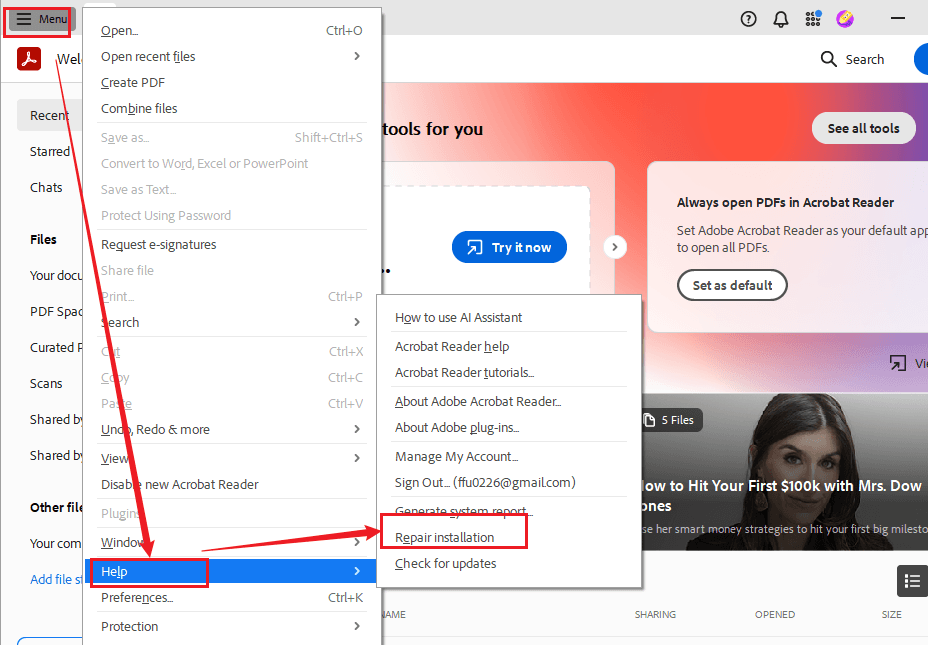
Step 3. Then, follow the on-screen instructions to complete the repair.
✨Best For: Persistent performance issues
10. Close Background Applications
Even powerful computers have limited resources. The performance of Adobe Acrobat can suffer when competing with demanding applications, such as video editing software, games, graphics design applications, or virtual machines. Therefore, close any unnecessary applications before opening a large PDF.
✨Best For: High CPU or memory usage
11. Reinstall Adobe Acrobat
If Adobe Acrobat remains slow despite all the previous troubleshooting steps, reinstalling the application may be the best solution.
✨Best For: Problems that persist after trying every other fix
12. Try Adobe Acrobat Alternatives
If you’ve tried all the troubleshooting methods above and Adobe Acrobat is still slow, it may be worth considering a different PDF editor.
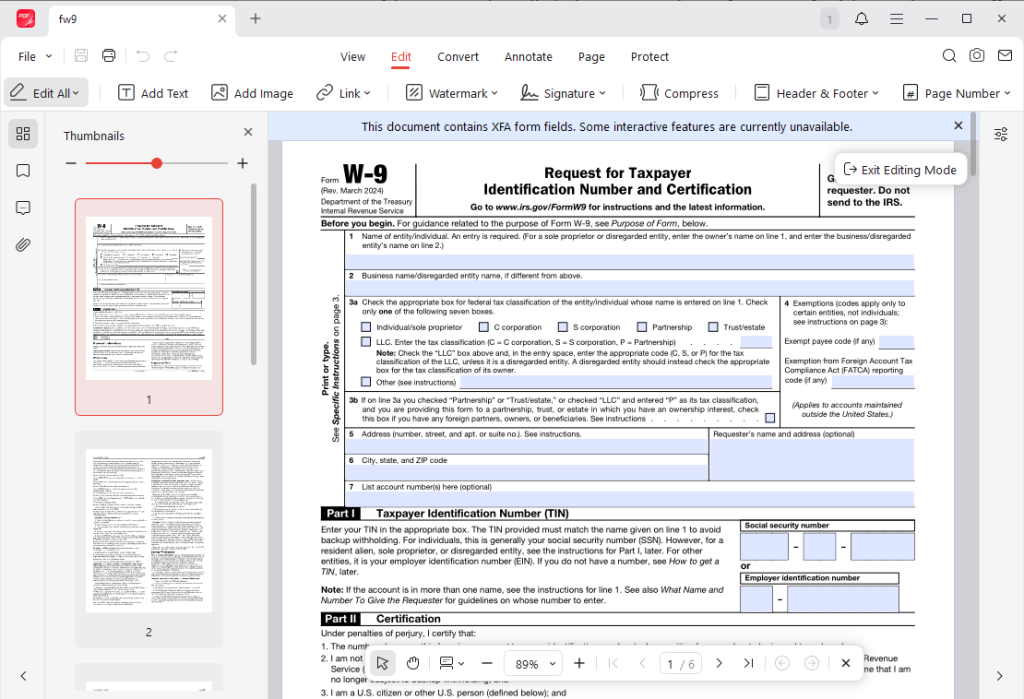
If you need a free Adobe Acrobat alternative, never miss JOPDF, a completely free PDF editor for Windows, Mac, and Linux. It compiles features for viewing, editing, annotating, organizing, compressing, and protecting PDFs. As one of the best free PDF editors, JOPDF allows you to edit PDF text, insert and edit images in a PDF, add watermarks and signatures, insert page numbers into PDF files, and more. Additionally, you can use it to reduce PDF file size.
In addition to JOPDF, you can also try the following alternatives to Adobe Acrobat. I prepared an introduction table for your reference.
| PDF Editor | Best For | Performance | Key Features |
| JOPDF | Fast PDF editing, annotation, and conversion | ⭐⭐⭐⭐⭐ Very Fast | Edit text and images, annotate PDFs, convert PDF formats, compress, merge, split |
| UPDF | Everyday PDF editing | ⭐⭐⭐⭐⭐ Very Fast | Edit text and images, annotate, OCR, AI assistant, convert PDFs |
| Foxit PDF Editor | Business and professional users | ⭐⭐⭐⭐☆ Fast | Advanced editing, eSign, collaboration, security features |
| PDFgear | Free PDF editing | ⭐⭐⭐⭐⭐ Very Fast | Edit, annotate, convert, OCR, AI-powered tools (free) |
| Nitro PDF Pro | Office productivity | ⭐⭐⭐⭐☆ Fast | PDF editing, document conversion, eSign integration |
| Smallpdf | Occasional online use | ⭐⭐⭐⭐☆ Fast | Compress, convert, merge, split, and edit PDFs through a web browser |
How to Prevent Adobe Acrobat from Becoming Slow Again
Once you’ve improved Acrobat’s performance, you can follow the simple maintenance habits to keep it running smoothly over time.
- Keep Adobe Acrobat updated
- Optimize large PDFs before sharing
- Close unnecessary applications
- Clean up temporary files
- Keep graphics drivers up to date
- Restart Adobe Acrobat periodically
Wrapping Up
In the content above, we discuss the causes of “Why is Adobe Acrobat so slow?” This error can be caused by large or complex PDFs, outdated Adobe Acrobat, excessive plugins, and other factors. Fortunately, most slowdowns can be resolved with several proven methods. For example, you can update Acrobat, optimize large PDFs, disable unnecessary plugins, or use an alternative to Adobe Acrobat (like JOPDF). I hope this article is helpful to you.
FAQs
#Too many startup plugins
#An outdated Adobe Acrobat
#Insufficient system resources
#Background Adobe services
Table of Contents

Your Best Free PDF Expert in PDF editing, compressing, converting, annotating, protect, organizing, and more.
Free DownloadWindows · macOS · Linux

Olivia
“Olivia is an editor at JOPDF, where she writes practical guides and insightful articles on managing PDFs—covering topics like editing, annotating, converting, and organizing files efficiently. Passionate about clear communication and digital productivity, Olivia enjoys spending her free time cooking, watching movies, and hiking to unwind and find inspiration for her writing.”