Introduction :
PDFs are designed to preserve formatting across devices. Sometimes, you need to remove an image from a PDF for several reasons. Can you remove images from any PDF? This is a question worth discussing. In this JOPDF article, let’s discuss that. More importantly, how to remove images from a PDF? You can also find detailed guidance and get several top PDF image remover tools.
Can You Remove Images from Any PDF?
Yes, you can delete images from PDFs. But not every PDF is edited the same way. Here, I divided PDFs into the 3 types, including editable PDFs, scanned PDFs, and password-protected PDFs. Each of them has different characteristics. Let’s have a brief look:
- Editable PDFs: They are the easiest files to modify with a reliable PDF editor. In those PDFs, text, images, shapes, and other elements are stored as independent objects, allowing them to be identified and edited by a PDF image editor.
- Scanned PDFs: Instead of containing editable objects, each page is essentially a photograph of the original paper document. Text, images, signatures, and graphics are merged into a single large image. Hence, you cannot simply delete a picture in a scanned PDF.
- Password-protected PDFs: If the PDF is protected from editing, you cannot edit the PDF without the correct permission password.
So, can you remove pictures from editable, scanned, or password-protected PDFs? Here’s a table for your reference:
| PDF Type | Can Remove Images? | Difficulty | Recommended Method |
| Editable PDF | Yes | Easy | PDF editor (Like JOPDF) |
| Scanned PDF | Partially | Medium | OCR + PDF editor |
| Password-Protected PDF | Depends on permissions | Medium | Unlock the PDF before editing |
How to Remove Images from a PDF
How to remove unwanted images from a PDF? In this section, I’ll introduce you to three of the most effective ways to remove images from a PDF, along with several tools you can use for each method. Now, let’s check them one by one.
Method 1. Use a Desktop PDF Editing Software
If you frequently edit PDFs, a desktop PDF editor can give you greater control and more reliable results. A professional PDF editor can help you identify image objects and preserve document formatting. Here, I have rounded up several PDF image removers for you to choose from:
- JOPDF
- SwifDoo PDF
- Foxit PDF Editor
- Adobe Acrobat Pro
- Nitro PDF Pro
Here, I’d like to recommend JOPDF, a free PDF image remover for Windows, Mac, and Linux. It enables you to edit and remove PDF images effortlessly. In addition to deleting images from editable PDFs, JOPDF lets you unlock protected PDFs for editing. How to delete PDF pages in JOPDF? Here are the exact steps:
Step 1. Click the button below to download and install JOPDF on your Windows or Mac PC.
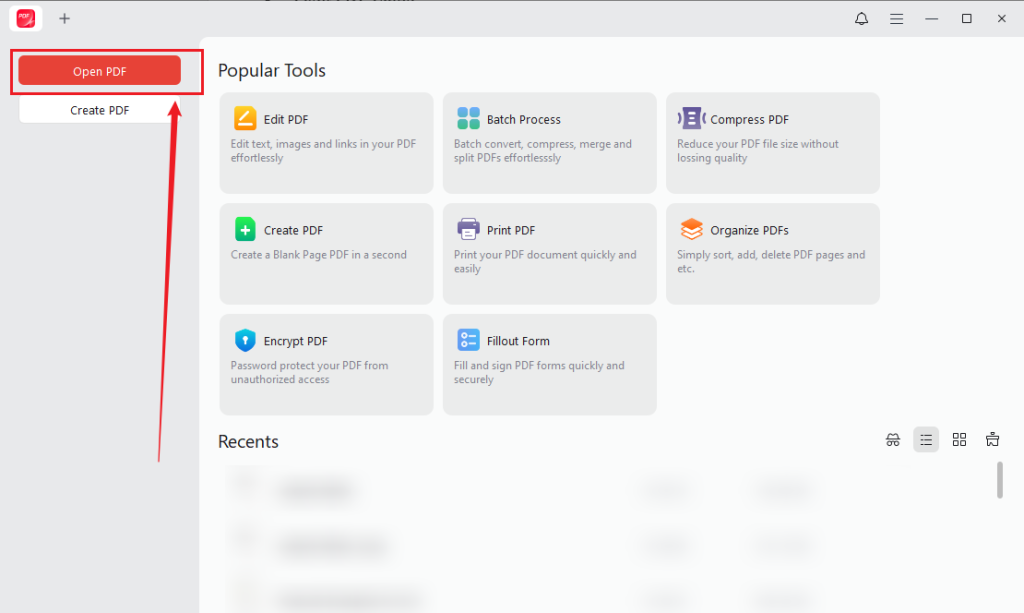
Step 2. Launch this free PDF image remover and click Open PDF to import the PDF file you want to edit.
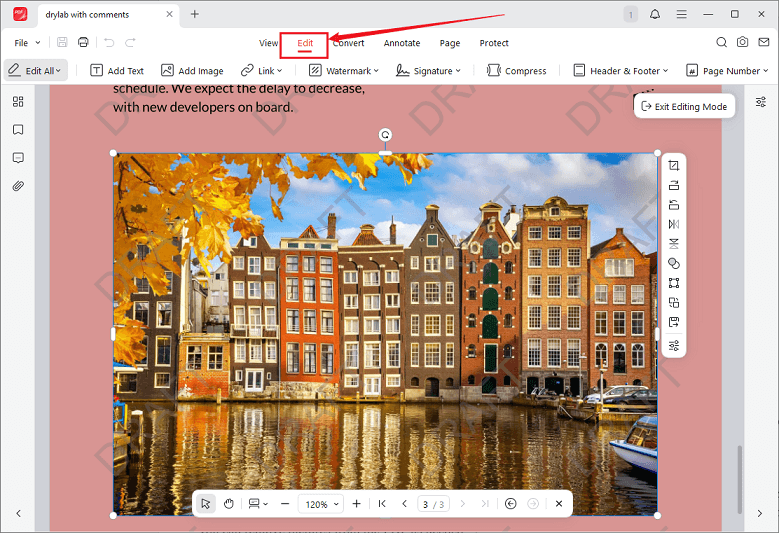
Step 3. Switch to Edit mode, click the image you want to delete, and press the Delete key on your keyboard to remove the image. Meanwhile, preview the surrounding text, spacing, and layout.
Tips
If the PDF is locked for editing, go to the Protect tab when you import it into JOPDF. Then, click Decrypt and hit “Don’t have the permission password?”. Next, click Remove to make the locked PDF editable. Then, you can remove pictures from the PDF as needed.
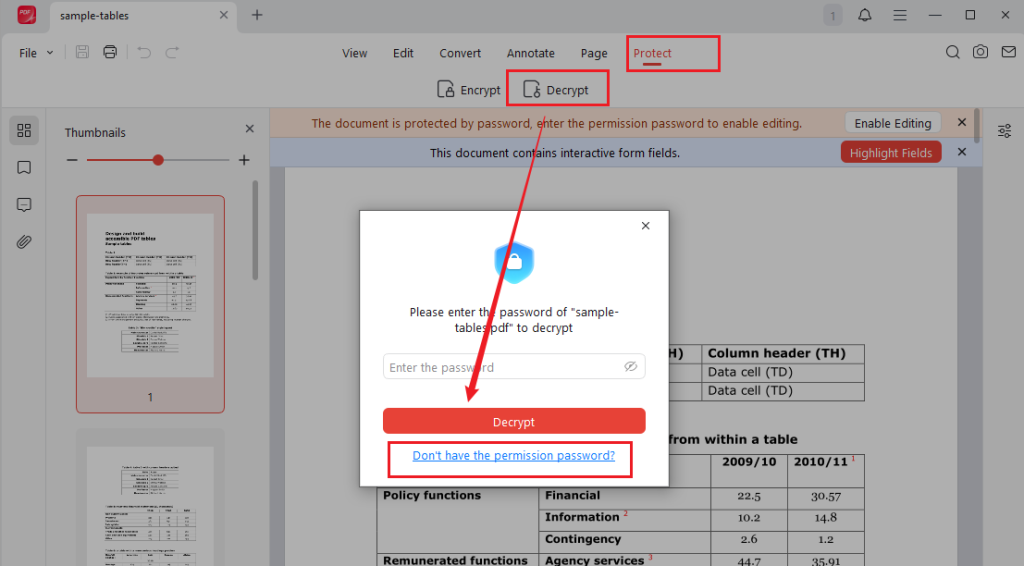
Step 4. Finally, click the Save icon to save the changed PDF file.
Advantages:
- Higher editing accuracy
- Better preservation of page layout
- Faster performance with large PDF files
- Support for OCR and advanced editing features
- No need to upload sensitive documents to an external server
Limitations:
- Installation is required.
- Advanced features may require a paid license in some tools, like Adobe Acrobat Pro.
Best For:
- Business reports
- Contracts
- Marketing materials
- Technical documentation
- Large or frequently edited PDF files
Method 2. Use an Online PDF Image Remover
If you only need to edit a document occasionally, an online PDF image remover is often the fastest solution. With an online tool, you don’t need to download and install any software. When choosing an online PDF image remover, security is the primary consideration. Below are some popular online PDF image removers for you to choose from:
- pdfFiller
- Smallpdf
- iLovePDF
- PDF Candy
- Sejda PDF Editor
- PDF2Go
- Xodo PDF Editor Online
Those online tools are convenient for quick edits, especially when you only need to remove a logo or other simple graphic from an editable PDF. Here, let’s see how to delete pictures from a PDF using pdfFiller.
Step 1. Open your browser and visit pdfFiller’s Image Remove tool website.
Step 2. Click Select from device to upload the PDF you want to edit, and click Start editing.
Step 3. Once the PDF file is uploaded, click the picture you want to remove and click the Delete icon to remove it.
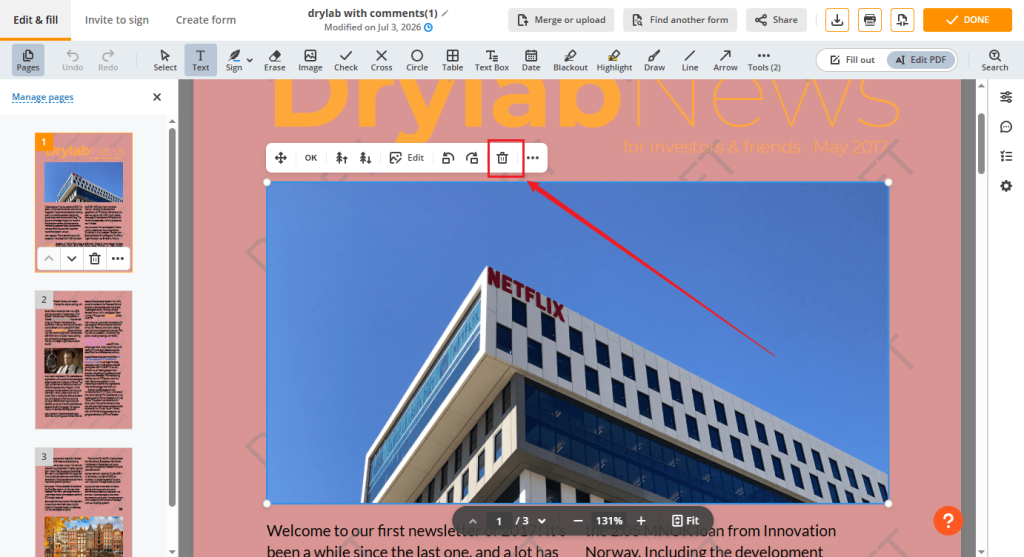
Step 4. Finally, click the Download icon to save the PDF file locally.
Advantages:
- No software installation required
- Accessible from Windows, macOS, Linux, and mobile devices
- Ideal for quick edits
- Easy to use for beginners
Limitations:
- Uploading documents may not be suitable for confidential files.
- Many free services limit file size or the number of edits.
- Some tools add watermarks or require a subscription for downloads.
- OCR support is often unavailable or limited.
Best For:
- Removing a single picture from an editable PDF
- Deleting logos or graphics from simple documents
- One-time editing tasks
Method 3. Remove Images from a Scanned PDF
How can you remove images from a scanned PDF? For scanned PDFs, you need to use a PDF editor with OCR to make them editable and searchable. Below are some available OCR-enabled PDF tools:
- SwifDoo PDF
- Adobe Acrobat Pro
- Foxit PDF Editor
- Wondershare PDFelement
- Nitro PDF Pro
These tools can recognize text and page elements, making it possible to edit scanned PDFs more effectively. Although Adobe Acrobat Pro is an industry-leading PDF tool, it requires an expensive subscription fee. SwifDoo PDF is a cost-effective alternative to Adobe Acrobat. You can use it to remove PDF images, resize and edit images in a PDF, and make other edits. Here are instructions for removing images from a scanned PDF using SwifDoo PDF.
Step 1. After installing SwifDoo PDF on your Windows PC, click Open to import the target scanned PDF.
Step 2. Click Apply OCR in the top bar and customize related settings in the Recognize Document window. Then, click Apply to make the scanned PDF editable.
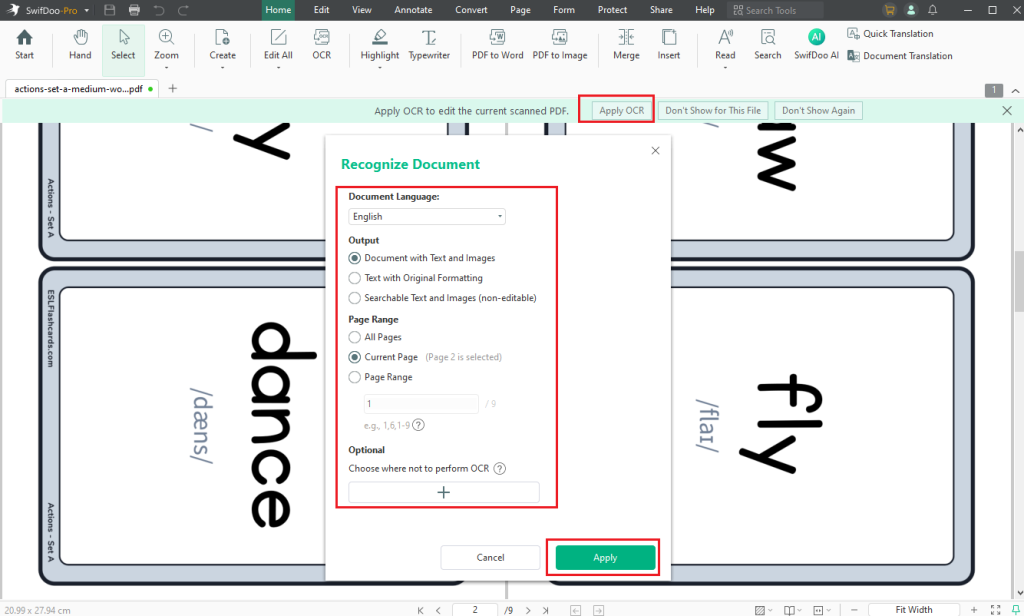
Step 3. Click the unwanted image, then press Delete on the keyboard to remove it.
Step 4. Finally, press Ctrl + S to save the PDF file.
Limitations:
Although OCR technology has improved significantly, it is not perfect. You may encounter issues, such as:
-
- Incorrectly recognized characters
- Broken text formatting
- Misaligned paragraphs
- Images that remain merged with surrounding objects
- Decorative backgrounds that require manual cleanup
Best PDF Image Remover Tools
On the market, there are dozens of PDF editors that support removing images from PDFs. Which one is the best PDF image remover? Here’s a quick comparison table for you to review.
| Tool | Platform | Free Version | OCR | Best For |
| JOPDF | Windows, Mac, and Linux | 100% Free | ✖ | Complete free PDF editing |
| Adobe Acrobat Pro | Windows, Mac, and Web | Trial | ✔ | Professional document editing |
| SwifDoo PDF | Windows | Trial | ✔ | Lightweight PDF editing |
| pdfFiller | Web | Trial | ✔ | Forms, cloud editing, and collaboration |
| Smallpdf | Web | Limited | ✖ | Quick online edits |
| PDF-Xchange Editor | Windows | Free | ✔(paid) | Advanced Windows users |
Now, let’s take a closer look at some of the best PDF image removers.
JOPDF
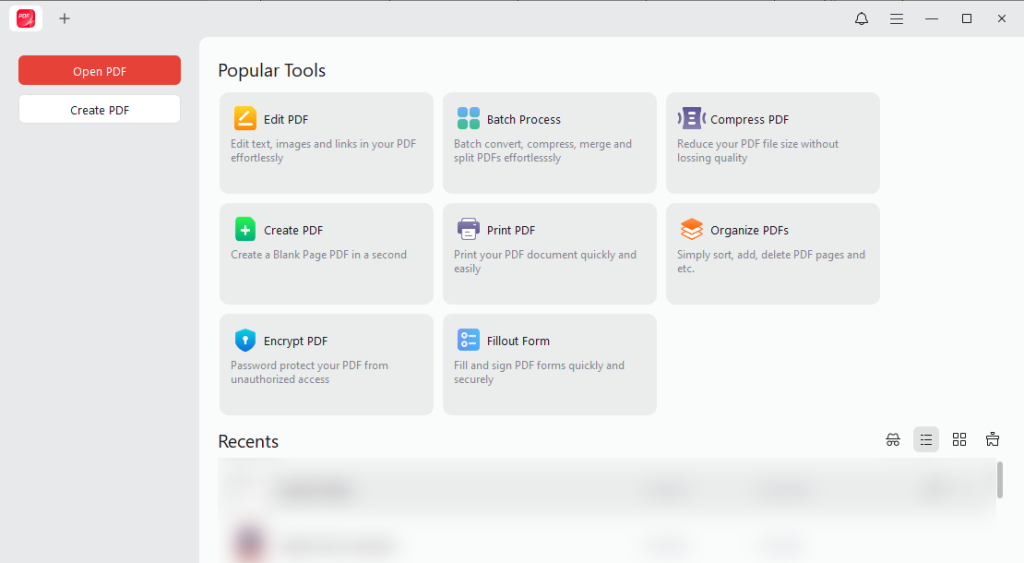
JOPDF is an all-in-one PDF editor for beginners. In addition to removing images from PDFs, it allows you to edit PDF text, insert or replace pictures, annotate PDFs, merge and split PDFs, fill out PDF forms, and make other edits. More importantly, it is a completely free cross-platform tool.
Pros:
- Remove/replace/resize images in PDFs
- Edit PDF text and images
- Convert PDFs to and from Word, Excel, PPT, and some image formats
- Suitable for both personal and professional use
- Available on multiple platforms
- Preserves document formatting well during editing
Cons:
- Requires installation on your computer
- Does not support OCR
Adobe Acrobat Pro
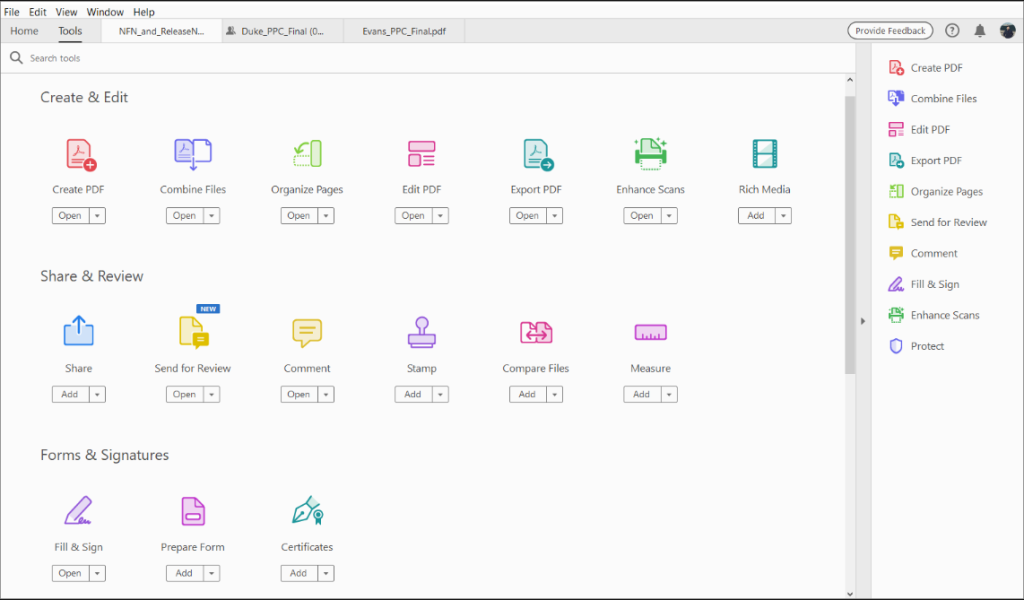
Adobe Acrobat Pro is widely regarded as the industry standard for PDF editing. It provides precise control over text, images, forms, comments, and page layouts, making it an excellent choice for professional document workflows. What’s more, it also includes one of the most accurate OCR engines, making it effective for editing scanned PDFs.
Pros:
- Professional-grade PDF editing tools
- Excellent OCR accuracy
- Reliable formatting preservation
- Support adding signatures to a PDF
- Available on multiple platforms
Cons:
- Expensive subscription cost
- Some features may be unnecessary for occasional users
SwifDoo PDF
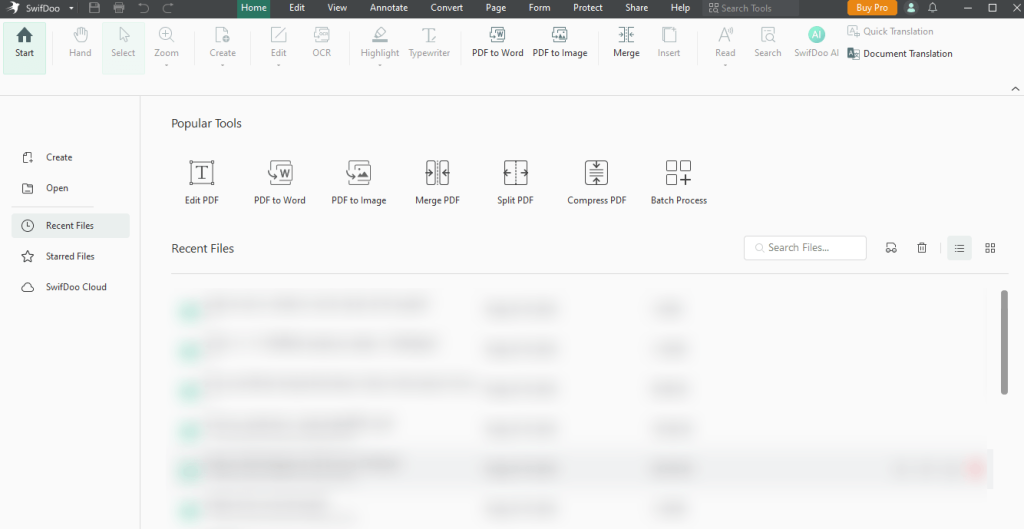
SwifDoo PDF is a lightweight PDF editor that balances ease of use with practical editing tools. In addition to basic editing features, it also includes some advanced features. For instance, you can use it to flatten PDFs, password-protect PDFs, sign and fill out PDF forms, translate PDFs, and more. Like Adobe Acrobat Pro, SwifDoo PDF also includes OCR support.
Pros:
- Easy-to-use interface
- Supports image removal and replacement
- Recognize text and images in PDFs with OCR
- Includes common editing and conversion tools
- Good performance for routine PDF tasks
Cons:
- Some advanced features require a paid plan
- Advanced features are only available in the Windows version
pdfFiller
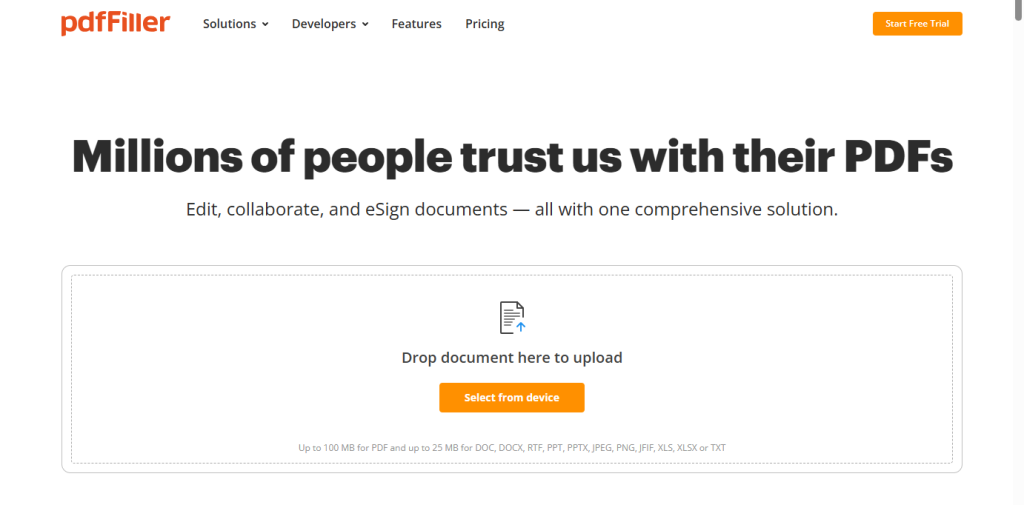
pdfFiller is a cloud-based PDF editor built around document workflows, forms, and collaboration. In addition to editing text and images, it is especially useful for filling out forms, adding signatures, and managing documents online.
Pros:
- Cloud-based editing and collaboration
- Without software installation required
- Can work on both PCs and mobile devices
- Supports common PDF editing tasks
Cons:
- The free version has limited features
- Less suitable for highly sensitive files than offline tools
Wrapping Up
It can be easy to remove images from PDFs once you select the right tool. In this article, I introduce you to several PDF image remover tools and show you how to delete unwanted images from a PDF with detailed steps. Whether you choose an online tool for quick edits or a desktop PDF image remover for more control, always select the right tool as needed. Hopefully, this article is helpful to you.
FAQs
#For Professional Editing: Adobe Acrobat Pro offers comprehensive PDF editing and OCR features.
#For an All-in-One Desktop Solution: JOPDF combines image editing, OCR, conversion, and document management.
#For Free Editing: JOPDF provides many useful features without requiring a paid subscription for basic tasks.
#For Quick Online Edits: Smallpdf and iLovePDF are convenient choices for simple, browser-based editing.
If you regularly work with scanned documents, choose software that includes built-in OCR. If you handle confidential files, a desktop PDF editor is generally a better option than an online service.
Table of Contents

Your Best Free PDF Expert in PDF editing, compressing, converting, annotating, protect, organizing, and more.
Free DownloadWindows · macOS · Linux

Olivia
“Olivia is an editor at JOPDF, where she writes practical guides and insightful articles on managing PDFs—covering topics like editing, annotating, converting, and organizing files efficiently. Passionate about clear communication and digital productivity, Olivia enjoys spending her free time cooking, watching movies, and hiking to unwind and find inspiration for her writing.”