Introduction :
Are you looking for ways to sign a PDF on your Mac without printing it? If you are a macOS user, you already have a free tool, Preview, to sign PDFs quickly and easily. It enables you to create and insert an electronic signature into a PDF in a few clicks. How to sign a PDF in Preview? In this JOPDF article, I will walk you through the detailed instructions for signing PDFs with Preview.
Can You Sign a PDF in Preview
Yes. Preview allows you to electronically sign PDFs for free using its built-in Markup tools. You can create a handwritten signature and insert it into PDFs without printing or scanning the file. In addition to adding signatures, Preview also lets you:
- Highlight and underline PDF text
- Add text boxes to a PDF
- Fill out PDF forms
- Annotate PDFs
- Delete or rearrange PDF pages
Electronic Signature vs. Digital Signature
Before signing your document, it’s important to understand the difference between the two types of signatures.
| Feature | Electronic Signature | Digital Signature |
| What it is | A visual handwritten or typed signature | An encrypted signature backed by a digital certificate |
| Supported in Preview | Yes | No |
| Best for | Contracts, forms, approvals, consent documents | Legal, corporate, or government documents requiring identity verification |
| Security | Basic | High, with identity authentication and tamper detection |
For most of us, an electronic signature is sufficient. Hence, Preview is enough. However, if your client or employer requires a certificate-based digital signature, you need a professional PDF editor, such as Adobe Acrobat Pro.
Ways to Create a Signature in Preview
Preview offers 3 ways to create a signature. In the following content, let’s see how to create a signature in Preview.
#1. Use the Trackpad
If you have a MacBook or Magic Trackpad, you can draw your signature directly with your finger. This is one of the fastest ways to create a reusable signature without any extra devices.
🎈Best For: Quick signatures when you’re working directly on your Mac.
#2. Use Your Mac’s Camera
If you prefer to write signatures on paper, this method is suitable for you. You can simply sign your name on a blank white sheet of paper and hold it in front of your Mac’s built-in camera. Then, Preview will automatically detect the handwritten signature.
🎈Best For: Users who want a more natural handwritten signature.
#3. Use Your iPhone or iPad
If your Mac and iPhone or iPad are signed in to the same Apple ID, Preview supports Apple’s Continuity features. You can draw your signature on your mobile device using your finger or an Apple Pencil, and it will instantly appear in Preview on your Mac.
🎈Best For: Users who want the most accurate handwritten signature.
How to Sign a PDF in Preview
In this section, let’s learn how to sign a PDF on Mac using Preview. Let’s check the following 3 methods one by one.
Method 1: Create and Sign a PDF Using Your Trackpad
If you are using a MacBook or a Magic Trackpad, using your trackpad to sign a PDF is the quickest option. You can use your finger to draw your signature with ease. Below are the exact steps:
Step 1. Locate the PDF you want to sign, right-click it, and choose Open With > Preview.
Step 2. Click the Show Markup Toolbar button to display the toolbar, then select the Sign button and click the Create Signature button.
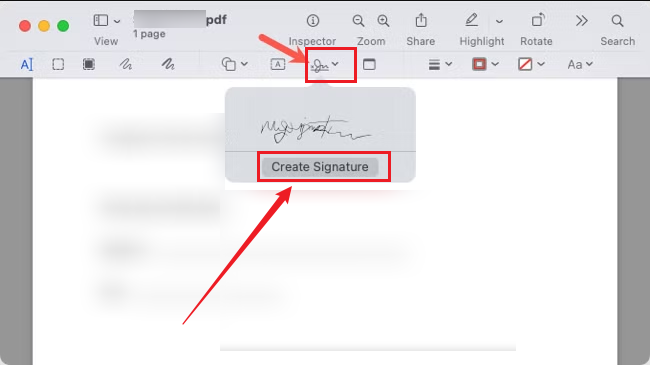
Step 3. Next, click the Trackpad tab, click the prompt to begin drawing, and use your finger to write your signature on the trackpad.
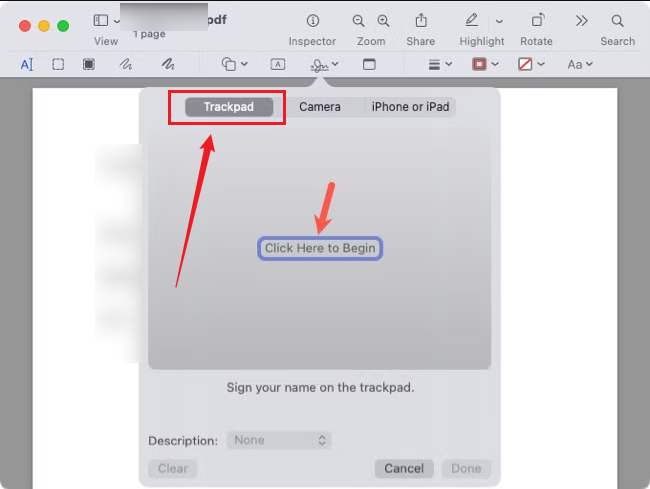
Step 4. Press any key when you’re finished and then click Done. If you are not satisfied with the signature, click Clear and try again.
Step 5. Finally, click the Sign button again, select the newly created signature, then click anywhere on the PDF to insert it. Optionally, you can drag the signature to change its position or drag the corner handles to resize it.
Method 2: Sign a PDF Using Your Mac Camera
If you find it inconvenient to write on the trackpad, you can use the Mac’s built-in camera to create a clearer signature. This method can capture your handwritten signature from a piece of paper. Here are detailed instructions:
Step 1. Open your PDF in Preview, then write your signature on a clean, white sheet of paper with a dark pen.
Step 2. Click Show Markup Toolbar, click Sign, and hit the Create Signature option.
Step 3. Click the Camera tab and hold the paper in front of your Mac’s camera. Here, you need to make the signature align with the blue guideline. Then Preview will automatically detect and capture the signature. Next, click Done to save the signature.
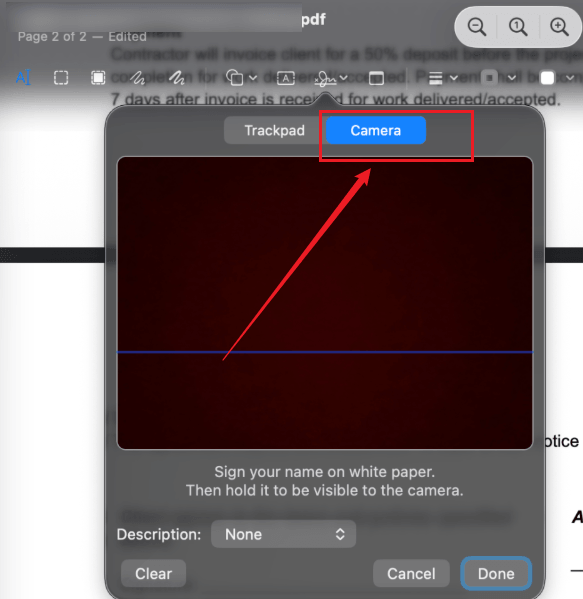
Step 4. Once the handwritten signature is created, click Sign again, select the signature, and add it to the PDF.
Method 3: Add a Signature to a PDF with Your iPhone or iPad
If you have an iPhone or iPad, you can use Apple’s Continuity features to draw a more natural signature. Now, let’s learn how to add a signature to a PDF with your iPhone or iPad.
Tips
Before you start, you need to make the following preparations:
- Your Mac and iPhone or iPad are signed in with the same Apple ID.
- Wi-Fi and Bluetooth are enabled on both devices.
- Both devices are within Bluetooth range.
Step 1. Open the PDF in Preview, go to Show Markup Toolbar > Sign > Create Signature.
Step 2. Click the iPhone or iPad button and select your available iPhone or iPad from the signature options.
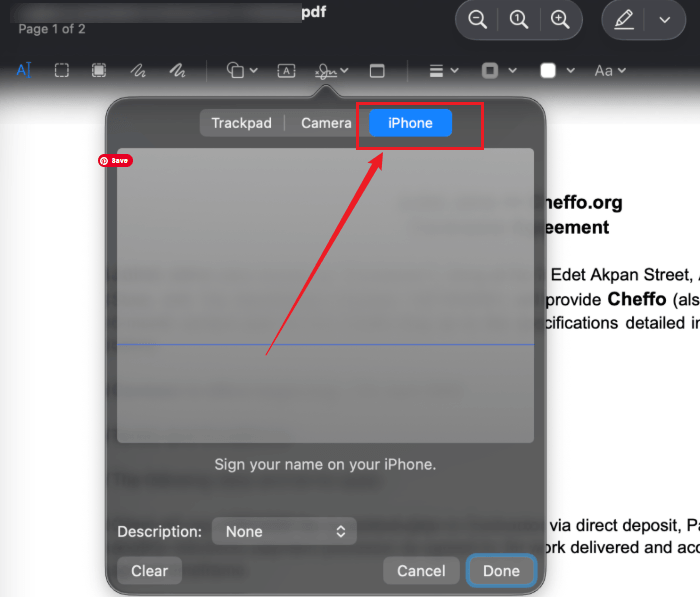
Step 3. Then a signature window will automatically appear on your mobile device. Now, you can draw your signature using your finger or Apple Pencil. Once done, click Done on your iPhone or iPad.
Step 4. Then, the signature will instantly sync to Preview on your Mac. Next, select the signature and place it in the appropriate location within the PDF.
Which Signature Method Should You Choose
| Method | Ease of Use | Signature Quality | Best For |
| Trackpad | ★★★★★ | Good | Fast everyday signing |
| Mac Camera | ★★★★☆ | Excellent | Real handwritten signatures |
| iPhone/iPad | ★★★★★ | Excellent | Natural writing with finger or Apple Pencil |
Fixes for “Can’t Sign a PDF in Preview”
Sometimes the Sign button is unavailable, or Preview won’t let you add a signature. In most cases, the problem is caused by the PDF itself rather than the Preview app. Here are some common issues and workable fixes.
#The Markup Toolbar Is Invisible
If you don’t see the signature option, the Markup Toolbar may be hidden. How to make the Markup Toolbar visible. Here’re 2 solutions.
- Click the Show Markup Toolbar button.
- Or go to View > Show Markup Toolbar.
#The Sign Button Is Grayed Out in Preview
Why is the Sign button grayed out in Preview? It means that Preview may not have permission to edit the document. The possible causes may be as follows:
- The PDF is opened in read-only mode.
- The file is locked.
- The document has editing restrictions.
Here are the corresponding solutions:
- Save a local copy of the PDF before opening it in Preview.
- Check whether the document owner has restricted editing.
- Try opening a different PDF to determine whether the issue is file-specific.
If the PDF has restricted editing and you forget the PDF password, you can use JOPDF to unlock a PDF for editing and signing.
#The PDF Is Password-Protected
Some PDFs require a password before you can edit or sign them. In this case, you need to know the permission password. If you don’t know the password, you need to request it from the document owner. Alternatively, you can use it to remove a password from a PDF.
Limitations of Signing PDFs in Preview
Preview is a practical PDF editor for Mac, and lets you sign a PDF for free. However, Preview is not designed for advanced document workflow. It still has limitations as follows:
- Doesn’t support certificate-based digital signatures
- Offers limited PDF editing features
- No batch processing
- Limited conversion features
- Only available on Mac
Best Alternative to Preview for Signing PDFs
If you only need to sign a PDF occasionally on a Mac, Preview is an excellent choice. However, if you also need to edit PDF text, batch process PDFs, or make other advanced edits, a dedicated PDF editor, like JOPDF, offers much greater flexibility.
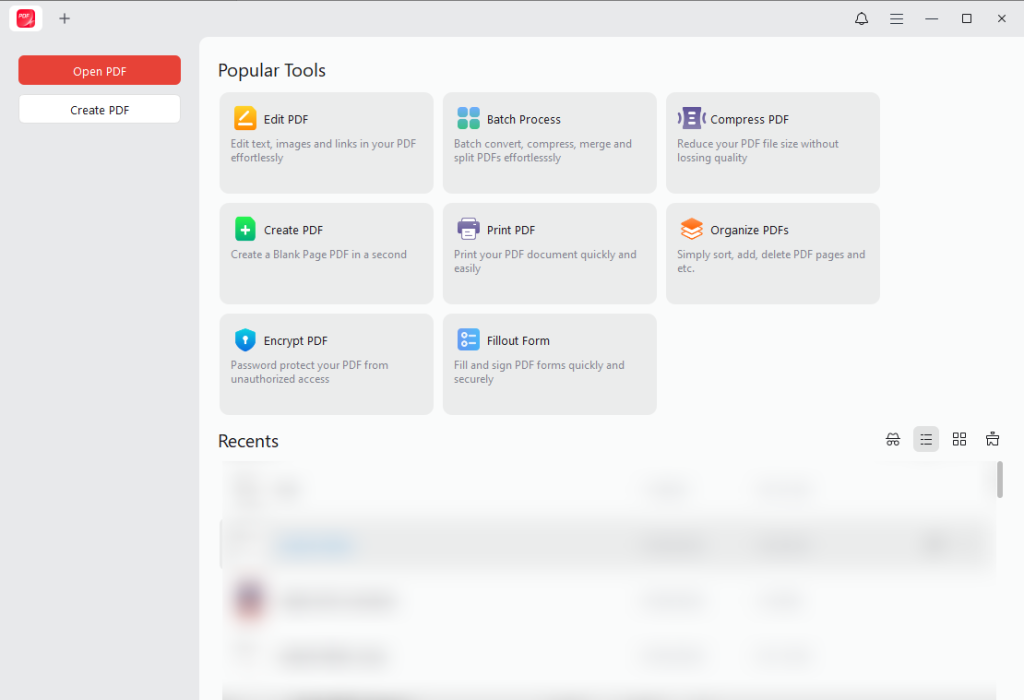
JOPDF is a good alternative to Preview. As a free offline PDF editor, JOPDF can work on Windows, macOS, and Linux. In addition to adding electronic signatures, JOPDF provides a complete set of tools for editing, annotating, converting, protecting, and organizing PDF documents. Here’s a comparison table of JOPDF vs Preview:
| Feature | Preview | JOPDF |
| Add electronic signatures | ✓ | ✓ |
| Edit PDF text | Limited | ✓ |
| Fill PDF forms | ✓ | ✓ |
| Annotate PDFs | ✓ | ✓ |
| Merge and split PDFs | Limited | ✓ |
| Rearrange, rotate, and delete pages | ✓ | ✓ |
| Convert PDFs to other formats | Limited | ✓ |
| Password protection | Basic | ✓ |
| Batch PDF processing | ✗ | ✓ |
| Windows support | ✗ | ✓ |
| macOS support | ✓ | ✓ |
| Linux support | ✗ | ✓ |
| Offline use | ✓ | ✓ |
When Should You Use JOPDF
Preview is sufficient if you simply want to sign a document before emailing it back. However, JOPDF is a better option if you need to:
- Edit existing text or images in a PDF
- Convert PDFs to Word, Excel, PowerPoint, or image formats
- Merge, split, or organize PDF pages
- Batch convert or compress PDFs
- Password-protect PDFs or remove passwords
- Add page numbers to a PDF
- Use the same PDF editor on Windows, macOS, or Linux
Bottom Line
Preview is an effective solution to sign a PDF on a Mac. It is built into macOS, making it possible to create and add a signature without installing any additional software. You can sign a PDF in Preview using your trackpad, Mac camera, or iPhone/iPad. However, if you frequently work with PDFs, a Preview alternative such as JOPDF is worth trying. Hopefully, this article can help you sign PDFs effectively.
FAQs
#Open any PDF in Preview.
#Click Show Markup Toolbar and click the Sign button.
#Then find the saved signature here and click the X icon next to it. Now, the signature will be permanently removed from Preview.
Table of Contents

Your Best Free PDF Expert in PDF editing, compressing, converting, annotating, protect, organizing, and more.
Free DownloadWindows · macOS · Linux

Olivia
“Olivia is an editor at JOPDF, where she writes practical guides and insightful articles on managing PDFs—covering topics like editing, annotating, converting, and organizing files efficiently. Passionate about clear communication and digital productivity, Olivia enjoys spending her free time cooking, watching movies, and hiking to unwind and find inspiration for her writing.”