Introduction:
When you receive a PDF file in an email or download a form from a website, it usually opens right in Google Chrome. If you need to make quick changes and want to know how to edit a PDF in Chrome, you actually have a few very easy options. Check this guide for details.
Can I Edit a PDF in Chrome?
You may ask, is it possible to edit a PDF in Chrome? The short answer is yes, it is possible. However, it is very important to understand that the built-in features in your web browser have strict limits. Chrome acts mostly as a viewer for your files.
With the newest updates in Chrome version 145 and later, Google added native annotation tools. This means you can draw lines, highlight important sentences, or add simple text notes directly on top of the page. You can even sign your name.
However, you cannot change the original words that were already typed on the page, and you cannot swap out or move the pictures that are already there.
If you need to actually change the original text or make other edits, you should try JOPDF. It is a professional and free PDF editor that provides a full set of professional editing tools to let you work simply.
How to Edit a PDF in Chrome
If you just need to make quick notes or fill out a simple form, here is exactly how to edit a PDF in Google Chrome. There are three simple methods you can use right now, depending on what you need to do.
Way 1. Use the Built-in Annotation Tools
If you are wondering how to edit a PDF in Chrome for free without downloading any extra programs or visiting new websites, you can use the browser’s own built-in tools.
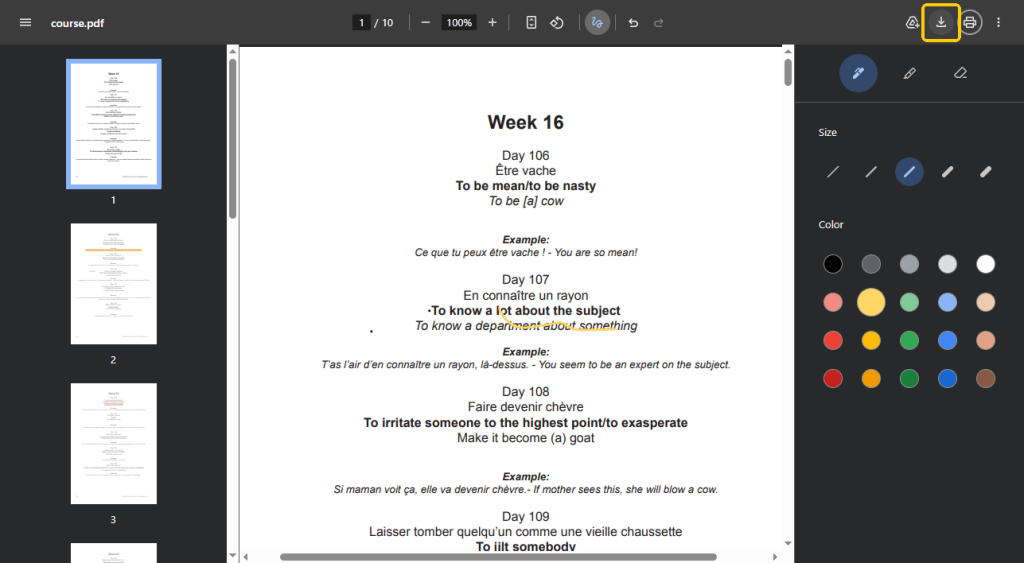
- First, locate the document on your computer. Click and drag your file, then drop it into a new, blank Chrome tab to open a PDF in Chrome.
- Look at the top right corner of the screen. You will see a small taskbar. Click the Draw icon. This is your brand-new annotation tool menu.
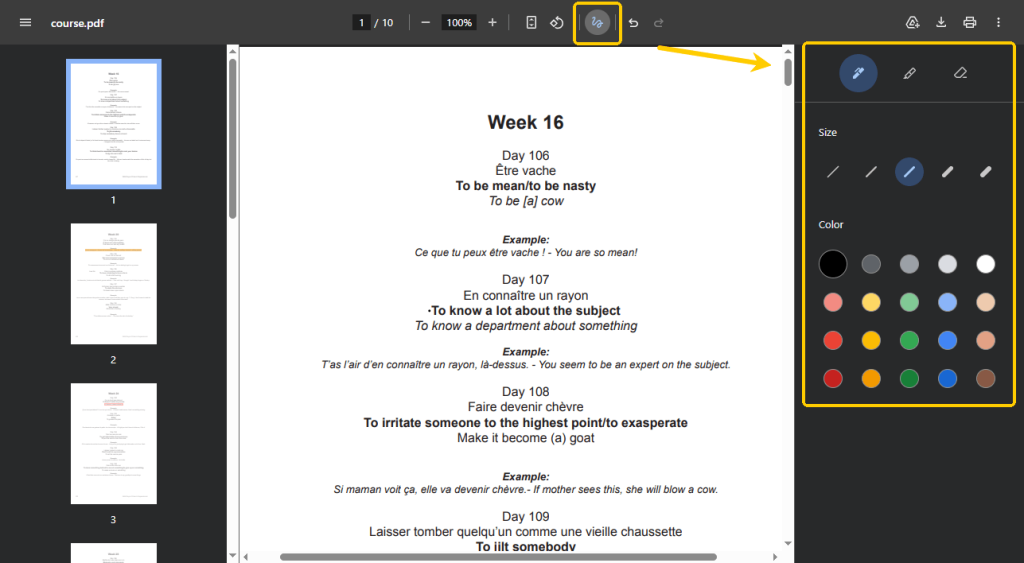
- A side panel will open on the right. Here, you can select a pen to draw on a PDF in Chrome. You can choose different colors and adjust the pen size. You can also select the Highlighter tool to mark important words.
- When you are finished, click the Download button and select a folder to save the document.
Way 2. Use an Extension
An extension is a small add-on tool you can plug right into your Chrome browser to give it extra superpowers. If you want more features than the basic Google tools offer, an extension is a great choice. However, some of the editing features are not free.
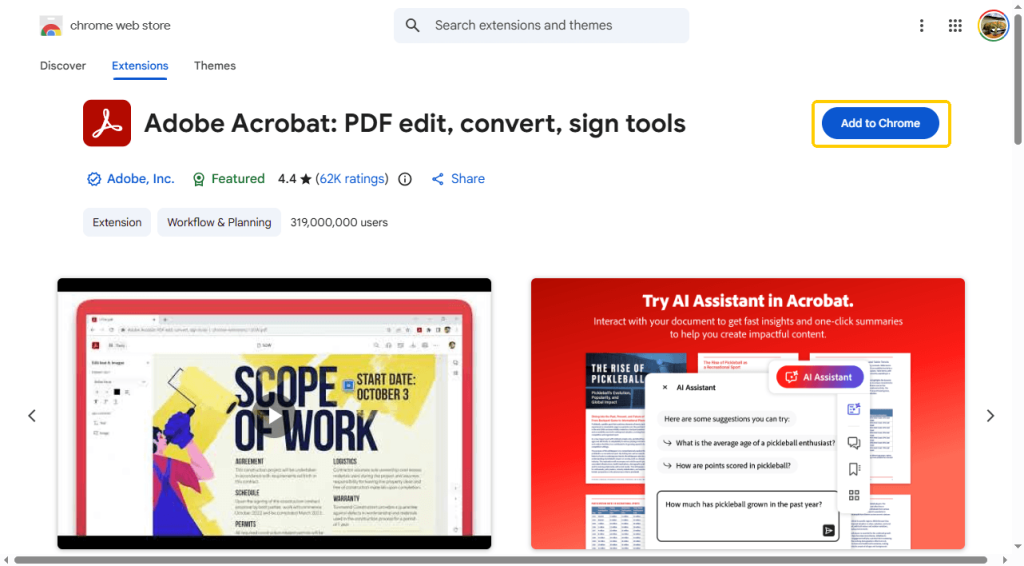
- Go to the Chrome Web Store online (https://chromewebstore.google.com/).
- Search for a PDF editor extension. Popular choices include tools like pdfFiller or the Adobe Acrobat extension.
- Click the button that says Add to Chrome. The browser will install the tiny program in seconds.
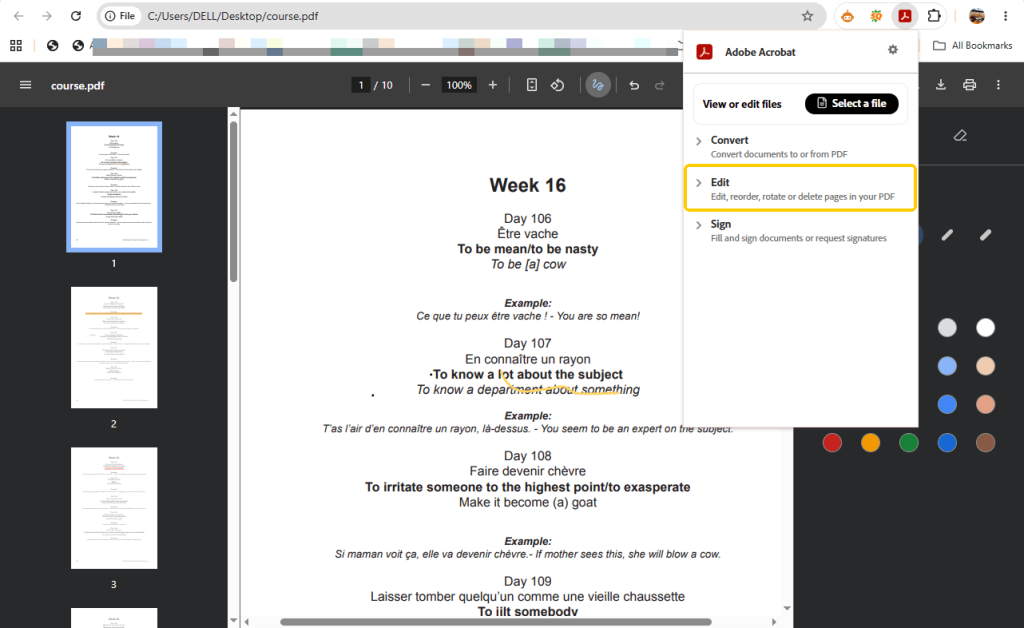
- Now, click the new puzzle piece icon at the very top of your screen. Follow the prompts to open the document and start editing.
Way 3. Use an Online Editor
You can also use a web-based service directly inside your Chrome window to get the job done. This is perfect if you are using a public computer or a work laptop where you are not allowed to install extensions.
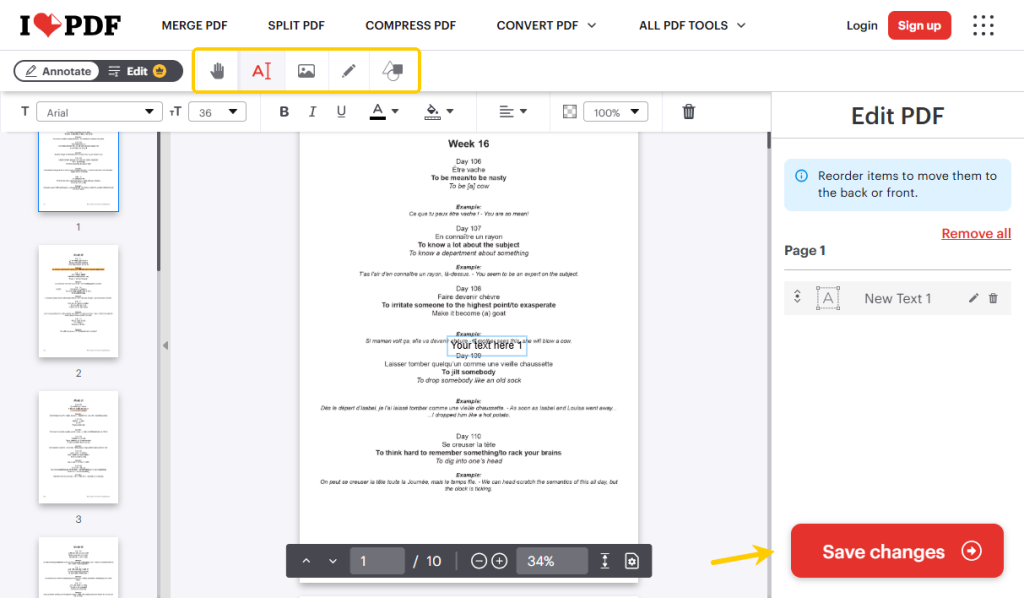
- Open Chrome and go to a trusted online tool website like iLovePDF.
- Click the big button on the screen to upload the file from your computer to the webpage. You can also just drag and drop the file.
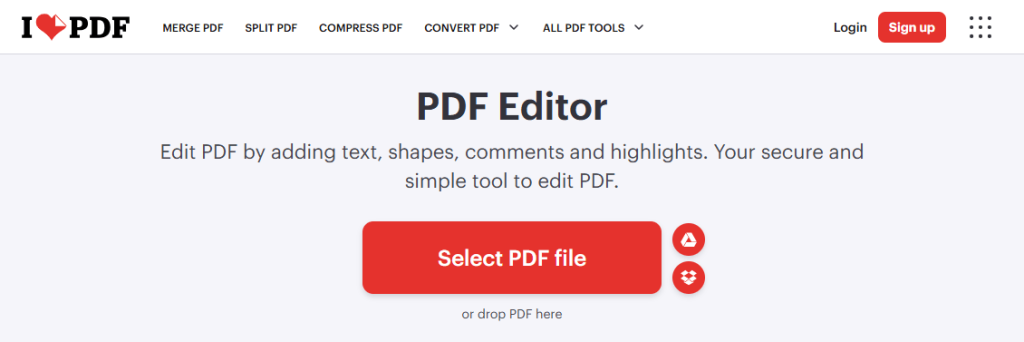
- Once the file loads, use the website’s toolbar. You can easily add text boxes, draw shapes, or insert page numbers.
- When your document looks perfect, click the Save changes button. The website will process your changes, and you can download the new document to your computer.
Bonus Tip: An Easy Way to Edit PDFs for Free
If you find that neither the built-in tool nor online tools can meet your needs, then you definitely need a professional PDF editor, such as JOPDF.
It is professional, incredibly easy to use, and completely free. While Chrome is great for quick drawings, JOPDF is built for serious work.
Here are the amazing features it offers.
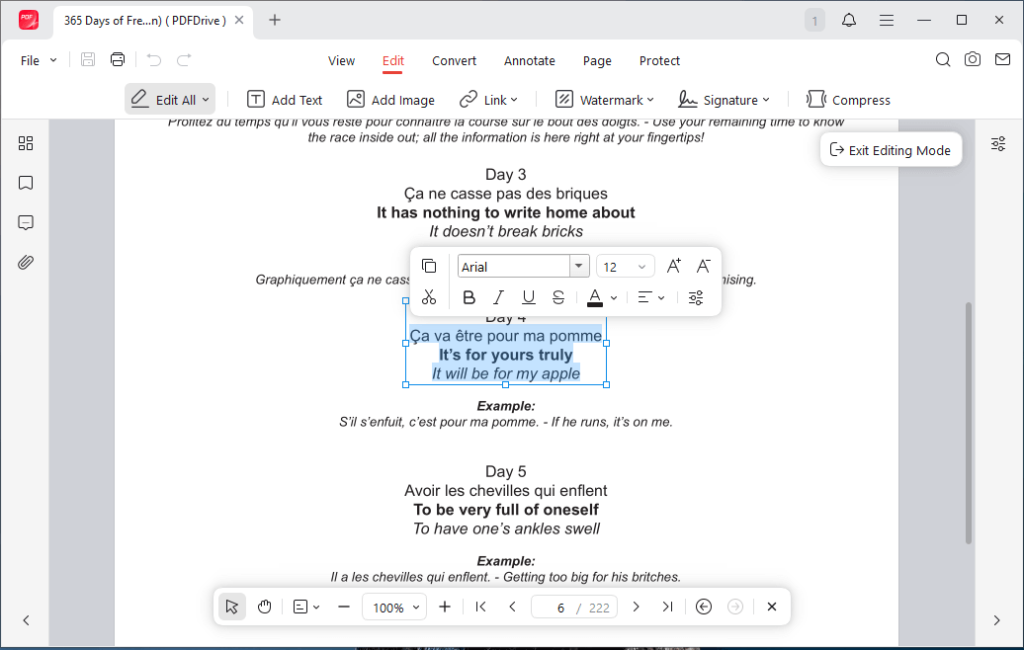
✅ Text and Image Editing: This is the most important feature. JOPDF lets you click on the original text in your document and rewrite it. You can fix spelling mistakes or replace old pictures, just like you are using a normal word processor like Microsoft Word.
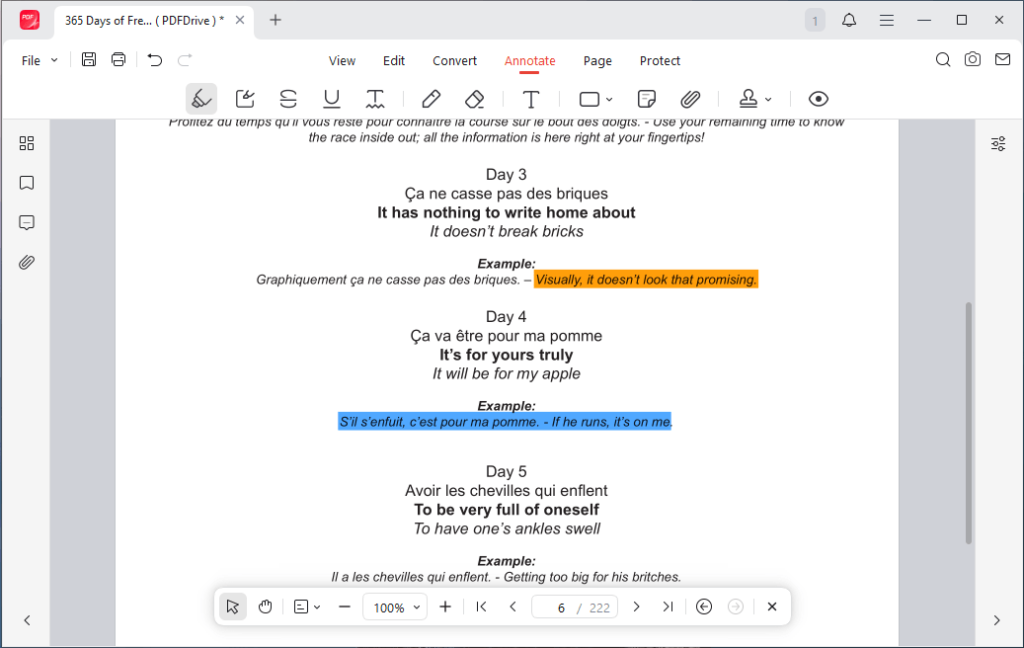
✅ Annotate Tool: Highlight important sentences, draw shapes, or add bright sticky notes for your teammates to read later.
✅ Page Management: If a document is too long, you can easily delete pages from the PDF. You can also mix two different files together, or pull one specific page out of a massive 100-page document.
✅ Password-Protection: Lock your highly sensitive files so nobody can open them without typing the correct password first.
Here are the simple steps to use JOPDF:
- Download and install JOPDF for free on your computer. It only takes a minute.
- Open your file inside the program.
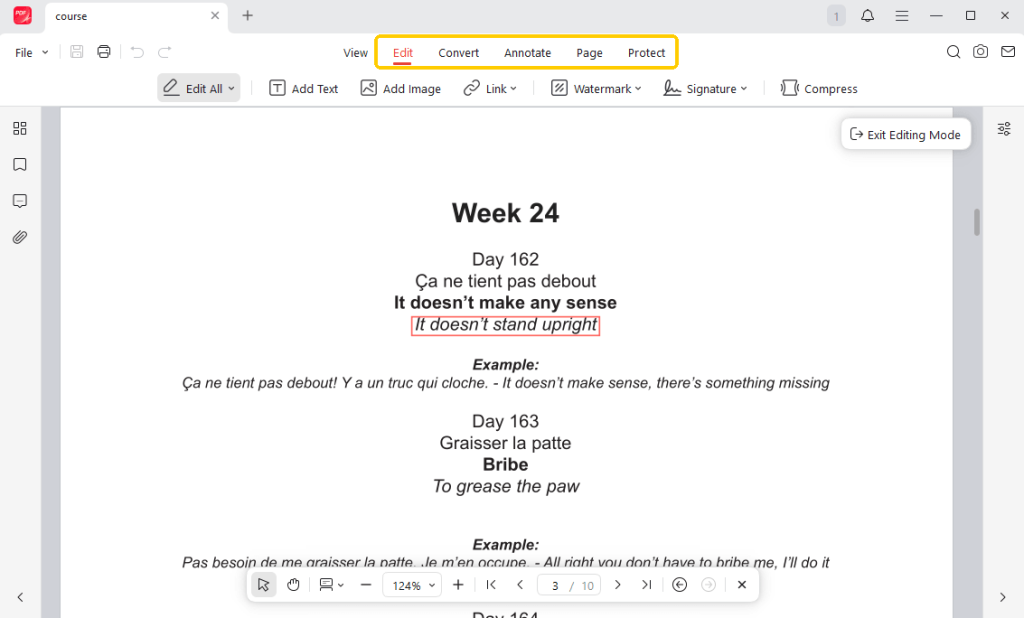
- Click the Edit, Annotate, Page, or Protect tab at the top of the screen. Start editing!
- Finally, click the Save button to lock in your perfect document.
Stop struggling with limited browser tools that only let you draw on top of a page. Download JOPDF today to take total control of all your important documents!
Conclusion
Now you know how to edit a PDF in Chrome. However, as you can see, Chrome is great for quick drawings or highlighting text. If you want to edit the existing text, add signatures, organize pages, and more, a professional tool like JOPDF is a better choice. Try it now!
FAQs
Table of Contents

Your Best Free PDF Expert in PDF editing, compressing, converting, annotating, protect, organizing, and more.
Free DownloadWindows · macOS · Linux

Queena
Editor
“As a staff editor for JOPDF, Queena excels at guiding users to the optimal tools and solutions. When she's not analyzing the latest PDF solutions, she enjoys spending her free time playing with her four cats.”