Introduction:
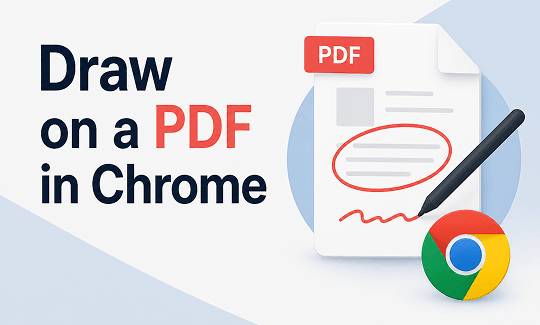
Do you need to circle a mistake on a PDF document? No problem. You don’t even need to download any additional software. In this guide, I will show you how to draw on a PDF in Chrome. There are 3 proven methods.
Way 1. Draw on a PDF in Chrome with the Built-in Draw Tool
You can open a PDF in Chrome, but it is more than just a web browser. It actually has a basic drawing tool that lets you write on your documents. It is a good choice if you want a basic drawing tool.
Here are the easy steps to follow:
Step 1. Find the document on your computer screen. Select and drag the file into an empty Chrome window to open it.
Step 2. Look at the top right corner of your screen. You will see a small icon that looks like a pen. Click on this pen icon. This will open a new menu on the side of your screen.
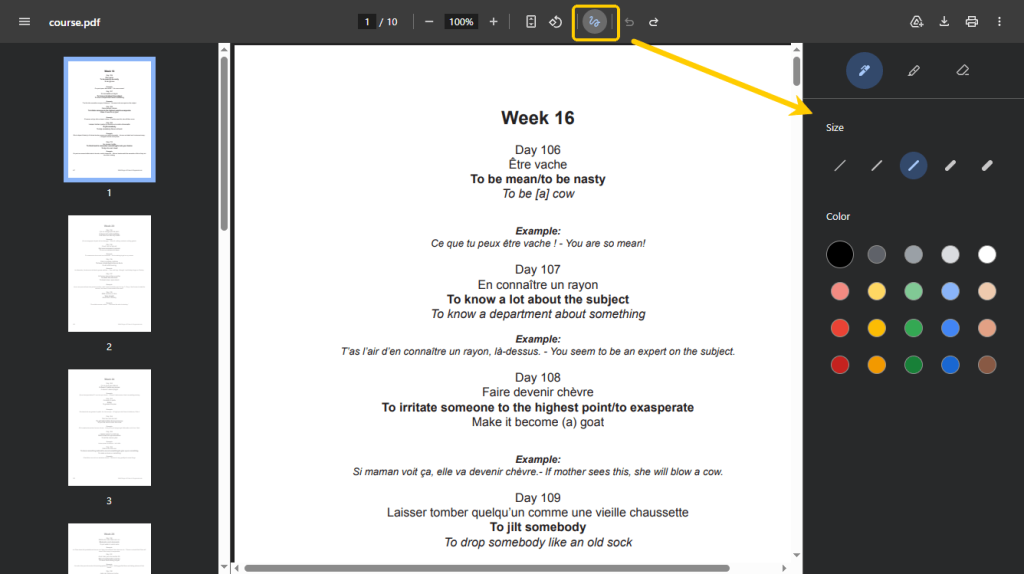
Step 3. In that new side menu, select a drawing tool: you can choose a normal pen to draw anything or pick the highlighter tool to mark important words. Then, decide the size and the color.
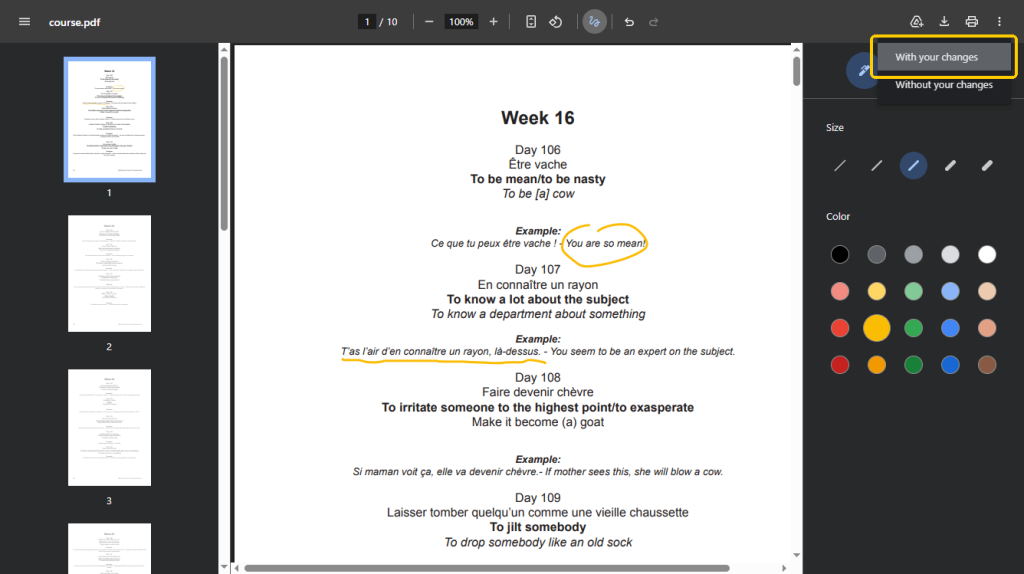
Step 4. Now, move your mouse over the document. Click and hold the button to draw, just like using a real pen on paper. If you make a mistake, do not worry. Click the eraser tool in the side menu to wipe it away.
Step 5. When you are done, click the Download button and choose the With your changes option.
Way 2. Draw on a PDF in Chrome with Annotation Extension
If you draw on documents a lot, the basic Chrome tool might not be enough for you. In this case, you can install an extension, a helper program that lives inside your browser to give it new powers.
With such a PDF annotator extension, you will have more choices and make your work look neater. A great extension to try is called Annotate PDF.
Here is how to set it up and use it:
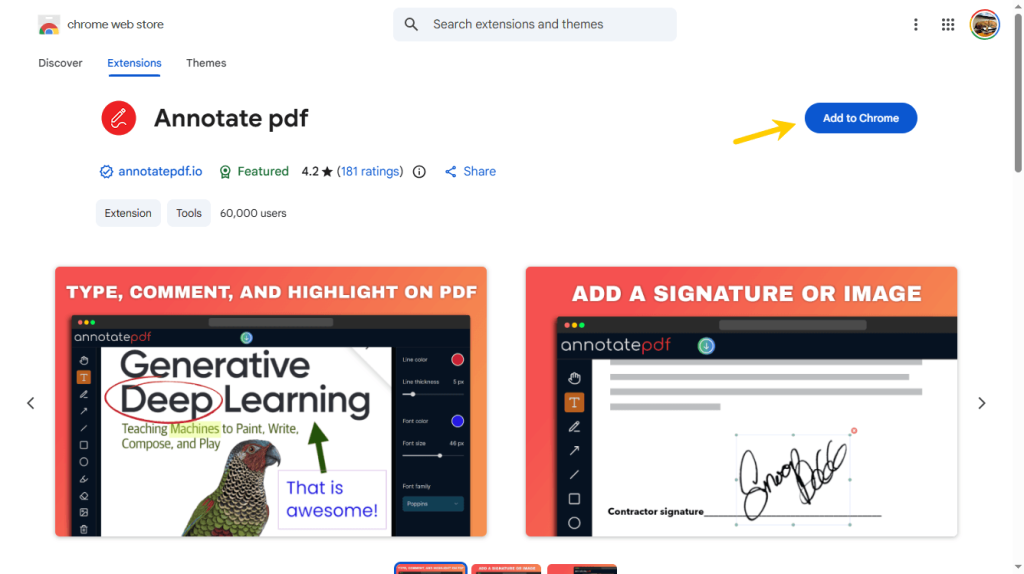
Step 1. Go to Google Web Store, find the extension, and add it to your browser.
Step 2. Now, look at the very top right of your browser, next to where you type website names. Find and click the Annotate PDF icon. Upload your document.
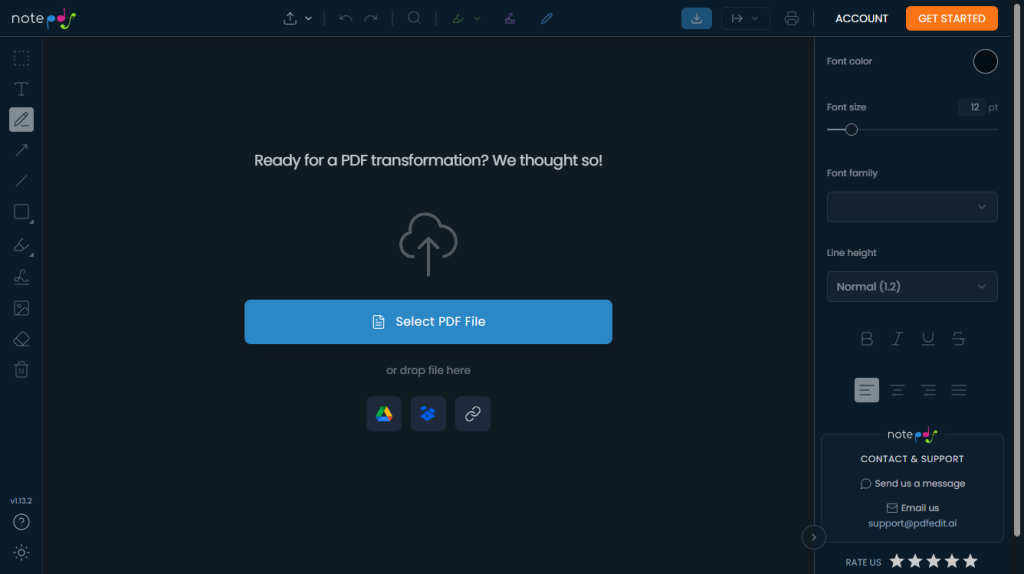
Step 3. Choose the drawing tool you want to use, adjust the color, line thickness, and style. Start drawing!
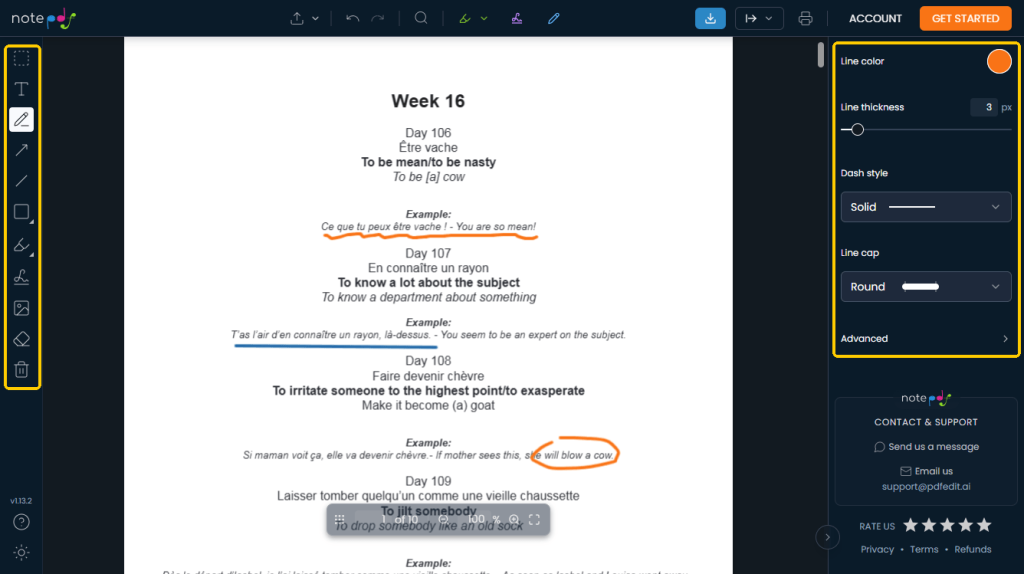
Step 4. When your document looks perfect, click the Save document button. Your finished file will be saved directly to your computer.
Way 3. Draw on a PDF in Chrome via Online PDF Editor
You can also use an online PDF editor to achieve the goal. Just upload your file, draw on it, and download it again. For this task, Smallpdf is a good choice. Millions of people use it every day.
Here are the simple steps to use Smallpdf:
Step 1. Open a new tab in your browser and go to the Smallpdf annotator: https://smallpdf.com/pdf-annotator.
Step 2. Click the Choose Files button to find and upload your document.
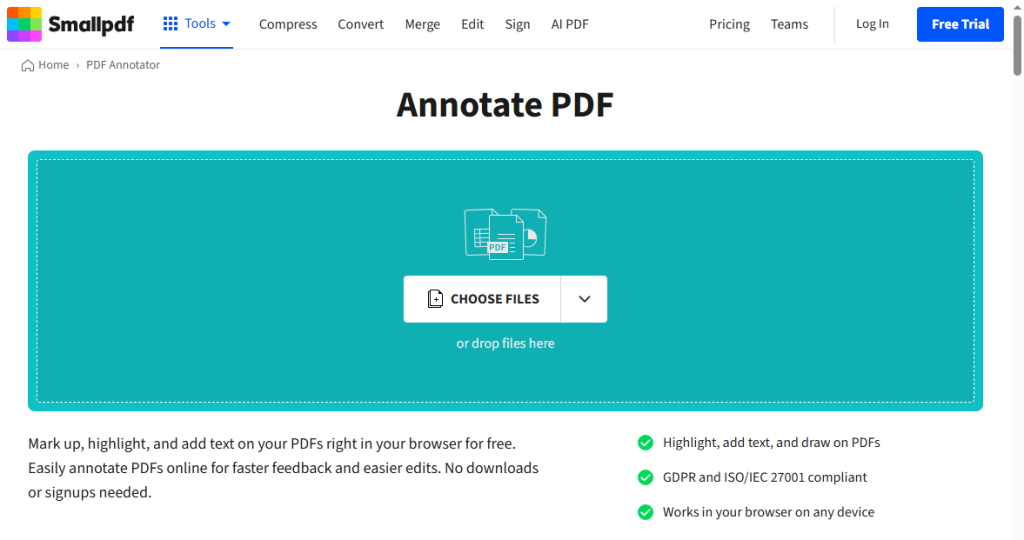
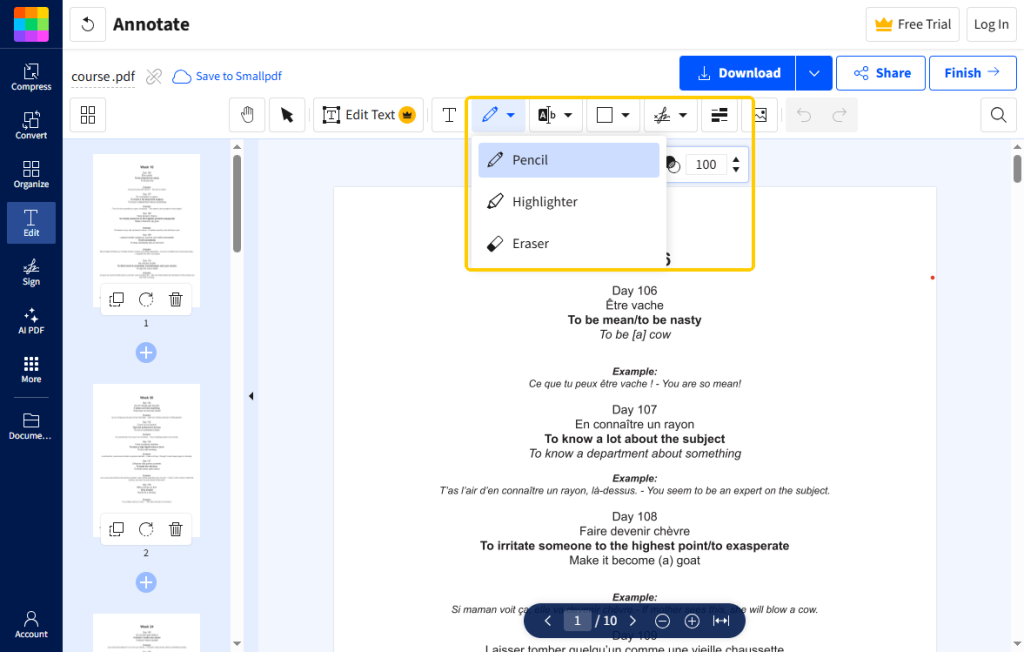
Step 3. Click the Draw icon and select a tool based on your needs. Next, choose your favorite color and pick how thick you want the pen to be. Use your mouse to draw anything.
Step 4. Finally, click the Download button. The website will quickly pack up your file with all your new drawings and save it back to your computer’s download folder.
Bonus Tip: A Free PDF Drawing Tool for Best Quality
Using Google Chrome to draw is very fast, but it has some major drawbacks.
❌ First, Chrome is not very smart at saving. If you accidentally close your browser window before you click save, all your hard work is gone forever.
❌ Second, using a computer mouse to draw in a browser can be messy. It is very hard to draw neat boxes or straight arrows using Chrome’s basic tools.
❌ Third, when using add-ons and online tools, you will need to upload your PDFs to a third-party server. This is not a wise choice if the document contains sensitive information.
If you want to avoid all these problems, you should use a dedicated computer program, such as JOPDF. It is completely free and built to be easy for anyone to understand.
Why JOPDF is the best choice:
✅ Natural Drawing: It feels much smoother than using a web browser. Your handwriting will look much clearer.
✅ Perfect Shapes: If you have shaky hands, do not worry. JOPDF has special tools that help you draw lines in PDF files that are perfectly straight. You can also click a button to add neat circles, squares, and arrows in one second.
✅ Full Control: You can change everything about your pen. You can pick any color in the world, change the thickness, and adjust the opacity, so you can make the ink look solid or see-through glass.
How to use JOPDF:
Step 1. Click the download button to get JOPDF.
Step 2. Open the program. Click Open PDF and choose your document. Then, go to the Annotate tool.
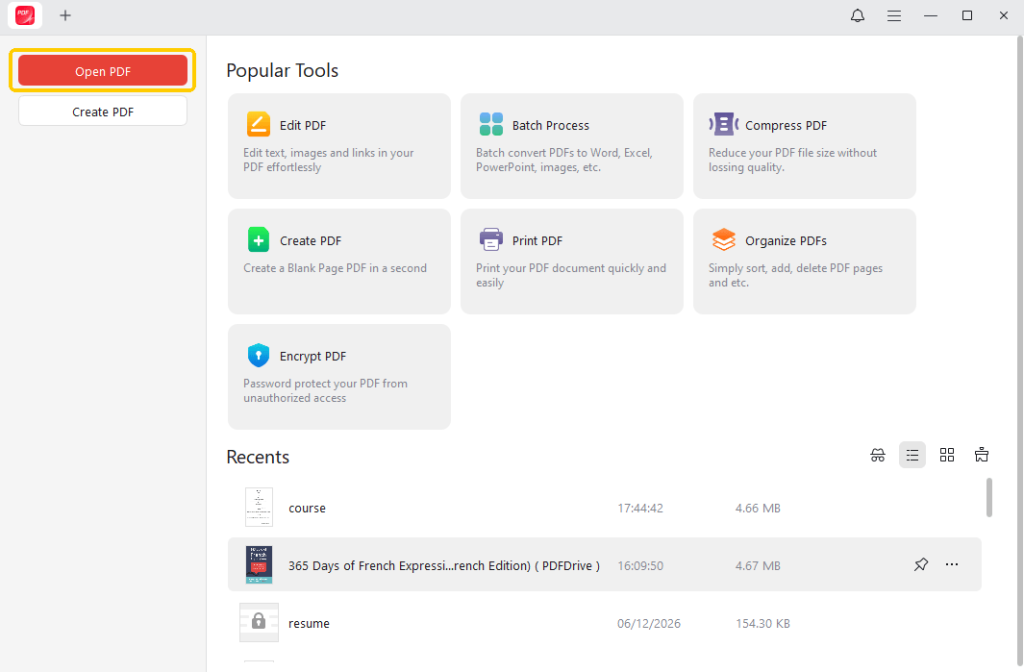
Step 3. Pick the freehand pen to write, or pick the shapes tool to add perfect lines and boxes. Of course, you can adjust the color and other settings as per your needs,
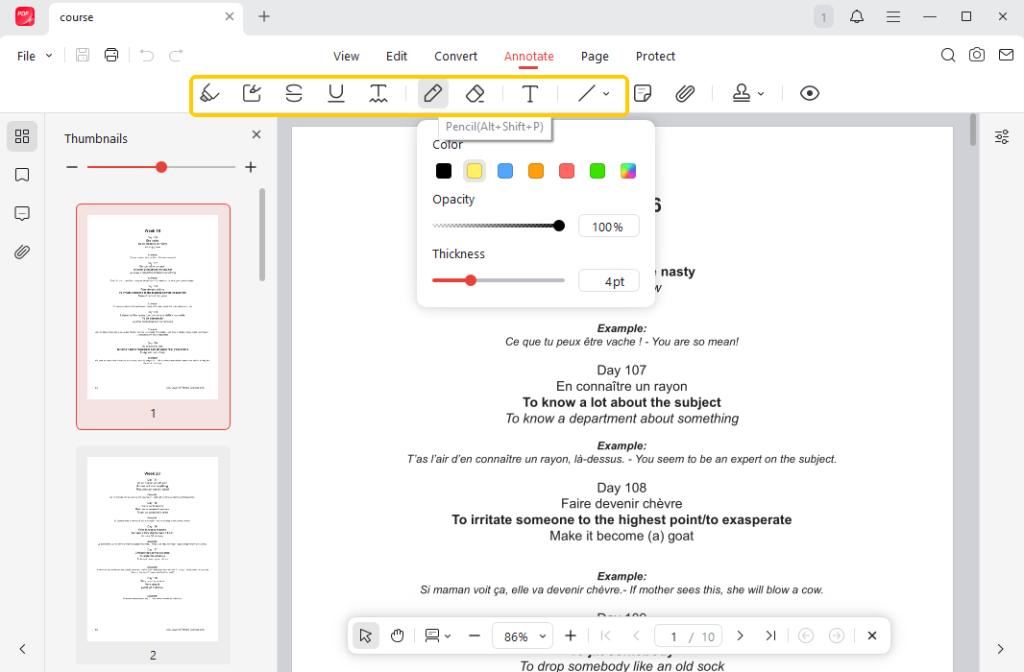
Step 4. When OK, click the Save button, and you are done.
JOPDF does much more than just drawing. It also lets you add text, delete unwanted pages, add signatures, and more. It has all the tools for PDF. If you work with PDF documents often, you should not miss this free PDF editor!
Conclusion
That’s all about how to draw on a PDF in Chrome. You can use the built-in tool in your browser, a helpful extension, or an online editor. All of them can help you get the job done quickly.
However, if you want more advanced features, a professional PDF editor, such as JOPDF, would be a good choice. It offers various drawing and other editing tools. Anyhow, you can try these methods to find the one that suits you best.
FAQs
Table of Contents

Your Best Free PDF Expert in PDF editing, compressing, converting, annotating, protect, organizing, and more.
Free DownloadWindows · macOS · Linux

Queena
Editor
“As a staff editor for JOPDF, Queena excels at guiding users to the optimal tools and solutions. When she's not analyzing the latest PDF solutions, she enjoys spending her free time playing with her four cats.”