Introduction:
Finding a tool to take notes on your documents should not cost you money. If you are wondering how to annotate a PDF on Windows for free, you are in the right place. Let’s explore the easiest ways to mark up your files without paying a dime.
1. Annotate a PDF with JOPDF (Recommended)
When you need to know how to annotate a PDF on Windows, the best place to start is with JOPDF. It is a great choice because it is completely free and very easy to use. You do not need to be a computer expert to figure it out. The design is simple, and all the tools are right on the screen.
It offers many helpful annotation tools to make your work easier. Here is what you can do with JOPDF:
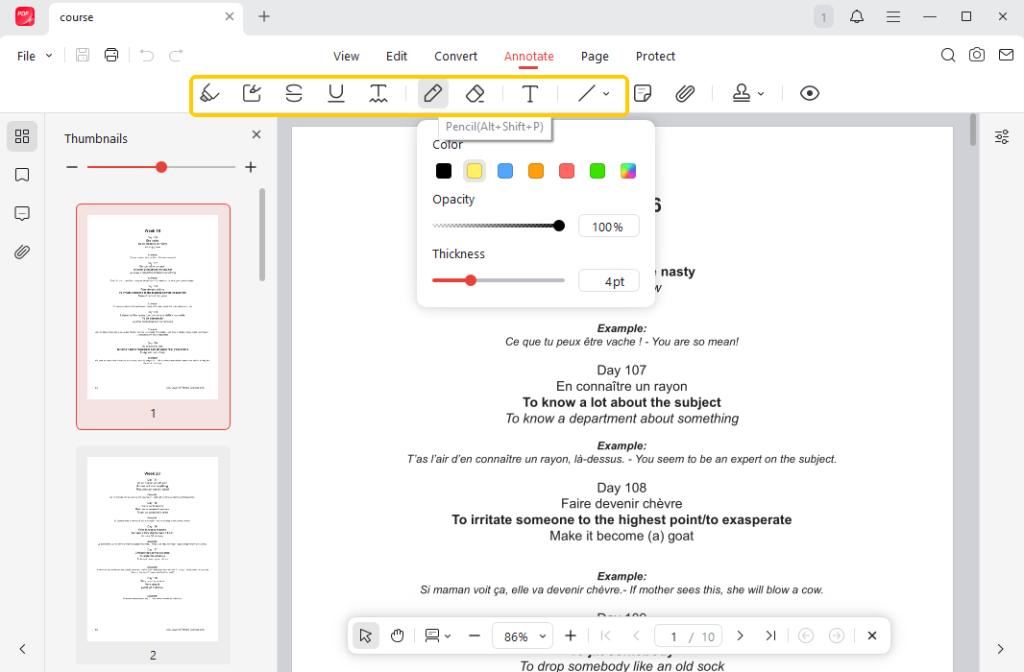
✅ Highlight text or areas: If you are reading a long document, you might want to remember the most important parts. JOPDF makes it very easy to highlight a PDF. You can color over specific words, or you can highlight a whole box of text.
✅ Add text markups: Sometimes you need to show that a word is wrong or needs extra attention. You can easily add a strikethrough to cross out a word. You can also add an underline or a squiggly line under important sentences.
✅ Add shapes: Drawing attention to a picture or a chart is simple. JOPDF lets you add lines and arrows to point to things. You can also draw rectangles and ovals around big sections of the page.
✅ Leave sticky notes: If you are working with a friend or a coworker, you might want to leave them a message. You can place a little sticky note anywhere on the page. When they click on it, they will see your typed message. This keeps the page looking clean.
Here is how to annotate a PDF on Windows 10/11 with JOPDF:
- Download, install, and launch JOPDF.
- Import the PDF document you want to annotate. You can also just drag your file.
- Go to Annotate and select the tool you want to use. For example, click the highlighter or the arrow tool. You can change colors and sizes however you like. Click on your document to use the tool.
- When you are done, click the Save button. Your new file will download to your computer.
JOPDF is not just for adding notes. It is a comprehensive PDF editor. It offers many other editing features, too.
You can combine multiple files into one or split a large file into smaller pieces. If you want to edit a PDF for free, JOPDF is a good choice. Try it today.
2. Annotate a PDF with Adobe Acrobat
Many people have heard of Adobe Acrobat, which is a very famous program. You probably already have the free version, called Adobe Acrobat Reader, on your PC.
Adobe Acrobat is a safe and trusted tool. The annotate feature in Adobe Reader is free to use. You can highlight words, add sticky notes, and type simple text on the page.
Here are the steps to annotate with Adobe Reader:
- Open Adobe Acrobat Reader on your computer.
- Click “File” at the top left, then click “Open.” Find the document you want to use and open it.
- Click on the tool you want to use. You can choose the yellow highlighter, the text box, or the sticky note.

- Click anywhere on the page to leave your note or drag your mouse over words to highlight them. When you are finished, click “File” and then “Save As” to keep your work.
While the basic note-taking tools are free, many other features require a paid subscription. If you want to actually change the original words on the page or add new pictures, Adobe will ask you to pay money every month.
If you just need basic tools, the free Adobe Reader is okay. But if you want a free PDF editor, JOPDF is a better choice.
3. Annotate a PDF in Microsoft Edge or Google Chrome
Did you know that you can open and read documents using your browser? If you use Microsoft Edge or Google Chrome, you already have a basic tool on your computer. You do not even need to download new software.
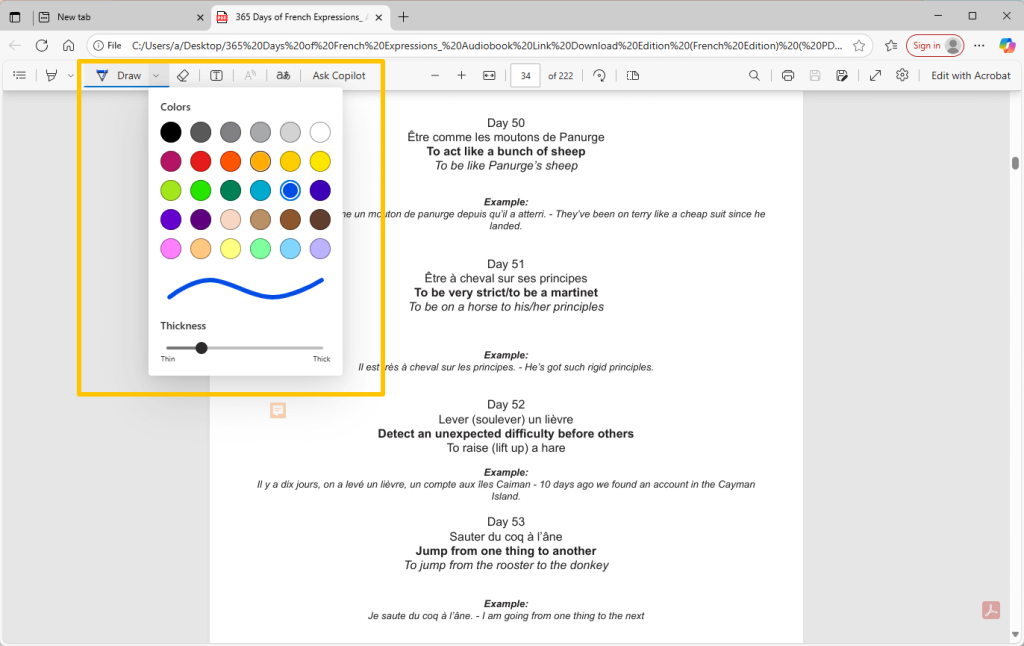
When you use a browser, the tools are very basic. You can pick a color to highlight text. You can also click the text button to type words onto the page. If you want to draw on a PDF, browsers have a simple pen tool. You can use your mouse to draw circles, write your signature, or make simple marks.
Here are the steps to use Microsoft Edge:
- Right-click on the file. Move your mouse down to “Open with” and then click on “Microsoft Edge.”
- Your document will open in the browser. Look at the top of the screen to find a toolbar.
- Click the “Draw” pen icon to write freehand, or click the “Highlight” icon to mark important words. You can also click “Add text” to type notes.
- When you are done, click the “Save” icon at the top right (it looks like a little floppy disk) to save your notes.
While this is very fast, it has big limits. You cannot add perfect shapes like straight arrows or exact boxes. You cannot add sticky notes that hide away neatly.
Using Microsoft Edge or Google Chrome is great if you are in a hurry. If you just need to sign a form quickly, it works fine. But if you are reviewing a big work report, you will want a better tool like JOPDF.
Conclusion
That’s all about how to annotate a PDF on Windows 10/11. If you are in a rush and just need to draw a quick circle, Microsoft Edge is a fast choice. If you already have Adobe Acrobat on your computer, you can use its free tools, but watch out for the paid upgrades.
For the best overall experience, JOPDF is the clear winner. It offers everything you need to mark up your work easily without asking for money.
FAQs
Table of Contents

Your Best Free PDF Expert in PDF editing, compressing, converting, annotating, protect, organizing, and more.
Free DownloadWindows · macOS · Linux

Queena
Editor
“As a staff editor for JOPDF, Queena excels at guiding users to the optimal tools and solutions. When she's not analyzing the latest PDF solutions, she enjoys spending her free time playing with her four cats.”