Introduction :
PDFs are widely used for contracts, reports, study materials, and collaborative document reviews. Sometimes, simply adding text comments is not enough. You need to draw rectangles, circles, arrows, or lines to highlight important information. Fortunately, Adobe Acrobat includes built-in shape tools that make annotating PDFs simple. In this article, I’ll walk you through how to add shapes in Adobe Acrobat in detail.
Can You Add Shapes in Adobe Acrobat?
Adobe Acrobat is an industry-leading PDF editor for Windows and Mac. It allows you to draw and insert various shapes directly into PDF documents. Adobe Acrobat is an excellent PDF annotator. These shapes are part of its annotation and commenting tools, making them useful for document reviews, markups, feedback, and visual communication.
Below are some common shapes available in Adobe Acrobat:
- Rectangle
- Oval
- Line
- Arrow
- Cloud
- Polygon
In addition, Adobe Acrobat allows you to customize added shapes like changing their color, border style, thickness, and transparency.
If you’re using Adobe Acrobat Pro or Acrobat Standard, you’ll have access to the full set of commenting and drawing tools. Adobe Acrobat Reader also supports certain annotation features, although some capabilities may depend on the PDF permissions and your subscription plan.
How to Add Shapes in Adobe Acrobat
How to add shapes to a PDF in Adobe Acrobat? In this section, you’ll learn the exact steps to add shapes to a PDF using Adobe Acrobat Pro or Acrobat Standard.
Step 1. Open your PDF in Adobe Acrobat Pro
Run your Adobe Acrobat Pro and open the target PDF file.
Step 2. Access the Comment tools
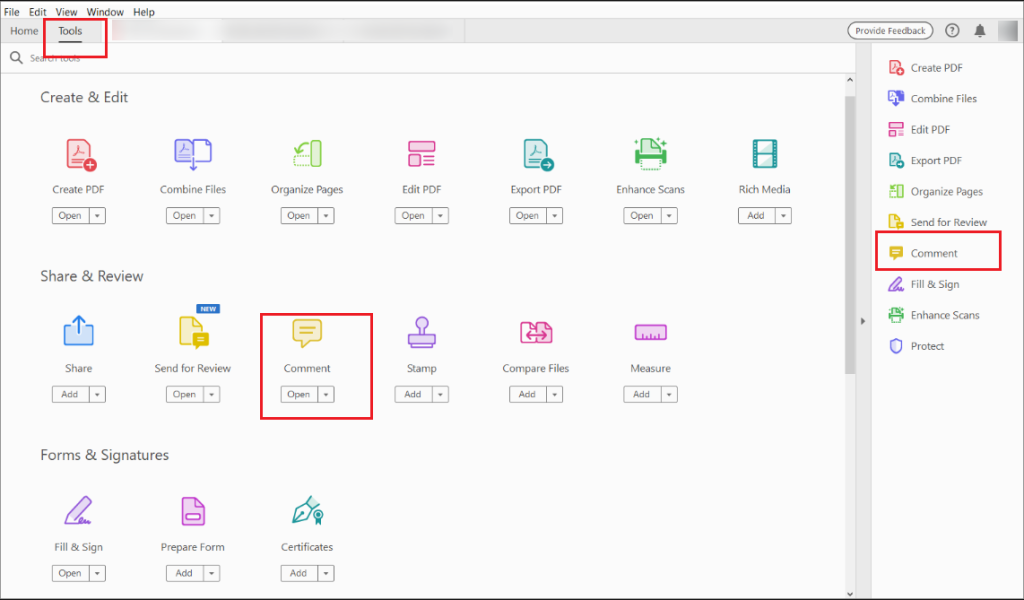
Click Tools from the top menu and select the Comment option. Or, you can directly click the Comment icon in the right-hand pane.
Step 3. Open the Drawing Tools menu and select the needed shape tool
In the Comment toolbar, click the “Draw freehand” tool to show the shape options. Here are some common shape options:
- Rectangle or Oval/Circle: for basic closed shapes
- Line or Arrow: for straight lines and arrows
- Cloud or Polygon: for closed multi-sided shapes
- Draw: for freehand drawings
Step 4. Draw the shape on the PDF
After selecting a shape, click and drag the cursor to create the shape. For precise shapes, hold Shift while dragging. Meanwhile, you can drag the corner handles to resize the shape, or click and drag the shape itself to move it.
Tips
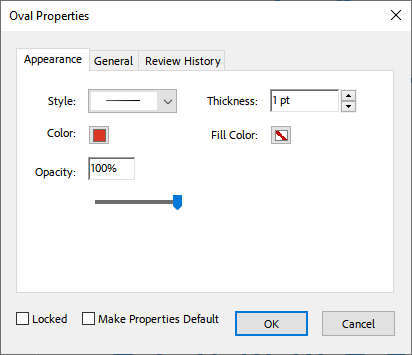
To customize the shape’s appearance, right-click it and select Properties. Here, you can personalize settings, such as fill color, opacity, border, thickness, and line style.
Step 5. Save the PDF
Once you have finished adding shapes, go to File > Save or File > Save As to preserve the changed PDF.
How to Add Shapes to a PDF in Adobe Acrobat Reader
You can also add shapes to a PDF using Adobe Acrobat Reader, the free version of Adobe Acrobat. Unlike Adobe Acrobat Pro and Standard, Adobe Acrobat Reader offers limited annotating, editing, and other advanced features. Only a few shapes are available. How to add shapes to a PDF in Adobe Acrobat Reader? Follow the instructions below:
Step 1. Launch Adobe Acrobat Reader and import your target PDF file.
Step 2. In the left sidebar, click the “Draw freehand” icon (the fourth option). Here, you can select a shape option like Arrow, Circle, Polygon, or Rectangle.

Step 3. Now, click and drag the cursor to draw the shape. Furthermore, you can right-click the shape and select Properties to customize its appearance. Here, you can customize the shape style, color, thickness, fill color, and opacity. Then don’t forget to click OK to save the operation.
Step 4. At last, press Ctrl/Cmd + S to save the PDF with shapes.
Why Can’t I Find the Shape Tool in Adobe Acrobat
If shape tools are missing, there are several common causes. Here, let’s have a look:
- The Comment toolbar is hidden. The drawing tools only appear within the Commend workspace. When the Comment toolbar is hidden, you can’t find the drawing tools. Go to Tools and click Comment to display the toolbar.
- Use an older Acrobat version. Older versions of Acrobat may place shape tools in different locations. Updating Acrobat often resolves missing-tool issues.
- Limited reader permissions. Some PDFs include restrictions to prevent annotations. You need to check whether commenting permissions are enabled.
Free and Reliable Alternative for Adding Shapes to PDFs
If you don’t have access to Adobe Acrobat or prefer a free solution, JOPDF is a practical alternative for adding shapes to PDFs. Unlike Adobe Acrobat, which may require a paid subscription for advanced editing features, JOPDF is a completely free offline PDF editor available for Windows, Mac, and Linux. As an excellent PDF annotator, JOPDF enables you to add shapes, attachments, sticky notes, and stamps to a PDF. Also, you can use it to highlight PDFs.
With JOPDF, you can add common shapes such as:
- Line
- Arrow
- Rectangle
- Oval
- Polygon
- Connected Lines
As a qualified Adobe Acrobat alternative, JOPDF also lets you customize the appearance of shapes, including border color, opacity, and thickness. Now, let’s learn how to add shapes to a PDF using JOPDF.
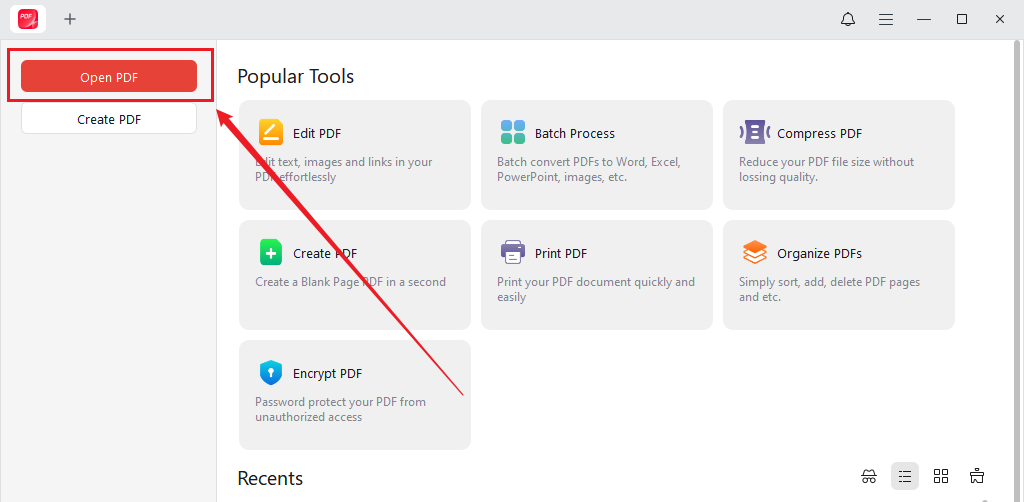
Step 1. Click the corresponding button below to download and install JOPDF on your Windows or Mac computer. Then, run JOPDF and click Open PDF to open the PDF file you want to add shapes to.
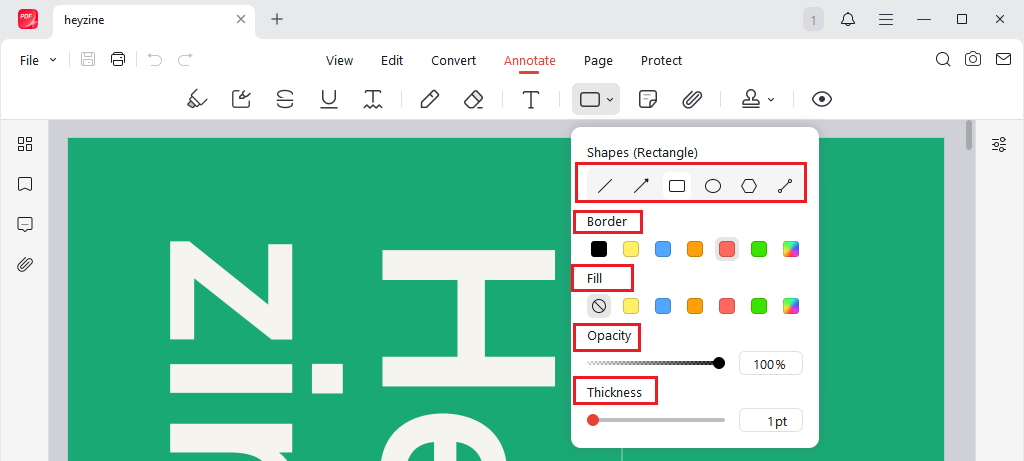
Step 2. Next, switch to the Annotate tab and click the Shape dropdown. You can choose to add a line, arrow, rectangle, or polygon as needed. Select one needed shape. Meanwhile, you can customize the shape’s appearance here. You can customize the border and filler colors and adjust the opacity and thickness.
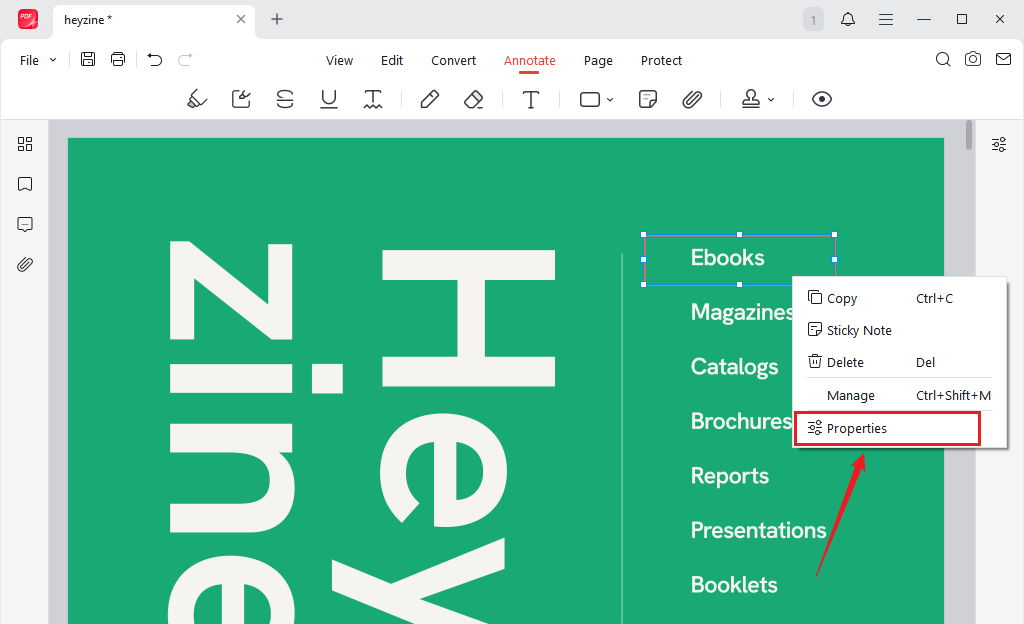
Step 3. Then, click and drag the mouse cursor to add the shape to the PDF. Once added, you can drag the shape to change its location or drag the handle edge to adjust its size. Furthermore, you can right-click the shape and select Properties to personalize its appearance again.
Step 4. Finally, press Ctrl/Cmd + S to save the edited PDF.
All in all, JOPDF is particularly useful for users who need a free PDF editor that works entirely offline without requiring a subscription or internet connection.
Final Thoughts
How to add shapes in Adobe Acrobat? It is quite easy after reading this comprehensive guidance. Whether you’re using rectangles to highlight sections, circles to emphasize details, or arrows to provide direction, Adobe Acrobat’s built-in drawing tools make PDF markup straightforward. If you’re looking for a free alternative to Adobe Acrobat, JOPDF provides an easy way to add shapes to PDFs. Moreover, it works on Windows, Mac, and Linux. In addition, JOPDF offers many editing, annotation, conversion, and compression functions for PDFs that are not available in Adobe Acrobat Reader. I hope this article can be helpful for you to add shapes.
FAQs
Table of Contents

Your Best Free PDF Expert in PDF editing, compressing, converting, annotating, protect, organizing, and more.
Free DownloadWindows · macOS · Linux

Olivia
“Olivia is an editor at JOPDF, where she writes practical guides and insightful articles on managing PDFs—covering topics like editing, annotating, converting, and organizing files efficiently. Passionate about clear communication and digital productivity, Olivia enjoys spending her free time cooking, watching movies, and hiking to unwind and find inspiration for her writing.”