
Introduction :
If you’re shopping for a PDF editor, one of the most common questions is Adobe Acrobat Standard vs. Pro: which version is right for me? In this comprehensive article, I will walk you through what Adobe Acrobat is, compare Adobe Acrobat Standard vs Acrobat Pro, explain the key differences, and help you decide whether the extra cost of Acrobat Pro is worth it.
Overview of Adobe Acrobat
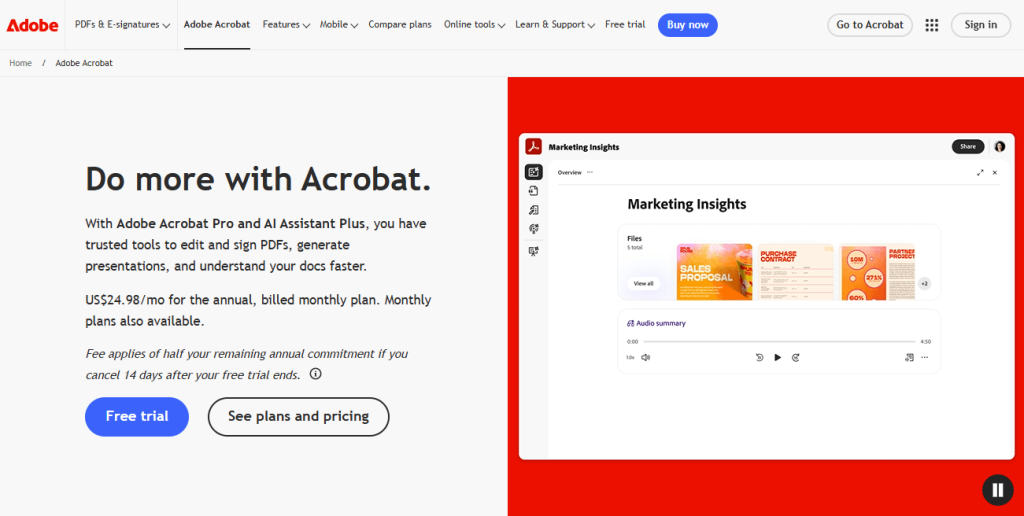
Before talking about the differences between the two versions of Adobe Acrobat, it is necessary to understand what Adobe Acrobat is.
Adobe Acrobat, developed by Adobe, is one of the most widely used PDF software solutions in the world, which allows you to create, edit, convert, organize, share, and secure PDF documents across desktop, web, and mobile devices. It offers three versions, including Adobe Acrobat Reader, Adobe Acrobat Standard, and Adobe Acrobat Pro.
The free version of Adobe Acrobat Reader is a powerful PDF reader. If you need to edit PDF files, then you can choose Adobe Acrobat Standard or Adobe Acrobat Pro. They are two paid subscription plans. Which version should you choose? Let’s find out the details together.
Adobe Acrobat Standard vs. Pro: Quick Overview
For many of us, Adobe Acrobat is a convenient tool that meets our daily work or study requirements through its core PDF features.
If you frequently handle scanned PDFs, confidential files, and legal documents, Adobe Acrobat Pro includes features not available in the Standard version. Check out the table below to make your decision quickly.
| User Type | Recommended Version |
| Students | Adobe Acrobat Standard |
| Home Users | Adobe Acrobat Standard |
| Small Business Owners | Adobe Acrobat Standard or Pro |
| Freelancers | Adobe Acrobat Standard |
| Accountants | Adobe Acrobat Pro |
| HR Teams | Adobe Acrobat Pro |
| Legal Professionals | Adobe Acrobat Pro |
| Publishing Teams | Adobe Acrobat Pro |
Adobe Acrobat Standard vs. Pro: Feature Comparison
Instead of a lengthy description, I prefer to show the functional differences between Adobe Acrobat Standard and Pro in a table for easier understanding. Now, let’s have a look:
| Feature | Adobe Acrobat Standard | Adobe Acrobat Pro |
| Edit PDF Text and Images | ✅ | ✅ |
| Create PDFs from Word, Excel, PowerPoint, and Images | ✅ | ✅ |
| Convert PDFs to Microsoft Office Formats | ✅ | ✅ |
| Merge and Split PDFs | ✅ | ✅ |
| Compress PDF Files | ✅ | ✅ |
| Fill and Sign Forms | ✅ | ✅ |
| Request and Collect E-signatures | ✅ | ✅ |
| Password-Protect PDFs | ✅ | ✅ |
| Cloud Storage and File Sharing | ✅ | ✅ |
| OCR (Convert Scanned PDFs to Editable Text) | ❌ | ✅ |
| Edit Scanned PDFs | ❌ | ✅ |
| Compare Two PDF Versions | ❌ | ✅ |
| Redact Sensitive Information | ❌ | ✅ |
| Batch Processing with Action Wizard | ❌ | ✅ |
| Accessibility Checker | ❌ | ✅ |
| PDF Preflight and Print Production Tools | ❌ | ✅ |
| Advanced Document Security Controls | Limited | ✅ |
| Best For | Everyday PDF work | Professional, compliance-focused workflows |
What Does Acrobat Pro Include That Standard Doesn’t
Is Adobe Acrobat Pro worth the higher subscription price? The answer depends on whether you actually need to use the exclusive features of the professional version. In this section, follow me to learn the features that Acrobat Pro includes, but Standard doesn’t.
#OCR Technology
With OCR, you can convert scanned or image-based documents into searchable and editable text. For instance, if you scan a paper contract and save it as a PDF, Acrobat Standard treats it as an image. Acrobat Pro can recognize the text and allow you to edit it.
#PDF Comparison
If you need to compare PDFs, Adobe Acrobat Pro can give you a hand. Its PDF comparison features can compare two versions of a PDF and automatically highlight additions, deletions, and modifications. Hence, this feature is especially useful for legal teams, contract managers, and reviewers.
#PDF Redaction Tools
Redaction can permanently remove sensitive information from a PDF. Simply deleting text or covering it with a black box is not enough. With the redaction tools in Acrobat Pro, you can effectively recover confidential information.
#Action Wizard
If you need to perform repetitive PDF tasks, Action Wizard can help you complete those tasks efficiently. With Action Wizard, you can batch convert PDFs to JPGs or other formats, apply security settings, watermark PDFs, or run OCR on multiple PDFs. It can save significant time when handling large volumes of documents.
#Accessibility Checker
Organizations that need to comply with accessibility standards can use Acrobat Pro to identify and fix accessibility issues within PDFs.
Adobe Acrobat Standard vs. Pro: Pricing
Both Adobe Acrobat Standard and Adobe Acrobat Pro are subscription-based plans. What is the pricing difference between them? Since prices are subject to change and may vary by billing terms, promotions, and region, I only show pricing in the U.S. For the latest pricing information, please visit Adobe’s official pricing page.
| Plan | Starting Price (U.S.) |
| Adobe Acrobat Standard | Around $12.99/month |
| Adobe Acrobat Pro | Around $19.99/month |
Acrobat Standard usually has a lower monthly price than Acrobat Pro, making it the more affordable choice for individuals and small businesses. Acrobat Pro is more expensive because it offers advanced features like OCR, redaction, PDF comparison, accessibility tools, and workflow automation.
Looking for a Free Alternative?
Adobe Acrobat is a powerful PDF solution, but its subscription pricing may not be the best fit for everyone. Some of us only need a reliable way to edit PDFs, convert files, or organize documents without paying for enterprise-level features they rarely use. In that case, you need a free or affordable alternative to Adobe Acrobat. Below are some available choices:
- JOPDF (Free)
- SwifDoo PDF (Paid)
- Nitro PDF (Paid)
- Wondershare PDFelement (Paid)
- Foxit PDF Editor (Paid)
Why Consider JOPDF?
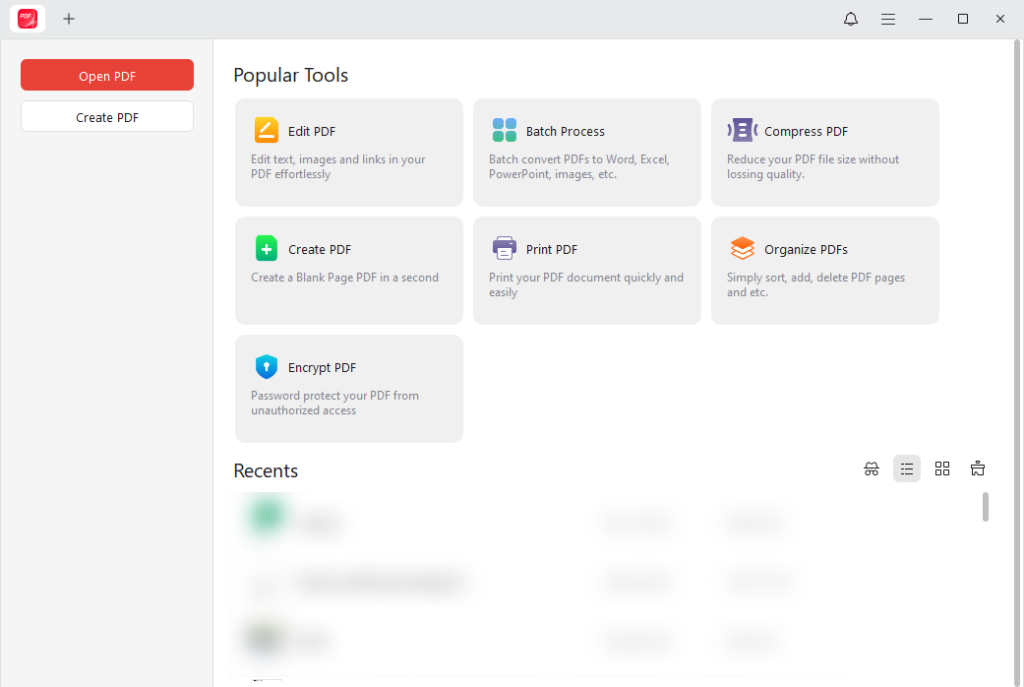
JOPDF is a 100% free PDF editor designed for individuals, students, freelancers, educators, and small businesses. As a free alternative to Adobe Acrobat, JOPDF supports many of the tasks you perform every day, such as:
- Edit PDF text and images
- Convert PDFs to and from popular formats such as DOCX, PPTX, XLSX, and JPG.
- Reduce PDF file size without losing quality
- Merge and split PDF files
- Rearrange PDF pages and remove unwanted PDF pages.
- Batch process multiple PDFs
- Password-protect PDFs from editing and printing
One of JOPDF’s biggest advantages is that it’s free to use. For students, freelancers, educators, and small businesses, this can make it an attractive alternative to subscription-based PDF software. What’s more, JOPDF focuses on the features most users need daily rather than on advanced compliance, publishing, or enterprise workflow tools. As a result, it can be easier to learn and use for routine document tasks.
However, like Adobe Acrobat Standard, JOPDF doesn’t include OCR functionality. If you regularly work with scanned PDFs and need to convert them into searchable or editable documents, try another affordable alternative, SwifDoo PDF.
Acrobat Standard or Pro: Which Version Should You Choose
Adobe Acrobat Pro vs Standard: Which version should you choose? The right choice depends on your needs and budget. Here, I list some user cases for using Acrobat Pro or Standard. It can help you make the right choice. Let’s have a look:
⭐Choose Adobe Acrobat Standard If:
- You primarily edit and convert PDFs.
- You create PDFs from Microsoft Office files.
- You need basic document management tools.
- You occasionally sign documents electronically.
- You want to minimize software costs.
⭐Choose Adobe Acrobat Pro If:
- You frequently work with scanned documents.
- You need OCR functionality.
- You handle confidential or regulated information.
- You compare multiple versions of documents.
- You require workflow automation and compliance tools.
Conclusion
Adobe Acrobat Standard vs. Pro: Which one is right for you? Both of them are excellent PDF editors. When deciding between them, the best choice ultimately depends on your workflow and practical requirements.
Acrobat Standard meets needs such as editing, converting, organizing, and signing PDF files. In contrast, Acrobat Pro caters to professionals who need OCR, redaction, accessibility tools, document comparison, and more advanced workflow automation. If your PDF needs are straightforward and you want to avoid subscription costs, JOPDF provides a completely free alternative for editing, converting, compressing, and managing PDF files.
FAQs
Table of Contents

Your Best Free PDF Expert in PDF editing, compressing, converting, annotating, protect, organizing, and more.
Free DownloadWindows · macOS · Linux

Olivia
“Olivia is an editor at JOPDF, where she writes practical guides and insightful articles on managing PDFs—covering topics like editing, annotating, converting, and organizing files efficiently. Passionate about clear communication and digital productivity, Olivia enjoys spending her free time cooking, watching movies, and hiking to unwind and find inspiration for her writing.”
![3 Proven Ways to Remove Page Numbers from PDF [Free & Paid]](https://b.jopdf.com/wp-content/uploads/2026/09/remove-page-numbers-from-pdf.png)
