![3 Proven Methods to Batch Convert PDF to JPG [Offline/Online]](https://b.jopdf.com/wp-content/uploads/2026/06/batch-convert-pdf-to-jpg.png)
Introduction :
Are you looking for methods to convert multiple PDF files into JPG images at once? Whether you’re batch converting PDFs to JPGs for sharing PDF pages on social media, extracting visual content, or for other purposes, batch converting PDFs to images is an effective solution. How to batch convert PDF to JPG? In the following content, let’s learn 3 effective ways to bulk convert PDF files to JPGs on Windows, Mac, or phones.
Instead of converting each PDF file individually, it is more efficient and time-saving to batch-convert PDFs to JPGs. Additionally, JPG images can be shared easily on websites, messaging apps, or social media platforms. How to batch convert PDF files to JPGs at once? Let’s explore 3 effective methods to convert multiple PDFs to JPGs in bulk. Meanwhile, I will provide useful tips for maintaining image quality during conversion. Let’s get started!
Method 1: Batch Convert PDF to JPG for Free with JOPDF
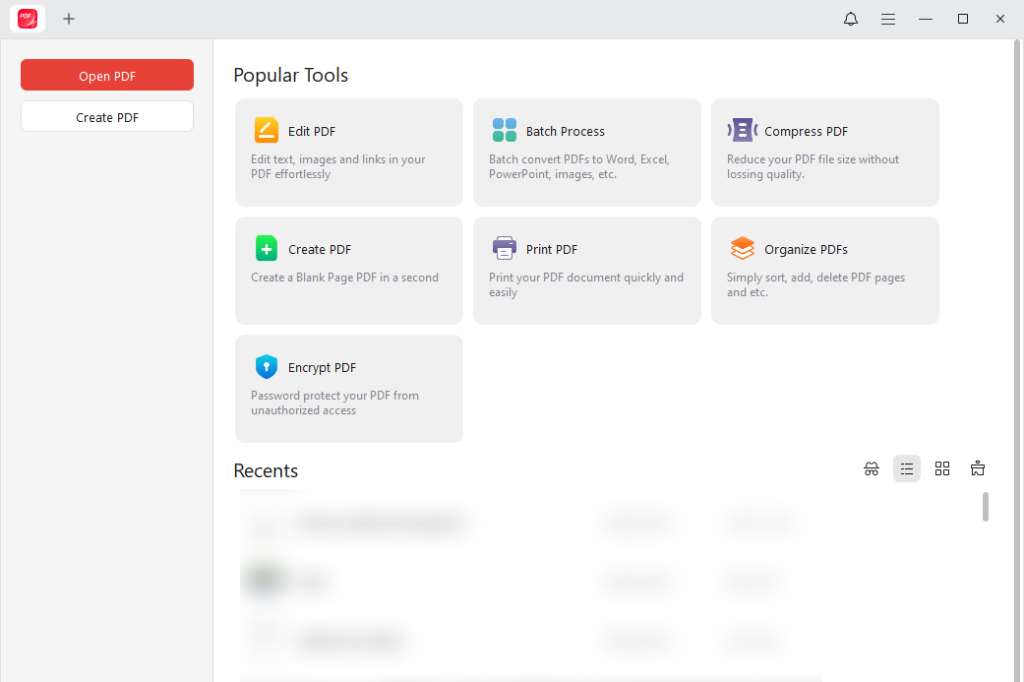
Compared to online converters, a dedicated PDF converter often provides the most reliable conversion experience. One of the recommended choices is JOPDF. It offers batch process capability to convert multiple PDFs into JPG images in a single workflow. In addition, you can use it to batch-convert JPGs to PDFs. Moreover, JOPDF supports PDF to PNG, TIFF, or BMP conversions.
Why Use JOPDF for Bulk PDF Conversion
JOPDF is a completely free batch PDF converter for Windows, Mac, and Linux. It is particularly useful when handling multiple PDF files since it:
- Support batch conversion
- Adjust image DPI and quality as needed
- Batch convert PDFs at a fast speed
- Convert PDFs and images offline
- Combine all PDFs into one image
In addition to converting between PDFs and images, JOPDF allows you to convert PDFs to and from Word, Excel, and PowerPoint, including PDF to DOCX, PDF to XLSX, RTF to PDF, etc.
Steps to Batch Convert Multiple PDFs to JPGs
Step 1. Go to the JOPDF download center to get the Windows, Mac, or Linux version. Alternatively, click the button below to download and install it on your PC.
Step 2. Launch JOPDF and click Batch Process under Popular Tools. Then, select PDF to Image.
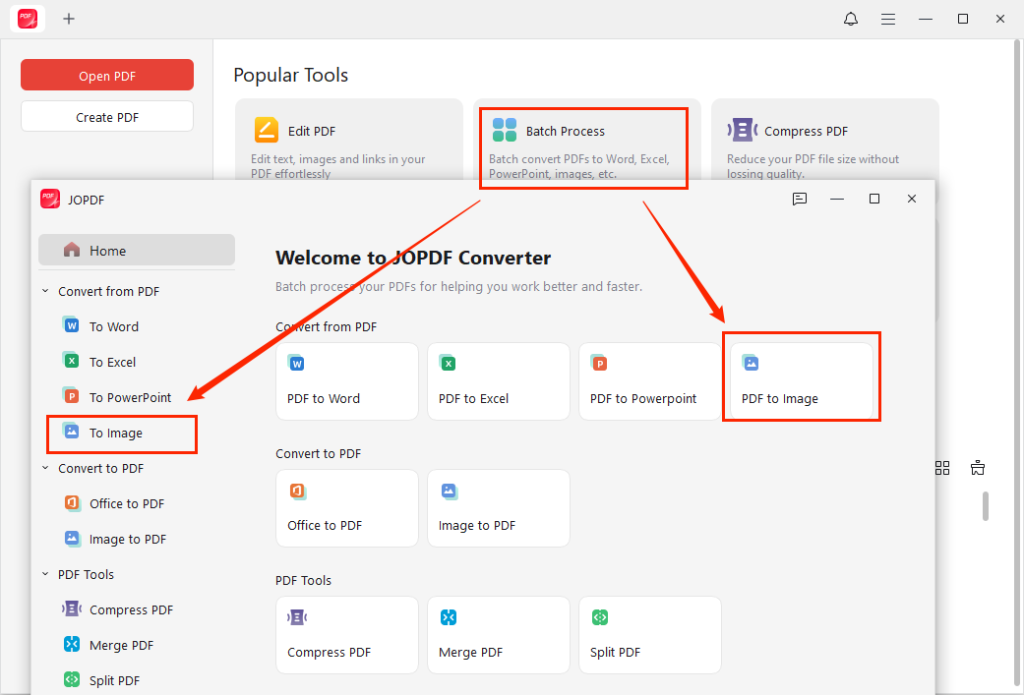
Step 3. Click + Add Files to import the PDF files you want to convert.
Step 4. Expand the Format list and select JPG. Then, set Method as “Each Page as An Image”. More importantly, open the Quality list to configure the image quality and DPI settings. For instance, you can select “HD (300 DPI)”. Next, you can select a destination folder for the final JPG images.
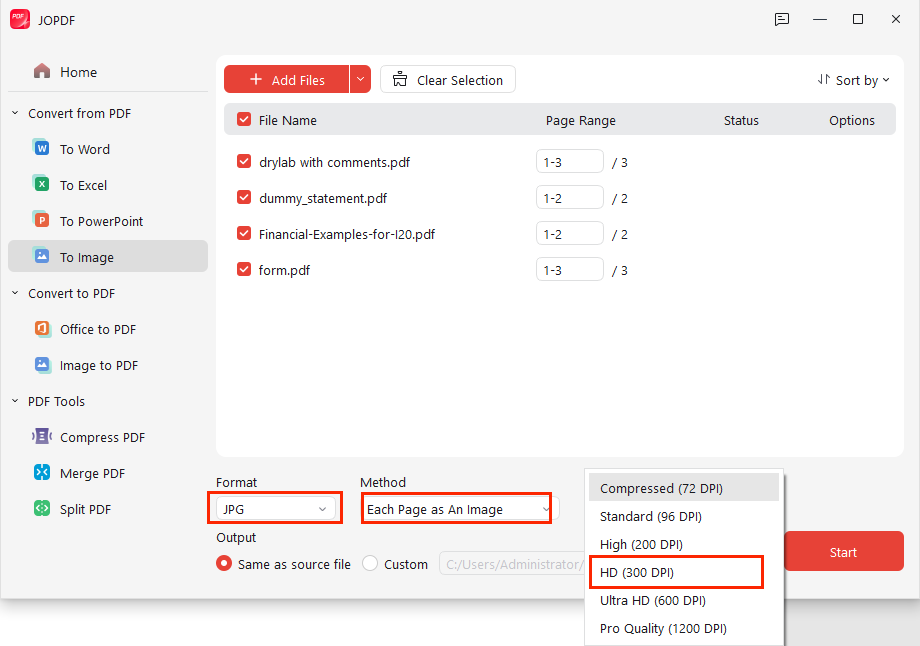
Step 5. Finally, click Start.
Advantages of using JOPDF:
- It can batch process multiple PDFs simultaneously.
- It allows customization of image resolution and quality.
- It has no internet connection required.
- It comes with a set of PDF editing features, such as text editing, annotation, and watermarking.
- It can print PDFs as booklets.
- It can combine images into a single PDF.
- …
Method 2: Batch Convert PDF to JPG with Adobe Acrobat
Adobe Acrobat is a professional PDF tool, including Adobe Acrobat Reader, Adobe Acrobat Standard, and Adobe Acrobat Pro versions. With Adobe Acrobat Pro, you can batch convert multiple PDFs into JPGs using the Action Wizard. How to batch convert multiple PDFs in Adobe Acrobat Pro? Follow the exact steps below:
Step 1. Install and launch Adobe Acrobat Pro on your Windows or Mac PC.
Step 2. Click Tools and select the Action Wizard option. Or you can search this tool in the search bar. Next, click the Create New Action button.
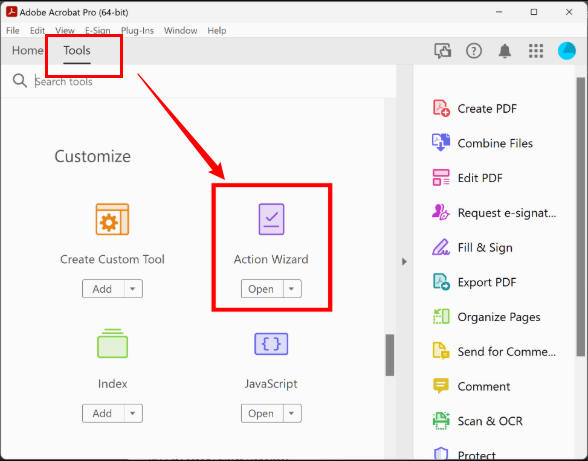
Step 3. Then, add the Save step in the left pane under Save & Export. Here, click Specify Settings next to the Save step. Meanwhile, select Image and set JPEG as the output format. You can also adjust settings like resolution, quality, and color. Next, select a folder as the destination, then save and name your new Action, such as “PDF to JPG Batch”.
Step 4. Now, it’s time to run the Action to perform the batch conversion in Adobe Acrobat Pro. Select the newly created Action from the list, click Add Files to upload your PDFs, and click Start to enable the batch conversion. Then, Adobe Acrobat Pro will convert each PDF into a separate JPG image.
Pros of Adobe Acrobat Pro
- Convert to professional-grade images with excellent color fidelity.
- Allow to handle scanned or encrypted PDF files.
- Support batch converting multiple PDFs at once with customizable settings.
- Offer additional PDF tools, such as signing PDFs, compressing, and editing PDFs.
Cons of Adobe Acrobat Pro
- Require a paid subscription for the full batch and other advanced features.
- Not a lightweight application.
- Require a steep learning curve for beginners.
If you need a free alternative to Adobe Acrobat, try JOPDF for PDF conversion and editing.
Method 3: Bulk Convert PDF to JPG Online
Online PDF converters provide a convenient alternative when you don’t want to install any software. What you need to prepare is a stable, high-speed internet connection. Which online PDF converter should you choose for batch PDF to JPG conversions? I have picked up the following 6 reliable, safe bulk PDF to JPG converters:
- XConvert
- PDF Candy
- Smallpdf
- iLovePDF
- Dpdf
- PDF24 Tools
Most online converters are easy to use. With those online converters, you can make conversions on both desktop and mobile devices. Here, I will use XConvert as an example to guide you on how to bulk-convert PDFs to JPGs online.
Step 1. Open any browser and visit XConvert. In the search box, type in “PDF to JPG”. Then, select the “Convert PDF to JPG” tool.
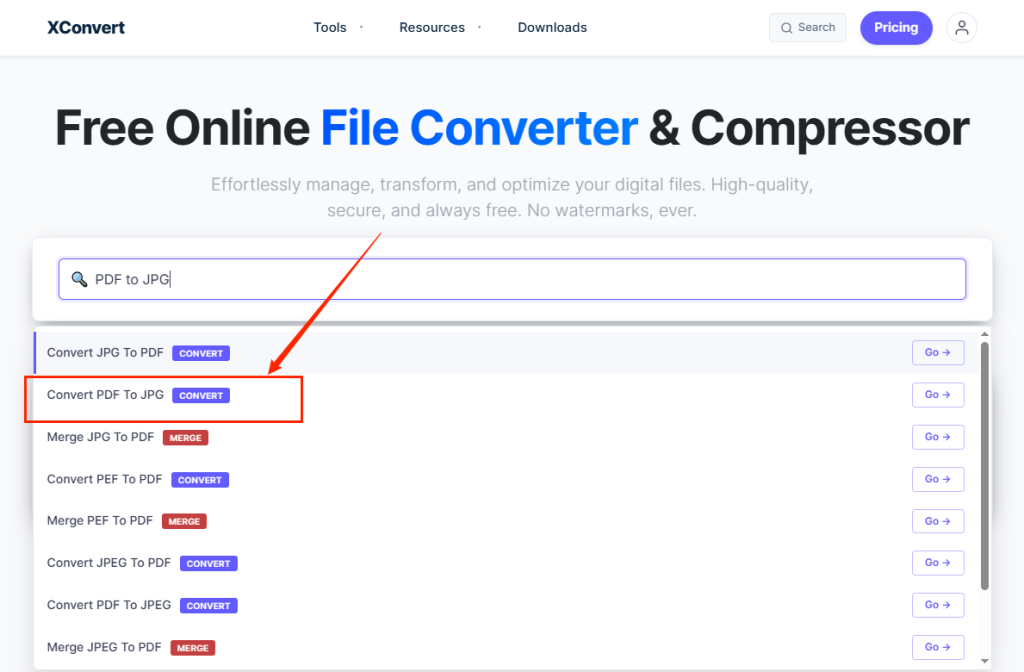
Step 2. Click Upload to import the PDF files you need to convert. Once all PDFs are uploaded, scroll down to customize export settings such as conversion quality, color, and resolution.
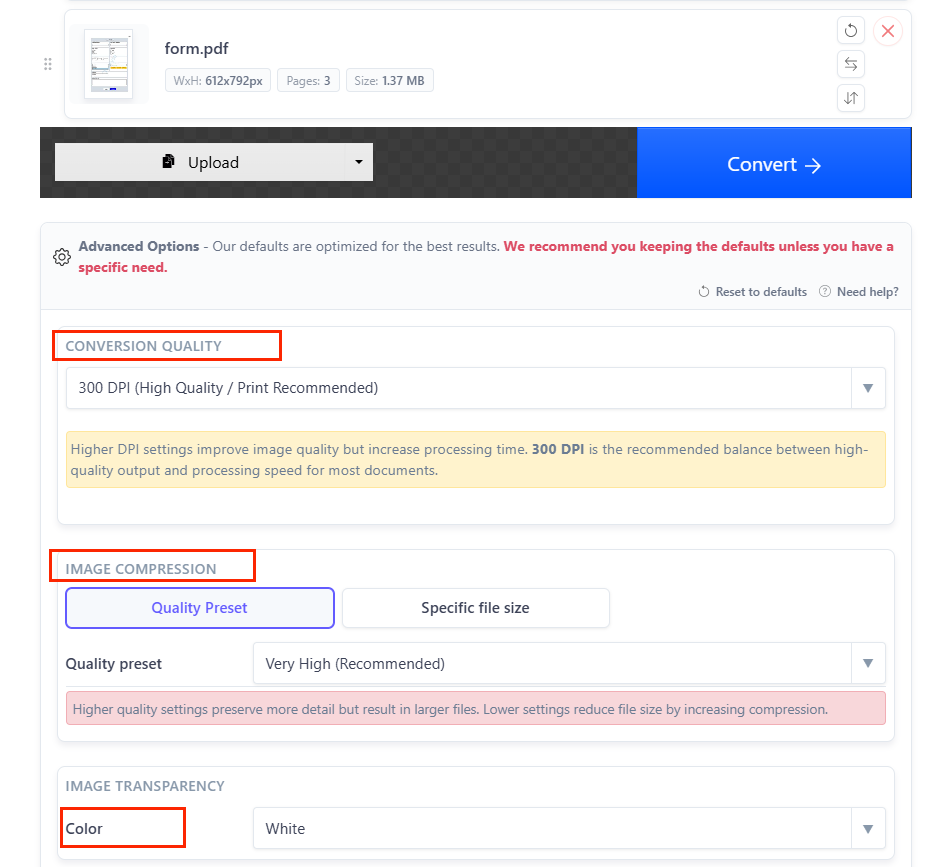
Step 3. Next, click Convert to start the batch conversion. Once the conversion tasks are finished, download all JPG images.
Advantages of Online Converters
- No software installation required.
- Work on any device, such as Windows, Mac, Android, or iPhone.
- Offer an intuitive and simple interface.
Limitations of Online Converters
- Most online converters limit the number or size of PDFs you can upload.
- The conversion speed can be slow when handling large batches.
How to Maintain Image Quality During Conversion
Most of us may be concerned that the image quality can be affected during the conversion. How to convert PDFs to JPGs while maintaining image quality? Here are some tips to help you preserve the sharpness and readability of images.
✨Select the right DPI: Generally, higher DPI values generate clearer images. However, we cannot simply increase the DPI. The higher the DPI, the larger the image will be.
✨Adjust the image compression: Don’t use excessive compression. The excessive compression can reduce image clarity. If available, select low compression and high quality.
✨Balance file size and quality: Select the appropriate resolution to prevent unnecessary storage consumption.
A Quick Comparison: Best Batch PDF to JPG Converters in 2026
Which batch converter should I choose for PDF to JPG conversions? The actual choice is based on your practical needs. If you need a free and offline PDF converter, never miss JOPDF. Here’s a quick comparison table for your reference.
| Feature | JOPDF | Adobe Acrobat Pro | Online Tools |
| Batch Conversion | Yes | Yes | Varies |
| Offline Use | Yes | Yes | No |
| Privacy Protection | High | High | Moderate |
| Large Batch Support | Excellent | Excellent | Limited |
| DPI Control | Yes | Yes | Limited |
| Image Quality Settings | Yes | Yes | Varies |
| Ease of Use | High | Moderate | High |
Wrapping Up
It is one of the most effective ways to batch convert PDFs to JPGs to transform large collections of PDFs into universally compatible images. How to batch convert PDF to JPG on Windows, Mac, or even on phones? If you frequently convert and edit PDFs on Windows and Mac, consider JOPDF for free conversions. You can also try Adobe Acrobat Pro if you have a sufficient budget. In addition, you can use online converters if you don’t want to install any software.
FAQs
Table of Contents

Your Best Free PDF Expert in PDF editing, compressing, converting, annotating, protect, organizing, and more.
Free DownloadWindows · macOS · Linux

Olivia
“Olivia is an editor at JOPDF, where she writes practical guides and insightful articles on managing PDFs—covering topics like editing, annotating, converting, and organizing files efficiently. Passionate about clear communication and digital productivity, Olivia enjoys spending her free time cooking, watching movies, and hiking to unwind and find inspiration for her writing.”