Summary :
You may have a folder full of scanned PDFs, including text and image files, and you need them to be searchable. How does that happen? You’ll need reliable and smart batch OCR software to handle bulk OCR PDF jobs. In this JOPDF guide, we’ll teach you how to OCR multiple PDF files efficiently with a smart tool.
Smart Batch OCR Software – Local & Online
When you’re dealing with OCR PDF document files at scale, you need software that can handle multiple documents without falling apart. JOPDF offers two OCR modes: Local OCR and Online OCR. For batch work, Local OCR is the one you want.
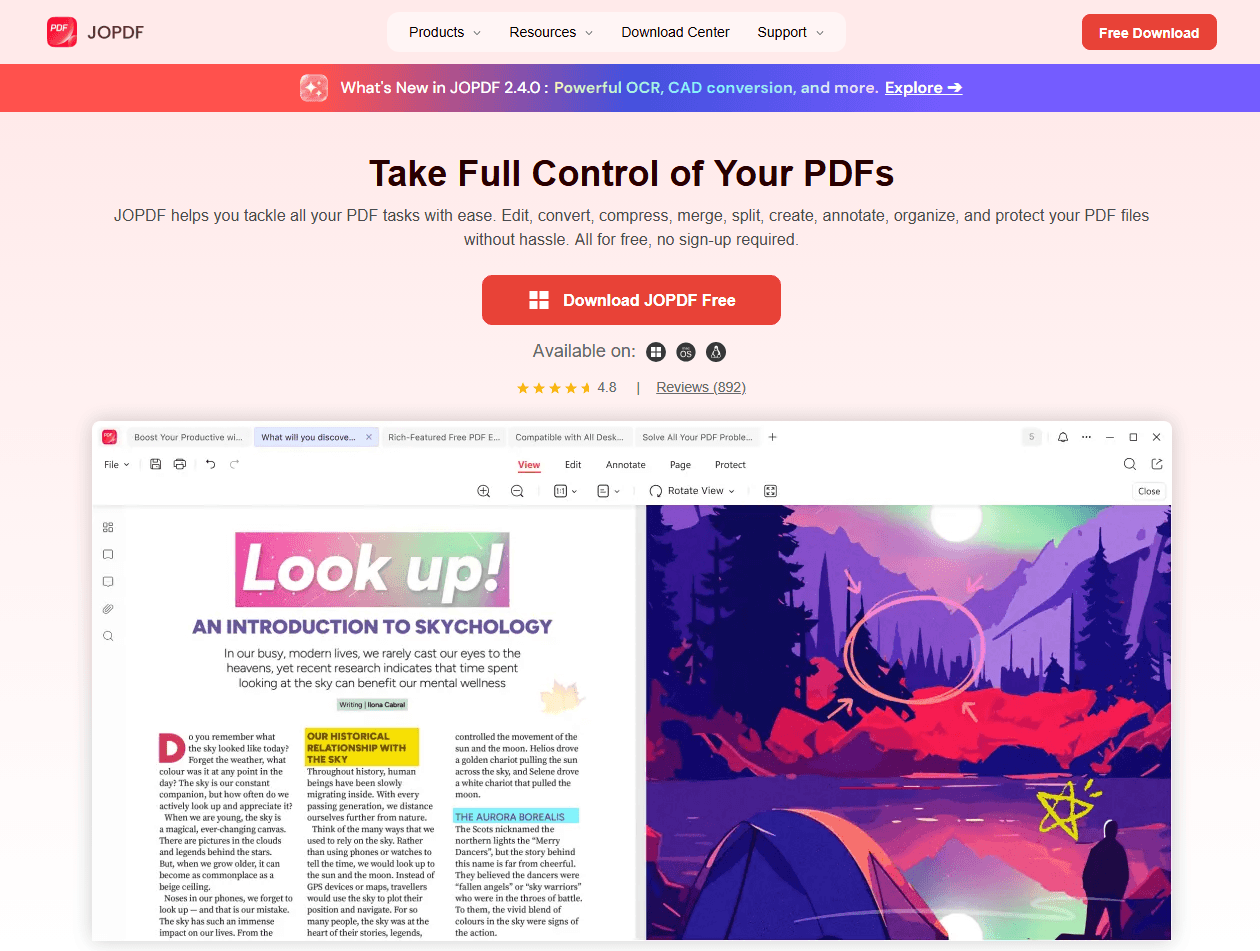
- Local batch OCR runs on your machine, which means you don’t need to upload, wait in server queues, or get stuck in the daily limits. It’s an important choice when you handle some sensitive files, like contracts, medical records, or internal financial documents. JOPDF’s Local OCR supports 29 languages and runs fast. If your batch consists of English, Spanish, French, German, or Chinese documents, this mode covers you.
- Online OCR provides more advanced multilingual functions. For example, if you’re processing a batch of mixed-language documents, online OCR lets you select multiple languages at once. The trade-off is that files are uploaded to a cloud engine, so this mode is for non-sensitive documents or situations where multilingual recognition is worth the privacy cost.
Tips
What about bulk OCR online? We’ve looked at those online batch OCR tools. Most free tiers cap you at one file per day or a handful of pages. That’s not batch OCR; that’s a teaser. And if you’re OCR-ing anything sensitive, uploading it to a random website is a risk you shouldn’t take.
The output choice matters as much as the mode. JOPDF gives you two options, and they serve different downstream workflows.
- Searchable PDF keeps the original scan’s appearance intact while adding an invisible text layer underneath, ideal for archiving, searching, and sharing documents that need to look exactly like the original.
- Editable PDF transforms the scan into content you can modify, useful when you need to correct errors, update dates, or extract text for reuse.
As you can see, JOPDF’s batch OCR is a choice between speed/privacy (Local) and multilingual capability (Online), paired with an output format that matches your next step.
How to OCR Multiple PDF Files Without Uploading?
Want to OCR multiple PDF files without uploading them? This is the part that matters if your documents contain anything you wouldn’t want public.
JOPDF’s Local OCR is offline by design. The recognition happens on your computer. No internet connection is required for the OCR process itself. That means you can batch OCR PDFs without uploading anything to a third party.
Step 1: Download and install JOPDF and launch it.
Step 2: Choose Batch Process and click OCR PDF from the left pane.
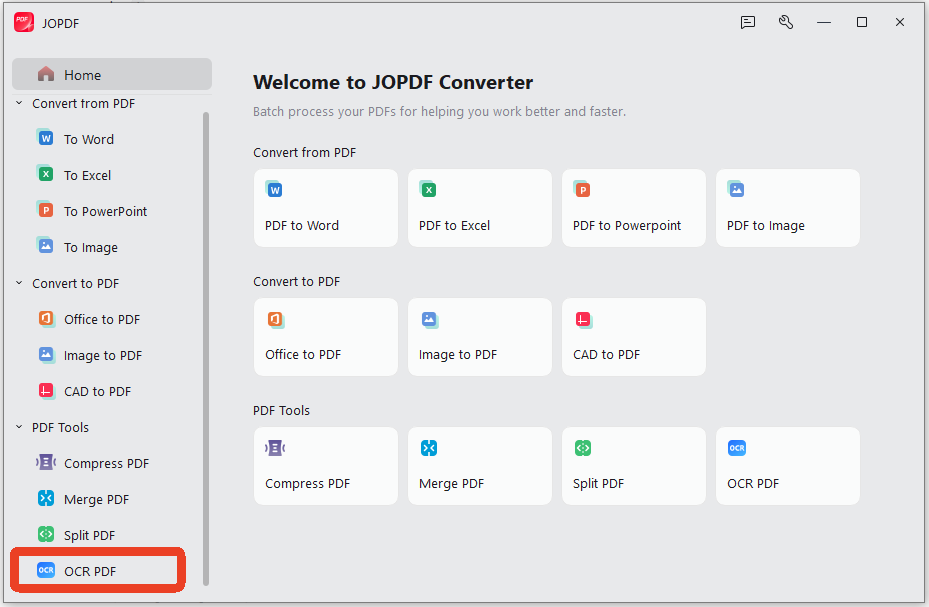
Step 3: Upload your files, and you can select multiple PDFs.
Step 4: Select your OCR mode, document language, and output settings.
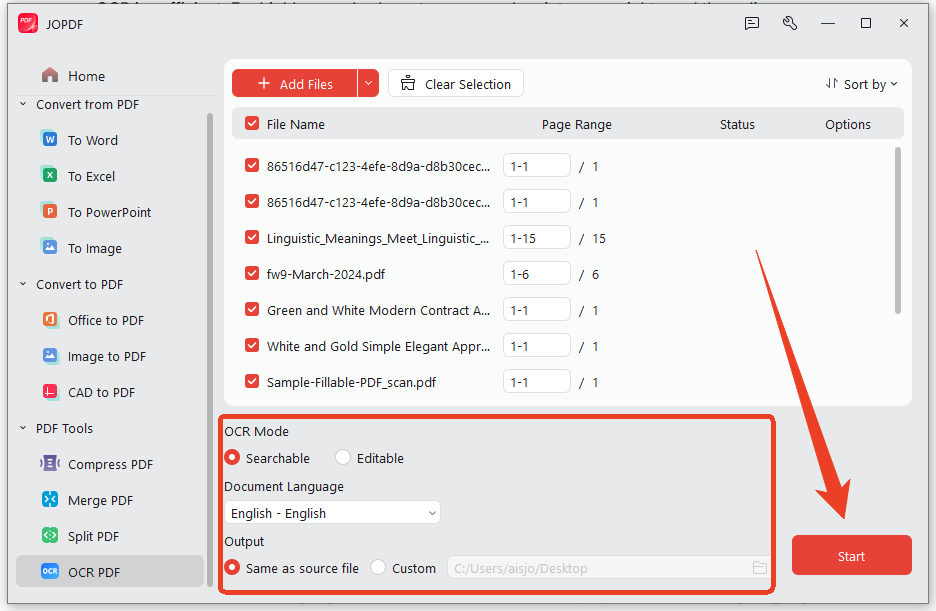
Step 5: Click Start to perform batch OCR for your PDFs.
Tips
If you have batch OCR images alongside PDFs, the cleanest approach is to convert images to PDF first (JOPDF can do that), then OCR the resulting PDFs. It adds a step, but it keeps everything in one tool and one output format.
How to Verify Batch OCR Results
If you’ve run batch OCR on 50 files, you’re not going to open every page, right? Here, we have some tests to help you verify the batch OCR results.
Test 1: The search test. Open a few output files and search for a word you can clearly see on the page. If the search finds it, the text layer exists. JOPDF’s own guide recommends this as the quickest verification.
Test 2: The copy test. Try selecting and copying a sentence. If you can paste it into Notepad, OCR worked. If nothing is copied, the text layer is missing or broken.
Test 3: File size comparison. Searchable PDFs are usually larger than the original scan because they contain both the image and the invisible text layer. If an output file is suspiciously small, something may have gone wrong.
Test 4: Spot-check the worst scans. If one document looked particularly rough before OCR, check that one first. JOPDF’s guides note that accuracy depends on scan quality and correct language settings. A clean 300 DPI scan will be recognized almost perfectly.
Common Mistakes When Batch OCR PDFs
Mistake 1: Wrong language setting. Running a Spanish document through an English OCR model produces text that looks like it was typed by a cat walking on a keyboard. Always select the correct language. JOPDF lets you choose before processing.
Mistake 2: Ignoring scan quality. Low-resolution scans, skewed pages, garbled text, and heavy compression reduce accuracy. 300 DPI is the minimum for reliable results; below 200 DPI, expect errors. If your scans are poor, OCR won’t rescue them.
Mistake 3: Overwriting the originals. OCR changes the file. Keep your original scans in case you need to reprocess with different settings or discover errors later.
Mistake 4: Using online tools for sensitive files. If you wouldn’t email the document to a stranger, don’t upload it to a bulk OCR website.
Mistake 5: Expecting instant results. Local OCR processes page by page. A 100-page batch will take time, depending on your machine. It’s not a “click and done in five seconds” operation.
Conclusion
How to batch OCR PDFs? Selecting a smart batch OCR software is the first step. JOPDF’s local OCR gives you a free, offline way to handle multiple PDFs. JOPDF allows you to choose from a few choices: offline or online, Local OCR or Online OCR, Searchable PDF or Editable PDF. Get those right, verify your results, and avoid the common mistakes. The rest are just waiting for the progress bar.
FAQs
Table of Contents

Your Best Free PDF Expert in PDF editing, compressing, converting, annotating, protect, organizing, and more.
Free DownloadWindows · macOS · Linux

Anna
Editor
“Anna, Editor-in-Chief and PDF expert, delivers deep insights into PDF document technology trends. She is dedicated to helping readers optimize their digital lives. When not writing, Anna loves exploring local cafes and reading, blending her technical expertise with a love for storytelling.”
![4 Free and Proven Methods to Convert PDF to ODS [Detailed]](https://b.jopdf.com/wp-content/uploads/2026/10/convert-pdf-to-ods.png)