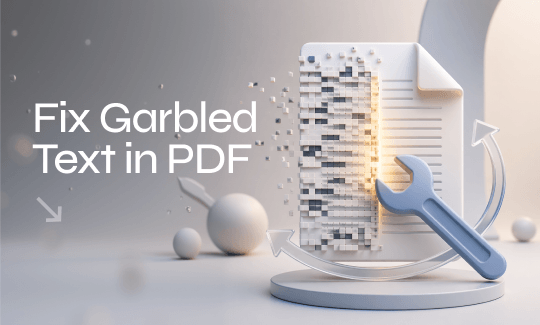
Garbled text in PDFs turns readable documents into unreadable symbols. This problem happens due to missing fonts, corrupt files, or incorrect encoding. This guide on JOPDF provides seven practical methods to fix garbled text, from simple viewer switching to advanced font recovery, plus a completely free tool that handles all these issues automatically.
Summary :
Why Does PDF Show Garbled Text?
On the Microsoft Q&A forum, a user posted: “I opened a PDF and the regular text is garbled. It also prints out this way. I can replicate the problem using the default new document” . Another user on the same forum shared that PDF not showing text properly after a software update, and the problem stayed for months .
So, why does that happen? Most PDF distorted or unreadable text issues come from missing or unsupported fonts, incorrect text encoding, printing/rendering errors, outdated PDF viewers, etc. Luckily, you do not need to be a tech expert to fix this. Most of the time, how to fix garbled text in PDF takes less than five minutes. Below are seven methods that work.
Also See: 7 Must-Know Adobe Acrobat Alternatives for PDF Editing in 2026
Method 1: Try a Different PDF Viewer
Sometimes the PDF file is perfectly fine. The problem is your PDF reader. This is the fastest check you can do. If the text not displaying correctly in PDF in Adobe Reader but looks fine in Chrome, you have identified the issue. Just use the working viewer for that file.
- Right-click on your PDF file
- Select Open with from the menu
- Choose a different program (Microsoft Edge, Google Chrome, or Firefox)
- Look at the text again
Note: If your PDF contains sensitive information, make sure you trust the browser you open it with.
Try JOPDF as a Complete Free Solution
More than a PDF viewer, JOPDF can do more to help you resolve the garbled text in PDF. Instead of trying five different methods as below for different PDF problems, why not use one tool that handles everything?
JOPDF is a completely free PDF editor that works on Windows and Mac. No hidden fees. No login required.
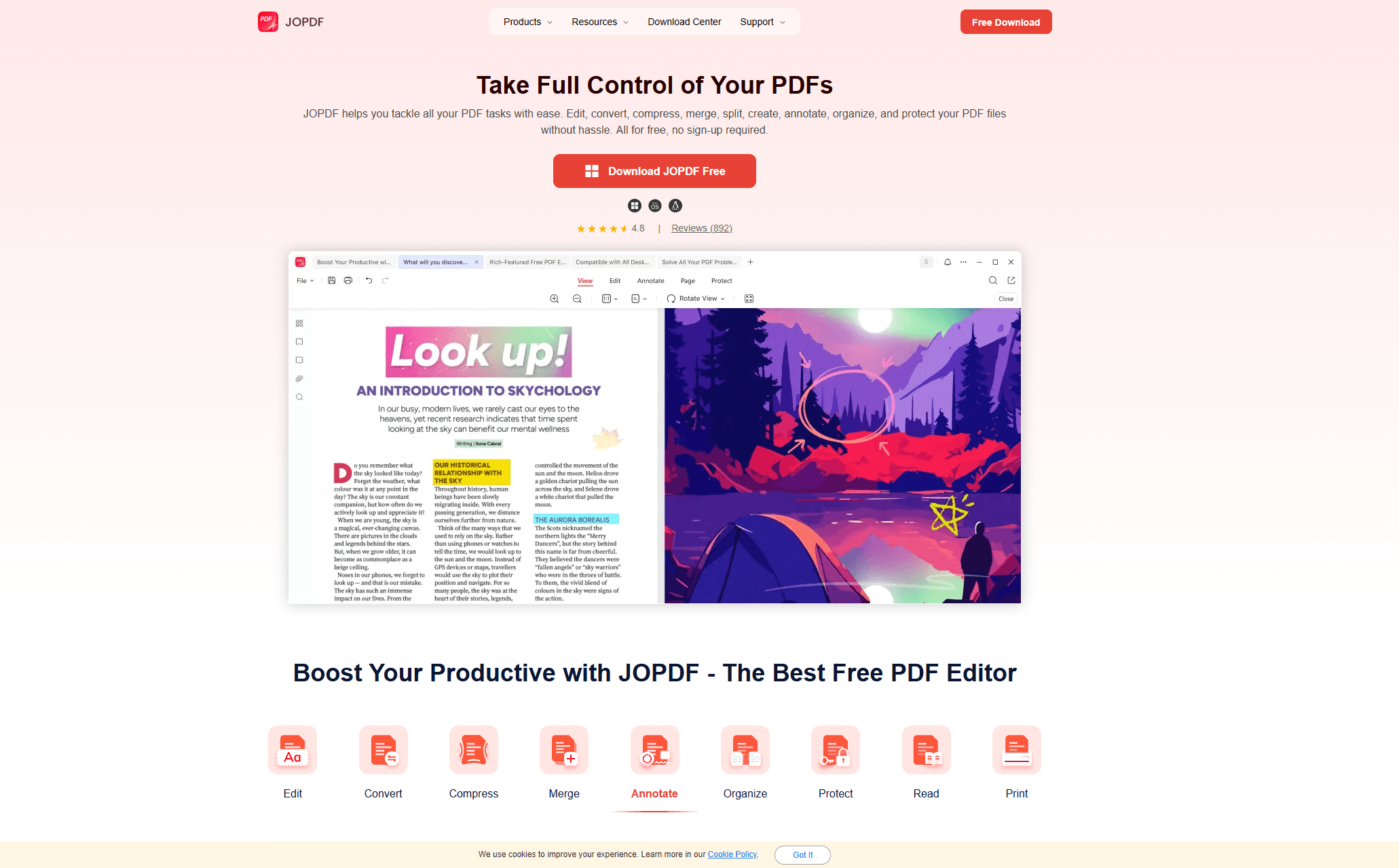
Here is what JOPDF can do for your garbled text problems:
- PDF Editing: Edit text directly like Word – change fonts, fix garbled words, adjust size and color.
- Format Conversion: Turn PDF into Word, Excel, PowerPoint, or images – garbled text disappears in the new format.
- Compression: Fix large, slow-to-load PDFs that open with display errors.
- PDF Creation: Create fresh PDFs from scratch with properly embedded fonts.
- Annotation Tools: Highlight, draw, and add notes to make unclear sections stand out
- Security Features: Add passwords and permissions to protect fixed documents.
To resolve the PDF distorted issue, you can use JOPDF to convert the file to another format. By converting the file, you force the system to rebuild text structure and resolve the encoding-related problems.

JOPDF – The Best Free PDF Editor
 User Rating: 4.8
JOPDF Is a 100% free POF editor for Windows, macOS, and Linux. Edit text, add images, annotate, sign, and more. No limits, no ads, no subscriptions, Fast, simple, and powerful, take full control of your PDFs in seconds!
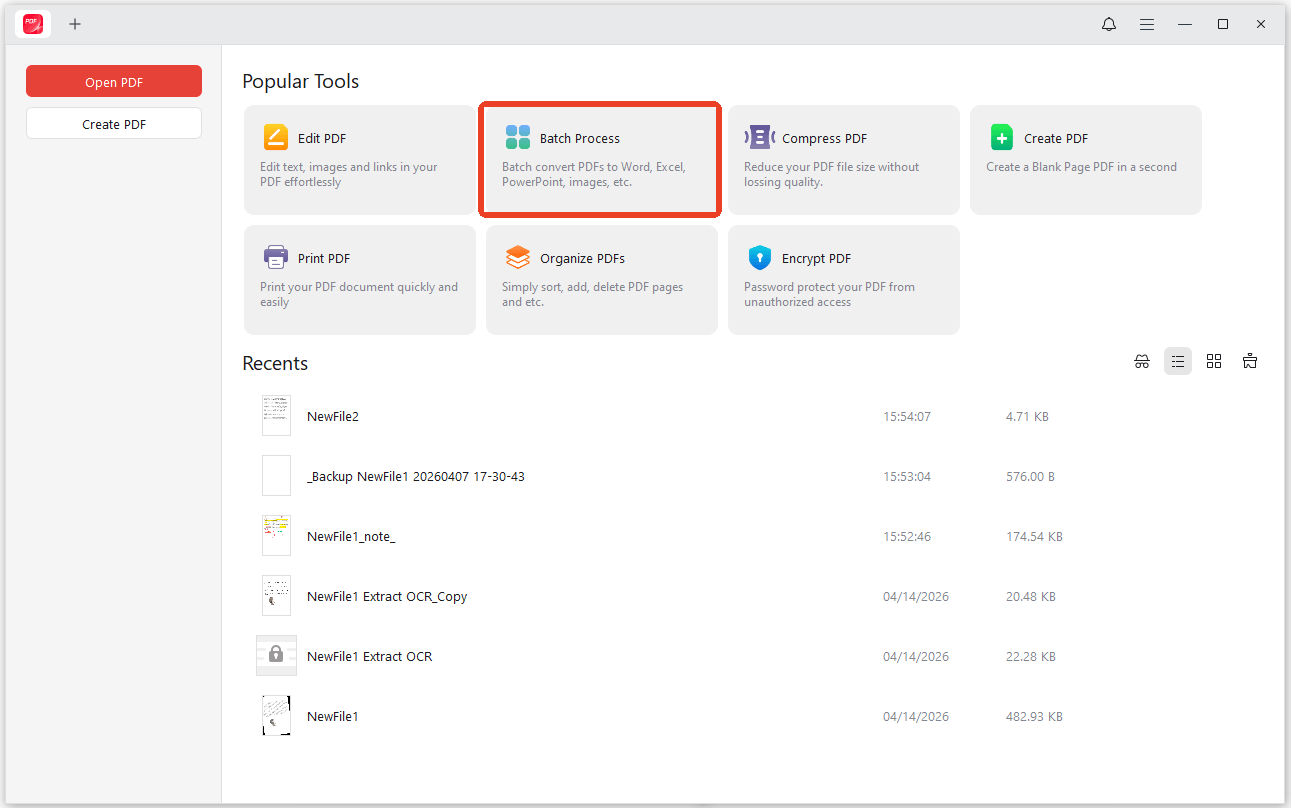
Step 1: Open JOPDF and choose Batch Process.
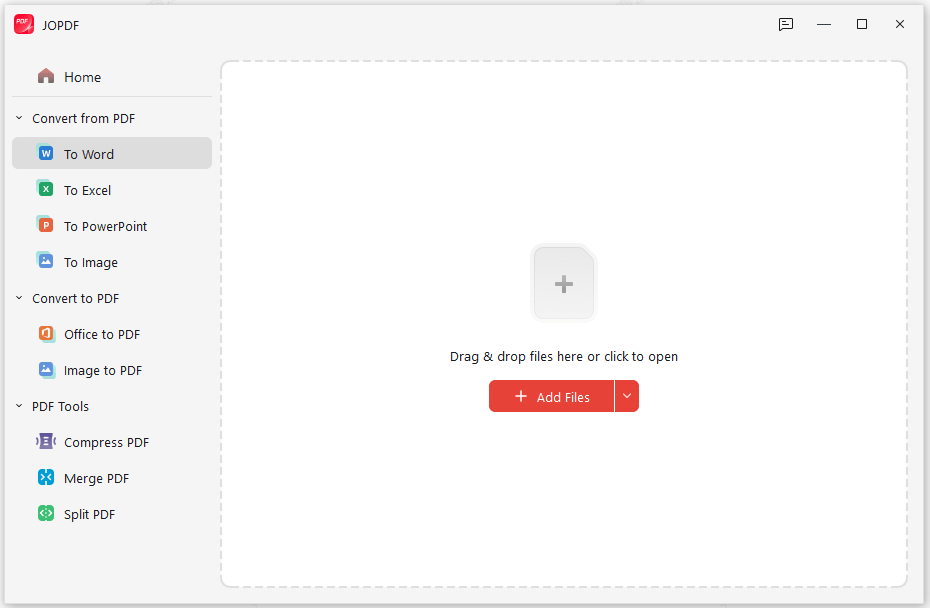
Step 2: Choose PDF to Word and upload the file to convert it.
Step 3: Review and fix any issues in the file and then covert it back to PDF.
JOPDF is free for Windows 10, Windows 11, and macOS . The interface supports multiple languages including English, making it easy to navigate. Unlike some tools that only fix one type of problem, JOPDF gives you all the solutions in one place.
Method 2: Change Fonts in Your PDF Reader
This fix only works in Microsoft Edge. If you are using Adobe Reader or another program, this method will not help you. Also, after changing your font settings, some websites may look slightly different. You can always change the settings back later.
Someone who are struggling with garbled text in PDF files already resolved thier problem. It’s worth trying.
Step 1: Open Microsoft Edge and click the three dots in the top right.
Step 2: Go to Settings and type Fonts in the search bar.
Step 3: Change Standard font to Arial and switch Font size to Medium.
Step 4: Close settings and reopen your PDF to check if the garbled text in PDF issue has been solved.
Method 3: Try “Print to PDF”
If you have tried switching viewers and changing fonts but still see PDF not showing text properly, try this method. It works well for anyone who does not mind creating an extra copy of their file.
This method creates a brand new PDF file. Your original file stays unchanged, so you do not have to worry about losing anything. However, the new file may be larger than the original. Also, if your PDF has interactive forms or comments, those may not transfer perfectly to the new file. For regular text-only PDFs, this method is very safe.
Step 1: Open the garbled PDF in any reader and press Ctrl+P to open the print window.
Step 2: Change the printer to Microsoft Print to PDF and click Print.
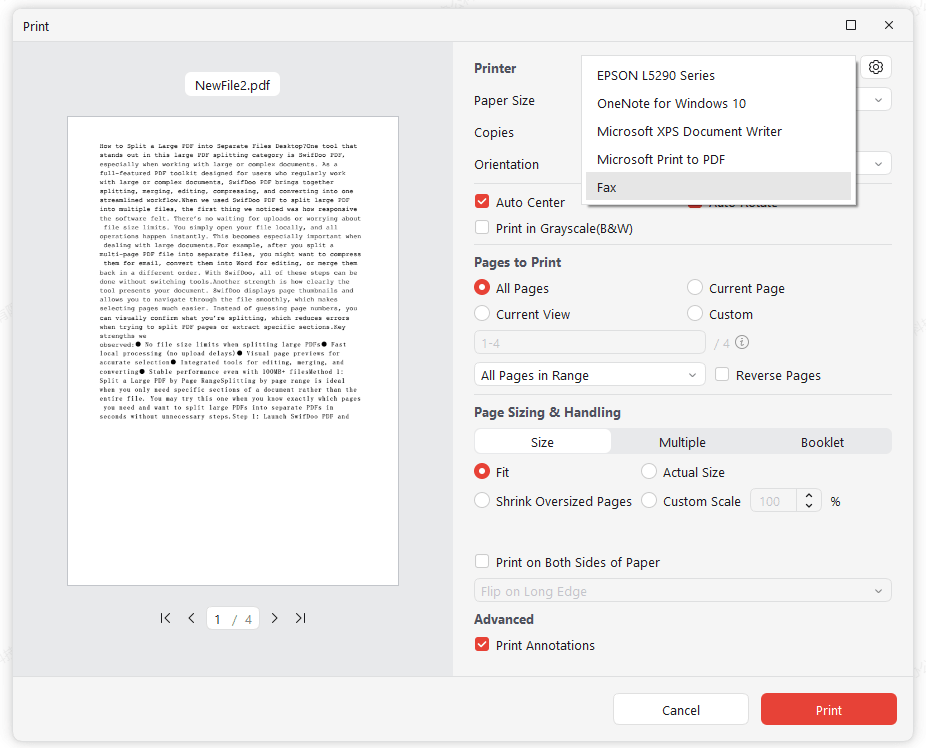
Step 3: Name your new file and save it. Then you can open the new PDF and check the text.
Related Article: Full Guide on How to Add Text to a PDF with the Exact Steps
Method 4: Use “Print as Image”
Sone people may try regular “Print to PDF” and it did not work. This method is also perfect for anyone dealing with PDF printing garbled text on physical paper. Of course, if you do need to copy text out of the PDF, jump to other fixes.
Step 1: Open your PDF in Adobe Reader and press Ctrl+P to open print settings.
Step 2: Go to Advanced section and check the box that says Print as Image.
Step 3: Set DPI to 300 (lower is faster, higher is clearer) and click OK to print it to a new PDF file.
Method 5: Update Your PDF Software
PDF not showing text properly often goes away after a simple update. Some older computers may not support the latest version of your PDF reader. You just need to check the system requirements on the official website and update it. The good news is that browser-based readers like Edge and Chrome update automatically, so this problem happens less often with them.
Follow the next move to update your PDF software:
- Open your PDF reader application.
- Look for Help in the top menu.
- Select Check for Updates.
- Install any available updates.
- Restart the software.
- Open your PDF again.
Most PDF readers come with the same updating measures and you can take the above as a reference.
Method 6: Use OCR for Scanned PDFs
Why does the garbled text in PDF happen? Wrong OCR scan may be the culprit. OCR software reads the shapes of letters in your scanned PDF and then creates a new PDF with a real text layer. However, OCR is not perfect. If the original scan was blurry or at a bad angle, the OCR may make mistakes.
In this way, we recommend you use high-quality OCR tool to get rid of the garbled text in PDF. For best results, use a clean, straight scan at 300 DPI or higher. You may try Google Drive or dedicated PDF tool with built-in OCR, such as SwifDoo PDF.
Method 7: Embed Fonts When Creating PDFs
Fonts are one of the biggest reasons behind text not displaying correctly in pdf. If you send invoices, reports, or forms to clients or coworkers, this method prevents them from ever seeing garbled text. Just check and try a different font like Arial, Times New Roman, or Calibri.
If you are Microsoft Word user, follow these:
- In Word, click File then Options
- Click Save on the left menu
- Scroll down and check Embed fonts in the file
- Check Embed only the characters used in the document
- Click OK
- Save your document as a PDF
Related Article: Expert Guide on How to Change Font Size in PDF with 5 Proven Ways
Conclusion
Garbled text in PDF is frustrating, but it almost always has a fix. Whether the issue comes from fonts, encoding, or file corruption, the methods above give you practical ways to solve it. JOPDF is free, powerful, and handles all these fixes automatically. Try JOPDF and it can save time and effort.
FAQs
Try opening the PDF in a different browser (Edge or Chrome) or use the "Print to PDF" method. Both are completely free and require no extra software.
This happens when your printer uses a different font set than your computer. The solution is to use "Print as Image" or switch to a PostScript printer driver.
Table of Contents

Your Best Free PDF Expert in PDF editing, compressing, converting, annotating, protect, organizing, and more.
Free DownloadWindows · macOS · Linux

Anna
Editor
“Anna, Editor-in-Chief and PDF expert, delivers deep insights into PDF document technology trends. She is dedicated to helping readers optimize their digital lives. When not writing, Anna loves exploring local cafes and reading, blending her technical expertise with a love for storytelling.”