Introduction :
When you have a dozen images and need to convert them into PDFs, it is more convenient and efficient to batch convert them instead of converting one by one. Meanwhile, some of you may need to combine multiple JPGs into one PDF for easy sharing or archiving. In this JOPDF guide, I will walk you through the 4 best methods to batch convert JPG to PDF efficiently.
Method 1: Batch Convert JPG to PDF with JOPDF
Free tools tend to be more favored than paid software. Hence, I’d like to introduce a free converter first. JOPDF is one of the best free PDF converters that is available on Windows, Mac, and Linux.
Why Select JOPDF for Bulk JPG to PDF Conversion
JOPDF is a 100% free JPG to PDF converter. You can use it to convert multiple JPGs to PDFs individually, as well as combine multiple JPGs into one PDF file. Additionally, JOPDF allows you to customize the page size as needed. You can keep the original paper size or set it to A4. In addition, JOPDF supports other image formats, including PNG, BMP, and TIFF. You can also use it to convert a PDF to an image.
How to Batch Convert JPGs to PDFs in JOPDF
Owing to the intuitive interface, it is quite easy to bulk convert JPGs to PDF with JOPDF. Here, I also prepared a step-by-step guide for your reference:
Step 1. Click the button below to download the JOPDF converter on your Windows or Mac PC. Also, you can visit JOPDF’s download center to get its Linux version.
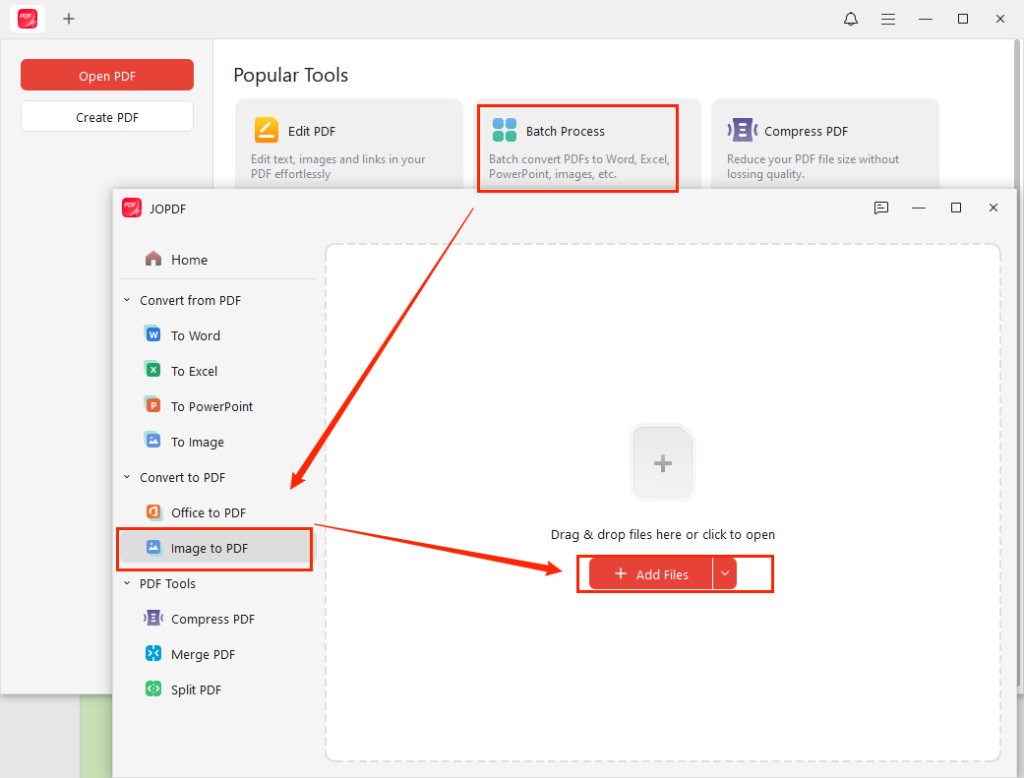
Step 2. Launch this free batch JPG to PDF converter, click Batch Process, and select the Image to PDF option. Next, click Add Files, locate and select the target JPG images, and click Open to import them.
Step 3. Here are two Method options: Each Image as A PDF and All Images as One PDF. To keep converted images separately, select the Each Image as A PDF option. If you want to compile all JPG files into one PDF, click the All Images as One PDF. In most cases, keep the default Original Page Size setting.
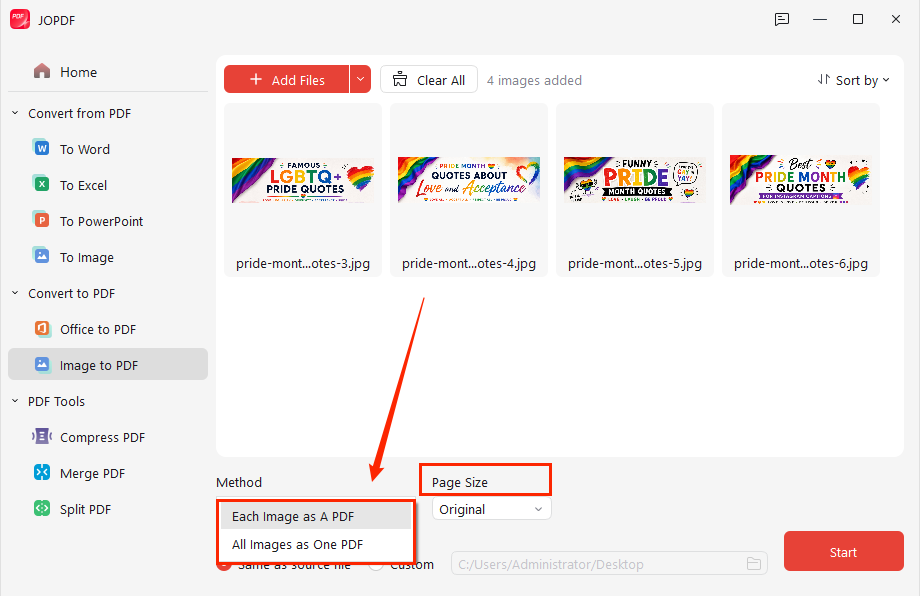
Step 4. Next, select the output path. Finally, click Start to perform the batch conversion.
Method 2: Batch Convert JPG to PDF with Windows Built-in Features
Fortunately, if you are a Windows user, you can use its built-in features to create PDFs without installing additional software. The feature you will use is Microsoft Print to PDF, a virtual PDF printer. If your Microsoft Print to PDF is not working, you can turn to JOPDF to make PDFs. How to batch convert JPG to PDF on Windows? Here are the exact steps:
Step 1. Locate your JPG files in File Explorer and then select the target JPGs.
Step 2. Right-click on any of them and click the Print option.
Step 3. The Print Picture window will appear. Expand the Printer list and select “Microsoft Print to PDF”. Meanwhile, you can customize the paper size, layout, and quality as needed.
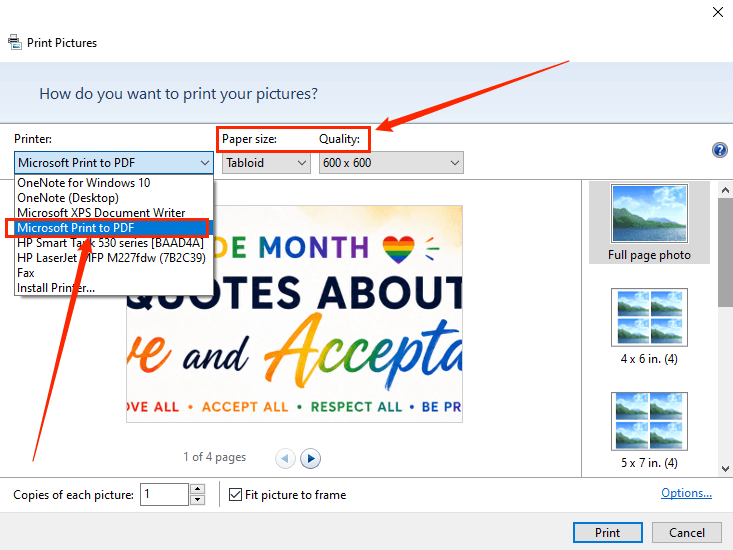
Step 4. Next, click Print. Finally, name the PDF file and click Save. Then you can get a PDF file containing all the converted JPGs. If you want to batch convert individual JPG images to individual PDF files, please use JOPDF.
Method 3: Convert Multiple JPGs to PDFs on Mac with Preview
How to batch convert JPG to PDF on Mac? JOPDF is worth trying. In addition to converting images to PDFs, JOPDF comes with a set of editing tools. You can use it to modify and manage PDFs professionally.
If you don’t want to install any software, macOS also includes a built-in program, Preview, to convert JPG to PDF on Mac. What’s more, Preview is a PDF editor with some basic editing features. For instance, you can use it to add electronic signatures to PDFs, rotate PDF pages, create a PDF from images, and more. How to bulk convert JPG to PDF in Preview? Below is a step-by-step guide:
Step 1. Select all JPG images, right-click them, move to Open With, and select Preview. Then, all JPG files will open in Preview.
Step 2. If the Thumbnail sidebar is not visible, click View and select Thumbnails to display it.
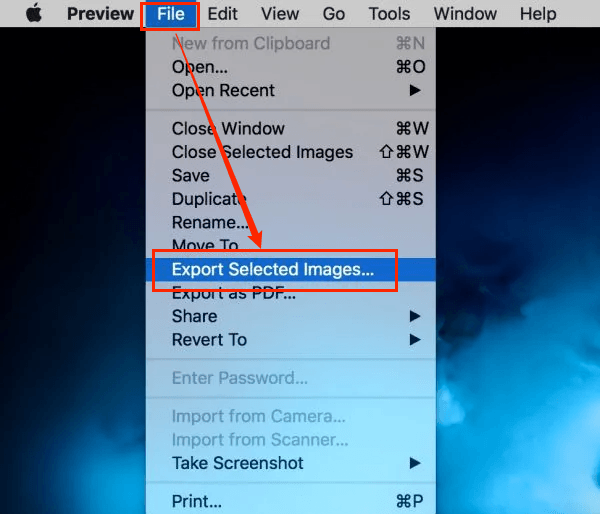
Step 3. Press Cmd + A to select all thumbnails, click File, and select “Export Selected Images…” Then, click Options and select PDF as the format. Finally, choose a destination folder and click Save. In this way, you can get separate PDF files for each JPG image.
Tips
If you want to combine all JPGs into a single PDF, select all thumbnails, click File, and select the Print option. In the Print dialog, click the PDF dropdown and select the Save as PDF option. At last, name the PDF, select its saving path, and click Save.
Method 4: Batch Convert JPG to PDF Online
You can use the built-in features of your devices to convert multiple JPGs into PDFs without installing software. Besides built-in features, online converters are also useful if you don’t want to install software. Which online batch JPG to PDF converters are worth trying? Here are some reliable choices for you:
- PDF24 Tools
- PDF Candy
- Smallpdf
- iLovePDF
- SwifDoo PDF Online Converter
- FreeConvert
- Convertio
Those online converters can work on both PC and mobile devices as long as they have a browser. What’s more, most online converters have a simple user interface. Here, let’s take PDF Candy as an example to show you how to batch convert JPGs to PDFs online.
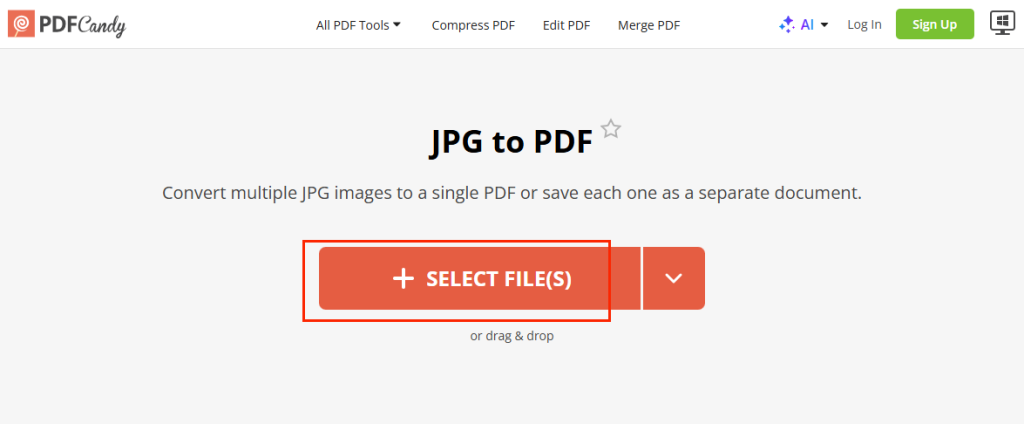
Step 1. Open your Chrome or another browser and visit PDF Candy. Here, click “JPG to PDF”.
Step 2. Click the SELECT FILE(S) button to upload multiple JPG images.
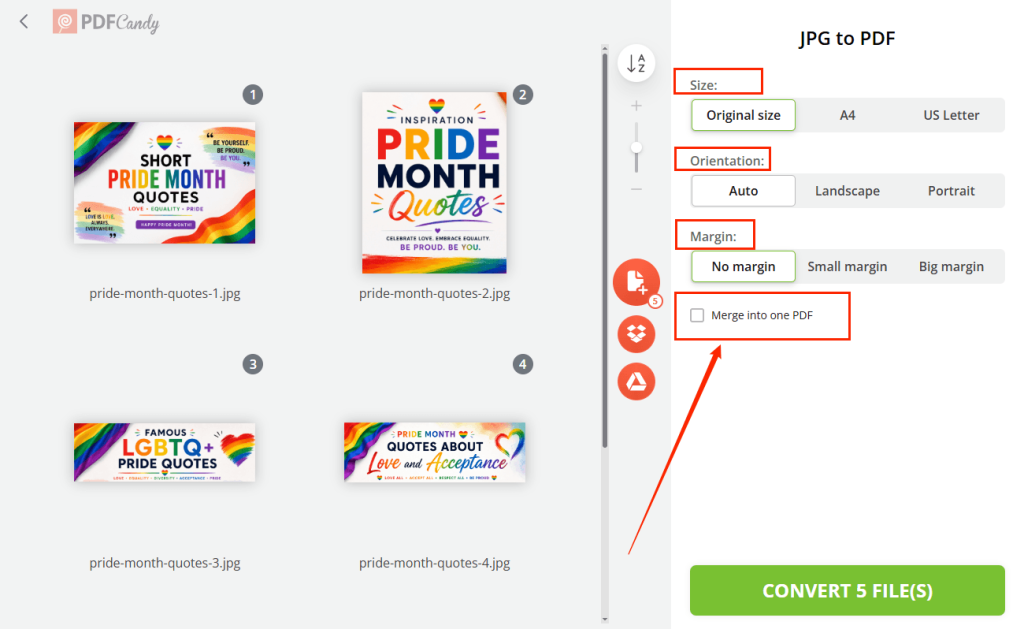
Step 3. On the right panel, you can customize the page size, orientation, and margins. If you want each JPG file converted to its own PDF file, uncheck the “Merge into one PDF” checkbox. Next, click the CONVERT button.
Step 4. Once the conversion process is over, click “Download file”.
How to Convert Multiple JPG Files into One PDF Without Losing Quality
How can you combine multiple JPGs into one PDF without losing quality? To maintain quality, you need to use original-resolution JPG files and avoid excessive compression. Meanwhile, you can select a high-quality PDF export option. What’s more, desktop software is better than online converters for large image batches.
JOPDF is a worthwhile PDF converter that can help you convert multiple JPGs into a single PDF or multiple PDFs without losing quality. You can also adjust the image order and page size as needed. You can use it to perform PDF conversions with no hidden cost.
Final Thoughts
It is not difficult to batch convert JPG to PDF as long as you select the right converter. If you only need occasional use, consider the built-in tools on Windows and Mac. Also, you can try online converters for quick tasks. If you regularly handle large numbers of images or edit PDF files, JOPDF is the better choice, offering a more efficient workflow.
FAQs
Table of Contents

Your Best Free PDF Expert in PDF editing, compressing, converting, annotating, protect, organizing, and more.
Free DownloadWindows · macOS · Linux

Olivia
“Olivia is an editor at JOPDF, where she writes practical guides and insightful articles on managing PDFs—covering topics like editing, annotating, converting, and organizing files efficiently. Passionate about clear communication and digital productivity, Olivia enjoys spending her free time cooking, watching movies, and hiking to unwind and find inspiration for her writing.”