
Introduction :
Viewing a PDF upside down can affect the viewing experience. Fortunately, it is quick and easy to rotate PDFs on Mac. Whether you need to fix a single page or an entire document, this JOPDF article offers the best free and paid options to permanently rotate PDF pages. Meanwhile, the detailed guide on how to rotate a PDF on Mac is also included.
Method 1. Free Rotate a PDF with JOPDF (Free Dedicated Editor)
Compared to paid software, a free tool is our first choice. JOPDF is a completely free PDF editor for Mac, which has a set of tools for editing, annotating, and organizing PDFs. Function as a PDF rotator, JOPDF enables you to change the PDF orientation with ease. In addition, you can use it to split or merge PDF files.
To help you have a better understanding of JOPDF, I list its highlight features as follows:
- Edit PDF text and add text boxes to a PDF for free
- Edit and convert bank statements to Excel
- Sign PDFs by adding electronic signatures
- Add links or attachments to a PDF
- Batch compress PDF
- Convert PDF to Word, Excel, or other formats
- …
Now, let’s learn how to rotate a PDF on Mac for free using JOPDF.
Step 1. Click the button to download and install JOPDF for Mac. Then, launch it.
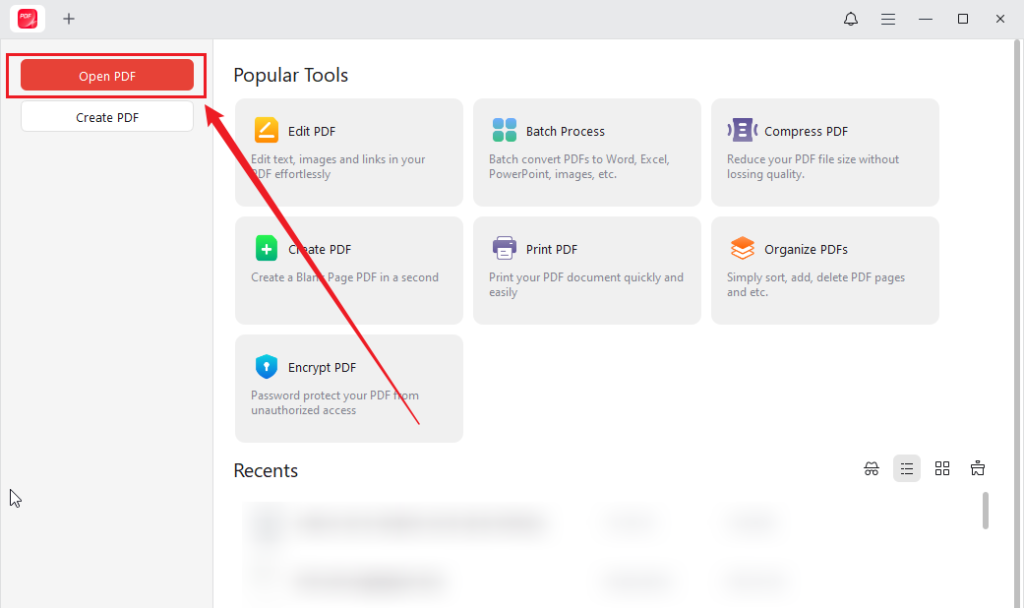
Step 2. Click Open PDF to locate and import the target PDF file.
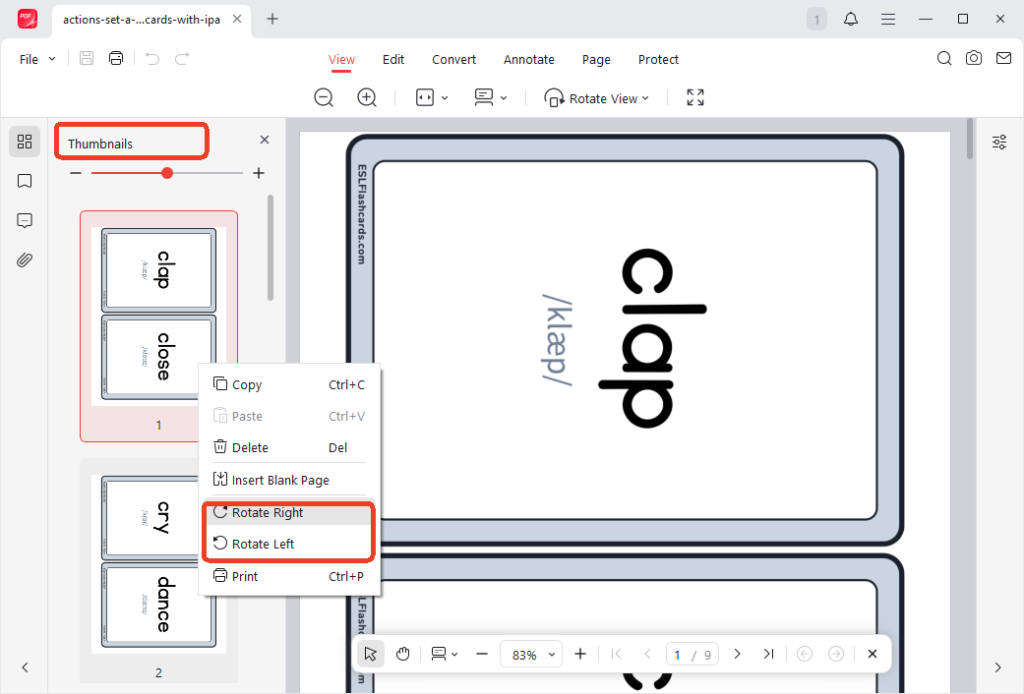
Step 3. In the left Thumbnails pane, right-click the target page, and select the Rotate Left or Rotate Right option.
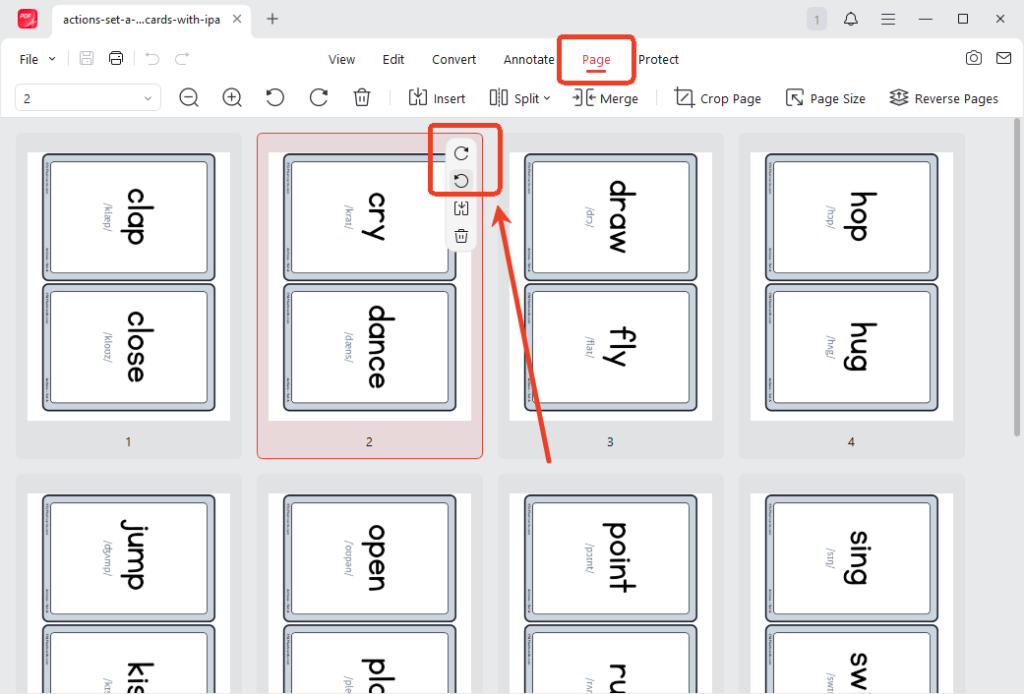
Alternatively, switch to the Page section. Move the cursor over the PDF page and click the Rotate icon.
If you need to change the orientation of multiple PDF pages, press Command and click to select the target pages. Then, click the Rotate icon in the top toolbar.
Step 4. At last, click the Save icon to save the PDF.
Method 2. Rotate a PDF on Mac with Preview (Free & Built-in)
Can you rotate a PDF on Mac without installing software? Of course, you can. macOS comes with Preview, a built-in program for viewing PDFs and images. Meanwhile, it offers basic editing features, such as rotating and cropping a PDF on Mac. You can use it to rotate a single PDF page. Additionally, it can rotate all pages in a PDF on Mac. How to rotate a PDF in Preview? Below are instructions:
Step 1. Locate and right-click your target PDF file. Then select Open With > Preview. Or simply double-click the document if Preview is your default PDF viewer.
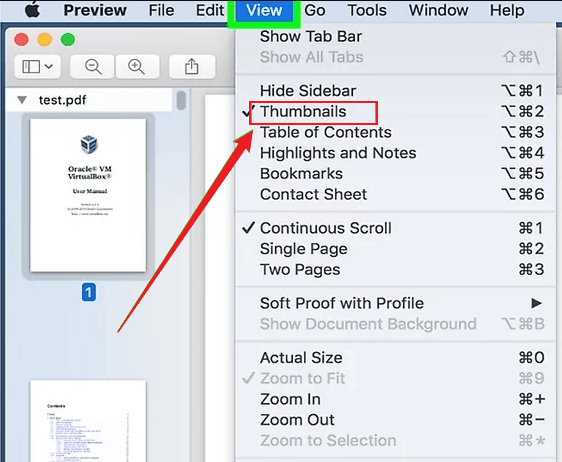
Step 2. Click View and select Thumbnails to see all PDF pages in the sidebar.
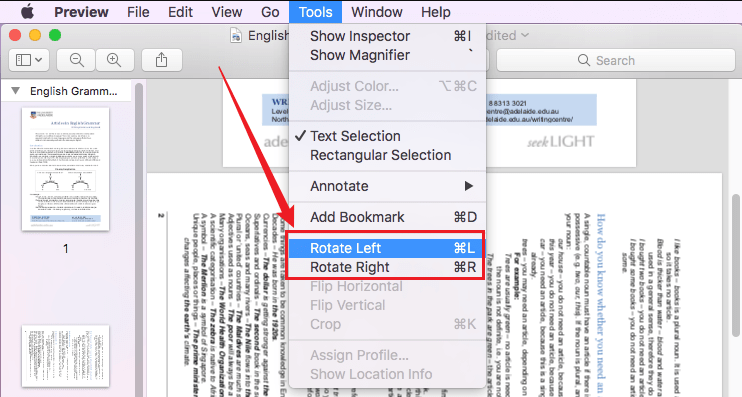
Step 3. For a single PDF page, click the page you want to rotate. For multiple pages, press and hold Command to select target pages. Then, click the Rotate Left or Rotate Right icon from the Tools list.
Step 4. Finally, press Command + S to save the changed PDF file.
Method 3. Rotate a PDF on Mac Using Adobe Acrobat
If you pursue a professional Mac PDF editor, Adobe Acrobat ranks NO.1. It provides you with both basic and advanced features to modify PDFs. In addition to rotating PDFs, Adobe Acrobat enables you to flip PDF pages. When you need to handle and edit scanned PDFs, its OCR feature can recognize text and make them editable. Instead of using those advanced features for free, you need to pay subscription fees. How to rotate a PDF in Adobe Acrobat? Follow the tutorial below:
Step 1. Open Adobe Acrobat Pro or Standard and open your target PDF file.
Step 2. Click Tools and select Organize Pages.
Step 3. Then, the thumbnail view will be enabled. Click the PDF page you need to rotate or press and hold Cmd to select multiple pages. Next, click the Rotate Left or Rotate Right icon in the top toolbar.
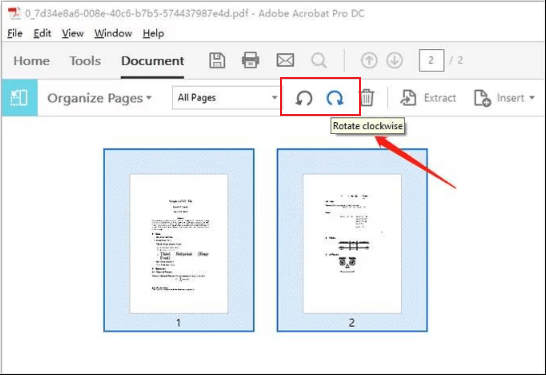
Step 4. Finally, exit Organize Pages mode and save the changed PDF file.
Can you rotate a PDF permanently in Adobe Acrobat Reader? As a PDF viewer, Adobe Acrobat Reader offers only limited editing features. Unfortunately, it doesn’t support rotating PDF permanently. It can only rotate PDFs for viewing.
If you don’t want to install additional software, you can also try Adobe Acrobat Online to rotate PDF pages on Mac.
Method 4. Rotate a PDF Online on Mac via Smallpdf
To rotate a PDF on Mac, you can also try a reliable online tool to complete the task quickly. When choosing online tools, put security and privacy first. Smallpdf is a safe, easy-to-use, reliable online PDF editor. With its intuitive and user-friendly interface, you can rotate PDF pages easily. Meanwhile, you can use it to extract PDF pages, add page numbers, and make other edits. Let’s learn how to rotate a PDF online with Smallpdf.
Step 1. Open your browser and visit Smallpdf’s Rotate PDF website.
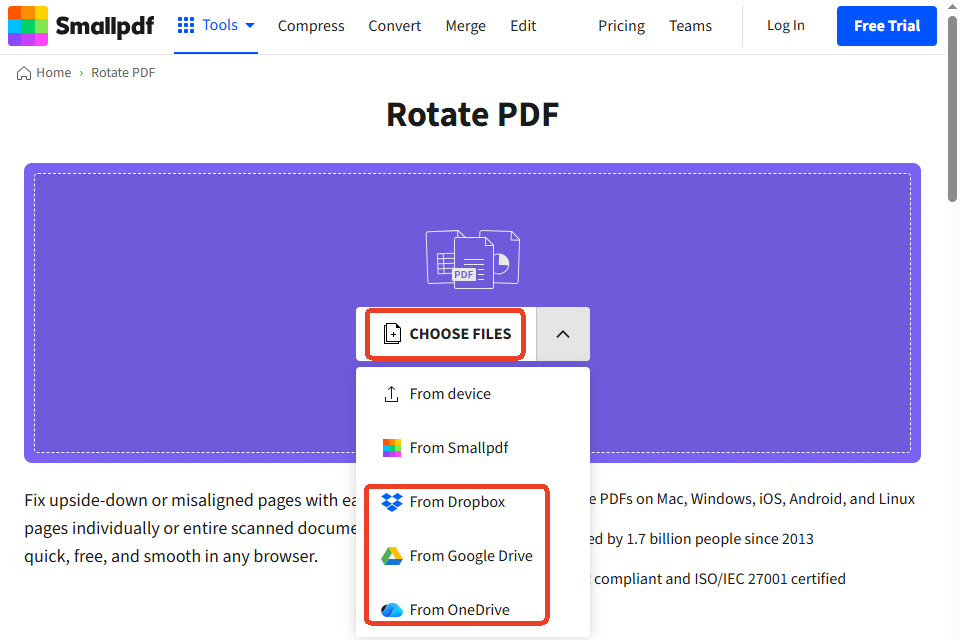
Step 2. Click CHOOSE FILES to upload the PDF file from your Mac. Or, you can upload the file from Dropbox, Google Drive, or OneDrive.
Step 3. Click the Rotate icon on the target PDF page to change its orientation. Also, you can tick the pages you need to rotate and click the Rotate icon.
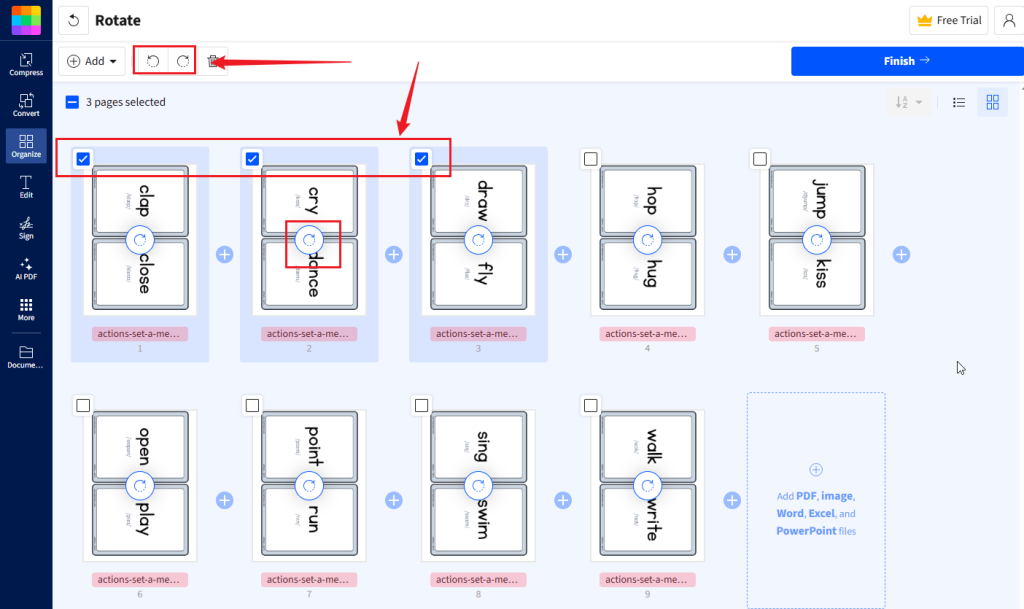
Step 4. Next, click Finish to process. Once done, click Download to save the PDF file.
Comparison Table: Which is the Best Mac PDF Rotator
Which Mac PDF editor should be your choice? Preview or JOPDF? You can make the choice based on your practical needs. Here, I will show you the quick comparison table of the 5 best methods for rotating PDF on Mac.
| Method | Cost | Best For | Batch Rotation | Permanent Save | Ease of Use |
| JOPDF | Free | Regular PDF work | Excellent | Yes | High |
| Preview | Free | Quick fixes | Yes | Yes | Very High |
| Adobe Acrobat | Paid/Free Online | Professional use | Excellent | Yes | Medium |
| Smallpdf | Free | One-off tasks | Limited | Yes (new file) | High |
Conclusion
How to rotate a PDF on Mac? For most people, Preview is the easiest way to do that since it is free and pre-installed. If you need more features and use it frequently, try JOPDF, a free Mac PDF editor. You can also try Adobe Acrobat for more advanced features if you need a professional tool. Also, you can try to rotate a PDF online. Now, get the right method and try it out!
FAQs
Open the target PDF in JOPDF.
Go to Page and press Cmd + A to select all pages.
Click the Rotate icon at the top.
Finally, save the PDF.
JOPDF: Best free PDF rotator with more features
Preview: macOS’s built-in PDF rotator
Adobe Acrobat: Best paid PDF rotator with advanced features
Table of Contents

Your Best Free PDF Expert in PDF editing, compressing, converting, annotating, protect, organizing, and more.
Free DownloadWindows · macOS · Linux

Olivia
“Olivia is an editor at JOPDF, where she writes practical guides and insightful articles on managing PDFs—covering topics like editing, annotating, converting, and organizing files efficiently. Passionate about clear communication and digital productivity, Olivia enjoys spending her free time cooking, watching movies, and hiking to unwind and find inspiration for her writing.”



