
Introduction :
When you want to remove unwanted margins, focus on specific content, or improve document presentation, it is essential to crop a PDF on Mac. How to crop a PDF on Mac? Fortunately, macOS offers built-in tools as well as third-party and online solutions to help you crop PDF pages easily. Let’s explore this JOPDF article and find effective ways to crop PDF pages.
Can You Crop a PDF on Mac
Yes, absolutely. Cropping can remove unwanted white space, margins, or private information from your PDF pages. How to crop PDFs on a Mac? You can crop a PDF on a Mac without installing any extra software, and you can also use professional tools or online services if you need more advanced features.
The easiest way to crop PDFs is using the built-in Preview app. However, Preview only hides the cropped areas, rather than permanently deleting them. For advanced or permanent cropping, you may need professional PDF editors like JOPDF and Adobe Acrobat. Now, let’s keep reading and find the step-by-step instructions.
How to Crop PDF Pages on Mac for Free with JOPDF
JOPDF is a user-friendly, free PDF editor designed for Mac users who want more flexibility than Preview without paying for premium software. It’s especially useful for users who need cleaner cropping results and a straightforward interface. Also, JOPDF is available on Windows and Linux. How to crop PDF pages on Mac for free with JOPDF? Follow the instructions below to crop PDF pages without Adobe:
Step 1. Click the button below to download JOPDF and follow the on-screen prompts to install this free PDF cropper on your Mac.
Step 2. Launch the best free PDF cropper and click Open to import your target PDF file.
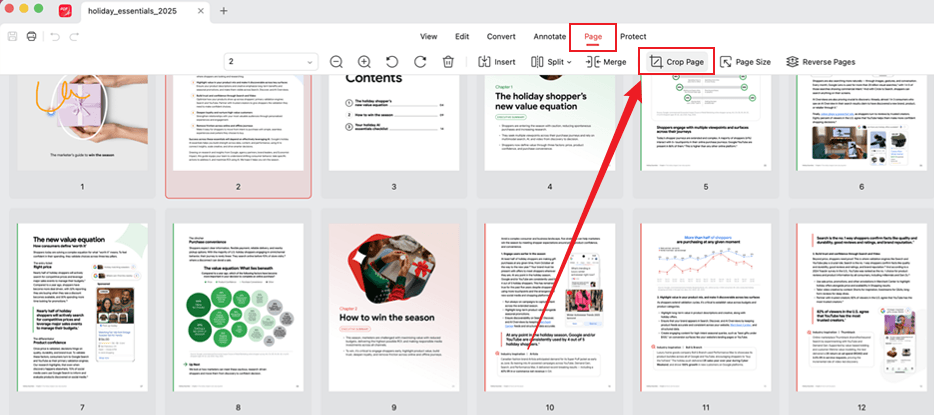
Step 3. Then switch to the Page tab, select one target PDF page or all pages, and click the Crop Page option.
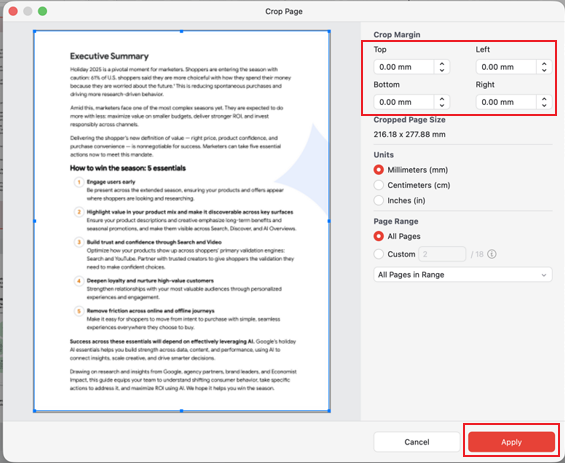
Step 4. In the Crop Page window, you can click and drag the page edge in the left preview window to crop it. Or, enter the needed values in the Top/Bottom/Left/Right box under the Crop Margin section. Once you are satisfied, click the Apply button.
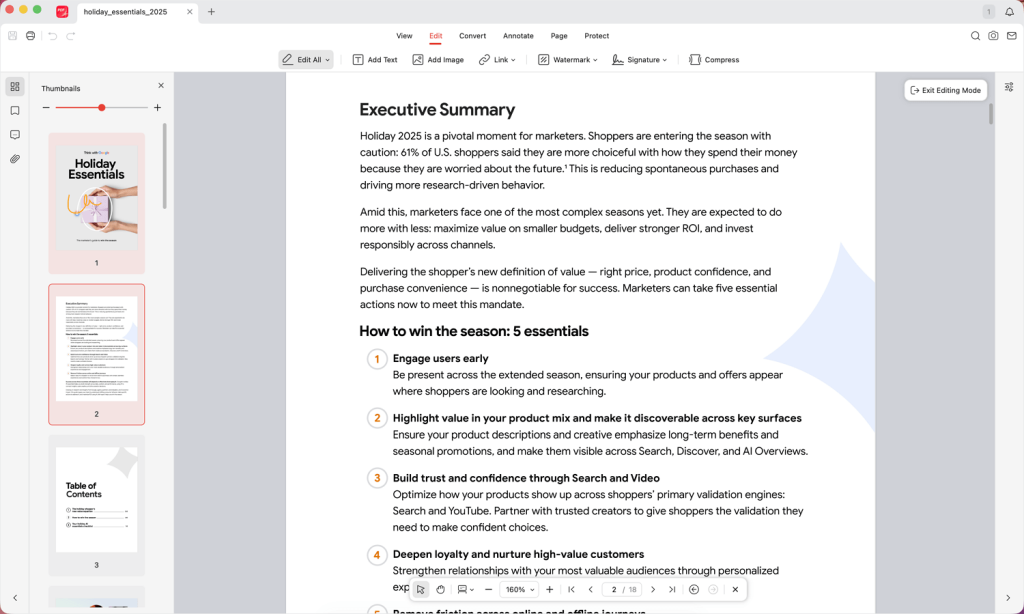
Step 5. (Optionally) Go to Edit, Annotate, and Protect tab to modify your cropped PDF file. At last, click the Save icon to save the document.
Why JOPDF Is Recommended?
JOPDF is more than an excellent PDF cropper for cropping multiple pages in a PDF file. It is a powerful PDF editor and converter. Below are some highlighted features of JOPDF:
- Resize PDFs to change paper size or reduce file size.
- Extract images from PDFs.
- Add or remove watermarks from PDFs.
- Add signatures to PDF files.
- Batch compress PDF files.
- Convert PDF to image, Word, PPT, or Excel.
- Password-protect PDFs.
- …
How to Crop a PDF on Mac Using Preview
We know that Preview is the default PDF viewer on macOS. Additionally, it’s a PDF editor that enables you to annotate and edit PDFs on Mac. With Preview, you can crop a PDF without installing anything. However, Preview doesn’t support cropping multi-page PDFs. You must repeat the process for each stage. In that case, JOPDF is the better choice.
How to crop a PDF using Mac Preview? Follow the steps below and give it a try.
Step 1. Locate and open your target PDF file in Preview.
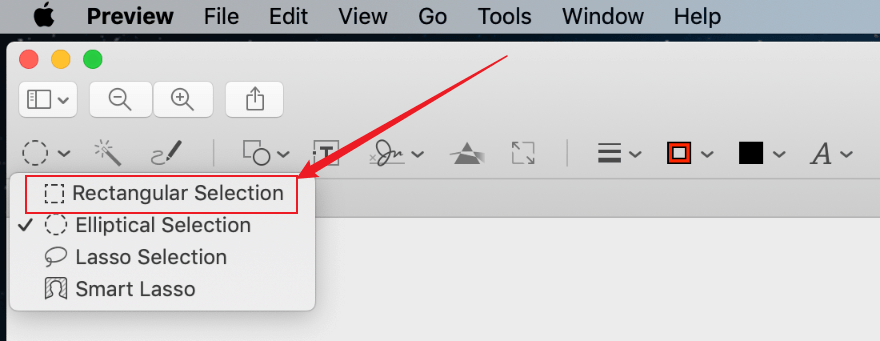
Step 2. Click the Show Markup Toolbar icon and select the rectangular selection tool. Then, drag the cursor to choose the area you want to keep.
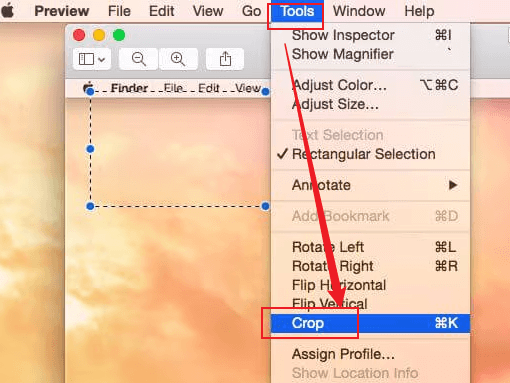
Step 3. Next, click Tools and select the Crop option.
Step 4. Once done, go to File and click Save to export the cropped PDF file.
Note
Cropping in Preview is non-destructive. In other words, the cropped content is just hidden, but not deleted. In that case, anyone with the file can revert to the original one by going to File > Revert To > Browse All Versions. If you need a permanently cropped PDF file, click File and select the Export as PDF option.
How to Crop a PDF on Mac Using Adobe Acrobat
If you have installed and subscribed to Adobe Acrobat Pro, it’s a professional way to crop a PDF on Mac. If you need a free PDF cropper, the free options, JOPDF and Preview, should be your first choice.
Adobe Acrobat Pro offers professional-grade cropping tools, including the ability to crop multiple pages with different settings. Its cropping tool can remove the cropped content permanently. Moreover, Adobe Acrobat Pro is ideal for handling large or complex PDF files. Here, let’s learn how to crop PDF pages in Adobe Acrobat Pro.
Step 1. Run Adobe Acrobat Pro and open the target PDF file that you need to crop.
Step 2. Click Tools in the top left and select the Edit PDF option. Next, select the Crop Pages option from the secondary toolbar.
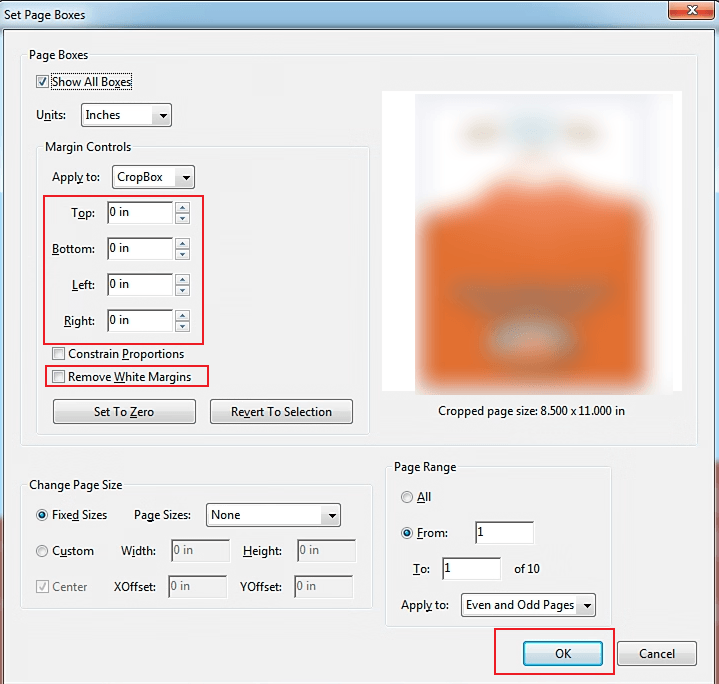
Step 3. Next, drag and crop a rectangle on the PDF page. Then, you can double-click on the selected rectangle to open the Set Page Boxes dialog.
Step 4. In the Set Page Boxes dialog, you can adjust margins manually or click the Remove White Margins button. Meanwhile, you can customize the page range here, like All, Current, or a specific range. Once done, click OK to apply the changes. Finally, save the cropped PDF file.
Can you crop a PDF in Adobe Acrobat Reader? No, Adobe Acrobat Reader doesn’t include the crop tool. You would need the Pro version. If you need a free PDF cropper, try JOPDF, a free alternative to Adobe Acrobat.
How to Crop a PDF on Mac Online
If you prefer not to install any software, online PDF croppers work directly in your browser. Additionally, you can use those online PDF croppers to crop PDFs on Windows, Linux, iPhone, and Android. They are quite ideal for occasional use, but avoid using them for confidential or personal documents because files are uploaded to a third-party server. Here, I have tested and picked several reliable online PDF croppers for you to choose from.
- Smallpdf
- PDF Candy
- iLovePDF
- PDFgear
How to crop a PDF on Mac online? Take iLovePDF as an example. You can refer to the exact steps below to crop a PDF online.
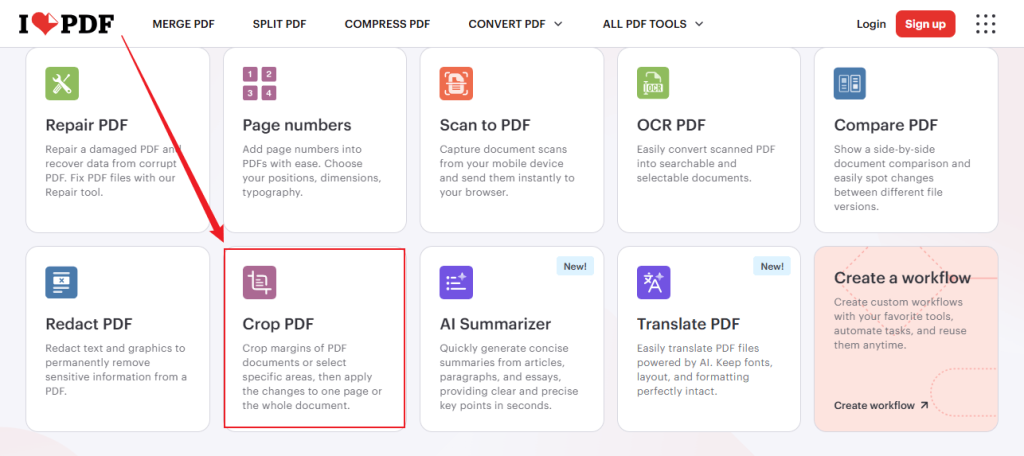
Step 1. Open a browser on your Mac and visit iLovePDF’s official website. Next, scroll down to select the Crop PDF option.
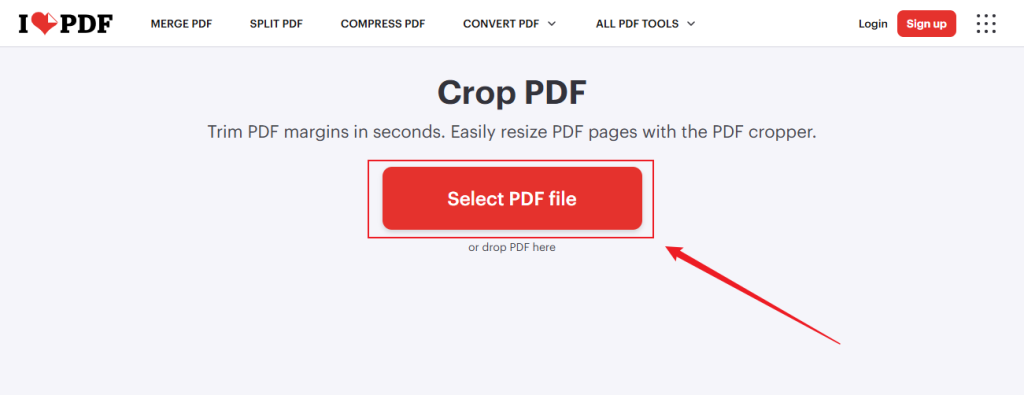
Step 2. Click the Select PDF file button to upload the PDF you need to crop.
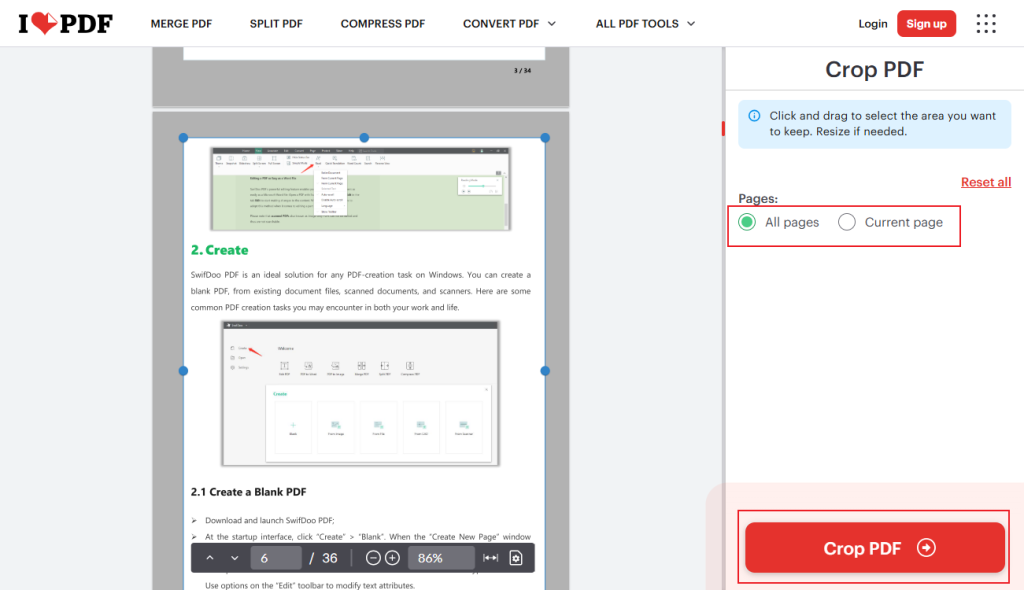
Step 3. Next, click and drag the cursor to select the area you need to keep. On the right pane, select the All page or Current page option. Then, click the Crop PDF button.
Step 4. Finally, click the Download PDF button to save the cropped PDF locally.
How to Crop Multiple Pages in a PDF on Mac
Cropping one page is easy. But what if you need to crop all 100 pages the same way? Preview only works on one page at a time, so you need a different approach. If you need a free and reliable way, JOPDF is trustworthy. You can use it to crop multiple PDF pages on Mac with no file size limit and no hidden cost.
Online PDF croppers are also available. But they have limitations, like file size. If you have a sufficient budget, try Adobe Acrobat Pro. Those tools can help you crop multiple pages in a PDF on Mac efficiently.
Quick Comparison of the Best PDF Croppers for Mac
Here’s a quick comparison table to help you choose the right PDF cropper.
| Tool | Price | Batch Crop | Offline | Permanent Crop | Best For |
| Preview | Free (built‑in) | ❌ No | ✅ Yes | ❌ (reversible) | 1–2 pages, quick edits |
| JOPDF | Free | ✅ Yes | ✅ Yes | ✅ Yes | Free batch cropping |
| Adobe Acrobat Pro | ~$15/month | ✅ Yes | ✅ Yes | ✅ Yes | Professionals, frequent use |
| Smallpdf (online) | Free (with limits) | ✅ Yes | ❌ No | ✅ Yes | One‑off, non‑sensitive files |
Which one is the best method to crop or trim PDF pages on Mac? The answer and choice are subjective. You need to choose the one that matches your volume, privacy needs, and budget. For most Mac users, Preview handles occasional crops, while JOPDF is better for batch jobs.
Wrapping Up
When the PDF has big white margins or contains sensitive information, you may need to remove them. In that situation, cropping is a good choice. How to crop a PDF on Mac? Preview, a built-in program on macOS, can help you crop a PDF page on Mac without installing additional software. If you need to crop multiple pages in a PDF on a Mac, JOPDF is the better choice than Preview. Also, you can try online PDF croppers if your PDF doesn’t contain sensitive information. Meanwhile, you can use Adobe Acrobat Pro if you have a sufficient budget. At last, I hope this article can be helpful to you.
FAQs
Open the PDF in JOPDF.
Go to Page and click Crop Page.
Click and drag the page edge to crop the PDF page.
Select to crop the specific page or all pages. Then, click Apply.
At last, save the cropped PDF.
Table of Contents

Your Best Free PDF Expert in PDF editing, compressing, converting, annotating, protect, organizing, and more.
Free DownloadWindows · macOS · Linux

Olivia
“Olivia is an editor at JOPDF, where she writes practical guides and insightful articles on managing PDFs—covering topics like editing, annotating, converting, and organizing files efficiently. Passionate about clear communication and digital productivity, Olivia enjoys spending her free time cooking, watching movies, and hiking to unwind and find inspiration for her writing.”



