Summary :
Hyper Compress PDF makes PDF file compression faster, smarter, and more precise with JOPDF. Powered by advanced compression technology, it intelligently reduces file size while preserving the clarity of text, images, and other essential content. Whether you need to meet email attachment limits, save storage space, or speed up file sharing, Hyper Compress PDF offers an efficient solution tailored to your needs. Enjoy smaller PDFs without compromising the quality and readability of your documents.
Unlike regular PDF compression, Hyper PDF compression shrinks files to a minimum size, but here is the problem: how can you keep the quality during super-hyper compression?
A large PDF often contains more than it needs to. For example.
- High-resolution images stored at print quality
- Embedded fonts that are only partially used
- Duplicate objects
- Leftover metadata
- Structural data from repeated edits
To hyper-compress a PDF, you need to get rid of these elements. However, a standard compression tool can reduce file size, but they often run into limits. Many online compressors require uploading the file, which rules out confidential documents. And most offer no way to remove pages or objects before compressing, so unnecessary content is compressed along with everything else.
Here, JOPDF – a dedicated PDF compressor – promises 100% free and no limits, and the Hyper Compress workflow is one of the most advanced options in its toolkit. If you attach importance to privacy, choosing an offline hyper PDF compressor is what you need.
Hyper PDF Compression with JOPDF
JOPDF is a desktop PDF application for Windows, Mac, and Linux. Compression runs locally on your machine, so files are processed on your own hardware with no upload step. The tool handles editing, conversion, merging, splitting, annotation, and compression within a single interface, and the compression module supports batch processing alongside three preset levels.
The three preset compression levels include High, Medium, and Low, so you can match the setting to the document type rather than applying one fixed rule to everything. More importantly, before compressing, you can delete pages that would otherwise inflate the output. And for cases where the presets aren’t granular enough, custom options allow manual adjustment of image quality and resolution.
Additional capabilities in the compression workflow:
- Pre-compression page management, including deletion and reordering
- Output inspection after compression, so the result can be checked before the original is discarded
- No file size ceiling imposed by a server, since processing is local
- No sign-up requirement and no watermarks added to compressed output
How to Hyper Compress PDF: Step by Step
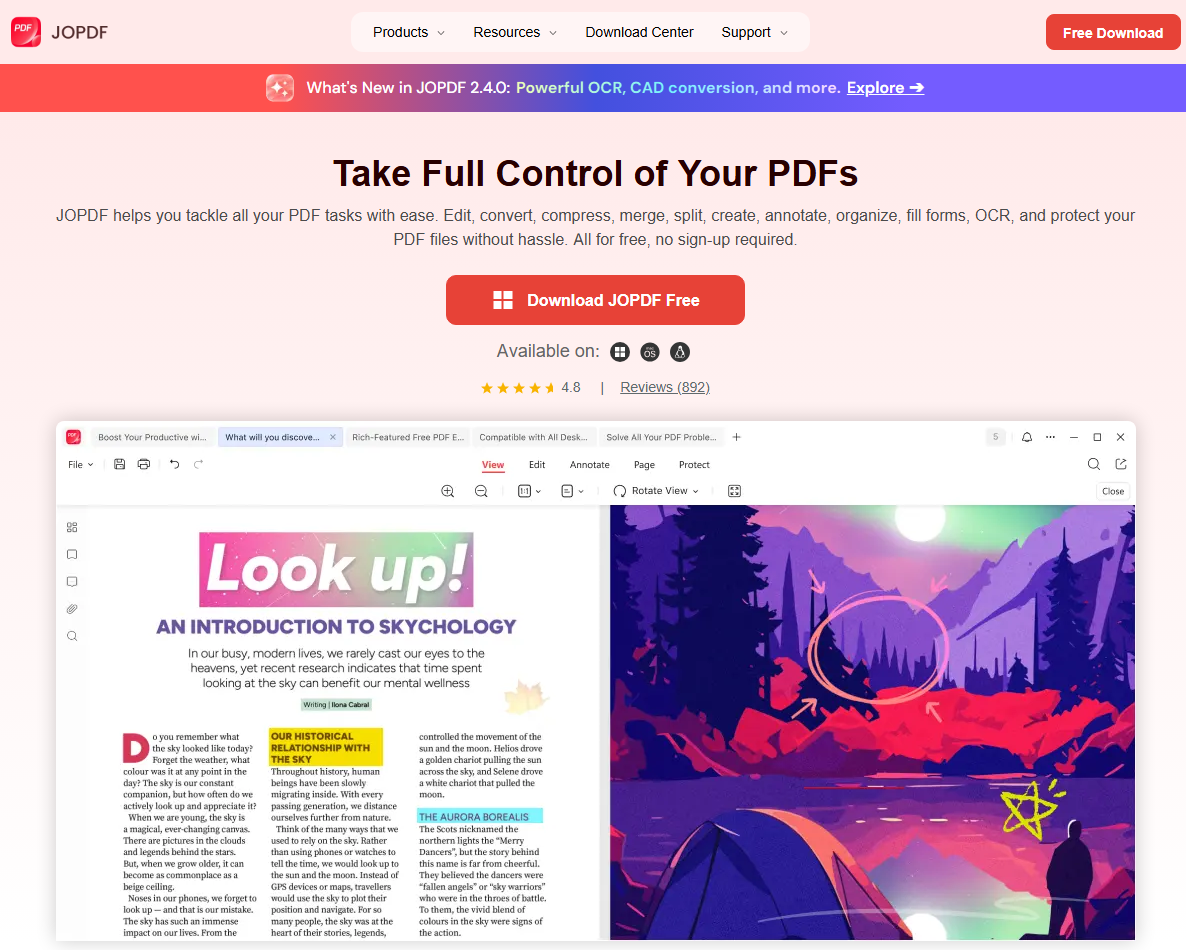
Here is the three-step guide to hyper-compressing PDFs with JOPDF. All for free and no sign-up required. Before you start the step, go to the official JOPDF site and download and install JOPDF for free. The installation is quick.
Also See: How to Compress a PDF on Mac [4 Best Ways and Practical Tips]
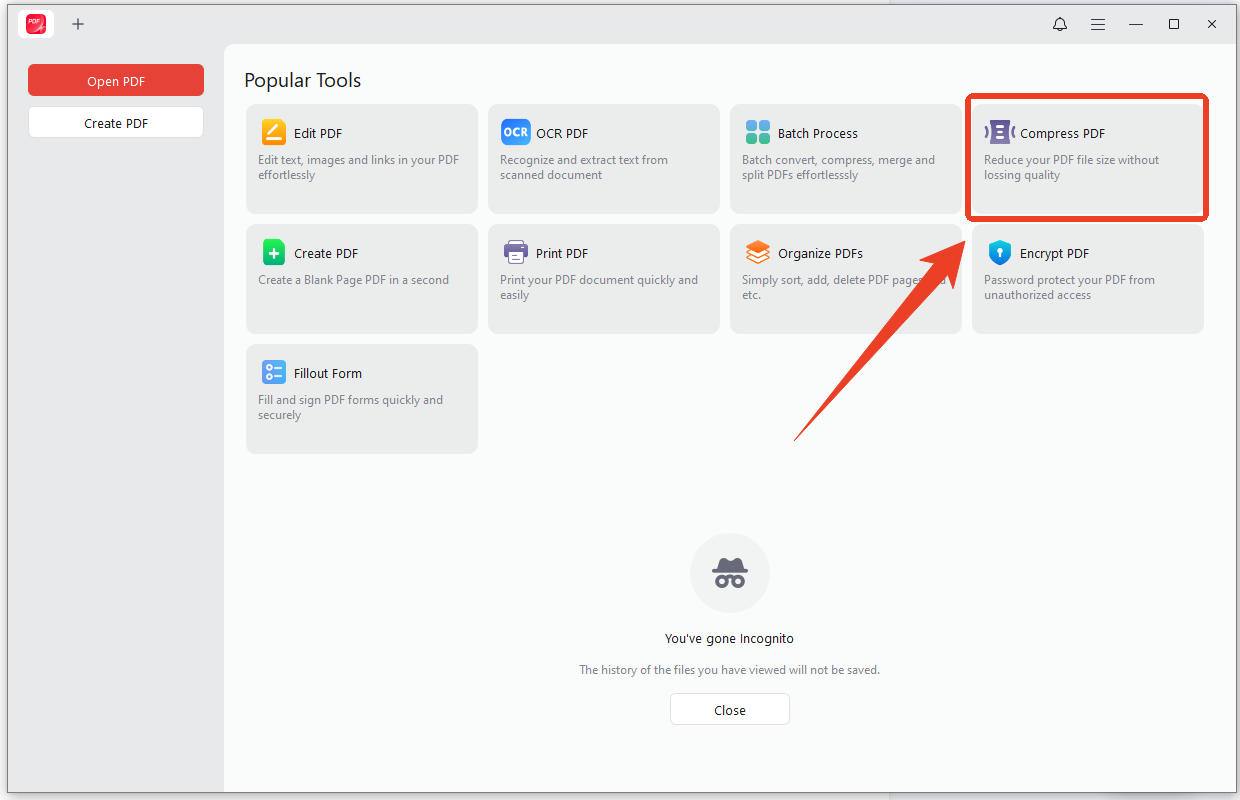
Step 1: Upload PDF to JOPDF Hyper Compressor
Launch the program and click the Compress PDF option to enter the Hyper Compressor. You can upload your PDF files here. The tool supports batch compression, so you can upload multiple files at once.
Step 2: Choose Compression Level
When you finish uploading, set the compression level based on your needs. Normally, if you want to hyper-compress PDFs, the High option is the best.
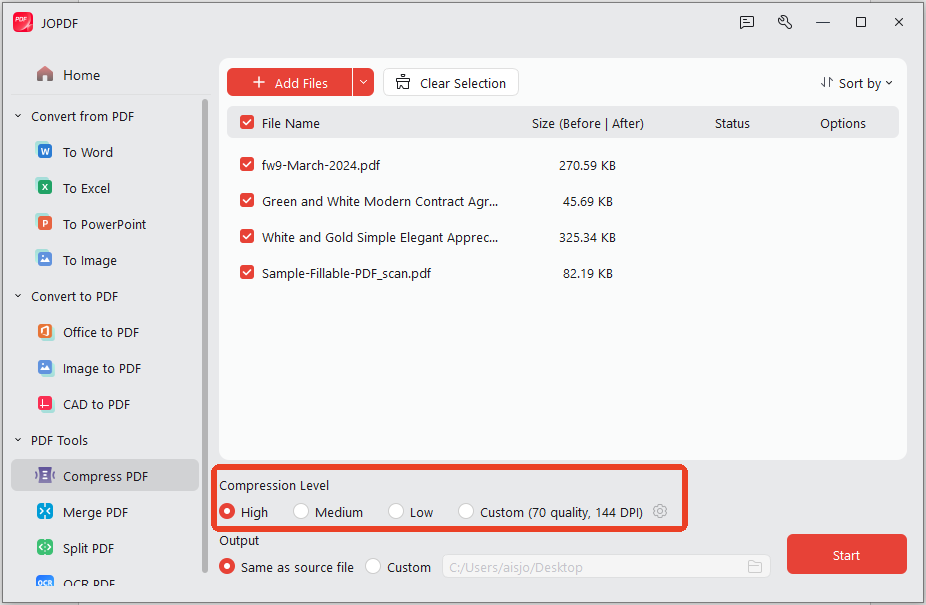
- High applies the strongest compression, prioritizing file size over visual fidelity. This is the setting closest to a hyper-compression mode.
- Medium balances size and quality and is marked as the recommended default.
- Low applies minimal compression and preserves the highest quality.
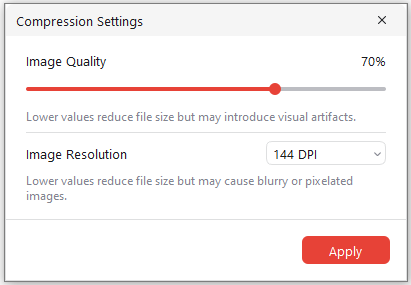
If the result is still too large, a second pass or the custom option can push image quality and resolution lower.
To set the image quality, check the Custom option and click the gear icon next to it. A new window pops up, and you can change the image quality and resolution.
If your goal is a specific file size rather than a general reduction, the compression presets may not get you there in one pass. These guides cover the three most common upload limits in detail:
- Compress PDF to 100KB – for job portals, visa applications, and exam systems with strict small-file requirements
- Compress PDF to 200KB – for resumes, certificates, and most online application forms
- Compress PDF to 300KB – for text-heavy documents that need to stay readable
Step 3: Hyper Compress Your PDF
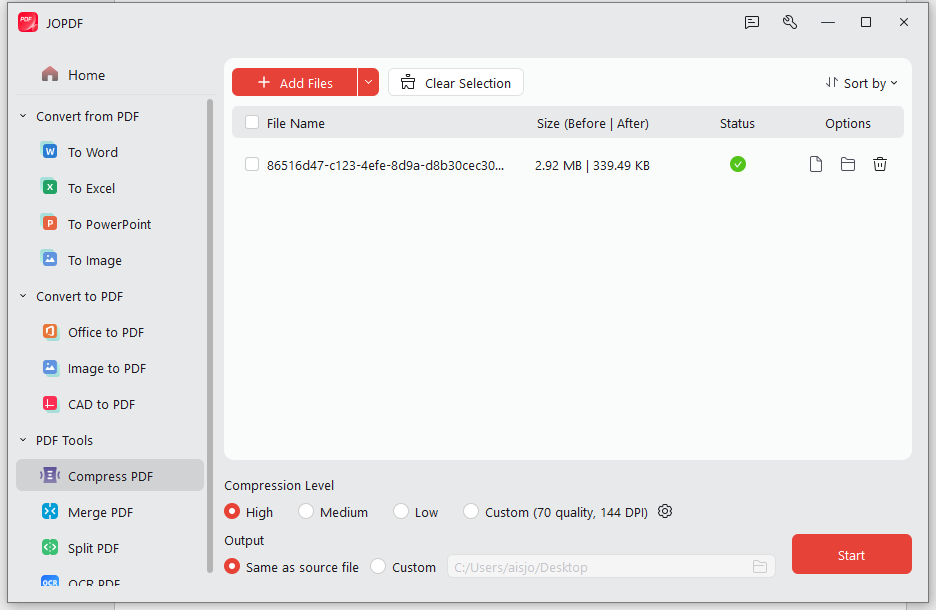
Set the output destination and click Start. JOPDF processes the file locally and writes the compressed version to the chosen folder.
As the image shows, we’ve tested a 2.92MB file, and after the file compression, the file size has been successfully reduced to 339KB. Then we checked the compression result. The file quality is identical to the original.
What Is Hyper-Compression
Hyper-Compression is an advanced PDF compression technology designed to significantly reduce file size while maintaining document quality. Unlike basic compression methods, it intelligently optimizes PDF elements such as images, fonts, and embedded data to achieve a more efficient balance between file size and visual clarity. It helps users create smaller, more manageable PDFs for easier storage, faster sharing, and smoother uploading without unnecessarily compromising the readability or usability of their documents.
The underlying trade-off is between lossless and lossy compression. Lossless methods preserve every byte of original data and yield modest size reductions. Lossy methods discard image data that the human eye is less likely to notice, producing dramatic reductions — a 300 DPI scanned page can shrink from several megabytes to a few hundred kilobytes — at the cost of softened edges and reduced fine detail.
The most recommended PDF software is JOPDF. Its compression level can help you keep the original file quality, but if your PDF file includes many large-sized images, the image quality setting in the compression process is significant.
Download and install JOPDF and give it a try!
Conclusion
JOPDF’s hyper-compression workflow is four steps: open the compressor, add files, select High, and start. Batch processing, local execution, and the absence of a subscription make it a practical solution for the recurring problem of oversized PDFs.
FAQs
Table of Contents
Your Best Free PDF Expert in PDF editing, compressing, converting, annotating, protect, organizing, and more.
Free DownloadWindows · macOS · Linux

Anna
Editor
“Anna, Editor-in-Chief and PDF expert, delivers deep insights into PDF document technology trends. She is dedicated to helping readers optimize their digital lives. When not writing, Anna loves exploring local cafes and reading, blending her technical expertise with a love for storytelling.”