
You have a PDF that is too large for an online form. We know how frustrating that can be. In this guide on JOPDF, we will show you how to compress PDF to 200KB using both online and offline methods. You will learn practical steps to reduce PDF size to 200KB without making your document unreadable.
Summary :
How to Compress a PDF to 200KB Using JOPDF Desktop Tool
If you want a free, offline solution to compress PDF to 200KB, consider using JOPDF. It is a desktop PDF editor for Windows, Mac, and Linux. It is completely free, with no sign-up required and no hidden charges.

JOPDF – The Best Free PDF Editor
 User Rating: 4.8
JOPDF Is a 100% free POF editor for Windows, macOS, and Linux. Edit text, add images, annotate, sign, and more. No limits, no ads, no subscriptions, Fast, simple, and powerful, take full control of your PDFs in seconds!
Unlike online tools, JOPDF processes your files locally on your computer. This means your documents never leave your device, which is important when handling sensitive information like ID proofs or financial documents. You can also edit, convert, merge, split, annotate, organize, and protect your PDF files without hassle.
How to compress PDF to 200KB with JOPDF:
Step 1: Download and install JOPDF from the official website.
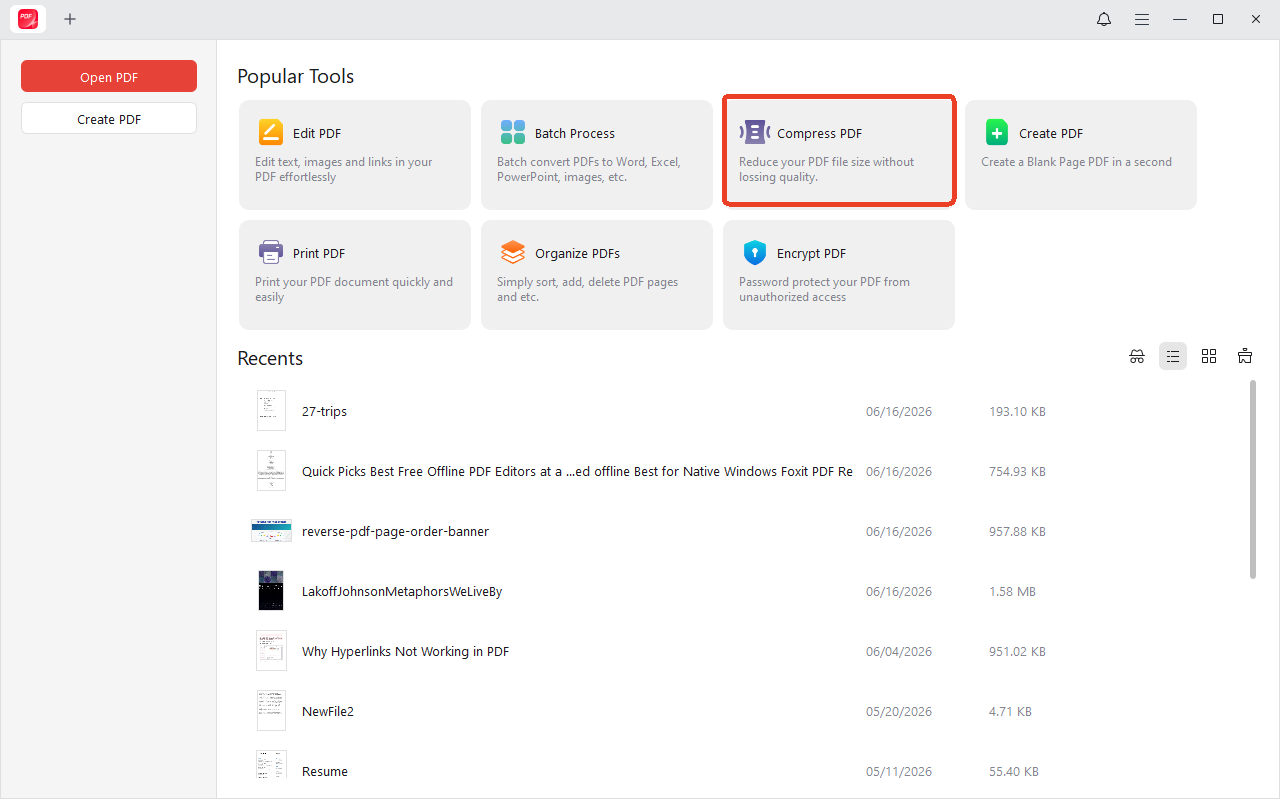
Step 2: Open the software and click the Compress PDF tool from the main menu.
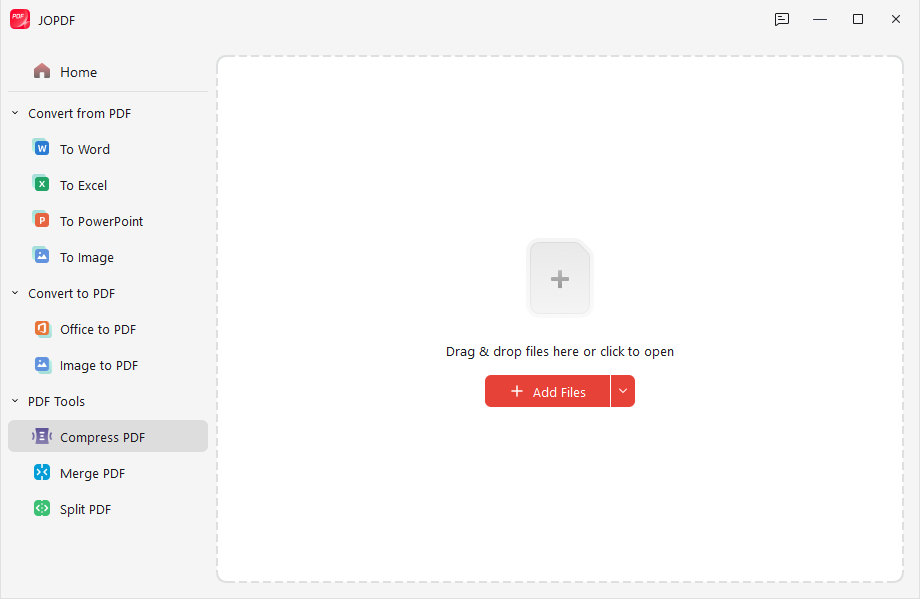
Step 3: Add your PDF file. JOPDF supports batch compression, so you can shrink PDF size for multiple files at once.
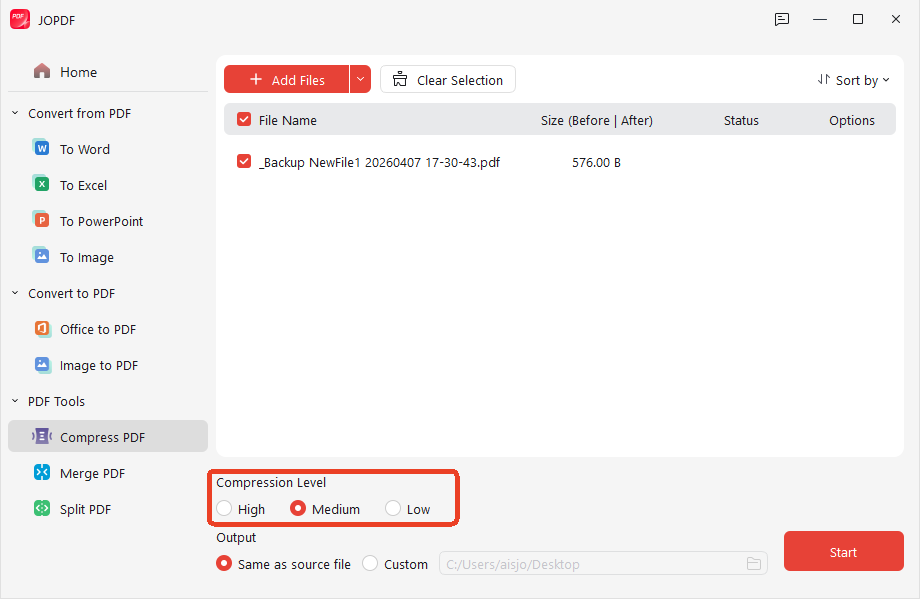
Step 4: Choose your compression level. JOPDF maintains quality while reducing file size.
Step 5: Click to compress and save the smaller PDF to your computer.
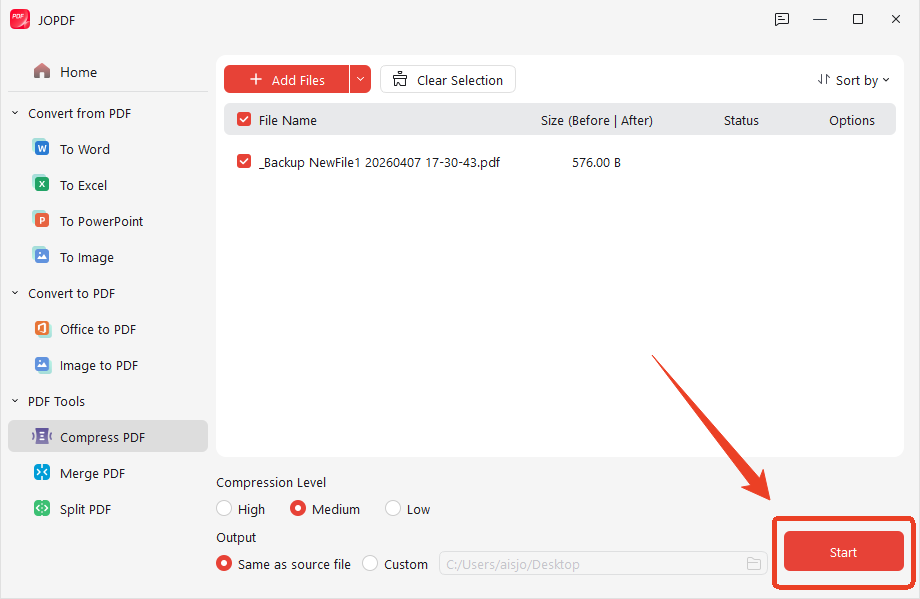
JOPDF is built for the kind of file work people need in the middle of a real task: compress this large PDF, edit that document, convert this file, and move on. You do not have to turn a simple upload problem into a software project.
Also See:
- How to Batch Convert Multiple PDFs Without Losing Quality
- How to Split Large PDF into Multiple Files: 3 Easy Methods for 2026
- Best Free Offline PDF Editor 2026: 5 Tools That Work Without the Internet
How to Compress PDF to 200KB Online (Free Methods)
For most users, an online tool is the fastest way to compress PDF to 200KB. You do not need to install anything, and the process takes seconds.
Here is the general workflow for most online PDF compressors:
Step 1: Upload your PDF
Open the PDF compressor tool and choose your file. You can usually drag and drop it into the browser window.
Step 2: Select compression level
Pick a compression level. If your original file is quite large, select the “High” compression rate. Some tools let you specify an exact target size, like 200KB.
Step 3: Compress and download
Click the compress button and wait a moment. The tool will try to reduce the size of PDF without making it look useless. Download the compressed PDF and open it before you submit.
Here are some recommended online PDF compressors that’s working to shrink PDF to 200KB.
SwifDoo PDF Online PDF Compressor
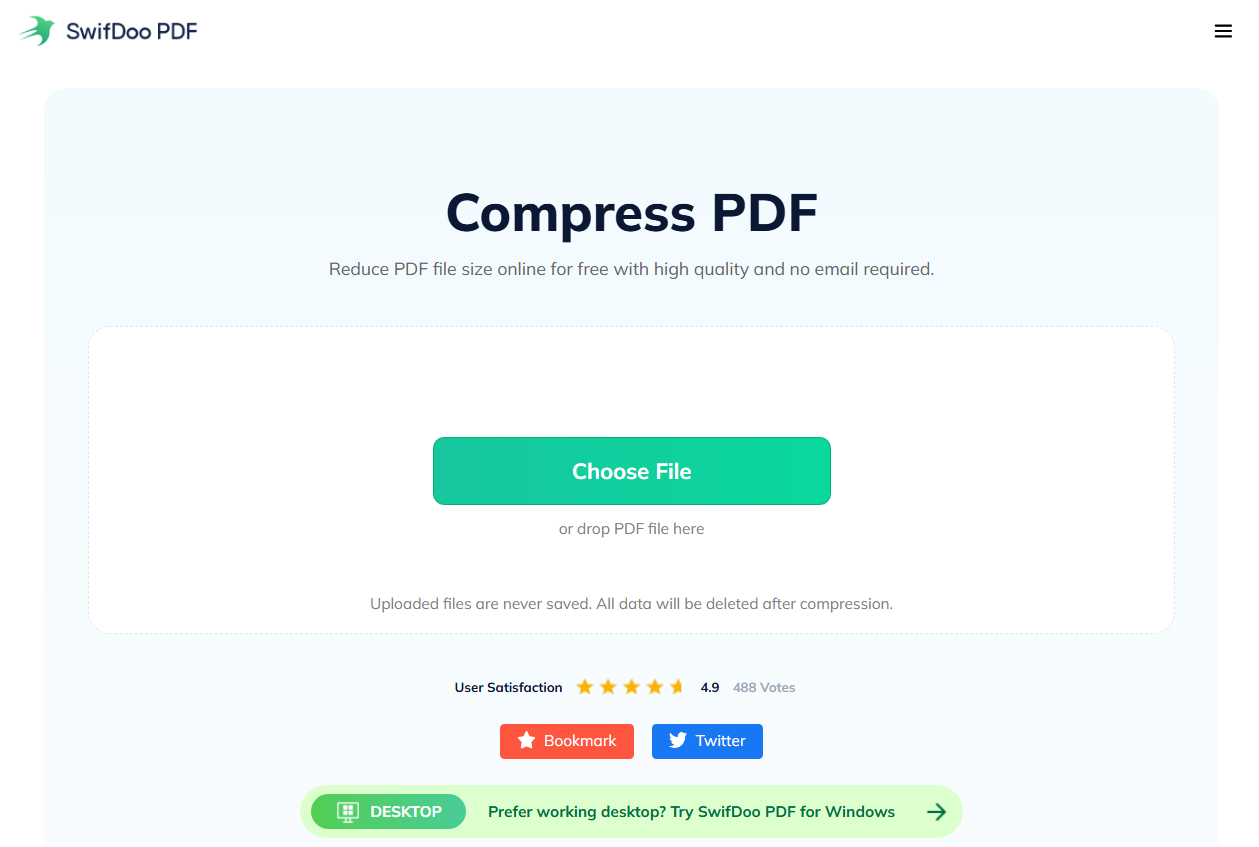
SwifDoo PDF also offers a free online PDF compressor. It is a handy tool that lets you reduce PDF size to 200KB directly in your browser without downloading any software. Once you upload your file, the compression process starts automatically — it is fast and efficient.
The tool uses advanced compression technology to significantly reduce file size without compromising the quality or size of images in the document. The platform uses 256-bit SSL encryption to protect your files during transfer, and all uploaded files are automatically deleted from the servers after processing . There are no downloads required and no ads.
Pros:
- No installation needed; works entirely in the browser
- Uses SSL encryption to protect your data
- Files are automatically deleted after processing
- No ads to distract or slow you down
- Works on any device and operating system
Cons:
- Supports only one PDF file at a time; batch processing requires the desktop version
- Limited compression control compared to advanced desktop tools
HiPDF
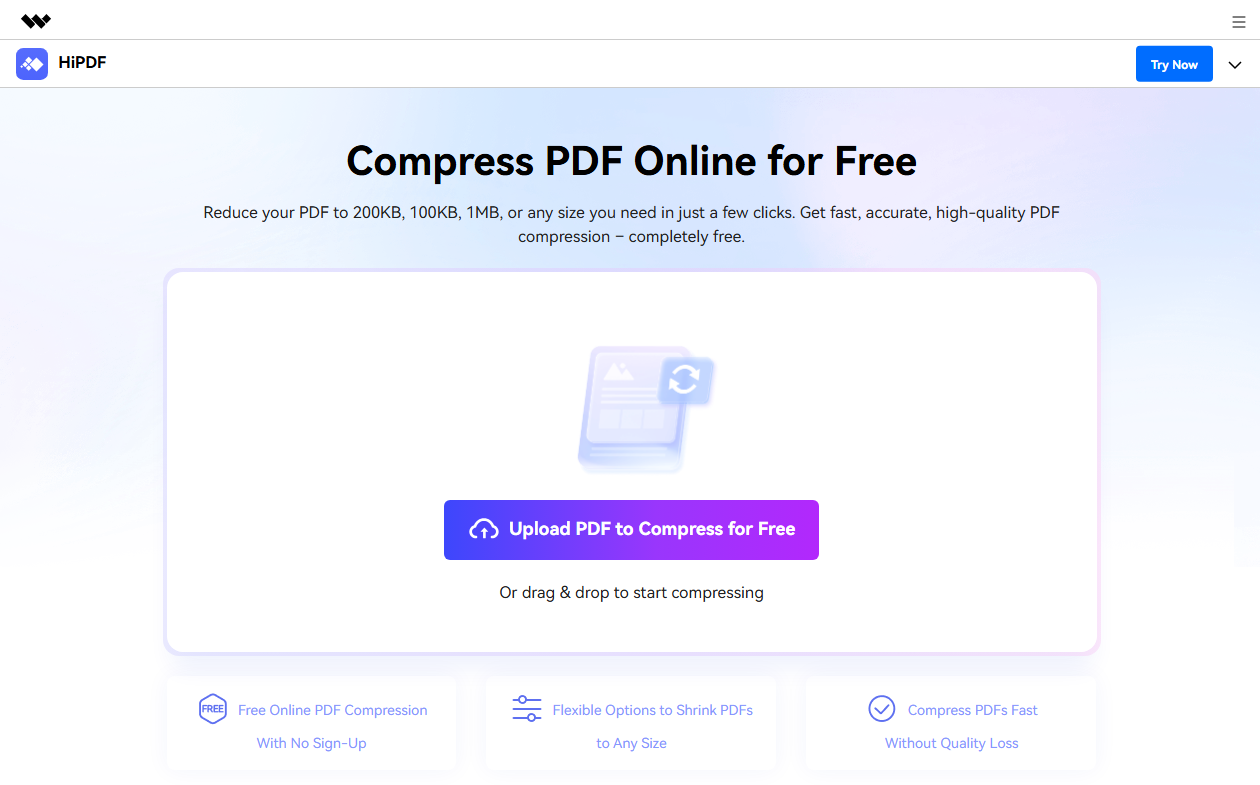
HiPDF offers a powerful compression engine with no limit on daily compressions. Even when set to High compression mode, the quality remains good enough for web use. You can perform batch processing of up to 5 files in the free version. The tool is completely free and allows you to adjust the compression level from 1 to 100 using a slider.
Pros:
- Free compression feature, saving your costs
- Upload 5 PDF files for batch processing in the free plan
- Different compression levels to adjust to your needs
Cons:
- Does not offer custom PDF resolution
- Premium features require subscription
SmallPDF
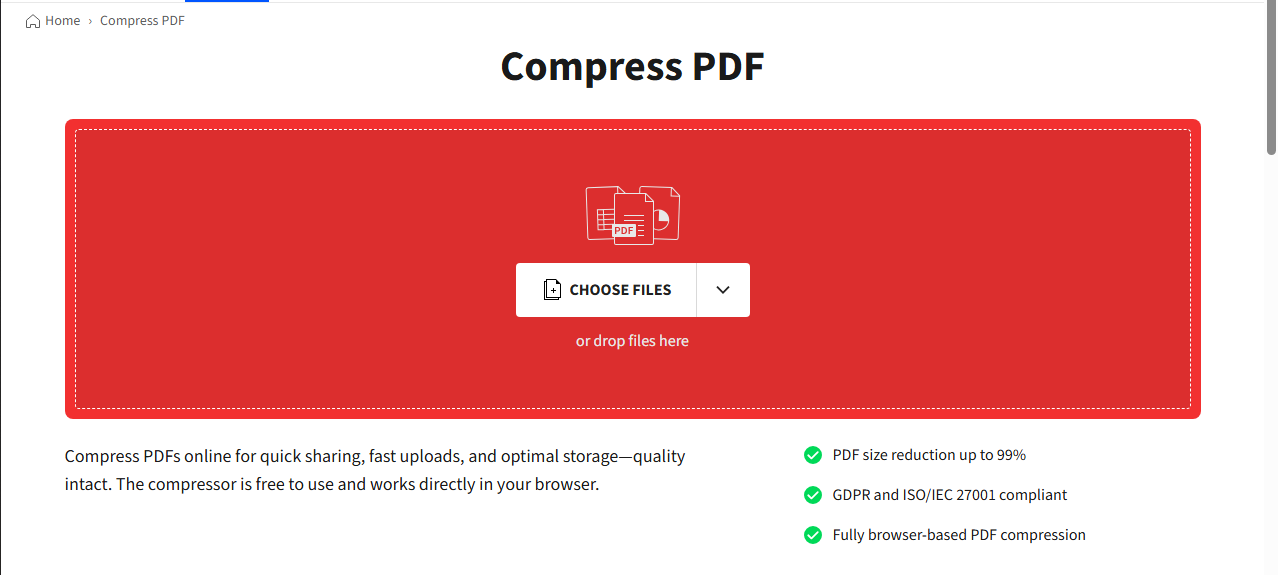
SmallPDF is a well-known utility. The free version limits you to “Basic Compression,” but this is often enough for moderately sized files. If you need a tighter target like 300KB or 500KB, you can switch to “Strong” compression.
Pros:
- Smooth interface, simple to use
- Basic compression usually keeps quality high
- Strong compression pushes harder on images
Cons:
- Strong compression requires a Pro account
- Free version has daily usage limits
Sejda PDF
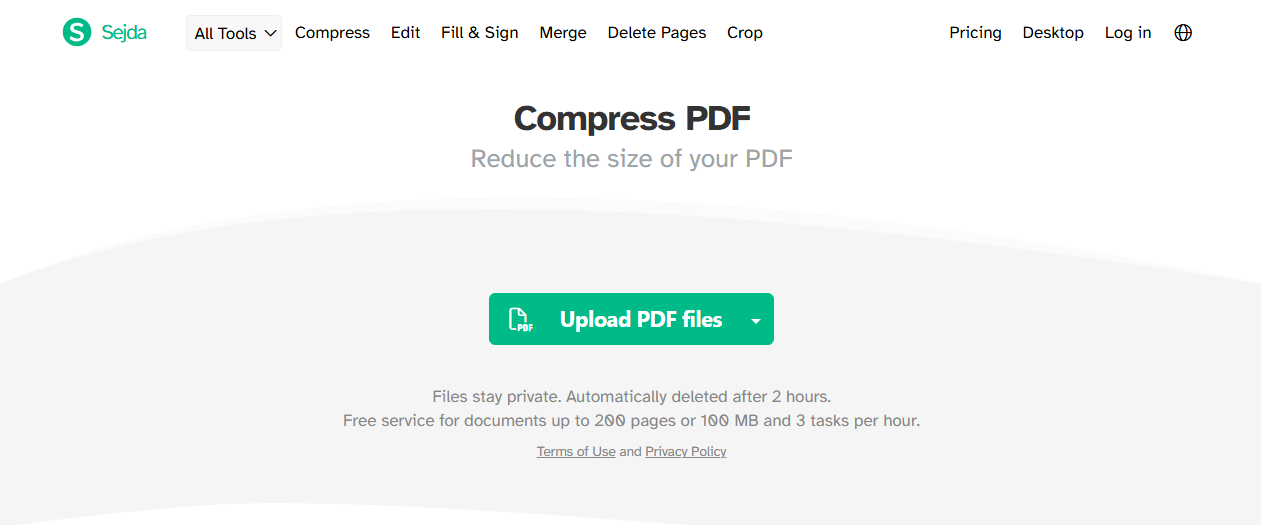
Sejda offers advanced options where you can manually set image quality and resolution. Click on “More Options” to expand the advanced menu, then manually adjust image quality to ensure you compress PDF 200KB exactly.
Pros:
- Granular control over compression settings
- Can manually set image quality
- Works online and as a desktop app
Cons:
- Free plan has daily task limits
- File size limits for free users
Why Do You Need to Compress PDF to 200KB?
A 200KB PDF is a smaller version of your document, made for upload pages with strict limits. You will see this limit on job portals, college admission forms, scholarship websites, and government services. The annoying part is that your file can look perfectly normal on your device and still be “too large” for the form.
Many institutional websites were built years ago. To save on server storage and bandwidth costs, administrators set strict file size limits. A 200KB limit ensures that millions of users can upload documents without crashing the servers.
When you need to reduce PDF size to 200KB, a PDF compressor helps. You upload the file, choose a smaller target, and download a lighter version. The real trick is not just making the number smaller. It is keeping the text, stamps, signatures, and scanned details readable.
Can You Compress PDF to 200KB Without Losing Quality?
Sometimes, yes. But not always. The answer depends on what is inside your PDF.
A text-based PDF – like a resume or a standard contract – can usually shrink PDF size without looking very different. A scanned PDF is harder because every page is more like a picture, and pictures need space to stay sharp.
A simple resume usually compresses cleanly, but a scanned document with photos, seals, or colored pages may lose some sharpness. The practical goal is not perfect quality; it is a readable file that the portal accepts.
As Adobe notes, compressing a PDF file to 200KB could be harder than compressing it to 1MB. The smaller you want to make a file, the tougher it can be to reach your target size. However, with the right tool, you can make additional changes to help your chances of reducing PDF size to 200KB.
Tips to Make Your PDF Smaller Before Compression
If your PDF is just a little above 200KB, a normal compression pass may be enough. If it is several megabytes, you will probably need to make a PDF smaller before expecting a clean result.
- Remove images or decorative pages that the form does not need
- Use black and white scans when color is not important
- Lower image quality a little, then check readability before submitting
- Delete blank pages or duplicate pages before compression
- Use a cleaner digital PDF when possible instead of a scanned file
If your document is made from phone photos, compress or resize those images first and then create the PDF again. This often looks better than forcing one very large scanned PDF down to 200KB in a single step.
PDF Compression Target Comparison
Here is a quick guide to help you choose the right compression target for your needs:
| Compression Target | Best For |
| 100KB | Small forms and simple documents |
| 200KB | Most applications, resumes, certificates |
| 300KB | Better quality for text-heavy documents |
| 500KB | Larger documents with images |
Also See: Proven and Free Methods to Compress PDF to 100KB in 2026
Final Thoughts
Learning how to compress PDF to 200KB is a practical skill. Whether you use an online tool for quick jobs or desktop software for sensitive documents, the right tool can make your file upload-ready in seconds.
If you want a free, offline solution that works on any device, consider JOPDF. It is a comprehensive PDF editor with a built-in compressor. You can reduce PDF size to 200KB without worrying about privacy or upload limits. JOPDF also lets you edit, convert, merge, and protect PDFs, all for free, with no sign-up required. Try JOPDF for your next PDF task.
FAQs
It depends on your document. A text-based resume usually compresses cleanly. A scanned document with photos or colored pages may lose some sharpness. The practical goal is a readable file that the portal accepts.
To hit an exact target size, you need an advanced tool with customizable settings. Desktop tools like PDFelement allow you to manually adjust image DPI and monitor the estimated output size until it sits right at or just below 200KB. Adobe's tool allows you to select compression level (High, Medium, Low).
Yes. If the file is on your phone, open an online PDF compressor in your browser, choose the PDF from your files, and run the compressor. It is useful when you are filling an application from mobile data and do not want to install a heavy PDF app.
If the result is still too large, remove unnecessary pages, compress images first, or recreate the PDF from smaller source files.
Table of Contents

Your Best Free PDF Expert in PDF editing, compressing, converting, annotating, protect, organizing, and more.
Free DownloadWindows · macOS · Linux

Anna
Editor
“Anna, Editor-in-Chief and PDF expert, delivers deep insights into PDF document technology trends. She is dedicated to helping readers optimize their digital lives. When not writing, Anna loves exploring local cafes and reading, blending her technical expertise with a love for storytelling.”



