Introduction :
In the digital world, PDFs are widely used for business documents, resumes, reports, and forms. However, sometimes you need to compress PDFs to 100KB or smaller file sizes because some websites, government portals, or universities impose strict upload limits. Now, let’s explore this JOPDF article to learn effective ways to reduce PDF size to 100KB or smaller.
Why Compress PDFs to 100KB or Smaller
Due to high-resolution images, embedded fonts, or other graphics, the PDF can be large. Why reduce a PDF to 100KB? It can have the following main benefits:
- Save storage spaces on devices or cloud services
- Meet application and form submission requirements
- Improve PDF sharing, upload, and download speed
- Make a PDF smaller for email sending
- Upload PDFs to government or educational portals
In our work and study, there are some common situations where a 100KB limit applies, such as job application portals, online examination systems, passport and visa applications, and other banking document uploads. If your PDFs exceed the allowed size, you may encounter upload errors or be unable to share them online. Fortunately, there are several effective ways to reduce PDF size. Let’s dive into the exact tutorial now!
How to Compress PDFs to 100KB or Smaller with JOPDF
If you frequently work with PDFs, a dedicated PDF tool can offer more control over the final PDF file size. One versatile option is JOPDF, a free PDF editor and compressor compatible with Windows, Mac, and Linux. As a PDF compressor, JOPDF lets you compress a PDF at Low, Medium, or High compression levels. Additionally, it enables you to compress multiple PDFs at once.
Here are the steps to compress a PDF to 100KB or less for free in JOPDF:
Step 1. Hit the button below to download and install JOPDF on your computer.
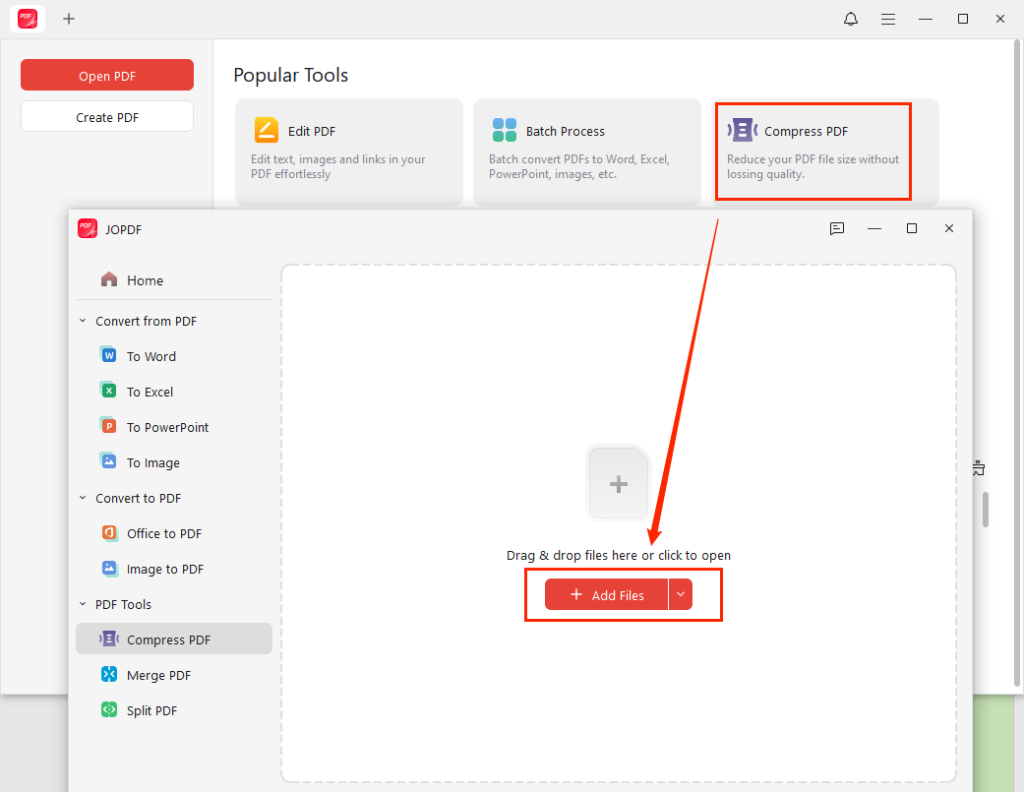
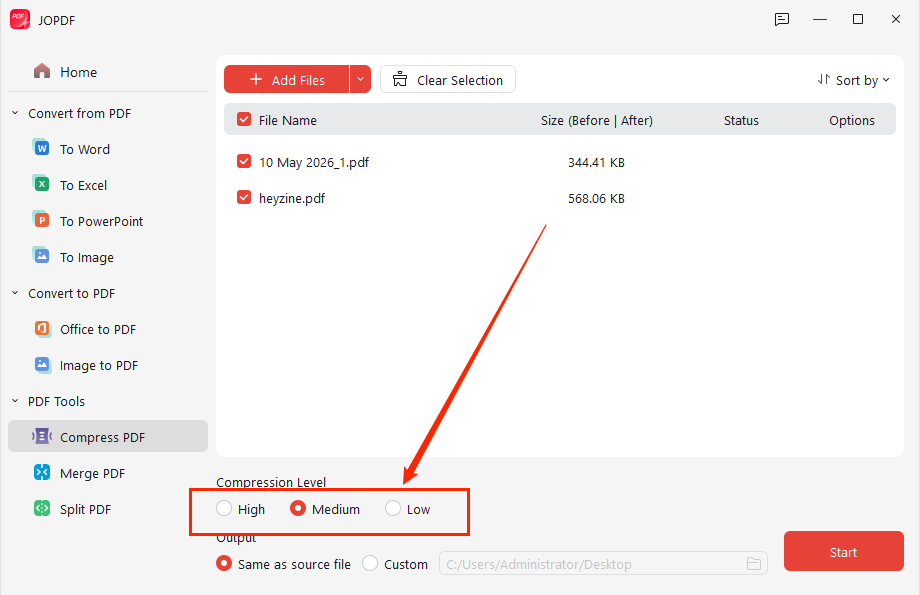
Step 2. Launch it and click the Compress PDF option on the home screen. Then click Add Files to upload the PDF you need to reduce its file size.
Step 3. Next, select a compression level you need, such as Medium or High. Meanwhile, specify the saving path. Finally, click Start to reduce the PDF file size.
In addition, JOPDF can compress a PDF alongside other features.
- Edit images in a PDF, such as cropping, rotating, or making them transparent.
- Organize PDF pages by removing blank or unwanted pages or resizing them.
- Password-protect a PDF from editing, copying, and printing.
- Add electronic signatures to a PDF.
- Print a PDF as a booklet with other print settings.
- Convert PDF files to and from Word, Excel, PPT, and other image formats.
Compress a PDF to 100KB Using an Online PDF Compressor
If you don’t want to install software, an online PDF compressor is usually the quickest solution. Most online tools work directly in your browser so that you can access them on both desktop and mobile devices. Which online PDF compressor should you choose? I have picked up the following reliable online compressors for you:
- iLovePDF
- Zamzar
- Bigpdf
- Smallpdf
- Wondershare PDFelement’s Online PDF Compressor
- Adobe Acrobat Online
- pdfFiller
The overall compression process is similar across online compressors, though the interfaces vary slightly. Here, I’ll take iLovePDF as an example to show how to compress a PDF to 100KB online.
Step 1. Open the iLovePDF PDF Compressor pages on your browser.
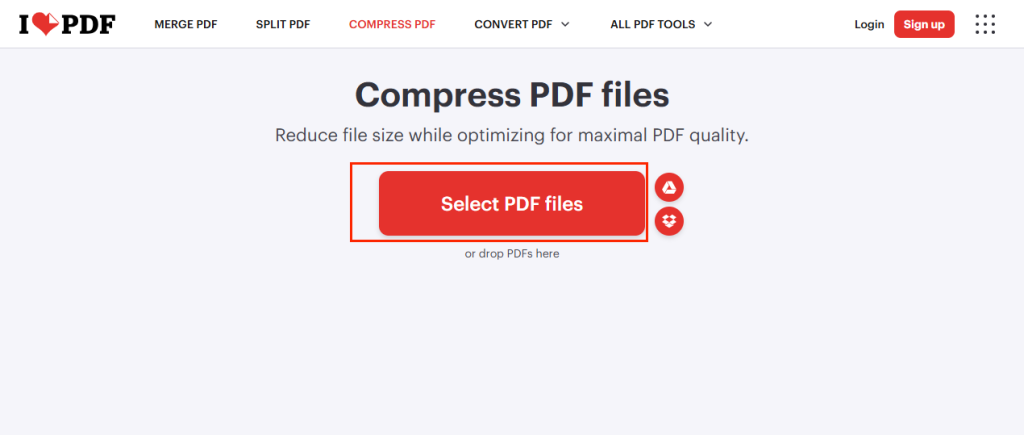
Step 2. Click “Select PDF files” to upload your target PDF file.
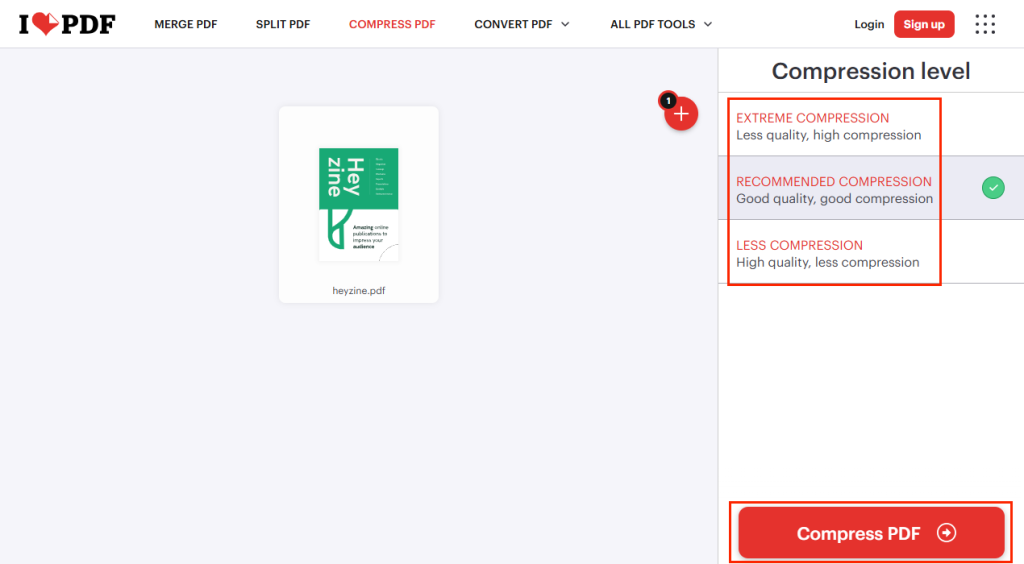
Step 3. On the right panel, you can find the compression level choice: EXTREME COMPRESSION, RECOMMENDED COMPRESSION, and LESS COMPRESSION. Click the target one and click Compress PDF.
Step 4. Once the compression process is over, click “Download compressed PDF”.
How to Compress a PDF in Adobe Acrobat
If you need a professional PDF compressor to reduce PDF file size with precise control, Adobe Acrobat is the never-miss choice. It is one of the most widely used PDF editors and offers built-in tools for reducing PDF file size. Before starting the guidance, you need to have Adobe Acrobat Pro (the paid version) installed.
Here’s how to compress a PDF in Adobe Acrobat using PDF Optimizer.
Step 1. Open your PDF in Adobe Acrobat Pro.
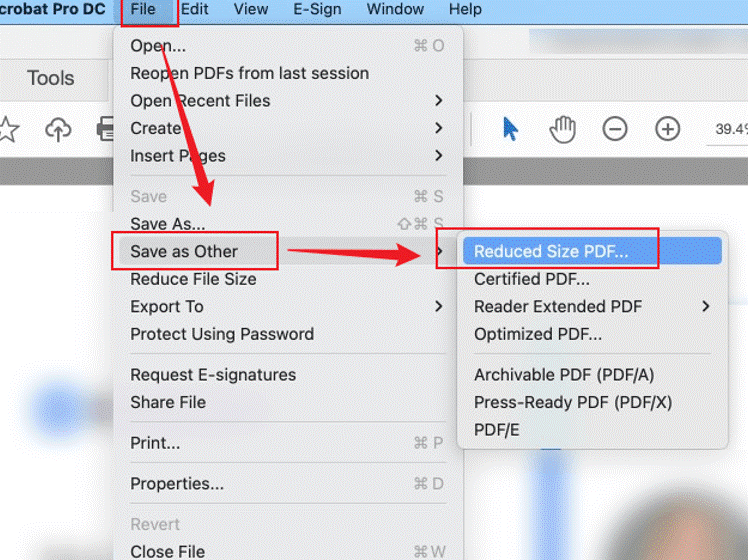
Step 2. Click Menu from the top bar, move to Save as Other, and click the Optimized PDF option.
Tips
You can also select the Reduced Size PDF option from Save as Other to compress a PDF in Adobe Acrobat Pro.
Step 3. Then the PDF Optimizer window will appear. Here, you can customize the following settings to reduce the PDF file size:
- Image
- Transparency
- Fonts
- Discard Objects
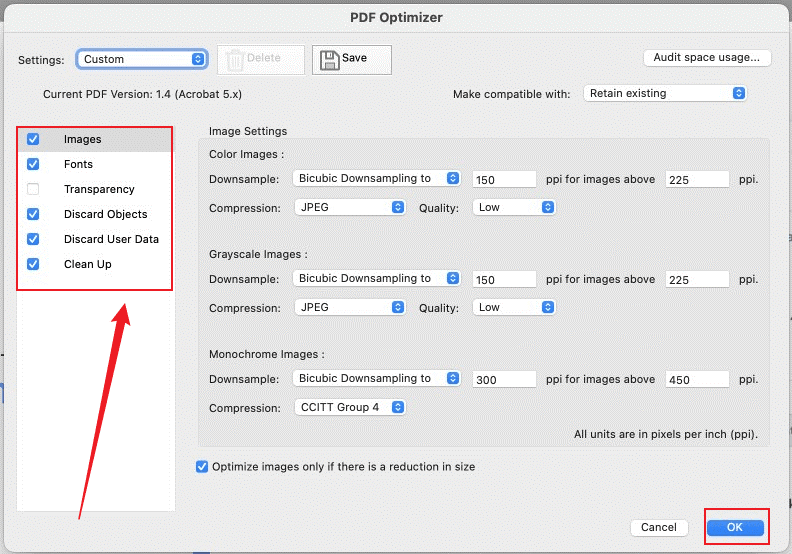
For instance, click Images and reduce the image resolution to 150 DPI or lower. Then, select JPEG Compression and set the image quality.
Step 4. Click OK and save the optimized PDF at last.
Other Tips to Make a PDF Smaller
Several approaches can help you achieve a PDF size reduction to 100KB or smaller. You can also have a try.
- Remove unnecessary PDF pages, such as blank or duplicate pages.
- Convert color to grayscale.
- Compress PDF images before importing them into a PDF. Or, crop large images in a PDF.
- Subset or remove embedded fonts
With a tool like JOPDF or Adobe Acrobat, you can edit a PDF and reduce its file size effectively.
Can Every PDF Be Compressed to 100KB
Is it possible to compress a PDF to exactly 100KB? The answer is: not exactly. There are many factors that determine a PDF file’s size, including fonts, page count, image count, and more. We can only use PDF compressors and editors to reduce the PDF file size to close to or below 100KB.
Conclusion
When we experienced strict upload requirements, mastering how to compress a PDF to 100KB can save time. There are both online and offline ways to compress PDFs. You can use a dedicated PDF solution, JOPDF, to reduce PDF file size efficiently. By the way, take the right balance between file size and quality. Don’t merely focus on the size while neglecting the quality of the PDF.
FAQs
Table of Contents

Your Best Free PDF Expert in PDF editing, compressing, converting, annotating, protect, organizing, and more.
Free DownloadWindows · macOS · Linux

Olivia
“Olivia is an editor at JOPDF, where she writes practical guides and insightful articles on managing PDFs—covering topics like editing, annotating, converting, and organizing files efficiently. Passionate about clear communication and digital productivity, Olivia enjoys spending her free time cooking, watching movies, and hiking to unwind and find inspiration for her writing.”
![Full Guide on How to OCR a PDF in Adobe Acrobat [Newest]](https://b.jopdf.com/wp-content/uploads/2026/10/how-to-ocr-a-pdf-in-adobe.png)