Introduction :
It may sound simple to crop an image in a PDF. However, it is often not. Most of us can find that most tools only support cropping an entire PDF page, not a specific image inside it. If you’ve ever tried to crop part of an image in a PDF and failed, you’re not alone. This article from JOPDF will walk you through how to crop an image in a PDF using multiple methods, whether you are on Windows, Mac, or prefer online tools.
Can You Crop an Image in a PDF?
Can you crop an image inside a PDF file? Yes, you can. But you need to use a reliable tool. Before discussing the answer, you may also be confused about the difference between cropping a PDF page and cropping an image in a PDF.
- Crop a PDF page: trims the visible page area
- Crop an image inside a PDF: edit the embedded image itself
Most free PDF editors only support cropping PDF pages. To crop an actual image with a PDF, you need to use the right and reliable PDF editor. In the following content, I will introduce you to 4 effective methods. Now, let’s have a look.
Quick Overview: Best Ways to Crop an Image in a PDF
Here’s a quick overview for you. You can select your preferred option and jump to that section to crop PDF images.
| Method | Best For | Difficulty | Free |
| JOPDF | Simple and free PDF cropping | Easy | ✅ |
| Adobe Acrobat | Precise image editing | Medium | ❌ |
| Preview (Mac) | Basic page cropping | Easy | ✅ |
| Online tools | Fast, no install | Easy | ✅ |
Method 1: Crop a PDF Image Using JOPDF (Free & Easy)
If you want a straightforward and free solution, JOPDF is one of the easiest ways to crop images in a PDF file. JOPDF is known as a free PDF editor for Windows, Mac, and Linux. It’s a piece of cake for JOPDF to edit and crop images in a PDF. Meanwhile, you can rotate and transparentize images in a PDF. If you need, you can extract images from a PDF. Here, let’s learn the steps to crop an image in a PDF with JOPDF.
Step 1. Click the download button below to download this free PDF image cropper and install it on your device. Next, open JOPDF on your device.
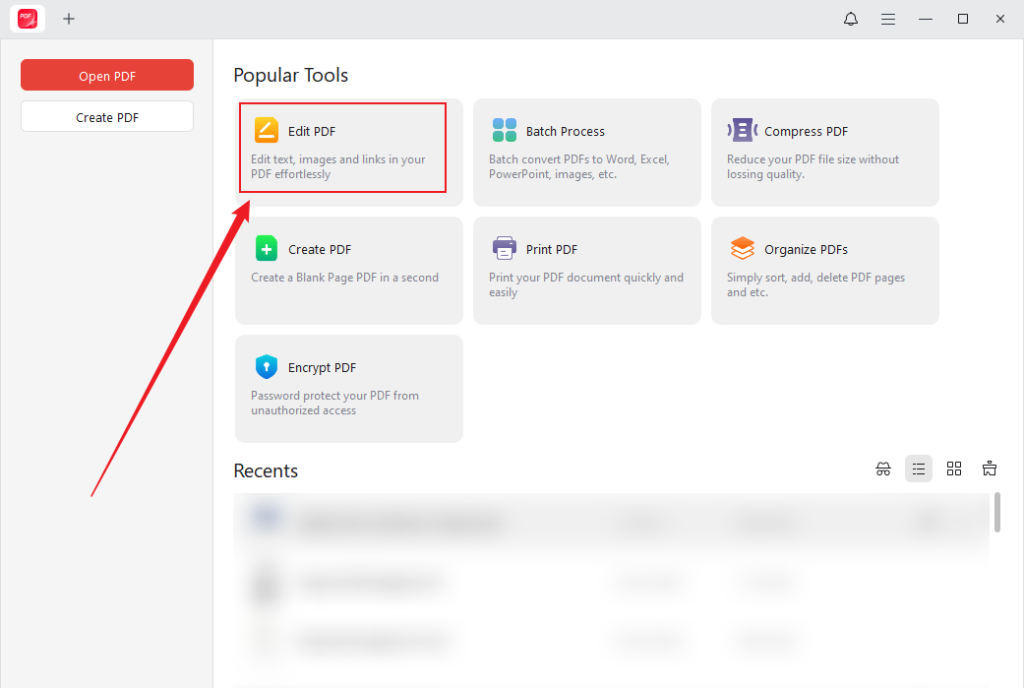
Step 2. Click Edit PDF under Popular Tools to select the target PDF and click Open to import it.
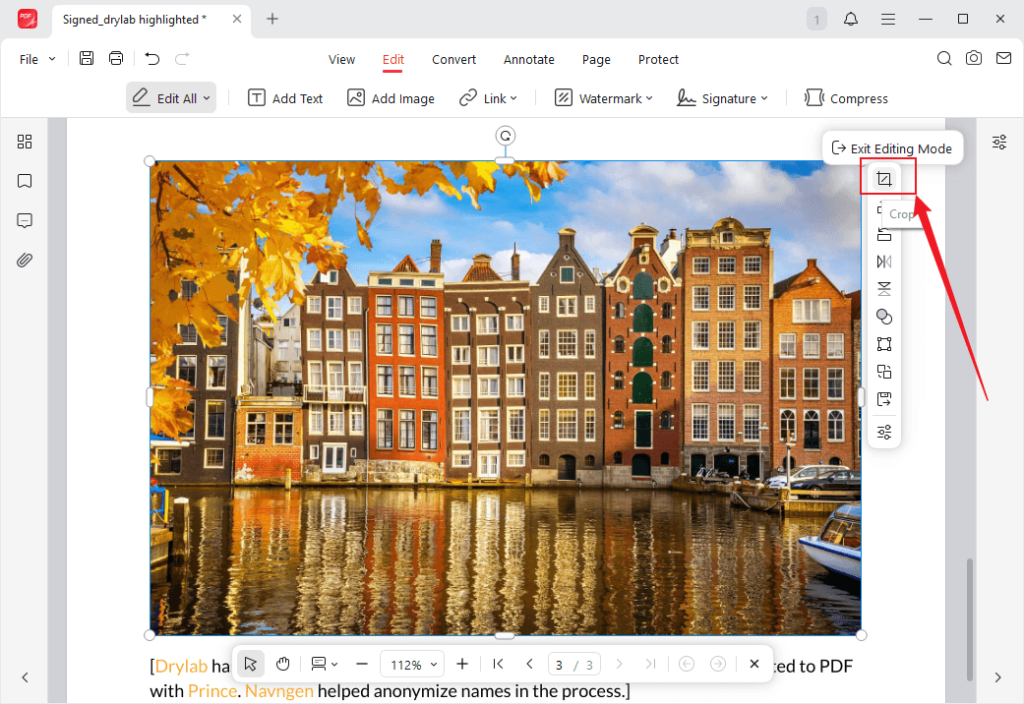
Step 3. Then, click the target image. The image editing toolbar will appear next to the image. Click the first Crop icon and drag the image edge to crop it as needed.
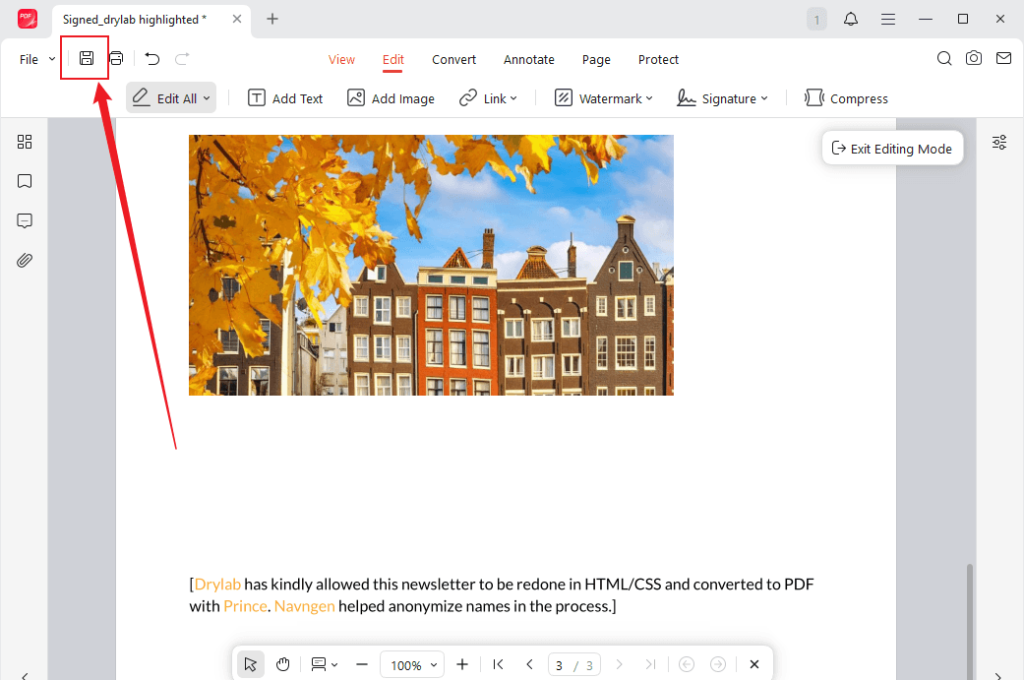
Step 4. Later, you can edit the PDF image or the PDF content according to your needs. When you are satisfied, click the Save icon to save the modified PDF file.
⭐Why Use JOPDF to Crop a PDF Image?
Why do I recommend JOPDF to crop a PDF image? It offers a clean and user-friendly interface. Additionally, it’s an easy-to-use PDF editor that has no steep learning curve. More importantly, JOPDF is a completely free tool that can work on Windows, Mac, and Linux. In short, JOPDF is quite trustworthy and ideal for users who want a quick, no-cost way to crop visible image areas in PDFs.
✨Other Highlighted Features of JOPDF:
In addition to editing images in PDFs, JOPDF offers other wonderful features to streamline your workflow. Below are some main features:
- Convert images to PDFs quickly.
- Combine or split PDFs as needed.
- Protect PDFs by adding watermarks or passwords.
- Print a PDF with comments.
- …
Method 2: How to Crop an Image in a PDF Using Adobe Acrobat
Adobe Acrobat is a professional-grade PDF tool for Windows and Mac. In addition to basic tools, it also offers other advanced features. For instance, it allows you to edit actual objects inside a PDF. If you are using Adobe Acrobat Reader, the free version, you need to upgrade to Pro or Standard to unlock the crop feature. If you need a free tool, try JOPDF, a free alternative to Adobe Acrobat.
Here’s a guide on how to crop an image in a PDF using Adobe Acrobat Pro or Standard.
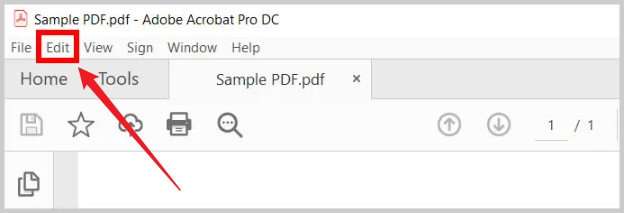
Step 1. Open the target PDF file in Adobe Acrobat Pro and click the Edit tab in the top toolbar. Then, the Edit mode can be enabled.
Step 2. Directly click on the image you want to crop to select it. Next, the editing options will appear. Click the Crop option. Or, right-click on the image and select Crop.
Step 3. Click and drag the selection handles to adjust and crop the image to your desired area. The area outside the handles will be removed. Once satisfied, save the PDF file to your computer.
Advantages
- Offers a comprehensive feature set to edit, annotate, convert, and compress PDFs.
- PDF editor with improved AI Assistant for summarization and search.
- Can handle complex PDFs without losing formatting.
- Provides robust security and compliance, including redaction and encryption features.
Disadvantages
- Expensive subscription plans.
- Requires a steep learning curve.
- Consumes significant system resources.
Method 3: Crop PDF Image on Mac Using Preview (Free)
As a built-in program on macOS, Preview can view and edit PDFs. You can use it to crop PDFs on Mac effectively. Can you crop an embedded image inside a PDF as a separate object in Preview? No, Preview can’t directly edit and crop an embedded image with a PDF file. Cropping in Preview always affects the entire PDF page. Fortunately, there is a workaround to crop only the image itself. Let’s have a look.
Step 1. Open the target PDF document in Preview and click the Markup icon to show the toolbar.
Step 2. Select the Rectangular Selection tool and drag to select tightly around the image you want.
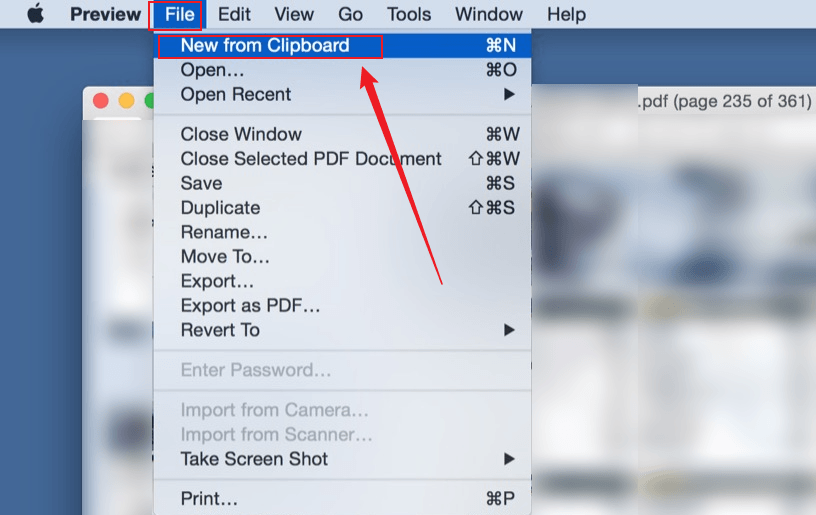
Step 3. Next, click Edit and select the Copy option. Or, press Cmd + C. Then, go to File and click New from Clipboard.
Step 4. In the new window, use the same Rectangular Selection tool to select the image area you want to remain. Then, go to Tools and click Crop. Finally, go to File, click Export, and follow the on-screen prompt to save the PDF file.
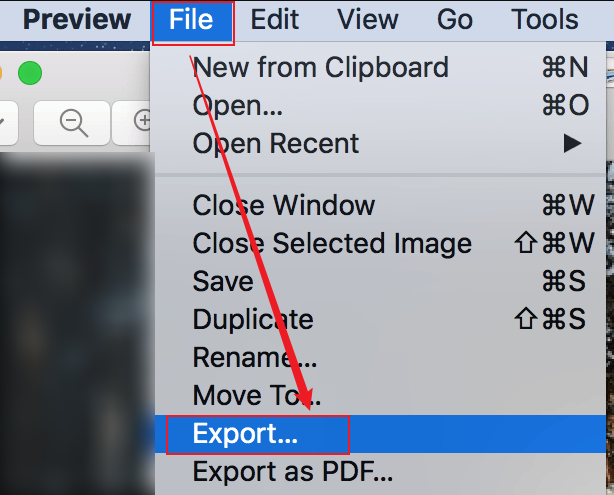
In this way, Preview extracts just the image as a standalone image file. If you need to crop and edit embedded images with a PDF file on Mac, JOPDF is worth a try.
Pros
- Completely free and built-in.
- Quite suitable for simple tasks.
- Edit PDFs on Mac with ease.
Cons
- Not true in-PDF image editing.
- Limited advanced features.
Method 4: Crop Image in PDF Online (No Installation)
If you don’t want to install any software on your device, online tools are perfect. You can use them not only on Windows, Mac, and Linux PCs but also on Android and iPhone. Moreover, most online tools are beginner-friendly. I have picked some reliable online PDF image croppers for you to choose from.
- Canva
- Smallpdf
- iLovePDF
- PDF2Go
Canva is a good choice to crop images in a PDF online. Additionally, Canva is a good PDF converter and editor with various features. You can follow the steps below to crop PDF images online with Canva.
Step 1. Open your frequently used browser and visit Canva’s PDF Editor website. Then, log in with your account.
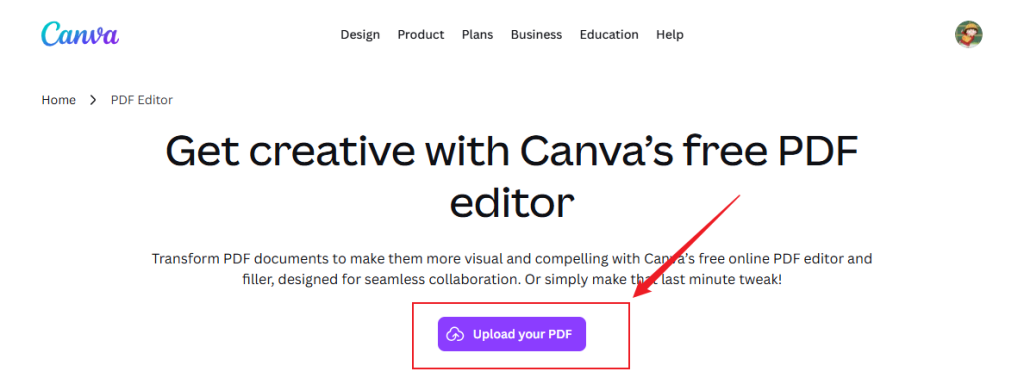
Step 2. Click the Upload your PDF button to load the target PDF document. It will take a few seconds to open the PDF file.
Step 3. Locate and click the image you want to crop. Then, you can click and drag the rounded handles to crop the image as needed.
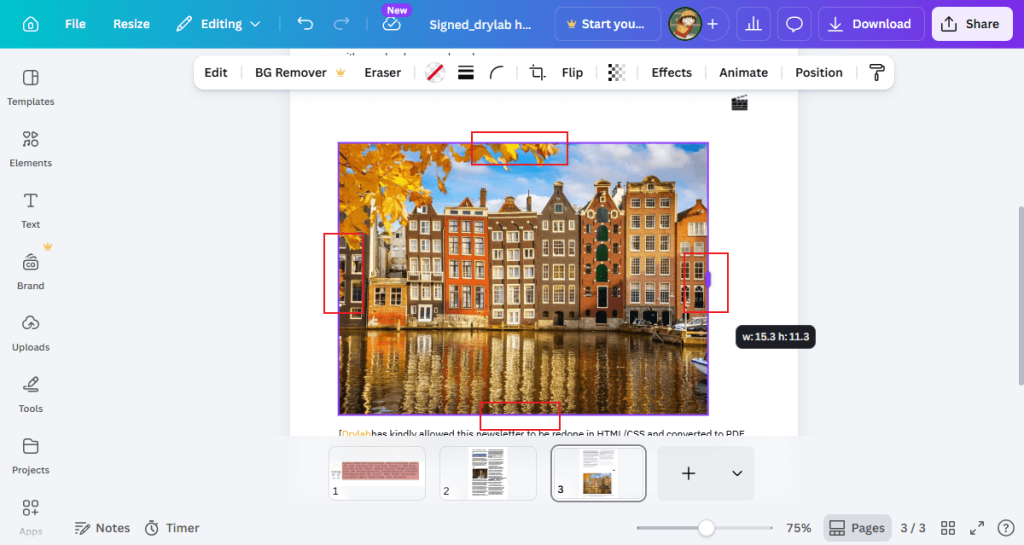
Step 4. Finally, click the Download button in the upper right, select the output format, and click Download.
Pros
- It is easy and beginner-friendly.
- Allows you to freely use it for basic tasks.
- Offers a set of tools to modify PDFs.
Cons
- Less precision than professional tools.
- It is not suitable to handle complex PDFs.
Final Thoughts
Cropping an image in a PDF isn’t always as direct as it should be. You should understand the difference between page cropping and image editing. Then, choosing a reliable tool can help you crop an image in a PDF effectively. If I were you, I would choose JOPDF since it is available on multiple platforms and is free to use, with various editing, annotation, organization, conversion, and protection features. If you have enough budget, you can also choose Adobe Acrobat for precise editing. Also, you can try other tools mentioned in this article.
FAQs
JOPDF
SwifDoo PDF
Adobe Acrobat
Table of Contents

Your Best Free PDF Expert in PDF editing, compressing, converting, annotating, protect, organizing, and more.
Free DownloadWindows · macOS · Linux

Olivia
“Olivia is an editor at JOPDF, where she writes practical guides and insightful articles on managing PDFs—covering topics like editing, annotating, converting, and organizing files efficiently. Passionate about clear communication and digital productivity, Olivia enjoys spending her free time cooking, watching movies, and hiking to unwind and find inspiration for her writing.”
![Full Guide on How to OCR a PDF in Adobe Acrobat [Newest]](https://b.jopdf.com/wp-content/uploads/2026/10/how-to-ocr-a-pdf-in-adobe.png)