
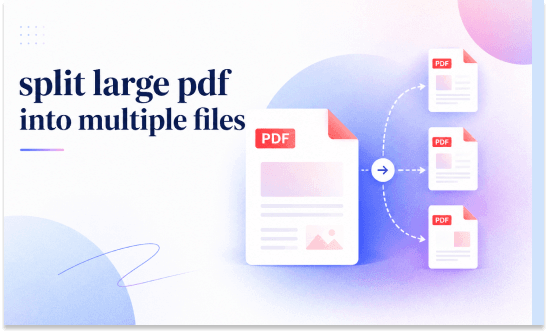
Dealing with a massive PDF that’s too big to email or hard to navigate? This article on JOPDF will show you exactly how to split large PDF into multiple files. We cover step-by-step methods ranging from a powerful desktop PDF splitter to convenient browser-based options. You’ll also discover why preserving formatting matters and learn how to split PDF pages from a long single-page document efficiently.
Summary :
How to Split Large PDF into Multiple Files with JOPDF
This is the best method for people dealing with sensitive documents who don’t want to upload files to random servers. JOPDF is a rising star in the PDF editing space, primarily because it offers a “privacy-first” experience that keeps your data on your own device, unlike many cloud-based tools.
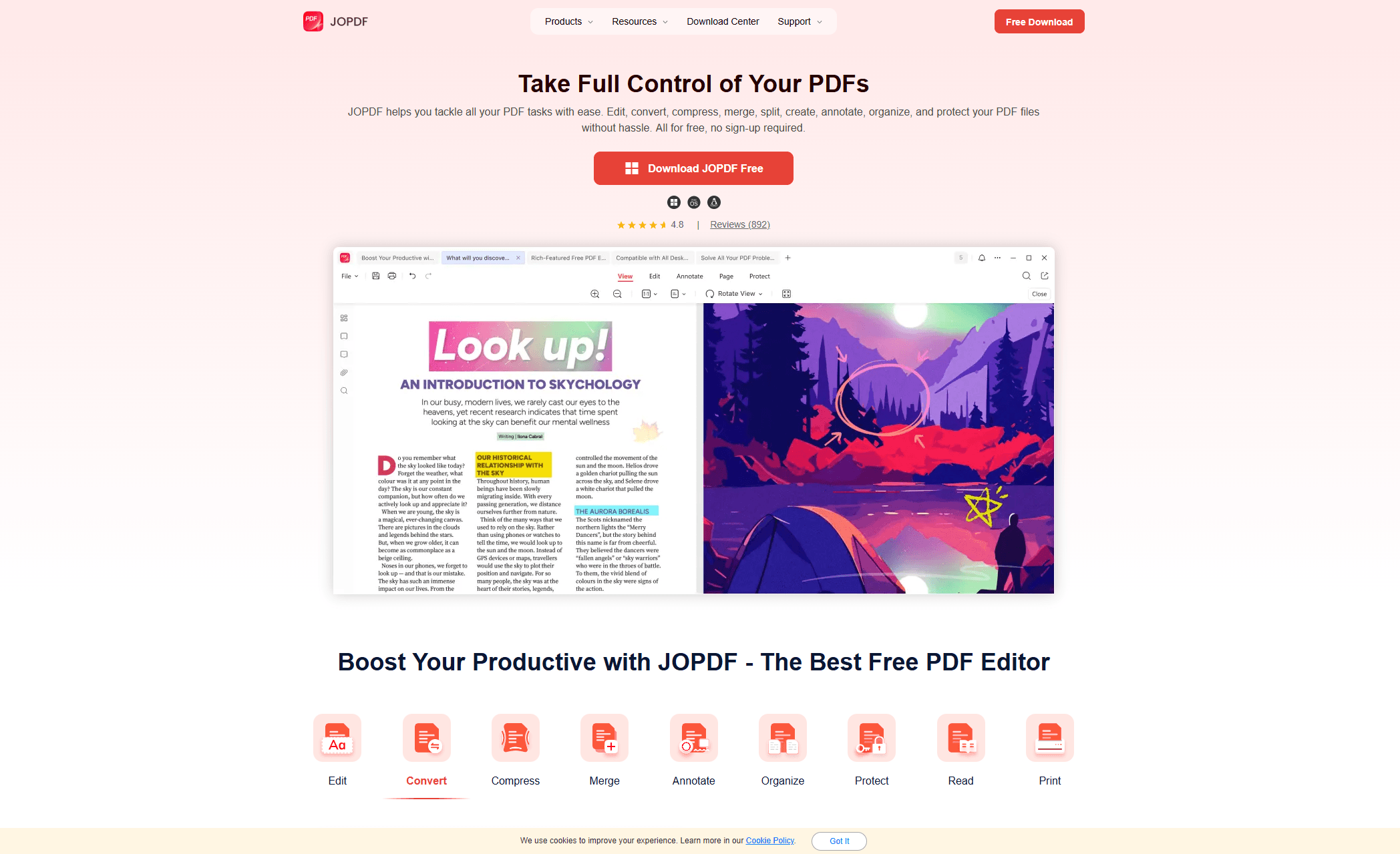
Step-by-step: Using JOPDF to Split Your PDF
Step 1: Download and Launch JOPDF
Since JOPDF editor is a completely free desktop application for Windows and macOS, you don’t need to worry about hidden fees or watermarks . Install the software and open the main dashboard.
JOPDF’s Key Features:
-
100% Free with No Hidden Costs (Truly Free)
-
Edit PDFs Directly Like a Word Document
-
All-in-One Functionality
-
Lightning Fast and Lightweight
-
Privacy-Focused with Strong Security Features
Step 2: Access the “Split” Feature
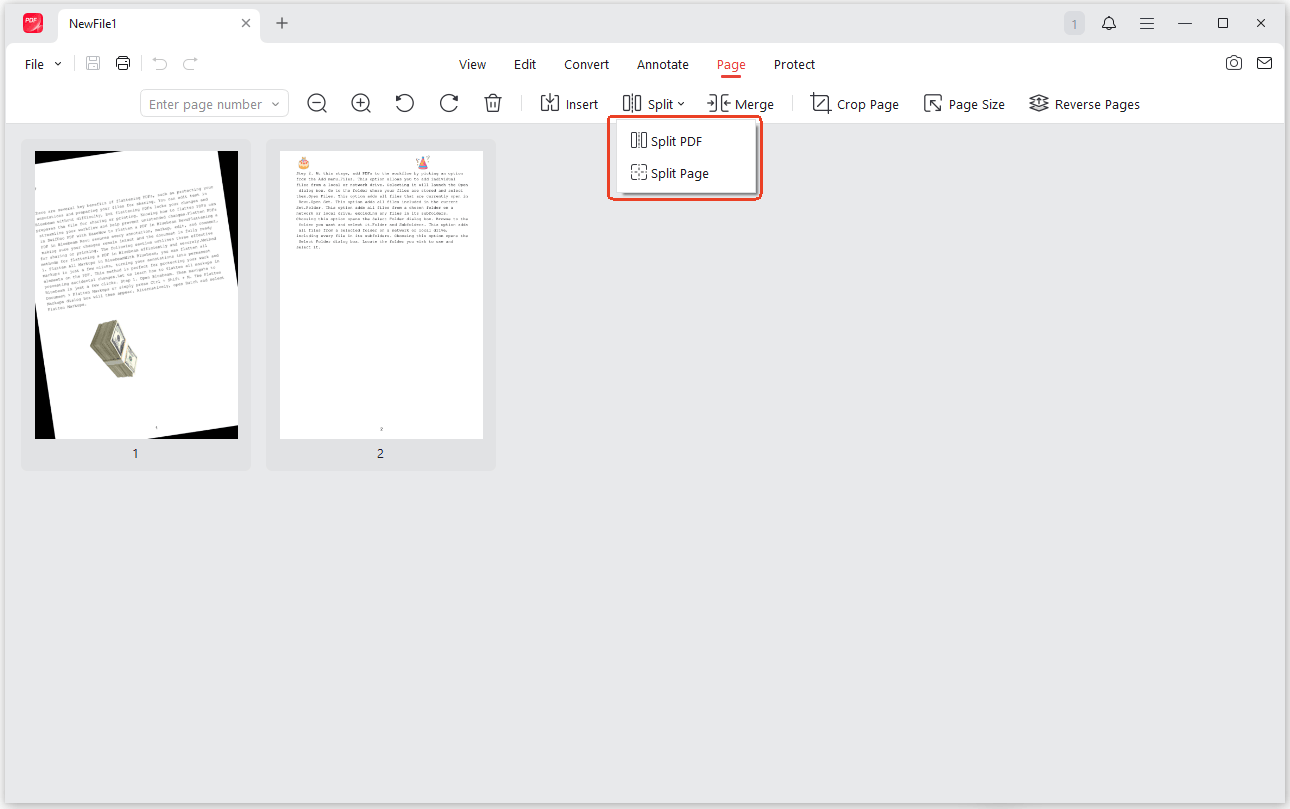
Open your file from the PDF editor and navigate to the Page tab on the top ribbon. Click on the Split icon. Even very large files work smoothly here because processing is done locally using your computer’s memory. Choose which method you want to perform – Split PDF or Split Page. Here, you can split PDF into multiple files without losing quality or just split a long single-page PDF in multiple pages.
Step 3: Define Your Split Rules
This is where accuracy matters. You can choose to split PDF pages by a fixed count or enter custom ranges for greater control.
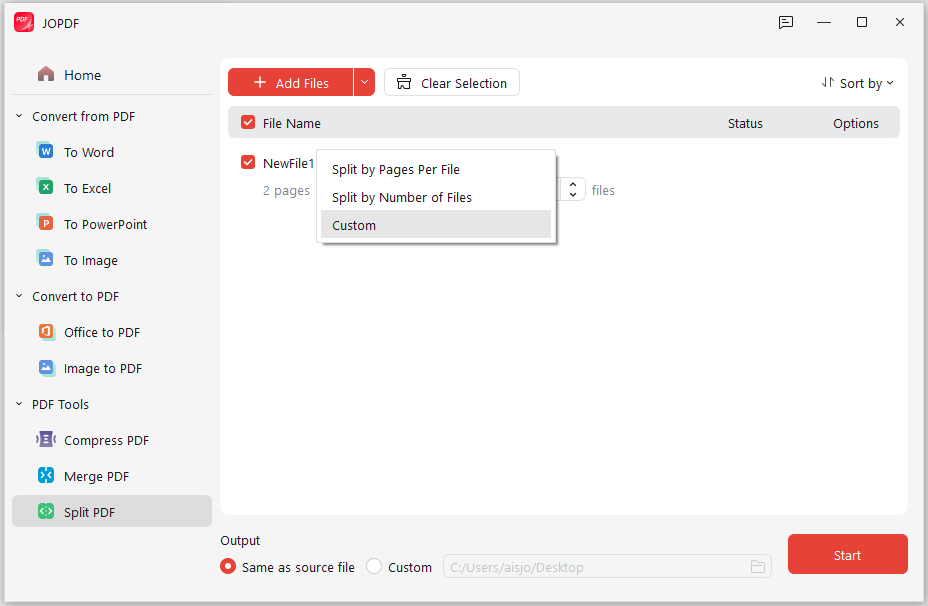
If you need to split a long single page PDF in multiple pages, you can can locate the page and click Split Page to segment the content.
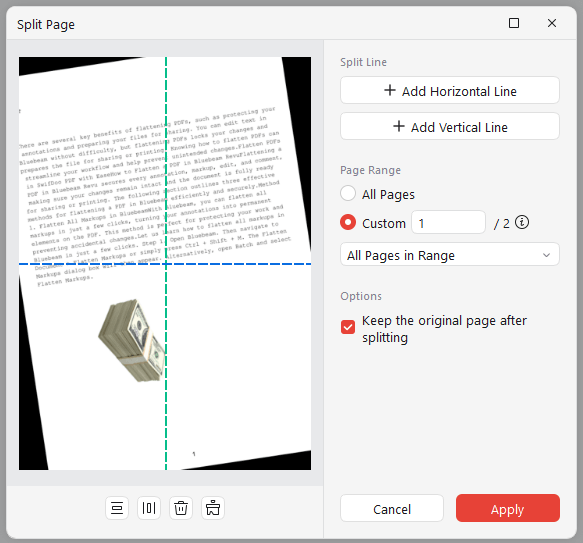
Step 4: Execute and Save
Click Start or Apply. JOPDF will instantly process the document, even maintaining the original formatting and fonts, so you can effectively split PDF into multiple files without losing quality. Save the output folder with the distinct new PDFs ready for sharing or archiving.
How to Split Large PDF into Multiple Files Online
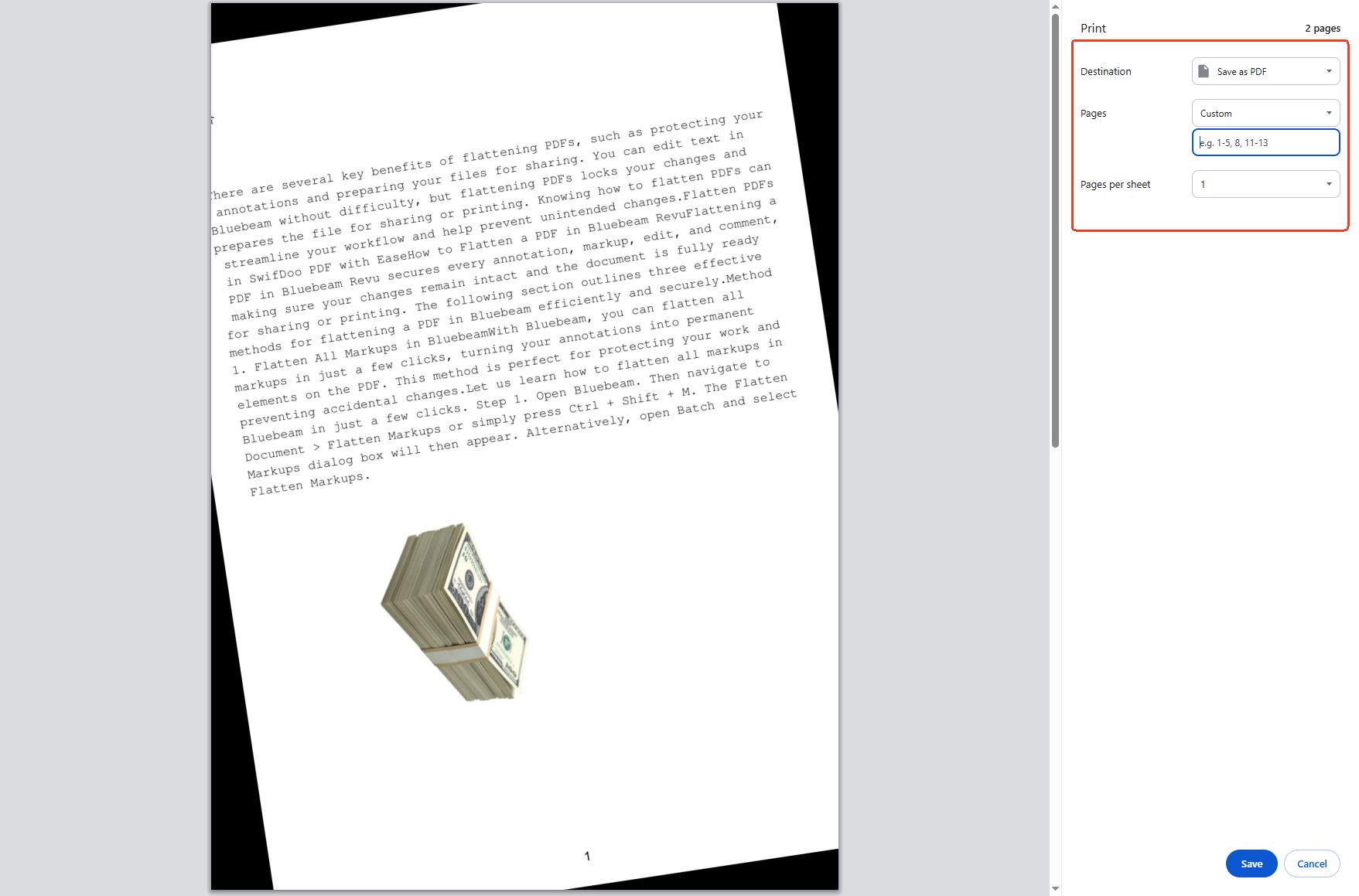
If you use a Chromebook or strictly need to split PDF into multiple files online, the browser’s built-in PDF tools are a solid choice. This method is available on the both Edge and Chrome.
- Open your large PDF file in Chrome or Edge (Right-click on the file and choose to open with Chrome or Edge)
- Click on the “Print” icon in the right top corner and change the destination choice as Save as PDF.
- In the Pages field, choose Custom and enter the specific page range.
- Click Save and repeat for other sections.
How to Split a PDF into Multiple Files on iPhone
How to split a PDF into multiple files on iPhone? Mobile users often think splitting PDFs requires a computer, but your iPhone can handle this natively; a trusted free app like Apple’s Files app works best.
Step 1: Locate your PDF in the Files app.
Step 2: Press and hold the file to choose Create PDF and then select the thumbnails of the pages you want to extract.
Tips
If you have a long single page PDF, you can use the built-in markup tool to duplicate the file and manually crop sections in and out, thereby turning a long single page PDF in multiple pages without installing suspicious third-party apps.
Step 3: Hit Done to save these selections as individual files back to your iCloud or local storage.
Related Article: How to Split a PDF Without Adobe: 4 Free Ways
Why Should You Split PDF Files?
Figuring out how to split large PDF into multiple files does more than just shrink file sizes. It fundamentally changes how you interact with your documents.
Here are the four main benefits that make a reliable PDF splitter essential:
Smarter File Navigation. Splitting your PDFs, such as lengthy scanned pages or lecture slides, transforms a chaotic document into a neatly organized library. For example, if you split a large PDF document into several smaller ones by chapter, jumping to “Chapter 4” becomes an instant click rather than a frustrating search.
Effortless Sharing. A massive file can stall an email or frustrate a recipient who only needs two pages from a 200-page manual. When you split a PDF document into separate files, you can send only the relevant details, like a single invoice from a batch or one chapter of an eBook. This targeted approach speeds up upload times and respects your recipient’s bandwidth.
Stronger Security and Teamwork. Sharing an entire financial report is a data leak risk. By learning how to split PDF pages, you can isolate just the non-confidential summaries to share with external partners, keeping sensitive numbers hidden.
Also See: Complete Guide on How to Make a PDF Editable [6 Methods]
Reduced Digital Clutter and Costs. A 500-page PDF takes up significant space. Breaking it down makes storage lighter and cheaper. Fortunately, dedicated free tools like JOPDF eliminate the need for expensive, bloated advanced suites. Instead of paying for features you’ll never use, you can rely on a streamlined desktop app to split PDF into multiple files online or offline without premium price tags.

JOPDF – The Best Free PDF Editor
 User Rating: 4.8
JOPDF Is a 100% free POF editor for Windows, macOS, and Linux. Edit text, add images, annotate, sign, and more. No limits, no ads, no subscriptions, Fast, simple, and powerful, take full control of your PDFs in seconds!
Best Tips for Splitting Large PDF Files
Once you master the technical steps to split a long single page PDF in multiple pages, the next level of professionalism comes from how you organize and protect those results. These best practices will help you avoid messy folders and formatting errors.
1. Build a Logical Splitting Plan First
Don’t randomly slice pages. Scan the document first and group related sections naturally. Keep chapters together, separate appendices, and flag must-read titles. Understanding who will read the document helps categorize content logically. After you split PDF pages, immediately insert sequential page numbers and rename the output files descriptively.
2. Match the Tool to the Task
Not every PDF splitter works for every scenario. An iOS Shortcut might be perfect for a quick split on an iPhone, but a desktop tool like JOPDF is far superior for high-volume batch processing. Always prioritize tools that preserve fonts and embedded media so you can split PDF into multiple files without losing quality. Desktop software often handles batch automation better than browser extensions, avoiding browser crashes with very large datasets.
3. Never Overwrite the Master File
Treat your original PDF as important. Before pressing the split button, save a duplicate backup. This master copy lets you re-split the content differently later or quickly revert if a formatting error slips through. If you ever need to reference the full document again, you’ll be glad you kept an untouched version stored safely away .
4. Verify Extractions and Lock Down Sensitive Data
After extraction, double-check that your new smaller files look correct. A page that breaks mid-paragraph creates a poor reading experience for marketing or publishing materials. If a newly split section is still too large, pass it through a compression tool (JOPDF handles this too).
Finally, if you decide to split a PDF document into separate files containing sensitive data, use encryption. Set a password on the output files or choose a privacy-focused offline tool with automatic file deletion.
Related Article: Pro Guide on How to Edit a Locked PDF in 4 Proven Ways
Conclusion
Managing documents doesn’t require advanced IT skills or expensive software. Whether you choose the robust, free desktop power of JOPDF or the online method, the way you select should fit your privacy needs and device ecosystem. By learning to effectively split large PDF into multiple files, you reclaim control over your data, speed up your workflow, and ensure your recipients get precisely what they need.
FAQs
Most tools allow you to split PDF pages by selecting the "Extract every page" or "Split by N pages" option, instantly creating a separate file for every sheet in your original document.
Desktop processors like JOPDF handle this best because they rebuild the PDF structure without re-compressing the images, which preserves fonts, form fields, and embedded media exactly as they were.
Scanning often produces a long single page PDF. To split this into standard sizes, you need a "Crop" or visual split tool (available in JOPDF) to manually slice the long image into distinct letter-sized boxes before saving.
It depends. Always check if the tool mentions "client-side processing." If a site requires an account just to download or has vague privacy terms, switch to a verified desktop tool to avoid data harvesting.
Table of Contents

Your Best Free PDF Expert in PDF editing, compressing, converting, annotating, protect, organizing, and more.
Free DownloadWindows · macOS · Linux

Anna
Editor
“Anna, Editor-in-Chief and PDF expert, delivers deep insights into PDF document technology trends. She is dedicated to helping readers optimize their digital lives. When not writing, Anna loves exploring local cafes and reading, blending her technical expertise with a love for storytelling.”



