
When you need to share an important document, dealing with an oversized file can slow you down. If your PDF is too large to email, this 2026 guide will help you fix it. We will show you how to compress large PDF files without losing quality using native computer features, quick online workarounds, and secure offline tools like JOPDF.
Summary :
Quick Reference: Choose Your PDF Compression Method
If your file breaches a strict PDF file size limit or is simply PDF too big to upload to your company portal, you can use these quick processing methods:
- The Secure Desktop Solution: Download JOPDF, drag your document into the compression panel, and choose your preferred quality setting. It allows you to free compress PDF pages by up to 90% without making your images blurry.
- The Mac Preview Option: Open your file inside the built-in Preview app, click File > Export, and select Reduce File Size from the Quartz Filter menu.
- The Microsoft Word Loophole: Right-click your heavy PDF, open it inside Microsoft Word, click Save As, and select the Minimum Size optimization setting before saving.

JOPDF – The Best Free PDF Editor
 User Rating: 4.8
JOPDF Is a 100% free POF editor for Windows, macOS, and Linux. Edit text, add images, annotate, sign, and more. No limits, no ads, no subscriptions, Fast, simple, and powerful, take full control of your PDFs in seconds!
Why Is Your PDF File Too Large?
We have all experienced the frustration of a PDF file too large to send over standard messaging apps. You finish a major project, attach it to an email, and instantly get an error message saying your PDF too big to transfer. When this happens, your first instinct might be to find a quick way to reduce PDF file size online. However, if you use a poor compression tool, your text can become jagged and your charts might look pixelated.
The reason your file becomes a PDF too big to upload rarely has anything to do with the actual text. Words and paragraphs are saved as tiny vector paths that take up almost no storage space. Instead, a document becomes bloated due to high-resolution images, heavy embedded font styles, and hidden background metadata.
If you want to make PDF smaller, you need a tool that can strip away this invisible background clutter without ruining your visual layouts. Destructive tools simply crush your images into low-quality pixels, making them unreadable. On the other hand, finding the best way to compress large PDF files without losing quality involves using smart downsampling. This technique reduces the physical byte size of images while leaving your text paths completely sharp and professional.
Also See: How to Split Large PDF into Multiple Files: 3 Easy Methods for 2026
Method 1: JOPDF – Offline PDF Compression Free
When you are handling confidential business contracts, medical forms, or financial spreadsheets, security is just as important as file size. Uploading private files to unknown web servers can expose your data to leakage risks. Using a local desktop application like JOPDF gives you an excellent way to compress large PDF files without losing quality free from these digital vulnerabilities.
JOPDF provides a completely private environment for offline PDF compression free on Windows and Mac. Because it runs directly on your computer’s hard drive, it requires no account sign-ups and never uploads your pages to the cloud.
How to Shrink Large PDF Files Without Losing Quality?
If you have a single graphic-heavy document that is currently a PDF too large to email, you can use JOPDF to optimize it in just a few seconds. JOPDF acts as an intelligent PDF size reducer by recalculating image pixel density to a clean, web-ready resolution while locking your font layers so they stay crisp.
Step 1: Download JOPDF and launch it on your computer.
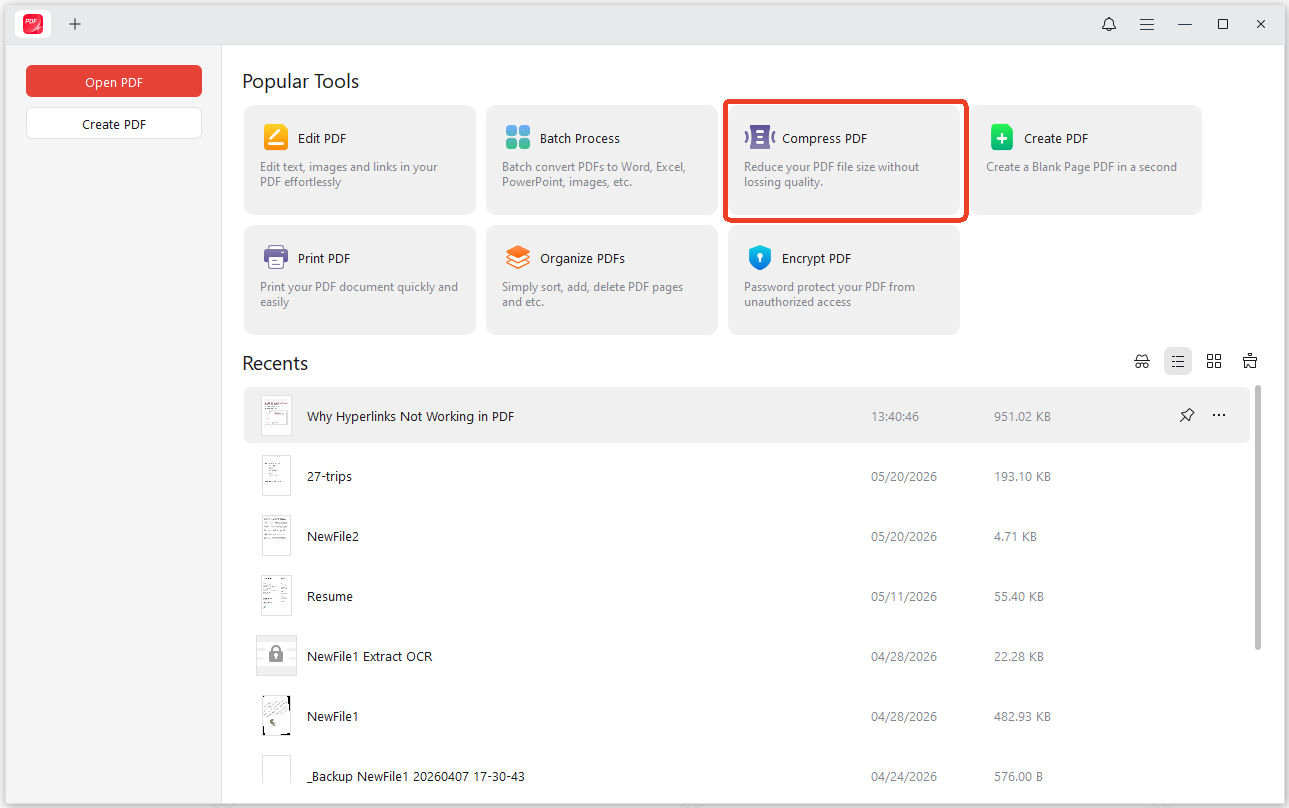
Step 2: From the dashboard, select the Compress PDF option.
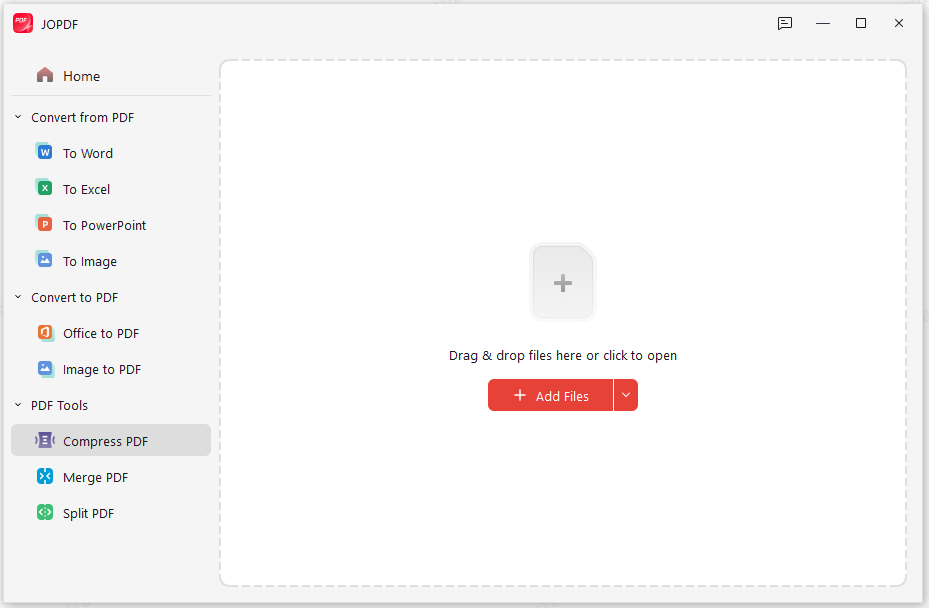
Step 3: Drag your heavy file from your local folder and drop it into the application window.
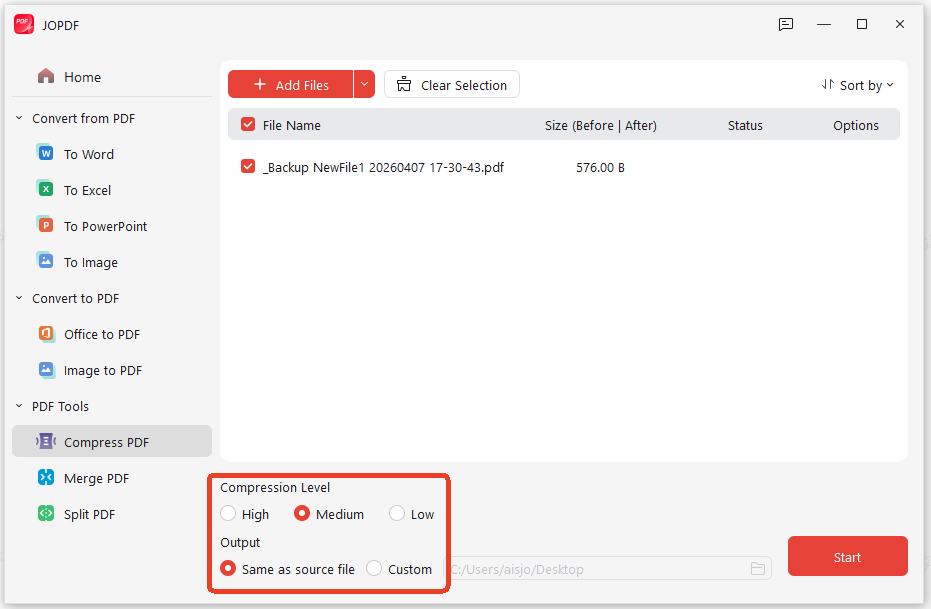
Step 4: Configure the compression level and set the ouput to click Start. You can choose the High or Medium option to shrink PDF file automatically without losing quality.
Tips
How to Batch Compress Large PDF Files?
If your daily workflow requires you to process dozens of heavy archives simultaneously, handling them one by one wastes valuable time. JOPDF includes a multi-threaded engine that lets you batch compress PDF files without any system lag. Just drop all your PDF files into the section and the JOPDF will automatically free compress PDF collections quickly.
Method 2: Save As Reduced Size via Built-In Tools
Many PDF viewers come with a built-in compression option, and this is often the quickest way to shrink PDF file size without reaching for anything extra.
Compress PDF Large Files via Adobe Acrobat
If you have Adobe Acrobat installed on your computer, you can reduce PDF file size with advanced options. Just follow the next steps.
Step 1: Open your PDF file and go to Menu > Save as Other > Optimized PDF.
Step 2: Then you’ll see a dialog box open and select Standard from the Settings menu.
Step 3: Configure the settings to customize the file size and quality as you need; then, in the Make compatible with dropdown menu, select the desired compatibility for Acrobat versions.
Step 5: Click OK and choose where to save the compressed PDF. Choose Save.
Compress PDF Large Files in Preview on Mac
If you want to compress large PDF files on Mac, you can do that in Preview. However, notice that the compressed PDF may be of lower quality than the original. Besides, the file size and image quality may vary.
Step 1: Go to the Preview app and your Mac and open the PDF.
Step 2: Choose File > Export. You can choose Reduce File Size in the Quartz Filter pop-up menu. Alternatively, configure the settings to make PDF smaller.
Step 3: Click Save.
Compress PDF Large Files in Microsoft Word
If you created the document in Word, follow the next steps to shrink your PDF.
Step 1: Go to File > Save as and choose PDF as the format.
Step 2: Open the Option panel and select Minimum size (publishing online) to get a significantly smaller file.
Method 3: Shrink Large PDF via Print-to-PDF
Your computer already has a PDF size reducer built in, and you might not even know about it. The Print-to-PDF trick works on any system and doesn’t cost anything. This rebuilds the PDF from scratch, often dropping hidden data and oversized images in the process.
Step 1: Open your PDF in any viewer, press Ctrl+P to open the print dialog. Here, we take JOPDF as an example.
Step 2: Choose your Printer as Microsoft Print to PDF and click Print to export the file.
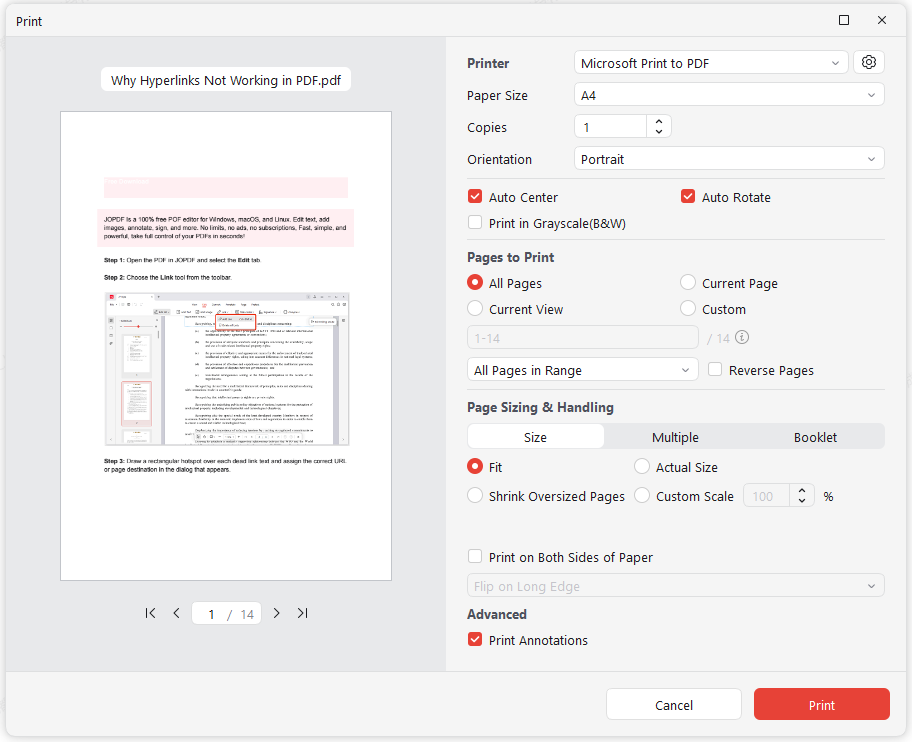
This method isn’t a dedicated compressor, so you won’t get granular control over the output. But it’s free, it’s available on every computer, and it often reduces file size enough to get past email attachment limits.
Other Compression Techniques for Large PDFs
Not all compression has to degrade your file. When you need to hit a specific number, like getting a file under 1MB for an online form, trying to reduce PDF below 35 MB for a court filing, or fitting within any other limit, basic compression often isn’t enough. You need to target what’s actually eating up your space.
Tip 1: Remove Hidden Data
PDFs accumulate metadata, editing history, and unused objects over time. We recommend you use Adobe Arcobat to check what’s taking up room.
Step 1: In Adobe Acrobat, go to File > Save as Other > Optimized PDF.
Step 2: Click Audit space usage and uncheck elements like embedded thumbnails, document tags, and unused bookmarks.
Tip 2: Unembed Fonts
If your PDF uses standard fonts like Arial or Times New Roman, you don’t need them embedded because every device already has them. Removing embedded fonts can save significant space without affecting how your document looks.
Tip 3: Use PDF/A format
When you save as PDF/A, the format enforces font embedding rules and strips out modern PDF features that can bloat file size. This works well for archival documents you need to keep lean.
Tip 4: Set Image Downsampling
For image-heavy documents, set image downsampling to 150 DPI for on-screen viewing or 300 DPI if you need to print. Most screens can’t display more than 150 DPI anyway, so anything higher is wasted space.
Also See: Combine JPGs into One PDF for Free Using 4 Methods
Can You Safely Compress Files Online?
Most browser tools that promise a quick way to compress large pdf files without losing quality online free operate on automated cloud scripts. When you upload a file, their servers attempt to deliver PDF loseless compression online by cleaning up basic formatting data.
However, web tools often enforce strict limits on file sizes and page counts unless you purchase a premium subscription. If your document is exceptionally heavy, a web tool might refuse to process it or end up flattening your pages into low-resolution images, failing to compress large PDF files without losing quality.
What to Watch Out for the Online Compressor?
If you regularly look for options to compress large pdf files without losing quality online, you should consider data compliance rules. When you upload a document to a web application, your file is temporarily cached on an external server. For non-sensitive public flyers, this is perfectly fine. However, for legal files or private records, relying on an offline PDF size reducer like JOPDF is a much safer approach to protect your information.
Conclusion
Dealing with a PDF file too large for your system shouldn’t force you to share blurry, unprofessional documents. By using smart downsampling techniques instead of destructive crushing, you can easily keep your text and charts perfectly clean.
While system print changes and native browser options offer helpful quick fixes when you are in a rush, a dedicated application remains the most effective long-term choice. Download JOPDF today to enjoy a fast, secure, and entirely offline PDF compression free experience that keeps your documents looking razor-sharp at any file size!
FAQs
Standard cloud applications cannot process locked files because their systems lack the authorization required to open the document code. You must load the file into a desktop application like JOPDF, enter your security password to open it, and then apply your compression settings locally.
Table of Contents

Your Best Free PDF Expert in PDF editing, compressing, converting, annotating, protect, organizing, and more.
Free DownloadWindows · macOS · Linux

Anna
Editor
“Anna, Editor-in-Chief and PDF expert, delivers deep insights into PDF document technology trends. She is dedicated to helping readers optimize their digital lives. When not writing, Anna loves exploring local cafes and reading, blending her technical expertise with a love for storytelling.”



