
Large PDFs are a problem when forms and portals set tight size limits. The 300KB cap is common for resumes, certificates, and scanned documents. In this guide on JOPDF, we will show you how to reduce the size of PDF to fit this limit. You will learn quick online tricks to compress PDF to 300KB and a free offline method that does not require uploading your files anywhere.
Summary :
How to Compress PDF to 300KB Using JOPDF
If you want a free, offline solution to compress PDF to 300KB, JOPDF is the answer. JOPDF is a free desktop PDF editor for Windows, Mac, and Linux. It is completely free, with no sign-up required and no hidden charges.

JOPDF – The Best Free PDF Editor
 User Rating: 4.8
JOPDF Is a 100% free POF editor for Windows, macOS, and Linux. Edit text, add images, annotate, sign, and more. No limits, no ads, no subscriptions, Fast, simple, and powerful, take full control of your PDFs in seconds!
JOPDF processes your files locally on your computer. This means your documents never leave your device. When you need to compress PDF to 300KB for sensitive documents like ID proofs or financial records, this privacy protection matters.
JOPDF also supports batch compression, so you can shrink PDF size for multiple files at once. And if your PDF has extra pages that are adding weight, JOPDF lets you delete, reorder, or rotate pages before compression. You can also edit text and images in your PDF if needed.
How to reduce PDF size to 300KB with JOPDF:
Step 1: Download and install JOPDF from the official website.
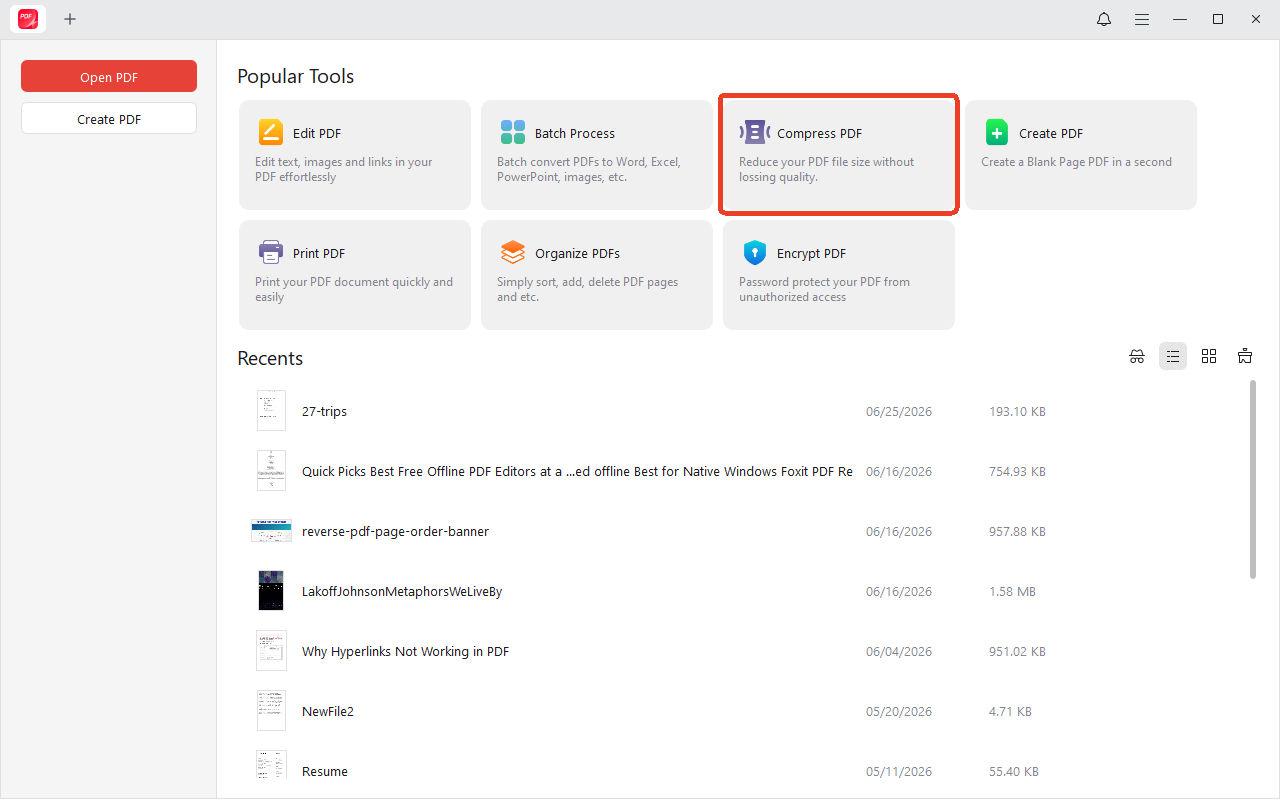
Step 2: Launch it and click the “Compress PDF” button from the main menu.
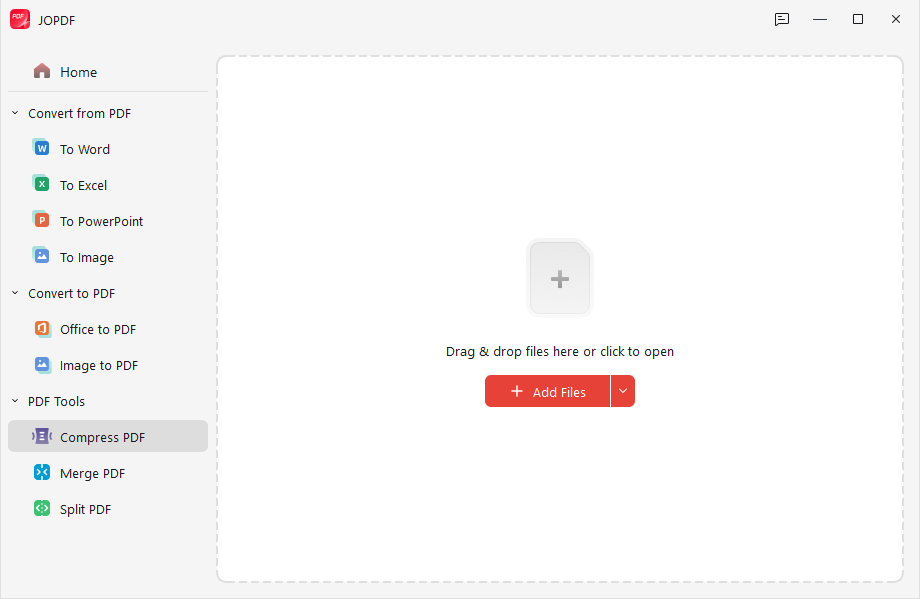
Step 3: Drag your files to upload. Besides, JOPDF allows you to shrink PDF size for multiple files at once.
Step 4: Choose your compression level, including High, Medium, Low. JOPDF maintains quality while reducing file size.
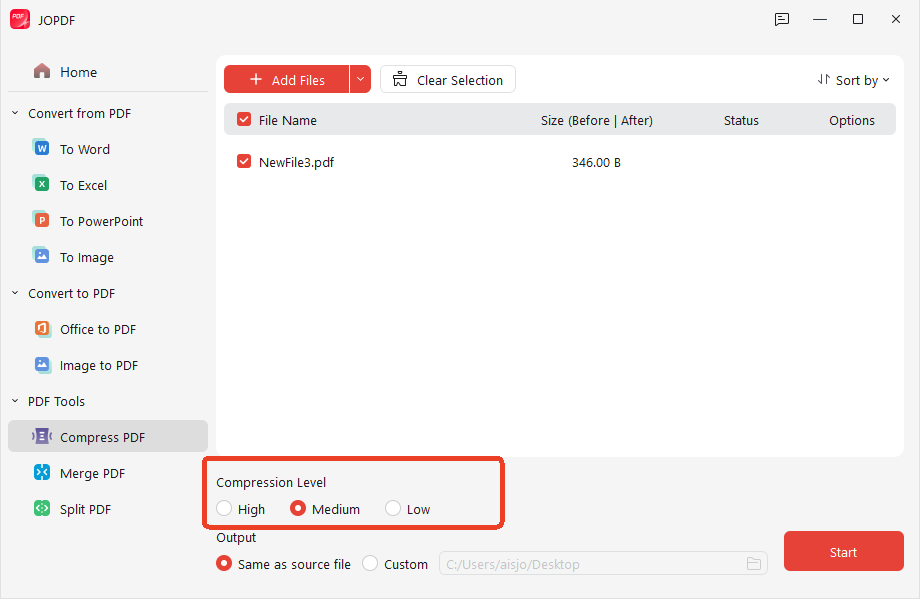
Step 5: Click Start and save the smaller PDF to your computer.
Also See: Proven and Free Methods to Compress PDF to 100KB in 2026
How to Reduce PDF Size to 300KB Offline with Adobe Acrobat?
Desktop PDF compression tools are the preferred choice for business and professional users. Adobe Acrobat Pro is a comprehensive PDF editor. It offers a “Reduce File Size” option and advanced optimization settings.
Step 1: Open your PDF in Adobe Acrobat.
Step 2: Go to the All tools center and select View more > Compress a PDF.
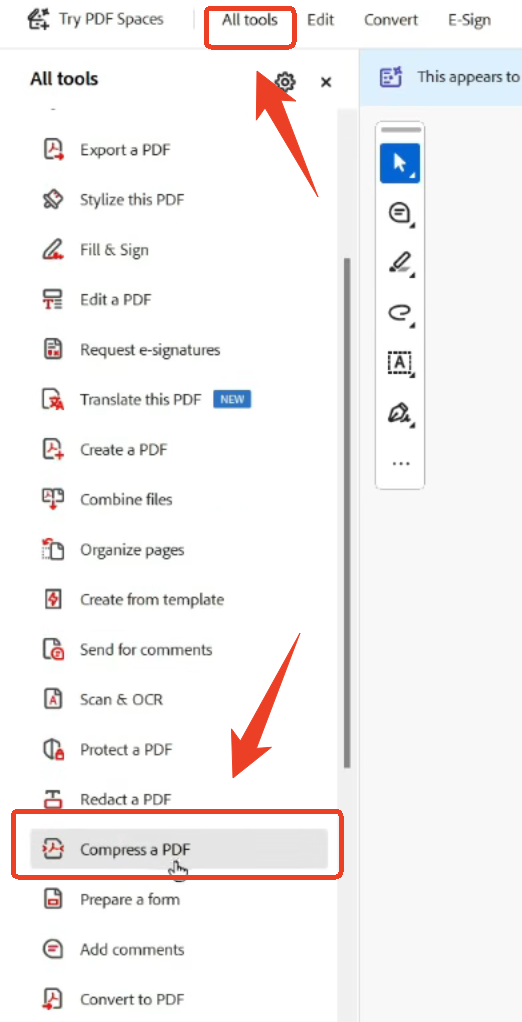
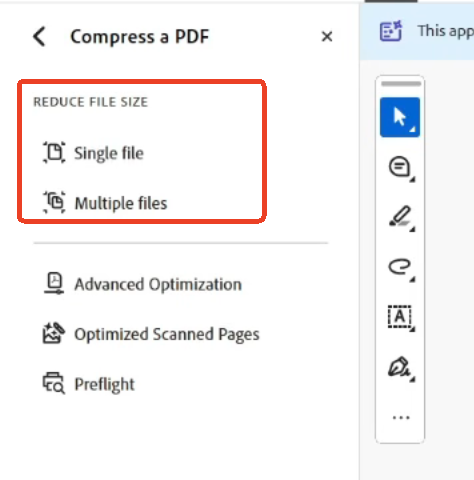
Step 3: Choose Single file for one PDF compression or Multiple files for batch compression.
Step 4: Select the file you want to compress to 300KB and configure the settings.
Step 5: Adobe will automatically reduce the PDF size and show you the compressed file where you choose to store.
How to Compress PDF to 300KB Online for Free?
For most users, an online tool is the fastest way to compress PDF to 300KB. You do not need to install anything, and the process takes seconds. Here are some recommended online tools that are designed to shrink file size to 300KB.
Adobe Acrobat Online PDF Compressor
Adobe offers a free online tool that lets you compress PDFs to 300KB or less. It is easy to use – just upload your file, choose your compression level, and download. Adobe’s tool can handle files up to 2GB, but reaching 300KB is most practical when the original file is under 1MB and primarily text-based.
Step 1: Go to the online Adobe Acrobat PDF compressor and select a file to upload.
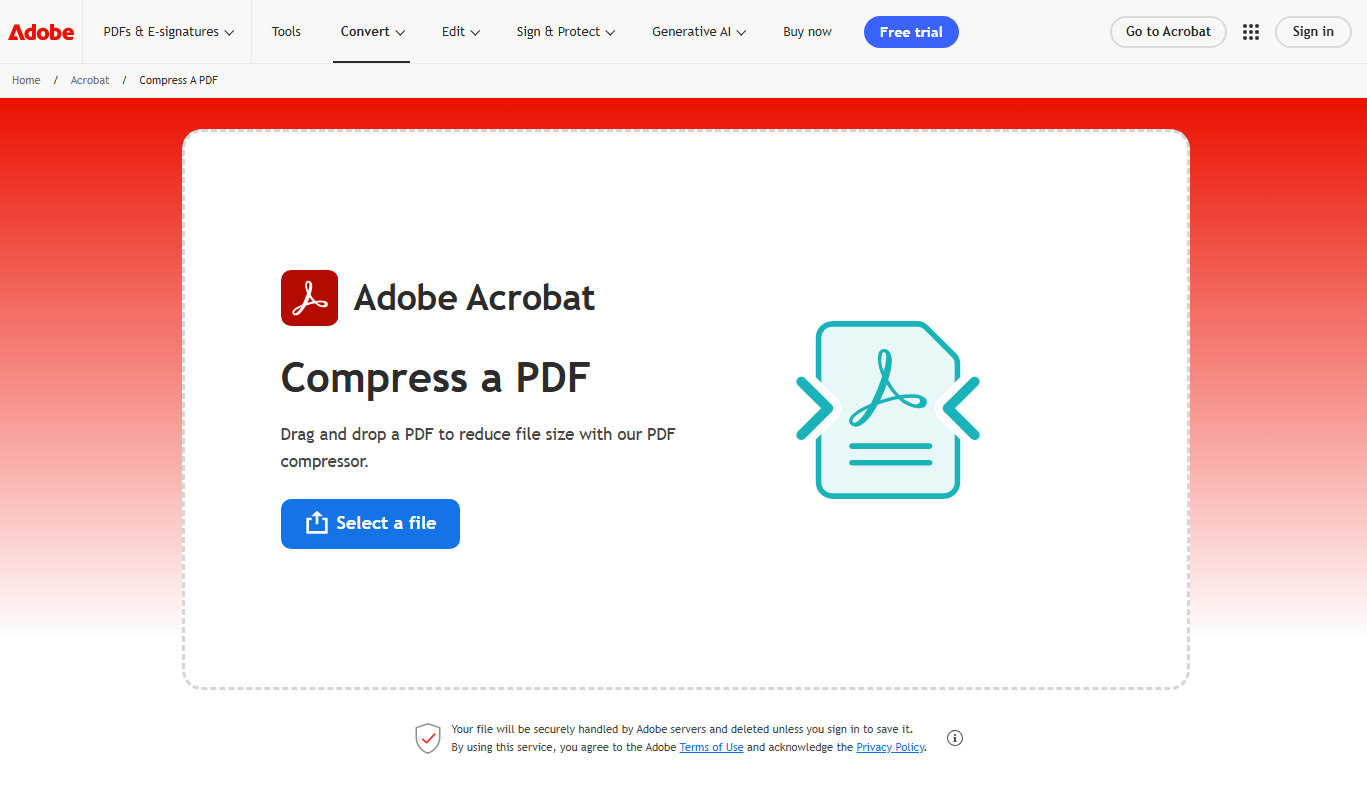
Step 2: Select the compression level and Acrobat will automatically reduce the file size.
Step 3: Then download your compressed PDF file or sign in to share it.
The next online PDF compressors follow the same steps to shrink file size to 300KB and you can go to the official online website to finish the task.
SmallPDF Compress PDF
SmallPDF offers “Basic” and “Strong” compression levels. If you need a tight target like 300KB, “Strong” compression pushes harder on images. If you are still over the limit, you can delete pages or split the file using SmallPDF’s other tools.
Wondershare PDFelement Online Compressor
PDFelement offers an online tool where you can set a custom target size like 300KB. Unlike basic tools with preset levels, it gives you full control over the output size. This is useful when you need to compress PDF to exactly 300KB.
HiPDF Compress PDF
HiPDF is another reliable online compressor that supports batch processing of up to 5 files in the free plan. It uses TLS encryption during transfer and automatically deletes files one hour after download.
Quick Fixes When Your PDF Won’t Reach 300KB
If “Strong” compression still cannot get you under 300KB, do not keep running compression over and over. Use these moves that remove weight at the source.
- Delete Pages You Don’t Need: If your PDF includes extra pages, removing them is one of the fastest size wins. Delete blank pages, duplicates, or unnecessary appendices, then compress again.
- Split the PDF into Smaller Files: Two files under 300KB often upload better than one file at 450KB. Use a split tool to break the file into sections, then compress each part separately.
- Crop Oversized Margins: Large margins can waste space in scanned files. Use a PDF crop tool to trim white borders, then compress the cropped file.
- Convert Color Scans to Grayscale: Color scans are often massive compared to grayscale scans. If color is not required, convert your source scan to grayscale before creating the PDF.
- Rebuild from the Original File: If you have the Word, PowerPoint, or image source, re-export at a lower image quality, then compress the new PDF.
Final Thoughts
Learning how to compress PDF to 300KB is a practical skill. Whether you use an online tool for quick jobs or desktop software for sensitive documents, the right tool can make your file upload-ready in seconds.
If you want a free, offline solution that works on any device, consider JOPDF. It is a comprehensive PDF editor with a built-in compressor. You can reduce PDF size to 300KB without worrying about privacy or upload limits. JOPDF is free, requires no sign-up, and processes everything on your computer.
FAQs
It depends on your document. A text-based document usually compresses cleanly. "Basic" compression usually preserves readability with minimal change, while "Strong" compression may soften images to reach a smaller size.
To hit an exact target size, you need a tool with customizable settings. PDFelement Online Compressor lets you set a custom size like 300KB. However, exact targeting depends on the original file's content.
Yes. If the file is on your phone, open an online PDF compressor in your browser, choose the PDF from your files, and run the compressor.
If the result is still too large, delete unnecessary pages, split the file into smaller parts, or recreate the PDF from smaller source files.
Table of Contents

Your Best Free PDF Expert in PDF editing, compressing, converting, annotating, protect, organizing, and more.
Free DownloadWindows · macOS · Linux

Anna
Editor
“Anna, Editor-in-Chief and PDF expert, delivers deep insights into PDF document technology trends. She is dedicated to helping readers optimize their digital lives. When not writing, Anna loves exploring local cafes and reading, blending her technical expertise with a love for storytelling.”



