
Introduction:
If you are trying to figure out how to split a PDF page into multiple pages, you have come to the right place. This simple guide will show you exactly what to do using safe computer programs and fast internet tools.
1. Split a PDF Page into Multiple Pages with JOPDF
Sometimes you save a very tall receipt, or take a screenshot of an entire website, and it ends up as one huge, long file. So, how to split a long PDF page into multiple pages?
If you want to fix your document safely on your own computer, your top choice is JOPDF, one of the best PDF editors available today.
JOPDF provides a highly precise cutting tool. You do not have to guess where the page will break. You can draw exact lines to divide a large, weirdly shaped page into smaller, normal-sized pages.
Steps to Split Your Page with JOPDF:
1. Download JOPDF and install it on your computer.
2. Open the JOPDF program and click to open your oversized, messy PDF file.
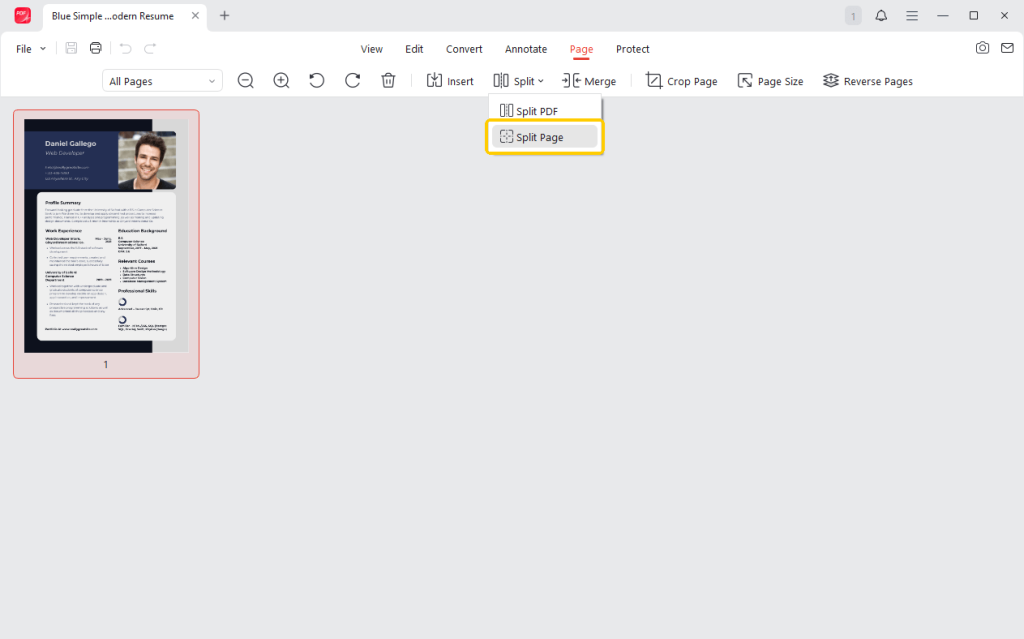
3. Look at the menu bar at the very top of your computer screen. Click on the Page tab to open your page management tools.
4. Next, click Split, then go to Split Page.
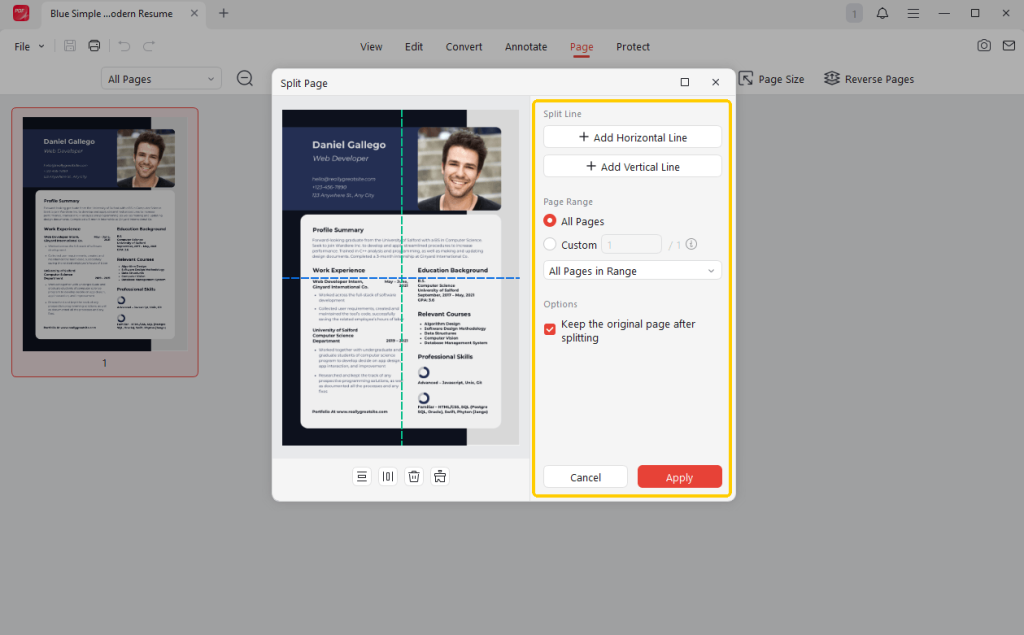
5. By default, JOPDF will place a vertical and a horizontal dividing line. You can delete the unwanted ones or drag the line to its correct place.
Of course, you can add new split lines as needed. Choose to keep the original page or not. When OK, click the Apply button.
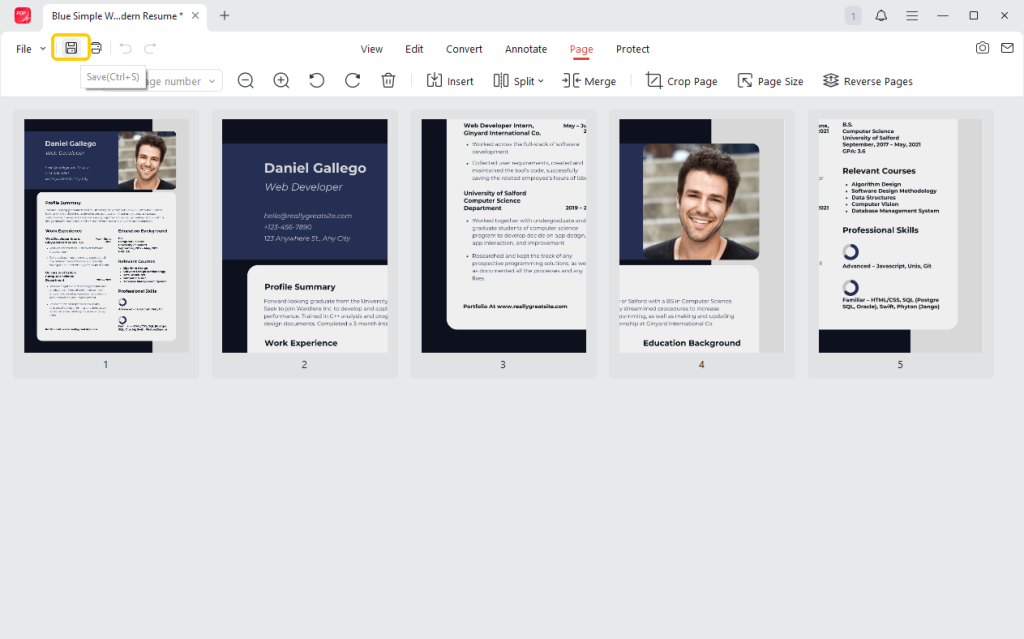
6. The software will instantly cut the page cleanly. Finally, click Save to keep your brand-new, multi-page document safely on your computer’s hard drive.
More Amazing Features:
JOPDF is much more than just a cutting tool. It is a complete helper for all your PDF work. You can use it to easily edit text in PDF files, just as you would in Microsoft Word.
If you accidentally scan a piece of paper upside down, you can easily rotate a PDF to make it right-side up. You can also merge different files together, delete blank white pages, or protect your private secrets with a strong password.
We highly recommend that you download JOPDF today to get the most reliable, easy, and secure document-editing experience!
2. Split a PDF Page into Two Pages with an Online Tool
If you just need a very quick fix to split a one-page PDF into two, you can use an online web tool. A fantastic choice for this is Online2PDF. This is a very reliable website built specifically to help you split a PDF page in half.
Steps to Use Online2PDF:
1. Open your internet browser and visit the Online2PDF website link: https://online2pdf.com/en/cut-pdf-pages-into-halves.
2. Look for the big button that says Select files. Click it to upload your document from your computer.
3. Next, adjust the settings menu as needed. You can let it split the page vertically or horizontally, the cutting direction, and more.
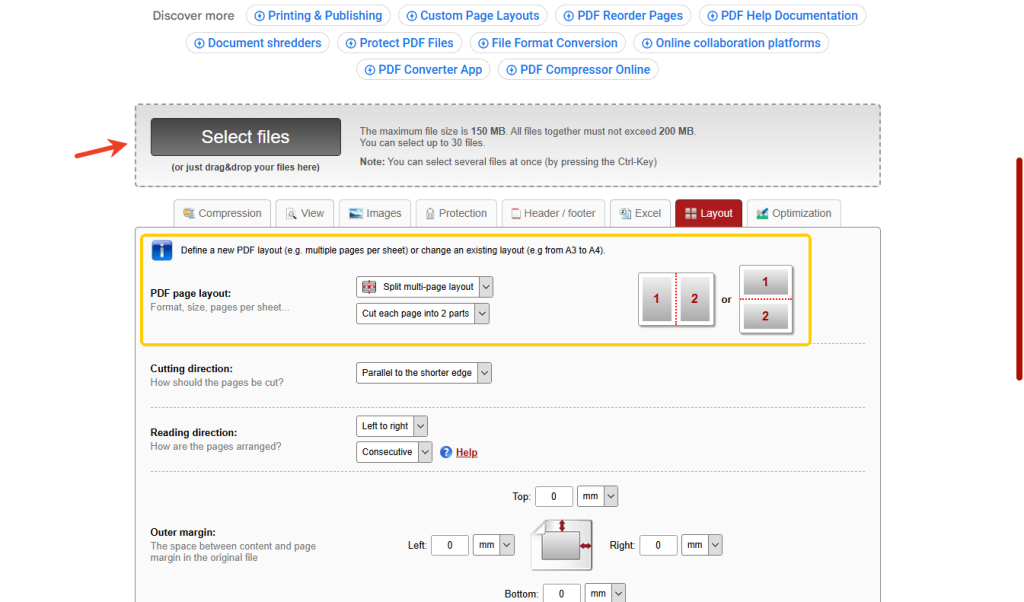
4. Click the Convert button.
Online tools are incredibly fast. You do not need to install anything, and it is completely free for basic, everyday use. It is perfect for a quick emergency fix.
However, you must upload your document to a public website server. If your file contains highly sensitive information, such as a bank statement, private medical records, or a personal ID card, this poses a privacy risk.
For your highly sensitive files, it is always much safer to use an offline program like JOPDF to ensure no one else can see your data.
Conclusion
That’s all about how to split a PDF page into multiple pages. Whether you have a scanned book with two pages stuck together or a super-long web page, dividing your document is actually very easy.
Websites like Online2PDF are fantastic for a quick, public fix when you are in a hurry. However, for the best, most professional experience, JOPDF is your best choice. It gives you the full power to safely cut, edit, organize, and manage all your professional documents directly on your own computer!
FAQs
Table of Contents

Your Best Free PDF Expert in PDF editing, compressing, converting, annotating, protect, organizing, and more.
Free DownloadWindows · macOS · Linux

Queena
Editor
“As a staff editor for JOPDF, Queena excels at guiding users to the optimal tools and solutions. When she's not analyzing the latest PDF solutions, she enjoys spending her free time playing with her four cats.”



