Introduction :
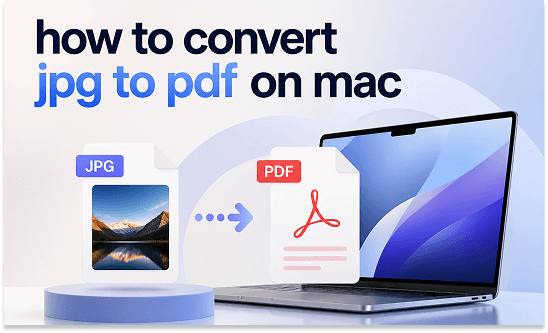
Do you need to convert JPG images into PDF files on your Mac? How to convert JPG to PDF on Mac? The good news is that macOS offers built-in tools to turn JPG images into PDFs in seconds. Whether you need to convert a single image, combine multiple JPGs into one PDF, or batch convert files, this JOPDF article offers several easy methods. Meanwhile, you can learn the step-by-step tutorial here.
PDF is a popular file format that can hold text, pictures, and other elements. Whether in work or study, PDFs are popular because they preserve layout and quality across devices. Moreover, PDF is easier to email, print, or archive multiple images.
Can you convert JPG or JPEG files to PDF without downloading any third-party applications? Yes, you can. macOS includes built-in tools like Preview and Finder Quick Actions that allow you to create PDF files quickly and for free. If you have other needs for editing and converting images and PDFs, consider a dedicated PDF converter. In the following content, I’ll show you how to convert JPG to PDF on Mac using professional PDF software, Preview, Finder, and online converters. Now, let’s get started!
How to Convert JPG to PDF on Mac Using JOPDF
JOPDF is one of the best PDF converters, enabling you to convert PDFs to and from images, Word, Excel, and PowerPoint. Working as an image-to-PDF converter, JOPDF allows you to convert a single image or combine multiple images into a single PDF. What image formats does JOPDF support? JPG, PNG, BMP, and TIFF. It’s a piece of cake for JOPDF to convert JPG to PDF.
Additionally, JOPDF is a free PDF editor for Mac. You can use it to edit and extract images from a PDF, add watermarks, resize PDF pages, and password-protect a PDF file. Moreover, if you receive a large PDF, you can use JOPDF to reduce its size for email or other use. In short, JOPDF is a full-featured tool that is worth trying.
Here, let’s learn how to change JPG into PDF on Mac using JOPDF.
Step 1. Click the button below to download and install this free JPG to PDF converter on your Mac PC. Then, launch it.
Step 2. Select Batch Process from Popular Tools and click the Image to PDF option.
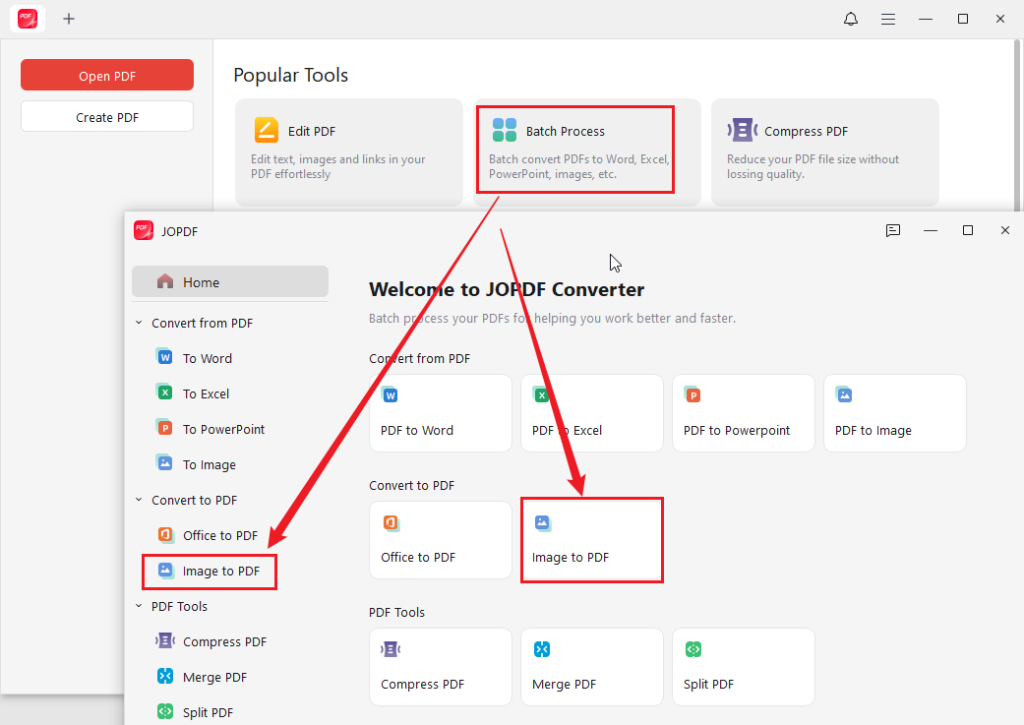
Step 3. Click Add Files to upload your JPG images.
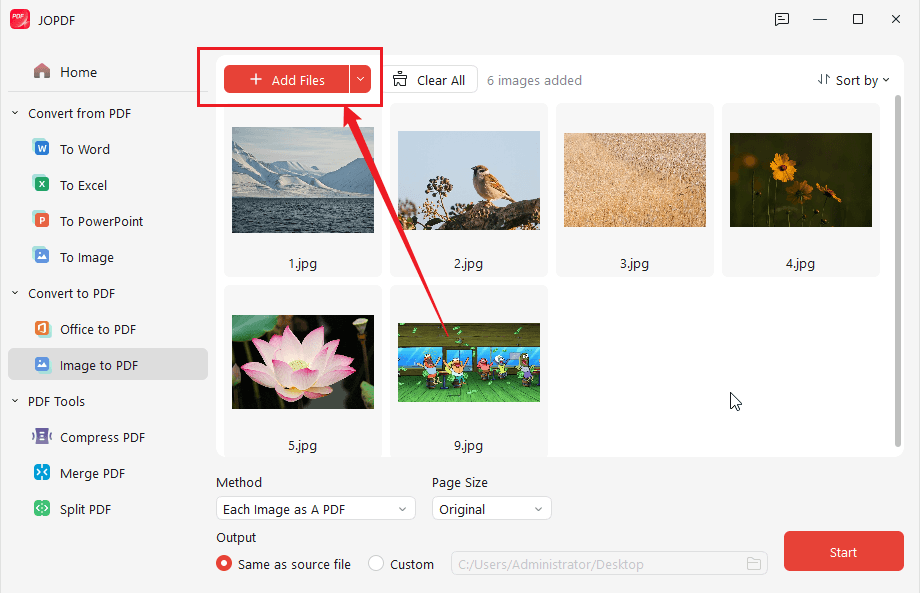
Step 4. If you need to combine JPGs into a single PDF, select the All Images as One PDF option from the Method list. You can also click and drag the JPGs to reorder them. Meanwhile, you can set the required page size, such as Original or A4.
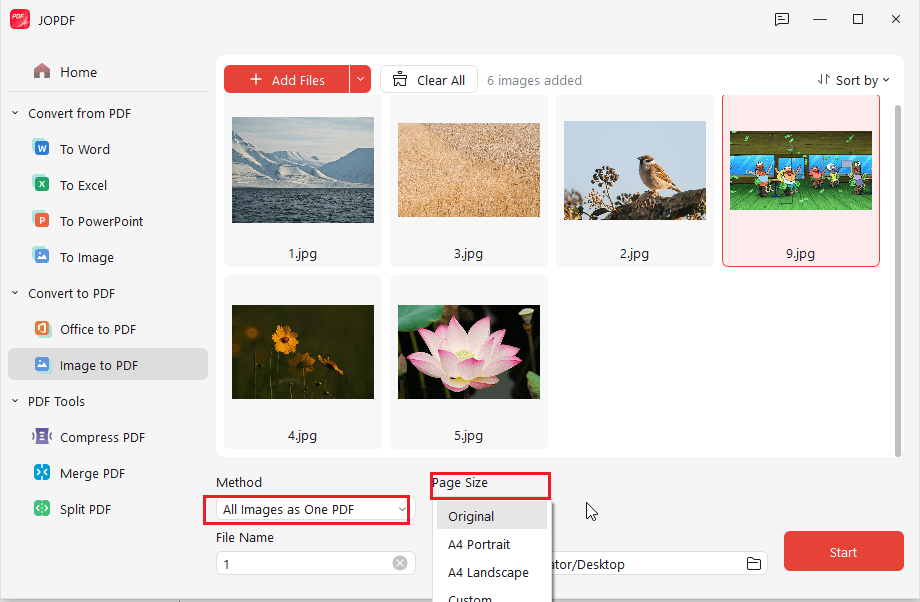
Step 5. Next, name the file and select a folder to save it. Finally, click the Start button. Additionally, you can use JOPDF to convert PDF to JPG.
How to Convert JPG to PDF on Mac with Preview
If you don’t want to install additional software, Preview is the fastest solution to convert JPG to PDF on Mac. Every Mac includes Preview by default. In addition to working as the image and PDF viewer, Preview allows you to convert images to PDFs. What’s more, it supports combining multiple images into one document. How to convert JPG to PDF using Mac Preview? Follow the steps below:
Step 1. Locate the JPG or JPEG image on your Mac, right-click the image, move to Open With, and select Preview. If you need to convert multiple JPG files into one, select all JPG images, right-click them, and choose to open them in Preview.
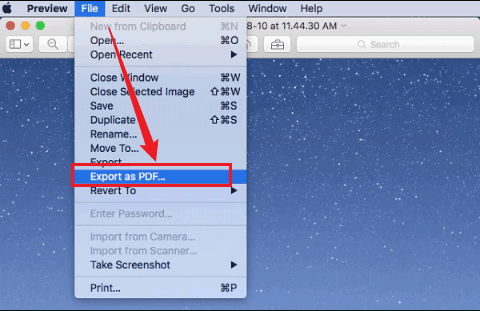
Step 2. To convert a single JPG to PDF, click File from the top menu bar and select the Export as PDF or Print option. Then, select a save location and click Save.
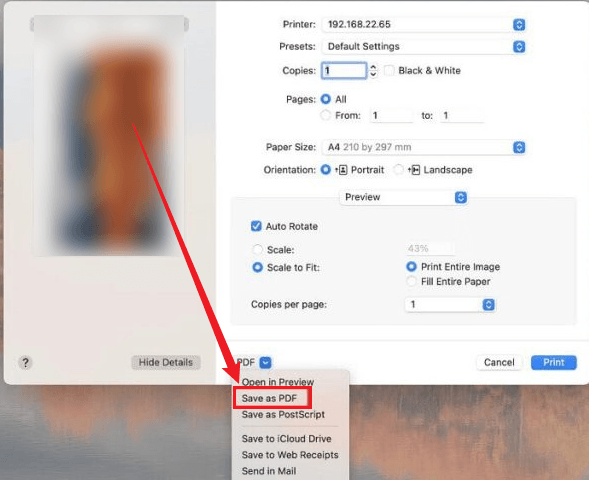
Alternatively, to convert multiple JPGs, click View and select Thumbnails to show the thumbnail sidebar if it’s hidden. Then, drag the images to adjust their order. Next, press Command + A to select all images, click File, and select the Print option.
In the print window, click the PDF dropdown and select the Save as PDF option. Finally, name the PDF and save it.
Convert JPG to PDF on Mac via Quick Actions in Finder
In addition to using Preview to get PDFs from images without additional software, you can also use Quick Actions in Finder. Instead of offering the PDF conversion feature, Quick Actions allows you to create a PDF from images. This is the fastest way to combine multiple images into one PDF. However, it offers only limited customization and editing options. In that case, JOPDF for Mac could be the better choice.
Here, let’s learn how to turn JPGs into one PDF using Finder Quick Actions.
Step 1. Open Finder, navigate to your JPG files, and select the images you want to convert.
Step 2. Right-click the selected JPG images, move to Quick Actions, and click the Create PDF option.
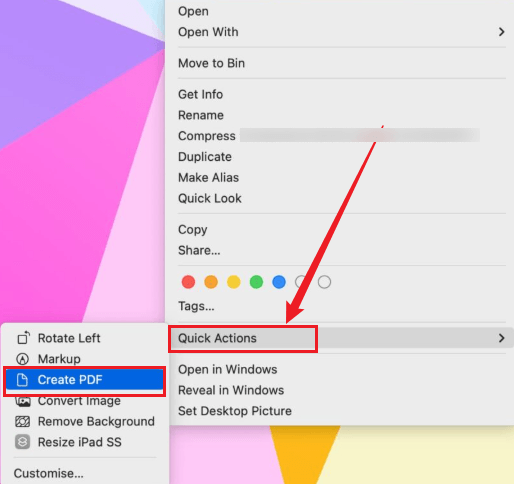
Then, a new PDF file will appear in the same folder. You can rename it as needed.
Tips
If you can find “Create PDF” in the Quick Actions list, go to Finder > Settings > Quick Actions to enable the “Create PDF” option.
How to Convert JPG to PDF on Mac with Online Tools
If you don’t want to use built-in Mac tools or need additional features like compression or editing, online converters are good choices. What you need to prepare is a stable and fast Internet connection. Which online JPG to PDF converter should be your choice? Here, I offer a list of reliable, safe online converters for you to choose from.
- PDF Candy
- Smallpdf
- iLovePDF
- Canva
- CloudConvert
- FreeConvert
- Xodo
In general, most online tools are easy to use. Here, I take PDF Candy as an example to show you how to convert JPG to PDF online on your Mac.
Step 1. Open your browser and visit PDF Candy. Then, click the JPG to PDF option.
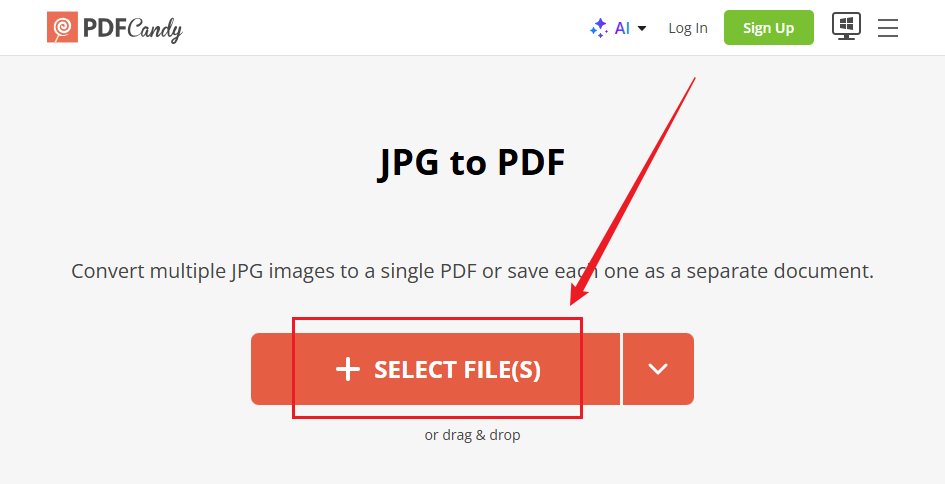
Step 2. Click SELECT FILE(S) to import your JPG image. Alternatively, you can upload multiple JPG images.
Step 3. In PDF Candy’s JPG to PDF conversion tool, you can set the page size to A4 or original size and select the orientation and margins. If you need to combine JPGs into one, tick the “Merge into one PDF” option. If you don’t need, untick this option.
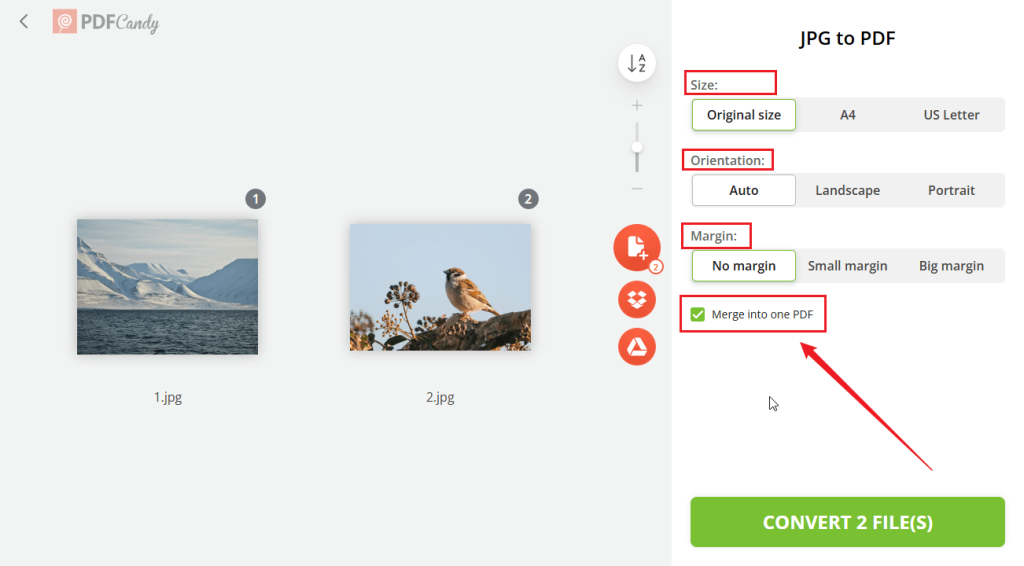
Step 4. Next, click the CONVERT button. Finally, click the “Download file” button. Or, you can share the PDF as a link.
If you regularly work with confidential documents, offline tools, like JOPDF or Preview, are safer.
Best JPG to PDF Converter for Mac
Which is the best JPG to PDF converter for Mac? Different tools are better for different needs. Here, I show you a quick comparison table for your reference in choosing the best way to convert JPGs to PDFs on Mac.
| Tool | Type | Key Features | Pros | Cons | Best For | Cost |
| JOPDF | Desktop App | PDF editing + conversion, merge/split/compress | Lightweight, full PDF toolkit beyond just conversion, Mac-optimized | Without OCR | Users needing PDF editing + conversion | Free |
| Preview | Built-in App | Export as PDF, combine multiple images | No installation, fast for single or batch files, fully offline, high quality | Limited customization (no advanced layout options) | Everyday users, quick single or multi-image conversions | Free |
| Quick Actions | Built-in macOS | Right-click to create PDF, batch support | Extremely fast, no app opening needed, seamless integration | Fewer options than Preview, basic only | Power users wanting the quickest method | Free |
| PDF Candy | Online Tool | JPG to PDF converter, merge multiple images, page size/orientation options | No install, works on any browser, batch support, customizable output | Requires internet, privacy concerns with uploads | Occasional use, multiple images, or cross-device needs | Free (premium options available) |
⭐Quick Recommendations:
- Best for advanced needs: JOPDF (great if you also need to edit PDFs frequently)
- Best overall for most Mac users: Preview or Quick Actions (has no extra software required)
Final Thoughts
With Preview and Quick Actions in Finder, it can be easy to convert JPG to PDF on Mac. If you need to batch convert multiple JPGs into separate PDFs, JOPDF could be the best free choice. In addition, you can use JOPDF to edit, compress, and protect PDFs efficiently. What’s more, you can use JOPDF on Windows and Linux. No matter which JPG to PDF converter you choose, I hope this article can be helpful to you.
FAQs
Table of Contents

Your Best Free PDF Expert in PDF editing, compressing, converting, annotating, protect, organizing, and more.
Free DownloadWindows · macOS · Linux

Olivia
“Olivia is an editor at JOPDF, where she writes practical guides and insightful articles on managing PDFs—covering topics like editing, annotating, converting, and organizing files efficiently. Passionate about clear communication and digital productivity, Olivia enjoys spending her free time cooking, watching movies, and hiking to unwind and find inspiration for her writing.”